Oracle Reports Developer 10g starts, remains minimized


(Not tested on Windows XP)

We came across a small annoyance with Oracle product Reports developer 10g. We are yet to pin point the exact reasons, however, if you are experiencing the same issue which is as elaborated below:

Start Reports Developer 10g

Flash Screen appears

image

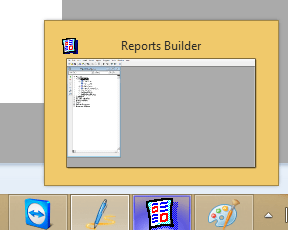
Then gets automatically minimized to the taskbar (Windows 7/8/8.1), and pointing the mouse shows the preview, as in below image.

image

However, clicking the preview window doesn’t bring up the Reports Builder 10g to maximized mode and remains unresponsive

What has changed from the last time the software was used?

We uninstalled and re-installed Weblogic Server 10.3.6 & Forms & Reports 11g R2, which has added multiple entries into the PATH environment variable. Order of path variable and pointers towards the java libraries are very sensitive for multiple Oracle products. May this could be a problem? Not sure!


Solution:

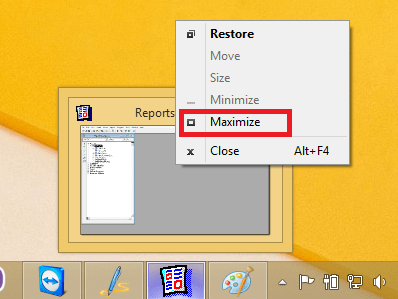
Right click the Preview window

image

and select “Maximize”

image

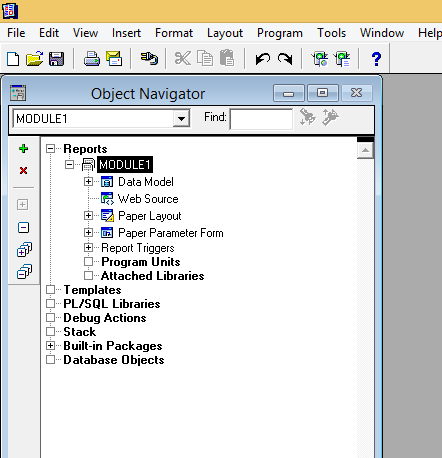
Once maximized, exit the reports developer. Restart to confirm the builder starts in Maximized mode next time.

We hope it helps few out there :)

for Windows7bugs

rajesh

Oracle Applications R12 | Using JRE 7 for application access

Update 18th April 2015: You can use java version “1.8.0_45” (JRE 8 update 45) Using the same hacks mentioned below!

You may have to restart your BOX once after Java Runtime 7 update 51 or later installed. Once the box restarted, JRE should start loading properly with Internet Explorer 11

UPDATE: If your E-Business Suite environment is not updated to Java 7, please do not update your JRE above 51! We tried the latest JRE7 update 55 and found that the applet was not at all loading. Were forced to rollback to the earlier version

Stuck with JRE 6 update 45 and sites like keepvid.com does not work properly without JRE 7?

Well there is a work around, as mentioned with the Oracle blog

Which works extremely beautiful with both Internet Explorer 10/11 & Google Chrome once after JRE is upgraded to version 7

Update: if you are using multiple Oracle products, system level variable setting for  JAVA_TOOL_OPTIONS could problematic. You can override this issue by changing the run time parameters for JRE like following

Control panel->Java(32-bit)->Click on Java tab->Click View-> Add the following to appropriate Product “Runtime Parameters” column (by pasting, or typing in)

-Djava.vendor="Sun Microsystems Inc."
jre

So what you are waiting for?

Common “errors” and solutions

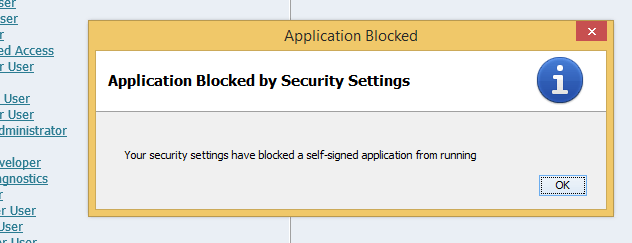
1. The first error you may receive once after the JRR upgrade should be

“Application Blocked by Security Settings”

image

Solution

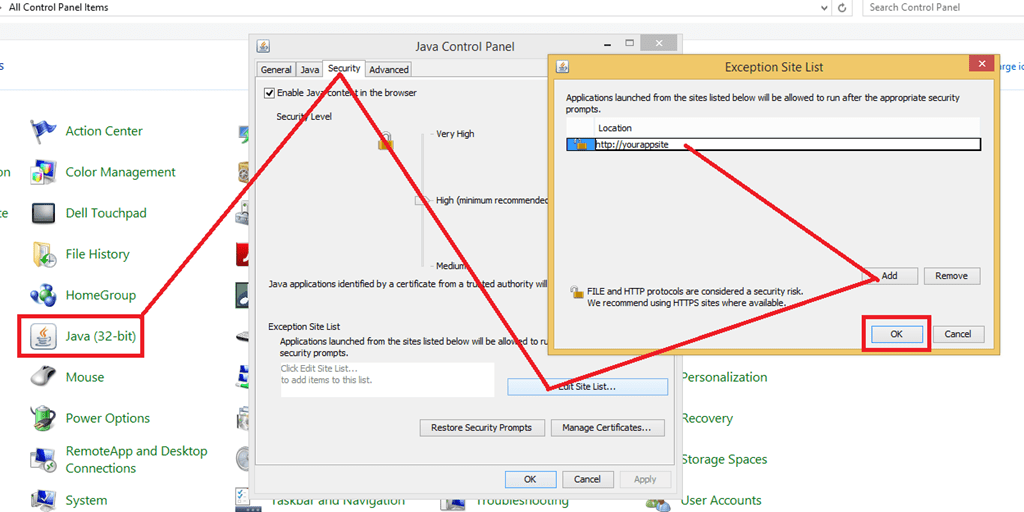
Go to control panel->Open up Java(32)->Security Tab

image

Adding the specific site should override the above Application Blocked lockout

2. Java Security Warning Dialogue windows where you must exclusively accept the security warning twice

“I accept the risk and want to run this application”

image

Which is going to be a permanent element with JRE 7 update 10 and later, according to multiple sites for the applications which are not signed. This warning will be issued each and every time (Not for the same session) and until now no hacks are available to suppress it from appearing. If you want to use JRE 7, just live with it.

The same warning will be displayed twice, and you MUST accept the warning both the times in order to let the java to load your forms based application(s)

For Windows7bugs

rajesh

Weblogic 10.3.6, Oracle application instance service “Oracle Process Manager (asinst_1)” missing

Oracle Process Manager (asinst_1) where asinst_1 is the instance name you chose while configuring the forms & reports 11g. We noticed that once after upgrading Windows 8 to Windows 8.1, almost all the Oracle services (database, weblogic related) were been removed from the windows services database, which forced us to re-create them manually!

Our Weblogic server was installed for the lab, hence none were accessing them once after the first level tests. Thus we were not aware of the issues related to OPMN, which were usually started by Application Instance services during each boot (unless start mode set manual)

Here we are providing you a quick method to create the missing Oracle Process Manager (<instancename_1)” service using Windows command line

from an elevated command window, issue the following command (please alter the paths according to your installation physical locations)

[code language=”text” light=”true”]
C:\WINDOWS\system32>SC CREATE "OracleProcessManager_asinst_1" binPath="D:\Weblogic\Middleware\Oracle_FRHome1\opmn\bin\opmn.exe -S -I D:\Weblogic\Middleware\asinst_1" type= own start= auto
[/code]

Note: Optionally you can add DisplayName string for the service you want to create along with the command line.

If the service creation was successful you should receive a confirmation, other hand an error message

[SC] CreateService SUCCESS” or Error Message

You may stop OPMN manually, and then try to start the newly created service to confirm the service creation was successful.

That’s all folks!

for Windows7bugs

rajesh

Oracle Weblogic Server 10.3.6, Configure Reports 11g(11.1.2) 64Bit


Howdy guys? We were busy upgrading uninstalling Weblogic 10.3.6, Forms & Reports 11g R1 and installing 64bit software throughout last few days.

For the installation part, you are not going to get better write up than one available here

However the installation procedure described there is limited to installing the Weblogic Server. You may refer to our earlier post for a “know how to” install and configure Forms & Reports 11g (both R1 & R2)

We tried the following combinations

Weblogic 10.3.6 64Bit with Forms & Reports 11g R1 32Bit. The results were quite disappointing. Installation and configurations went all fine, however once after a restart, we were not able to start the OPMN, thus all the services depending upon OPMN were failing. Even the uninstallation process was terminating without giving any prompts, forcing us to physically remove dozens of entries from registry and other places

Then we opted for a full 64Bit installation, which went smooth and after a restart everything was in place! intact

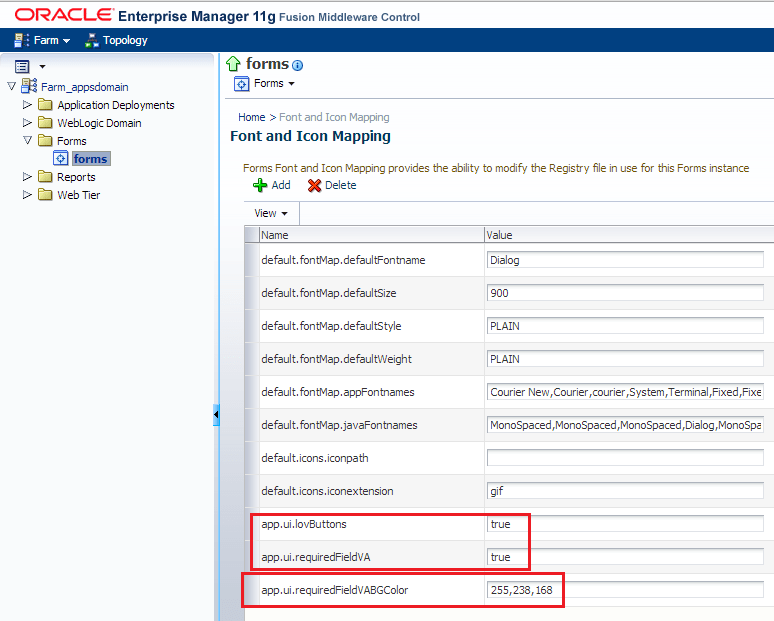
Setting up the forms using Oracle Enterprise Manager (R2 sets it up properly, against R1)

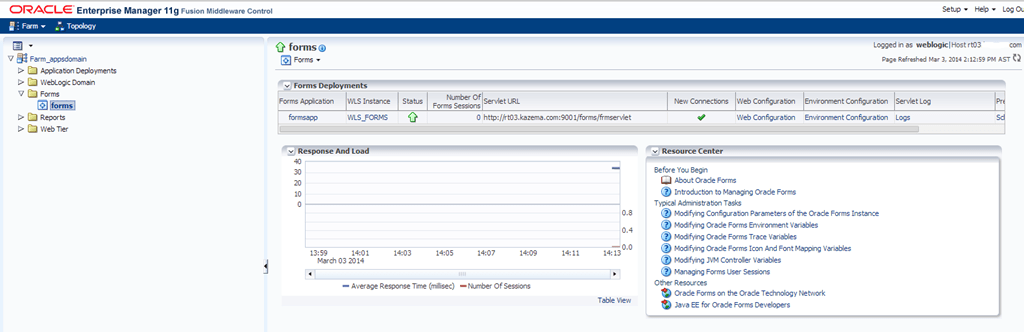
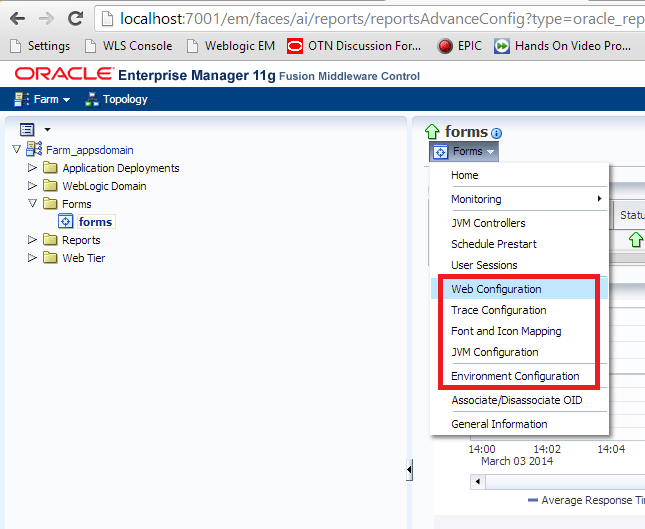
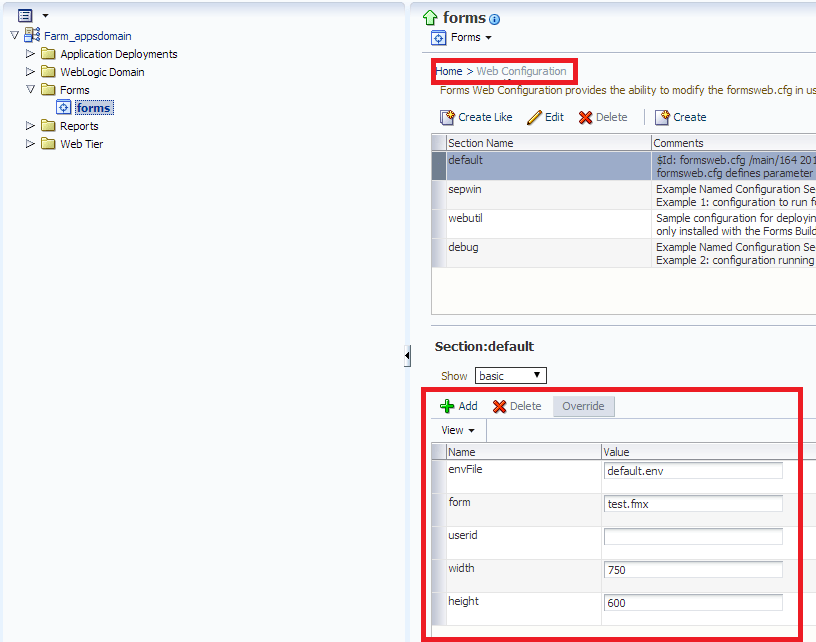
Just logon to Oracle EM, go to forms node and make changes and just apply. Many changes may not even require a server restart.

Few examples here

Forms node

image

Configuration Options

image

Web Configuration for “default”

image

Setting up LOV buttons, required field highlighting

image

Calling forms based applications once after the above are set is quite easy. Just point your browser to

http://hostname:8888/forms/frmservlet?form=login.fmx&userid=apps/apps@orcl

or

http://hostname:9001/forms/frmservlet?form=login.fmx&userid=apps/apps@orcl

However, calling a report may not be that easy. The report server(s) are pretty much sensitive to your network settings. For example, we are using one Windows 8.1 64Bit machine for the entire testing and on which we have multiple oracle products installed

To make the scenarios once again complex, we have both class C and Public IPs set as static addresses for testing multiple products at the same time and VirtualBox’s own network interface (disable it!)

We will try to analyze the most common errors one may come across while trying to run reports

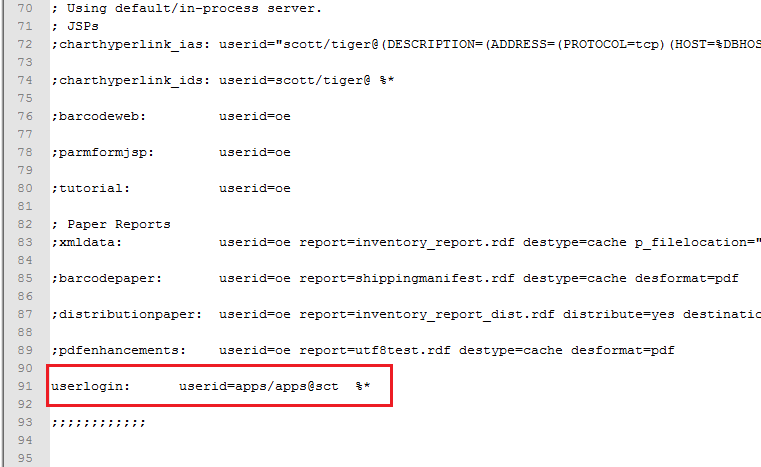
REP-52005: The specified key <keyname: in our case the key userlogin> does not exist in key map file.

Web.Show_Document(‘/reports/rwservlet?userlogin&server=rep_wls_reports_rt03_prod_instance&desformat=PDF&destype=cache&report=’||:CTRL.REPORT_NAME||’&paramform=Yes’,’_new’);

Solution: http://docs.oracle.com/cd/E23943_01/bi.1111/b32121/pbr_run013.htm

Browse and locate file “cgicmd.dat”. You must take a backup and add the keyname and value by the bottom of the .dat file.

Eg: Physical path(Change according to your installation)

D:\Weblogic\Middleware\user_projects\domains\appsdomain\config\fmwconfig\servers\WLS_REPORTS\applications\reports_11.1.2\configuration

image

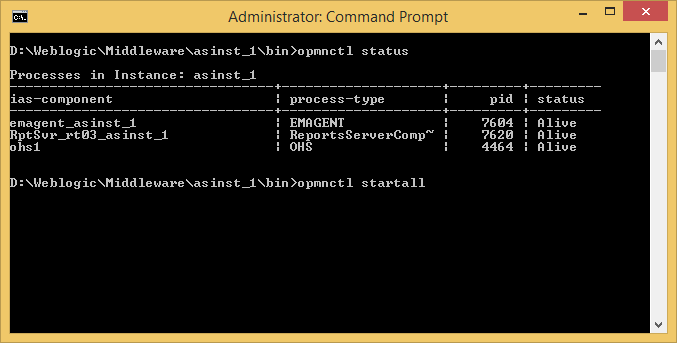
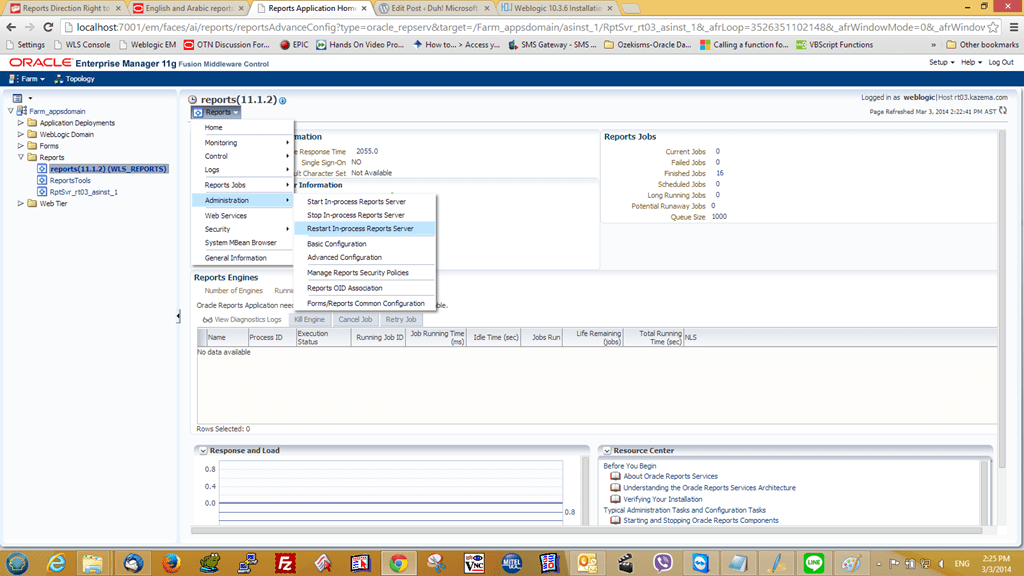
Save & restart the report server. Make sure you check the OPMN status as well. If required, restart OPMN by issuing opmnctl stopall & opmnctl startall from the application instance bin directory

opmn

The “opmnctl status” will provide you the status of element and make sure “RptSvr_<hostname>_asinst_1 is “Alive”

Go to Weblogic Server console and restart the WLS_REPORTS. Test your report once again.

REP-51002: Bind to Reports Server <servername> failed

This error could be genuinely difficult to address, as the log files will show the report server(s) and up and running, however keeping on failing to bind while trying to print reports.

Reason#1: Binding fails to resolve the hostname where the report server is installed. Mostly happens while the host has more than one static IP assigned

Solution:Edit C:\Windows\System32\Drivers\etc\hosts file and add an entry like following

Your.static.ip.address fqdn hostname

192.168.0.10      myhost.mydomain.com myhost

112.11.10.23      myhost.mydomain.com myhost

Reason #2: Windows firewall is blocking UDP against port 14021.

Solution: Create an exception with the firewall, or disable the firewall completely and try the reports once again. Please note, a restart of the box is always recommended

REP-52266: The in-process Reports Server <server_name> failed to start.oracle

Solution: This is mostly due to the host resolve issues. Once you resolved the issues as mentioned just above, the in-process server must be running fine after a restart.

Make sure the in-process Report server is up and running.

Update: There are couple of topics discussing about in-process report server, which should give you more details about how the server gets activated and when

https://community.oracle.com/message/9244290

http://docs.oracle.com/cd/E12839_01/bi.1111/b32121/pbr_strt006.htm

(We will do more tests and confirm the reasoning with our next update)


In-process reports server caters your web.show_document calls without a server parameter call. Let us check, how reports are called from a forms module, attached with a button click

Web.Show_Document(‘/reports/rwservlet?userlogin&server=rep_wls_reports_rt03_prod_instance&desformat=PDF&destype=cache&report=’||:CTRL.REPORT_NAME||’&paramform=Yes’,’_new’);

The first method, we are specifically passing the report instance name, while the below example

Web.Show_Document(‘/reports/rwservlet?userlogin&desformat=PDF&destype=cache&report=’||:CTRL.REPORT_NAME||’&paramform=Yes’,’_new’);

just tries to call the available report instance to cater the report. If you want to know how many reports instances are up and running in your server, you can use the EM or rwdiag.bat –findAll command


Common configurations for Reports 11g(11.1.2)

image


image


image

Leave alone the below

image

Additional settings (if required)

image

image

We are hoping to detail this post in near future. Too much typing for a day! Please note, these testing and solutions provided here are coming from novice like you guys, hence if you find anything which is not technically correct, please do let us know through comments section.

for Windows7bugs

admin

Install Weblogic 10.3.6 64Bit using JDK 7, Configure Forms & Reports 11gR2 on Windows 8 64Bit


A wonderful article about setting up Weblogic Server 10.3.6 64Bit using JDK 7 is available here(Install Weblogic Server 10.3.6 64bit)

Once you installed the product, installing forms and reports 11g should be as easy as installing any software bundle on Windows platform.

However, one of the nasty errors we came across multiple times were related to JAVA

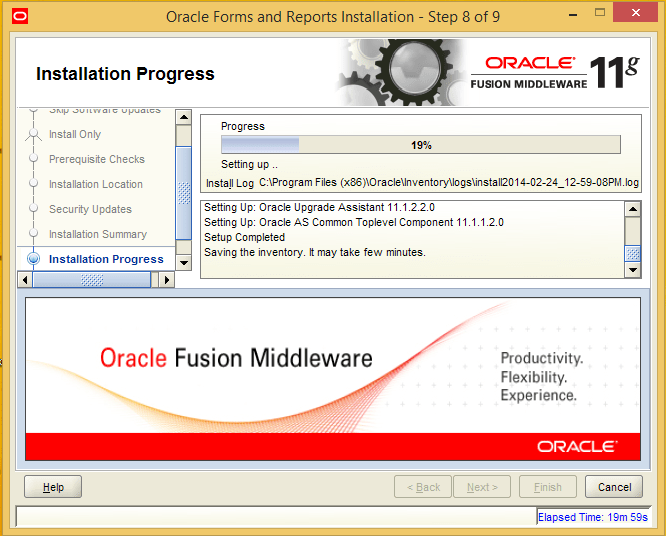
While the forms & reports 11gR2 reaches 19% installation, it stops and java errors are thrown in the log file, without giving any prompts over the GUI. If the installation stops @ 19% for a long time, cancel the installation and restart. That deals with the java error

Once you completed the forms and reports installation, you can invoke the configuration as described with our earlier post

http://simpleoracle.com/2013/04/06/install-configure-oracle-weblogic-server-10-3-6-forms-reports-11g-on-windows8windows-2008-r2/

and you should be online within 20-25 minutes!

Try and post us your experiences

for Windows7bugs

rajesh

Uninstall Weblogic Server 10.3.6 & Forms, reports 11g


Quite a times, uninstalling Oracle products from a development machine could be quite troublesome, many times with errors difficult to understand. One of the most common errors

One of the most common errors as below

Thread: https://community.oracle.com/thread/2578042?start=0&tstart=0
—————————

Oracle Universal Installer

—————————

The Java RunTime Environment was not found at C:\DOCUME~1\v859971\LOCALS~1\Temp\OraInstall2013-09-05_01-10-08PM\jre\bin\javaw.exe. Hence, the Oracle Universal Installer cannot be run.

Please visit http://www.javasoft.com and install JRE version 1.3.1 or higher and try again.

A Discussion about the same here:

http://stackoverflow.com/questions/17282283/oracle-setup-exe-space-sensitivity-when-specifying-jre-absolute-path

Here is a quick workaround to address such situations

Copy the latest jre installation to a path without spaces

image

to, eg: C:\jre6

Switch to the folder where you have the “setup.exe”

C:\WINDOWS\system32>d:

D:\>cd D:\WebLogic\Middleware\oracle_common\oui\bin

Check what are the switches supported by the “setup.exe”

D:\WebLogic\Middleware\oracle_common\oui\bin>setup.exe -jreLoc C:\jre6 –help

Now, start uninstall process by starting the “setup.exe” with required switches

D:\WebLogic\Middleware\oracle_common\oui\bin>setup.exe -jreLoc C:\jre6 –deinstall

The setup GUI should start without throwing further errors now!

Once the components are uninstalled, you can uninstall weblogic server from “Oracle Weblogic” context menu, and the operation(s) should be smooth!


for Windows7bugs

rajesh

Upgrade your 11g Forms/Reports [32 Bit] Version 11.1.2.1.0 to 11.1.2.2.0

Upgrading Forms & Reports developer 11g could be equally confusing & interesting, as there are not many documents explaining a how to. Recently we were closely following up an “issue” raised by one of the visitors and opted to “upgrade” the development machine to check the feasibility of Forms & Reports 11g over Windows 8.1 64Bit

We were able to complete the upgrade process without much issues and the steps followed were described as below

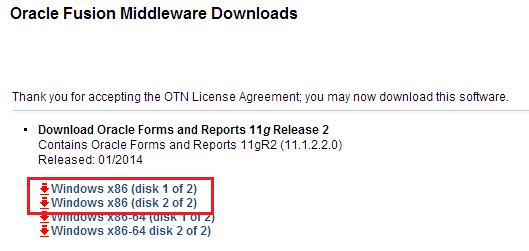
Download the required software

http://www.oracle.com/technetwork/developer-tools/forms/downloads/index.html?ssSourceSiteId=null

image

As we were on 32Bit environment for the Weblogic, we downloaded the 32Bit packages for the upgrade. The total download should be roughly around 1.8GB

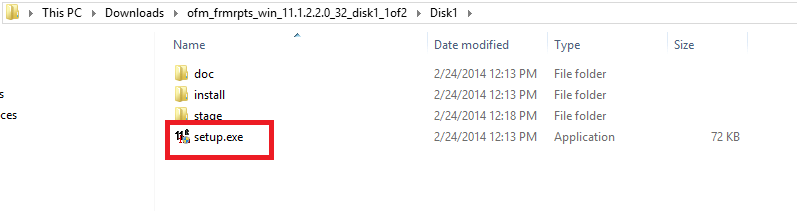
Once the downloaded archives are extracted, you can start with the upgrade process.

Prior the upgrade process, please make sure you stopped both Weblogic Admin server service & Weblogic Node manager service to avoid any kind of failures with the process.
 

image

image

You can kick start the upgrade process by executing the “setup.exe”

start

1

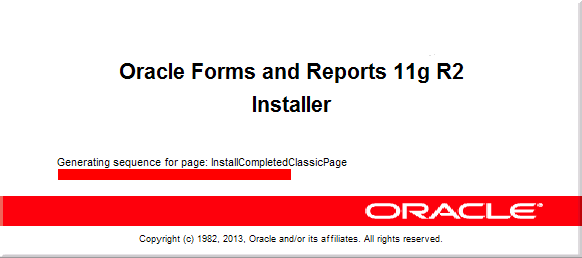
You should “Skip” the software update, as usual :)

2

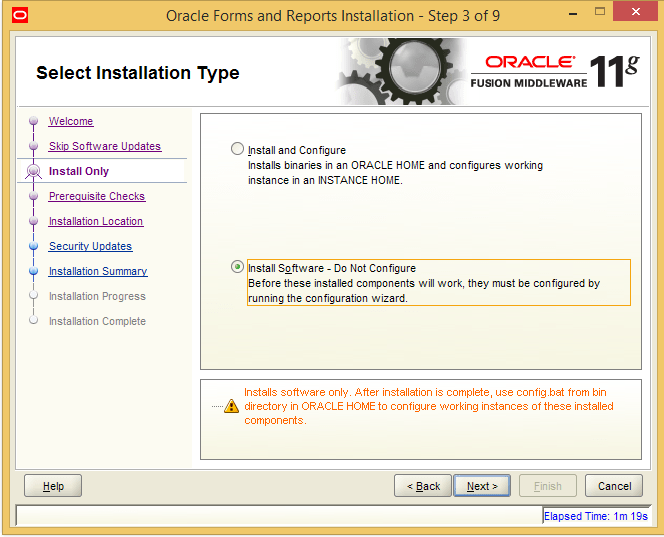
Select “Install software – do not configure”

There could be multiple warnings about incompatible setups, you can “Safely” ignore and continue with the installation. We warn you, you shouldn’t install uncertified Oracle products on any OS, in case if you are going to use such setups for Production purposes

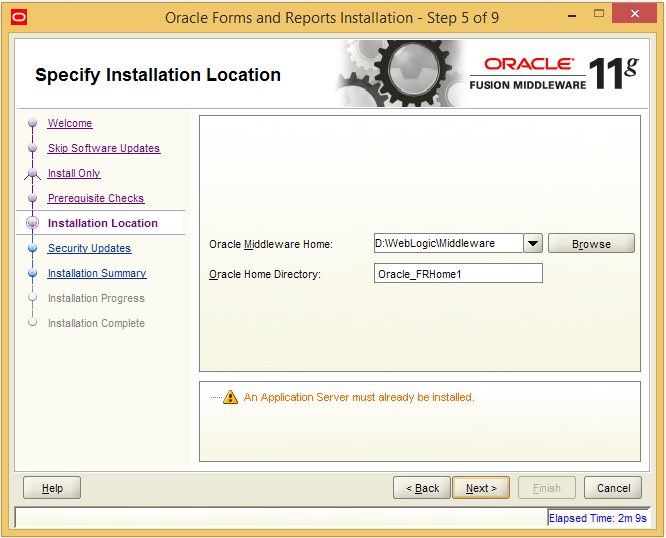
Setup should automatically pickup the “Middleware Home & Oracle Home Directory”

6

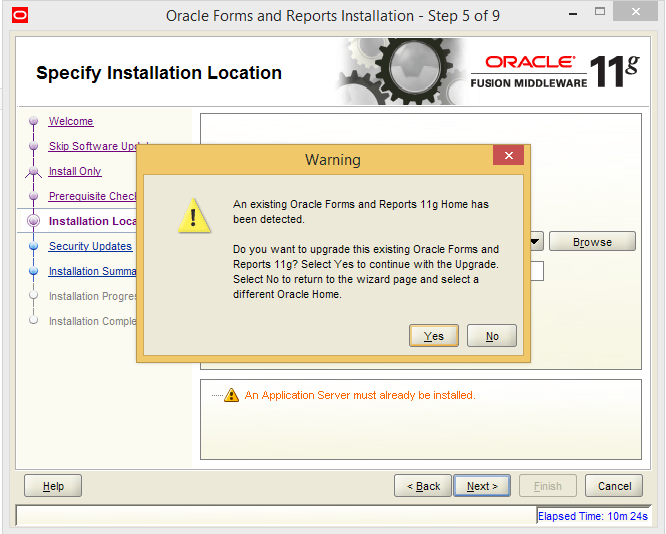
Going ahead will produce an error stating another installation is available in the selected location, ignore and continue

7

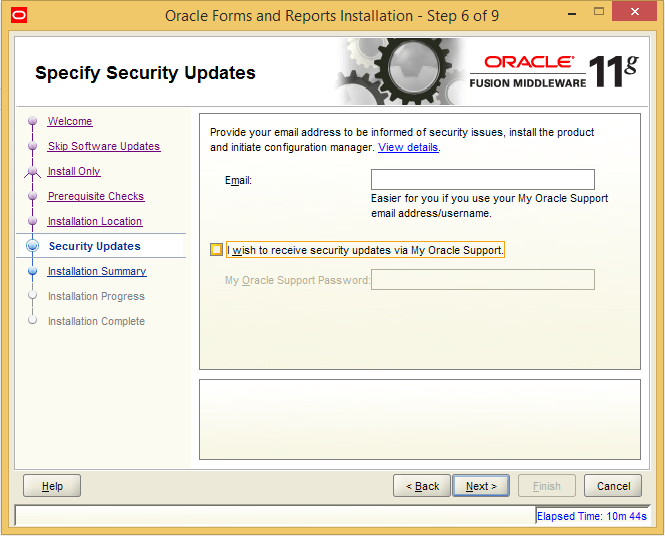
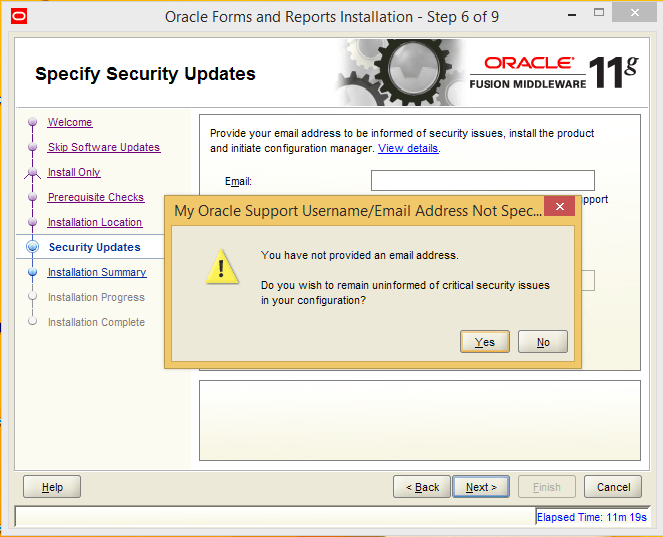
Unless you have a valid Oracle support contract, uncheck “I wish to receive…” and continue with the upgrade process

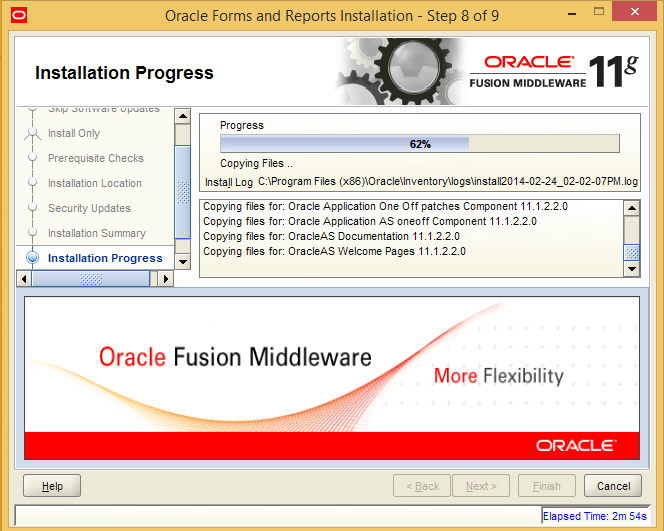
8

9

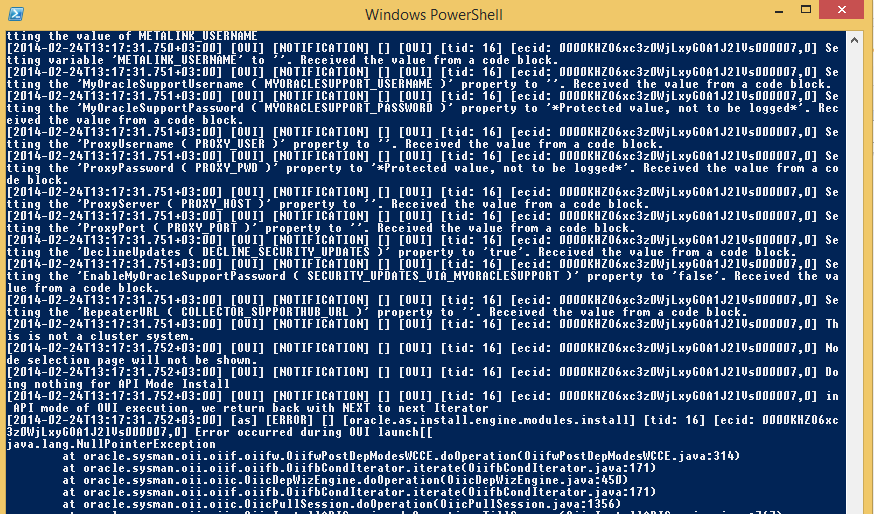
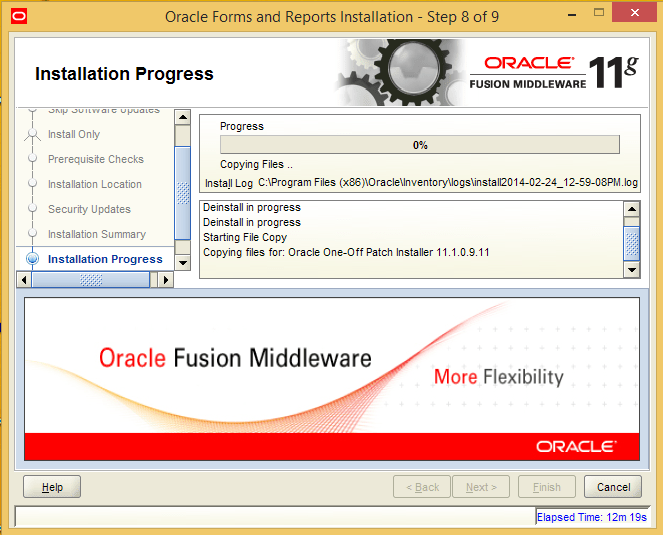
We got an error at 19%, all about certain java components. If you are familiar with LINUX, most of the times you could monitor a log file, as it is being updated using “tail” command. With latest versions of Windows OS you can use powershell to monitor the log file online.

Open up powershell and copy the installation log name like following

get-content “C:\Program Files (x86)\Oracle\Inventory\logs\install2014-02-24_12-59-08PM.log” –wait

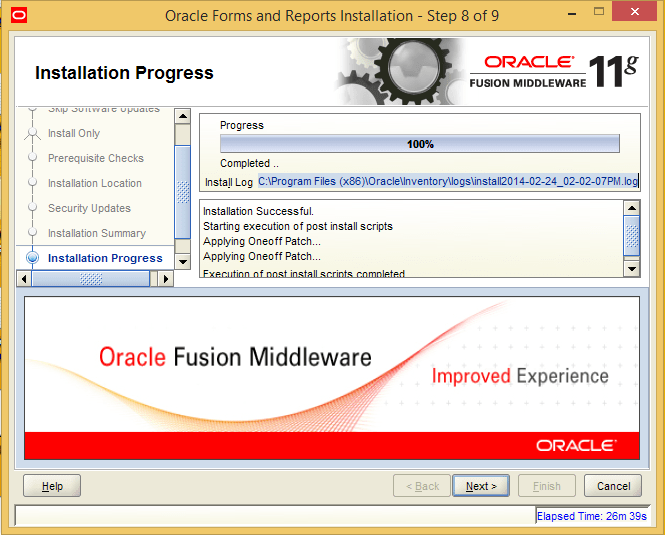
It does the job and if errors are found, go ahead and cancel the installation and start over, which should deal with the java related errors. The total installation will be stuck unless.

image

10

11

12


13

14

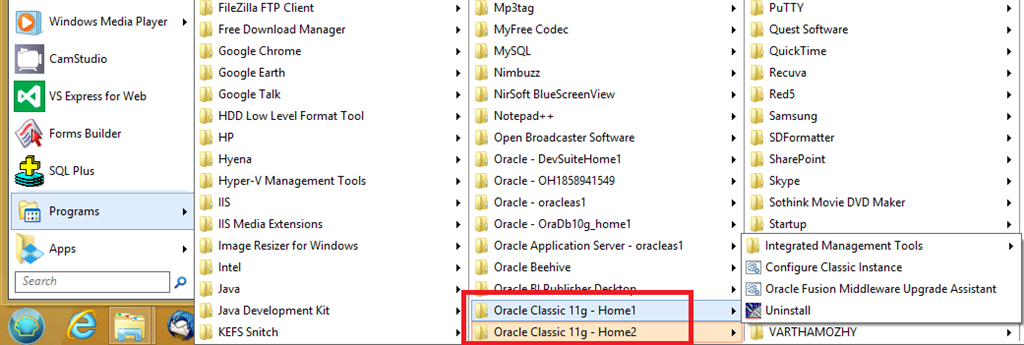
You may save the setup steps and try out your upgraded forms & reports now. The only one element what we have noticed as “created” new as part of the installation was

image

Start Forms designer and check the about window and you must having the following information.

Forms [32 Bit] Version 11.1.2.2.0 (Production)
Oracle Toolkit Version 11.1.2.2.0 (Production)
PL/SQL Version 11.1.0.7.0 (Production)
Oracle Procedure Builder V11.1.2.2.0 – Production
PL/SQL Editor (c) WinMain Software (www.winmain.com), v1.0 (Production)
Oracle Query Builder 11.1.2.2.0 – Production
Oracle Virtual Graphics System Version 11.1.2.2.0 (Production)
Oracle Tools GUI Utilities Version 11.1.2.2.0 (Production)
Oracle Multimedia Version 11.1.2.2.0 (Production)
Oracle Tools Integration Version 11.1.2.2.0 (Production)
Oracle Tools Common Area Version 11.1.2.2.0
Oracle CORE 11.1.0.7.0 Production

That’s it folks. Give it a try and post us your issues, success notes.

for Windows7bugs

rajesh

Windows | re-lock BitLocker unlocked drive

Updated on 31st July 2020

Download & install the below from git, which is easier and cleaner for less tech savvy users.

Updated on 12th October 2016

The below hack is applicable to Windows 10 also, however, after the RedStone update, the registry hack entry “might” get removed and if you still prefer to right click and lock the drive without restarting, you will have to import the registry once again.

Start registry editor (double click to merge is NOT anymore supported), from the “File menu” Select import and point to the lock-bde.reg or whatever name you have given to the registry file that was manually created.

End of update //12/October/2016

The major difference between Windows 8.x Professional and Windows 7 Professional? Well you have free Bitlocker encryption for your 8.x Windows box(professional onwards), while the same is limited to Ultimate and Enterprise editions for Windows 7

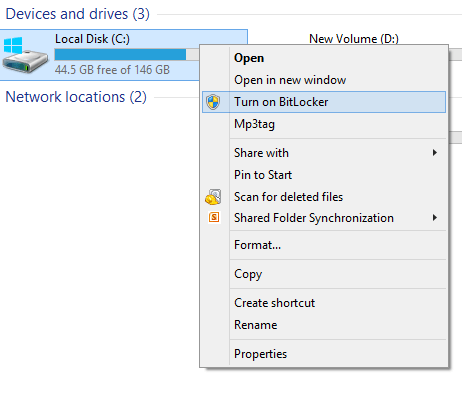
Enabling Bitlocker on a drive is pretty easy, right click and go on.

image

Obviously we will not recommend you to bitlock your root drive. If you do, you are on your own :)

Now we have a problem, to unlock you must enter a password or other bitlocker supported authentication methods, which is fine. The concern is the unlocked drive remains unlocked for any user logs into the same computer until a restart.

For me this is a clear concern. I have some stuff which is not appropriate for my 7 years old daughter, or for a friend who just wants to “check his emails” during a visit.

After loads of searches, I found some nice leads which helped me to re-lock a drive by right clicking the bitlocker enabled drive in the explorer window.

Below listed were the actual links, which helped me to achieve the objective on my Windows 8.1 boxes (Office laptop & Home PC)

spreadbytes solution had one problem, I am using the boxes without UAC, thus while the .vbs script fires, nothing happens and the drive remains unlocked

Technet thread had the exact requirement addressed & all I needed to do was, alter the scripts a bit here and there to achieve my target

Open notepad or notepad++ and copy the below text and save it as lock-bde.reg

Windows Registry Editor Version 5.00
 
[HKEY_CLASSES_ROOT\Drive\shell\relock-bde]
"AppliesTo"="(System.Volume.BitLockerProtection:=1 OR System.Volume.BitLockerProtection:=3 OR System.Volume.BitLockerProtection:=5)"
@="Relock drive..."
"HasLUAShield"=""
"MultiSelectModel"="Single"
 
[HKEY_CLASSES_ROOT\Drive\shell\relock-bde\command]
@=hex(2):77,00,73,00,63,00,72,00,69,00,70,00,74,00,2e,00,65,00,78,00,65,00,20,\
00,6d,00,61,00,6e,00,61,00,67,00,65,00,2d,00,62,00,64,00,65,00,2d,00,6c,00,\
6f,00,63,00,6b,00,2e,00,76,00,62,00,73,00,20,00,25,00,31,00,00,00

The hex values mentioned over here creates an entry like following

image

Once the value created, you can change the text as you desire to suite your situation (for Example, my development machine was not reading the PATH information properly, hence I was forced to add C:\Windows\system32 in front of the command

Open notepad or notepad++ and copy the following text into it.  Then save as “manage-bde-lock.vbs”, and copy to c:\windows\system32

Args = ""
Last = Wscript.Arguments.Count - 1
For i = 0 To Last
Args = Args & " " & Wscript.Arguments.Item(i)
Next
Args = Replace(Args,"\","")
CreateObject("Shell.Application").ShellExecute "manage-bde.exe", "-lock -forcedismount " & Args, "", "runas", 1

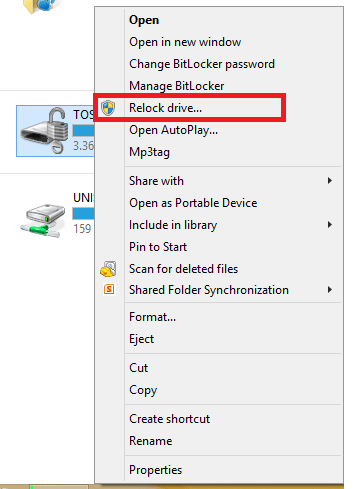
That’s it. You should get “Relock Driver…” context menu by right clicking on the bitlocker enabled driver from now onwards

image

Hope this helps few out there.

for Windows7bugs

rajesh

Microsoft Office 2010 Cannot change signature, stationary…


We started migrating from Office 2007 to Office 2010 recently and came across a peculiar issue of not being able to change the existing signatures, add stationary or change fonts etc.

After loads of googling, we came across this post

http://www.slipstick.com/problems/the-stationery-and-font-button-doesnt-work/

and one of the comments found mentioning about 64Bit version of Office 2010

image

We confirm the method mentioned solved the issues

The instructions provided there with the slipstick post is quite self explanatory, please follow the post carefully to solve the nasty issue

regards,

for Windows7bugs

Admin
Install Oracle Workflow Builder on Windows 7/8 64Bit

Download the installer package ( http://www.oracle.com/technetwork/database/options/winclient-101059.html)

Unzip it

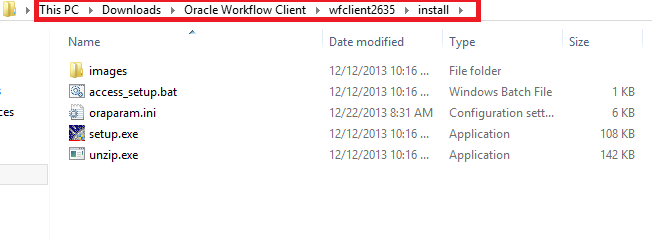
Go to the install folder

image

Change the compatibility mode

image

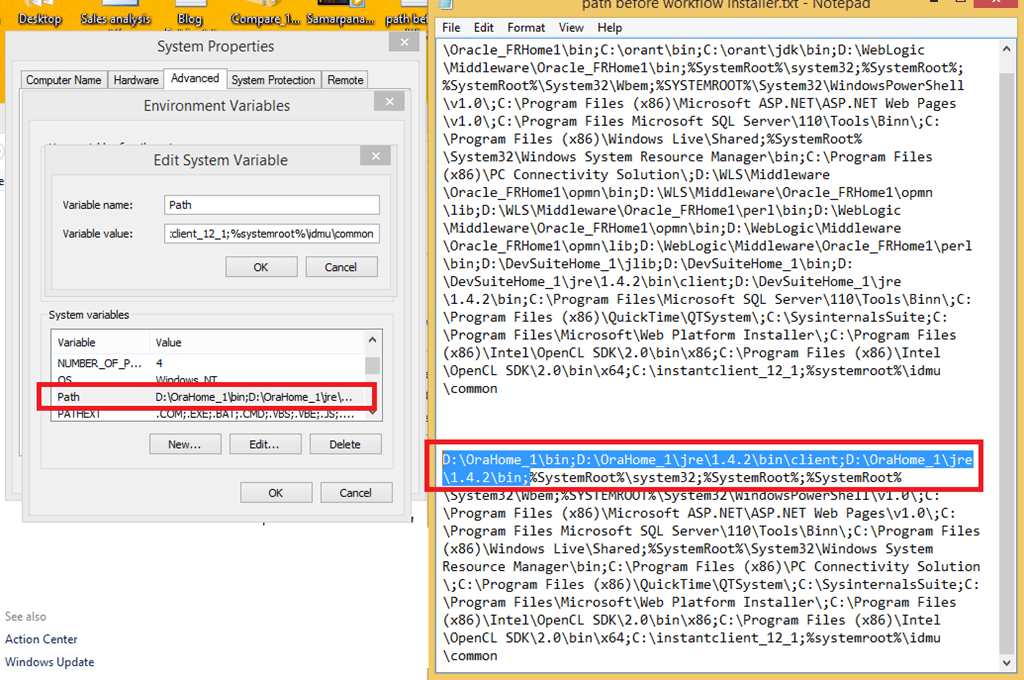
Backup your OS path string under Advance settings and “SAVE” the information in a text file.
Remove all entries other than what referring to the %systemroot% and bring the string length less than 1000 characters.
Now go ahead with installing the wokflow builder

image

Follow the prompts until the installation completes successfully.

image

Run the “Oracle Workflow Builder” as Administrator. You may create a shortcut on the desktop and change the properties to run as administrator permenently. Without administrator rights, this legacy software will fail to read the registry values, thus end up producing the error mentioned with this thread

https://community.oracle.com/thread/2343986

image

image

Observe the additional entries added with the PATH environment string.

Amend your backed up PATH string with the new entries and replace the PATH string.

image

Hope you enjoyed yet another post from us!

for Windows7bugs

Admin