Oracle Weblogic 10.3.6, Recreating Node Manager Service, Weblogic Admin Console Services after Windows 8.1 upgrade

We have recently noticed something very interesting about Oracle’s services were absconding (means not to be seen) from Services listing, however the Oracle products are intact in all other means.

Earlier we shared a post explaining recreating the missing database services. Today we will try to explain how you can recreate missing Weblogic services. You MUST have Administrative access to the box, and en elevated command prompt (right click, start as administrator)

Assuming you have installed the Weblogic 10.3.6 server in the folder “D:\WebLogic\Middleware>” let us start

Start an elevated command prompt. Switch to “D:\WebLogic\Middleware>”

Let us do an old DOS trick to print all the .cmd files available with the repository

D:\WebLogic\Middleware>dir *.cmd /s > D:\weblogic_cmd_files.txt

Double click open the weblogic_cmd_files.txt file you just generated. The file must have following entries

Directory of D:\WebLogic\Middleware\modules\org.apache.ant_1.7.1\bin

04/04/2013  09:04 AM             2,857 ant.cmd
04/04/2013  09:04 AM             3,410 antenv.cmd
04/04/2013  09:04 AM             4,315 envset.cmd
04/04/2013  09:04 AM             1,817 runrc.cmd
4 File(s)         12,399 bytes

Directory of D:\WebLogic\Middleware\oracle_common\bin

02/09/2011  04:39 AM             2,002 copyBinary.cmd
02/09/2011  04:39 AM             1,995 copyConfig.cmd
11/23/2010  11:40 AM             2,071 extractMovePlan.cmd
02/09/2011  04:39 AM             3,237 pasteBinary.cmd
02/09/2011  04:39 AM             1,985 pasteConfig.cmd
5 File(s)         11,290 bytes

Directory of D:\WebLogic\Middleware\oracle_common\common\bin

01/20/2010  04:11 PM               663 config.cmd
04/02/2010  03:36 PM               596 getproperty.cmd
01/20/2010  04:11 PM               661 pack.cmd
01/20/2010  04:11 PM               783 setHomeDirs.cmd
11/08/2010  10:30 AM             2,143 setNMProps.cmd
12/13/2011  03:41 PM             5,066 setOjbstEnv.cmd
12/13/2011  03:41 PM               315 setWasConfigEnv.cmd
01/20/2010  04:11 PM                62 setWasHome.cmd
12/13/2011  03:41 PM                93 setWlstEnv.cmd
11/08/2010  10:30 AM             1,593 setWlstEnvExtns.cmd
12/13/2011  03:41 PM             5,490 setWsadminEnv.cmd
01/20/2010  04:11 PM               663 unpack.cmd
05/09/2011  04:51 PM             5,865 was_config.cmd
01/20/2010  04:11 PM             1,684 wlst.cmd
05/09/2011  04:51 PM             5,903 wsadmin.cmd
15 File(s)         31,580 bytes

Directory of D:\WebLogic\Middleware\oracle_common\rda

09/16/2011  05:40 PM             7,266 rda.cmd
1 File(s)          7,266 bytes

Directory of D:\WebLogic\Middleware\Oracle_FRHome1\BIN

10/12/2012  03:22 PM             2,408 shortenPaths.cmd
1 File(s)          2,408 bytes

Directory of D:\WebLogic\Middleware\Oracle_FRHome1\common\bin

01/20/2010  04:11 PM               663 config.cmd
01/20/2010  04:11 PM               661 pack.cmd
01/20/2010  04:11 PM               851 setHomeDirs.cmd
01/20/2010  04:11 PM               663 unpack.cmd
01/20/2010  04:11 PM               558 was_config.cmd
01/20/2010  04:11 PM             1,388 wlst.cmd
01/20/2010  04:11 PM               655 wsadmin.cmd
7 File(s)          5,439 bytes

Directory of D:\WebLogic\Middleware\Oracle_FRHome1\opmn\bin

05/01/2008  05:27 PM               228 opmnassociate.cmd
1 File(s)            228 bytes

Directory of D:\WebLogic\Middleware\Oracle_FRHome1\rda

09/16/2011  05:40 PM             7,266 rda.cmd
1 File(s)          7,266 bytes

Directory of D:\WebLogic\Middleware\user_projects\domains\appsdomain

04/05/2013  11:39 AM               381 InstallWindowsService_AdminServer.cmd
04/05/2013  11:50 AM               534 InstallWindowsService_WLS_FORMS.cmd
04/05/2013  12:43 PM               524 InstallWindowsService_WLS_REPORTS.cmd
04/04/2013  09:57 AM               319 startWebLogic.cmd
4 File(s)          1,758 bytes

Directory of D:\WebLogic\Middleware\user_projects\domains\appsdomain\bin

04/04/2013  09:57 AM            22,511 setDomainEnv.cmd
04/04/2013  09:57 AM             3,348 startManagedWebLogic.cmd
04/04/2013  09:57 AM             5,945 startWebLogic.cmd
04/04/2013  09:57 AM             2,525 stopManagedWebLogic.cmd
04/04/2013  09:57 AM             1,989 stopWebLogic.cmd
5 File(s)         36,318 bytes

Directory of D:\WebLogic\Middleware\user_projects\domains\appsdomain\bin\server_migration

04/04/2013  09:55 AM             6,521 wlsifconfig.cmd
1 File(s)          6,521 bytes

Directory of D:\WebLogic\Middleware\utils\bsu

04/04/2013  09:05 AM               330 bsu.cmd
1 File(s)            330 bytes

Directory of D:\WebLogic\Middleware\utils\clone

04/04/2013  09:04 AM               338 clone.cmd
04/04/2013  09:04 AM               311 restore.cmd
2 File(s)            649 bytes

Directory of D:\WebLogic\Middleware\utils\config\10.3

04/04/2013  09:05 AM               182 setHomeDirs.cmd
1 File(s)            182 bytes

Directory of D:\WebLogic\Middleware\utils\quickstart

04/04/2013  09:05 AM               735 quickstart.cmd
1 File(s)            735 bytes

Directory of D:\WebLogic\Middleware\utils\uninstall

04/04/2013  09:05 AM               811 uninstall.cmd
1 File(s)            811 bytes

Directory of D:\WebLogic\Middleware\wlserver_10.3\common\bin

04/04/2013  09:05 AM             9,132 commEnv.cmd
04/04/2013  09:05 AM             2,079 config.cmd
04/04/2013  09:05 AM             1,512 config_builder.cmd
04/04/2013  09:05 AM             1,666 pack.cmd
04/04/2013  09:05 AM             1,422 setPatchEnv.cmd
04/04/2013  09:05 AM             4,873 startDerby.cmd
04/04/2013  09:05 AM             3,909 startManagedWebLogic.cmd
04/04/2013  09:05 AM             1,851 stopDerby.cmd
04/04/2013  09:05 AM             1,780 unpack.cmd
04/04/2013  09:05 AM             3,288 upgrade.cmd
04/04/2013  09:04 AM               773 wlsifconfig.cmd
04/04/2013  09:05 AM               580 wlst.cmd
12 File(s)         32,865 bytes

Directory of D:\WebLogic\Middleware\wlserver_10.3\common\derby\bin

04/04/2013  09:05 AM               206 startNetworkServer.cmd
04/04/2013  09:05 AM               104 stopNetworkServer.cmd
2 File(s)            310 bytes

Directory of D:\WebLogic\Middleware\wlserver_10.3\common\quickstart

04/04/2013  09:05 AM               243 quickstart.cmd
1 File(s)            243 bytes

Directory of D:\WebLogic\Middleware\wlserver_10.3\server\bin

04/04/2013  09:05 AM             3,275 installNodeMgrSvc.cmd
04/04/2013  09:05 AM             6,309 installSvc – Backup.cmd
04/22/2013  09:16 PM             6,468 installSvc.cmd
04/05/2013  12:11 PM             6,269 installSvc_WLS_REPORTS.cmd
04/04/2013  09:05 AM             3,882 setWLSEnv.cmd
04/04/2013  09:05 AM             5,085 startNodeManager.cmd
04/04/2013  09:05 AM               701 uninstallNodeMgrSvc.cmd
04/04/2013  09:05 AM               992 uninstallSvc.cmd
8 File(s)         32,981 bytes

Directory of D:\WebLogic\Middleware\wlserver_10.3\uninstall

04/04/2013  09:05 AM               226 uninstall.cmd
1 File(s)            226 bytes

Total Files Listed:
75 File(s)        191,805 bytes
0 Dir(s)  97,695,387,648 bytes free

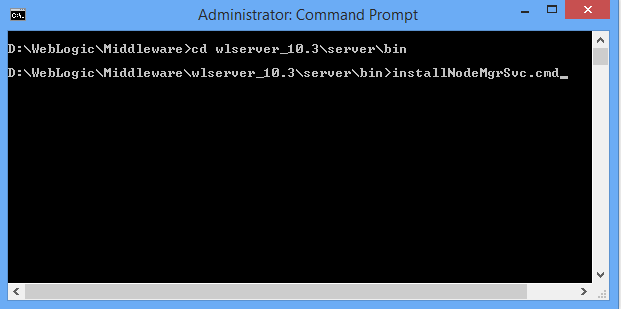
If you really know where exactly the .cmd files are, you may go ahead with the rest of the exercises. So the Node manager installer script is residing under D:\WebLogic\Middleware\wlserver_10.3\server\bin folder. Switch to the folder and execute the .cmd file
image

D:\WebLogic\Middleware>cd wlserver_10.3\server\bin

D:\WebLogic\Middleware\wlserver_10.3\server\bin>installNodeMgrSvc.cmd

Executing the .cmd file should create a new service and available to start within services console.
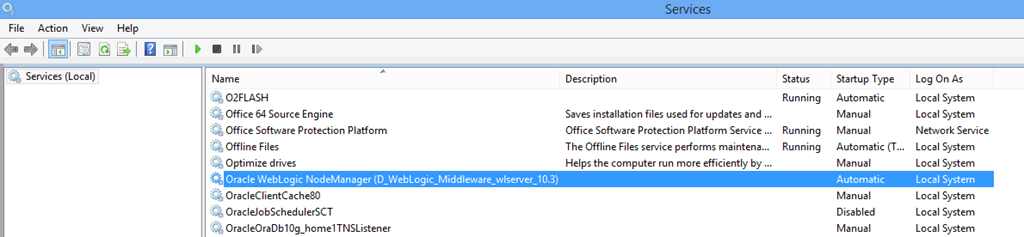
image

So once we created the Node Manager Service, we can start re-creating the optional service(s). We will limit ourselves to Weblogic Admin Console service, which is the maximum for our exercises. You may refer to our other post about installing & Configuring Weblogic 10.3.6 for details about creating individual services for Forms and Reports services.

Based on the application domain(the directory export will clearly give you an idea of the folders where components are installed) you have chosen during the installation, switch to the domain folder now

D:\WebLogic\Middleware\user_projects\domains\appsdomain

Here is where you will find the scripts you have modified earlier during an installation cycle (following our earlier posts)

D:\WebLogic\Middleware\user_projects\domains\appsdomain>InstallWindowsService_Ad
minServer.cmd

D:\WebLogic\Middleware\user_projects\domains\appsdomain>echo off

…………

…………

D:\WebLogic\Middleware\user_projects\domains\appsdomain>ENDLOCAL

D:\WebLogic\Middleware\user_projects\domains\appsdomain>

Check your Windows Services console, and you must find a new service “beasvc appsdomain_AdminServer” listed

Bravo, let us check whether the newly created services are REALLY working once after they were freshly created.

Weblogic Admin Console
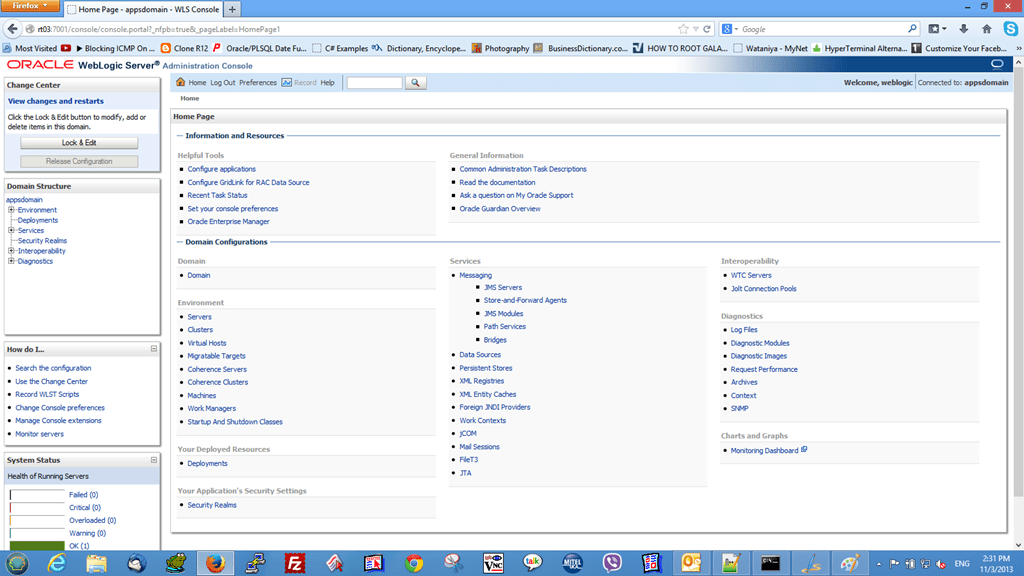
image

So we are done, let us start the Forms & Reports Servers now.
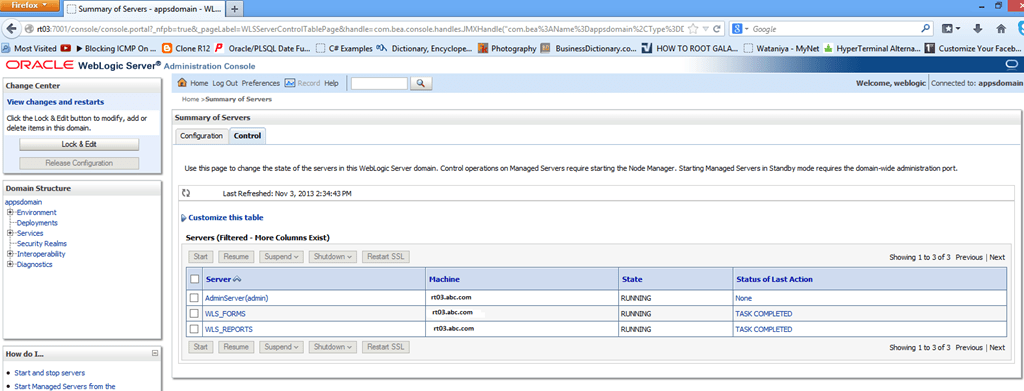
image

We hope this helps :)

for Windows7bugs

raj
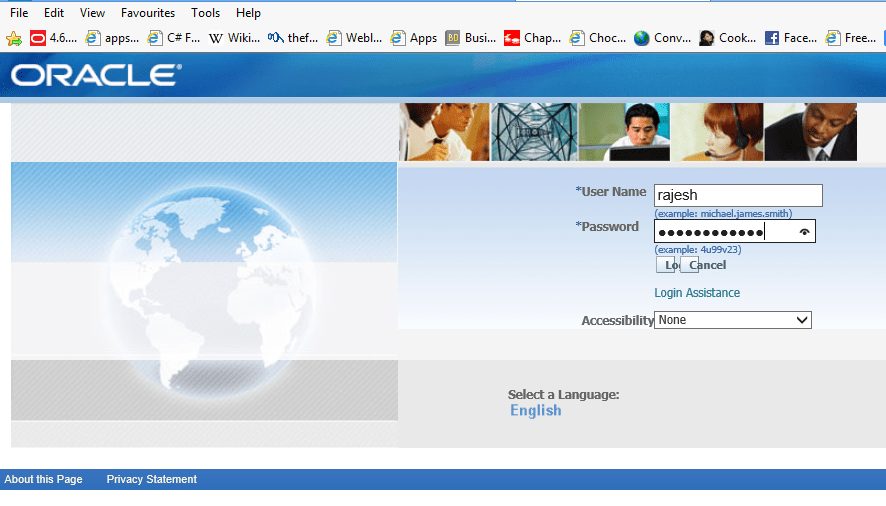
Oracle E-Business Suite R12 Internet explorer 10 “unidentified”


Just 24 hours back, I made another attempt to setup a vision instance at home using VM templates from Oracle and, guys, it was a total success *grin* (Will post the installation steps later, stay tuned, it is loads of fun!)

However I was stuck with an issue, the html/jsp pages will not render properly in Internet Explorer 10 (I am using Windows 8 Pro 64bit) and started with my favorite search toy “google” once again

image


image

I came across a blog post from Oracle discussing about the certification path here

and within the thread there was another reference towards a later blog entry, which explained the certification details(here). Unless you are in a hurry, you shouldn’t miss the minimized quote says

Compatibility Mode for IE 10 + EBS 12

To prevent issues with certain OA Framework pages, you should run IE 10 in “Compatibility Mode.” See the “Known Issues” section in Note 389422.1 for more details.


image

How to? have a look at the below images

image

That’s all Smile

image

hope the post was useful for minimum few out there


regards,

admin

OiilNativeException is thrown, While Installing Older Oracle products (Windows)


Recently we were forced to re-install Oracle Developer suite 10g (10.1.2.0.2) and came across a peculiar error and the installation log out file had the following entries

[sourcecode language='text'  padlinenumbers='true']
OiilNativeException is thrown 


path: C:\Users\rthampi\AppData\Local\Temp\OraInstall2013-04-28_08-56-48AM\jre\1.4.2\bin;.;C:\Windows\system32;C:\Windows;D:\oracle\product\10.2.0\db_1\bin;D:\WLS\Middleware\Oracle_FRHome1\bin;C:\orant\bin;C:\orant\jdk\bin;D:\WebLogic\Middleware\Oracle_FRHome1\bin;C:\Windows\system32;C:\Windows;C:\Windows\System32\Wbem;C:\Windows\System32\WindowsPowerShell\v1.0\;C:\Program Files\Microsoft\Web Platform Installer\;C:\Program Files (x86)\Microsoft ASP.NET\ASP.NET Web Pages\v1.0\;C:\Program Files Microsoft SQL Server\110\Tools\Binn\;C:\Program Files (x86)\Windows Live\Shared;C:\Windows\System32\Windows System Resource Manager\bin;C:\Program Files (x86)\PC Connectivity Solution\;C:\Program Files (x86)\QuickTime\QTSystem\;D:\WLS\Middleware\Oracle_FRHome1\opmn\bin;D:\WLS\Middleware\Oracle_FRHome1\opmn\lib;D:\WLS\Middleware\Oracle_FRHome1\perl\bin;D:\WebLogic\Middleware\Oracle_FRHome1\opmn\bin;D:\WebLogic\Middleware\Oracle_FRHome1\opmn\lib;D:\WebLogic\Middleware\Oracle_FRHome1\perl\bin


toload is C:\Users\rthampi\AppData\Local\Temp\OraInstall2013-04-28_08-56-48AM\WindowsGPortQueries.dll
[/sourcecode]

and by the end of install log file we were able to see that, the installation was terminated while trying to setup LD_LIBRARY_PATH environment variable

[sourcecode language='text' ]
oracleHomes = C:\orant,D:\DevSuiteHome_1,D:\Oracle\Middleware\oracle_common,D:\oracle\product\10.2.0\db_1,D:\WLS\Middleware\oracle_common,D:\Weblogic\Middleware\oracle_common,D:\WebLogic\Middleware\Oracle_FRHome1,D:\DevSuiteHome_2,

configurationPath = D:\DevSuiteHome_2\j2ee\DevSuite\config\default-web-site.xml

attributeName = port

UDPFlag = null
Query Returned: 8892
Setting variable 's_httpPort' to '8892'. Received the value from the variable calculation. 
*** Entering Component: oracle.developer.forms.builder installation
Calling Query generalQueries10.1.0.3.0  getOSName
Query Returned: NT_X86
Setting variable 'SO_EXT' to 'so'. Received the value from the variable calculation. 
Calling Query generalQueries10.1.0.3.0  getOSName
Query Returned: NT_X86
Setting variable 'PROD_LIBDIR' to 'lib'. Received the value from the variable calculation. 
Calling Query generalQueries10.1.0.3.0  getOSName
Query Returned: NT_X86
Setting variable 'OS_CHECK' to 'NT_X86'. Received the value from the variable calculation. 
Calling Query generalQueries10.1.0.3.0  getOSName
Query Returned: NT_X86
Setting variable 'OHOME_LIBDIR' to 'lib'. Received the value from the variable calculation. 
Calling Query generalQueries10.1.0.3.0  getenv

name = LD_LIBRARY_PATH
[/sourcecode]

Obvious, we had an installation for Oracle Weblogic Server 10.3.6 and Oracle developer suite 11g which were done much later stages, and the Environment was setup with a static entry for LD_LIBRARY_PATH=D:\WebLogic\Middleware\Oracle_FRHome1\lib;D:\instantclient32

During the installation time, the installer was trying to setup the LD_LIBRARY_PATH variable for sourcing the required files/other components, and failing to setup the same was causing an unexpected error and thus the entire installation failing without producing any specific error within the log file, other than the .out file stating an exception towards “OiilNativeException “

Workaround

Copy the LD_LIBRARY_PATH value to a text file and delete the environment variable after stopping Weblogic services.

Restart the computer and try to install your product. This should solve the dreaded issues with installation.

Tested environment: Windows 8 64Bit Professional edition running Oracle database 10g 10.2.0.3, Oracle weblogic server 10.3.6, Oracle developer suite 11g


Regards,

Admin

Weblogic 10.3.6 Oracle Enterprise Manager(em) startup error “oracle.security.jps.wls.listeners.JpsApplicationLifecycleListener”


Oracle Enterprise Manager(em) allows you to configure, re-configure multiple elements for Oracle forms and reports repositories as well as other deployed applications.

EM is the GUI tool provided by Oracle to configure, say, look and feel for your forms instance. Instead of manually editing formsweb.cfg, default.env, registry.dat files, using the GUI you can configure the elements related those whole configuration files, to say the least.

A default installation of Weblogic 10.3.6 does include Oracle Enterprise Manager, however if you created a service for the Weblogic Admin Server using installSvc.cmd at later stages to start the Weblogic Admin Server, most probably the Enterprise Manager will not start automatically as JAVA classpath variable misses out certain elements, thus throwing the error

“Error java.lang.ClassNotFoundException: oracle.security.jps.wls.listeners.JpsApplicationLifecycleListener
Message icon – Warning Errors were encountered while performing this operation.”

After going through a number of OTN discussions, we managed to come up with a solution! by including “setDomainEnv.cmd” within installSvc.cmd batch file.

Please note, if you already created a windows service for Weblogic Admin Server, you must delete the service prior creating a new service. Once the service is gracefully stopped, go to elevated command prompt(Windows 8/ Windows Server 2008 Rx)  and type

SC DELETE “beasvc yourdomain_AdminServer”

Refresh the Services.msc console and make sure the service is deleted.

Now backup your installSvc.cmd file

We will modify the installSvc.cmd file (Location: example, D:\WebLogic\Middleware\wlserver_10.3\server\bin) like following (use a decent text editor like Notepad++ )

The following are the default entries you would find with “installSvc.cmd” file

[sourcecode language='text'  padlinenumbers='true']
@echo off
SETLOCAL


set WL_HOME=D:\WebLogic\Middleware\wlserver_10.3

call "%WL_HOME%\common\bin\commEnv.cmd"

[/sourcecode]

Which we will modify like following

[sourcecode language='text' ]
@echo off
SETLOCAL


set WL_HOME=D:\WebLogic\Middleware\wlserver_10.3

set ENV_HOME=D:\WebLogic\Middleware\user_projects\domains\appsdomain\bin

call "%WL_HOME%\common\bin\commEnv.cmd"
call "%ENV_HOME%\setDomainEnv.cmd"
[/sourcecode]

Now go to folder, where you have created the .cmd file(s) for creating Windows services for

  1. Admin Server Console
  2. WLS_FORMS
  3. WLS_REPORTS

In our case we created all those “.cmd” files here

D:\WebLogic\Middleware\user_projects\domains\appsdomain

Now from the elevated command prompt

>InstallWindowsService_AdminServer.cmd (You can create the .cmd file with any name, we made it pretty descriptive for future references)

You may refer to our previous post, explaining how to install Weblogic Server 10.3.6 & Forms/Reports 11g for detailed explanation about creating Windows Services for Weblogic components.

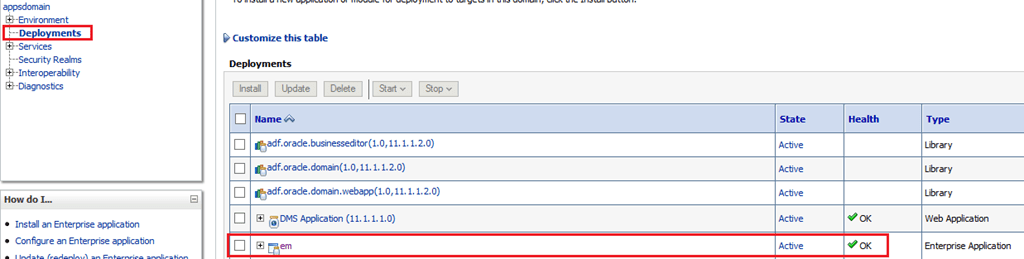
Once the service is created, start it. Login to the console and check the status of “em” under deployments.

image

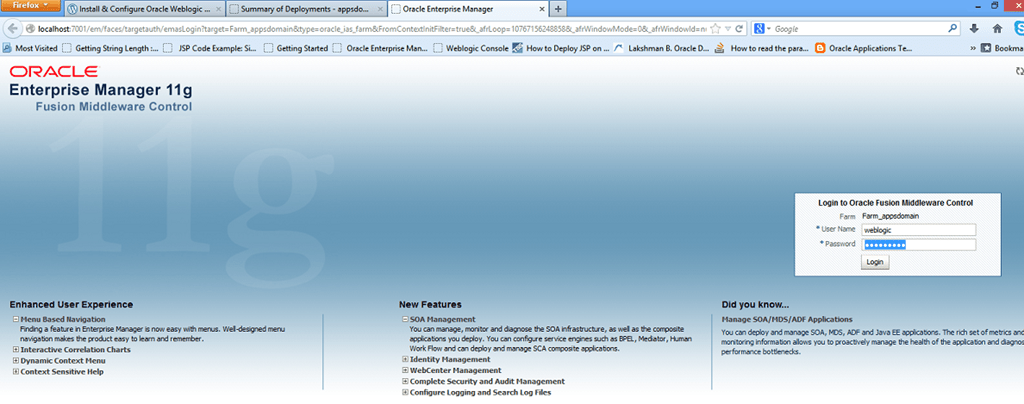
If the State is “Active” and Health is “OK”, your Enterprise manager is up and running. You can try to access the Enterprise manager from http://localhost:7001/em

image

You should provide the same credentials for the Weblogic Admin Console to login with EM.

image

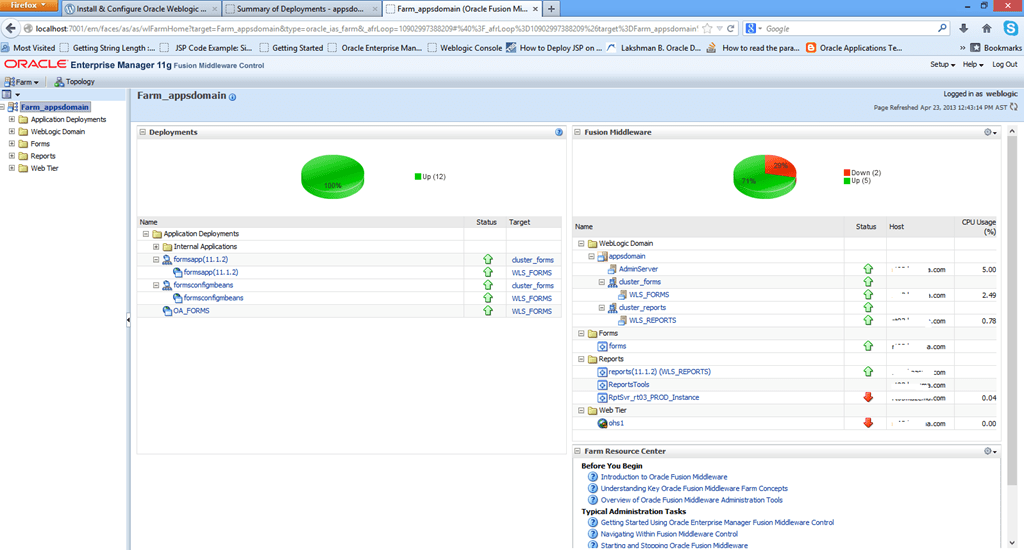
From the EM Console, as said above, you can configure many parameters for Forms and Reports.

Even though you have managed to “fix” the EM access problem, there could be another issue, once after this exercise. You may not able to access the Forms or Report Server, though the Weblogic console shows them as running with Health being “Ok”

Stop the OPMN processes manually, and restart them and try again.

From elevated command prompt (if you haven’t sourced the environment variable for OPMN, change the working directory to, example: D:\WebLogic\Middleware\asinst_1\bin>)

and

  1. stop OPMN processes by issuing “opmnctl stopall”
  2. Check the status of the OPMN by issuing “opmnctl status”
  3. Wait until all the processes are stopped
  4. then restart the OPMN processes by issuing “opmnctl startall”
  5. Check the status and make sure all the processes are with a status “Alive”

That’s all guys. Hope you enjoyed our post.

regards,

Admin

Oracle Developer 6i & Oracle database 11g R2 (11.2.0.1.0)


A default installation of 11g R2 11.2.0.1.0 may not be very pleasant for Oracle developers who are still working with Developer 6i suite!

Our test lab installation has by default taken “NLS_CHARACTERSET AL32UTF8” as default database character set and we were unable to connect to the database from Developer 6i components like forms and reports.

As a workaround, we dropped the database and re-created it using database character set “WE8MSWIN1252” and later with “AR8MSWIN1256” as we needed Arabic support

An interesting discussion could be found here about the character set

Now, we are able to connect to the database, continue our development using developer 6i

Note: Please consult Oracle prior applying such workaround solutions to production environments. Our main intention was to find out a method to connect to 11g R2 database from Developer 6i products.


Regards,

admin


Install Oracle Database 11g Enterprise Edition Release 11.2.0.1.0 (64Bit) on Windows 8 Professional 64Bit


Environment

  1. Windows 8 Professional – 64Bit (i5 Processor, 8GB memory)
  2. Database 11g Enterprise Edition Release 11.2.0.1.0 (64Bit)

Important

Once you finished downloading the installation source from Oracle, extract the files using any available unzip utility.

Copy all the folders from “win64_11gR2_database_2of2\database\stage\Components” to

“win64_11gR2_database_1of2\database\stage\Components” folder to avoid warnings about missing components during installation. Oracle should fix it, right?

If your computer is a domain member, then

    1. Create a local user
    2. Add the user to “Administrator” group
    3. Logon as local user
    4. If you are installing Oracle on D:\ , right click and assign full rights to your account on that particular drive. Only applicable with Window7 and Windows 8

Start the installation, and you will be provided a warning. Refer the image below

warning1

Ignore it

Proceed with the installation

Ignore the update related warning also

warning2

Just follow the prompts and complete the installation. It should be a smooth sailing.

Prior trying to access the database, make sure you changed the sqlnet.ora file following

# sqlnet.ora Network Configuration File: D:\oracle\product\11.2.0\dbhome_1\network\admin\sqlnet.ora
# Generated by Oracle configuration tools.

# This file is actually generated by netca. But if customers choose to
# install “Software Only”, this file wont exist and without the native
# authentication, they will not be able to connect to the database on NT.

# SQLNET.AUTHENTICATION_SERVICES= (NTS)

SQLNET.AUTHENTICATION_SERVICES= (NONE)

NAMES.DIRECTORY_PATH= (TNSNAMES, EZCONNECT)

We will post more screen shots soon. Stay tuned!

regards,

admin

Oracle developer 10g, developer 6i default values for columns using :PARAMETER.name

We just came across a peculiar situation. Recently we had developed a new approach towards developing new applications for Oracle EBS instance.

We do the following

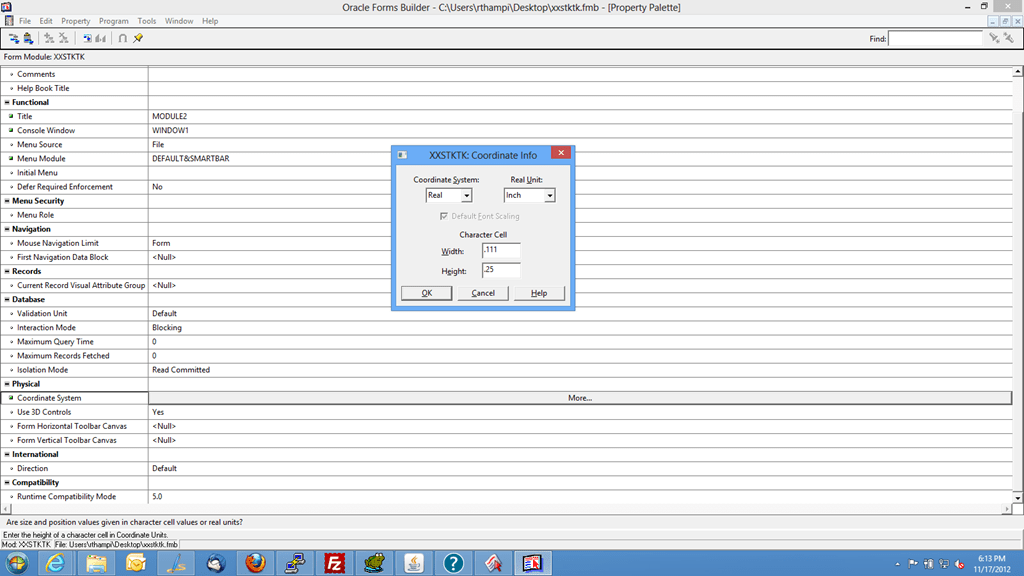
Develop the prototype using developer 6i forms (hacked and patched for Windows 7 & Windows 8). The only change we make with the developer 6i is changing the “coordinate system” property from points to “inches”

image

This approach gives us rapid development scenarios, as we don’t have to upload the form module to instance top and compile it and try it against the TEST instances.

All we are doing is, once the complete application is tested on developer 6i, a copy of the same opened with Developer 10g forms, and copying the objects following the following sequence

  1. Window( s )
  2. Canvases
  3. Blocks
  4. Procedures & functions
  5. Parameters (if any)

Once mapping the PARAMETERS with PROFILE values, the form is ready for APPS instance testing (99% of the times everything is already tested, so a failure is seldom experienced)

Now, coming to one actual issue we are still struggling with is, using the :PARAMETER.xyz, :PARAMETER.abc as initial values for block elements.

The hacked developer 6i does not populate the initial value from :PARAMETER.xyz or :PARAMETER.abc during run time. ie, the first record (record orientation: forms) will not show the already populated values for the columns, however, the very next record(a delete does it) starts showing the :PARAMETER.xyz, abc values being populated to columns wherever they are set as initial values!!!

Do you have solutions? Please let us know with the comment section

Update 19.11.2012

With developer forms 6i, we loaded the values to column through the WHEN-NEW-FORM-INSTANCE like following

:PARAMETER.ORGANIZATION_ID := FND_PROFILE.VALUE(‘org_id’);
:PARAMETER.ORG_ID := FND_PROFILE.VALUE(‘mfg_organization_id’);
:PARAMETER.USERNAME := FND_PROFILE.VALUE(‘username’);

then, explicitly assigned the values to block columns like

:BLOCK.COLUMN1 := :PARAMETER.ORGANIZATION_ID;

in addition to setting up the initial value for the columns using :PARAMETER.xyz

Looks like the stuff are in place now :)

With Developer 10g, this issue has much easier to fix. All we had to do was to change the case of coding like following:

:parameter.organization_id := fnd_profile.value(‘org_id’);
:parameter.org_id := fnd_profile.value(‘mfg_organization_id’);
:parameter.username := fnd_profile.value(‘username’);

To

:PARAMETER.ORGANIZATION_ID := FND_PROFILE.VALUE(‘org_id’);
:PARAMETER.ORG_ID := FND_PROFILE.VALUE(‘mfg_organization_id’);
:PARAMETER.USERNAME := FND_PROFILE.VALUE(‘username’);

and without any further hacks, the 10g forms started showing initial values.

If you experienced the same, have a solution, please provide us the same with the comment section

regards,

admin

Windows 8, Should Microsoft enable the start menu?

Huge arguments everywhere! Being developers all around the clock, #windows7bugs believes, the choice should be left alone on individual user.

We are trying to demonstrate, how a classic menu approach would make things a bit better for developers, techies who have to browse through pool of sub-menu elements to do their everyday job!

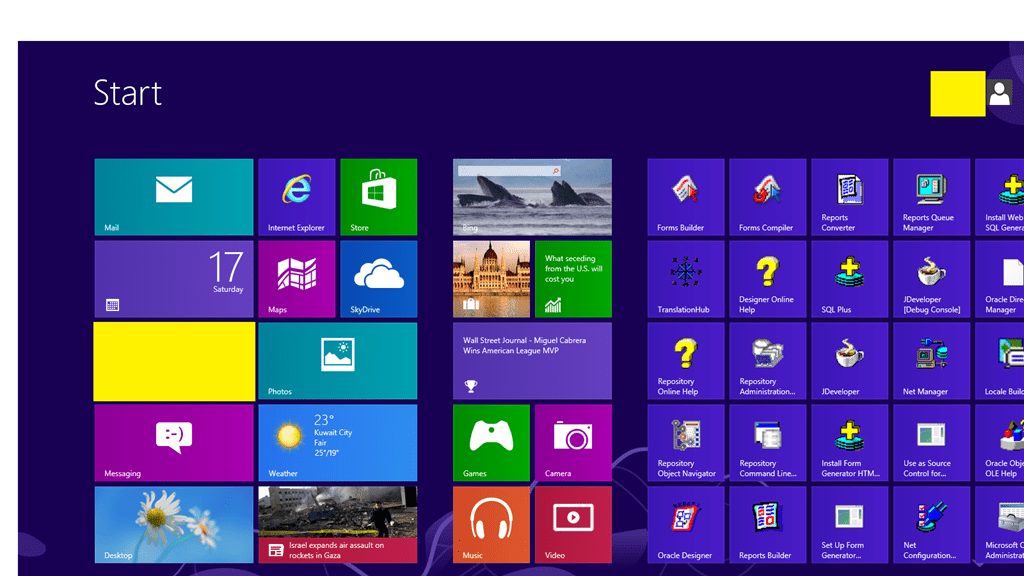
Windows 8 new startup interface

start-menupng

Okay, we are techies and we will find out what we want from the tiled interface (after spending pretty decent time) pool and “try” to pretend that we are with the move

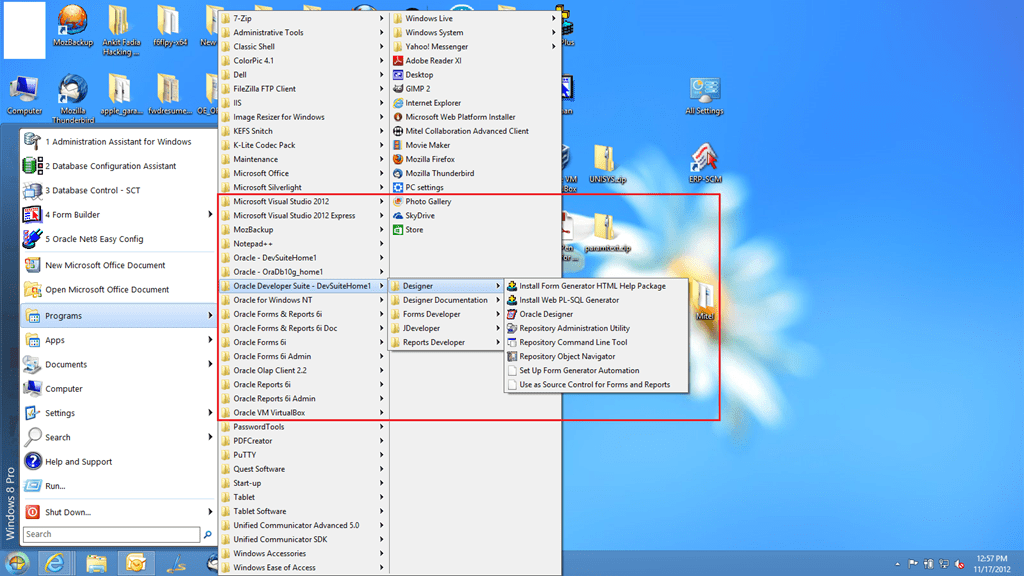
Worse scenarios, we just use classic shell and get straight on to our desired application. We are not ashamed to say we are from the ol ol schools Smile

classic_start

Bravo, now we can see Microsoft sending away few techies who thought they would be remembered for their “outstanding” visionary approaches with a no-harm meant “start” button elimination and easy access to applications through “metro” tiled application UI!

Yes, Microsoft, bring back what was there, let the users decide whether they want to change, finally like our employer always reminds us “Customer is the GOD”. So listen to customers and give them what they ask for.

for windows7bugs

admin