It looks like, setting up the compatibility for Windows 7 solves the Reports Builder shaking, freezing behavior to a greater extend. Going on with the “Fix” as NOTHING else could be done with a product that is NOT anymore supported by Oracle.
====
I “trust” Microsoft and I do update my Work/Home/VMs regularly. Ahum! 99.9% of the times I never had to go back and fix anything, that .1% times, things went awfully bad.
I cannot confirm which update, certainly one update within last 2 months have made Oracle Reports Developer 10g/6i loads messier than earlier. Now both version of reports developer will NOT load the layout designer properly.
The interesting factor about the layout designer is:
It hangs more often when you have multiple reports opened from a single instance of the reports developer & you are switching between the layouts.
For example, if you opened Report 1’s layout & closed it, then opening the Report 2’s layout arrests the designer & all the toolbar icons and rest go astray (as you could see with above image) which will force you to end task the developer using Task Manager/or other known measures.
It is irky, shaky, yet you can do your work with multiple sessions of reports developer opened with only one report loaded. There are no guarantees that this IS the ultimate solution. I often have to terminate the report builder and restart it to do my development(s) :(
I’ve more news for you. I did a reinstall routine of Patch 3 for 10g developer & remembering Windows 7 was the last OS certified with the developer suite, changed the compatibility for the Report Developer and set it as Windows 7. I am not sure whether it acts as a mediator, my report builder is much stable as I am jolting these few lines. Keeping fingers crossed.
Almost a year back I posted about Linux Subsystem for Windows & interesting that I am revisiting the subject in the same period once again. Within an year time loads have changed with the Linux subsystem. Starting from Windows 10 version 1803, once started the Linux Subsystem is available in the background until a reboot! Sounds great?
This time we will see such an enhancement could be utilized on Windows for some extended “developments”, and I will walk you through setting up “WordPress” using WSL. Please note, I am opting “WordPress” as target ONLY for few reasons like:
“WordPress” is developed using PHP
“WordPress” mostly uses MySQL for database
“WordPress” is mostly hosted on LINUX environments
Windows SubSystem for Linux Installation
You must enable “Windows SubSystem for Linux ” through “Turn Windows Features on or off”, after which you will have to reboot your Windows box
Open “Windows Store” and search for Linux, that should bring up many results as seen with the image below
We’ll be using Ubuntu 18.04 LTS this time as I had pretty difficult issues with Pengwin & SUSE. If you are familiar with Linux, Ubuntu is a debian based Linux distribution & widely used for desktop systems. For our limited tests Ubuntu is a right choice.
Total download of Ubuntu 18.04 is around 270MBs & should be installed without giving any troubles.
Once “Ubuntu App” is installed you will be notified and you can immediately “launch” the app.
Ubuntu takes few minutes to finalize the installation & will prompt you to enter a username & password. Make sure you remember the username and password, forgetting may force you to reinstall Ubuntu.
Immediately after setting up a Linux username and password, we will make sure that the Subsystem is upgraded with all new packages.
(While apt & apt-get do almost the same thing, why “apt” is preferred? please read about it here)
Apache installation should not take more than few minutes & we will see how to configure it bit later.
MySQL installation
I faced multiple issues installing MySQL on my Ubuntu based WSL. Few were merely because I was ignoring few pre-requisites like checking for already open ports on my Windows & other were due to lack of adequate amount of experiences with installing software on Linux
After a couple of failed attempts, I landed upon this page, which neatly explains how to use MySQL PPA in the place of Ubuntu’s default repositories for MySQL
I will make some fresh screenshots, that is for recent versions of MySQL installation using the MySQL PPA, because there are few more MySQL versions are supported currently using the same PPA
Now we have a conflict to resolve. As on date, the MySQL 5.7 repository signature is invalid, for the same reason the repository will be disabled. (I don’t know what kind of issues this could produce, so not taking any risks). Next step we will get a valid signature for the disabled repository and re-enable it
Now we can start installing the MySQL 5.7 Server. Please note, if you already have an instance of MySQL running on your Windows, the port 3306 will be in use (unless custom ports are used) & you WILL never able to complete the MySQL installation on WSL. Many undocumented errors will stop the MySQL installation, apparently without giving you the least ideas of what went wrong. So, make sure that the MySQL server is stopped and the port is not listening to port 3306. I don’t know another way to address this situation.
You will be prompted for MySQL root account. I suggest using the same password across this particular setup so that you will not mess them up later stages.
Confirm the MySQL root password
That completes the MySQL 5.7 Server installation.
Now, let us try to start the MySQL 5.7 Server service.
MySQL 5.7 service is started now. So we can proceed to installing phpmyadmin, MySQL manipulation software.
As we are using Apache2 as web server, make the selection by tapping the spacebar and Ok
You will be asked whether the database for phpmyadmin should be configured, You should select Yes, unless you want to do it later.
You will be asked to provide the a password now, that is for the phpmyadmin, use the same MySQL root password here (you can use a new password, just to avoid confusion, I use the same password everywhere)
You have to confirm the password.
Now you will be asked to enter the MySQL administrator(root) password, supply it
Confirm & wait for the phpmyadkin to complete the installation
Installation will notify you about Apache not being running, you can ignore the notice.
Now we will start the Apache Server. Couple of things you should take care with Apache & I will try to list few of them below:
As the WSL runs as another software on Windows, it is bind to experience conflicts. For example, if you already have IIS server listening to port 80, without changing the port information for Apache, will not able to start the server until the ports information is corrected within the Apache configuration file.
If you already have MS SQL server installed with reporting, the reporting engine listens to port 80, so even if you would stop or disable the IIS/WWP services, there is a possibility that port conflicts will arise. This will also prompt you to alter the default port mentioned in the Apache configuration file
So let us see how we are going to address such conflicts:
Edit the Apache ports configuration file
[code language=”bash” gutter=”false”]
$sudo vi /etc/apache2
[/code]
I opted for port 8088 (You can choose a port that is NOT used by Windows. Issue netstat -aon to get a list of ports open/listening on Windows from CMD
100% sure that you are going get presented with an annoying notice “ Protocol not available: AH00076: Failed to enable APR_TCP_DEFER_ACCEPT” which is easily addressable.
We will edit the apache configuration file to address this issue
issue the command
[code language=”bash” gutter=”false”]
$sudo vi /etc/apache2/apache2.conf
[/code]
& add “AcceptFilter http none” by the end of the file.
Save the configuration file & restart the Apache service.
As we have completed all the installations and managed to start the services successfully after fixing the configuration files, it is time to reboot.
WSL unfortunately doesn’t let you use “init 0”, or “init 6” to shutdown or restart the instance, instead you must use the Windows Services MMC for the same.
This will close all open Ubuntu “app” windows. You can restart the Ubuntu from the app list.
Once Ubuntu restarted, let us start the services
[code language=”bash” gutter=”false”]
$sudo service apache2 start
$sudo service mysql start
[/code]
Once the services are started, we will try phpmyadmin. As I mentioned already, I have set the port 8088 for Apache, hence I can access the phpmyadmin from the link http://localhost:8088/phpmyadmin
You can safely ignore the warnings, as the current version of phpmyadmin we installed from Ubuntu repos have certain conflicts with PHP 7.2
Install “WordPress”
“WordPress” is one of the leading CMS (Content Management Systems) with unlimited possibilities. Recently we switched our decade long joomla based corporate website to “WordPress” & after few days of interactions with the technology, I feel I would never look anywhere else.
This will download the latest “WordPress” to your home folder
Now we have to extract the downloaded file to right htdoc root. We are talking about the default configurations available with apache configuration files. Hence the wordpress should be extracted to ‘/var/www/hmtl/’ folder, which is a protected path. We’ll change the folder permissions temporarily to facilitate the extracting
Now we have a problem, “WordPress” installation cannot write to “wp-config.php” file. This is due to linux file/folder permissions. Hence we will again change the permissions over ‘/var/www/’ folder
Now, go back to the previous page, furnish the details and “WordPress” should happily move ahead. Run the installation
That completes what we tried to achieve. “WordPress” running successfully from a WSL environment.
Now, it is time to ask the questions like “Why so much pain, when we can achieve the entire “WordPress” thing on Windows?”
Well, primarly “WordPress” performs better on Linux enviorment (personal observation), second & most important for me. I just love learning something new everyday. You are welcome!
Microsoft has added WSL with it’s Server 2016 (Version 1803) & the vision is pretty clear. Microsoft “wants” to provide a LINUX environment within Windows so that in the future, a separate LINUX Server requirement will NOT truly hurt the customers. Currently the WSL is NOT equipped with desktops/GUI & Pengwin like initiatives are sure making traction. If my guess will NOT go wrong, soon Windows Servers will be running “Linux” side by side & those Linux Servers are going to be as good as physical/Virtualized. We’ll wait eagerly, together.
Recently I faced similar issues with 2 of my new monitors. Both were Samsung S2Nf350 Slim series LEDs (S22F350 & S24F350) & the issue was same.
After a long sleep/idle time the monitors will not wakeup with a mere keypress or mouse movement. I had to reach to the back of the monitors and press the power on button to awake the monitors!
I had chats with Samsung support & they asked me to take the monitors to nearest workshop as the LEGENDS at 1st level support decided that it was a hardware issue.
Then I decided to go through the user manual & came to an area where it narrated about a feature called “Off Timer”. This MUST be a new feature that is available with new generation LED monitors, helping them to turn off automatically after a pre-set period (default 4 hours)
Turning the feature to OFF state has resolved my weeks long “issues” with the monitor not awakening from a sleep.
I am kind of disappointed, to be frank. After long planning, I decided to post about installing Oracle 18c on Windows 10 & started hearing about 19c. Well, shit happens and we will continue with what we were planning to do.
Before getting in to the real business, let me remind you. Oracle stack depends upon hell loads of VC++ components, and missing those packages could make things pretty difficult on Windows. So, as a thumb rule, please make sure that you have all available VC++ packages installed with your Windows box. Never forget that .Net 3.5 is also required by multiple Oracle software on Windows. Finally, do update your Windows.
You may refer this image for the VC++ & .Net components those are installed in my Windows 10 computer.
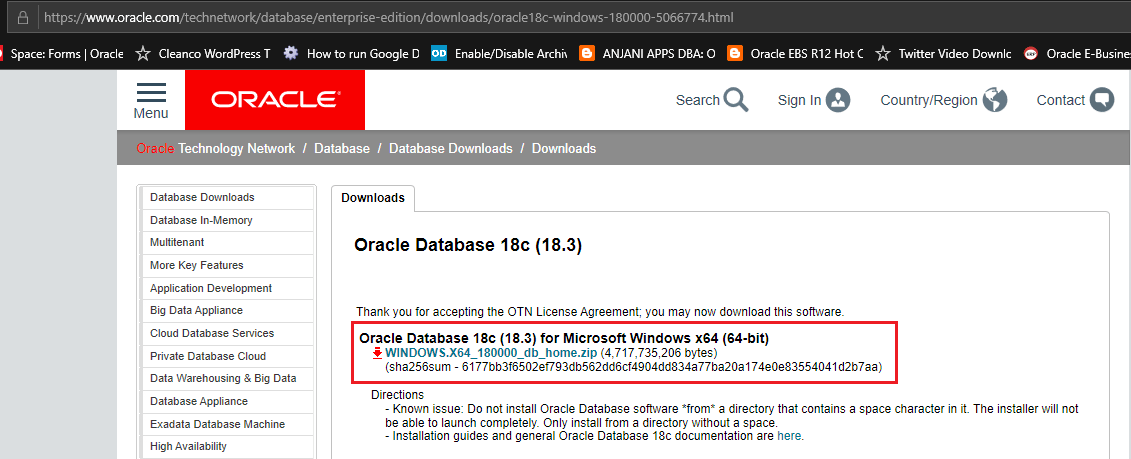
You can download Oracle 18c installation media for Windows 64Bit from the following link
Please spend a moment to read what Oracle says just below the media link, “Do not install Oracle Database from a directory that contains a space character in it”
That means, while extracting the downloaded ZIP file, make sure you are extracting the archive to a folder like “D:\Oracle18c” NOT “D:\Oracle 18c” or “D:\Oracle Database 18c”
Oracle never liked “space” character in the directory name & if you are going to ignore this, you are going to have true troubles waiting for you mate.
What I have came to conclusion about Oracle 18c installation is:
Oracle is NOT anymore copying all the source files to a new destination. For example, usually when you install a software on Windows, there is installation source, from which necessary files are copied to a new destination (installed folder). This time Oracle is approaching the installation in a different fashion.
It ONLY configures the database.
That means, Once you extract the media, say to a folder called “D:\Oracle18c”, this is the same folder where the database will be installed! You will only be asked for Oracle base location, where the diagnostics and others will be configured.
The above is MY PERSONAL observation & I am yet to refer the installation documents from Oracle for clarify against what I found. Feel free to prove me wrong.
With the below installation example, I have extracted the 18c source media to a folder called “D:\Oracle_Installers\18c”, which will be the installation folder also
Run “setup.exe” as “Administrator”, that brings up a console sort of Windows that lists the installation progress (minimalistic)
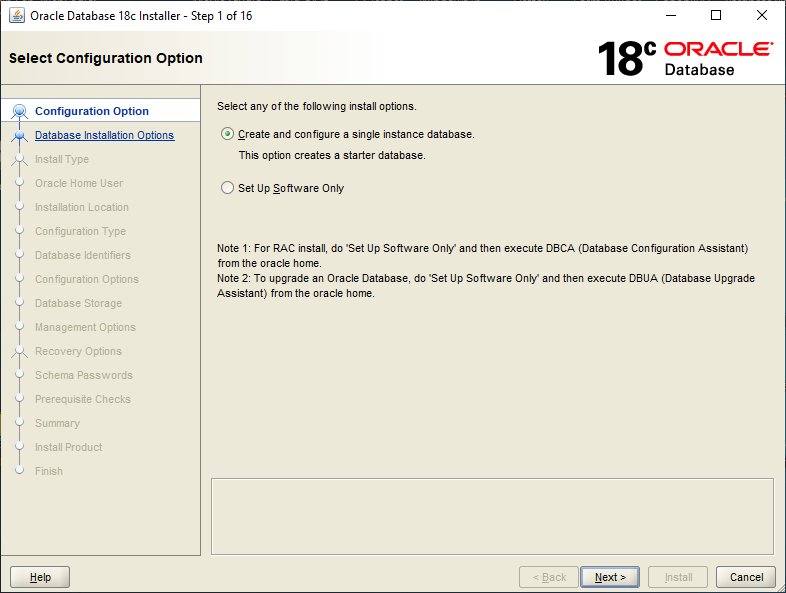
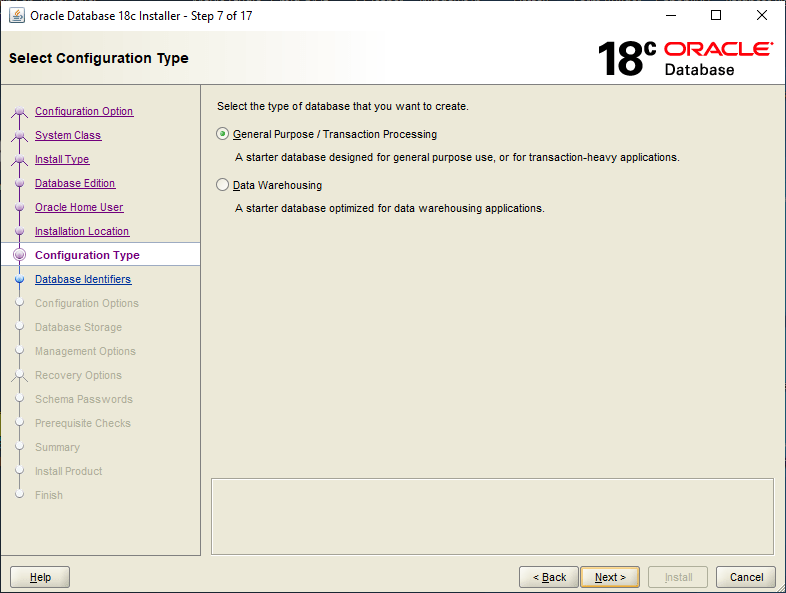
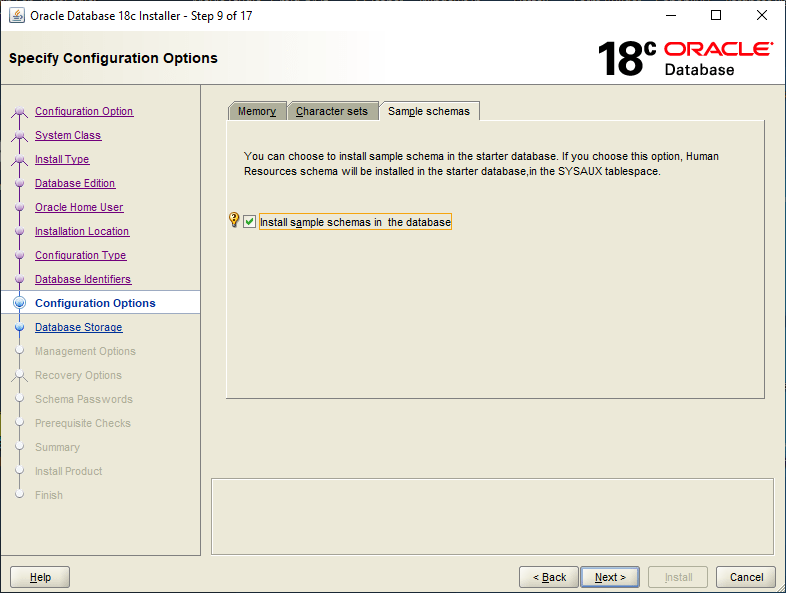
We’ll create a database along with the installation, which is quick and effective (for this TEST)
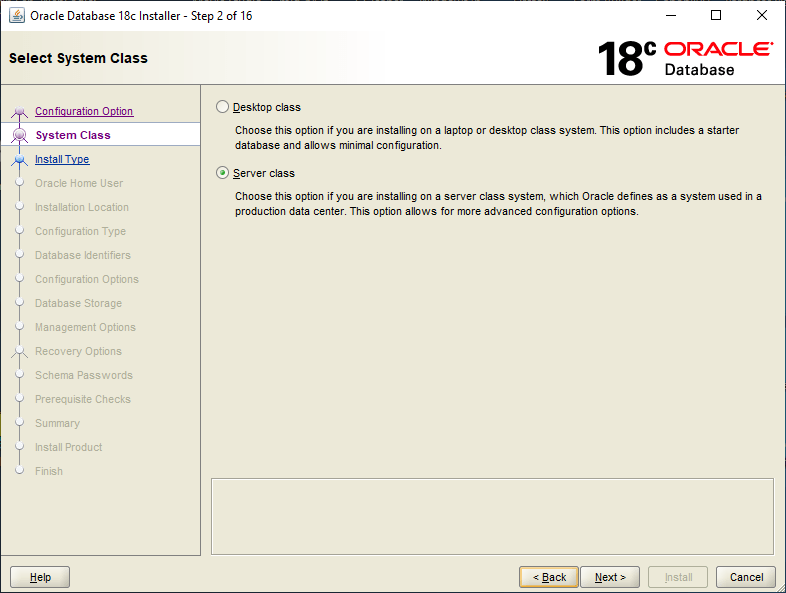
Although we are installing the software on Windows 10, We will select “Server class” for System Class to “experience” the load stress.
Usually I choose “Advanced Install”, so that I can minutely access the different options available for the database like character set, memory etc
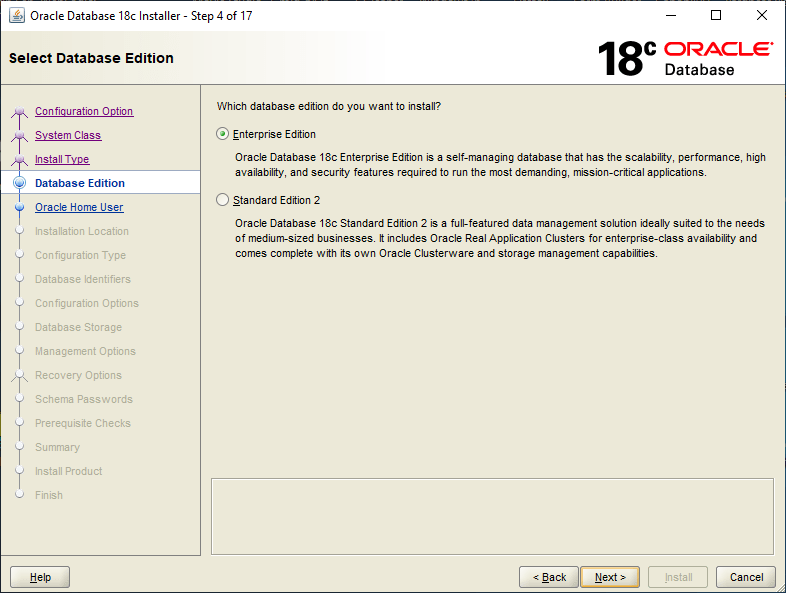
Database Edition should be “Enterprise” to experience the same “Cloud” version capabilities.
I’ve one Windows user account “Oracle” that I use for Oracle installations and setup. I suggest you also to create a non-administrator windows user “oracle” or something equivalent specifically for Oracle software.
As I have mentioned in the beginning, “The Software directory is the Oracle Database home directory”, ie, the folder from which you start the setup.exe will be the Database home directory. The path that specified by you will be the Oracle base & usually the diagnostics elements will be placed within.
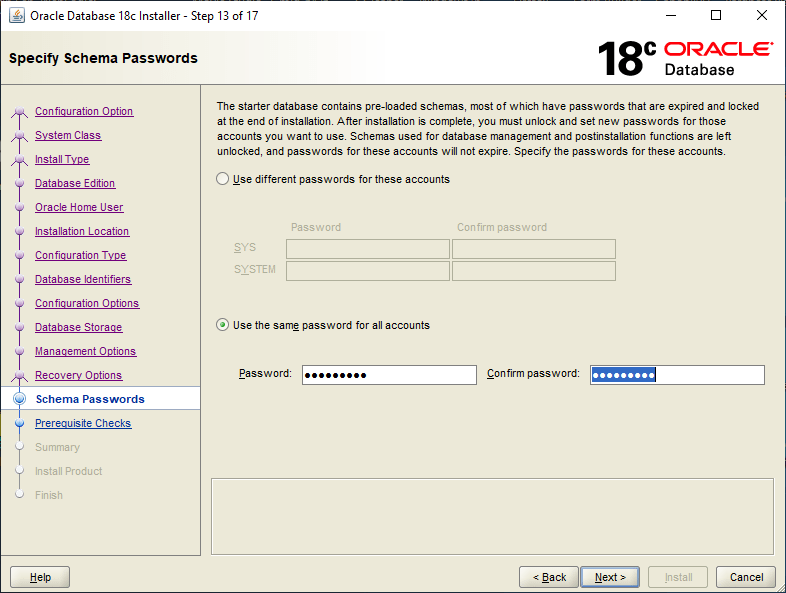
As a rule, I always select the same password for all vital accounts & the pattern is something like ‘Abcxyz123’. For a TEST lab, this saves me unwanted complexities & less documentation. For a production instance, please follow Oracle’s recommendations.
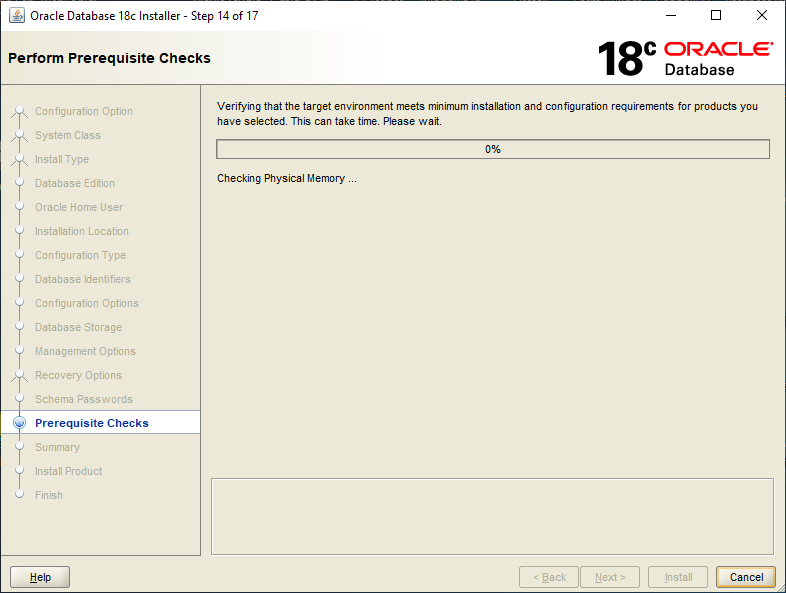
My laptop boasts one i7 8th generation processor, 16GB DDR-4 memory and 512GB Samsung 860PRO SSD. Yet, the installation takes it’s own time. So if you have less hardware configurations please wait patiently.
You know what to do with JAVA security prompts!
Once the installation over, you will be provided the link to Oracle Enteprise Manager Database Express, which is a minimalistic EM for the database. You can log in and view the database details and interact the database parameters through this interface.
I know you are smart enough to find out that I altered the below image a little bit…Well it looks something like this…
My laptop doesn’t have FLASH installed, hence I am using Internet Explorer for accessing the EM. I have to check whether I can access the EM using Firefox after installing Flash.
That’s all folks. The installation is pretty straight forward other than for the installation folder/directory design part. For a production environment, you may need to truly plan how the folder/directory name is going to be.
Ah, finally! My laptop is lagging beyond expected levels with the database services running.
Have comments & suggestions, please let them come in.
Oracle keeps on updating APEX and ORDS on regular basis and I thought of compiling one document that I can refer when I forget things when I do a fresh installation. Hence, I have changed the title of the post & will try to update the same thread with newer version installation tips as and when I try them out. This time we are going to see how APEX 23.2 is installed along with ORDS 23.4 on Oracle database 19c(19.21.0.0.0).
Please make sure that you have either JDK 11 or JDK 17 already installed. ORDS will not work with JDK versions prior that.
Oracle APEX 23.2 with ORDS 23.4 on Windows
Download Software. Usually for the lab, I always download the latest version. You must know, every new version might come with bugs that are yet to surface. So, make sure that for your PRODUCTION environment, will always choose the version that is safe. You can download APEX from this link https://www.oracle.com/tools/downloads/apex-downloads/
I am using Oracle 19c database for multi-tenant purposes & this installation will be targeting an existing PDB.
Let us quickly cross verify that there is no APEX already installed on it. I did the installation few minutes back, hence it shows the APEX as installed.
If you see such information, you should remove the existing version to install the latest version. We will consider that the PDB doesn’t have APEX installed to continue.
--Switch to the APEX installation path
cd D:/apex-latest/apex
sqlplus / as sysdba
--switch to the PDB
alter session set container="SCT"; --your target PDB
--Create a new TABLESPACE
CREATE TABLESPACE APEX DATAFILE 'D:\ORACLE\ORADATA\19C\SCTCDB\SCT\APEX01.DB' SIZE 1G;
--Go ahead with the installation
@apexins APEX APEX TEMP /i/
Trust me, this takes a while. Once the installation completes without errors, you will get some summary information like below
Thank you for installing Oracle APEX 23.2.0

Oracle APEX is installed in the APEX_230200 schema.

The structure of the link to the Oracle APEX administration services is as follows:
http://host:port/ords/apex_admin

The structure of the link to the Oracle APEX development interface is as follows:
http://host:port/ords


timing for: Phase 3 (Switch)
Elapsed:    0.20


timing for: Complete Installation
Elapsed:    5.03
Now we need to setup the APEX ADMIN account. From the same Oracle session, execute the “apxchpwd.sql”. Please note, the password must be complex and having one punctuation character (!”`’#$%&()[]{},.*+-/|\:;?_~). After a successful creation of ADMIN account, don’t forget to change the password & unlock user APEX_PUBLIC_USER. Refer the installation document to understand the password policies, expiry etc. My database instance is configured to accept non case sensitive password and password expiry is disabled for the profile DEFAULT. Please make sure that you cross verify these settings to avoid PRODUCTION issues.
Now we have to complete the REST configuration before installing ORDS. From the same Oracle session execute the file “apex_rest_config.sql”. Use the same password for all accounts as long as your are not configuring for PRODUCTION.
Once extracted to default path, the folder should look like the below image
We will start with setting up a folder for ORDS configurations. Unlike APEX, I chose a new path altogether for ORDS, like D:\ORDS and the configuration path was set as D:\ORDS\config. In addition to config, I have a folder called logs and a copy of apex/images also in the same root.
You can avoid copying the Apex images to ORDS folder, instead point to the apex\images path while setting up ORDS. This could save some storage.
Apex/images is required for accessing the APEX infra through ORDS HTTP or HTTPS, as you WILL set it up later. For our lab, we will be setting up HTTP & the installation method will be interactive.
Before starting the ORDS installation, let us grant SYSDBA privileges to SYSTEM. Over a PRODUCTION instance, please remove the unnecessary privileges from users once after setup completes.
sqlplus / as sysdba
SQL> grant sysdba to system container=all;
Now we have to provide additional privileges to user SYSTEM, the account that we will use for the installation, setup and de-installation of ORDS from the database.
ORDS: Release 23.4 Production on Thu Dec 21 08:26:31 2023
Copyright (c) 2010, 2023, Oracle.
Configuration: /D:/ORDS/config/
The configuration folder D:\ORDS\config does not contain any configuration files.
Oracle REST Data Services - Interactive Install
Enter a number to select the type of installation [1] Install or upgrade ORDS in the database only [2] Create or update a database pool and install/upgrade ORDS in the database [3] Create or update a database pool only Choose [2]: Enter a number to select the database connection type to use [1] Basic (host name, port, service name) [2] TNS (TNS alias, TNS directory) [3] Custom database URL Choose [1]: Enter the database host name [localhost]: Enter the database listen port [1521]: Enter the database service name [orcl]: SCT Provide database user name with administrator privileges. Enter the administrator username: system Enter the database password for system: Connecting to database user: system url: jdbc:oracle:thin:@//localhost:1521/SCT
Retrieving information. Enter the default tablespace for ORDS_METADATA and ORDS_PUBLIC_USER [SYSAUX]: APEX Enter the temporary tablespace for ORDS_METADATA and ORDS_PUBLIC_USER [TEMP]: Enter a number to select additional feature(s) to enable: [1] Database Actions (Enables all features) [2] REST Enabled SQL and Database API [3] REST Enabled SQL [4] Database API [5] None Choose [1]: Enter a number to configure and start ORDS in standalone mode [1] Configure and start ORDS in standalone mode [2] Skip Choose [1]: Enter a number to select the protocol [1] HTTP [2] HTTPS Choose [1]: Enter the HTTP port [8080]: Enter the APEX static resources location: D:/ORDS/images
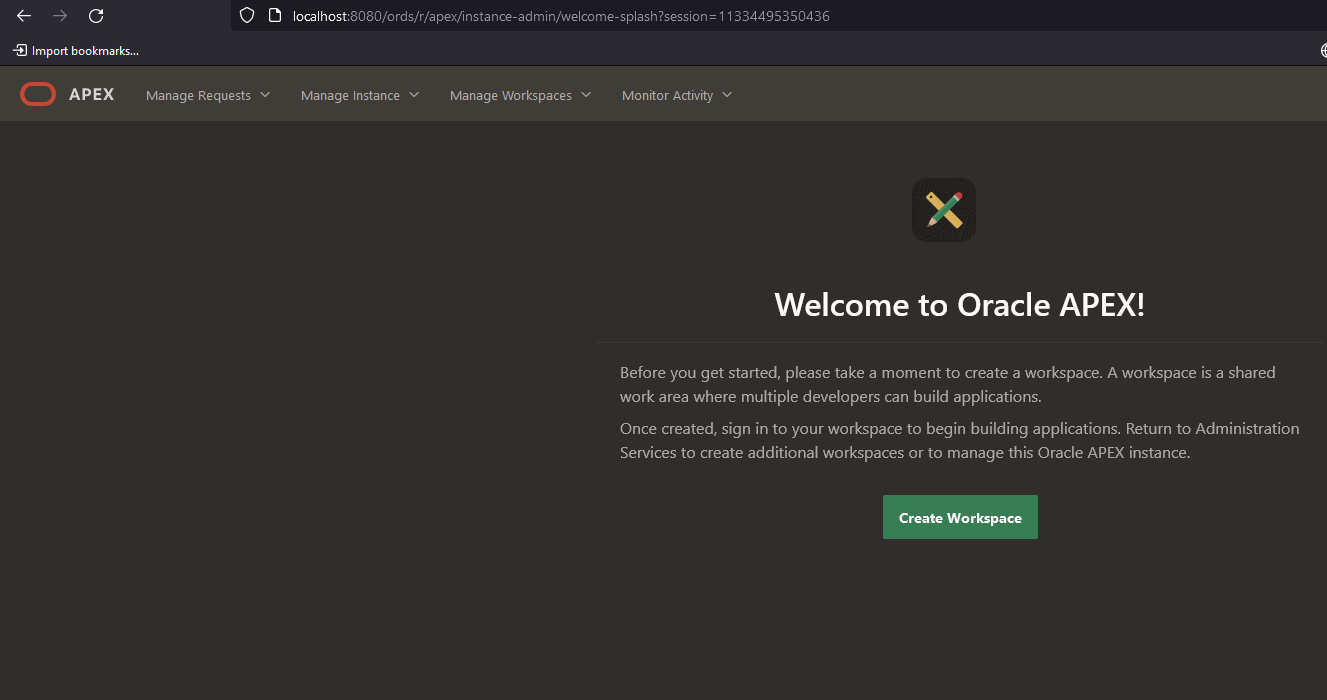
If everything goes in our favor, the config session should bring up the ORDS standalone instance. Please don’t close the command prompt forcefully. You need to leave it alone for accessing the APEX now.
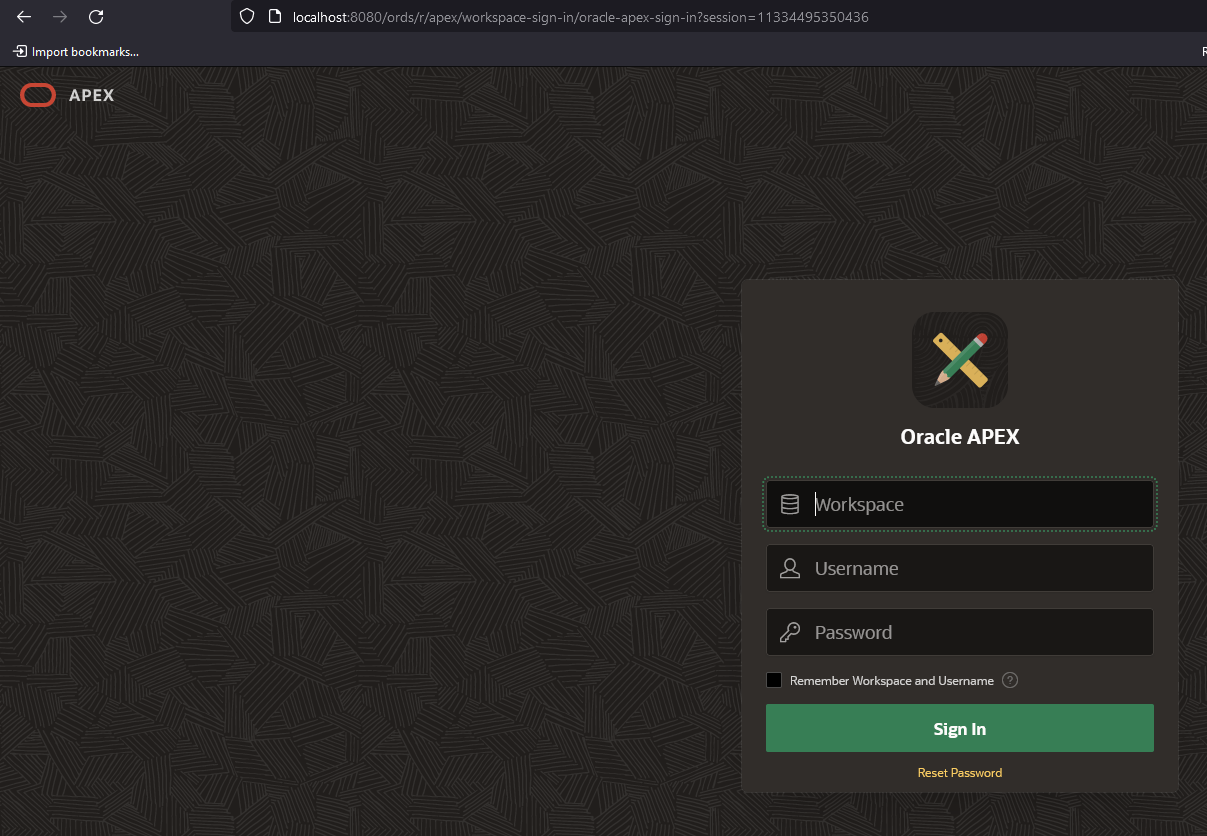
If you used APEX before, you already know the ADMIN login parameters. Enter “INTERNAL” for Workspace, ADMIN (if you didn’t change the default ADMIN name) for Username and the password you have configured while setting up APEX Admin account.
That’s all folks. I will try to cover using Apache/Tomcat for ORDS at a later time. I managed to get ORDS installed in my 4th attempt as I overlooked executing “ords_installer_privileges.sql”, which is mentioned as mandatory in the installation instructions document! For any reasons, if the ORDS fails to install, don’t panic, just uninstall it. Let us see how we could uninstall ORDS after a failed installation.
ORDS: Release 23.4 Production on Thu Dec 21 08:17:21 2023
Copyright (c) 2010, 2023, Oracle.
Configuration: /D:/ORDS/config/
Oracle REST Data Services - Interactive Uninstall
Enter a number to select the database pool to use or specify the database connection [1] default jdbc:oracle:thin:@//localhost:1521/SCT [2] Specify the database connection Choose [1]: Provide database user name with administrator privileges. Enter the administrator username: system Enter the database password for system: Connecting to database user: system url: jdbc:oracle:thin:@//localhost:1521/SCT
Retrieving information. Cannot create or write to the log folder in the current working directory: /D:/ords-latest/bin/logs. Logging will be displayed on the console. Uninstalling Oracle REST Data Services in SCT ------------------------------------------------------------ Date : 21 Dec 2023 08:17:30 Release : Oracle REST Data Services 23.4.0.r3461619 Type : ORDS Uninstall Database : Oracle Database 19c Enterprise Edition DB Version : 19.21.0.0.0 ------------------------------------------------------------ Container Name: SCT ------------------------------------------------------------
[*** script: ords_alter_session_script.sql]
PL/SQL procedure successfully completed.
[*** script: ords_uninstall.sql]
PL/SQL procedure successfully completed.
****************************************************** * INFO: REMOVING Oracle REST Data Services ******************************************************
PL/SQL procedure successfully completed.
PL/SQL procedure successfully completed.
PL/SQL procedure successfully completed.
drop user ORDS_METADATA drop user ORDS_PUBLIC_USER
Completed uninstall for Oracle REST Data Services. Elapsed time: 00:00:01.456
[*** Info: Completed uninstall for Oracle REST Data Services. Elapsed time: 00:00:01.456 ]
Once after uninstall finishes, delete all folders created by the installation process from config folder. Ie, in the example “D:\ORDS\config”. After this, you can try to reinstall ORDS once again.
Troubleshooting
I started getting the below error once after I uninstalled and re-installed APEX after a bundle update attempt. “ORDS was unable to make a connection to the database. ORDS is not able to proxy to the target user because that user is locked. The connection pool named: |default|lo| had the following error(s): ORA-28000: The account is locked”
As we are discussing the unexpected error, let us see the main APEX database accounts now.
We must insure that accounts APEX_LISTENER, APEX_PUBLIC_USER, APEX_REST_PUBLIC_USER are open for APEX to work properly & APEX_230200 locked, that is by design.
Try to access APEX again and there shouldn’t be any issues.
Let us see how Oracle APEX (Which will eventually replace Oracle FORMS (regardless whether you like that fact or not) for small to medium applications) could be installed on your Windows 10/Server this time.
We’ll be trying the latest version of ORACLE APEX 18.2 & Windows 10 Pro running the latest version 1809 (as on date, fully patched) and Oracle database 11g R2 (11.2.0.4). Oracle depends upon VC++ components loads, so make sure your Windows box is fully patched.
Step #1
Download Oracle APEX installer from APEX repository. Please note, for APEX 18.x, you MUST have 11G R2 11.2.0.4 or later database. 11g R2 11.2.0.4 is only available for customers with valid support, hence if you are a student, freelancer, you best bet is 12c database, that is still freely available to download.
Step #2
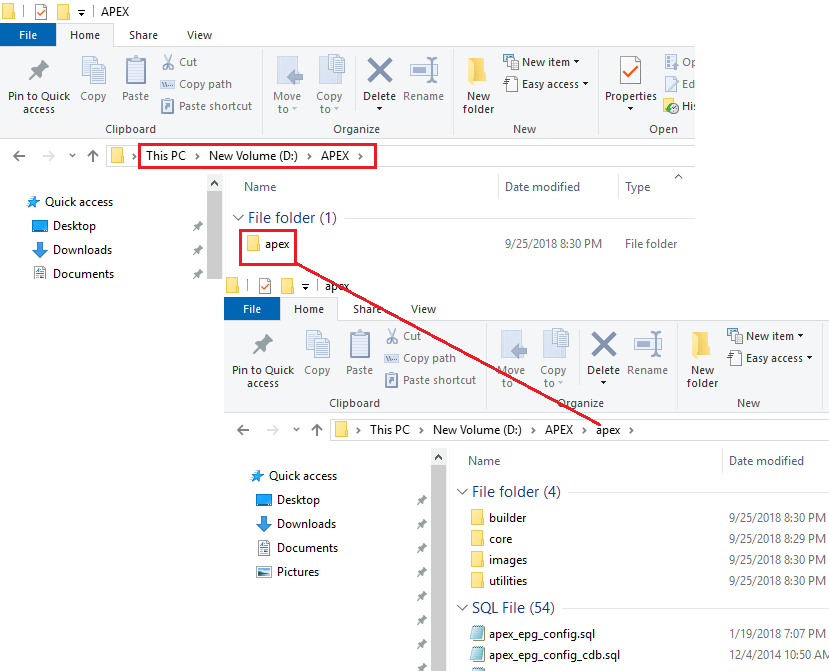
Unzip the downloaded .zip file to a finely structured directory. For example, you can extract the zip file to D:\APEX, that will create another “apex” folder within “D:\APEX\”. Check the attached image
I usually keep all the Oracle Installers under a single folder, called “D:\Oracle_Installers”. So basically the rest of the instructions, I will be using the same directory structure. Please don’t get confused.
Step #3
Switch to the apex folder from an elevated command prompt, in my case to “D:\Oracle_Installers\apex_18.2\apex”. Source the database environment (eg: SET ORACLE_SID=ORCL) in case if you have multiple Oracle products installed in the same box
Step #4
Start SQLPLUS as sysdba
A default installation of 11g R2 installs APEX, which you should remove at this stage. If you are too eager to know which version is installed, you my run the following query
select version from dba_registry where comp_id='APEX';
If you haven’t removed the APEX installation, it should return you a row with installed version information of APEX
You should remove the existing APEX prior installing the 18.x version(s). To remove the installed version, please execute as following
@apxremov.sql
Wait for the uninstallation to complete, exit SQL and start SQLPLUS once again as sysdba (Mandatory)
Now we can start the installation of APEX 18.x. Prior starting the installation let us create a dedicated tablespace for APEX.
@apexins APEX APEX TEMP /i/

(Note the forward slash "/")
Wait for the installation to finish. My box has a SSD, hence the installation completes in few minutes time (3-5 minutes I believe). It may take bit more time, depending upon the hardware resources available.
Once the installation completes successfully, we have to configure the APEX. To configure execute “apex_epg_config.sql” that is available in the current path. Please note, here is the catch, as with the installation, Oracle expects forward slashes around the parent folder where you have the image files. So, I have extracted the installation files to “D:\Oracle_Installers\apex_18.2\” & this is the PARENT directory for apex installer. Hence we will call the EPG script as below (correct your path appropriately)
@apex_epg_config.sql D:/Oracle_Installers/apex_18.2/

(Note all back slashes are replaced with forward slashes)
Once the script finally exists after successfully copying the image files to APEX repositories, you need to unlock the following Oracle database schemas
ALTER USER anonymous ACCOUNT UNLOCK;
ALTER USER xdb ACCOUNT UNLOCK;
ALTER USER apex_public_user ACCOUNT UNLOCK;
ALTER USER flows_files ACCOUNT UNLOCK;
Now, go ahead with the last configuration by executing
@apxconf.sql
This script will ask for ADMIN user details, Select ADMIN as admin user and provide an email address. Please note, you must provide a punctuation symbol for the password and allowed punctuations are as below
(!"#$%&()``*+,-/:;?_).
That’s all folks. If there are no errors, you are all good to go. You may need to configure your database server for better performances, which we will discuss bit later.
Now try to access the APEX installation. Unless you have changed the ports, you should able to access the portal by visiting http://localhost:8080/apex/apex_admin
I see many visits to this thread from Microsoft Technet references & one of the visitors left me the following comment:
For 12c client, I tried applying the steps you described and it did not work.
 I found that there is a bug affecting Oracle Provider for OLE DB – Version 12.1.0.2 and later
 Oracle OLEDB Throws Error “DBCOLUMNFLAGS_ISFIXEDLENGTH” to Handle CHAR(n BYTE) From Linked Server With MS SQL Server (Doc ID 2484393.1)
Thanks Larisa for your kindness to share the information & found that the error is tightly related to Oracle database version 12.1.x.x. Oracle note provides a workaround using OPENQUERY. I don’t think a “workaround” as a permanent solution, Instead, if possible, upgrade your database to 12.2 or higher versions as a possible permanent fix. Oracle claims this bug was addressed by “Windows Database Bundle Patch 26720785 and later versions”. If you don’t have Oracle’s valid support contract, will not able to download the patch & the only possible solution could be upgrading your 12c database while the download repositories still holding the 12c media. So hurry up :)
As Organizations grow, will end up with multiple software solutions taking care of different areas of the business. Based on the availability, there would be situations where business will end up with different database technologies and data exchanges between such will become a mandatory element to avoid duplication and additional efforts.
Today we will discuss about a requirement that involves MS SQL Server and Oracle database. While Microsoft has well established solutions called as Linked Servers, that allows the MS SQL to connect with heterogeneous database technologies, Oracle’s approach is pretty tedious and may require more efforts that one could anticipate. Yes, I am talking about Oracle “Golden Gate”, which allows an Oracle database to access other database technologies through a “gateway”
Instead of discussing the complex “Golden Gate”, we will see how simple (& complex at the same time) it is to setup Linked Servers from Microsoft SQL Server (for Oracle)
Install the client
Depending upon your OS architecture(32Bit/64Bit), you need to install the appropriate Oracle client. I suggest, install 64Bit Oracle Client on 64Bit OS and 32Bit client over 32Bit OS. You save loads of efforts by doing so. I always do a full installation of the Oracle client and later add missing components those are mandatory for “Distributed Transactions”. So what is a distributed transaction?
Your MS SQL Database table receives a row (record)
Your expectation is to replicate the same row to Oracle table
You have an “after insert” trigger defined with the MS SQL Table
A full installation of Oracle client (Administration) doesn’t install the mandatory component to facilitate the above requirement. You must install “Oracle Services for Microsoft Transaction Server” in order to do such a distributed transaction from MS SQL to Oracle database, after invoking the Client Installer. Make sure while the installer kicks in, you select the already existing Oracle home to make sure that the installation will not create another home for the additional components those you will install. Cross check whether the Oracle OLE DB driver is installed & install the Oracle Services for Microsoft Transaction Server component.
Analyze your Oracle provider and make changes to the stack
Make sure your provider, in our case, “OraOLEDB.Oracle” is configured prior you create linked servers.
Enable the following options
Allow inprocess
Nested Queries
Support “Like” operator
and disable
Index as access path. Disabling this option is mandatory for “Distributed Transaction”. If your Oracle table has indexes and this option is not disabled, an insert attempt from table trigger will fail with the following error
The OLE DB provider “OraOLEDB.Oracle” for linked server “ERPPROD” returned a “NON-CLUSTERED and NOT INTEGRATED” index “XXFPPUNCHM_N1” with the incorrect bookmark ordinal 0.
Create a linked Server
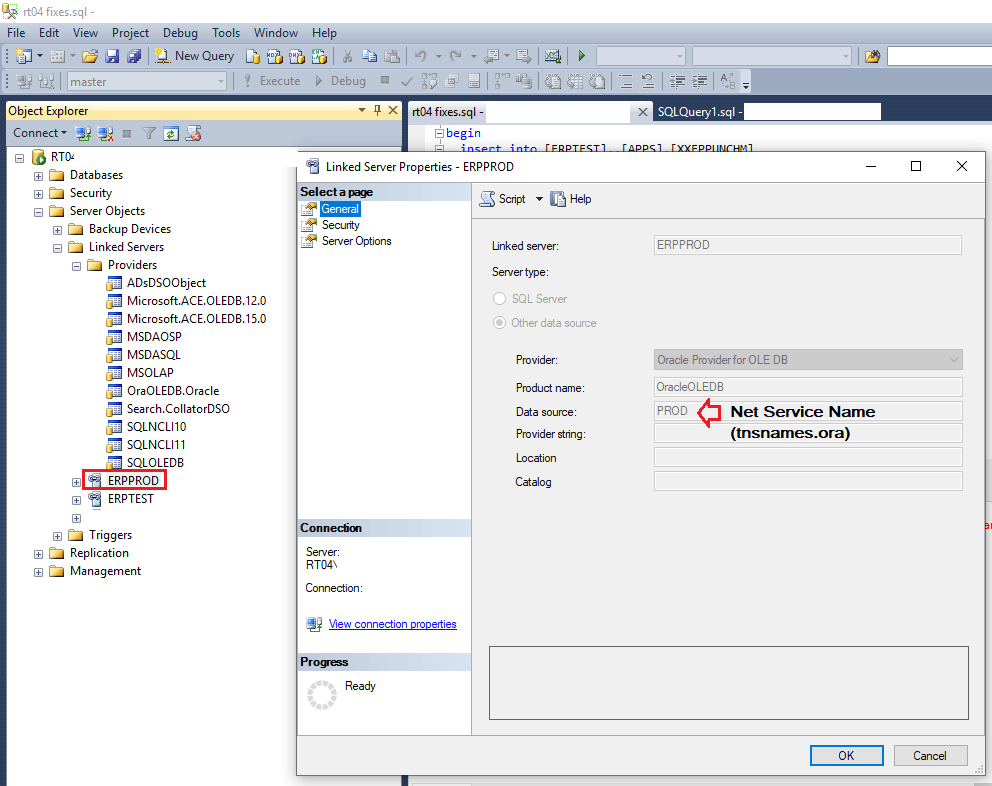
Right click on the “Linked Server” node and select “New Linked Server…”. I am providing you details of a linked server that is already created at my end. Adjust your linked server details accordingly. Make sure, the Oracle client installation folder is your “PATH” & that the tnsnames.ora file has an entry for the Oracle service (that you will enter in “Provider string” column.
If you have entered the mandatory elements correct, you have successfully created a linked server. If anything goes wrong you will be prompted about it, and address them. Please note, you can always revisit and change the Server options at later stages. However, options under “General” cannot be modified. If requires modifications, you need to drop and recreate the linked server once again.
Test the newly created linked Server
The actual issues starts from now. Please note, my laptop that I use for all developments has multiple versions of Oracle database and clients installed in addition to .Net development tools, Android, PHP etc to name few. If you are planning to implement the linked server solution for a production environment, make sure you have only one Oracle product installed along with MS SQL server. On the other hand you are going to have end number of complexities, few of which are not easily addressed.
For example, my development machine has:
Oracle database 11g
Oracle Client 12c (12.1)
Oracle Database 12c (12.2)
Which is a more than complex situation to address when it is all about MS SQL linked servers. One of the toughest issues to address is the following error
The OLE DB provider “OraOLEDB.Oracle” for linked server “” supplied inconsistent metadata for a column. The column “” (compile-time ordinal 2) of object “””.””” was reported to have a “DBCOLUMNFLAGS_ISFIXEDLENGTH” of 16 at compile time and 0 at run time.
It took me almost 1.5 days to figure out what could be wrong as a simple SQL query like following against the newly created linked server continuously provided me the above error.
Select count(*) from [ERPTEST]..[APPS].[XXFPPUNCHM]
 go
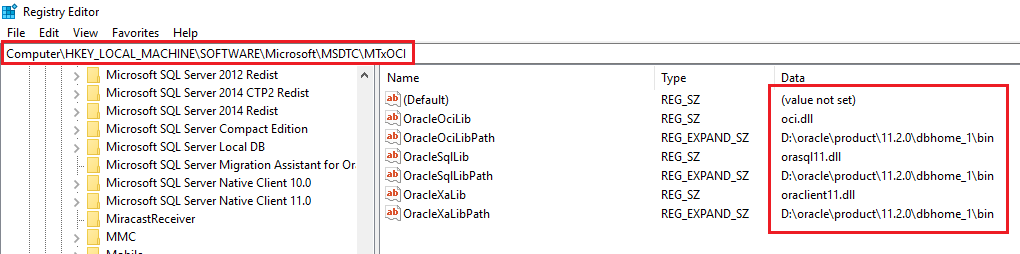
I’ve come across a post over stackoverflow.com which said, this could be due multiple Oracle products being installed in the same box & there were few instructions to overcome, which didn’t workout for me. However, I was successful with the production server, in which I only had the Oracle 11g client installed. To insure the real time replication of the data from MS SQL to Oracle database, I had to alter few registry values & restart the server. To my utter surprises, the same scenario I tested over three different boxes & all three experiences were different from each other.
The production server where I have SQL Server 2014 standard edition would not post rows to Oracle database, that is a part of “Distributed Transaction” without the registry hacks.
My development laptop wouldn’t even fetch rows from Oracle database without tweaking the PATH environment element & registry with proper .dll paths
My home PC does everything without having to tweak the path of registry where I have almost the same setup like my development laptop. The ONLY one difference with my home PC is, instead of Oracle client 12c, I have 11g client.
Now we will address each of such situations. Please note, the following exercises require you to make registry changes, so please make sure that you take a full backup of the registry prior attempting any given possible solutions. (If you are having ONLY one Oracle product installed (Database or Client, please move to Step#2 )
Step#1: Register Oracle OLEDB driver (This is to insure that we are using the same stack across the solution). Only one version of OLEDB driver could be activated at a time, regardless how many Oracle products are installed. If you had 12c installed after 11g, you must be having the 12c OLEDB driver activated.
From an elevated command prompt, switch to Oracle Client/Database BIN folder (eg: D:\oracle\product\11.2.0\dbhome_1\BIN)
Issue the following command
regsvr32 OraOLEDB11.dll
This should register the OLE DB driver for you.
Step#2: Check your OS PATH environment element, your client/database bin path must be the first Oracle product entry, eg:
This will insure that tnsnames.ora will be sought in this path, in addition to Oracle dlls. As we are using Oracle database 11g as the first product from the list of other Oracle products installed in the environment element PATH (refer the image above), we will hack the registry with all elements related to the specific product (Again, please make a backup of the registry, minimum the specific key)
Refer the image above and adjust the entries as per your Oracle installation. Once the registry is modified, restart your computer (mandatory)
Once the box restarted, try to insert a row into the Oracle table. Example
insert into [PRODBAK]..[APPS].[XXFPPUNCHM]
 (PUNCH_TIME,MACHINE_NAME,EMPLOYEE_NUMBER,PUNCH_TYPE)
 VALUES(GETDATE(),'IT Office','0046','0')
 go
SQL Management studio must stop complaining about “The OLE DB provider “OraOLEDB.Oracle” for linked server “” supplied inconsistent metadata for a column. The column “” (compile-time ordinal 2) of object “””.””” was reported to have a “DBCOLUMNFLAGS_ISFIXEDLENGTH” of 16 at compile time and 0 at run time.” right after setting up the correct .dll files and the relevant paths in the registry.
Now create your table trigger, through which you want to push a row to the Oracle table. A simple after insert trigger could be defined like following:
create trigger addRecordsToERPTable2 on [UNIS].[dbo].[tRajesh]
 after insert
 as
 begin
 insert into [PRODBAK]..[APPS].[XXFPPUNCHM]
 (PUNCH_TIME,MACHINE_NAME,EMPLOYEE_NUMBER,PUNCH_TYPE)
 Select PUNCH_TIME,MACHINE_NAME,EMPLOYEE_NUMBER,PUNCH_TYPE
 FROM inserted
 end
 go
You may come across an error while a distributed transaction is initiated, Management Studio complaining about “Msg 8501, Level 16, State 3, Procedure addRecordsToERPTable2, Line 13 MSDTC on server ” is unavailable.” This is a pretty simple error to address. Open the Windows Services & check whether the service “Distributed Transaction Coordinator” has started. My development machine initially had this service startup mode set as “Manual”, I changed it to “Automatic delayed start” and started the service. Adjust according to your situation.
Basically the above few things should address most of the common issues you would face with Oracle Linked Server from MS SQL.
Finally, Oracle clearly states, there are limitations using their driver for Linked Servers from MS SQL. So, expect for unexpected while using such a setup. For me, it was simple transactions. If you are expecting rapid replications based on complex business requirements, please do test your scenarios as much as possible prior adapting the above hacks.
So? You have few years old hardware & opted to upgrade to Windows 10, when it was offered free? don’t worry, you made a wise choice. Although the OS is not perfect, it is better than Windows 8.x, definitely feature richer than predecessors…until your box starts rebooting once in few minutes or few times per day.
Your event logs for system will plainly say “kernel-power” and about an unclean restart, which is a critical event.
There could be a number of reasons, starting from the OS’s new power management “features” conflicting with your legacy hardware, components like additional audio or video cards behaving strangely after being there for last many years etc. This post is not a single stop solution for all your “kernel-power” issues, instead, few guidelines those may help you to narrow down the issues and resolve them in a timely manner.
My semi-server type desktop machine is 6+ years old. I never bought myself a branded desktop machine as I always needed powerful (please read affordable to my budgets) boxes for database development & virtual machines. I opted to go with the free Windows 10 upgrade when it was offered and never had many issues with the box or OS until last month. My kids (who are using the desktop mostly now days for their entertainment) started complaining about the machine rebooting quite often & I suspected the poor wall point (which truly required a replacement along with the extension board) & immediately changed it. Things were better for a while and then came the October update build 1809. The unexpected reboots were sporadic, sometimes once in just few minutes time! I scavenged through the event logs and found multiple “kernel-power” event entries. So I started going through many articles those were patiently explaining what are the factors those could cause “kernel-power” events
Bad power supply units
Conflicting Audio components
Old base boards (motherboards)
Bad power sockets
and Windows power management
I was sure that my XFX 850W PSU cannot be wrong ;), so without wasting much time, I moved on to audio. My motherboard has RealTek audio built-in and I have extended my box with a Creative Sound Blaster Zx card almost year back when my Audigy gave up. So I removed the Creative sound card and the box started behaving properly for approximately one and half days before giving up to random reboots.
Slowly I started building up a pattern for the reboots. I noticed that the machine only rebooted when I was streaming youtube videos and ONLY while I played videos the box rebooted. My box had a nvidia GT 520 card to play the only one game ever owned “Swat 4”!
I opened up the box again and removed the PCIE2.0x16 card out to realize that the card was totally packed with dust. Without giving it another chance booted the box with on-board display to insure that the issues were related to the GPU (This was the wild guess part)
Well, for me, all the kernel-power events stopped ever since I removed the nvidia card from the box. Not a single reboot after hours of streaming or playing downloaded video clips.
So, is my nvidia display card really faulty? I don’t know for sure. Nvidia didn’t push new drivers for this card from last many months & the issues could be from conflicting software components between the OS and the card driver (could be!). I’ve to find some time very soon to be sure!
In the same scenarios, you can try the following in case if you also own an extended desktop that experiences “kernel-power” events once after upgrading to recent builds of Windows 10
Remove all additional cards from the box
Remove all software related to the cards those you have removed from the box
Make sure to dust off your box from inside (Use a powerful blower, and from a safe distance to dust off)
Insure all the cables are tightened securely in places
Keep playing videos for extended periods of time (To insure there are no reboots)
In addition to above few, a computer could start acting weird when any of the component used within starts having hardware or software issues. If none of the above tests resolves your issues, may be it is the time to start thinking about a new box (unfortunately)
My nvidia GT-520 PCIE 2.0X16 card has finally failed & that altogether started a new story, a new finding and possibly a lousy solution as well.
My OEM motherboard from Intel ( DH67CL) has both Video & Audio integrated along with one NIC. More than enough to start with a PC without additional cards, which is NOT always what you want. You want to game, you need a card. You want to listen to your games, you need better audio processors, so you need another card.
Now, there are no guarantees that these cards will “Work for anyone” forever. The vendors will stop developing drivers, the product itself start having technical difficulties and your BOX as a computer will start experiencing issues as the box itself ages.
So after I removed the nvidia graphics card from my box and hooked up the Samsung LED monitor to the on-board intel HD display(HD 2000), I noticed many sparkling white dots
especially over the taskbar area & almost everywhere the box tends to see gray or darker shades. I knew that the HDMI port on board is version 1.1, when the cable that I used and the monitor are HDMI 2.0 capable. So I hooked up a normal VGA cable and was surprised to see that nothing changed! The sparkling white dots were persistent and I started googling, to find a proper solution.
Almost all solutions were about securing the cables, checking the driver, assuming the MB being faulty & even raising fingers at the PSU!
I wanted to check Windows 10 settings and to find out something to reset the display settings (I was hoping to find some) & after few minutes I landed on Settings -> Colors
I kept on toggling switches and finally toggled the “Transparency Effects” switch, which was ON. Immediately the white sparkling dots disappeared (99% as I could still see few of them against pitch black BOLD letters)
Color settings
It looks like Windows 10’s video processing has issues with older hardware, especially with older base boards. Hope this is a “kinda” solution for you also, if you are reading this post :)
Starting from Notepad++ 7.5.x “Plugin Manager” is not bundled with this editor & you would find why and associated reasons here
So how do we have this “Plugin” configured for managing the plugins? Well the solution is pretty straight forward, download the latest version of the plugin manager from here
Please note, after downloading the plugin which is a zip archive, you need to extract it and there will be two folders, one for the Plugin Manager plugin & other one for the updater. Check the below image:
Note: The instructions given below are specific to 32-Bit version of Notepad++
Now, copy “PluginManager.dll” from plugins folder to “C:\Program Files (x86)\Notepad++\plugins” (default installation location, adjust to suite your environment)
Copy “gpup.exe” from “updater” folder to “C:\Program Files (x86)\Notepad++\updater” (Mandatory)
Now you are all set to start using Plugin Manager once again.
My last build was 6+ years back. I did many upgrades, mostly with the memory & storage as I have a number of virtual machines through Oracle VirtualBox & from last three years I stopped taking office work to home, in order to have a better family life. So the PC is mostly used for YouTube & studies related activities by my kids. Once in a while (when I am allowed to use), I use it for work.
I’ve been thinking about an upgrade dearly, as the desktop started giving me a feeling that it was lagging, especially during the Windows startup.
I did a quick assessment and realized that the Intel OEM motherboard supports DDR3 32GB memory (Currently I have 16GB memory) and has SATA standard 3. I already have 5TB+ storage and one 850W PSU. A studio standard sound card from Creative and supported by an Intel i7 generation 2 processor which made the an “Awesome” unit when I built it initially.
From the investment point (both money and efforts), a new PC (Assembled) would cost me approximately 250-300 Kuwaiti Dinars (800-950$) & as the Desktop accessories market is slowly dying, the chances of finding all the items for assembling would be kind of time consuming and tiring activity.
Although a new motherboard and latest processor & memory means support and performance that existing PC could never offer after any number of upgrades, I decided to “upgrade” my current PC for one last time.
This upgrade included a single item and the total expense expected was 36.5KDs (36.5*3.2 = 116USD approximately), and the item was a Crucial MX500 500GB SSD!
I used EaseUS ToDo Backup free’s cloning utility to clone my existing 512GB mechanical drive (approximately 220GB data) which took around 1.5 hours & realized that I never felt my desktop PC such fast and responsive.
From my last 48+ hours assessment, following are few of the changes I have noticed.
My Windows 10 Pro 64Bit OS (Build 1809) starts and ready in 5-10 seconds time (Fast boot enabled), which was approximately 4-5 minutes prior the SSD inclusion.
My desktop machine shuts down within a time frame of 2-3 minutes, which was never less than 10 minutes (with almost no active database services other than an instance of MySQL and Google’s drive sync software. I found the later being one of the culprits)
The overall responsiveness has tremendously improved & the constantly nagging delays with starting software like Microsoft word & Excel are not anymore existing.
I know from my previous experiences with SSDs that, after a while, I would start feeling the PC turning slow, which is more psychological than technical.
So, if you WERE planning to replace your PC that’s is less than four years old, for it being “too slow”, “lagging” consider a SSD or NVMe M.2 (if supported). One of the major realities you should be considering when opting for a SSD is whether the OS & Processor support the SSDs. I’ve read somewhere that Windows 10 OS, starting from build 1703 has patched up with better support for SSDs and flash based storage.
One important note for Laptop users. Yes, you can also replace your mechanical drive with a SSD and enjoy the above said performance gains. Just make sure that your Laptop supports an SSD (read manuals, ask manufacturer forums or write to their support).
All the best with an upgrade & saving some real money folks!