Came across this error after WordPress update? Well, the first time I dealt with one of same nature was when we upgraded our business WordPress to latest version. I have posted about it here & strangely, that is the single post of mine ever got more than couple of likes :)
We are using Elementor and, the stack was the main culprit that was generating maximum errors against the outdated PHP. Having both PHP and Elementor upgraded fixed our issues last time & I didn’t expect anything different this time either.
This time, as soon as I came across the errors once after WordPress upgrade, I asked our hosting partner to upgrade PHP (7.4 => 8.x) for WordPress 6.2.2 and updated Elementor afterwards. That has taken care of the annoying “Deprecated” error messages those were appearing in the admin console (mostly). Please note, while Elementor could be the primary culprit, any other plugin that makes the function calls listed could be the reason for these errors. Update each one of them and see whether the issues persist.
Oracle workflow developer for Oracle Applications (EBS) R12 version 2.6.3.x has total 33k downloads. That gives us an idea how scarcely this software is used. Oracle sucks at one place the most, that is fixing their legacy software for new operating systems. For example, Oracle EBS R12 release 12.2 is expected to be supported until 2031, while the development tools for the same were supported till Windows XP OS. Then once in a while they boast about releasing another version of legacy tool, expected to work on later operating systems.
Oracle Workflow builder is not different. Their documentation misses one of the vital point about why one should install the software in a brand new Oracle home! Yes, if you have multiple Oracle products already installed on your computer, Workflow builder installer will pickup the first Oracle home it could read from the Windows registry and default it for the installation, which is the core of all problems you will face while & after the installation.
So, let us do a proper installation of Oracle workflow builder 2.6.3 this time.
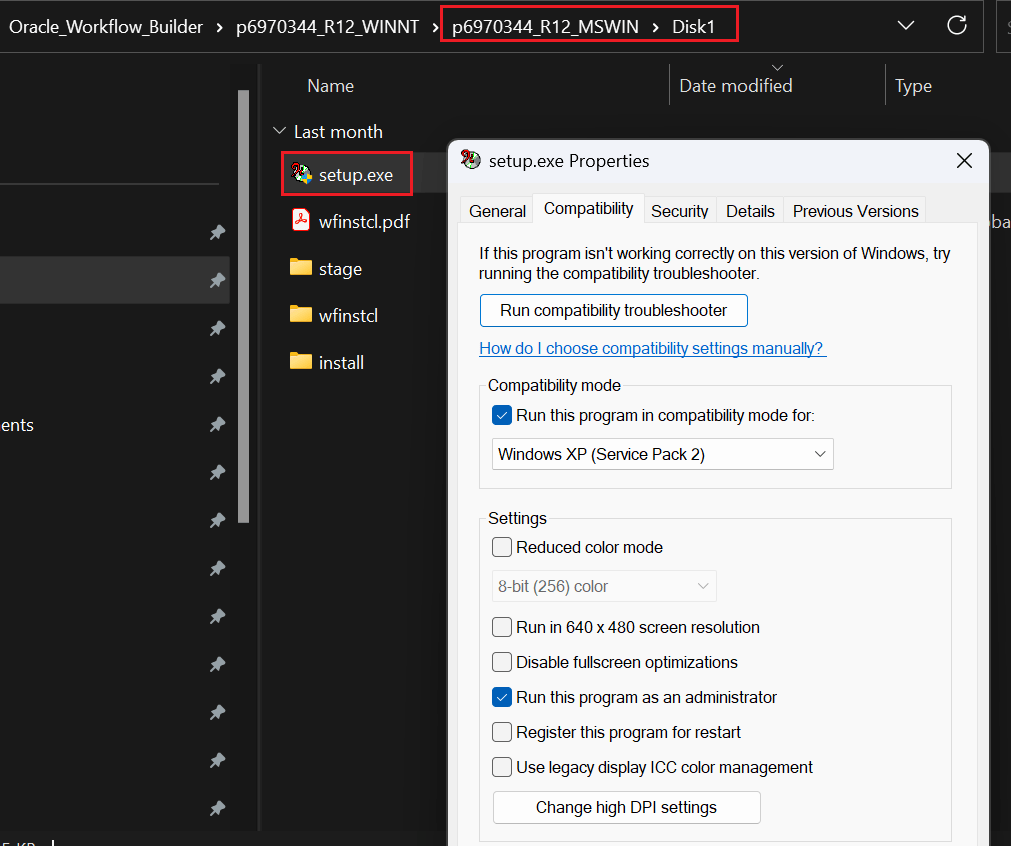
Download the installer, which might need a valid Oracle support (Please note, this particular post might only satisfy this particular version of Oracle workflow builder). Extract the archive, go to Disk1 folder and change the property of Setup.exe as seen in the below image.
Setup the compatibility and Running this program as administrator are mandatory for a successful installation.
Now, before starting the software installation, take a backup of your PATH environment variable. Please read my other post explaining how to make a backup for the PATH and later restoring it after the Workflow builder installation.
This is not mandatory, however advisable based on the number of software that you have already installed on your computer.
Once the setup starts make sure you will setup a fresh home for “Workflow builder”
If you made a correct decision for a fresh home, then installation must complete without issues. Please check the below images for additional details. If you try to install the workflow builder in one of the existing Oracle homes, you will comes across installation error(s)
If you ignored the errors and continued with the installation, you will not be presented with net configuration wizard or other post installation steps & you will not able to start Workflow builder, throwing a run-time error.
Leave the prompts to their defaults unless necessary.
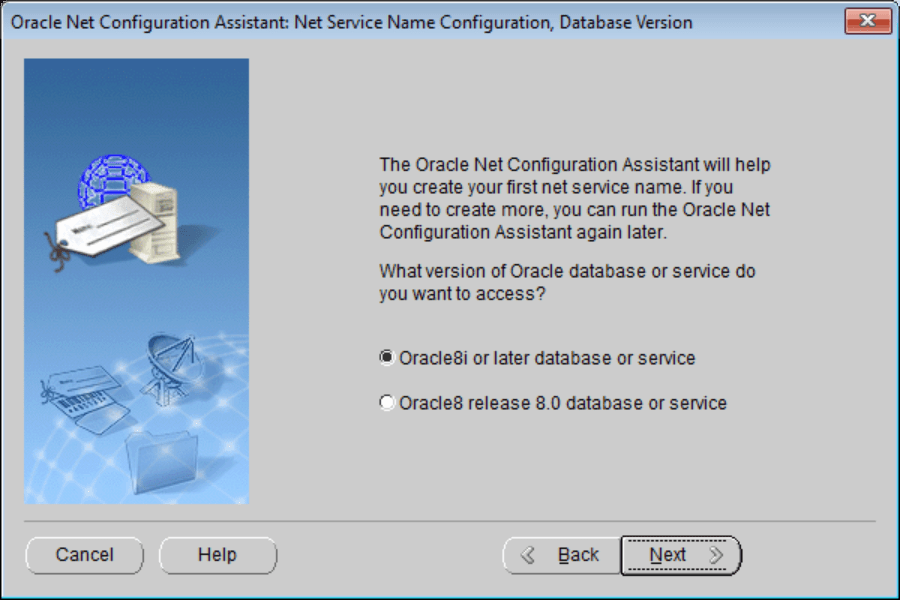
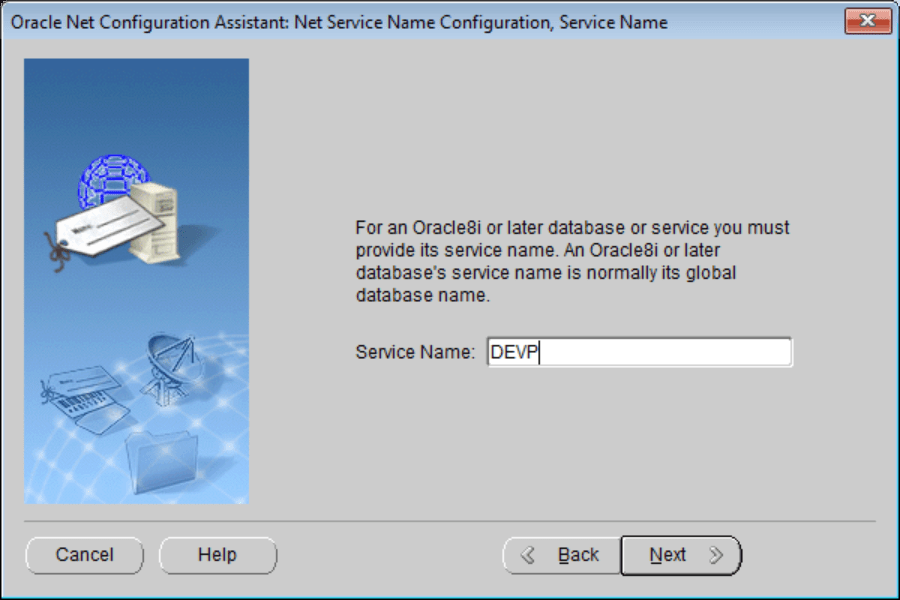
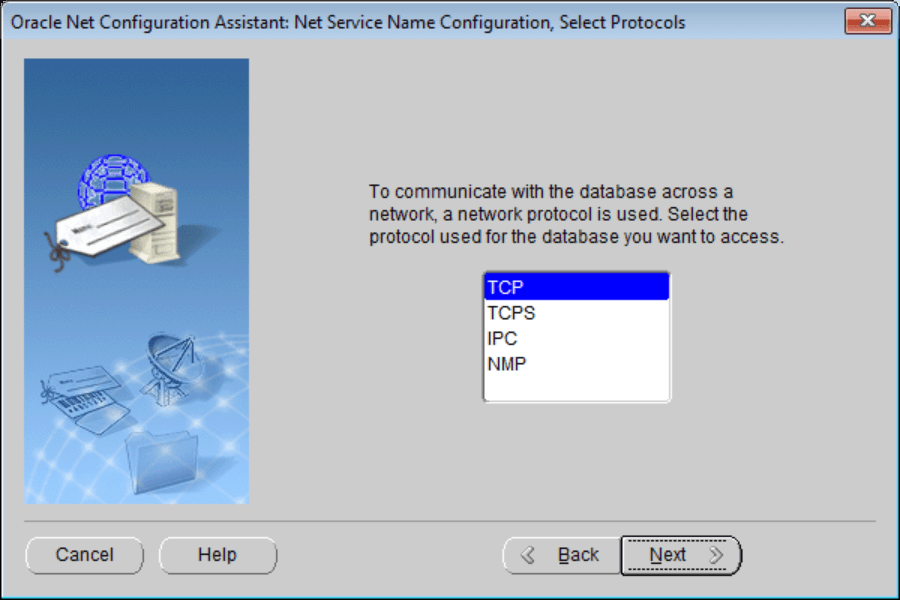
At the last phase of the installation, Net configuration assistant starts.
Well, there is no guarantee that the network configuration setup will complete successfully. My development machine has many Oracle products installed and has multiple JAVA runtimes, I think that should be one of the reasons why the configuration tool always failed to complete the setup successfully. Your case may differ.
Please note, you can Oracle XML Gateway Message Designer is also a part of the installation package, you can proceed to install the product if you want at this stage.
Once the installation(s) over, open Oracle Workflow Builder as administrator always, without which the software cannot read Windows Registry keys.
That’s all. Please note, you are installing a software that was made for Windows XP and hardly received much love from Oracle afterwards. Oracle is keeping it only to support legacy software like Oracle E-Business Suite, which Oracle dearly wants to the pull the plugs off, so that they could force the half cooked cloud based Fusion software & squeeze the customers further through subscriptions. Hence don’t expect Oracle fixing these installation ever, EVER!
It looks like one of the parties, either Intel or Microsoft (must be intel, because disabling the intel display adaptor helped earlier) has fixed the issue & screen recording works as expected even on multiple displays. Enjoy!
Updated on 20th December 2023. Yesterday, I came across Intel forum discussion, about a particular decoder issue strongly tied to Intel UHD. It was quite a discussion and I noticed that the user was able to get stuffs work when he was using “Microsoft Basic Display Adapter” instead of Intel UHD drivers. So, I wanted to see whether it is the case with Snipping tool recording also. I kept removing the display drivers until the device manager shown “Microsoft Basic Display Adapter” for me. I started the screen recording and, yes, it worked! Let us check out a small video now, that was captured using Snipping Tool. Unfortunately, as soon the drivers were reinstalled, I lost this privilege and the only solution “working” for me was as discussed below.
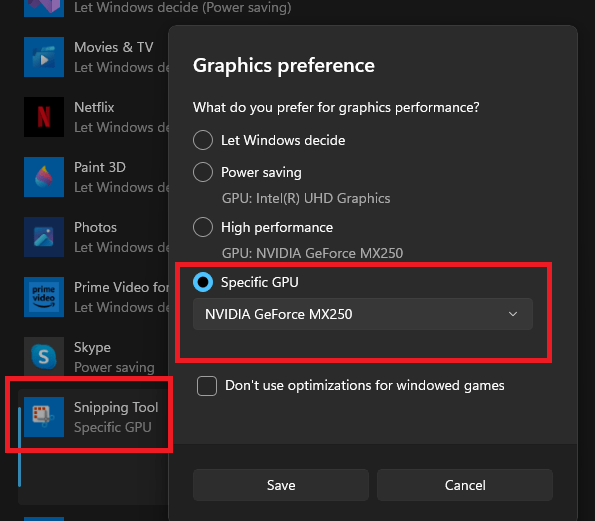
Updated on 3rd December 2023. It looks like, many people were able to get the snipping tool working finally by setting graphics to High Performance GPU. For me, the only option that works as on date is disabling the Intel UHD from devices panel. I think, it is a device specific issue & not many others are affected the way I am. Anyway, cheers guys. We have a working workaround now!
Disable the Intel Graphics. Snipping tool works, or worked for me through multiple hot and cold restarts after this hack.
If it fails, will update this thread with further information.
I will keep this as an open thread as, while the above hack works every time it has some adverse effects. Once I disable the Intel UHD graphics, my box cannot “Project” anymore! That means my multiple monitors setup goes for a toast. To get it back, I must enable the Intel UHD graphics once after the screen recording, feels awkward.
My HP laptop is more than 4 years old & the BIOS does not support selecting NVIDIA as default GPU, instead it is either the low power or hybrid mode. NVidia control panel is not of much help as Windows 11 handles such settings itself.
So for the time being, whenever you want to record screen using snipping tool, just disable the Intel UHD graphics and turn it on immediately after that in order to get back the multiple monitors support. If you are not using multiple monitors, then you can leave the changes as it is.
I’ve one ONKYO entry level AVR HT-S3800 and it has a front USB port, mostly for playing audio files. This port has issues reading USB drives that exceed certain size limits. Say, if you plug a 16GB drive, there are high possibilities that this unit “may not” read it & I came across such a situation recently. To be quite truthful, I hardly ever tested this USB port & while repositioning the unit, I decided to give it a try.
After some deep scavenging I found an APACER Handy Steno, 512MB USB Flash drive from my collection of antiques, that I bought around 2004-2005. My AVR happily started playing from it, while it dissed my 16GB USB stick. So I thought of all possible solutions like ordering a 2GB USB stick online, getting one USB micro sd card reader etc etc.
After couple of days, at work I came up with a vicious idea. Got hold of my 16GB USB stick, removed the volume and created a 2GB volume, formatted with FAT32 and copied my audio files and took it home and connected to the AVR.
My unit started playing from the USB stick happily and no more hours long scanning or dissing the disk! The hack was fooling the unit to “think” the disk has only 2GB storage. The only downside of this hack is losing the balance storage. Who knows, this hack could be applied to other legacy devices as well, especially for car stereo head units that are few years old.
I’ve been using Oracle VirtualBox for last many years and ever since I moved to Windows 10, experienced some unexplainable stuttering and lags with Windows 10, 11 virtual machines. I think finally I made a breakthrough for myself. I am not sure whether this approach is helpful for everyone as virtual machines behave differently on different hardware setups. I’ve gone through many VirtualBox forum posts discussing issues with same nature, particularly with NVidia graphic chips/cards & all my boxes have NVidia graphic chips or cards.
My work laptop configuration.
and has one NVMe ssd for the OS and 2TB SSD for data on which I have all my virtual machines. Regardless, with the amount of hardware resources, my Windows 10 virtual machine stuttered, and the experience was horrible, compared to the Windows XP VM that I had. I never had issues with Linux VMs either. I tried almost every trick in the book and always ended with gaining very little.
Couple of weeks back, for one of the Oracle labs exercises I started the Windows 10 VM and for some unknown reasons found the virtual machine was not automatically resizing display. I managed to fix this problem earlier by changing the graphics controller from VBoxSVGA to VBoxVGA, force auto resize & switching graphics controller back to VBoxSVGA. For that exercise I disabled the 3D acceleration, basically landing on a solution unknowingly. I repeated the same exercise and found my Windows 10 virtual machine snappier than ever! To confirm, I switched back to 3D acceleration & managed to reproduce the same choppy, stuttering experience with the same virtual machine once again.
Let us see what happens with we enable 3D acceleration for the graphics controller.
VirtuaBox allows a maximum of 256MB memory for Video & check the below image to see what happens when we enable 3D acceleration.
half of the video memory is consumed by the 3D acceleration! OS like Windows 10, 11 have pretty heavy graphic elements and obviously the limited video memory makes the OS stuttering and lagging whole the way (or this is what I assume from my experiments).
As I mentioned in the beginning, disabling the 3D acceleration works for me on three different machines & different Windows OS virtual machines. Hope this helps few others out there.
I’ve changed from Windows batch files to Powershell for almost every other repeated tasks & one of the scripts that I use to connect to our IKEv2 VPN script has a shortcut on my desktop. This script helps me to connect and disconnect from the VPN network just by double clicking the shortcut. You can checkout the script here
I had multiple iterations for the script and kept on deleting and recreating the shortcut and noticed that a black window started appearing when I executed script from the shortcut.
All I could remember was, not changing any settings for the Powershell & couldn’t find a “solution” (that was mere eyesore to my rigid expectations). Interestingly, my semi desktop/server class box didn’t have this “issue”, whenever I executed the script from the shortcut, all I was provided was the “Connected” or “Disconnected” message boxes.
After sometime, I decided to check the shortcut properties on my desktop & noticed that the “Run” option was selected as “Minimized”
Powershell provides many switches & one of the switches is “WindowStyle” that supports Normal, Minimized, Maximized and Hidden styles for the Window. Well, the style “Minimized” just hid the entire window, including the message popups that had prompts.
Quickly I moved to my laptop and changed the Run to “Minimized” and that was it. No more annoying black window behind my script message boxes! No more script outputs shown on the screen. So, if you reached here seeking a how to hide those annoying black windows, give this a try.
Our previous solution to fix “one user cannot” logon was doomed by additional issues sooner than expected. We had to regenerate the jar files using ADADMIN finally to close the issue.
===
We are using Oracle EBS R12 for last 12 years and recently upgraded to 12.2.10. We hardly had much technical issues with the instance until recent days, then came a real annoyance.
One particular user was unable to logon. Instead of OA_HTML page, he was either getting redirected to logout page or the OA_HTML page keeps on trying to load. One of the workarounds we came across was, resetting his password. Once the password changed, he was taken to setup password page and to regular landing page. Well, this also turned into troublesome as each time his session expired, we were forced to reset his password.
So what went wrong? We had an issue with concurrent manager outputs and logs opening into a blank page recently. This happened after RMAN backup up, that is scheduled and we had to run autoconfig to fix this issue. Although autoconfig fixed that issue, opened issues with user logon, as explained above. We kept on watching the alerts for possible errors and there were none. Anyhow, we decided to do the following as the ONLY one relevant document we were able to find on Oracle support was “Unable To Login With One User On Oracle EBS Application (Doc ID 2480008.1)” and the case described was not our case.
This is what finally worked:
Cleared global cache (didn’t fix issues)
Shutdown Apps tier
Ran autoconfig on database Tier
Ran autoconfig on both Run and Patch file systems
Restarted Apps tier and the issues were resolved
We really don’t know what happened after the RMAN & we didn’t update/altered the OS (Oracle Linux 7). Well, things could go south once in a while, after all Oracle EBS is such a huge and complex repository!
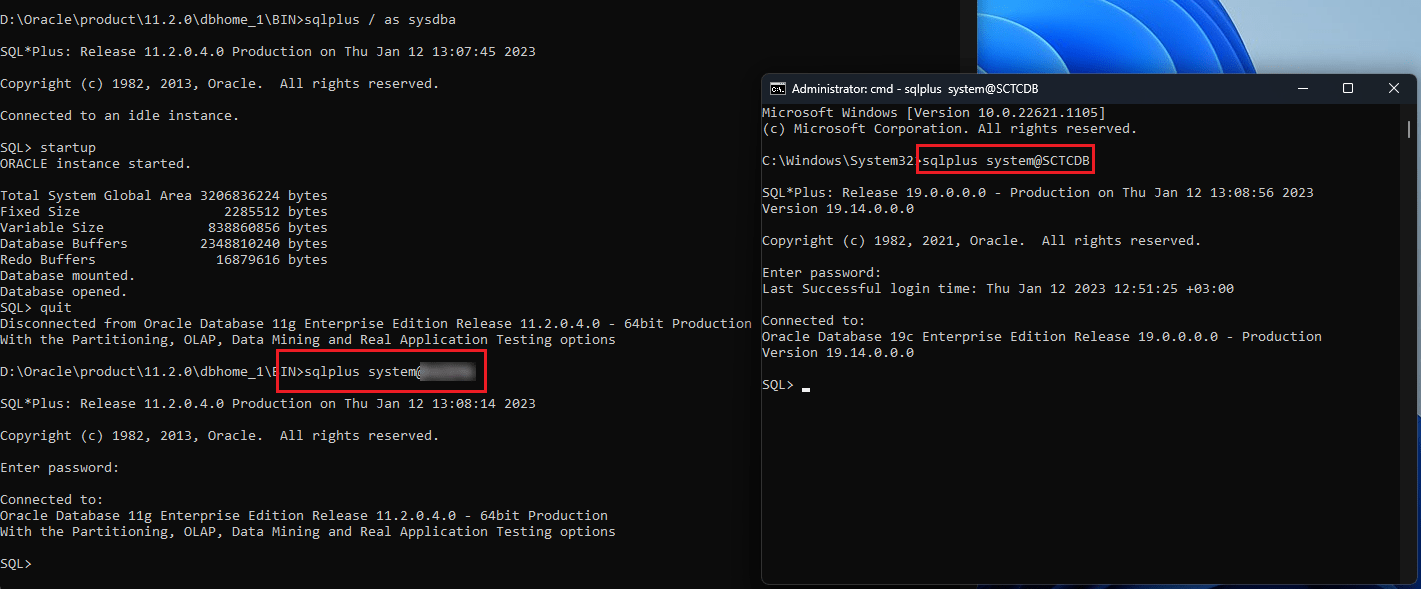
Currently I’ve 2 different versions of Oracle database installed & instances running from my development machine. Oracle 11G R2 (11.20.4) and Oracle 19c (19.14) & yes, we are supported by Oracle. I had 11G installed first & later installed 19c for checking out APEX and ORDS.
As 11G listener was running, I didn’t notice anything problematic until, tried to connect as a specific user. I started getting the error that the listener doesn’t know of the service name.
PS D:\Oracle19c> sqlplus / as sysdba

SQL*Plus: Release 19.0.0.0.0 - Production on Thu Jan 12 12:45:30 2023
Version 19.14.0.0.0

Copyright (c) 1982, 2021, Oracle.  All rights reserved.


Connected to:
Oracle Database 19c Enterprise Edition Release 19.0.0.0.0 - Production
Version 19.14.0.0.0

SQL> quit
Disconnected from Oracle Database 19c Enterprise Edition Release 19.0.0.0.0 - Production
Version 19.14.0.0.0
PS D:\Oracle19c> sqlplus system@SCTCDB

SQL*Plus: Release 19.0.0.0.0 - Production on Thu Jan 12 12:45:34 2023
Version 19.14.0.0.0

Copyright (c) 1982, 2021, Oracle.  All rights reserved.

Enter password:
ERROR:
ORA-12514: TNS:listener does not currently know of service requested in connect
descriptor


Enter user-name:
I went ahead and using netca registered the 19c service with 11g listener, restarted the listener services and this time instead of complaining about the missing service, connection attempt froze.
After some confusion, I decided to drop the 11g listener services and created a new listener from 19c environment.
Registered both 19c & 11g services using 19c NETCA this time & restarted the listener. I was able to connect to both databases using username/password@servicename syntax this time.
So let us see what went wrong. 11g database was configured for connections from Oracle Developer 6i legacy applications.
This cannot be modified without failing the legacy application. Please refer the below to understand how the authentication works with different versions of databases and what has changed.
As I am not allowed to change 11g environment, the ONLY one way I can use the same listener was to register 11g service with 19c listener. Simple, clean and effective. Hope this helps few out there who is not a certified DBA like me ;)
I had a colleague, he challenged me 20 years back that “One day Linux will take over”. I don’t see anyone I know using Linux until date. That’s the end of the story.
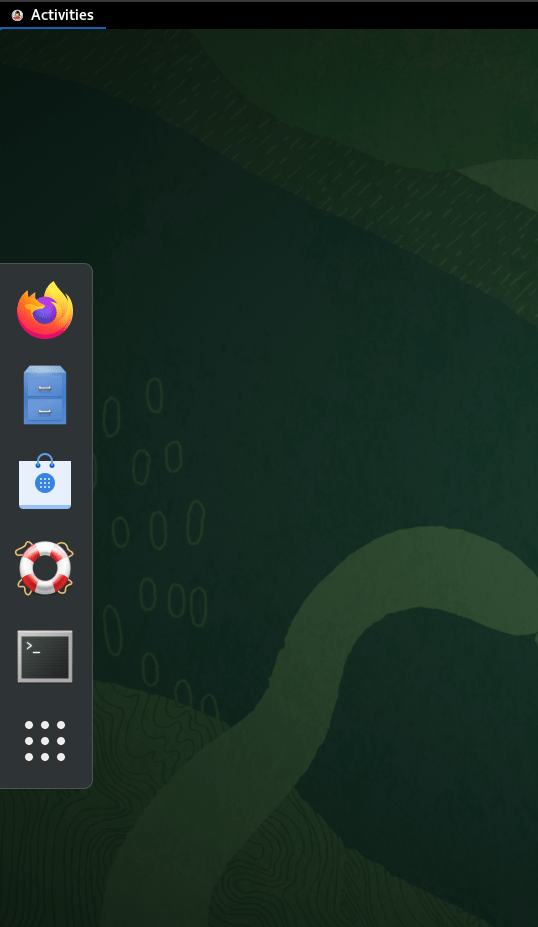
So, let us see how a default installation of Linux 8 (Oracle Linux 8) looks immediately after installation
That’s it. User must click on the lone “Activities” menu & choose one of the listed. We’ve had a joke doing rounds about driver’s license application from a particular Indian state. That form had 5 names listed and the applicant was asked to select HIS name from the given.
I don’t have to look for another reason to understand why my ex-colleague was wrong whole the way. Instead of adapting to the users experience base that is mostly around Microsoft Windows, Linux is getting further away from normal desktop users. Minimum the Enterprise editions are. I know Ubuntu is far different from the Enterprise distros & this article is not meant for Ubuntu users.
So, let us see how to get few of the desktop icons (Classic as it is called now)
Click on “Activities” that will provide you a search box. Type in “Gnome” and you will see a number of suggested software listing. Select “GNOME Tweaks” & Install it.
Click on Extensions & switch Desktop icons “ON”. The moment you do that, Desktop icons will be visible.
Shame on you for using the old “Classic mode” geeks. Shame on you!
I do loads of labs & after upgrading a cloned instance of EBS R12 (12.2) database 19c (19.14) to 19.16 & started noticing the error “ORA-00800: soft external error, arguments: [Set Priority Failed], [VKTM], [Check traces and OS configuration]” being logged. I tried to figure out what went wrong after the upgrade & after referring dozens of blog posts and Oracle documents, couldn’t fix this error.
Then, I configured this VM for Oracle ORDS & broke the system by applying few updates that overwritten few mandatory packages for Oracle EBS, forcing me to wipe the system and fresh installation of Oracle Linux 7.9
After applying the prerequisites, I brought up the cloned instance once again & decided to go by the book. After the database clone, I didn’t forget to apply “root.sh” from $ORACLE_HOME/bin folder as “root” this time.
If you are ever coming across this error, please ensure the folder/file accesses ($ORACLE_HOME/bin) are like the images below. Running “root.sh” fixes much of these access rights.
“oradism“
“extjob” & “jssu“
This should mostly address the VKTM related issues. If not, please proceed with further measures. If interested refer these documents/posts.