Windows | OPatch failed with error code = 73

Few times I mentioned in my posts that I have many Oracle products installed on my laptop/PCs. Such setup could cause unexpected hurdles while trying to deal with specific requirements & I had such one last time while trying to apply a bundle patch on Oracle database 19c.

D:\Oracle_Installers\Patch21\p35681552_190000_MSWIN-x86-64\35681552>d:\oracle19c\OPatch\opatch.bat apply
Oracle Interim Patch Installer version 12.2.0.1.40
Copyright (c) 2023, Oracle Corporation. All rights reserved.


Oracle Home : d:\Oracle19c
Central Inventory : C:\Program Files (x86)\Oracle\Inventory
from :
OPatch version : 12.2.0.1.40
OUI version : 12.2.0.7.0
Log file location : d:\Oracle19c\cfgtoollogs\opatch\opatch2023-12-19_09-49-12AM_1.log

List of Homes on this system:

Home name= OracleWorkFlow, Location= "D:\OracleWorflow_1"
Home name= DevSuiteHome1, Location= "D:\DevSuiteHome_1"
Home name= OracleHome1, Location= "D:\Weblogic\Middleware\Oracle_Home"
Home name= OraClient19Home1_32bit, Location= "D:\oracle\product\19.0.0\client_1"
OPatchSession cannot load inventory for the given Oracle Home d:\Oracle19c. Possible causes are:
No read or write permission to ORACLE_HOME/.patch_storage
Central Inventory is locked by another OUI instance
No read permission to Central Inventory
The lock file exists in ORACLE_HOME/.patch_storage
The Oracle Home does not exist in Central Inventory

UtilSession failed: RawInventory gets null OracleHomeInfo
Log file location: d:\Oracle19c\cfgtoollogs\opatch\opatch2023-12-19_09-49-12AM_1.log

OPatch failed with error code = 73

As I have many Oracle products installed, I adjust the PATH environment variable based on the current requirement usually without setting up ORACLE_HOME or ORACLE_SID. Most of the times this setup works, few other times I must restart the laptop/PC to achieve the desired results.

I rushed to check the inventory entry for the Oracle database home & some unknown reasons, I couldn’t find an entry, leaving me with no options other than recreating it.

<?xml version="1.0" standalone="yes" ?>
<!-- Copyright (c) 1999, 2023, Oracle and/or its affiliates.
All rights reserved. -->
<!-- Do not modify the contents of this file by hand. -->
<INVENTORY>
<VERSION_INFO>
<SAVED_WITH>12.2.0.7.0</SAVED_WITH>
<MINIMUM_VER>2.1.0.6.0</MINIMUM_VER>
</VERSION_INFO>
<HOME_LIST>
<HOME NAME="OracleWorkFlow" LOC="D:\OracleWorflow_1" TYPE="O" IDX="3"/>
<HOME NAME="DevSuiteHome1" LOC="D:\DevSuiteHome_1" TYPE="O" IDX="1"/>
<HOME NAME="OracleHome1" LOC="D:\Weblogic\Middleware\Oracle_Home" TYPE="O" IDX="4"/>
<HOME NAME="OraClient19Home1_32bit" LOC="D:\oracle\product\19.0.0\client_1" TYPE="O" IDX="5"/>
<HOME NAME="oracleas1" LOC="D:\OraHome_1" TYPE="O" IDX="2" REMOVED="T"/>
</HOME_LIST>
<COMPOSITEHOME_LIST>
</COMPOSITEHOME_LIST>
</INVENTORY>

To recreate the inventory entry, we need to know both ORACLE_HOME and ORACLE_HOME_NAME entry values. On Windows, it is pretty easy to get them from the Windows registry.

With these details in hand, we can see how to recreate the entry for database using the suggested methods. I will not mind a manual entry in the file for another round experiments though ;)

Move to $ORACLE_HOME\oui\bin folder from an elevated command prompt and execute the following. (Make sure you change the ORACLE_HOME and ORACLE_HOME_NAME based on your setup!)

setup.exe -silent -attachHome ORACLE_HOME=D:\Oracle19c ORACLE_HOME_NAME=OraDB19Home1

This should create a new entry in the inventory file & one could continue with the patching or other intended activity that involves the inventory from here onward.

Debug an “EXE” file using Visual Studio

Recently, while dealing with some nasty issues related Widows 11 Snipping Tool recording, an interesting visitor said something like “while debugging snipping tool” & it caught my attention! So I did a quick research and realized that I can use VS(Visual Studio) to open an EXE file and do the “debugging”! So let us see how this “debugging” works. Please note, this is not as in you are going to fix anything yourself, instead the whole process gives you an idea about what is going wrong.

We will use “Snipping Tool” for this exercise. Start Snipping Tool and keep it minimized. From the Task manager, let us see where is the physical location for the executable.

Use the “Copy as path” for getting the whole path for the executable.

Open up Visual Studio, I am using Visual Studio 2019 Community edition.

Once the file opened, you will see a screen like below

Now, we need to attach this opened EXE with a running process. Click on the “Attach…” button now, that will open up a window with currently running processes.

Now go back to your application. In our case, “Snipping Tool” and try to do a screen recording.

My current setup doesn’t work for Snipping Tool screen recording and the above error display doesn’t tell the user what went wrong. Windows Event Viewer is not much help either in this case of Snipping Tool. So, let us go back to Visual Studio and see whether we can get more information about the exception.

Now, we know what went wrong, right? Interested to fix it? Well, I think we are at the mercy of Microsoft to fix such issues with their application. According to the visitor, the failing call is due to the intel driver and he has created a Microsoft Feedback entry already listing them.

So, this is one of the most inexpensive ways to understand why a particular EXE is failing & as as I stated in the beginning of the article, not truly “debugging” as in debugging. Hope, you enjoyed this article!

Firefox “Check Spelling” not working

We are using Firefox ESR for Oracle Applications (EBS) & after experiencing stuttering and sluggishness on Microsoft Edge Chrome, decided to switch to Firefox, hoping better experiences. Not just the experience was horrible, to my utter surprise I realized Firefox was not doing spell checking as I was typing. To my further disappointment, found the right click context menu within the text columns didn’t show me the language options either.

So, I knew that there was something drastically wrong. I checked Mozilla Firefox forums and the accepted answers were about installing Dictionary for the targeted language thatI never did in the past! However, I noticed something interesting that Instead of English US, Firefox had only English GB as available under the language section and “Check Your spelling as you type” was enabled by default. Teh noly isseu I aws heving wsa FryerFlox wll nto od tath!

After “some” time reading and failed experiments, I decided to download the “English US” as additional language mainly for the reason that my OS uses it as the base language.

After downloading English (US), automatically it become the default language for Firefox & reloading the editor page started showing language options!

I don’t have any technical details for why English (GB) was not doing spell checking or missing language settings within the Context menu. One of these days I am going to check with Firefox forums for a better answer. Until then!

Oracle Indexes | the way of my understanding

To be quite frank, when it comes to Oracle Indexes and Joins I am as good as with Oracle Analytical functions. Much fly above my head & every time I have to go back to my notes to “learn” for the tasks in hand!

Recently, I took some interests in understanding the “index usage” once after reading about V$OBJECT_USAGE & realized to my shock that more than 50% of my indexes were never used! I wanted to know why & I kept reading for days without finding much that felt like a true answer.

Hence I made a decision to understand how the indexes work by example. Our Oracle EBS environment has more than half dozen custom applications integrated and few of them are with millions of rows, sufficing “large” table requirements to test the effectiveness of indexing. From the layman perspectives, please note, I am not an Indexing expert, I can’t explain why your Indexes are not being used “even after following everything step by step”. For me, what I did work, giving me an understanding about how should I plan my next Indexes. So let us see how I came to my understandings

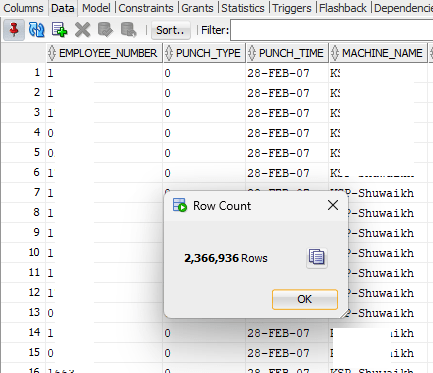
We’ve bio-metric devices that are used for attendances purposes. These devices offload the data to a Microsoft SQL database instance and using transactional SQL, we register them with our Oracle database. The technical part of it. The table that stores the fingerprints has 2.3 Million rows as on date and I used the same table to understand how the indexing works.

There was one Index on this table (Yes, I created it), that I dropped before experimenting as the Index was never used! The logic behind the query is:

I should get the first punch in time for the employee, identified by type “0” and last punch out for the employee, identified by type “1”, the machine name on which the employee has registered in and out punches. Each employee might use the bio-metric devices at different locations for door accesses or other purposes like a proof of visiting another office. Without the Index on this table, let us see how Oracle plans the execution.

This table has just few columns and sought data is usually the punch time against the employee.

Regardless, the cost for the execution didn’t look appealing. So, I created an Index that has all the four columns referred in the main and inline queries.

This time the cost looked far better, however, I could see that the base table still being used when there were no additional columns from the base table referred.

Here comes the thumb rule for indexes (I think). Indexes are not used unless a condition is used against one of the indexed columns! Let us see, whether this makes any sense.

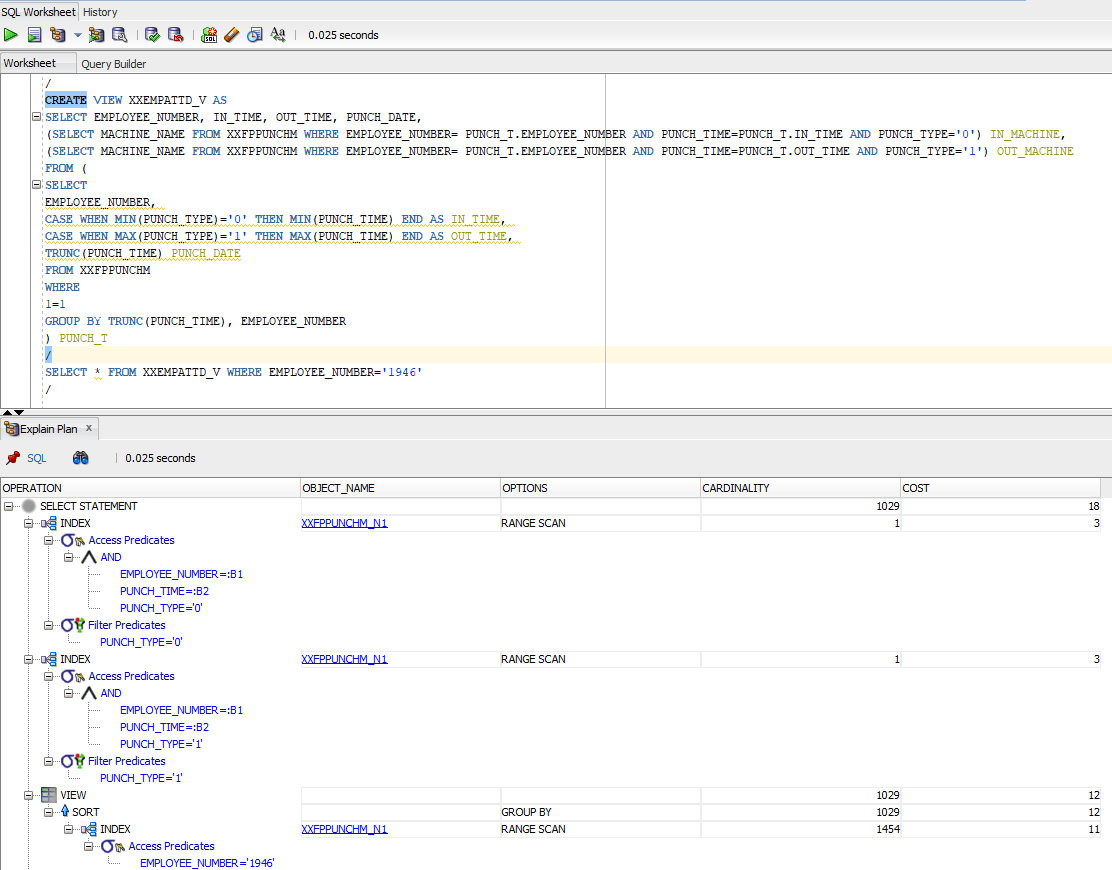
I created a view against the above query to be more certain.

After creating the view, I did a simple select * against the view and the execution plan brought me the same results discussed above. Wherever the predicates were used, query used the existing Index and for the rest, did the base table scan.

So I went ahead against my “understanding” and added a condition to Select * from query and did another Explain plan.

This time, the cardinality, ie the total number of rows fetched came down to just a four digit number, base table was not referred and the cost was dirt cheap compared to the earlier situations.

Let’s summarize everything now.

  1. Indexes are mostly effective about large tables
  2. Oracle will use indexes only when one of the columns used in the index is used against a predicate. Said, I created a view against our dear Scott.Emp table and “Select * from emp;” used that index. I don’t know why and I don’t care!
  3. Add up IS NOT NULL against all your index columns in your query to make sure that your Index is used instead of base table.

Now, I needed to understand further. Hence, I went back to the HR sample schema and chose the table “Employees” this time for my continued experiments. As I said Scott.Emp, the results were the same.

HR.EMPLOYEES tables have many Indexes defined.

For the first query as seen with the image below, I didn’t include a predicate. Regardless, Oracle used the Index for the column

Then I tried another query with multiple columns and without predicate. Oracle used the Index this time as well.

Apparently, this gives me an idea like, for larger tables the Indexes are opted when predicates are available against indexed columns and for tables like HR.EMPLOYEES which has only 107 rows, if there is an index exist against the queried column exist, it is used by Oracle.

Cheers friends, it was fun learning something, once again my own way. Hope this helps few others out there who were breaking their heads to understand this horrible thing. Merry Christmas and a very Happy New Year to everyone out there.

Oracle Inventory | Cost manager not picking up transactions for a new organization

Quite recently we defined one new inventory organization while extending our retailing. After the setup, noticed that none of the transactions were getting costed and there were no error or messages in the lines.

After some dwelling we realized that initial settings for the organization sets the cost cutoff date for the organization to a date that looks somewhere closer to the application installation date. All we needed was to empty the column and relaunch the cost manager.

Navigation. INV Super User -> Setup -> Organization -> Parameters -> Costing tab & reset the cost cutoff date.

Hope this helps few out there! Merry Christmas & Happy New Year 2024 to everyone!

How to copy code/scripts from blogspot?

There are many free blogspot sites that don’t allow copying sample codes from their pages. I believe, most of the bloggers are selfless, sharing their knowledge and sample scripts expecting the visitors benefit the maximum from such efforts many of them are not aware of this situation as they don’t try to copy code/scripts from their own posts. As I didn’t use blogspot much, I am not sure whether copying from their posts are disabled by default.

Well, there is always a way and all you need is a browser like Mozilla Firefox (The easiest to my knowledge)

Step# 1 Open Firefox and enter “about:config” in the address bar (Image was modified for better view)

Accept the risk and continue! Search for “javascript” in the search area and double click “javascript.enabled” to toggle true to “false

Open a new tab in the same session with the page from which you want to copy the code/scripts. Get your stuff, go back to the about:config & toggle “javascript.enabled” back to “true“. Forgetting might cost you dearly ;)

Windows 11 23H2 | Download error – 0x80246019

I’ve received it 3 days back at home & at work WSUS server is yet to recognize this update! So, I removed my box from WSUS & tried to get the same using Windows Update. Once after restarting my domain joined computer, I was presented the 23H2 update, however, will not download and always ended up throwing the error “0x80246019”

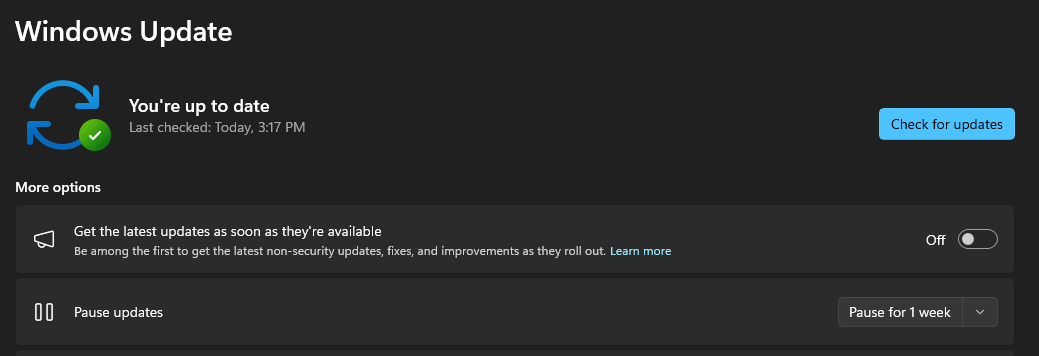
A quick search landed me on multiple threads and the one worked for me was, disabling the “Get the latest updates as soon as they’re available”. Once after turning it off, downloaded completed successfully and within 3-4 minutes my box was upgraded to 23H2.

(Based on organization policy, you may find this switch not enabled for domain joined computers)

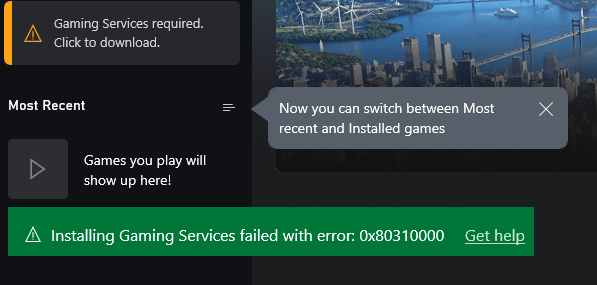
Installing Gaming Services failed with error: 0x80310000

(The above image was doctored to show the error)

If you ever receive this error on #Windows 11, it means the XBox gaming services are toasted and you need to reinstall them. Usually after a fresh installation of Windows10/11, I always removed the bundled apps using PowerShell & later installed only the software that I need. I did install XBox and associated last time, as I constantly use XBox gaming bar screen recording. Looks like the Gaming Services were not fixed by re-installing XBox and components.

I landed on a working solution that is Microsoft answers thread. The working solution is copied below.

  1. Open Terminal as Administrator & enter the below commands one after another
  2. get-appxpackage Microsoft.GamingServices | remove-AppxPackage -allusers
  3. start ms-windows-store://pdp/?productid=9MWPM2CQNLHN

The second command “start…” will open a fresh instance of Microsoft Store app and you can install the gaming services. Restart the box and you are all set to go.

Hope this helps few out there.

Oracle EBS R12 Vision Instance

Did you ever wish for having your own copy of Oracle EBS R12? Well, Oracle provides a copy that is all yours called VISION instance. The below post is one of the best I came across, explaining how to setup your own VISION instance on Oracle VirtualBox

I hope, it was an easy ride. Oracle’s virtual appliance is perfectly sized for moderate hardware, without GUI out of the box. We’ll see how to install GUI, configure the appliance for network access etcetera in this post.

Basically you get Oracle Linux 7.9 OS, EBS R12 12.2.10 with Oracle database 19.9 in this appliance. You must update the OS to latest before installing GUI. So, let us setup the environment for the update now.

Stop the running application and database instances.

su - oracle
cd /u01/install/APPS/scripts
./stopapps.sh
./stopdb.sh

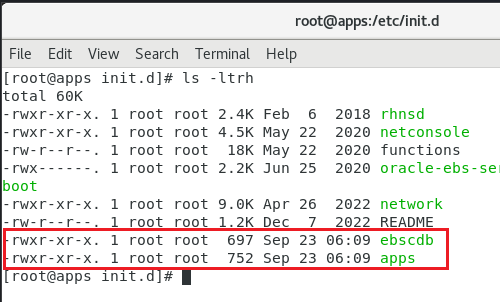
Oracle has the appliance set to start the database and application instances automatically during every reboot. I strongly suggest you to disable the automatic start of these instances. Oracle starts “ebscdb” and “apps” services every time when the box restarts. We can disable these services using chkconfig command

chkconfig apps off
chkconfig ebscdb off

That’s it. Now, when you restart the box, Oracle services will not start automatically.

Shutdown the server. Change the network configuration for the sever like seen in the below image.

This means, your server will start sharing the host’s active connection(s). If your host machine has an active internet connection, your EBS server will able to access internet this way from it’s environment.

Start the EBS server and complete the OS update. This should be around 2.2GB total downloads and minimum 30-40 minutes, depending upon the hardware resources you have allocated for the virtual machine.

Once the box is update, proceed with “Server with GUI” group installation.

yum groupinstall "Server with GUI"

Restart the server after GUI installed. You can temporarily switch to graphical run level by issuing the command

systemctl isolate graphical.target

and to make the graphical interface as default, issue the below command as root

systemctl set-default graphical.target

Please note, your box doesn’t have VirtualBox extensions yet, which is a MUST for proper mouse integration and more. Prior installing the VirtualBox extensions, make sure to install kernel devel package. Issue the following command

yum install kernel-uek-devel

Additionally install the packages gcc, make & perl (pre-installed usually)

yum install gcc make perl -y

Reboot the server & install the VirtualBox extensions.

If you remember, we changed the network settings earlier for the update & if you try to start the database and application, this may not work. Depending upon how you want to access the VISION instance, you have to configure additional networking now. I suggest to leave the NAT configuration as it is and to configure an additional Network adapter for the intended connectivity.

For example, if you want to share the VISION instance with your teammates within a Class C network, do the following.

Use “Bridged Adapter” & select the adaptor that is connected to the network under “Name”. Recent computers have multiple network and WiFi adapters & selecting the correct adapter is very important for client connectivity. Make sure to setup “Promiscous Mode” to “Allow All”.

Find one free IP address and set up the same for your EBS VISION box. You will have to setup this information at multiple places.

For example, change the hosts file (most important)

Network settings. My box have NAT as first Network Adapter and Host Only network as 2nd Network Adapter. Hence my configurations are like below

For the NAT (Connection #1) I have the following setup

and for the Host Only network (Connection #2)

By having the NAT as first adapter, my box is able to connect to internet, shared from the host and my host can access the EBS instance from the virtual machine using the host only network.

That’s all folks.

Install Oracle Forms & Reports 12.2.1.19 on Windows

No post should look good, started with a statement asking the visitor to move on because “There is nothing much to see here”. Trust me, if you already referred my previous post(s) for Oracle Forms & Reports 12.2.1.4, then there is nothing new I have for you in this post. As I don’t have much to offer other than what I have already did through my previous post, let us see how we can insure your fresh attempt to get this whole complex stack installed & configured successfully on your computer.

Are you excited? Don’t be. Oracle has released the much waited Windows version for their Oracle Forms & Reports couple of days back and I must say, I was super excited based on the promises given about the IDE improvements. For improvements what I could see what line numbers inside PL/SQL editor.

Software Requirements

Side note before anything else. Please note, you must install software from the same architecture. Said, if you install JDK 32-Bit and expect your 64-Bit Weblogic to work properly, that is not going to happen. Hence insure all the software you download and install belong to the same architecture.

Microsoft Visual C++ Redistributable packages (Specific to Weblogic 12.2)

and for Oracle Forms 12.2.1.19, you have to install Visual Studio 2017 VC++ compoments.

Oracle JDK

Weblogic Server Software

Oracle Forms & Reports 12.2.1.19

Before you start the installation, let’s do a checklist

  • Is your Windows machine updated with latest patches for OS and .Net?
  • Do you have a static IP address for your computer/laptop?
  • What is the name of your computer? does it looks like some random letters?
  • Have your read the installation document? :) nobody does it right?

Legal, cracked, pirated… OS comes in different flavors & nothing can stop it. However, keeping your box up to date is your responsibility. Oracle is a very complex technology, that depends upon many OS elements. A broken box will not get you anywhere.

Static IP address is 2nd most important element when you are installing a server software, that is WebLogic in our case. As this server has to be identified and reached by clients, a fixed IP address is a must, however not always possible when a user has limited infrastructure. Microsoft has provided “Microsoft Loopback” interface for such requirements. Please Google and find more about setting it up, if you are one of those users. Microsoft Loopback helps you to setup a static IP address, please note other computers in your network cannot reach your computer using this IP address or setup!

Name of your computer or HOST name. Much of the Computer/Laptop that you buy with Windows preinstalled come with some whacky names. You should change such names to something more meaningful like “JOHN-PC”,”XYZ” etecetra.

I didn’t either read installation manuals until recent times. I realized that, I could avoid hours or sometimes days long Googling merely by reading the instruction manuals.

Once you are done with Microsoft Visual Studio C++ redistributable package(s) installations, we can proceed. Please follow the below post that should take you through installation and setting up a classic weblogic domain, report server instance etc. I hope you will have least issues installating and configuring Oracle Forms & Reports following my post 🙏(Don’t get discouraged by the title of the referred post, as I stated in the beginning, there is nothing new HERE!). The one thing I want to warn you about the time that your computer might take to bring up the UI for the Oracle Forms & Reports installer. This could be nothing less that 7-8 minutes, much more depending upon your hardware resources.

All the best and if you are still stuck, do let me through comments!