Dealing with “Windows 7 Additional log on information may be required”

Scenario: Windows 2008 R1 AD Domain, Windows 2003 ADC, ISA 2006 proxy, Windows XP, Windows 7 Clients.

I had couple of other posts related to the same topic in the past. Last week, March 2009, we almost ran into a solution which we expected as a permanent resolution for the annoying “Additional log on information may be required, click here to open the browser” message. However, immediately after couple of days without issues, this message started popping up, especially with 64bit Windows 7 Professional clients (I have one)

This time rather than spending our whole attention towards the client, we tried to do troubleshooting for the live connection and the detailing pans suggested we should sign up with the ISP for this network. Because we are behind ISA server proxy, we assumed the connection assess the same as a re-direction.

We had ISA from last five years and right now running ISA 2006. However we never enabled the auto discovery method for ISA and finally after spending few minutes and with the help of a document from isaserver.org we managed to get the wpad work fine for us.

However, other than my particular box, rest three test boxes running both 64bit and 32 bit clients stopped receiving “Additional log on information may be required” or “abc.com no internet access” status messages. In order to re-produce the scenarios which caused my system to have persistent error messages, I opted for a fresh installation of the OS and started creating manual restore points (how to?)

Post-installation activities

Re-joined my box with previous hostname

Installed ISA firewall client<>’No more You may require additional log on information or the yellow triangle with “abc.com no internet access”

Installed Avast free antivirus<> No problems yet (Many posts refer about antivirus programs causing the status/error messages)

Installed ZoneAlarm free firewall<>Better manageable than built-in firewall, still no error messages.

As writing this post on 20th March 2010, I am yet to receive any error messages about the connectivity. Following are the software I am yet to install which MAY cause problems with the connectivity

  • Java VirtualBOX
  • VMWare free player

Right now I am too busy to install the virtual machines, however too eager to assess what would happen once after I will finally install them. Please come back and read to know whether one of the installations specifically causes the most annoying error messages you would come across with your Windows 7 network connections!

Even though while connected to the LAN physically I don’t get warning/error messages, while establishing a PPTP connection from home to work, I do receive “Additional log on information may be required” followed by “click here to open the browser” messages.

Update 20.March.2010 afternoon session

Installed VMWare free player (latest edition). Everything works fine. “Additional log on information may be required” message still appears along with the hated yellow triangle only when the cable is physically detached and attached back. Nothing (restarting “Network Location Awareness”) clears the status message and a forced restart required to clear the message.

Uninstalled VMWare player, re-produced the situation to confirm it was not the VMWare networking components causing the error

Found a latest driver for the NIC from BroadCom site itself as HP site provided NIC drivers are rejected by Microsoft stating the drivers supplied by Microsoft being the latest dated to 26th April 2009. The drivers from BroadCom is dated 08th of June 2009 and Windows agreed to upgrade the drivers.

By virtue or out of curiosity disabled the option “Allow the computer to turn off this device to save power” under Power Management node.

Re-installed VMWare free player, restarted the machine. Everything seems working fine.

Unplugged the cable, plugged back and bingo, within few seconds the network connection established without throwing any error messages!

Does it mean we are finally dealt with more than a month-long painful exercises to find a solution for this annoyance? Wait, let us wait another couple of days. Last time when we “found” such a solution, the error messages started appearing after 2-3 days…

Minor update (21st March 2010)

Umm I didn’t have to wait for 2-3 days! Now, the latest problem which triggers a hated yellow triangle tightly related with the power saving “enhancement”. After the fresh installation the power options were not altered to suit my current working atmosphere and the machine was having default settings, in which, even while the power is plugged in the system was asked to go into sleep mode after 5-10 minutes of idle time.

Once awaken, the system tries “hard” to re-initiate the network, eventually fails to authenticate(?) something, something, brings back the favorite(?) yellow triangle and the love message “Additional log on information may be required”

The only solution I had was to set up never to allow the PC to enter into the sleep mode while power is plugged in! Seems it is working perfectly (I spent around 12 minutes for lunch and when returned the network connection was still intact without the yellow triangle or error message(s))

Windows 7 “Add new hardware control panel item”

Too familiar with “Add new hardware” snap-in with the control panel? Really missing it with your Windows 7? Well, it is still there..
Press together windows key+R (run) and type in “hdwwiz.exe” and you should get the “Add new hardware” wizard started.

Google search “Windows 7 add new hardware”
Now who is going to give an explanation for why this feature is not anymore available with control panel?

Minor Update (28th March 2010)

Okay, you can invoke the Add new hardware wizard once again from device manager. Click on one of the listed hardware items, after that click on ‘Actions’ menu and select ‘Add legacy hardware’

Hope this information is helpful for others also.

Windows 7, DHCP Settings

DHCP Configuration
Windows 7 DHCP

I am wondering what does it mean! Usually I use static IP address at work, as I have a local oracle database, our ISA firewall has “strict” rules, limiting IP ranges from downloading from internet etc.

Recent days I was shuttling between two branch offices and was forced to reset my IP settings to obtain DHCP addresses. Interestingly, twice I found that once I pick obtain IP address automatically option, the default gateway (Grayed out) is seen (refer the image) when I open the property console for IPV4 section.

The most interesting factor is, regardless my branch locations (we use 131.102.xx.xxx) where the third octect differs each network (C class), the DHCP settings shows ‘131.102.10.1’ as the default gateway.

Please check the image attached and if you have an explanation, please post it over here.

Windows 7 domain network “no internet access”- A temporary fix!

Scenario: Windows 2008 R1 AD Domain, ISA 2006 SP1, Client Windows 7 Professional 64bit with ISA firewall client installed!

Annoyance factor: Though the client could access the internet, the local area connection/wireless connection to domain network shows “No Internet Access” or when connection shows “Internet Access” the balloon message says “Additional log on information may be required”

Day count wasted to find a solution: 8th day in a row

Activity log as following.

  1. Googling to find a solution, came against a vista forum post where somebody has mentioned about adding “local service” account under “Administrators” local group.
  2. Added “local service” and “network service” under local administrators group.
  3. Restarted “Network Location Awareness” which in due restarts “Network List Services” automatically.
  4. Noticed the following: Instead of the much hated yellow triangle, the connection (cabled) shown “Additional log on information may be required”
  5. Flipped the coin, uninstalled the ISA 2006 firewall client.
  6. Though not prompted, opted for a restart.
  7. The connection apparently stopped showing both the annoying messages “No Internet Access” and “Additional log on information may be required”
  8. Re-installed ISA 2006 Firewall client, restarted the “Network Location Awareness” service which restarted the “Network List Services”. Everything look still good
  9. Moved to nearest Windows 7 client running 32bit Windows 7 Professional. Gone through the above said procedures. Confirmed everything worked fine.
  10. Moved back to my client machine, removed both “Local Service” and “Network Service” accounts from local administrators group.
  11. Forced a restart.
  12. Everything looked fine, no more false messages stating “No Internet Access” or “Additional log on information may be required”!

Annoyance continues

Though the connection status doesn’t piss me off with the messages, the following were observed.

Avast anti-virus client as well Symantec endpoint client were unable to download virus definitions from download servers until manually configured with proxy settings.

Monitoring the ISA Server 2006 pointed towards the download requests being forwarded to ISA without user credentials and ISA was denying access to those requests.

Now wondering how more days I should spend to find a solution for this problem :(

Installing Oracle Developer (forms & reports 6i) on Windows 7 64bit

Update (09.Feb.2012)

Just came across an issue while trying to install Developer 6i suite on Windows 7 64 bit (may apply to 32bi as well), came across following error “forms60.vrf(78):OS_ERROR while getting value Path”. Didn’t have a clue what was wrong as we were able to install Developer Suite 6i more than multiple times (for legacy application used across corporate)

Googling around brought us to this link and found the solution! It was related the path element length, by removing some “unwanted” entries from the path string, we were able to successfully install the Suite.

—


Oracle developer 6i (forms & reports) Installation tips.

Including me, many of you out there must be still using the developer 6i and getting this stuff work under Windows 7 64bit environment could be quite tricky.

Run the installer normally (without changing the compatibility mode) and finish the installation for both forms and reports. Go to this link and download the files suggested.

Now go to your developer installation folder, browse to BIN directory and make backups for these files

  1. NN60.DLL
  2. NNB60.DLL

Now copy the extracted files from the downloads you already have, to \BIN directory. This should deal with forms developer not responding to the “Run” button click or ‘Ctrl+R’ shortcut key.

Hope this post is useful Oracle developers.

VMPlayer, Sun VirtualBox installation on Windows 7 64bit

Had you try to install VMPlayer or Sun VirtualBox on your Windows 7 box yet? Okay let me tell you how I managed and what I didn’t manage until date.

Downloaded the latest version of Sun VirtualBox

The installation went smooth until 78-85% and a shortcut to the VirtualBox was created on my desktop and then the installer just stopped responding. I opened up the VirtualBox and everything seemed working okay. I created a Windows XP virtual machine, joined the same to our local domain and installed couple of most necessary software (Antivirus, IE8 etc) and was truly glad to have Windows XP back.

The joy didn’t survive a restart. Windows 7 restarting process hanged up for almost 8-10 minutes and given me a beautiful Bluescreen of death, told me it is dumping some information and then restarted. Once restarted the stupid error reporting started and the details pan clearly shown the information as “Bluescreen”.

With the last few BlueScreen experiences I was sure that Sun VirtualBox has made Windows 7 angry and I should get rid of the same the earliest possible or I will have more issues. I uninstalled Java VirtualBox and my beautiful Windows 7 professional 64bit once again become “STABLE”

However, I was feeling ditched and opted to download VMWare free player. The Installation file size was shows as 89MBs with the download site (OH yeh, as if the download procedure is so straight forward…check it out), when it downloaded it has shown as 92.xx MBs (who cares as far the download completed).

I started the installation without checking for compatibility issues, as the player was guaranteed to run on Windows 7. The installation went on for a while without throwing any errors and all of a sudden it prompted with an error message saying ‘UI.cab” could not be found. I checked with temp folder and I was able to see that the UI.cab file was intact. I searched about this error throgh google and found many entries mentioning about a corrupt downloaded file and about multi-layer file crunching.

THE ONLY WISE THING I DID WAS KEEPING THE DOWNLOADED FILE. Okay, I downloaded the installer again. Ran the installer and was given another error stating “Device.Cab” cannot be read because either the file is not existing or it is corrupt or blah!

One more thing I noticed while the installation started was, the package was extracting the file (though the exact location was not shown). I googled and found sequence like “downloaded installer -extract C:\vmplayer” to extract the contents of the installer to a physical location.

I extracted the FIRST DOWNLOADED installer to a location called “C:\VM1” and extracted the contents of the second downloaded installer to “C:\VM2”, then from “C:\VM1” I initiated the setup using “vmware player.msi”. Installation started and at the same point of time, I got an error saying the installer cannot find “UI.cab” file. I dared to copy the “UI.cab” from the “C:\VM2” folder and pasted over to “C:\VM1” folder and clicked on the “Retry” button and installation proceeded to next level, once again giving me an error for the file “core.cab”.

I did the same with what I had done for “UI.cab” and the installation progressed and I kept on copying files from C:\VM2 folder until the installation completed successfully. I still doubt whether the installation was 100% successful because I remember a flashing window where I was able to see a warning or error and before I could read the details, disappeared.

Anyway, I had the VMPlayer shortcut button on my desktop and it was fully operational (first time when I started the application the GUI didn’t load properly, however after couple of minutes time the VMWare GUI was ready for interactions). I installed Windows XP Professional and everything is working fine while writing this post.

Note: If you have a proxy which authenticates you to access internet, you may not able to successfully install the VMWare tools to your guest operating system as the download process will terminate stating ” incompatible database on the update server (41)”. So be ready with an alternative connection to internet if you really WISH TO HAVE YOUR VIRTUAL MACHINE IN FULL SCREEN MODE and with upgraded network connection speed etc. By default the VM will have 10MB connection speed and once you install the VMWare tools, the speed will be upgraded to 1.0GB!

Hope the provided information is useful for some others who are trying to install VMWare Player or Sun VirtualBox.

Windows 7 64bit, the crashing mechanism,Sun Virtualbox, Bluescreen of death

Did you expect your copy of Windows 7 64bit host all your favorite software as they used to perform seamless with your Windows XP? Well the answer would be pretty disappointing and a definite NO!

Find below a list of application which were installed “properly” and later made Windows 7 64bit crash down with the infamous Bluescreen

  • PointDev Ideal Administrator (32bit)
  • Sun VirtualBox

Ironically both software install “successfully” and you start experiencing the errors only when you go for a proper shut down next time. Windows shutdown process initializes and takes a loooooooooooong time (most probably trying to shutdown the running services) then comes up with a Bluescreen, dumping up information and asking you to check the latest installed software and hardware components.

I am not sure whether these software would run properly without causing Windows 7 64bit to meet it’s pathetic Bluescreen of death periodically, if a compatibility mode is chosen….

Give us a SERVICE PACK Microsoft! I am terribly missing my Windows XP Professional as maximum of working hours I am trying to uninstall, reboot to bring Windows 7 64bit back to a working state.

Signed by Annoyed and Frustrated…

Persistent Route in Windows 7

Umm, a pretty decent topic I believe. Recently I was trying to figure out certain networking issues at a friend’s place and while running the command found a persistent route ‘0.0.0.0 0.0.0.0 gateway’ under the IPv4 settings and was sure that I didn’t add this entry at any point of time with my fresh Windows 7 professional installation. I wanted to see what will happen if I remove the same entry.

I removed the entry and everything seemed working perfect. I was still able to connect to internet, access other computers over the LAN etc. The problems started after the weekend when I took the laptop back to work and tried to connect to Microsoft exchange server using Microsoft Outlook (2007 standard edition)!

Outlook was so stubborn and shown me it was disconnected and I started removing the Java VirtualBox, ISA client etc and after going through few restarts still Outlook looked adamant and refused to connect to the exchange server. I checked with my colleague Sherin to confirm whether his 32bit Windows 7 professional has a persistent entry for the route and he reported yes.

I put the 0.0.0.0 persistent route entry back and bingo, Outlook got connected. The route entry 0.0.0.0 was a default entry against the default gateway for the session with Windows XP (if I am recollecting it correctly) and seems Windows 7 has made it as a persistent route with the latest enhancements!

If any Microsoft techies are reading this post (ever), would like to hear an explanation from them about this.

Install Oracle 10g onward database, developer on Windows 7

General Notice:

31st October 2019 (Final note on the topic, most probably)

As Windows 10 is maturing, Oracle Developer 10g 32Bit is having regular issues, most probably due to dynamic link libraries and function calls those are NOT any more existing or compatible. As we continue using Oracle E-Business Suite R12 with 0 plans to migrate as on date, the ONLY ONE solution left for us was to move the development stack to Windows XP Virtual Machines, on which the Developer Suite works as intended.

Please note, we don’t have solution for you, if you are trying to install Oracle database 10.1.x.x on Windows 7 or Windows 8. We apologize for a bit confusing title for this particular post which says “Install 10g onwards…” which is not literally true! Our tested database version was 10.2.0.3 and we were having the impression that all 10g releases had the same architecture.

We tried around a couple of dozen times to install 10.1.0.2 database on both Windows 7 (32/64bit) and on Windows 8, and every time the results were futile and we are resigning from future attempts :)

*Update* 11.Dec.2011

*Update* 13.Nov.2012

We are limiting this workaround method for Oracle Database versions 10.2.x.x and above, as one recent lab test proved that 10.1.x.x installation on Windows 7 never completing successfully. Run under compatibility mode set as OS version 5.1 (Windows XP Professional), failed to create database during the installation process, throwing Oracle error “ORA-12546”

This error looks like the same issues we had with Database 9i setup in the lab, apparently without any solutions. So, we guess it is time to move on :)

*Update* 21.Nov.2012

Looks like we are always on to the subject :) Anyway for those who guys have access to Oracle support, there is a happy news. The frequent crash experienced by Developer 10g forms are addressed to a greater level with an upgrade to 10.1.2.3.0 (patch number 5983622)

Noticed changes

  1. Forms doesn’t crash while opening form modules which are referring views, database objects like packages, procedures and functions WHILE NOT connected to database (Provided, minimum one time the forms developer was connected to the database, until a restart). Speaking English. Start developer 10g(patched), connect to database. Close forms developer and start it again, try to open forms modules without connecting to database until the computer restarts, you shouldn’t experience crashes.
  2. Quicker start-up, and the interface is ready to serve much faster than 10.1.2.0.2
  3. Installation has an option to override required OS version with y/n prompt

PART I (Install Oracle 10g on Windows 7)

Almost after more than year time, We still receive requests asking for assistance with installing Oracle 10g database while Oracle has 11g release 2 in place. We do understand why many need Oracle 10g against the latest released database and we confirm our claim once again YOU CAN INSTALL Oracle 10g on Windows 7 (Home Basic, Home Premium, Professional etc)

Though I believe the maximum number Oracle applications are accessed through Microsoft Windows clients, when the cooperation comes in, Oracle and Microsoft behave like sisters in a fight and the end users suffer!

As a Oracle developer it is my primary requirement to have a local database running from my laptop/desktop, having the oracle development tools properly installed and once I started with Windows 7, apparently failed miserably to get the Oracle stuff installed properly on Windows 7.

It took me almost 6 or more months to come against another wordpress blog where a user has posted a fix and frankly it WORKS

Before checking the workaround check what Chris F has to say

“Thanks.  This was helpful.  I noticed when installing the 10.2.0.4 server that even after changing the refhost.xml file, I was still getting the same version check errors.  I then had to go into the “install/oraparam.ini” file and change the certified version comma-delimited list there.  After that, the installer was happier.”

here is the work around.

Example, go to this folder “E:\Installers\Oracle_10g_1023\Disk1\stage\prereq\db”

locate the file “refhost.xml”, open it with notepad

you must see something like this

<CERTIFIED_SYSTEMS>
<OPERATING_SYSTEM>
<VERSION VALUE=”5.0″/>
<SERVICE_PACK VALUE=”1″/>
</OPERATING_SYSTEM>
<OPERATING_SYSTEM>
<VERSION VALUE=”5.1″/>
<SERVICE_PACK VALUE=”1″/>
</OPERATING_SYSTEM>
<OPERATING_SYSTEM>
<VERSION VALUE=”5.2″/>
</OPERATING_SYSTEM>
<!–Microsoft Windows Vista–>
<OPERATING_SYSTEM>
<VERSION VALUE=”6.0″/>
</OPERATING_SYSTEM>
</OPERATING_SYSTEM>
</CERTIFIED_SYSTEMS>

now add the following:

<!–Microsoft Windows 7–>
<OPERATING_SYSTEM>
<VERSION VALUE=”6.1″/>
</OPERATING_SYSTEM>

within <CERTIFIED_SYSTEMS>   </CERTIFIED_SYSTEMS> tags, and the final entries should look like this

<CERTIFIED_SYSTEMS>
<OPERATING_SYSTEM>
<VERSION VALUE=”5.0″/>
<SERVICE_PACK VALUE=”1″/>
</OPERATING_SYSTEM>
<OPERATING_SYSTEM>
<VERSION VALUE=”5.1″/>
<SERVICE_PACK VALUE=”1″/>
</OPERATING_SYSTEM>
<OPERATING_SYSTEM>
<VERSION VALUE=”5.2″/>
</OPERATING_SYSTEM>
<!–Microsoft Windows Vista–>
<OPERATING_SYSTEM>
<VERSION VALUE=”6.0″/>
</OPERATING_SYSTEM>
<!–Microsoft Windows 7–>
<OPERATING_SYSTEM>
<VERSION VALUE=”6.1″/>
</OPERATING_SYSTEM>
</CERTIFIED_SYSTEMS>

Now run the Oracle installer and you would see the installation completes without giving any errors.

PART II (Install Developer Suite 10g on Windows 7)

Step 1 Setup Virtual Memory

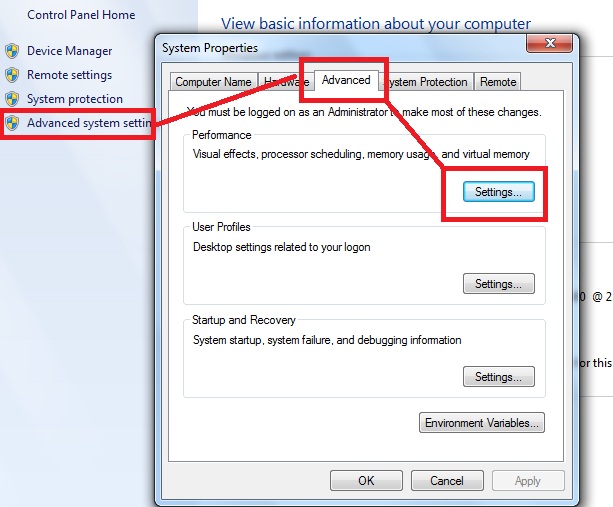
Depending upon actual memory available with your computer, setup virtual memory. You can go upto double the size of actual memory while setting up your virtual memory. Please refer to the image(s) below

You would be asked to restart the computer and please restart.

Step 2 Setting up the Developer Suite 10g installer

Open the Disk 1 folder and locate “Setup.exe’

Right click “Setup.exe” and change the compatibility to Windows XP Service Pack 2 or 3

Step 3 Install Developer Suite 10g

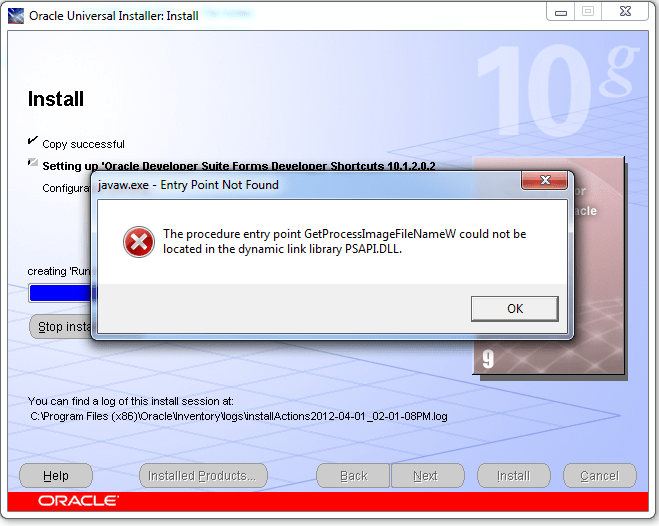
Double click and start the installation, if you already have Sp1 installed and running latest Java runtime, you may come across PSAPI.DLL errors a number of times, caused by a function call missing information. You can safely ignore the warning messages and complete the installation.