
This post was last updated on 24th March 2025. One of the visitors commented that VBS was disabled by turning off Tamper Protection. I received a confirmation from other visitor, using Windows 11 Home Edition.

This post was last updated on 5th February 2025 to confirm that the below hacks are not applicable for Windows Home Editions. If we come across any, will duly share them. Cheers!
This post was last updated on 27th January 2025 to include additional information with another laptop HP Probook 450 G10 running Windows 11 23H2 and VBS was already enabled when we received this device at work. I observed the below while disabling VBS on the same.
- No need to disable Kernel DMA Support
- Secure boot disabled
To disable VBS, this time I approached the below sequence
- Disabled Core Isolation->Memory Integrity->Reboot
- Ran Device Guard Readiness script with switch “Disabled” (Explained below)->Reboot. Accepted the prompts to disable both Credential Guard & VBS opt-outs and VBS was disabled completely.
This post was last updated on 15th January 2025 to include my experiments with a new Dell G16 7630 gaming laptop that I changed my six years old laptop with. For the same, I have disabled 2 things on BIOS prior continuing with other attempts from the OS.
- Kernel DMA Support
- Secure Boot
Once again, the methods that I listed below should only be referred as workaround solutions and you must let Microsoft handle such stuffs the best ways it suits to offer maximum security and stability for your devices.
I use virtual machines almost everyday & recently I took the risk of upgrading my finely tuned Windows 11 23H2 development laptop to 24H2 using my insider account. The upgrade was smooth without any troubles and none of the existing software that I use reported issues. Then I wanted to use my virtual machines!
As usual, multiple security related features are added or enhanced in 24H2 build and many of them are totally depending upon Hyper-V, Microsoft’s own virtualization platform. So, after a successful upgrade to 24H2, don’t be surprised if your find Hyper-V running in the background while so called “Windows Features are still disabled for it”. Read more about VBS here.
As our primary objective is to disable the VBS so that we can go back with our virtual machines, you should know the most disappointing thing at this point, there are no toggle switches available to completely disable VBS. You have to toggle few switches, run some scripts, fiddle around with group policy etcetera to get the task done.
You can use good old “System Information” to check whether VBS is running/enabled. I’ve enabled VBS once again to demonstrate how to disable it for this article. Please note, depending upon your hardware, you may see few or more details than that are visible in the picture below.

As per the system information gathered, my computer is currently enabled with VBS. This laptop has a TPM 2.0 chip & UEFI secure boot disabled.

Based on whether the secure boot is enabled, disabling VBS can become pretty complex. I will share some links to Microsoft articles explaining how to deal with such situations as well.
First we will see how to disable the virtualization based security when the secured boot is disabled. Go to “Settings->Privacy & Security->Device Security”
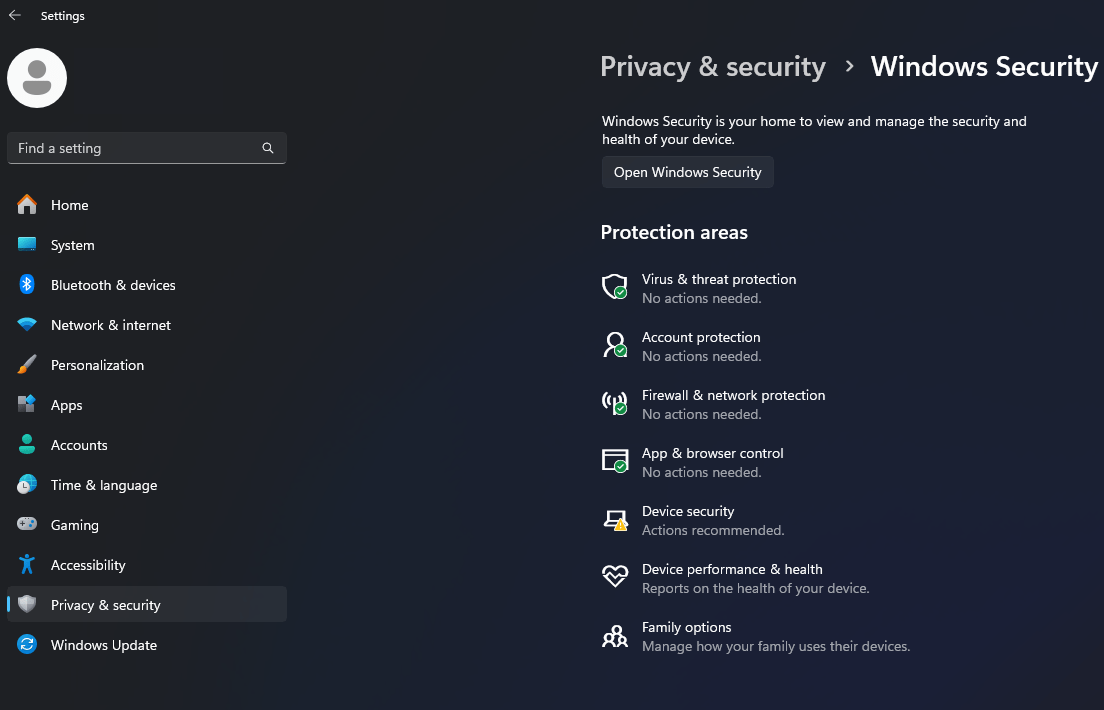

Toggle the Memory integrity to turned off.

Reboot & check whether the VBS is disabled. If not, proceed to next step.
Go to this link Download Device Guard and Credential Guard hardware readiness tool from Official Microsoft Download Center, download the archive file and extract it to a folder.
Before trying to execute the PowerShell script, make sure the execution policy has been set as “unrestricted”. Without, the script will execute and show some information, that wouldn’t really tell you what went wrong.

Now open an elevated command prompt/PowerShell, switch to the path where you have extracted the file that you downloaded earlier. If you are using PowerShell, switch to the path first then type the first couple of letters, for example “DG” and tap the tab key, that will fetch the full name of the script. Ignore the error messages.


Accept the prompts & restart your computer. Restarting is a must after every attempt. There will be two prompts asking you whether to disable two different features, which should be accepted. The first prompt asks for Credential Guard opt-out confirmation, that you should accept by pressing “F3” key.

The same will be confirmed in the next screen.

Now “Virtualization Based Security” opt-out will be presented. Once you again press “F3” to proceed.


Much of the times, this should resolve the issue & VBS should be disabled.
If the VBS is not yet disabled, try setting up the Group policy. I truly hope you know what you are doing!
Open group policy editor, Local Computer Policy->Computer Configuration->Administrative Templates->System->Device Guard->Turn On Virtualization Based Security->Disabled

Now restart your computer once again. Check whether the VBS is disabled or not.
Still having troubles? Let’s check few more things.
Run “System Information” once again & check the elements as marked in the image below.

If VBS is still running and “A hypervisor has been detected. Features required for Hyper-V will not displayed” is shown, it means Hyper-V is still running after the above exercises. We can try to disable Hyper-V from the boot now.
Open powershell/Terminal as Administrator & execute the following command.
bcdedit /enum | findstr -i hypervisorlaunchtypeIf running the command returns nothing, it means hypervisor is turned off in the boot & fixing the VBS looks almost impossible (in case if all the above were already tried). On the other hand, if it returns one of the below
- hypervisorlaunchtype Auto
- hypervisorlaunchtype On
Then you still have a chance to fix the VBS issues. Execute the below command in the same powershell session.
bcdedit /set hypervisorlaunchtype offReboot and check the system information window once again and you should see something similar to below image.

If VBS is shown as “Not Enabled” or “Not Running”, then you are all good. Now, the million dollar question is, should you disable Hyper-V at all? Windows is building many features on top of Hyper-V that will provide a sandboxed environment for the OS. Tomorrow, Microsoft might decide not to let the users disable Hyper-V using hacks. Regardless, let us all hope Oracle VirtualBox or VMWare tweaks their hypervisors so that they can coexist with Hyper-V and still ensure the same performance.
Let’s see what Copilot has to tell us about the potential risks associated with disabling VBS

References
- https://superuser.com/questions/1778061/green-turtle-snail-mode-slow-performance-indicator-on-virtualbox-vm
- https://www.elevenforum.com/t/virtualization-based-security-cannot-be-disabled-in-23h2.25259
- https://learn.microsoft.com/en-us/windows/security/identity-protection/credential-guard/configure?tabs=gpo#disable-credential-guard
- https://www.elevenforum.com/t/enable-or-disable-hyper-v-in-windows-11.4177/
- https://learn.microsoft.com/en-us/troubleshoot/windows-client/application-management/virtualization-apps-not-work-with-hyper-v
- https://answers.microsoft.com/en-us/windowserver/forum/all/features-required-for-hyper-v-will-not-be/3be3baeb-2d32-4a2a-8b8f-93501e620338?page=2
- https://learn.microsoft.com/en-us/answers/questions/1693500/hyper-v-processes-still-running-after-being-disabl
- https://community.broadcom.com/vmware-cloud-foundation/discussion/disabling-hyper-v-hypervisor-on-windows-11-pro-host-to-get-vmware-17s-cpl0-vs-ulm-monitor-mode
- https://pureinfotech.com/install-windows-subsystem-linux-2-windows-10/
- https://learn.microsoft.com/en-us/answers/questions/1336873/how-to-solve-wsl-service-createinstance-createvm-h
I’ve read many articles and conducted tests, and so far, only the Device Guard and Credential Guard hardware readiness tool you provided works (but it stops working after a reboot, and I have to run it again). Other methods, including GPEDIT, don’t work on my computer.
Once you disable the virtualization based security using DG script, it should not get enabled once again after a reboot if you confirmed both the opt-out confirmations. As I mentioned, I am going to update the article with more instructions that are being tested at my end (Had another set of issues once after enabling Virtual Machine Platform for WSL). Please stay tuned. (Comment was edited for more clarity on 29 January 2025)
Thanks, this is worked. to be able to run *.ps1 script, I have to change ExecutionPolicy from Restriceted to RemoteSigned.
in power shell :
Get-ExecutionPolicy
Set-ExecutionPolicy RemoteSigned
steps that worked for me,
1. Turn-off hyper-v features
2. disable core-isolation
3. run DG_Readiness.ps1 -Disable
4. disable vt-d on bios
5. during boot, system will ask to disable VBS. press f3, and continue
6. reboot once more to re-enable vt-d in bios
so far, this worked to disable VBS permanently in my Windows 11 23H2
Glad that it helped you 🥰
steps that worked for me,
1. Turn-off hyper-v features
2. disable core-isolation
3. run DG_Readiness.ps1 -Disable
4. disable vt-d on bios
5. during boot, system will ask to disable VBS. press f3, and continue
6. reboot once more to re-enable vt-d in bios
so far, this worked to disable VBS permanently in my Windows 11 24H2
this DG_Readiness.ps1 script is the only able to turn of the VBS, I came across internet this the only script that worked so far.
Hello Rachmat, if you disable the VT-D in the BIOS, how exactly you expect virtualization to be available for hyper-v or 3rd party hypervisors?
did not work for me, :(
Did you check whether the secureboot is enabled?
Pingback: How to disable Virtualization-based security – Rachmat Febrianto
Thank you, especially for the screenshots, where you can see that you have to confirm the change twice using F3 before booting Windows.
Similar situation, I opted for a clean install of Windows 11 24H2 LTSC on my Dell Precission at work. I removed the SSD with the existing fully functional and tweaked installation of the older version of W11 and did a clean install on a clean SSD – I kind of figured it would come in handy. As soon as windows booted for the first time, I turned on RDP and moved home with the intention of doing the rest remotely. From home, I installed VMWare Workstation as the second thing after installing Total Commander, and I was done there for a few days. Turning off VBS was an unsolvable problem, I tried everything I could find, I found a mention of the PS script DG_Readiness with -Disable parameter on MS Support and ChatGPT knows about it, but nowhere did I find a mention of it, that you need the F3 confirmation before Windows boots – of course you can’t do that via RDP.
And the best part is that if the confirmation doesn’t happen, it timeouts and boots up normally, hardly anyone notices anything 😦
Interestingly, on the pure 24H2 installation, even the Intel Processor Identification Utility says that the virtualization features are not available. I just swapped the SSD for the original installation and the same tool says everything is available and VMWare Workstation and all VMs run without problems.
Well, now also on 24H2.
I suppose that in the next version of Windows it will not be possible to turn it off and MS will finally kill the use of other virtualization than its own by this approach of virtualizing part of the OS itself.
I changed 2 laptops within a month at work and had to go through same pain multiple times. One of the findings I made with my last attempt was Windows 10,11 VMs work without much troubles on Virtualbox with VBS enabled when OS like XP wouldn’t even start. Thanks for your detailed explanation 🙏
“One of the findings I made with my last attempt was Windows 10,11 VMs work without much troubles on Virtualbox with VBS enabled” = are you running VMs from virtual box with VBS enabled?
Interesting! Are you trying to run a VM from another VM? No, my VMs are running from a real box. For your question whether VMs run while VBS enabled? the shortest answer is yes. Windows 10,11 VMs do better with more resources like more processor cores and memory. Windows XP VM failed to boot & didn’t try Linux VMs yet.
“Did you check whether the secureboot is enabled?” = Actually it worked for me, what I was trying to say is, it did not work for me to disable VBS permanently, the guy said disabling VT-d it would disable VBS permanently, that did not work for me, and btw secure boot can be enable as well, I think it will work with secure boot enabled in most cases
Yes, it works with secure boot enabled also. It is not working for you because each time after you run the powershell script, the reboot presents two opt-out options, for both you must accept by pressing F3. I think you missed that point. Can you please confirm that?
“I just swapped the SSD for the original installation and the same tool says everything is available and VMWare Workstation and all VMs run without problems.” = are you running VMs with VBS enabled?
Hmmm so premature joy. It’ll last until the first reboot. After each reboot I have to restart DG_Readiness_Tool_v3.6.ps1 -Disable which is pretty much unusable.
Windows Home or Professional?
“Interesting! Are you trying to run a VM from another VM?” = No
“No, my VMs are running from a real box” = what do you mean with real box?
“For your question whether VMs run while VBS enabled? the shortest answer is yes.” = how to do that magic? I had to follow your method and disable VBS to run virtual box VMs
My earlier laptop has only 8 logical cores. So my Windows 11 VM was setup to use 4 cores and it lagged like hell with VBS enabled. My new laptop has 20 cores and I assigned 8 cores to the VM and it works better, the choppy stuttering experience is ignorable. Please check few of the VirtualBox discussion where developers discuss about increasing the VM resources to address the famous Green turtle issues. This might not be the case with 32Bit OS, for increasing the resources are not going to do better :))
“Yes, it works with secure boot enabled also. It is not working for you because each time after you run the powershell script, the reboot presents two opt-out options, for both you must accept by pressing F3. I think you missed that point. Can you please confirm that?” = As I said it is working for me, what doesnt work is to keep VBS disabled permanently, and yes I am pressing F3 on both options, my PC does not even has credential guard, but I press F3 on both options anyway just to have sure, but after reboot or shutdown PC, VBS and hyper-v will be enabled again. Have in mind that the script on my PC do a little different than your screenshot, it was not able do disable hyper-v, so I am having to run both comands, “.\DG_Readiness_Tool_v3.6.ps1 -Disable” and “bcdedit /set hypervisorlaunchtype off”, and then reboot, I will send you a screenshot of what the script is doing when I run “.\DG_Readiness_Tool_v3.6.ps1 -Disable”, send me your email
You can find my email on contact section & I am not obliged to extend my support beyond this point. I was able to disable VBS permanently on minimum 3 computers following the instructions provided in the blog & few others have confirmed the same. Your case could be unique and you have to search/research more.
“No, my VMs are running from a real box” = what do you mean with real box?
“For your question whether VMs run while VBS enabled? the shortest answer is yes.” = how to run virtual box with VBS enabled? I tried everything and nothing worked, only your method allowed me to start a VM, without your method it would tell me ‘VT-x is not available’ and VM would not even start
And my problem is not resources and yes, I want to disable VBS permanently, or find a way to run virtual box VMs with VBS enabled
A real box/ rig etc, refer a computer, not a virtual machine.
“My earlier laptop has only 8 logical cores. So my Windows 11 VM was setup to use 4 cores and it lagged like hell with VBS enabled.” = virtual box VMs run faster with which option?
1-VBS enabled, like this using hyper-v from windows to run the VM
2-VBS disabled, like this using the hyper-v of the virtual box to run the VM
VBS disabled.
Hey guys – I was struggling with this. The DG_Readiness.ps1 routine worked but didn’t survive a reboot. VBS kept reactivating. Eventually I tried disabling Tamper Protection, and VBS seems to be permanently disabled now. Hope this helps someone.
Windows home or Professional edition? Please share so that it would help few more :))
I really thank you for this as I was looking for a solution from a long time ago, You made my day.
Cheers friend :) Glad to hear that.
The “DG_Readiness_Tool_v3.6.ps1 -Disable” lasted only ONE (the next) boot for me, while secure boot was not set.
So I changed the name of [c:\windows\system32\hvix64.exe] to hvix64.exa.
It is a bit tricky to do this because you must give the property of the file to “users” and then give them the full control to the file, and then you can rename it.
Are you using Home edition?
No, I’m using Windows 11 Professional 24H2. I saw many other people complaining about the sameisue,so I posted the fix that worked for me where I could register lightly.
It was a bit like committing a windows suicide for me, as hacks like this can lead to a final boot game over. But I definitely had to wipe that VirtualBox Turtle. I hope this will last. I can’t tell you how disappointed I am about Microsoft since the early 80s. That sudden right/left-undockable taskbar drives me crazy, now that every body has a 16/9 screen. The new console window that handles tabs in another way, aso, aso. They just never cared.
A glance at the root tree that explorer shows now, the alias directories and the things that are different but have the same name, while you’re just looking for the root directory of you boot volume, and I already know that … this can only be the land of dirty hacks. You instinctively know that no common sense has been involved in the specification process 😉
Who felt it was ergonomically better to hide the scroll bars after a while, or to make them that thin ? To narrow the window resize grab zone ? To stop showing which window has focus ? Where are the users ? Is nobody using the product ?
Maybe 1 billion people using this thing every day, and forced to migrate to the last release whatever it may be, and no common sense. Frustration at every step.
That’s why I still rather use Windows 7 in a virtual box when I develop. And I’m currently trying to code an x64 AVX2 SIMD ASM routine (with ml64), this “no-turtle” hack was not negotiable.
I wish I could say I understood 😁. I started developing clipper with dBase and my first Windows hack was copying the OS from one 486 to other using floppy disks, for the Afterdark aquarium screen saver.
Things started changing once after Windows XP, and were not for better. If you notice, my account name is windows7bugs and that was the WordPress blog name I chose :)
When you let Apple users to design Windows, you end up With Windows 8 and later, or this is what I feel. Thanks for sharing your experience.
That would be the last recommendation I would make, regardless how effective it is for a specific case. Rest of the exercises are a hit or miss and the desperation could be challenging. Regardless, taking the ownership if not done properly, not just makes the whole OS unstable, it could kill it also. Sorry, I will not be listing it as an accepted alternative. Regardless, it is so wonderful to see that we all come up novel ideas to overcome the situation.
Hello! Thanks for sharing. After successfully disabling hyper v, I can no longer log in to my computer via my Microsoft account, and I didn’t create an offline password. Is there a solution?
Sorry to hear that. There are multiple tools that should help you to address this situation.
Try the instructions given on this link
https://saintlouiscomputerrepair.com/change-a-windows-password-using-linux-boot-cd-and-command-prompt/
many thanks for a well written guide which fixed the problem for me after m$ sabotaged my w10 pc with w11.