Few weeks back I have decided to stop receiving the insider builds for Windows 10 as I hardly found anything interesting that needs such huge volumes of downloads and my precious time! (A bit prudish here). Well it was all easy…not entirely. Even after leaving the Insider program for this particular PC, I kept watching the Windows Update program trying to download the subsequent builds and miserably failing to install them. Fortunately for me, this PC is mostly used as a media center, hooked to my TV.
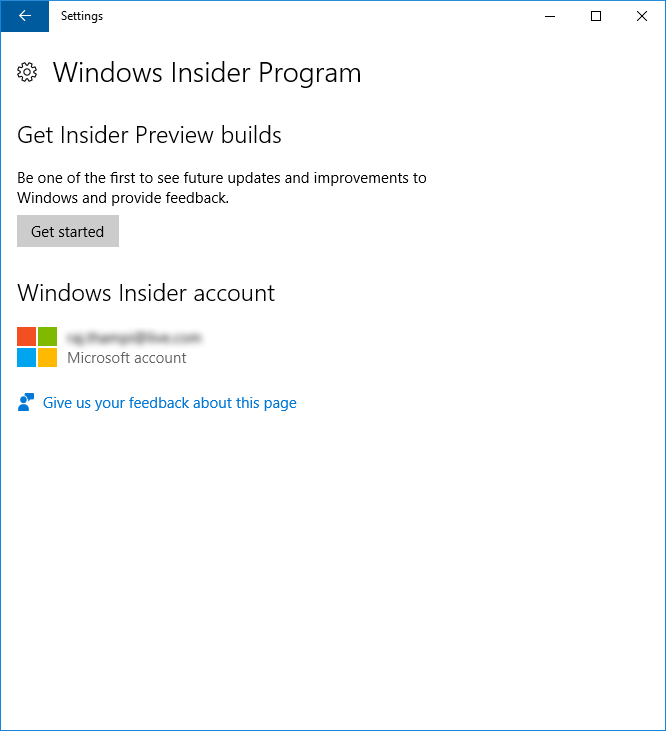
To stop receiving the newer builds, I unlinked my Live account finally and deleted the C:\Windows\SoftwareDistribution folder after disabling Windows Update for a short period.
Then I realized that I had this issue with a cumulative update KB3194496! Each time I tried update, the lengthy process will fail with “we couldn’t complete the updates, undoing changes.”
After few days search, I came across this link through “Bing”, the greatest search engine EVAR invented by a man!
Though there were many other POSTs explaining some different types of fixes, I opted to go with the solution provided by Microsoft, running a small .msi file downloaded from this link
I had a reason for choosing this fix, as I “was” an Insider while the patch was downloaded and failed the first time. Whatever, after running the .msi and answer with “A” to the prompt in the command line, I downloaded and installed the update without any issues. You may try the same, if you are/were an Insider!
We have relatively small network & upgraded all possible candidates to Windows 10 professional edition during the free upgrade period, to realize that our 15MBPS (Okay stop mocking us) fiber optic connection was choked & almost no browsing was possible as almost all the machines started downloading the updates. Our WSUS server cannot handle the Windows 10 unless upgraded and we were frantically searching for a method to stop the client machines directly downloading the updates & came across many beautiful blog posts those systematically explained how we could use group policies to control how the clients download updates.
One of the best posts we adopted for our network is available here
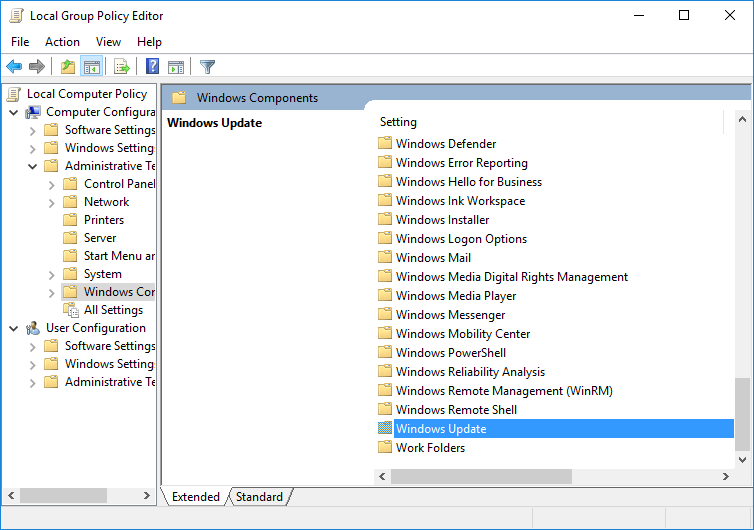
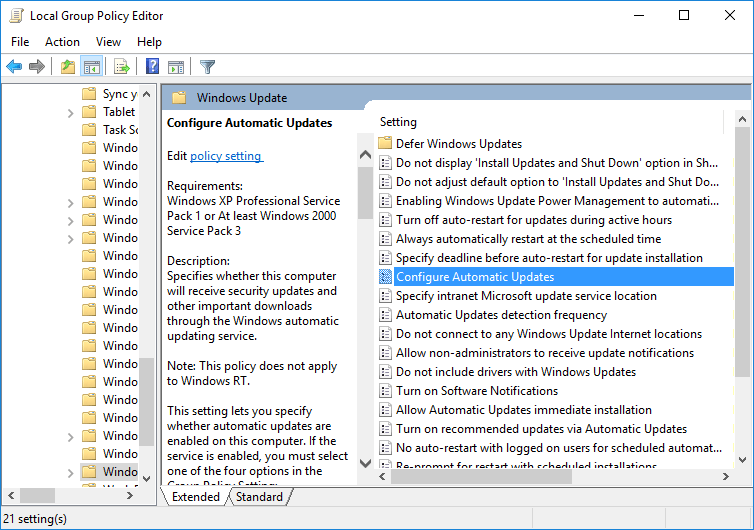
We tried the group policy workaround with few of the laptops in the IT and we were able to stop those automatic download of end number of updates those Microsoft pushed everyday to address the numerous issues they were not even able to fix with the anniversary update!
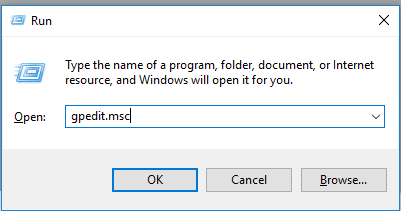
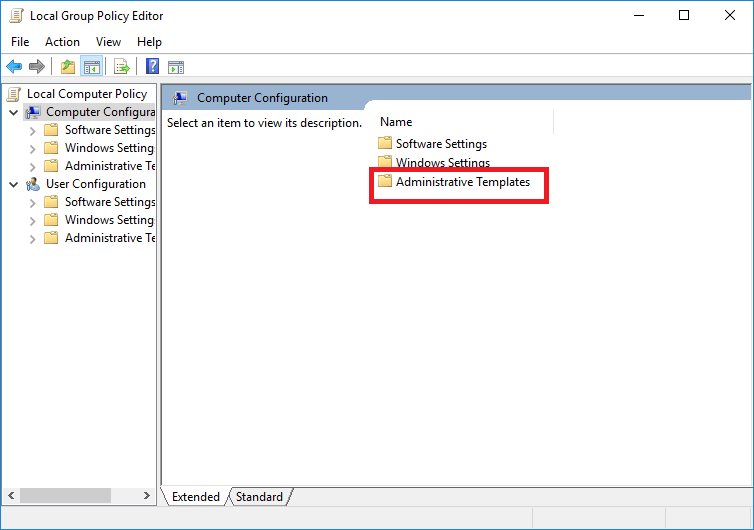
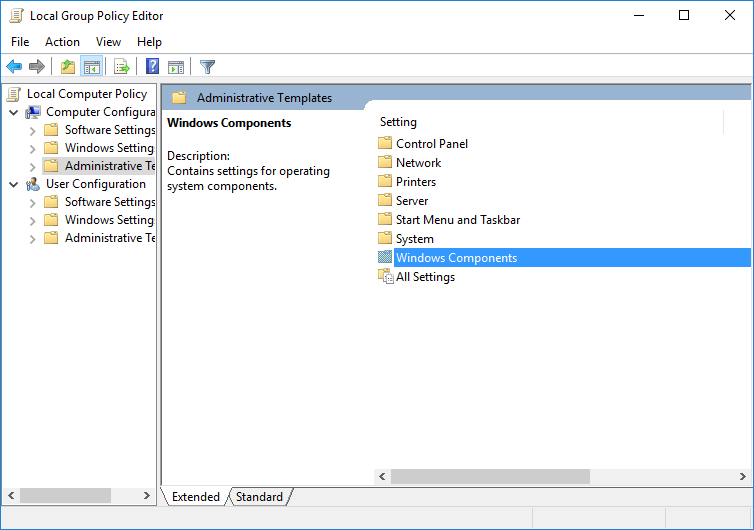
As a user with administrator privileges, start the local group policy editor.
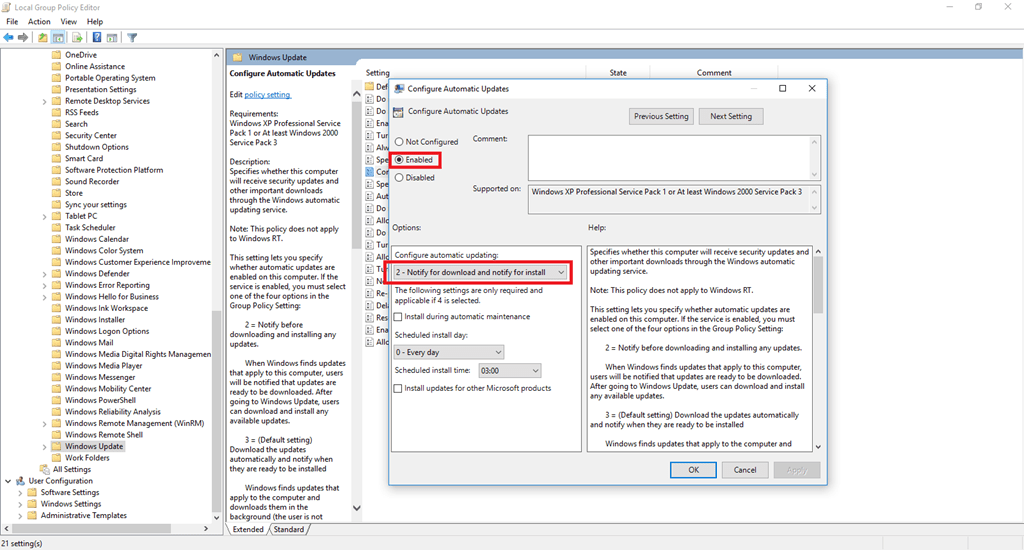
Here you can choose, suitable for your situation. For me, notifications are fine & then I decide when I should download the updates.
Close the Group policy update MSC (Microsoft System Console) and you are all set. From next reboot, you will be given notifications about the downloads, rather than automatically start downloading and clogging your internet connection.
(If you are always connected to WIFI, you can use the “Metered” connection trick to avoid downloading updates automatically. As this trick is not applicable for Ethernet connections, I am not getting into detailed how to this time)
Important Note: You may forget to download and apply the much needed updates, so make sure you will never stop looking at the notification panel for update related.
There were loads of hype about the first major update Microsoft released for their Windows 10 operating system. While desktops are yet to receive the update through Windows update, many laptops and notebooks were first in the line to receive the update by early August 2016.
As usual, this huge update brings many new features to the relatively new OS that is still evolving. Personally I feel it is a mobile OS, sized for desktops and laptops as Microsoft cannot ignore the corporate/development segments.
One of the major leaps are with the Ubuntu based Linux subsystem, that works perfectly fine & until date, the max I have used it for was to access our Linux servers through SSH. Yes, it works :)
So what exactly the objective behind this post? If you have already noticed, I have started this blog to list the bugs of Windows 7 and to post possible solutions to many of the issues Windows 7 survived for years without any proper fixes…then I realized there were better sites dedicated for the OS and slowly shifted my attention towards Oracle based developments and technologies. Once again, as the OS is fresh and buggy, I have decided to choose few topics and to start posting my experiences.
Version 1607, Build 14393.82 AKA anniversary update did break most of the other installed Microsoft, Including Office Suite 2013. The maximum affected suite components were Microsoft Outlook and Excel & as the updates were only available for laptops, we were able to overcome the issues by patching the systems with additional patches provided by Microsoft windows update channel.
While data/internet charges are getting cheaper by date, many may not be bothered by the volume of data used for downloading these additional patches, which are still being pushed to those machines which were updated to 1607, countries like India where majority cannot afford huge downloads will find the update landing them in hot soup, as without the patches to iron out the bugs with 1607, the total OS will be shaky and buggy, making it frustratingly annoying to live with.
Does it mean you shouldn’t update? definitely no. You must update when Microsoft eventually pushes it to for your desktop machines and once after the updates are in place, you have a better “Defender” that started appearing at the right notification area with a shield symbol and does a better job (?)
Hope the above helps few out there to plan the 1607 update properly and to be prepared for huge data consumptions!
Many of you were ditched into “free Windows 10” upgrade from your Windows 7 & 8 and I am sure few out there chose to link their existing local accounts with a Microsoft account (live, outlook and err hotmail accounts)
I have four computers (including my work laptop) running Windows 10 and the 10 years old HP micro tower PC that works as a home theater is my guinea pig for all Windows insider tests.
Windows insider program made it sure that the insider logs on to the computer using a Microsoft account, most probably for the headcount? Anyway they do let the user hook up a live account when the insider program is turned on inside Windows update advanced area. Yet demand the user to logon to the computer using Microsoft account must be for usage statistics.
Anyway, “trusting” Microsoft’s long “proven” privacy protection shit, I agreed to link my local account with my windows insider id and upgraded the box to latest build (Anniversary build? with linux sub-system)
Came the fun, I was told my device was offline so the password cannot be checked and the network connection status icon over the logon screen showed that the connectivity were broken
After few minutes of struggle I remembered that I had my daughter’s account added as family member and quickly managed to logon to the box and the network connection fixed itself (Should be a bug?)
I tried to switch the user account to my local account that is linked to a microsoft account, and I was able to.
So what was going wrong?
A family account (Microsoft account) was able to logon to the box without a live internet connection
A local account linked to Microsoft account was blocked because there were no internet accesses
I am sure I was damn lucky to have another account available with the box to log and to let the connection repair itself & I am yet to come across a valid explanation towards the annoying issues like my experience above.
However, I figured out a way to address such situations by unhooking the local account from Microsoft account, yet to continue receiving the insider builds.
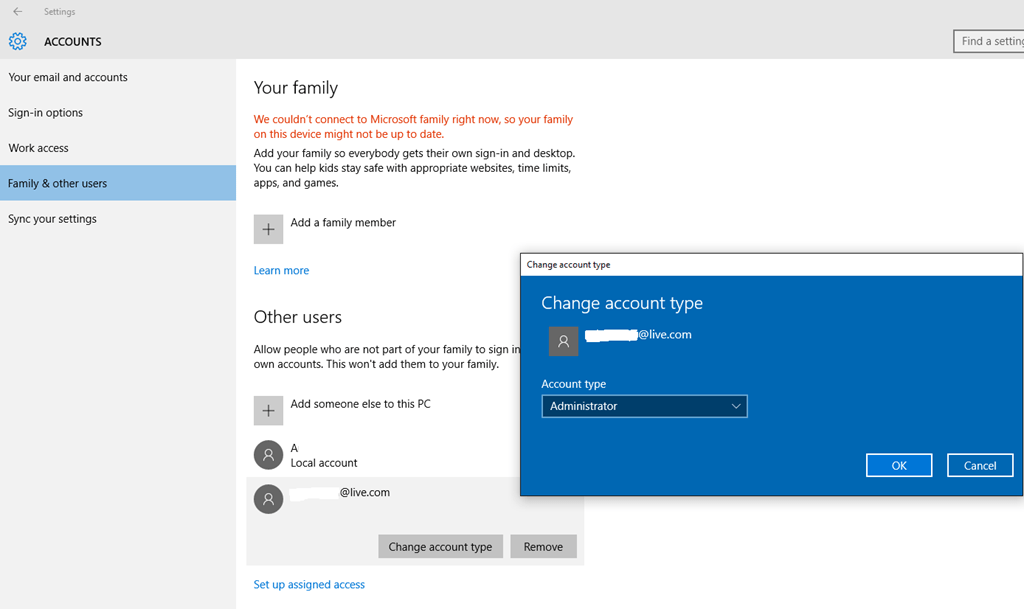
I added my Windows insider Microsoft account as “Other Users” and changed the account type as “Administrator”. (You need to verify this account on the box by validating the account at later stages) Not only this has addressed the issues with device being offline and being locked out, I realized I can add accounts under the family and use the family safety finally against the child accounts!
Actually logging on to a computer using ONLY a Microsoft account is a very bad idea incase if you are using your primary account. Anyone (family) who knows the PIN or password that you set for the Microsoft access will able to access your mails and other sensitive information without additional efforts as everything is linked and many places they won’t have to logon to explicitly to access the information.
Hope you will not be locked out of your box, after reading this post :)
Starting from Windows 8, Microsoft has clearly switched their target consumers to mobile users and snatched the clean desktop experience from power users.
Windows 10 is basically a huge PHONE OS, however, significant efforts were made by Microsoft to reduce the gap between a mobile OS and pure desktop experience by the addition of a semi effective start button. Yet it satisfy the frustrated me? Not entirely
For example, I have multiple versions of Oracle developer installed in my box, starting from Developer 6i, Developer 10g & Developer 11g in the same box & almost all elements within the developer stacks share the common names like forms developer, reports builder etc. Using the jump list was NEVER my cup of tea as it takes time, efforts to distinguish. Though the new start menu allows one to drag and drop the apps to desktop, send to desktop is a sure missing option which could truly confuse a person who switched from XP/7 recently.
I’m responsible a middle size IT infrastructure and was promoting the usage of classicshell, the free start button/ start menu alternative that brings a kind of Windows XP/7 style start button/menu experience back to both Windows 8.x and Windows 10 OS.
With periodic updates, this freeware remains one of the best solutions for crippled start menu available with Windows 10 OS.
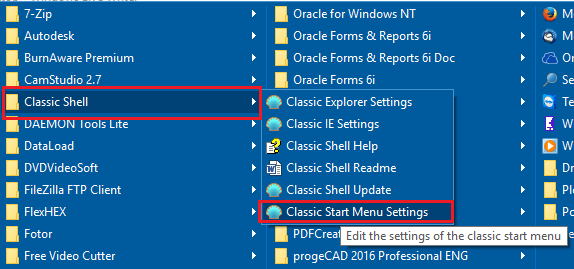
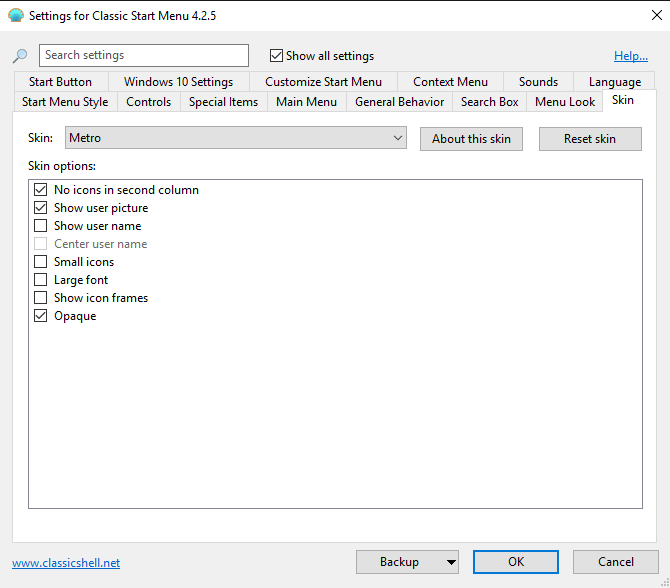
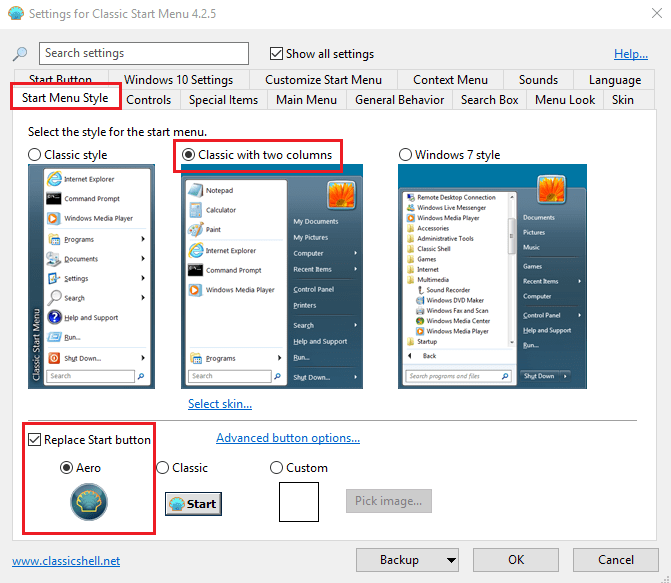
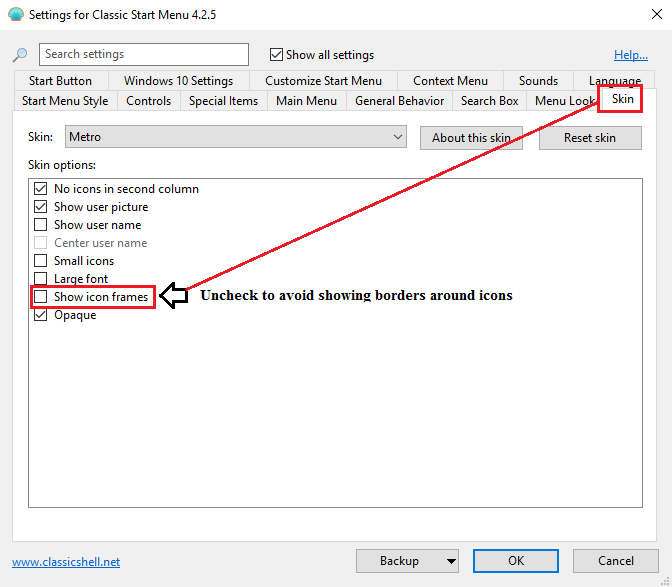
Install it, Open Classic start menu settings, check “Show all settings” & make the few settings as seen with the below images and you are all ready to enjoy a cleaner desktop experience
You can setup the most comfortable start menu style here
Skin allows you to disable the frames around the icons.
Once the above you are all good to start experiencing the classic start menu on your Windows 8/10 box
One of my close associates & a person I respect as a legend, Iudith said the following with one of her recent mails to me:
“Regarding all this WebLogic issue … I have a feeling that Oracle “used a cannon for killing a fly” ……… Maybe that complicated setup creates an environment which can support all kinds of other products,I really don’t know because I have mostly just heard about it.“
From Oracle’s perspectives, this approach may provide them better scalability, however how far such complexities will appease the developer crowd remains a big concern.
While the modernization of Oracle forms and reports, the maximum sought legacy development means remain a frequently sought and discussed topic, Oracle is definitely NOT doing enough to regain the confidence of mortals who spent decades developing, especially by making each and every newer versions difficult to install and setup.
Less said, let us go back to the topic, how to create and configure a standalone report server instance for 12c environment. This is my 3rd post in a row about installing and configuring 12c products related to Forms and Reports
I can’t exactly remember which document says “In-process reports server has better accountability against a standalone reports instance”. I have referred minimum couple of dozen 12c related documents and tens of blogs to setup stuffs. Without arguing whether in-process server or a standalone instance is better to cater the reports services, let me list the activities one have to perform in order to setup
Create a reports tools instance (Mandatory, if you are planning to use the same box for reports development)
Create a reports server instance (OPTIONAL, only if you want to host a standalone reports instance)
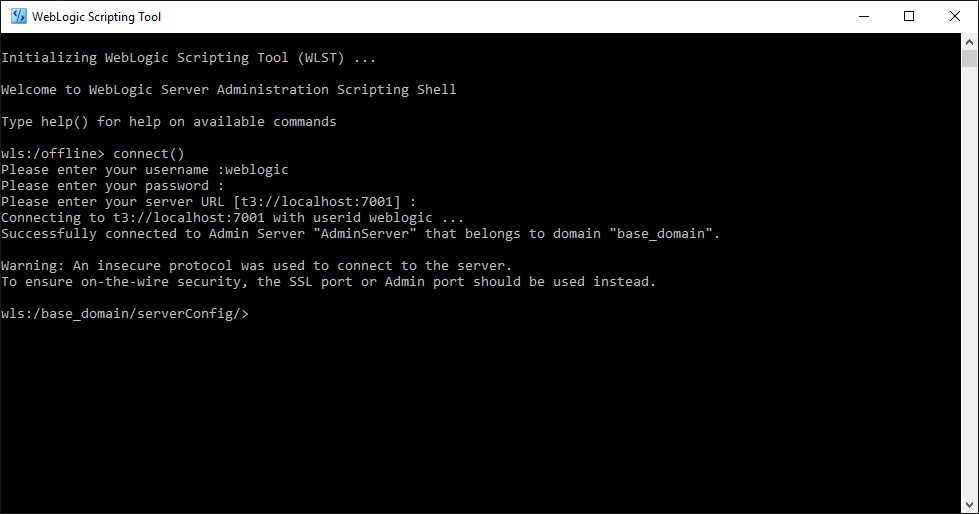
Start WLST(Weblogic Scripting Tool) console, and execute the below commands one after another (Make sure the node manager & the Weblogic admin server services are already started)
Once successfully completed, restart the WLS_REPORTS application using the weblogic admin console. Once bitten, twice shy…I always restart the weblogic admin server and other servers to make sure nothing is broken in between…(paranoid I must be)
Restarting the WLS_REPORTS server causes the weblogic server to configure the newly created instances of reports tools and reports instance. A successful completion let you
Start using the reports builder
Access the standalone reports server instance
You need minimal configurations for the standalone reports server instance. Just setup the reports (.rdf files) path, disable the security elements and you are online!
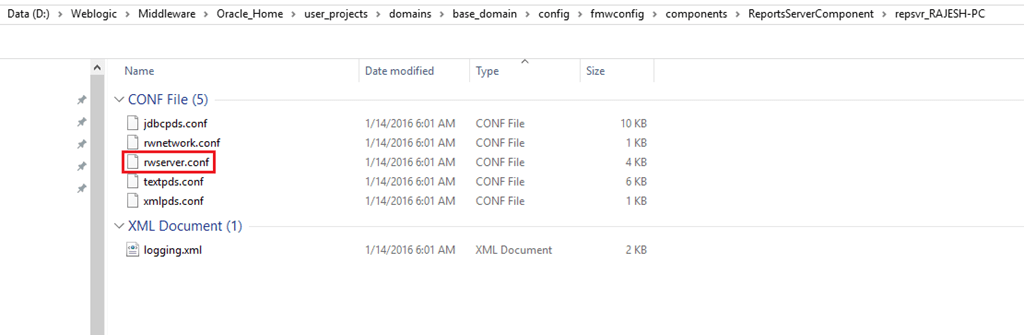
Assuming you have already configured the weblogic server components following the previous posts, switch to the reports instance configuration folder
Guys, I have different threads towards specific version of Weblogic 12c & Oracle Forms and Reports installation, configuration(s). Please refer the thread specific to the version of Weblogic & Oracle Forms & Reports that you are trying to install.
Update 23rd October 2016
I was trying to answer one of the comments and realized that my database schemas those were created during repo creation were with expired passwords and the “WebLogic Admin Server” will not start. So, you are advised to setup your 12c database with no password expiry, no complex passwords etc (as far you are using the environment for development)
Important:
If for some reasons you cannot update your Windows 10 box, minimum make sure that you have Visual C++ 2012 package installed, which will provide you the much needed “MSVCR110.dll”, without which the Apache HTTP server will not start on Windows. This workaround is not at all an excuse for not patching your Windows box using update services.
Update: 03rd June 2016
I’m revisiting few of the claims which were true during the early builds of Windows 10, however not anymore having the same issues with the latest build & after cumulative updates. My Windows 10 boxes run the following build with all updates in place.
I’ve enabled the IPV6 protocol by deleting the explicit key that I created under TCPIP6 parameters & once after restarting the boxes, was able to start all the weblogic services and OHS instance successfully. However, I have made the following change
Pointed all the servers, “Admin Server”, “WLS_FORMS” and “WLS_REPORTS” to the hostname, instead of leaving the listening address empty. Eg: rajesh-pc. As I mentioned and re-iterating, whole the exercises described are those worked in my lab environment. Any attempts to use them at a production environment could prove you WRONG and disastrous situations may arise by not following Oracle’s guidelines.
This time, I will try to explain how you can setup few 12c products for your testing and developing needs in Windows 10, Microsoft’s latest desktop operating system (The same should be applicable for Windows 8.1 as well)
My scenario
OS: Windows 10 64bit Professional
Memory: 16gb
Processor: i7
Storage: Around 4.6 TB (4 Disks)
Software downloads required for the setup
Oracle database 12c
JDK
Middleware aka Weblogic Server 12c
Forms and reports 12c
You can download the above software packages from Oracle’s repositories
Why Oracle Database 12c?
Unfortunately, Weblogic server 12c doesn’t support database versions below 11.2.0.4, which will require an existing 11g R2 (11.2.0.2) to be upgraded. This upgrade (patch, full installation) is only available for customers with valid support subscriptions, hence the best option available is installing Oracle 12c database in order to setup Weblogic 12c with Forms and Reports 12c
Part 1 – Oracle database 12c Installation
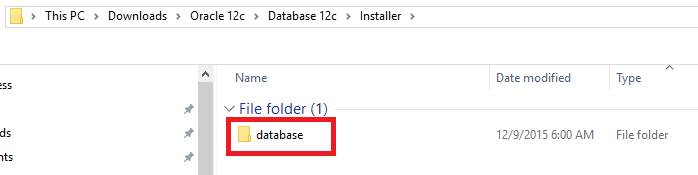
The software package you download will have 2 zip files & You must extract both the zip files to a single folder
For example, as you could see with the above image, I have two zip files for the Oracle database and have created a folder called “Installer”. I extracted the 1st zip file inside the “Installer” folder (by pointing to the extract folder explicitly, else usually the unzip utility will create a folder within “Installer” with the zip filename. Make sure once after the extraction, under “Installer” folder, you have ONLY ONE folder called “database”
Now extract the 2nd zip file to “Installer” folder, and Windows will merge the folders and finally you should see within “database” folder items as listed below
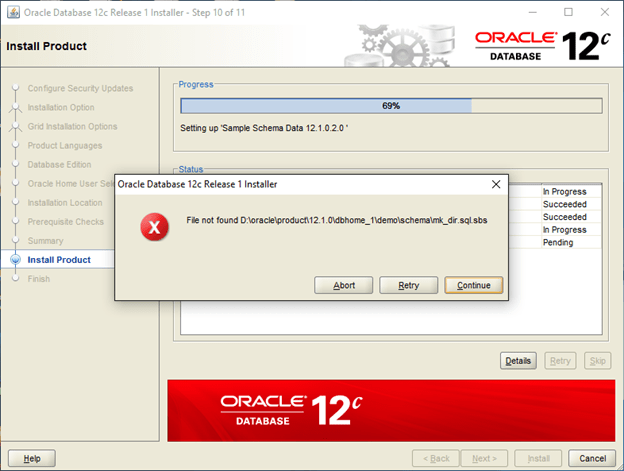
Failing to follow the above will fail your attempts to install the database. You will see few images below those are due to extracting zip files into different folders
Execute the setup.exe
You don’t have Oracle support, so uncheck the “I wish to…” and smile at the warning that Oracle never forgets to display
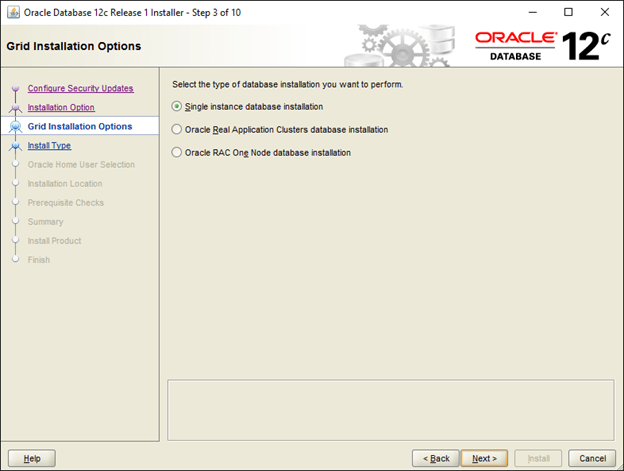
Recently I realized that creating a database once after the Oracle software installation gives me more options to setup archive logs, automated backups etc. So I will proceed with “Install software Only” option
Add the languages you want to use with the database
Oracle has a new approach with who starts the Oracle software in Windows environments and I think it is better to have a dedicated user to start the Oracle services, which provides better security. I created a user called “Oracle” and my password is:
Old fashioned, I prefer the database installation path to start with “Oracle”, hence I chose “D:\Oracle” for the installation. You can accept the default and proceed with the installation
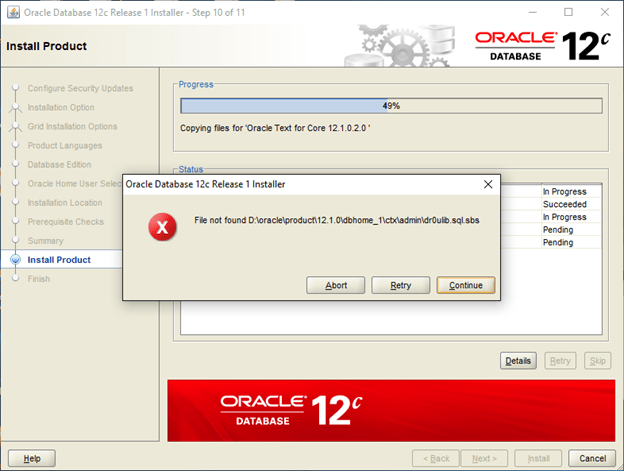
Now, comes the errors related to “missing” files, which are due to the wrong extraction method I have mentioned by the beginning of this post. You get a number of read errors for files with strange names…
Once you extracted the files as suggested into a single folder, the Oracle database software installation should progress without giving any kind of errors, keep accepting the JAVA security prompts
Very easy, no hacking at all involved with the installation. Usually a novice (and ME) could get confused reading Oracle’s documents asking the user to extract the zip files to a single folder ;)
Once the software installed, use DBCA to create a new database.
Update Part 1a (1st of March 2017)
Sorry guys, I started getting couple of inquiries about the database parameters for repository database used by 12c Middleware & as I followed multiple documents to setup my environment, didn’t feel that I should exclusively add the database parameterization with my initial post. So, I am adding it with the post for your references
“Oracle” strongly suggests that the repository for Middleware should have “AL32UTF8” as the character set. Hence, while creating the database, please make sure you select the same for your repo database. If you are migrating a legacy application that has issues with this particular character set, I suggest you create a smaller size database exclusively for the Middleware repo and create another database for your application that uses a different character set.
Part 2 – JDK Installation
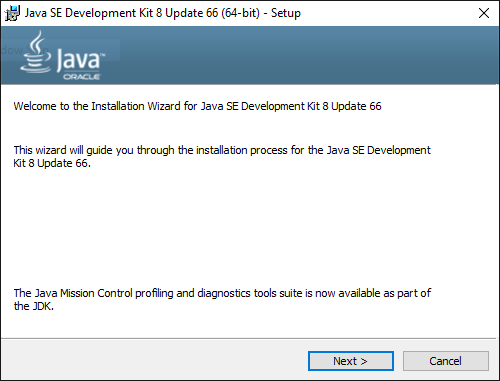
Download and install JDK 8 (Preferably to a folder like C:\Java, D:\JDK) etc. Shortest the path will help you to easily configure many things at later stages. If you have earlier versions of JRE for some specific reasons, deselect JRE from the feature listing
Part 3 – Weblogic 12c Installation
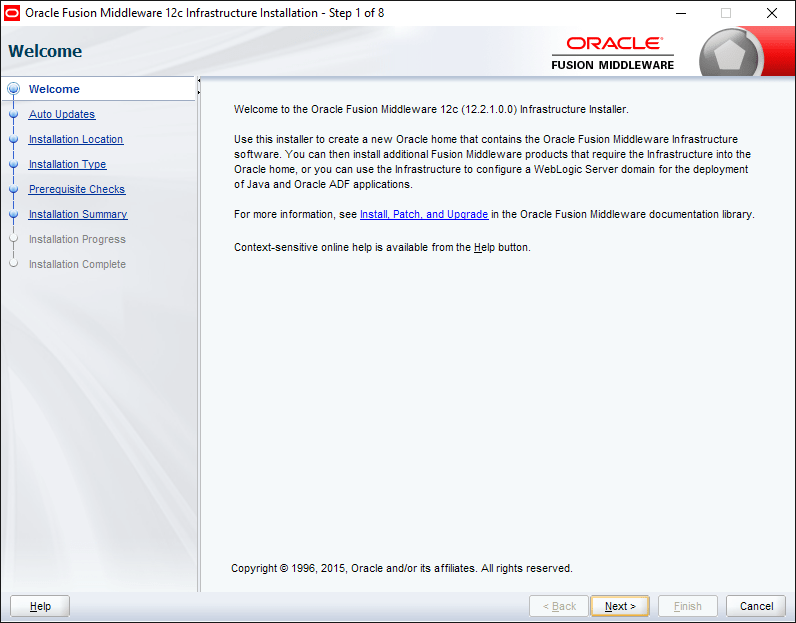
Once again, Weblogic 12c doesn’t require any specific hacks for installation in Windows 10. Switch to the folder from command prompt where you downloaded “fmw_12.2.1.0.0_infrastructure.jar” and call java to install the package. Please check the below image for details
(I’m leaving the images untouched, so that you will able to see possible errors we can make while typing in commands)
As usual you will skip the updates
Structuring Oracle Home is going to be a logical call, if you are familiar with Oracle’s suggested folder structure, go with it. Usually I install Weblogic in a folder like C:\Weblogic or D:\Weblogic
Now select the first option, Fusion Middleware Infrastructure
Skip the below, and the installation should be completing within few minutes time without making any errors.
Part 4 – Forms & Reports 12c Installation
Forms 12c allows a stand-alone installation, however, our requirement is to deploy applications through weblogic server. Hence we will be doing the standard installation processes facilitating the application deployments.
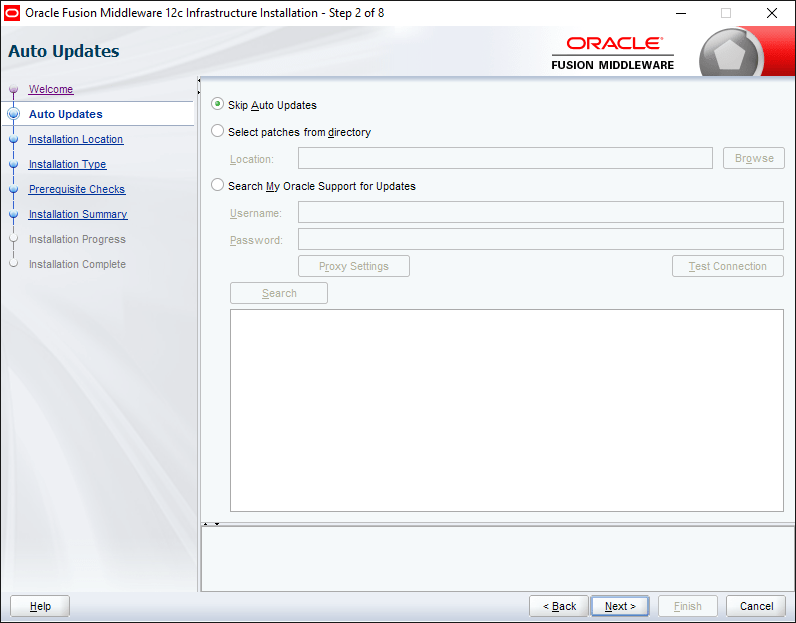
As usual We will skip auto updates
Make sure you select the same folder where you installed WebLogic server for “Oracle Home”
Select Forms and reports deployment
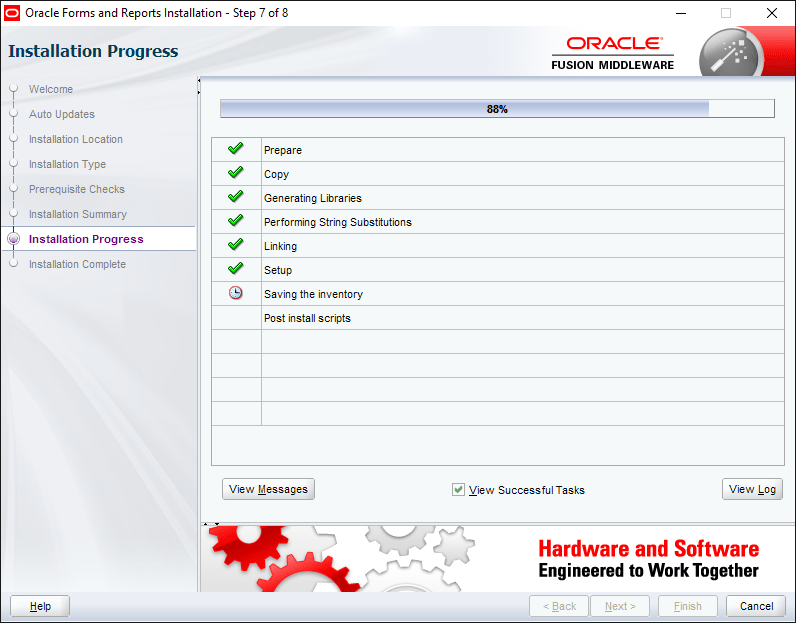
It could take a while until the installation is completed. Usually the total installation process never errors out. I hope the same for you also :)
Part 5 – Create a REPO(?!)
As I mentioned earlier, I am not a Weblogic geek, Oracle says a database repo is required for Weblogic 12c, so I created one as per their instructions & I suggest you better do that as well ;)
Browse to your “D:\Weblogic\Middleware\Oracle_Home\oracle_common\bin” folder and execute rcu.bat file as “Administrator”
The creation of repo is pretty straight forward
Make sure your database & listener services already started and you can TNSPING, connect to the instance using SQL etc, to insure that the repo creation will NOT fail
Fill in your database instance details (Service name, host name, PORT etc)
If the utility could establish a connection to the database, you will be taken to rest of the configurations in next steps.
By default when you are trying to create your 1st repository (for each new domain, you must create a new repo, there were claims that someone managed to use the same repo with his 2nd domain as well, however, 1st domain being offline) You will be offered to create a new prefix, by default ‘DEV’. You can change it to JON, MARTA or PROD according to your requirement. Just make sure that you note it down or remember it while configuring your forms and reports instance at later stages
Select the components as seen with the image below (The selected are mandatory to configure forms & reports domains)
Use a single password for all the schemas those will be created as a part of the repo creation. I have used the same password across 12c products. For a lab, it is okay, however when you are deploying the solution for production environment, follow the recommendations for passwords. I created a password like “Abcprod123”, it has CAPITAL letter, lowercase letters & numbers
That’s all, you have created a new repo for your new domain that you will create later.
Part 6 – Configure your forms & reports domain.
Most important
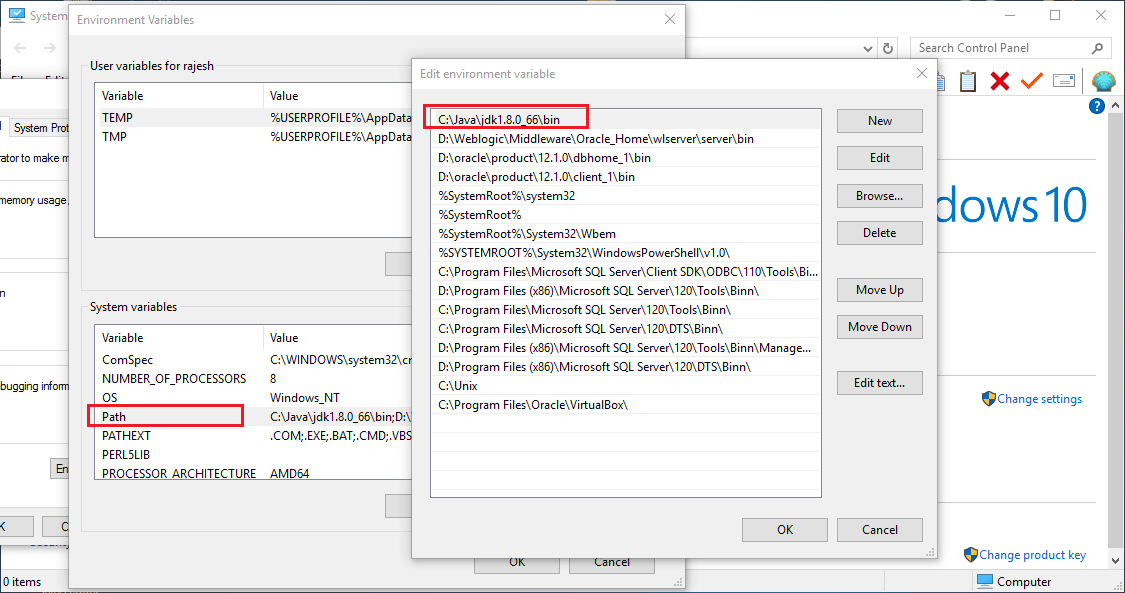
Make sure your PATH environment variable has your JDK\bin folder as the first value, else you will NEVER manage to get your forms and reports builders configured properly, Oracle has made sure of it ;)
Check the below images and cross check your computer’s PATH value
You can start the “config.cmd” either from the start menu or from the “D:\Weblogic\Middleware\Oracle_Home\oracle_common\common\bin” folder (Please change the path according to your installation preferences, for example I opted “D:\WebLogic” for my WebLogic server installation and rest of the paths were created automatically during the installation process)
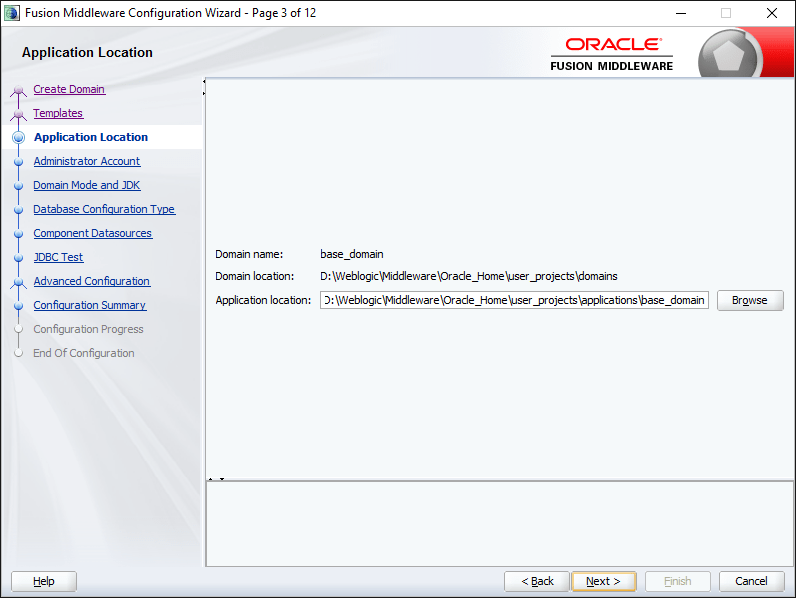
Select the default “Create a new domain”. You will see that “base_domain” folder is selected by default, which you can change according to your requirement.
Select the component for your domain (Select all the components listed with the image below)
You will be provided a window showing your current domain name, physical location etc
Leave the Weblogic account name as “weblogic” & supply an Alpha Numeric password for the account
Select Production & keep the JDK pointed towards your specific JDK installation, which is automatically selected.
Now you have to supply the repo details you have created earlier. Make sure you are not making mistakes with supplying the details & click “Get RCU Configuration”
You can proceed to next level only once after populating the RCU Configurations, if errors you will not able to proceed
Make sure all the listed elements hare having same Service, HOST, PORT names and the password columns are automatically filled. If any one of the listed row has different value, cancel the installation. It means you made some mistakes while creating the repo.
Once the repo connectivity confirmed, you will be provided a number of components those you could configure as the part of the forms & reports configuration.
Select the components as shown with the image below
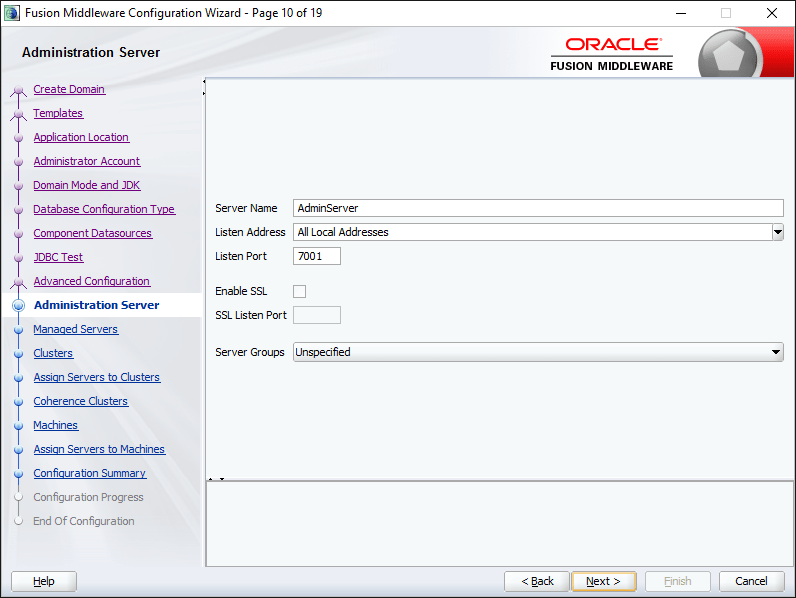
Accept the defaults for Administration Server
Next screen you should be shown two components
WLS_FORM
WLS_REPORTS
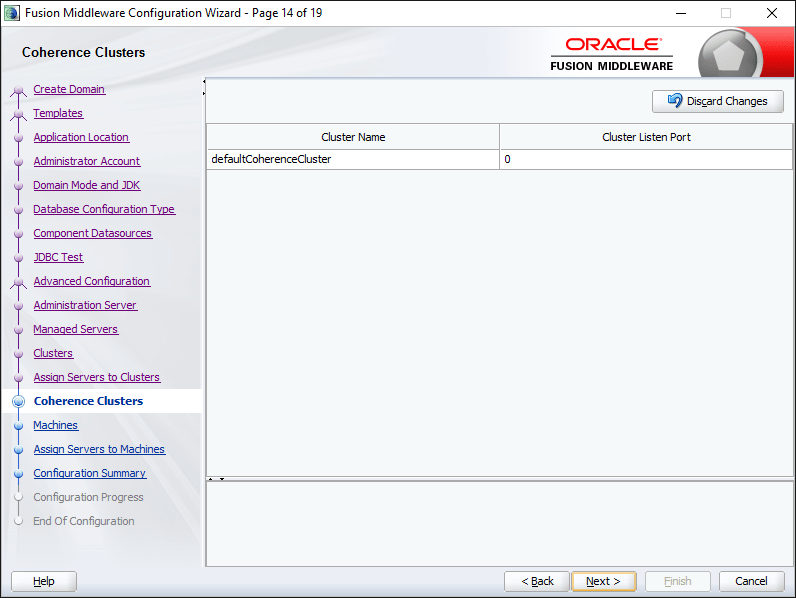
Accept the defaults
You need to add the “AdminServer” from the left pan “Servers” to the node under “Machines”
This page, as we select OHS as a component, you should add one OHS instance using the Add Button and give it a meaningful name like “ohs1” or “ohs_1”. Make sure the Component Type is “OHS”
You may enter localhost as Listen address for the ohs instance in the next page.
Now add the “ohs1” component from the “System Components” to “Machines” Node
Click the “Create” button to start configuring the forms & reports domain
Once the configuration is over, you will be provided a confirmation screen as seen below. Don’t close this window. We need to perform few more stuffs prior finishing the configuration, said you can close this window by clicking the “Finish” button, just make sure that you have copied the URL, and the foot note shown by the bottom of the window. That note clearly asks you to execute a specific command using WebLogic Scripting Tool, for OHS
Start the node manager from your newly created domain\bin folder (Check the below image for details)
Now, you need to start the weblogic server. When prompted, supply your weblogic username and password
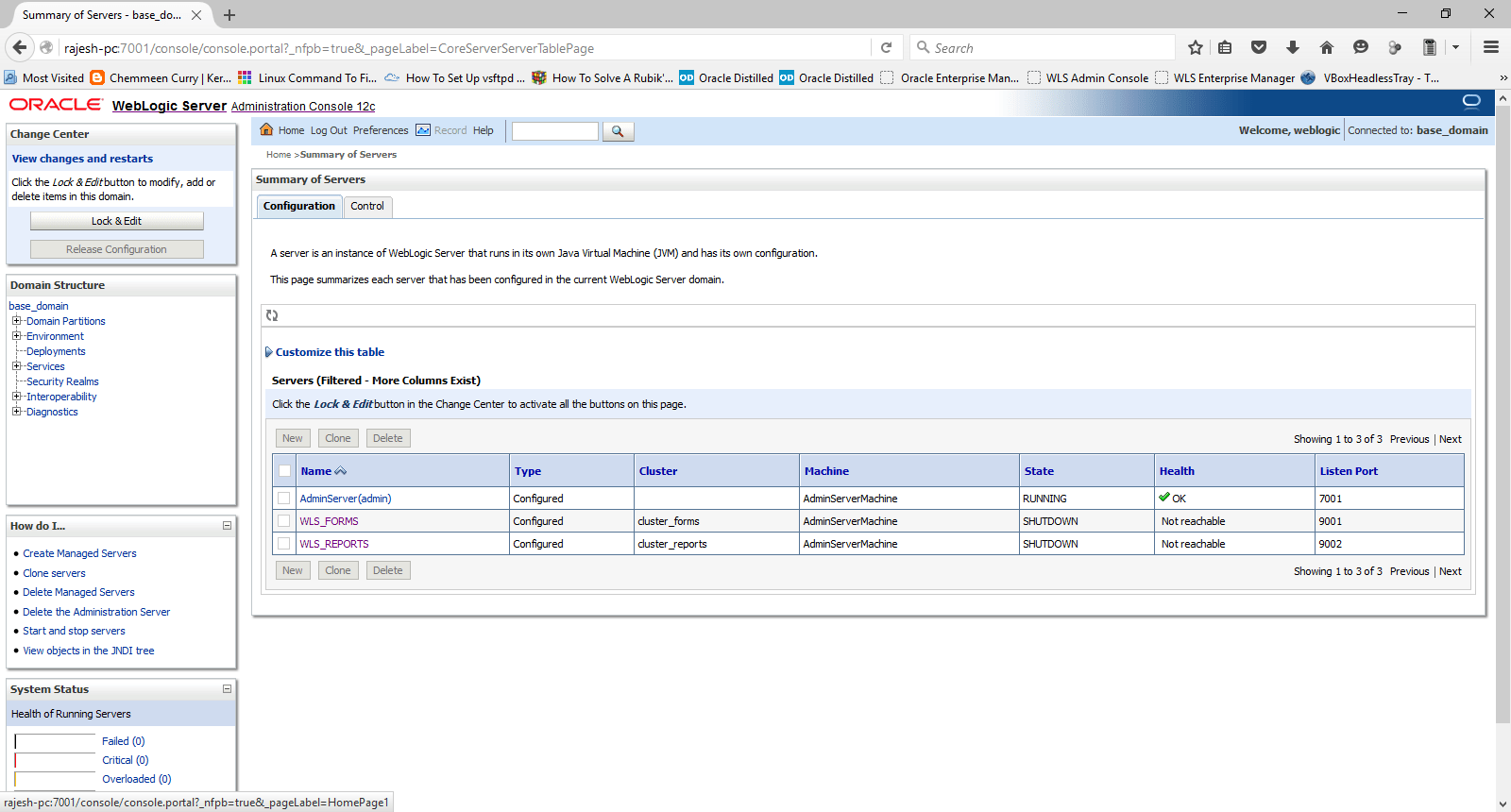
Logon to the WebLogic Admin server console and start the WLS_FORMS & WLS_REPORTS servers, this will trigger setting up much of the start menu components for your installed products, else missing.
Keep monitoring the weblogic server window, Once the server enters into RUNNING mode, you will notice that items are getting added to “Oracle FMW 12c Domain -base_domain” Start Menu folder.
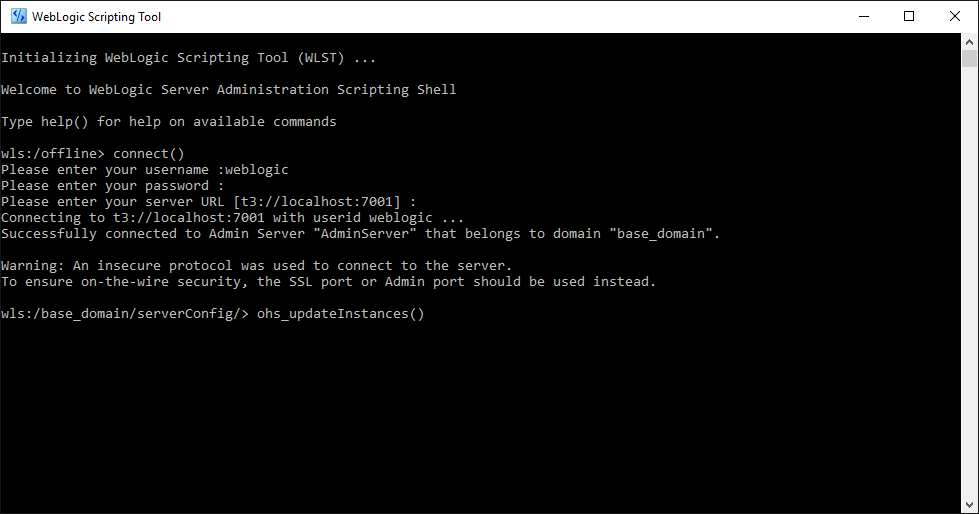
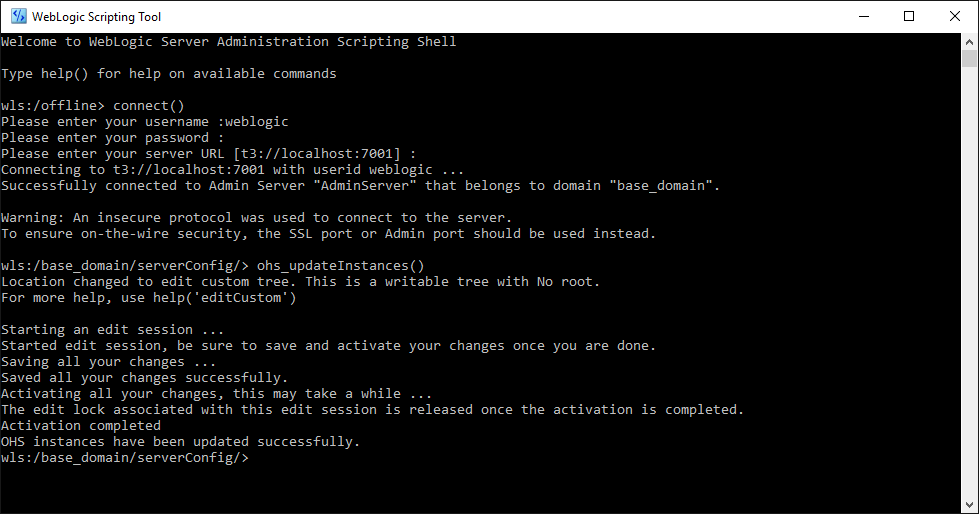
Now you have to start the Weblogic scripting tool & run the instructions provided with the last Window of forms and reports configuration
Please see the below image(s) for details
OHS instance should get activated and updated without any issues by the end of the process.
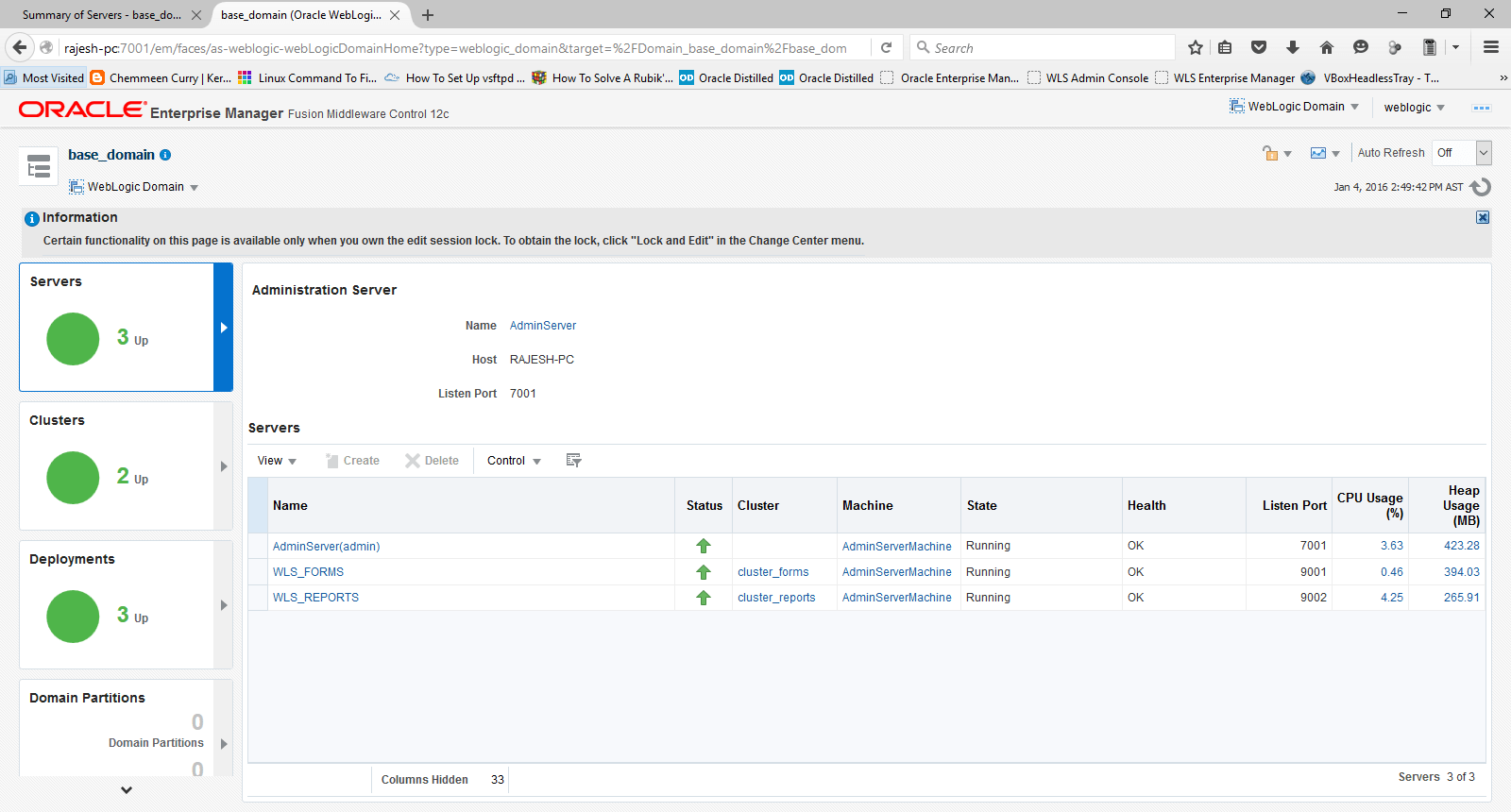
Now you can close the last window of forms & reports configuration and access Weblogic console & Enterprise Manager through the following URL(s)
You can use the EM console to start your OHS instance (OPMN depreciated) as well. Once started, the OHS instance will be configured to start automatically.
Now We will create the Node Manager Service for Windows. Please check the below image for details
I’ve used “NSSM – the Non-Sucking Service Manager” to create the Weblogic Admin Server Service. You can download NSSM from here. Issue a command like nssm.exe install “WebLogic Admin Server” will popup a GUI where you can select the “….\Oracle_Home\user_projects\domains\base_domain\bin\startWebLogic.cmd” as the executable for the service.
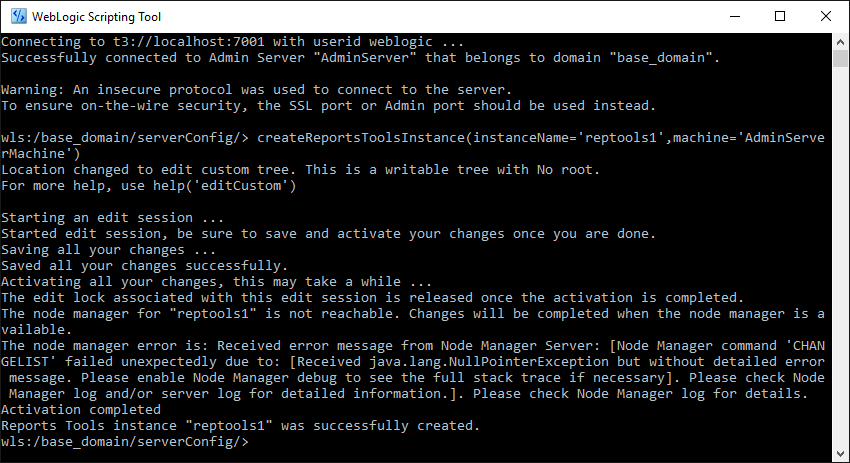
Now, we will configure the last element in this configuration section, Reports Tools instance so that you can start using the report developer 12c. From Weblogic Scripting Tool Console, you can create a new tool instance. Please refer the below image for details.
Restart the WLS_REPORTS server using Weblogic Admin console and the reports tool will be configured once after the WLS_REPORTS enters RUNNING status
While the Forms developer could be invoked from the Start Menu folder “Oracle FMW 12c Domain -base_domain”, calling reports builder is pretty awkward. You have to browse to “…\Oracle_Home\user_projects\domains\base_domain\reports\bin\” and execute the batch file “rwbuilder.bat”. Better, you create a shortcut for the batch file on your desktop.
So, that concludes the 1st level installation and configuration of 12c database, WebLogic, forms & reports. I will get back to the thread, with details about how to configure forms and reports elements and deploy modules at a later time.
Updated 8th November 2019
I just realized that I never linked the configurations thread with this post and doing it right now. You can access the thread that explains how to setup/configure Weblogic Classic Domain for deploying Oracle Forms & Reports application through the below link
Already upgraded to Windows 10? Being a hardcore desktop user from last 18+ years, I do feel Microsoft totally lost it while distinguishing between power users and home users. This hybrid OS is built for touch enabled devices, then for desktops. Many of the applications point you towards window phone site for fixes, confirming that much of such applications were ported for desktop from mobile applications, when this should be opposite!
Being a hybrid and released to masses while it was in the high beta status, Windows 10 has many bleeding edges. Start menu related issues are one of the worse and most difficult to address. There are hundreds of frustrated users flooding the technical support forums asking for fixes and to be very precise there are no immediate solutions for this dreaded issue as on date.
I have three computers running Windows 10 OS. Two computers with RTM build 10240 and one box running the insider preview. One of my 10240 build box started having issues with start button and task bar related issues almost 10 days back, forced me to do a factory reset and the issues came back after 4 days once after the reset. Someone pointed out that the issues were brought back with the cumulative updates release during October, whatever causes it, is annoying.
There are posts stating a particular batch file named “10Services_Default.bat” fixing this dreaded issue, however I haven’t tried it yet. I may, if my box stops behaving once again.
So do we have a fix for it? I was damn lucky (dunno for how long) to revive my PC that was constantly getting this issue by doing following few:
Removed the additional wireless dongle. Hard power off*
Created a new user account with administrator privileges: Hard power off*
Logged in as new user: It took around 20 minutes to logon
Hard power off*
Logged back to the old user & bingo
* Keep pressing the power on button for more than 20 seconds to manually switch off the computer
After almost 48 hours, my box is still responding to the start button and rest of the so called “modern apps”
Whether my own fixes going to help you? I’m not at all sure about it. However, there is no wrong in giving it a try.
Update (19th October 2015): I’m yet to find proper solutions for screen capturing in Windows 10. My favorite OBS doesn’t render the dropdown menus while screen recorded (thread here). Once it’s done, I will make the video as promised with my last update.
Update (12th October 2015) : I’m not promising, however, if possible, I will soon post a video with my Youtube channel explaining how you can configure both forms and reports server for hosting applications. Stay tuned :)
Hi guys
There are excellent articles explaining installing WebLogic 10.3.6 64Bit on Windows. Most of the installation methods are applicable to Windows 7, 8.x & on Windows 10 also. I opted to do a factory reset (the new reset option available with Windows 10) and was forced to re-install & configure WebLogic. I thought of sharing my experiences with you, as usual :)
(There were not a single hiccup experienced throughout the installation, to say it short)
Environment: Windows 10 Professional 64Bit, i5 Processor, 8GB memory, 1TB HDD, Dell laptop
Update 12th October 2015
Weblogic server 10.3.6 has identified issues with IPV6, hence I will suggest you to disable it in case if you are expecting a better experience with your Weblogic servers (forms & reports). ISA, the firewall client also could be a problem.
Once the IPV6 disabled, if you are in a home network or domain network, ping your machine and make sure that your ping replies are coming from your IPV4 address, instead of IPV6. If your computer is a domain member, ask your administrator to delete the IPV6 DNS entries for your box, disable IPV6 in your computer and restart. Ping again to confirm the replies are from IPV4. The issues are random, I had my Windows 8.1 machine with both the protocols enabled and my Weblogic servers just ran smoothly, however my Windows 10 box was adamant and until I disabled IPV6, couldn’t get the report server functional properly.
Step 1
Install JDK 7 to a folder without spaces in between, preferably C:\ (eg: C:\jdk or D:\jdk). Avoid installing JRE that comes with the JDK package.
Step 2
Copy your WebLogic installation .jar file to a folder (eg: D:\downloads)
Step 3
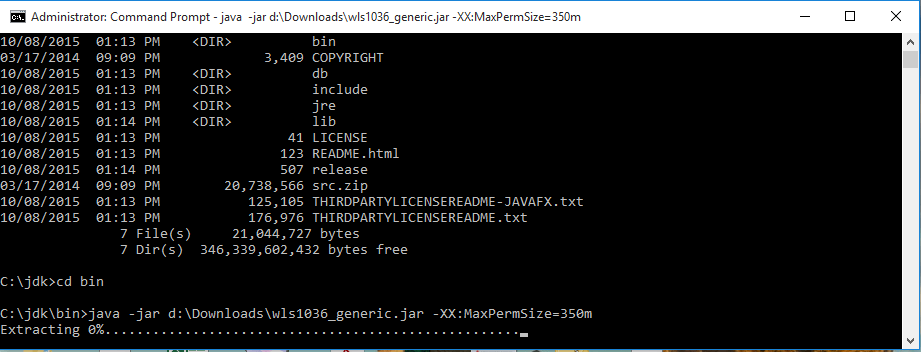
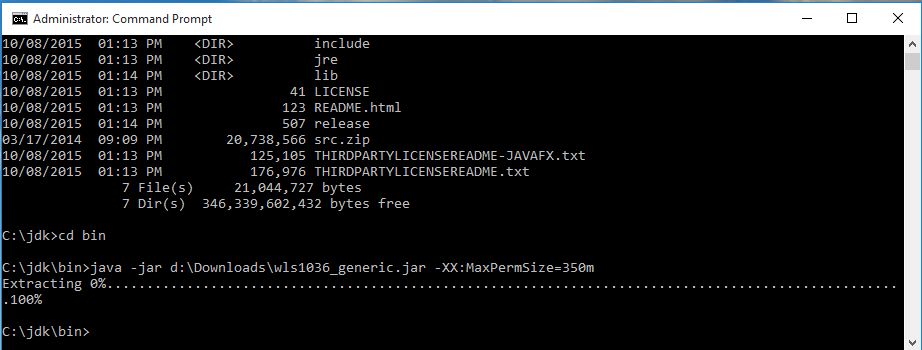
Now kick start the installation, as seen with the below image. It may take a while to deflate the .jar file and the installation to start
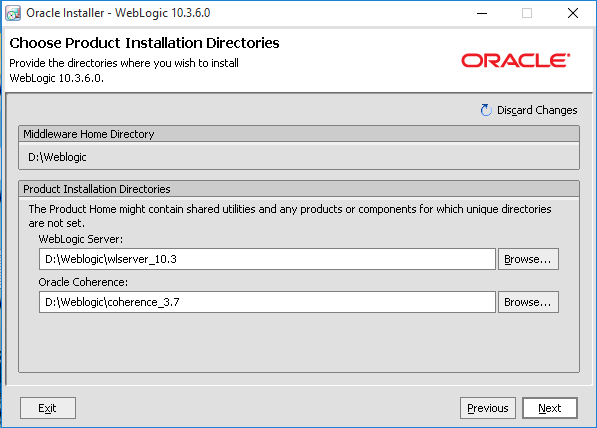
Try to install the weblogic server in a folder that doesn’t have spaces in it’s name. I always installed it in D:\weblogic
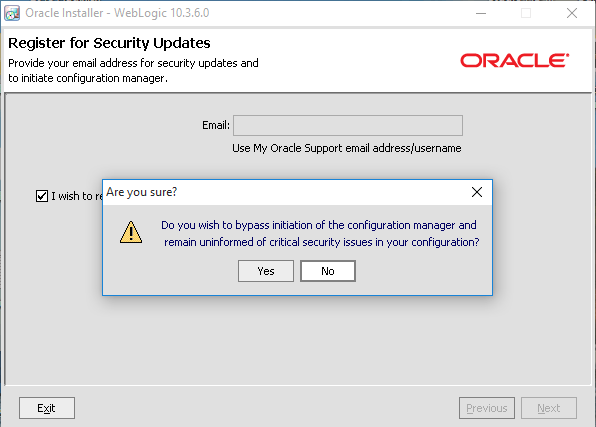
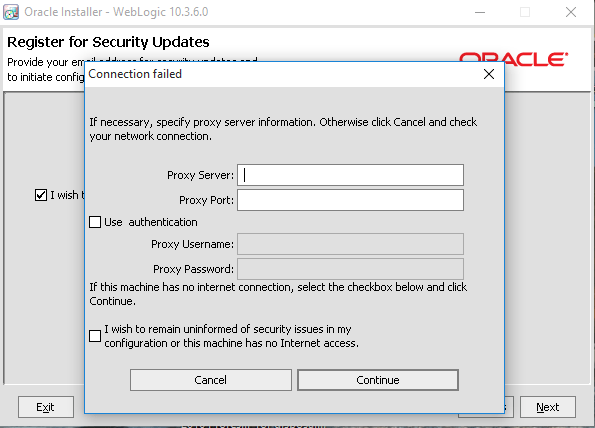
You don’t have a support for the product most of the times, so uncheck the “I wish…”
Choose the “Typical” for install type
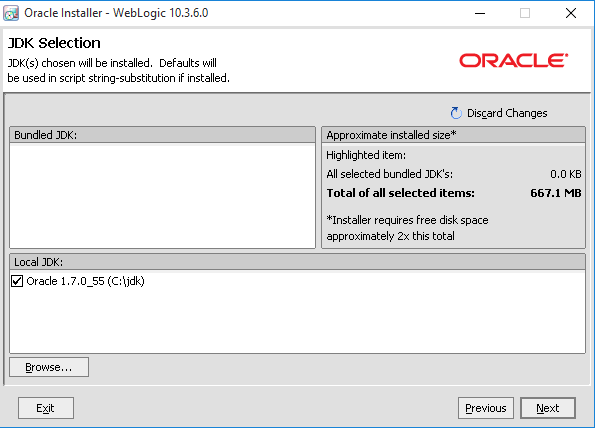
As you started the installation from the JDK installation folder, the local JDK will be already chosen
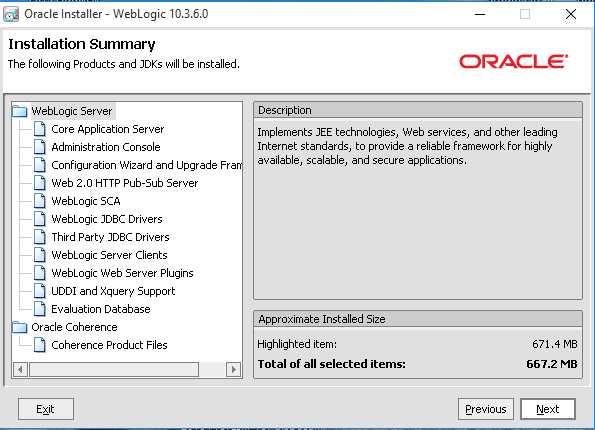
Select the defaults for components installations(unless you know how to handle it thoroughly)
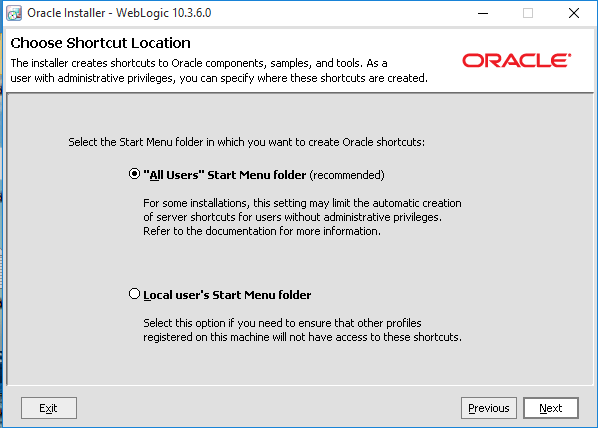
Install WebLogic for all users
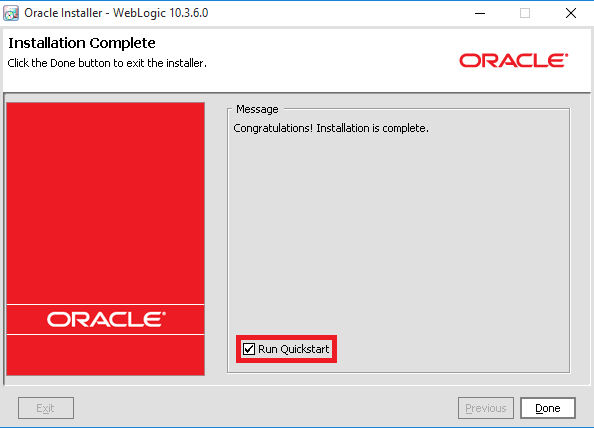
Uncheck “Run Quickstart” and exit the installation by clicking the Close button
Step 4 – Install Developer Suite 11gR2
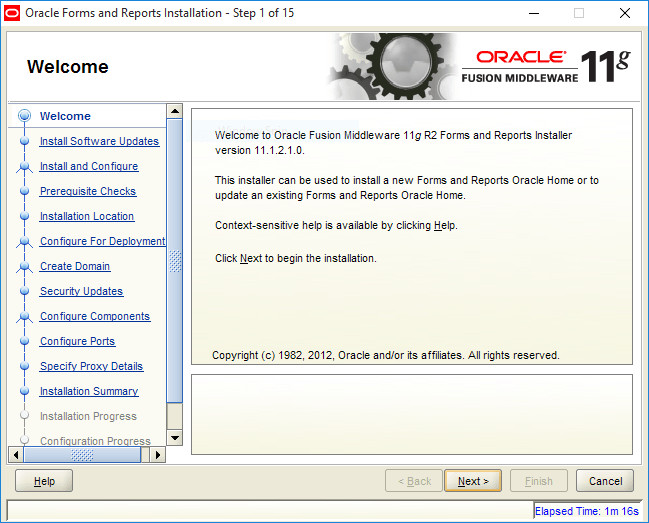
Installation media for Developer Suite 11gR2 comes as 3 disks. Download (if still available) and start the “Setup.exe” from Disk 1
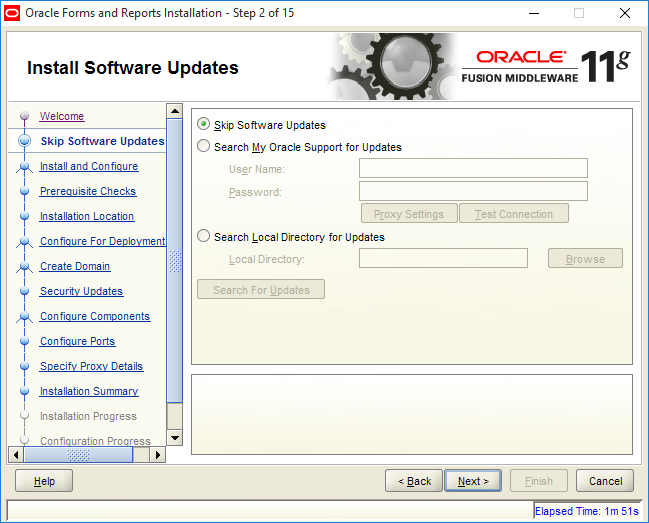
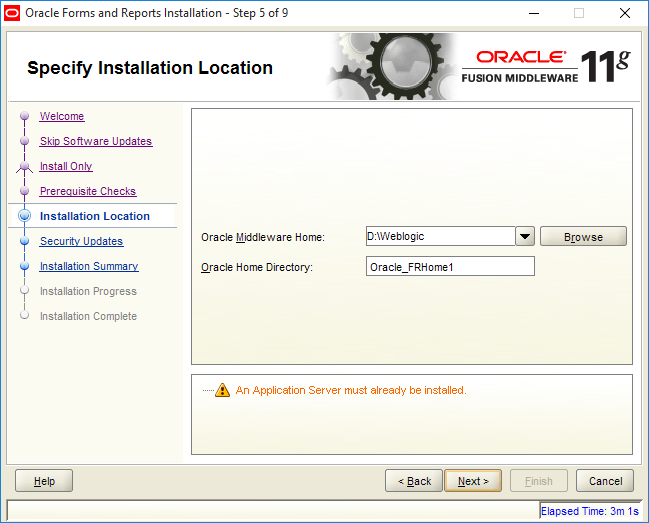
Select “Skip Software Updates” which requires a paid support from Oracle. If you have one, please set it up prior going ahead with the installation
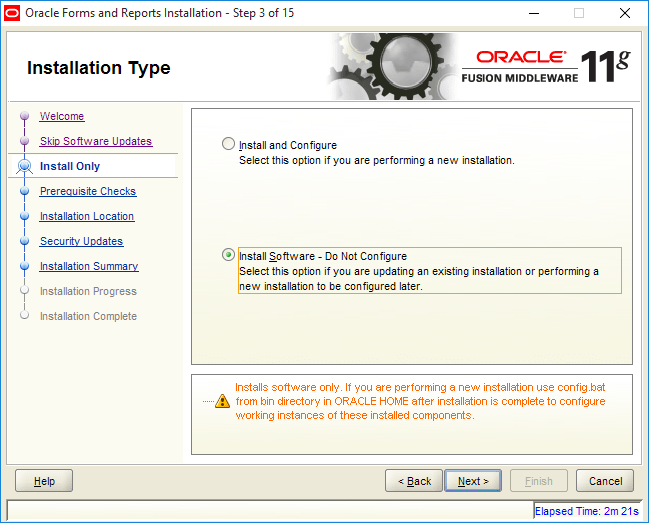
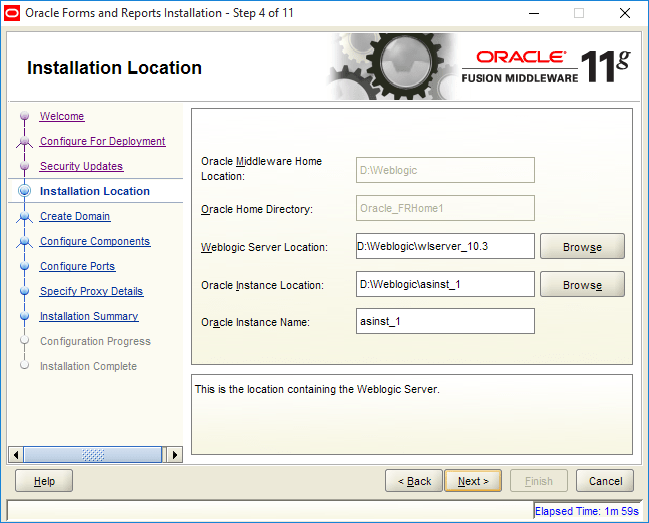
Select “Install Software – Do Not Configure”. We’ll configure it as part of our Classic Instance setup.
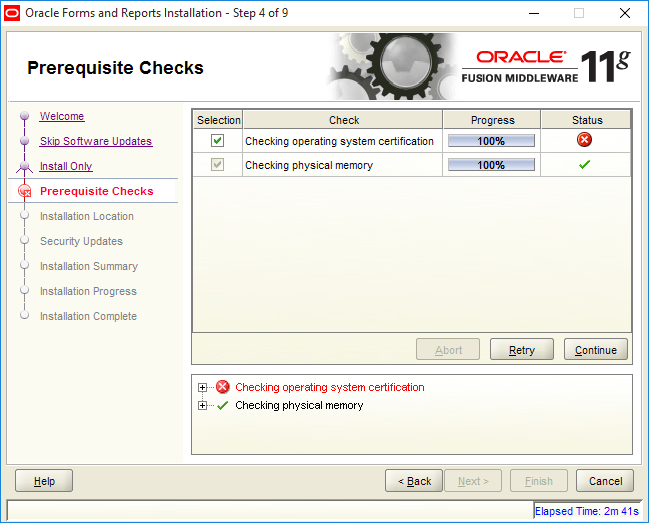
You can ignore the error, details mentions about unsupported operating system, well that’s all our intentions
Unless you have specific requirements, accept the defaults
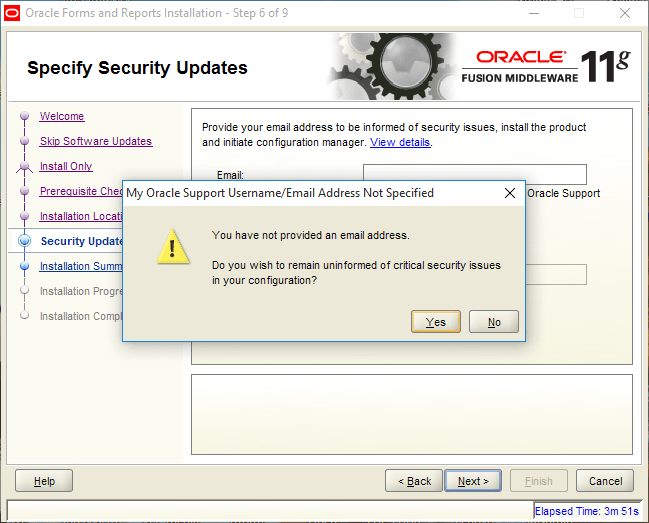
You don’t have a paid support from Oracle, you don’t get updates. Uncheck “I wish to …”
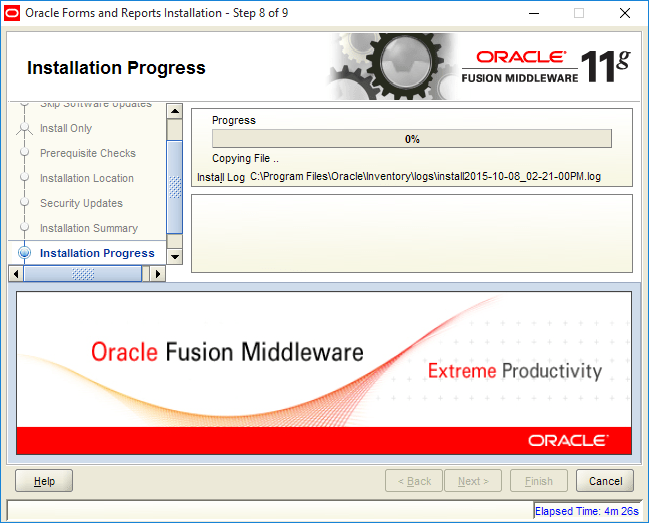
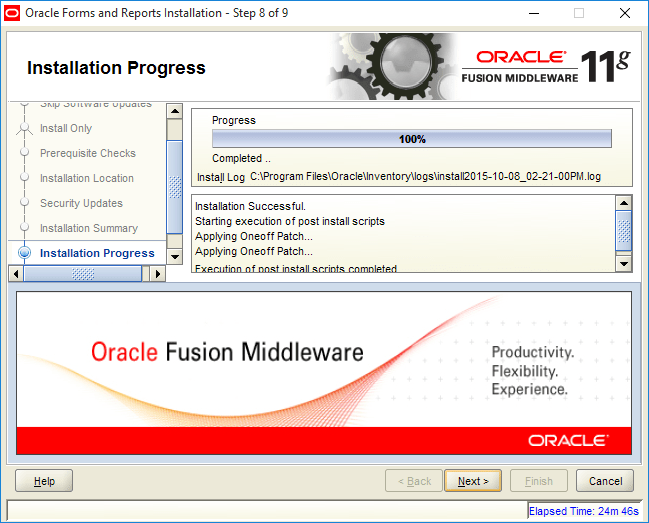
The installation will start now and it takes quite a while, in my case around 30 minutes. Sit back and relax
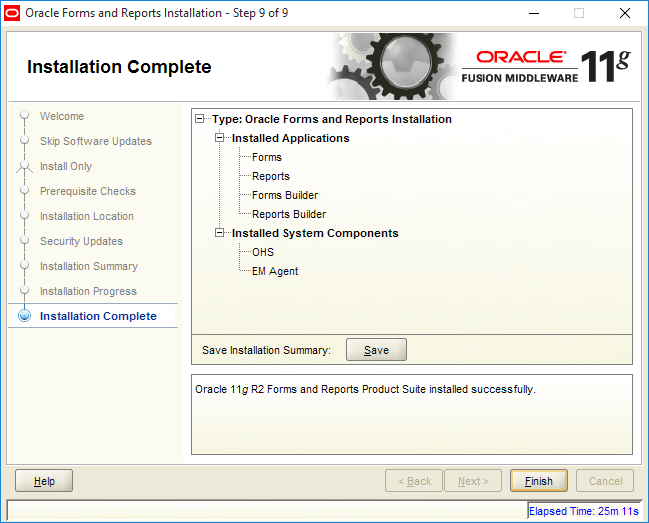
Exit the installation clicking “Finish” button.
Step 5 – Configure a Classic Instance
Even though you have installed Developer Suite 11gR2, you cannot yet use the development tools unless a classic domain is set up. Below please see how a classic domain is configured with Developer forms and reports.
A default installation of Oracle Developer Suite should create a folder “Oracle Classic 11g -Home1” under programs. You can activate the classic home setup by invoking menu item “Configure Classic Instance”
(I’m using ClassicShell start menu, I can’t really work with the latest “Start Menu”, so don’t get confused with the below image. You can use the search to find “Configure Classic Instance”)
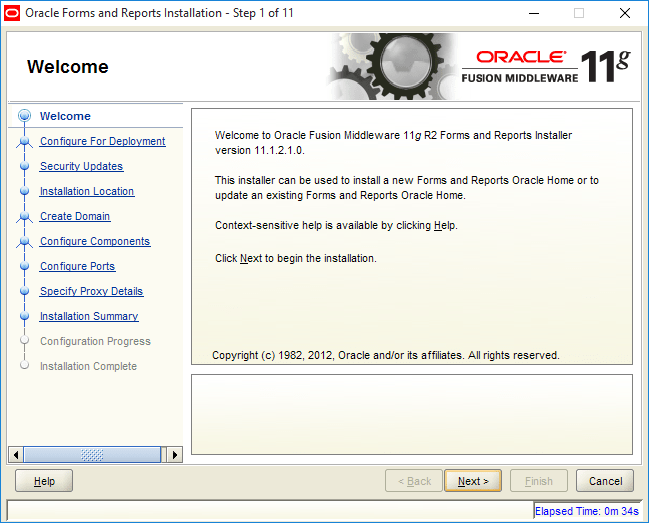
Select “Configure for Deployment”
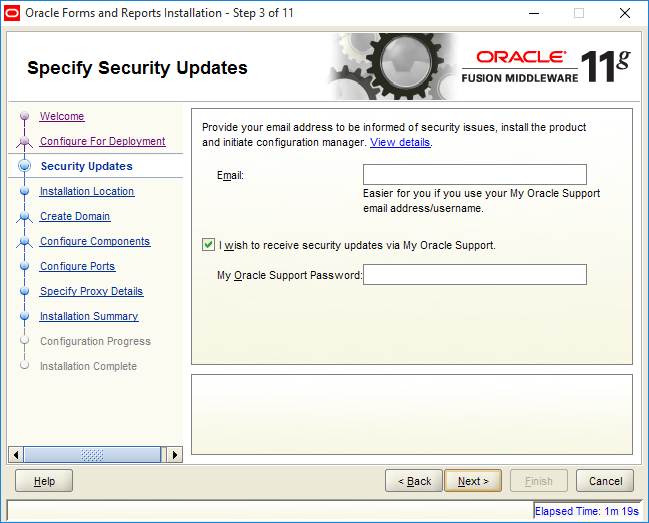
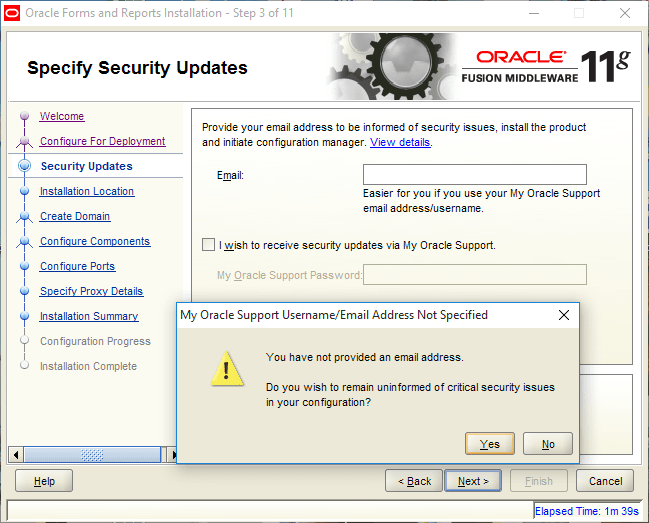
Skip the below by unchecking the “I wish to …”
Unless mandatory, accept the defaults
Provide a alphanumeric password for “weblogic” account for the domain. Please note it down, incase if you fear of forgetting it (I do many times)
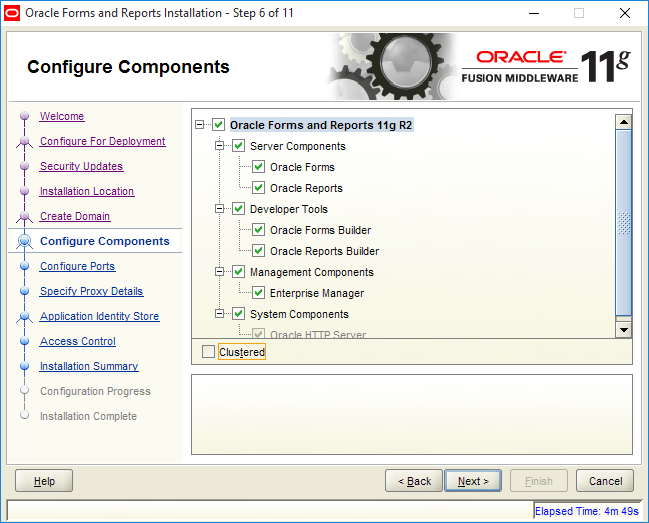
Important: By default “Oracle Forms and Reports 11g R2” is unchecked, You must check this option to install the developer tools. After checking, proceed with the configuration
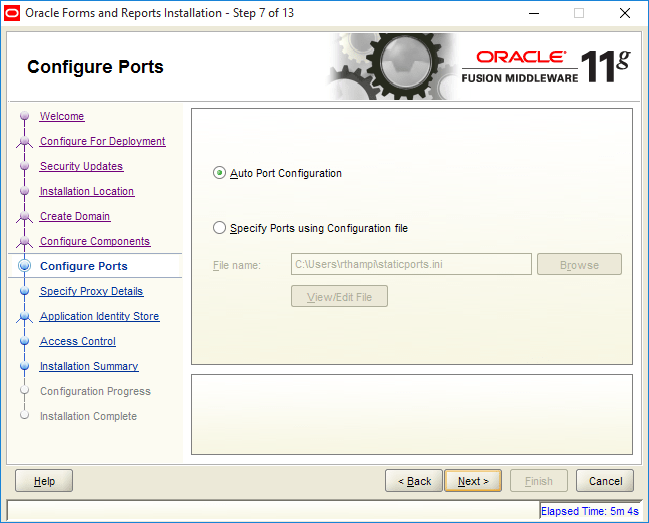
Select “Auto Port Configuration”
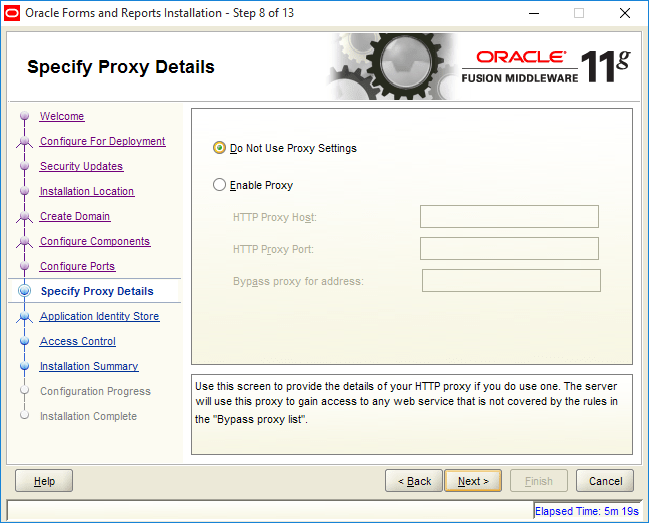
Select “Do not use proxy settings”. Proxy settings could make weblogic experiences cumbersome. I suggest you use a computer that doesn’t require proxy settings
We are not going to use the Identity store for a local development machine, if you do, please provide the details.
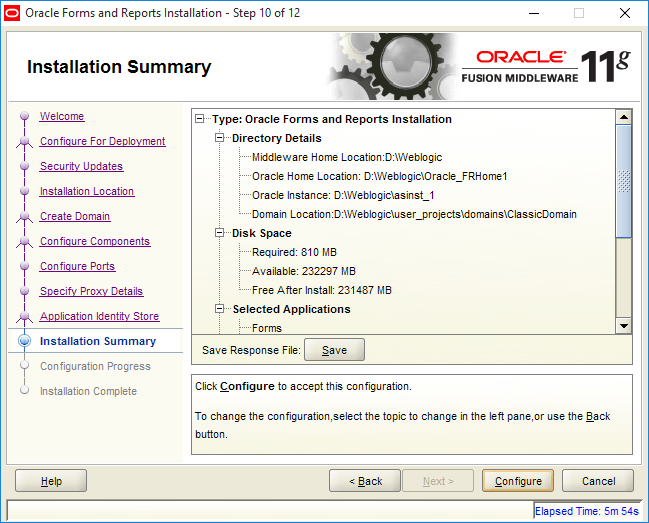
Initiate the configurations by clicking “Configure” button
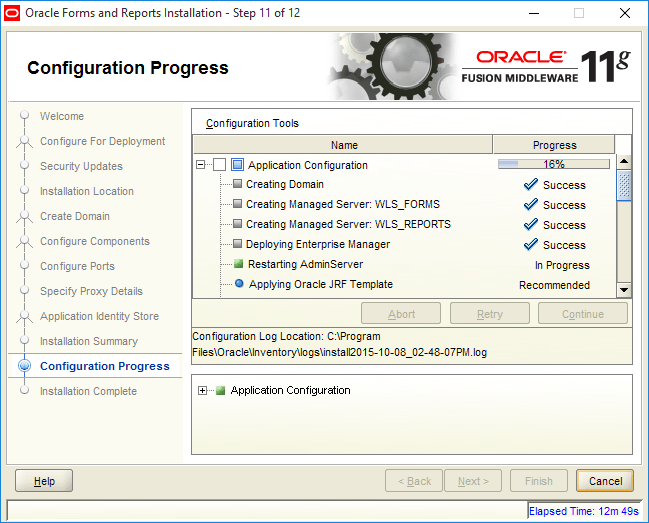
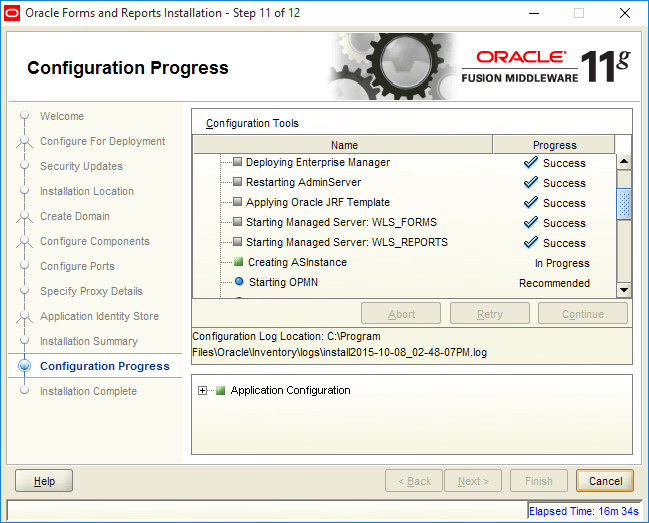
Configuration should complete in around 30 minutes, so sit back and relax
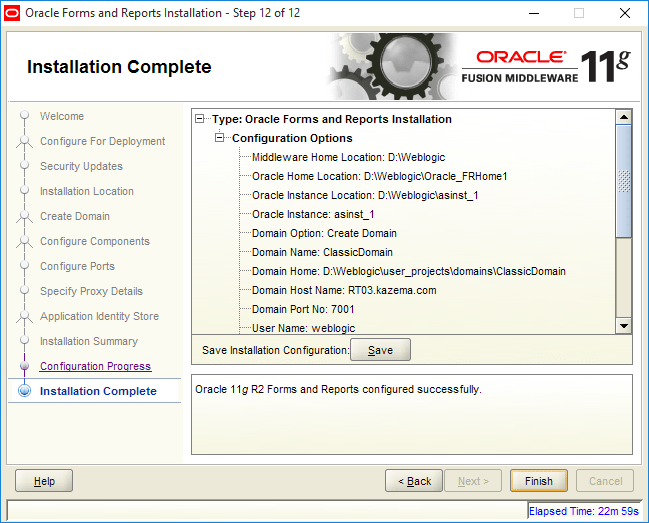
The above concludes the installation of WebLogic Server 10.3.6 & Developer Suite 11gR2 64Bit on Windows 10.
Let us checkout few essentials those will make sure that you have a seamless experience with the fresh installation.
Unlike the 32Bit, 64Bit installation of WebLogic server doesn’t install node manager Windows service. So you must install the windows service using the scripts provided by the installation process. If you didn’t change any of the default paths while installing the WebLogic server, the node manager windows service installation script file will be available …\wlserver_10.3\server\bin path
Best practice
Shutdown all running servers using the WebLogic console and restart the computer, this will avoid any sort of complication that could arise while the below exercise are executed.
From an elevated command prompt, running “installNodeMgrSvc.cmd” script will create this node manager windows service for you, which is mandatory for the WebLogic console to maintain your forms & reports servers (start, shutdown)
Once you created the node manager service, you should create a service for WebLogic admin server as well. This will help you from running the batch files manually & having a cluttered desktop later. More than, once created these services can restart themselves whenever you restart the box!
[code language=”text” gutter=”false”]
echo off
SETLOCAL
set DOMAIN_NAME=ClassicDomain
set USERDOMAIN_HOME=D:\WebLogic\user_projects\domains\ClassicDomain
set SERVER_NAME=AdminServer
set WL_HOME=D:\WebLogic\wlserver_10.3
set WLS_USER=weblogic
set WLS_PW=pass123
set PRODUCTION_MODE=true
set MEM_ARGS=-Xms512m -Xmx512m
call "%USERDOMAIN_HOME%\bin\setDomainEnv.cmd"
call "%WL_HOME%\server\bin\installSvc.cmd"
ENDLOCAL
[/code]
Copy the above script to a text file and save with a name like “InstallAdminServer.cmd” or with a name that ends with .cmd extension. I will always prefer saving the file in the same folder where we had the node manager service installation script.
Now, from an elevated command prompt, run the script, which should create Admin Server Windows Service for you.
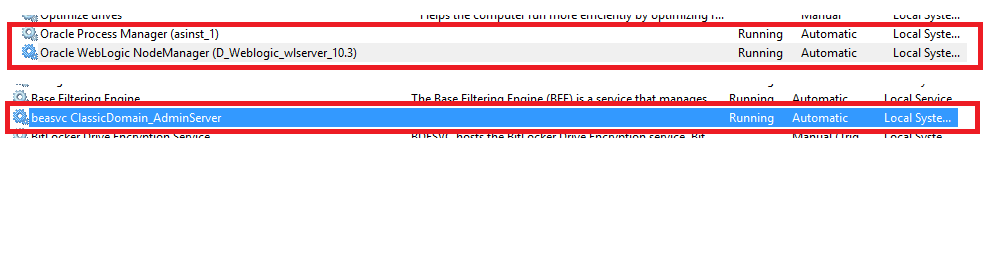
If you followed the instructions, you should see all the services as listed above. You can start the ones which are not running, Please wait a while before trying to access the WebLogic admin console after starting the service. It takes few minutes for the admin server to come online.
I do hope this post will help you to install and configure WebLogic Server and Developer Suite 11gR12 on Windows 10 successfully. Have questions or problems? please update me with the comment section.
As Microsoft is continuously updating their technical preview for Windows 10, we are sure many of you out there are trying out the latest release 10074, that adds(?) many features. As a precaution, we always use Oracle VirtualBox for testing such releases and never had more issues than with the pre-releases of Windows 10!
One of the regular errors we came across were about “Unable to allocate and lock memory” while the VM started, and gradually pops up another window titled “Guru Meditation”, asking us to view the log files (/me chuckles, when Google can do that for us). We came across a wonderful post, that explains how to resolve this particular dreadful situation with VMs!
and here we are linking the same POST for you! Enjoy and Enjoy your Windows 10 VM