Oracle R12 Cloning | dbTier "ouicli.pl INSTE8_APPLY 1"

Hi guys

There could be thousands (exaggerated) reasons why a Oracle cloning process could go all bad. I’m not an application DBA, however, have enough experience with the architecture, technology as I interact with it everyday as a part of my job.

Few months back, I started doing something what a DBA should do, cloning. My prior attempts were mostly at home, using virtual machines and test instances and they were NOT as mission critical as what we do at work.

So, after the storage device was revamped with new partition structures I was asked to do a cloning for the production instance. Let me explain how the application was deployed prior the storage restructuring

  1. We had the database tier on mount point /u05
  2. Application on /u06 mount point

So, I recreated the same mount points and started the cloning process for dbTier and the process got terminated at 2% and the log files shown me an error that I was not familiar with.

“ouicli.pl INSTE8_APPLY 1”

Google searches fetched me hundreds of results for “ouicli.pl INSTE8_APPLY”, however the error codes were mostly for 255 or “-1” and apparently I didn’t have any clue what was going wrong.

So I unzipped the tar ball for database tier once again, and the cloning process got aborted at 2%,  and I was getting nervous as I was expected to make the instance online by early morning 7AM

Most of the reference materials were explaining about non-existent Oracle inventory locations, and I confirmed that it was not the case from my part (Obviously, I was overlooking at this constrain itself!)

After half a dozen times tasting failure, finally I tried to see what was written inside the oraInst.loc file

oraprod@erp-prod:/home/oraprod>cd $ORACLE_HOME
oraprod@erp-prod:/u05/oraprod/PROD/db/tech_st/10.2.0>cat oraInst.loc
inventory_loc=/u01/oraprod/PROD/db/tech_st/10.2.0/admin/oui/PROD_erp-prod/oraInventory

and I realized that inventory location was wrongly pointing towards an non-existing mount point and physical location!

I modified the oraInst.loc content with the correct mount point

inventory_loc=/u05/oraprod/PROD/db/tech_st/10.2.0/admin/oui/PROD_erp-prod/oraInventory

and the cloning process went ahead without giving another errors.

We had an instance that was running from last 6 years, which was only once cloned from a cold backup during the storage device change, and somehow the inventory location remain unchanged with the repositories.

I hope this finding could help few newbies like me out there

regards,

rajesh

How to get a computer by computer view of installed software using the MAP toolkit

As an Administrator maintaining Windows domains, one of the herculean tasks usually one run into is to make a software asset inventory. There are plenty of excellent software to do the job for you, obviously for some cost.

Here we are suggesting you a cheaper alternative, using Microsoft’s own MAP toolkit. Be ready to sweat a bit, and we are sure you would love the outcome.

The entire write up is copied from Microsoft blog and tested by us for assuring, if you follow the instructions as given, within few hours of time you will have a neat software inventory list.

The original link is here

One of the most frequent questions we get at MAPFDBK@microsoft.com is how to get a list of the software discovered by the MAP toolkit on a computer by computer basis.  Most of the users who ask are using this to help them answer a licensing question but it can be used in a number of other scenarios as well for example Software Asset Management or user profiling for VDI (see http://blogs.technet.com/b/mapblog/archive/2012/07/09/planning-for-desktop-virtualization-with-the-map-toolkit-7-0-4-of-4.aspx).

In MAP 7.0, provided this information through a database view and Microsoft Excel.  The name of the view is InstalledProducts_view.

In MAP 8.0, this view has been renamed to [UT_WinServer_Reporting].[InstalledProductsView].

This view contains several key pieces of information that you can use to do a number of things including:

  • Understand what applications and versions are installed throughout your organization
  • See the Operating Systems on which these apps are running and whether the machine is physical or virtual
  • See who is using the machines on which the apps are running
  • Get important license related information such as processor counts, total cores and logical processor counts

To get started, you will need to open Excel and connect to your local SQL Server database that is storing the MAP data that you want to view.  There are two different ways to connect, depending on the version of SQL Server that you are using.

Using your own SQL Server instance

If you are using your own instance (the non-default MAP install), you will select the Data option on the Excel ribbon and select the ‘From other sources’ option.  Then select ‘From SQL Server’.

image_thumb6

Enter your server name and instance name and click ‘Next’.

image_thumb5

Select the database that contains the data you want and then pick InstalledProducts_view row under ‘Name’ for databases created with MAP 7.0.

For MAP 8.0, use [UT_WinServer_Reporting].[InstalledProductsView].

image_thumb7

You can also add some additional information to help describe the connection.  Then click ‘Finish’ and select the location where you want the query results to populate.

image_thumb9

Using the default (LocalDB) instance

In MAP 7.0, the default database installed moved to SQL Server 2012 LocalDB.  There are a couple of steps that are different than those used in other versions of SQL Server.

First, make sure that you have the SQL Server 2012 Native Client installed.  You can get it from

http://www.microsoft.com/en-us/download/details.aspx?id=29065.

With Excel open and the Data ribbon highlighted, select the ‘From other data sources’ option and select ‘From Data Connection Wizard’

image_thumb12

Select the ‘Other/Advanced’ option.

image_thumb13

Then select the option for SQL Server Native Client 11.0 as highlighted below.  If this option is not available, make sure that you have the native client installed – http://www.microsoft.com/en-us/download/details.aspx?id=29065.

image_thumb15

Next, you enter in the server name.  If you are using the default install the server name will be: (localdb)\maptoolkit.

Set the option in #2 to Use Windows NT Integrated Security

Hit ‘Test Connection’

image_thumb18

If you’ve done it correctly, you will get a success message!

image_thumb21

Then follow the same steps as above where you select the database name and the InstalledProducts_view for 7.0.  For 8.0, use [UT_WinServer_Reporting].[InstalledProductsView].

Populate the results in your spreadsheet!

What do I do next?

Well – that is entirely up to you.  One thing that we like to do is to create a pivot table and drill down into this information. Here is one that I created.  I filtered down the application name to include only those that had SQL Server components.  I could look at this by physical/virtual and by operating system.

Pretty cool – huh!

image_thumb23

As a reminder, here is a link to some valuable MAP community supported content.

Enjoy!

Oracle Payroll | R12 | Simple view for employee paid salaries

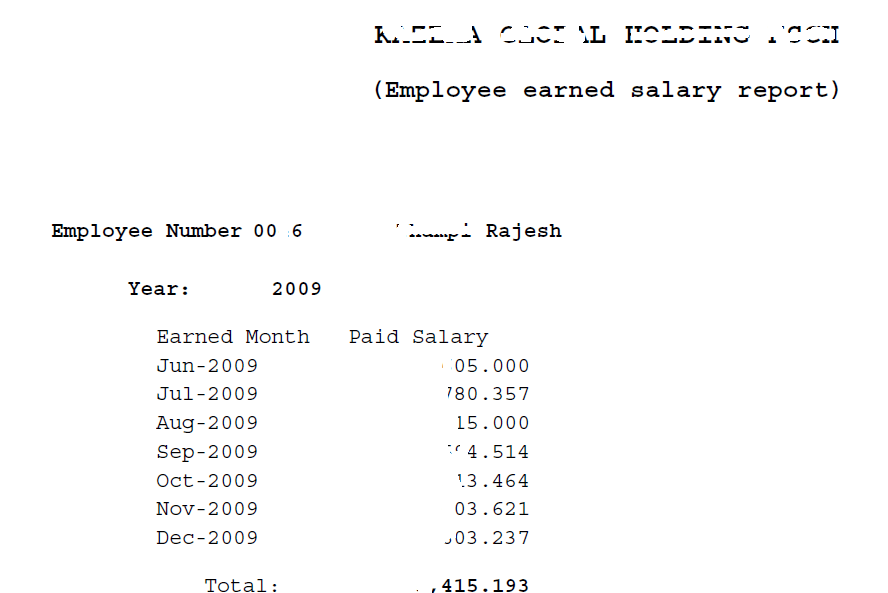
Recently I were requested to build a report by the HR/Payroll team, running which they can generate the salary paid details for employees. Ie, a tabular listing with paid month, and total salary earned, grouped by year factor

0046

I found the request being one of the toughest, as my exposure to Payroll module and base tables was limited almost none, other than knowing the person and assignment tables and views!

Gradually I started going through the custom reports developed by our implementer and restructured few of their custom functions into a best possible view what meets our current requirements. As we are not using customized packages for the salary calculations, you should able to alter the below SQL and create your own with almost no efforts. We hope you will enjoy the solution!

Script for view

CREATE OR REPLACE VIEW XXEMPLOYEE_SALARIES_MONTHLY
AS
SELECT pap.person_id, pap.employee_number,to_char(ppa.date_earned,'Mon-YYYY') earned_month,
TO_NUMBER(to_char(ppa.date_earned,'MM')) MONTH_NUMBER,
TO_NUMBER(to_char(ppa.date_earned,'YYYY')) YEAR_FACTOR,
sum(to_number(prrv.result_value)) PAID_AMOUNT
FROM PAY_ELEMENT_TYPES_F petf
,PAY_INPUT_VALUES_F pivf
,PAY_PAYROLL_ACTIONS ppa
,PAY_ASSIGNMENT_ACTIONS paa
,PAY_RUN_RESULTS prr
,PAY_RUN_RESULT_VALUES prrv
,PER_ALL_ASSIGNMENTS_F paaf
,PER_ALL_PEOPLE_F pap
,PAY_ELEMENT_CLASSIFICATIONS pec
WHERE 1=1
AND pec.classification_id = petf.classification_id
and prrv.input_value_id = pivf.input_value_id
AND CLASSIFICATION_NAME IN ('Earnings','Supplemental Earnings')–Add in more based on your setup
and pivf.name in ('Pay Value')
AND petf.element_type_id = prr.element_type_id
AND paa.assignment_action_id = prr.assignment_action_id
AND prr.run_result_id = prrv.run_result_id
AND petf.business_group_id = 81
AND ppa.business_group_id = pap.business_group_id
AND ppa.payroll_action_id = paa.payroll_action_id
AND SYSDATE BETWEEN TRUNC(petf.effective_start_date) AND TRUNC(petf.effective_end_date)
AND last_day(ppa.date_earned) BETWEEN TRUNC(pap.effective_start_date) AND TRUNC(pap.effective_end_date)
AND last_day(ppa.date_earned) BETWEEN TRUNC(paaf.effective_start_date) AND TRUNC(paaf.effective_end_date)
AND paaf.assignment_id = paa.assignment_id
AND paaf.person_id = pap.person_id
–and prrv.result_value > '0'
AND paaf.business_group_id = pap.business_group_id
AND pap.business_group_id = 81–double check
GROUP BY pap.person_id,pap.employee_number, to_char(ppa.date_earned,'Mon-YYYY'),to_char(ppa.date_earned,'MM'),to_char(ppa.date_earned,'YYYY')
UNION ALL
SELECT pap.person_id, pap.employee_number,to_char(ppa.date_earned,'Mon-YYYY') earned_month,
TO_NUMBER(to_char(ppa.date_earned,'MM')) MONTH_NUMBER,
TO_NUMBER(to_char(ppa.date_earned,'YYYY')) YEAR_FACTOR,
nvl(sum(to_number(prrv.result_value)),0)*-1 PAID_AMOUNT
FROM PAY_ELEMENT_TYPES_F petf
,PAY_INPUT_VALUES_F pivf
,PAY_PAYROLL_ACTIONS ppa
,PAY_ASSIGNMENT_ACTIONS paa
,PAY_RUN_RESULTS prr
,PAY_RUN_RESULT_VALUES prrv
,PER_ALL_ASSIGNMENTS_F paaf
,PER_ALL_PEOPLE_F pap
,PAY_ELEMENT_CLASSIFICATIONS pec
WHERE 1=1
AND pec.classification_id = petf.classification_id
and prrv.input_value_id = pivf.input_value_id
AND CLASSIFICATION_NAME IN ('Voluntary Deductions','Involuntary Deductions','Social Insurance')–Add in more based on your setup
and pivf.name in ('Pay Value')
AND petf.element_type_id = prr.element_type_id
AND paa.assignment_action_id = prr.assignment_action_id
AND prr.run_result_id = prrv.run_result_id
AND ppa.business_group_id = pap.business_group_id
AND ppa.payroll_action_id = paa.payroll_action_id
AND SYSDATE BETWEEN TRUNC(petf.effective_start_date) AND TRUNC(petf.effective_end_date)
AND last_day(ppa.date_earned) BETWEEN TRUNC(pap.effective_start_date) AND TRUNC(pap.effective_end_date)
AND last_day(ppa.date_earned) BETWEEN TRUNC(paaf.effective_start_date) AND TRUNC(paaf.effective_end_date)
AND paaf.assignment_id = paa.assignment_id
AND paaf.person_id = pap.person_id
— and prrv.result_value > '0.00'
AND paaf.business_group_id = pap.business_group_id
AND pap.business_group_id = 81–double check
GROUP BY pap.person_id,pap.employee_number, to_char(ppa.date_earned,'Mon-YYYY'),to_char(ppa.date_earned,'MM'),to_char(ppa.date_earned,'YYYY')
order by 2,5,4;

Sample Query

SELECT PERSON_ID, EMPLOYEE_NUMBER,earned_month,year_factor,
SUM(PAID_AMOUNT) PAID_SALARY
FROM XXEMPLOYEE_SALARIES_MONTHLY
WHERE
1=1
AND EMPLOYEE_NUMBER =:P_EMPLOYEE_NUMBER
AND YEAR_FACTOR BETWEEN NVL(:P_START_YEAR,YEAR_FACTOR) AND NVL(:P_END_YEAR,YEAR_FACTOR)
GROUP BY PERSON_ID,EMPLOYEE_NUMBER,earned_month,YEAR_FACTOR, MONTH_NUMBER
ORDER BY YEAR_FACTOR, MONTH_NUMBER

Enjoy another quality post from us guys :)

for Windows7bugs

rajesh

Linux shell script file for Start/Stop Weblogic Services


This time we are sharing a shell script for starting/stopping Weblogic services. This shell script can

  1. Start Weblogic Admin Server (after starting Node Manager)
  2. Once the Admin server started, you can start the forms and reports services using the Admin Console
  3. Unless conflicts, you should able to access the Oracle enterprise manager console as well

Copy the content below in plain text file first, change the extension to .sh and set the execute permissions


[sourcecode language=”bash” gutter=”false” wraplines=”true”]
#!/bin/sh

if [ -z "$1" ]; then
echo "You must supply either start or stop command while calling this script! correct usage: weblogic_start_stop.sh start|stop"
exit
fi

bold=`tput bold`
normal=`tput sgr0`

case "$1" in
‘start’)
echo "Starting Management Node & Weblogic Server 10.3.6"

echo "Starting NodeManager"

nohup $WLS_HOME/server/bin/startNodeManager.sh > /dev/null 2>&1 &

sleep 10

output=`ps -ef | grep -i nodemanager.javahome | grep -v grep | awk {‘print $2’} | head -1`

set $output

pid=$1

echo "Weblogic NodeManager Service was started with process id : ${bold}$pid${normal}"

echo "Starting WebLogic Domain"

nohup $MW_HOME/user_projects/domains/ClassicDomain/bin/startWebLogic.sh > /dev/null 2>&1 &

# Sleep until exiting
sleep 60
echo "All done, exiting"
exit
esac

################################Stopping the services##################################

case "$1" in
‘stop’)
echo "Stopping Weblogic Server & Node Manager"

nohup $MW_HOME/user_projects/domains/ClassicDomain/bin/stopWebLogic.sh > /dev/null 2>&1 &

sleep 30

# echo "Killing Nodemanager process now"

output=`ps -ef | grep -i nodemanager.javahome | grep -v grep | awk {‘print $2’} | head -1`
set $output
pid=$1
echo "Killing Weblogic NodeManager Service Process : ${bold}$pid${normal}"

kill -9 `ps -ef | grep -i nodemanager.javahome | grep -v grep | awk {‘print $2’} | head -1`

echo "All done, exiting"
exit
esac

[/sourcecode]


If you have queries, please ask them using comments section.

for Windows7bugs

rajesh

Upgrade your 11g Forms/Reports [32 Bit] Version 11.1.2.1.0 to 11.1.2.2.0

Upgrading Forms & Reports developer 11g could be equally confusing & interesting, as there are not many documents explaining a how to. Recently we were closely following up an “issue” raised by one of the visitors and opted to “upgrade” the development machine to check the feasibility of Forms & Reports 11g over Windows 8.1 64Bit

We were able to complete the upgrade process without much issues and the steps followed were described as below

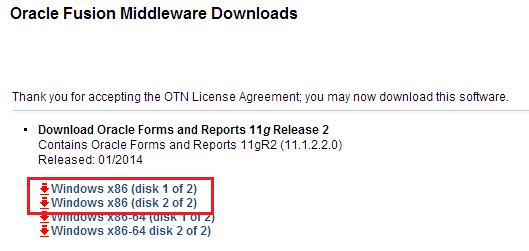
Download the required software

http://www.oracle.com/technetwork/developer-tools/forms/downloads/index.html?ssSourceSiteId=null

image

As we were on 32Bit environment for the Weblogic, we downloaded the 32Bit packages for the upgrade. The total download should be roughly around 1.8GB

Once the downloaded archives are extracted, you can start with the upgrade process.

Prior the upgrade process, please make sure you stopped both Weblogic Admin server service & Weblogic Node manager service to avoid any kind of failures with the process.


image

image

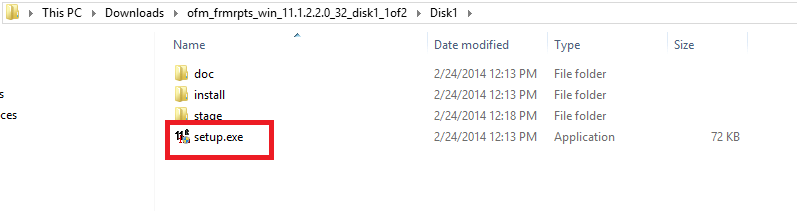
You can kick start the upgrade process by executing the “setup.exe”

start

1

You should “Skip” the software update, as usual :)

2

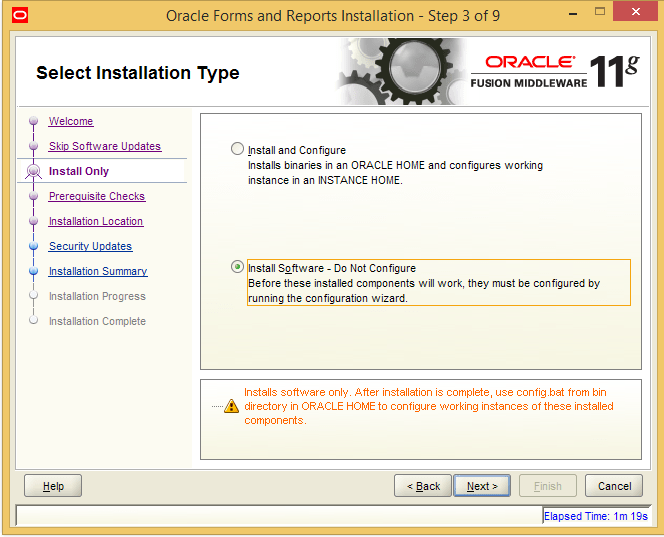
Select “Install software – do not configure”

There could be multiple warnings about incompatible setups, you can “Safely” ignore and continue with the installation. We warn you, you shouldn’t install uncertified Oracle products on any OS, in case if you are going to use such setups for Production purposes

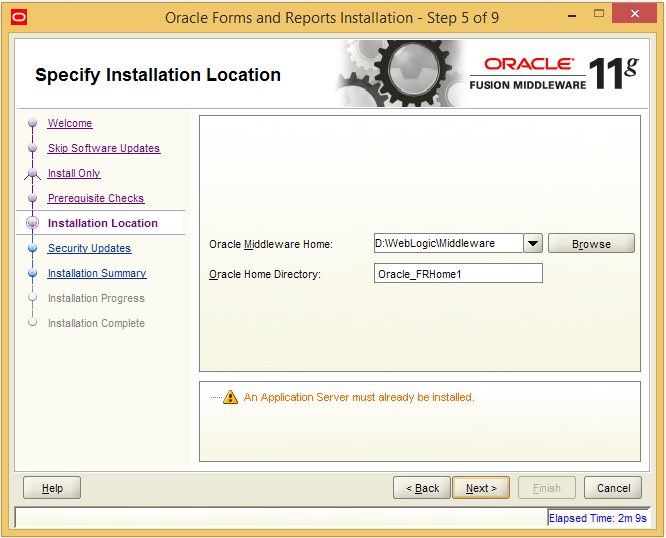
Setup should automatically pickup the “Middleware Home & Oracle Home Directory”

6

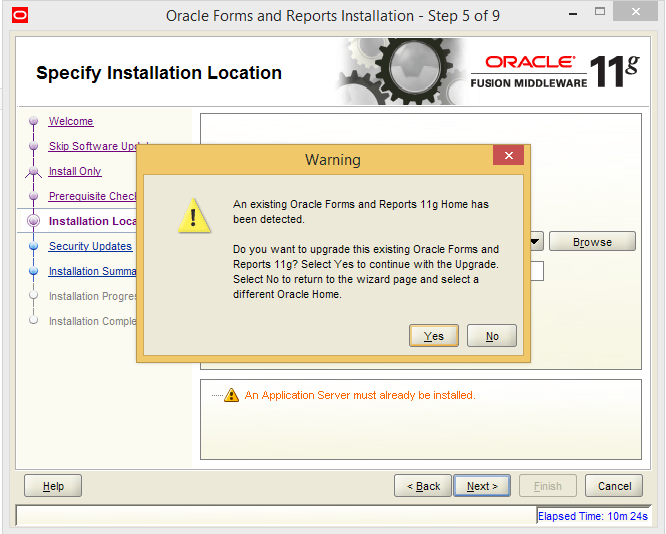
Going ahead will produce an error stating another installation is available in the selected location, ignore and continue

7

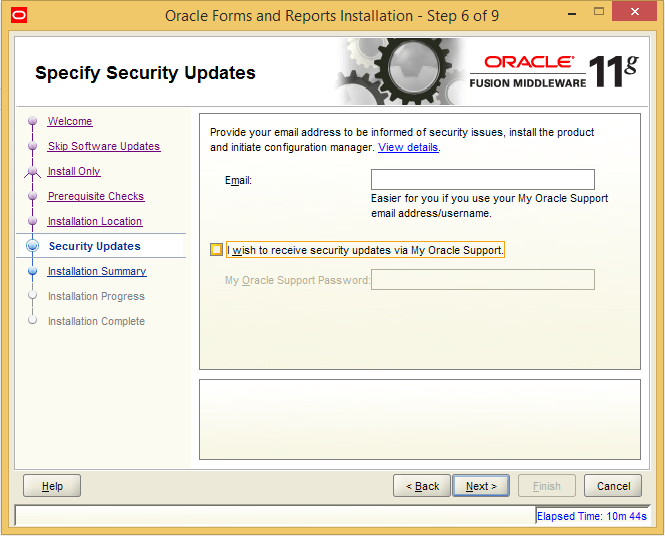
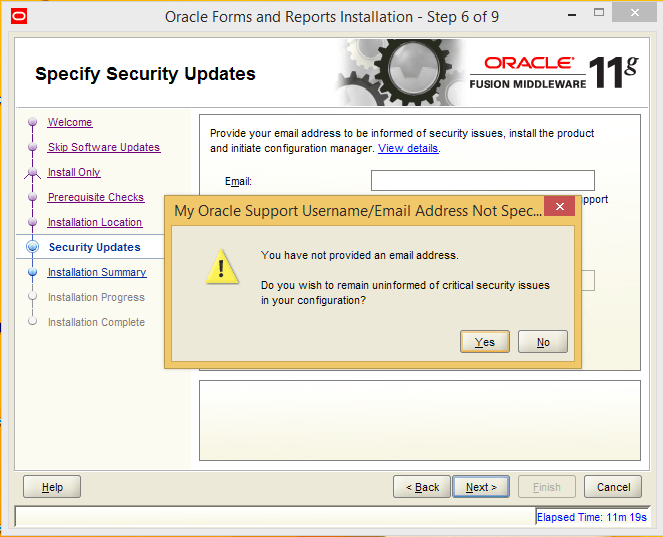
Unless you have a valid Oracle support contract, uncheck “I wish to receive…” and continue with the upgrade process

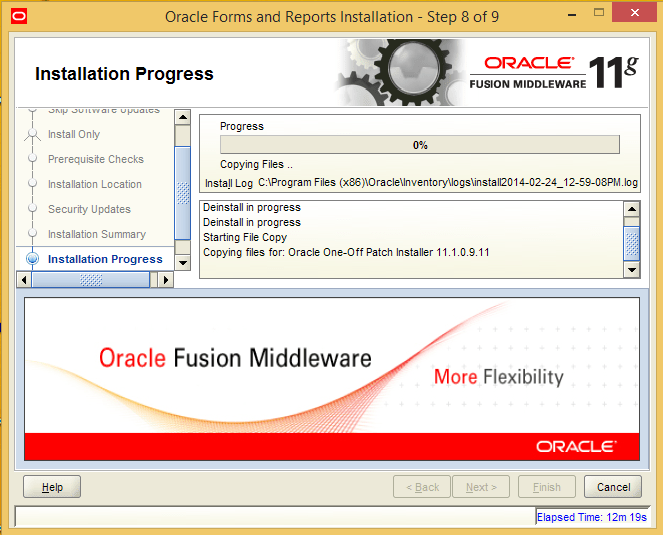
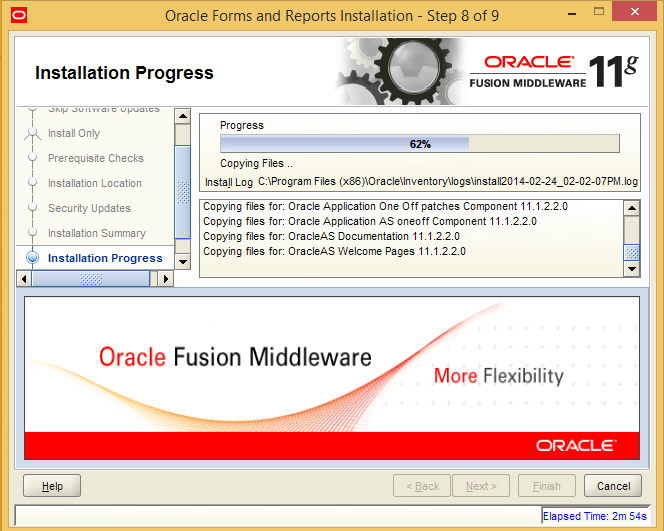
8

9

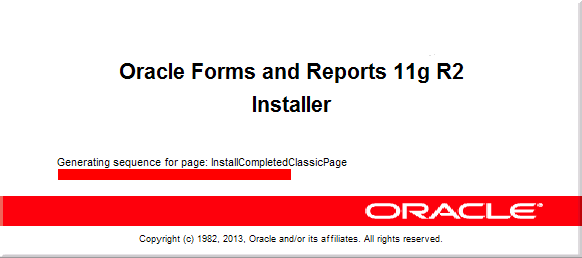
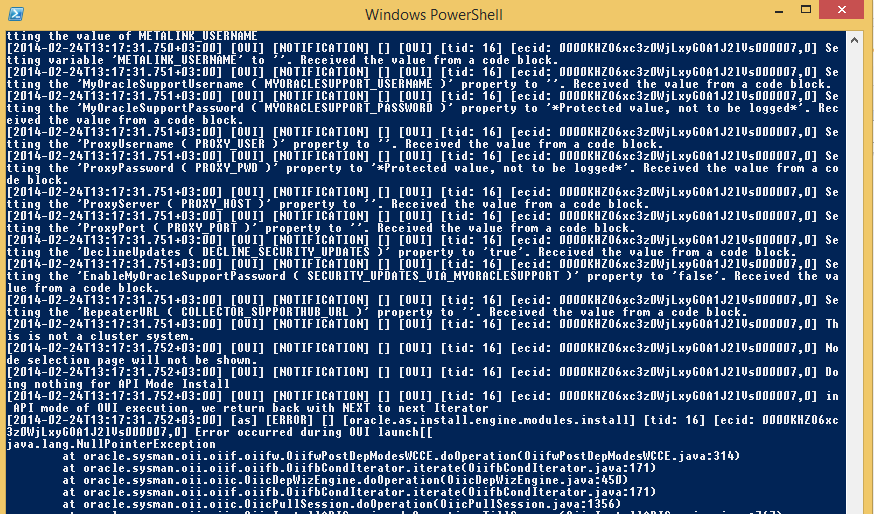
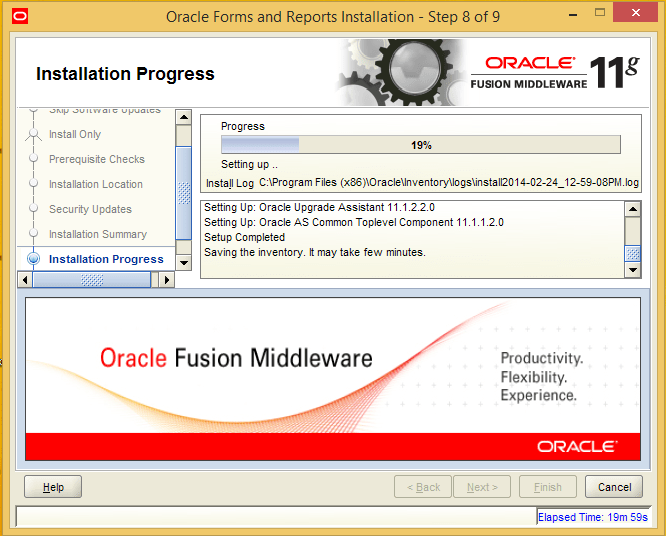
We got an error at 19%, all about certain java components. If you are familiar with LINUX, most of the times you could monitor a log file, as it is being updated using “tail” command. With latest versions of Windows OS you can use powershell to monitor the log file online.

Open up powershell and copy the installation log name like following

get-content “C:\Program Files (x86)\Oracle\Inventory\logs\install2014-02-24_12-59-08PM.log” –wait

It does the job and if errors are found, go ahead and cancel the installation and start over, which should deal with the java related errors. The total installation will be stuck unless.

image

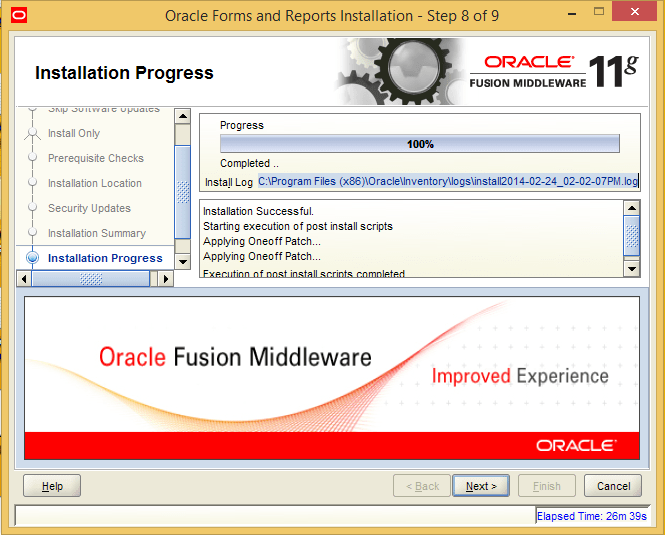
10

11

12


13

14

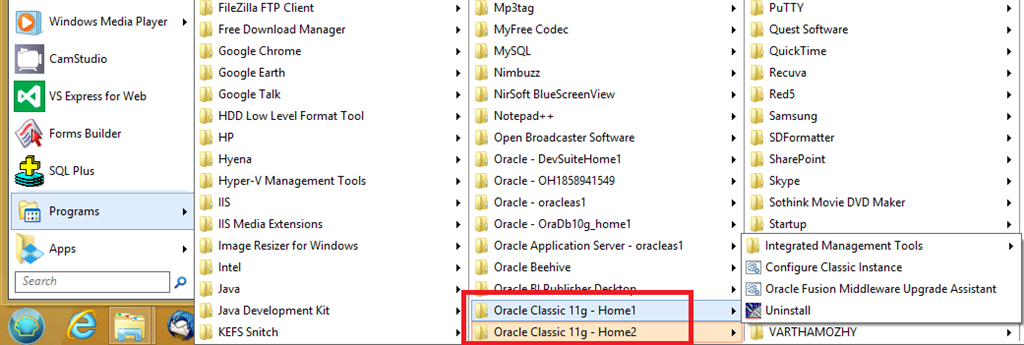
You may save the setup steps and try out your upgraded forms & reports now. The only one element what we have noticed as “created” new as part of the installation was

image

Start Forms designer and check the about window and you must having the following information.

Forms [32 Bit] Version 11.1.2.2.0 (Production)
Oracle Toolkit Version 11.1.2.2.0 (Production)
PL/SQL Version 11.1.0.7.0 (Production)
Oracle Procedure Builder V11.1.2.2.0 – Production
PL/SQL Editor (c) WinMain Software (www.winmain.com), v1.0 (Production)
Oracle Query Builder 11.1.2.2.0 – Production
Oracle Virtual Graphics System Version 11.1.2.2.0 (Production)
Oracle Tools GUI Utilities Version 11.1.2.2.0 (Production)
Oracle Multimedia Version 11.1.2.2.0 (Production)
Oracle Tools Integration Version 11.1.2.2.0 (Production)
Oracle Tools Common Area Version 11.1.2.2.0
Oracle CORE 11.1.0.7.0 Production

That’s it folks. Give it a try and post us your issues, success notes.

for Windows7bugs

rajesh

Linux “service xyz does not support chkconfig”


Majority of the scripts, which you want to startup certain services during the boot process itself are usually placed (CentOS, RHEL, OUL(Oracle Unbreakable Linux)) in /etc/init.d folder

We had a requirement to disable the automatic startup of Oracle database, which was a part of Oracle Vision Instance 12.1.3

The vision database node server on Oracle linux, starts up the database services during the boot process itself, thus delaying the booting process.

After a long scrutiny (as I am not very familiar with Linux) I found that during the boot up, one particular service “ebizdb” was being executed and I found a script with automatic execution within “/etc/init.d” folder

Recently I have learned that I could change a .sh script using “chmod” command to executable so that I could call it without using “./” and the syntax was

chmod +x myscript.sh

Just keeping my fingers crossed (make a note of my acceptance that I am not a linux geek) I tried the following

chmod –x ebizdb

and bingo!

Prior that I tried

chconfig ebizdb off

and kept on receiving error message stating “service ebizdb does not support chkconfig”

The job was done by just the script’s behavior from executable to non-executable.

Hope this helps few out there, who are Linux noobies like me!


regards,

admin

Oracle Database 11g Release 2 (11.2) Installation On Oracle Linux 6


We always refer www.oracle-base.com for exclusive tips on installing various Oracle products and we would suggest, it is one of the best repositories you can also depend upon for.

Recently we were having a requirement to migrate our legacy 10.1.2.x Oracle database to 11gR2 and we followed this thread by www.oracle-base.com to.

Our scenario was involving a VM instead of physical server which was hosted on Windows 8 64 Professional edition using Oracle’s VirtualBox 4.2.18

Following the straight forward instructions we installed Oracle Linux 6.2 X86_64 (64bit) and added Oracle’s own public repository for yum repository (instructions here)

Next we ran an update cycle, and our distro was upgraded to 6.4 from 6.2 and the first issue we realized was X terminal. To resolve, we did the following few activities

Uninstalled the VirtualBox addons

Re-configured the X terminal

Re-installed VirtualBox addons

Then went ahead with instructions available with the oracle-base post for the 11gR2 installation.

Even though all the instructions were tailored for a successful installation of 11GR2 we were stuck as soon as we tried to start the installation process by calling

./runInstaller

A number of Java exceptions where thrown and while digging around, came to a conclusion that, it was due to the exporting DISPLAY and later allowing access to the same.

We found a thread on stackoverflow, with a solution and the solution was

as root

set DISPLAY

$DISPLAY=:0.0

$export DISPLAY

$xhost +

then as user oracle

$su – oracle

$DISPLAY=:0.0

$export DISPLAY

$cd /stage/database

$./runInstaller

A number of .so files were upgraded to recent versions during the 6.2 to 6.4 upgrade process, hence the installer will prompt missing library files which you can safely ignore (We would recommend you to resolve such warning if you are doing a production installation, a test scenario could overlook these wanings)

It is painful, however, please do confirm all the recommended packages or new versions are already available with your linux installation prior going ahead with the installation.

We installed unixODBC package(s) using the add remove software, a newer version than the one suggested by Oracle and proceeded with the database installation.

Even though we were able to complete the installation successfully, left us with huge concerns like the time and efforts required, the level of knowledge about linux and complexities resolving the dependency which is almost nothing in the case of Windows environment.

Anyway, we hope you would enjoy another quality post by us!

regards,

admin