Windows robocopy | Using volume ids instead of a drive letter.

You connect a removable disk to your Windows box, immediately the drive is assigned a letter. If you have multiple partitions on the disk, each partition will get a drive letter, and it’s how Windows work. This could cause some kind of annoyance when these disks are constantly disconnected for others and reconnected. One tricky solution to this is, assigning a drive letter like W,X,Y as Windows assigns the first free drive letter to the newly connected disk which is in the alphabetical order. Lack of functionality to reserve a drive letter for a particular device could add more troubles when batch files or PowerShell scripts totally depend upon drive letters for a successful execution, example a backup.

Today we will see how to use volume ids instead of drive letters for Windows robocopy, one of the best free backup tools that you could ever find.

Open command prompt as administrator and execute the command “mountvol”. Immediately after few help text, the output will show the ids for all the volumes currently present.
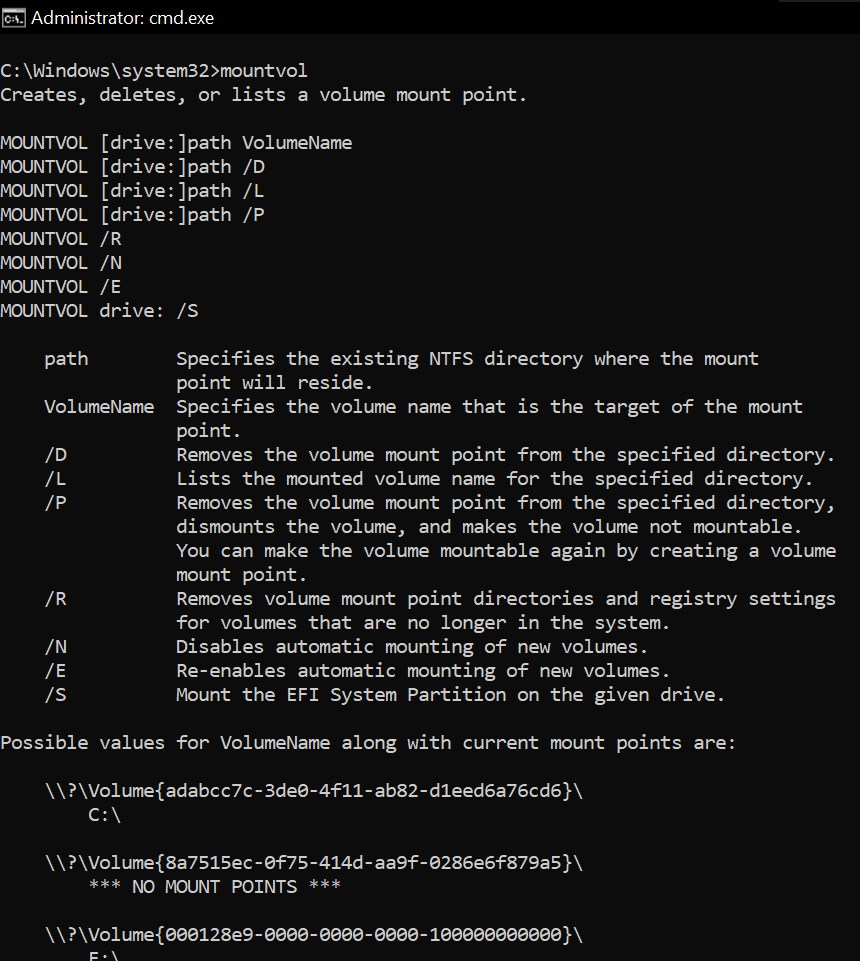
Copy the Volume Id for the drive letter which is your target/source. Modify the backup.ps1 as given below example!

#Author: Rajesh Thampi
#Date: Few years back
#Last modified on: 14th June 2025
#Partner-in-crime: Microsoft Copilot

<#
Hint
Use "mountvol" command at prompt to get the currently connected disks and their volume ids, drive letters
Get the volume id for the drive letter, replace below.
Volume Id will change when you format the disc next time.
The escape character is ` not ' after the variable $DriveLetter
#>

$VolumeID = "Volume{d2540346-9901-49e9-9f57-413d95f52744}"  # Replace with actual Volume ID
$DriveLetter = Get-Partition | Where-Object { $_.AccessPaths -match $VolumeID } | Select-Object -ExpandProperty DriveLetter

if ($DriveLetter) {
    Write-Output "Drive Letter: $DriveLetter`:\KeepACopy"
} else {
    Write-Output "No matching drive letter found for Volume ID: $VolumeID"
}


$DestinationPath="E:\ERP-Inhouse Developments"
$SourcePath="$DriveLetter`:\ERP-Inhouse Developments"
$logfile = "C:\Scripts\logs\Inhouse_Developments_$(Get-Date -Format 'yyyy-MM-dd_HH-mm-ss').log"

robocopy $SourcePath $DestinationPath /MIR /ZB /R:5 /W:10 /LOG:$logfile


$DestinationPath="E:\MyProjects"
$SourcePath="$DriveLetter`:\MyProjects"
$logfile = "C:\Scripts\logs\MyProjects_$(Get-Date -Format 'yyyy-MM-dd_HH-mm-ss').log"

robocopy $SourcePath $DestinationPath /MIR /ZB /R:5 /W:10 /LOG:$logfile


$DestinationPath="E:\KeepACopy"
$SourcePath="$DriveLetter`:\KeepACopy"
$logfile = "C:\Scripts\logs\KeepACopy_$(Get-Date -Format 'yyyy-MM-dd_HH-mm-ss').log"

robocopy $SourcePath $DestinationPath /MIR /ZB /R:5 /W:10 /LOG:$logfile

#Finally cleanup the log directory, deleting all files that are more than 5 days old.
#This is useful incase if you are regularly using the script with a scheduled job.
Get-ChildItem 'C:\Scripts\logs' -Filter '*.log' | Where-Object { $_.LastWriteTime -lt (Get-Date).AddDays(-5) } | Remove-Item

Adjust your scripts based on your requirements. Now, you don’t have to worry about the drive letter changes anymore. Just plug your removable disk, execute the PowerShell script as administrator and you are all good.

Just make sure that you have set the PowerShell Execution Policy properly before trying to run scripts.

That’s all folks.

Linux Backup | Using Labels for removable media

We use Tandberg RDX 2TB data cartridges for “EXTRA” backups on a daily basis. One of the major concerns while designing the homegrown solution was how to make the OS to mount the newly inserted cartridge to the same mount point every time, where the bash script would rsync the files. Please note, you can use the same with your other types of removable media also.

After some googling, consultations we decided to use Linux’s volume labeling for this requirement. I will do a walkthrough of all the processes involved. This should be useful for techies those do not use Linux on daily, however forced to at times.

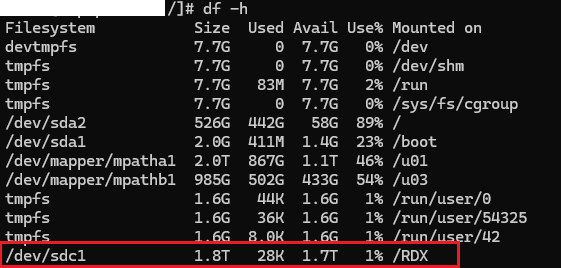
Once after inserting a fresh cartridge, fdisk shows the above information against the cartridge. Identifying the device could take some practice for a Linux beginner, I am sorry about that. Making sure that you identified the correct device is the success key. Making blunders could land you up in unrecoverable mess. So be careful with rest of the instructions.

Remove the existing HPFS/NTFS/exFAT first

[root@hostname /]# fdisk /dev/sdc
Welcome to fdisk (util-linux 2.23.2).

Changes will remain in memory only, until you decide to write them.
Be careful before using the write command.


Command (m for help): m
Command action
   a   toggle a bootable flag
   b   edit bsd disklabel
   c   toggle the dos compatibility flag
   d   delete a partition
   g   create a new empty GPT partition table
   G   create an IRIX (SGI) partition table
   l   list known partition types
   m   print this menu
   n   add a new partition
   o   create a new empty DOS partition table
   p   print the partition table
   q   quit without saving changes
   s   create a new empty Sun disklabel
   t   change a partition's system id
   u   change display/entry units
   v   verify the partition table
   w   write table to disk and exit
   x   extra functionality (experts only)

List existing partitions, in our case RDX cartridge has single partition from the factory.

Command (m for help): p

Disk /dev/sdc: 2000.4 GB, 2000394739712 bytes, 3907020976 sectors
Units = sectors of 1 * 512 = 512 bytes
Sector size (logical/physical): 512 bytes / 512 bytes
I/O size (minimum/optimal): 512 bytes / 512 bytes
Disk label type: dos
Disk identifier: 0x00000000

   Device Boot      Start         End      Blocks   Id  System
/dev/sdc1            2048  3907020799  1953509376    7  HPFS/NTFS/exFAT

We will proceed with deleting the existing partition using the command “d”

Command (m for help): d
Selected partition 1
Partition 1 is deleted

Command (m for help): w
The partition table has been altered!

Calling ioctl() to re-read partition table.
Syncing disks.

We will create a new partition

Command (m for help): p

Disk /dev/sdc: 2000.4 GB, 2000394739712 bytes, 3907020976 sectors
Units = sectors of 1 * 512 = 512 bytes
Sector size (logical/physical): 512 bytes / 512 bytes
I/O size (minimum/optimal): 512 bytes / 512 bytes
Disk label type: dos
Disk identifier: 0x00000000

   Device Boot      Start         End      Blocks   Id  System

Command (m for help): n
Partition type:
   p   primary (0 primary, 0 extended, 4 free)
   e   extended
Select (default p): p
Partition number (1-4, default 1):
First sector (2048-3907020975, default 2048):
Using default value 2048
Last sector, +sectors or +size{K,M,G} (2048-3907020975, default 3907020975):
Using default value 3907020975
Partition 1 of type Linux and of size 1.8 TiB is set

Command (m for help): w
The partition table has been altered!

Calling ioctl() to re-read partition table.
Syncing disks.

Confirm the changes

Command (m for help): p

Disk /dev/sdc: 2000.4 GB, 2000394739712 bytes, 3907020976 sectors
Units = sectors of 1 * 512 = 512 bytes
Sector size (logical/physical): 512 bytes / 512 bytes
I/O size (minimum/optimal): 512 bytes / 512 bytes
Disk label type: dos
Disk identifier: 0x00000000

   Device Boot      Start         End      Blocks   Id  System
/dev/sdc1            2048  3907020975  1953509464   83  Linux

Command (m for help): q

Now we will proceed to format the file system for ext4. There are newer file systems, however our requirement is to have ext4 for standardization across the attached devices.

[root@hostname /]# mkfs.ext4 /dev/sdc1
mke2fs 1.45.4 (23-Sep-2019)
/dev/sdc1 contains a ntfs file system labelled 'QuikStor 2.0TB'
Proceed anyway? (y,N) y
Creating filesystem with 488377366 4k blocks and 122101760 inodes
Filesystem UUID: 056c2a9d-2482-4637-a823-9ef1e2ae9d30
Superblock backups stored on blocks:
        32768, 98304, 163840, 229376, 294912, 819200, 884736, 1605632, 2654208,
        4096000, 7962624, 11239424, 20480000, 23887872, 71663616, 78675968,
        102400000, 214990848

Allocating group tables: done
Writing inode tables: done
Creating journal (262144 blocks):
done
Writing superblocks and filesystem accounting information: done

Finally, the most import part of the entire exercise. Labeling the partition. You may need additional software downloads for e2label.

[root@hostname /]# e2label /dev/sdc1 RDXTAPE

Finally modifying the fstab to mount the device automatically

#
# /etc/fstab
# Created by anaconda on Wed Sep 16 11:06:12 2020
#
# Accessible filesystems, by reference, are maintained under '/dev/disk'
# See man pages fstab(5), findfs(8), mount(8) and/or blkid(8) for more info
#
LABEL=RDXTAPE     /RDX    ext4   defaults 0 0

Issue the command mount to immediately mount this partition to a mount point.

[root@hostname /]# mount -a

That’s all folks!

Oracle Backup to Google Drive?

Hi guys

This is a follow up post to my previous post about using a simple batch script for creating a dump export file on regular basis for Oracle database.

Backup. The most essential, however many times highly ignored element of the digital world even today as many small scale industries find the investments made to this particular mechanism hardly comes in effect, unless a disaster arises. My personal experiences with convincing the management to go for sophisticated backup solutions were always the toughest, until we had a HUGE disaster.

As a thumb rule, the first thing I always did for an Oracle database was to setup a dump export every night (if the database is truly small in size), after the normal working hours, in addition to RMAN backups. These export files are kept in a different partition & regularly monitored and purged by the beginning of a new month, keeping the last day backup for the previous month, which is deleted by the beginning of a new year.

Keeping the backup in the same hardware could prove fatal when the hardware fails, and almost all the servers are configured to use RAID, using different levels. In such scenarios even if the drives are intact, retrieving the data from raided volumes will be a professional job, costing investment and time.

For small databases, like the one I have mentioned with my previous post we can design multiple options like mapping a network folder & copying the files automatically once after a new dump file is created as the part of a backup script.

I have devised two methods for my party, and they were

  1. FTP the compressed latest dump file to another machine hosting FTP server
  2. Using google drive (Free 15GB), upload the latest compressed dump file

The first method was already explained here so I will go to 2nd method in which Google drive sync is used to insure that the party has a valid backup stored somewhere in the cloud

  • Database dump export size: 300MB approximately
  • Zipped dump file size: 50MB approximately

Install google drive on your Windows 2008 x, Windows 2012 server machine. You may need to install corresponding Visual C++ Redistributable packages in order to come across python related errors. Please read more here for solutions.

Once the google drive starts working fine, you can use the following script, which will create a dump file first, then create a zip file against the latest dump file created and then copy the zip file to google drive for cloud synching.

Please note, I have moved the google drive folder from the default location to somewhere else, like E:\Google_Drive to make sure that my batch file has shortest path entry for the copying. If you plan the same, you can change the default location for google drive by exiting the application first, then pointing google drive to your folder of choice when google drive complains about missing default location

Windows batch file for Creating, zipping & copying the files to Google Drive

[code language=”text” gutter=”false”]
@echo off
FOR /F "tokens=2-4 delims=/ " %%a IN (‘date/t’) DO exp system/password@connectionstring full = y file=d:\Orabackup\exp_%%b%%a%%c.dmp

SETLOCAL
::Get the latest dump file name, generated using exp command
::Switch to the folder where the dump (.dmp) files are stored
CD D:\Orabackup\
:: D:\Orabackup is the folder where everyday dump files are stored.
for /f "tokens=*" %%a in (‘dir *.dmp /o:-d /b’) do set NEWEST=%%a&& goto :next
:next
REM echo The most recently created file is %NEWEST%
::http://stackoverflow.com/questions/15567809/batch-extract-path-and-filename-from-a-variable
FOR %%i IN ("%NEWEST%") DO (
REM ECHO filedrive=%%~di
REM ECHO filepath=%%~pi
SET ZIPNAME=%%~ni
REM ECHO fileextension=%%~xi
)

SET ZIPNAME=%ZIPNAME%.zip
::You can use built-in zip or 7-Zip to create archives
zip %ZIPNAME% %NEWEST%
::E:\Google_Drive is the folder used by the google drive in my setup
COPY %ZIPNAME% E:\Google_Drive

del %ZIPNAME%

::Exit
[/code]

While this method looks pretty awesome for small size databases, please be noted that, may not be at all feasible for larger ones. I will OPT this method for a backup dump file that could be compressed to a size of 400-500MB maximum, including the possibilities of corrupt compressed files.

Whatever, as far the party has a reliable internet connection with decent bandwidth, based on the size of compressed file, will always have access to a recent backup dump file, stored free in the cloud!

Does it look decent? ;)

Tip: Running Google drive sync as Windows Service

regards,

rajesh

Simple batch file for Oracle database backup

Hi guys
We are too busy now days. Issues @work keeping us working around the clock and giving us hardly any time to update this blog. Quite recently, we decided to expand this forum with more Oracle technology related posts, as we realize, we get maximum traffic towards the posts related to Oracle.

To begin with, we are providing a simple script for exporting the entire database using “system” user today for Microsoft Windows based implementation. This batch file exports a .dmp file to a user specified directory.

FOR /F "tokens=2-4 delims=/ " %%a IN ('date/t') DO exp system/password@connectionstring full = y file=d:\backup\exp_%%b%%a%%c.dmp

Save this script inside a .bat or .cmd file (eg: myorabackupdaily.bat or myorabackupdaily.cmd). An Administrator can easily create a scheduled job to insure that the batch file runs everyday at a particular time. Preferably during nights while transactions are none or less. Particularly, there is no need to shutdown the database in order to facilitate the export.

Once exported to .dmp file, it should bear a nomenclature as following:
exp_22012011.dmp

exp -> Export
22012011-> Date stamp

hope this article/ batch file is useful for few out there.

For Windows7bugs,

Admin