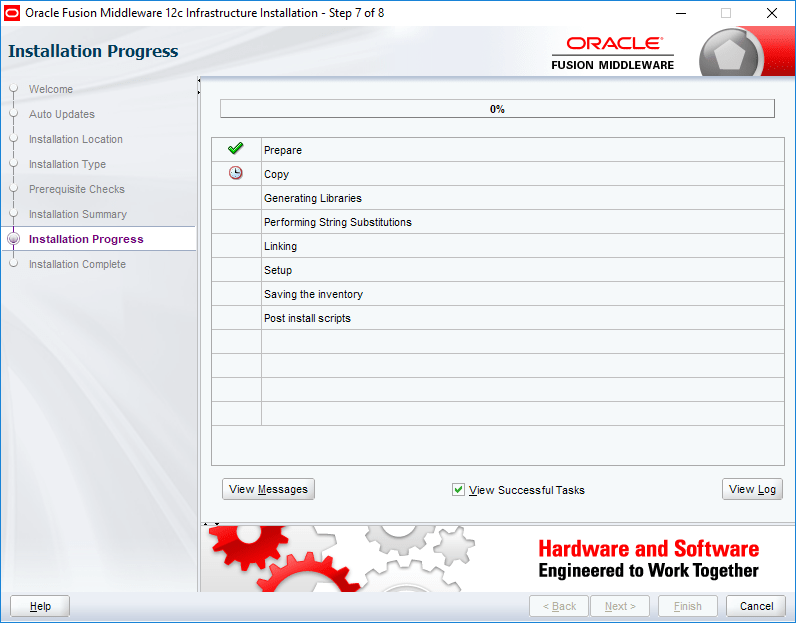
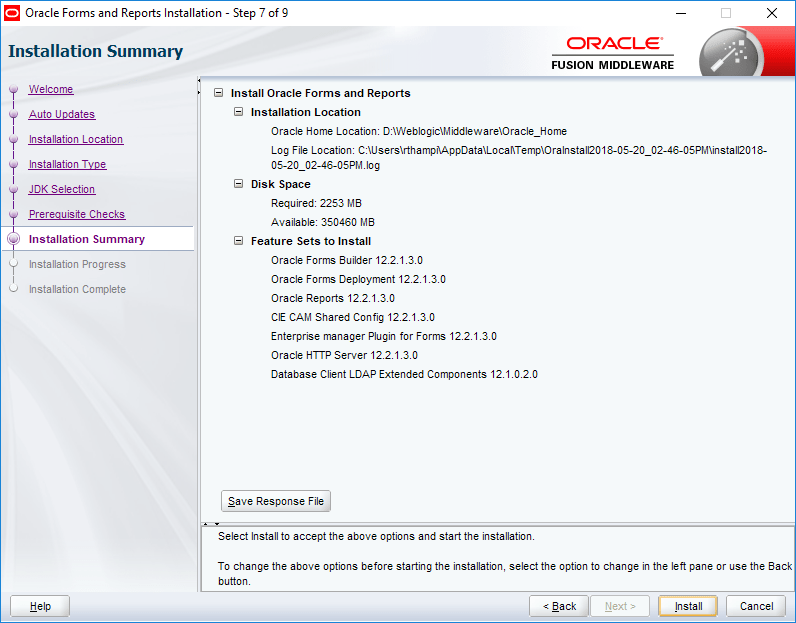
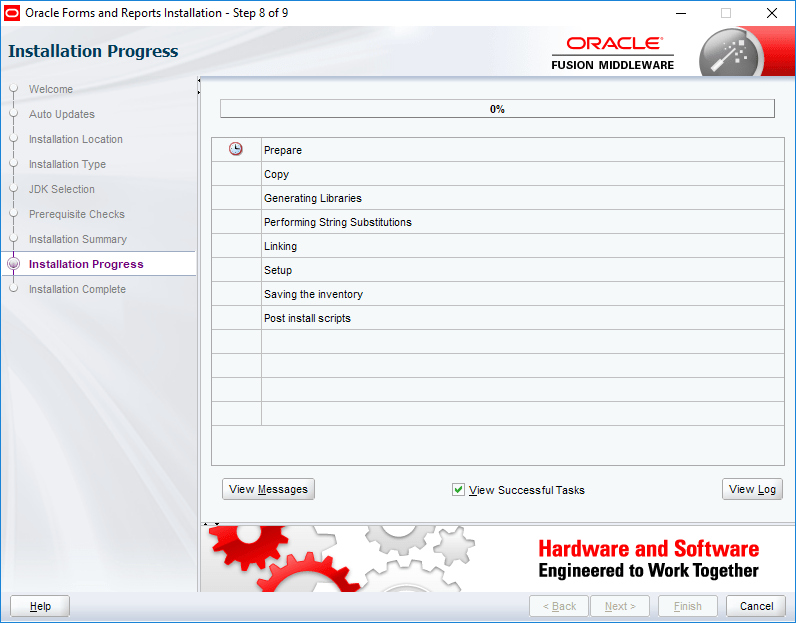
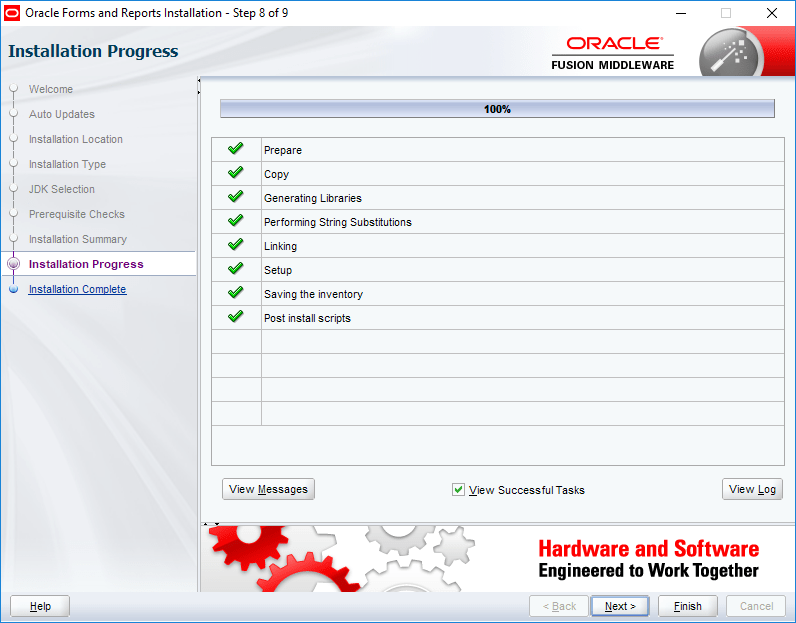
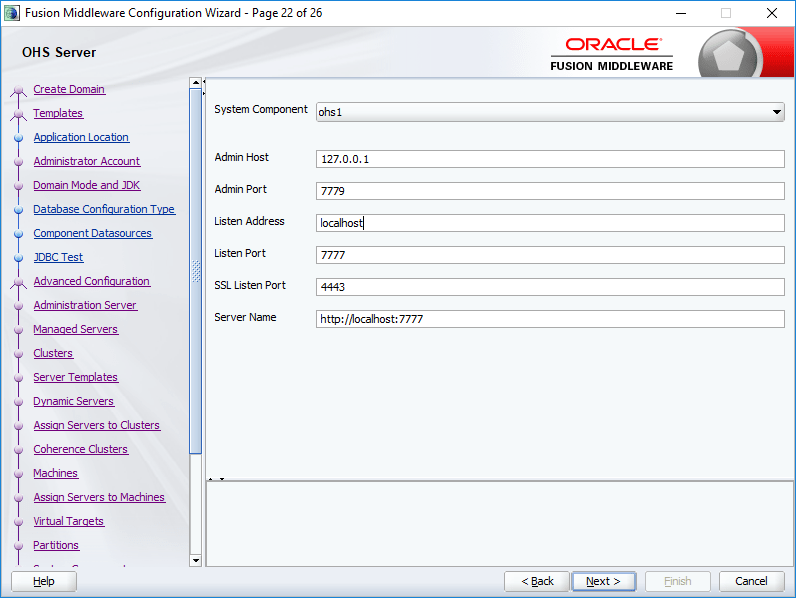
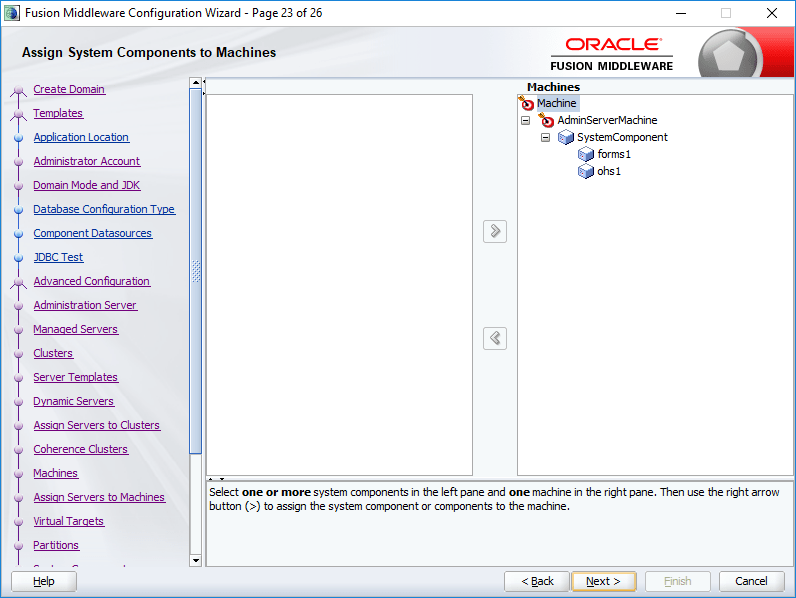
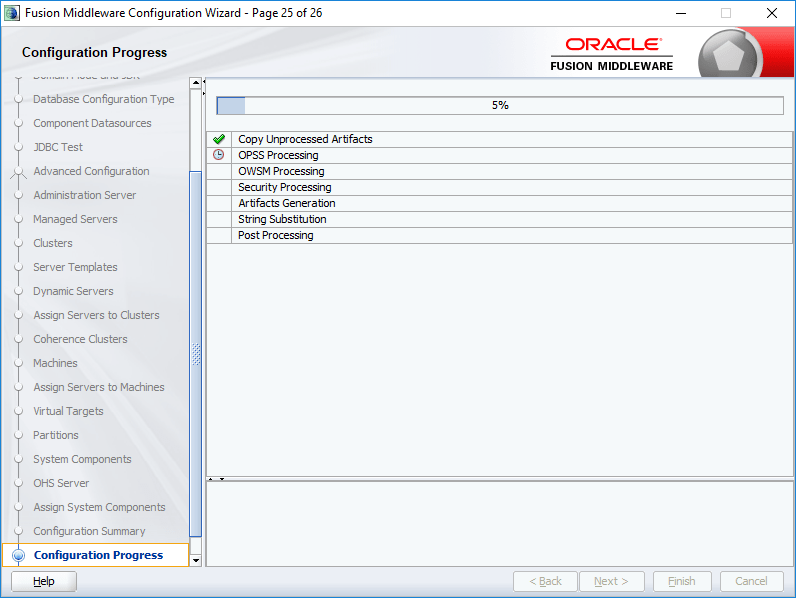
WebLogic 12c 12.2.1.3 Installation & configuring for forms & reports

Hi guys

Update: 13th February 2019

Downloading the installing Oracle software could be a challenging task at times, WebLogic 12c Forms & Reports installation is NOT very different Especially if you are as usual skipping the “read me” areas)

I will try to explain the download and extraction activities related Oracle forms and reports 12c below.

Visit https://www.oracle.com/technetwork/developer-tools/forms/downloads/index.html for downloading the installation media. There are two ZIP files for Oracle forms and reports. Download both of them.

Once the files are downloaded, you need to extract both the zip files into a single folder

1st ZIP archive extracts “setup_fmw_12.2.1.3.0_fr_win64.exe” & 2nd ZIP archive extracts “setup_fmw_12.2.1.3.0_fr_win64-2.zip”. During installation,
“setup_fmw_12.2.1.3.0_fr_win64.exe” expects
“setup_fmw_12.2.1.3.0_fr_win64-2.zip”, hence, do NOT extract
“setup_fmw_12.2.1.3.0_fr_win64-2.zip”. To make it simple, for Oracle installation, move the following files to a new folder, call it “Forms_Installer_12c”

D:\Forms_Installer_12c

and copy/move both
“setup_fmw_12.2.1.3.0_fr_win64.exe” & “setup_fmw_12.2.1.3.0_fr_win64-2.zip” to this folder. Less confusing this way :)

========

One of the posts that is doing great according to a blogger’s expectation is about WebLogic 12c installation & configuring it for deploying Oracle forms/reports based applications.

Well, I totally missed the fact that Oracle periodically updates their software & missed out the current version of WebLogic 12c 12.2.1.3. It didn’t even ring a single bell when someone asked me about an error that was happening during his attempts to get 12c installed, which was specific to 12.2.1.3.

My previous post about WebLogic 12c strictly deals with version 12.2.1.0.0 for the areas of creating a new repository for WebLogic infrastructure and configuring a user domain. There are minor changes with 12.2.1.3, and those changes sure require mentions.

Prerequisites

Oracle WebLogic 12c, Oracle forms and reports require Visual C++ verion 11 preinstalled. Although the installation would proceed after showing missing prerequisites, I will NOT suggest you to take unknown risks. If possible, make sure your box is completely updated with latest Microsoft patches for the specific operating system.

This time I will take the freedom to believe that you already have Oracle 12c database installed and avoid going through the database installation procedures.

As a thumb rule, install Java JDK 8, the latest version available in a folder like C:\java\jdk or C:\JDK or D:\Jdk (the shortest path name possible).

Switch to the folder where you have downloaded the software required for Weblogic 12.2.1.3 installation and configuration from an “elevated” command prompt.

Check the below image for details:

https://simpleoracle.com/wp-content/uploads/2018/05/11.png
2
3

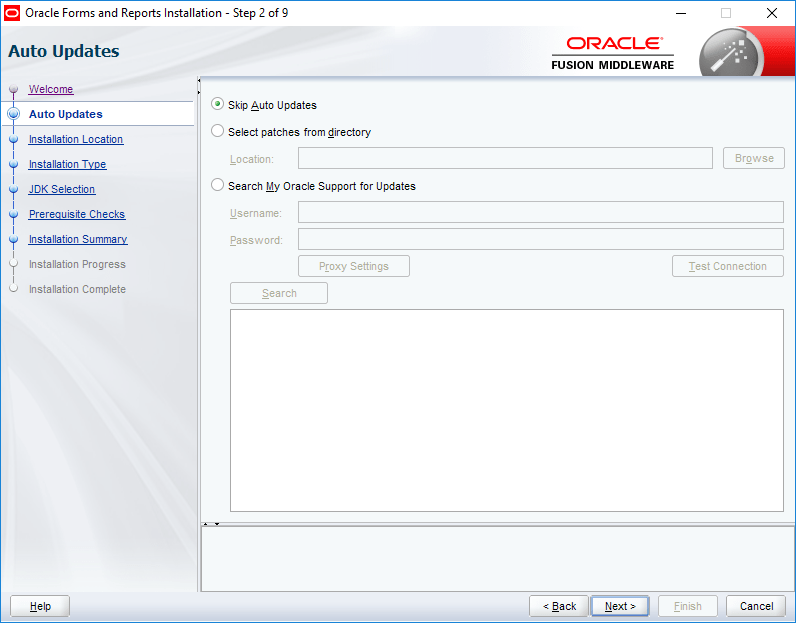
It looks like Oracle has finally realized that 99% of the public will opt skip updates, hence they made it as default this time ;)

4

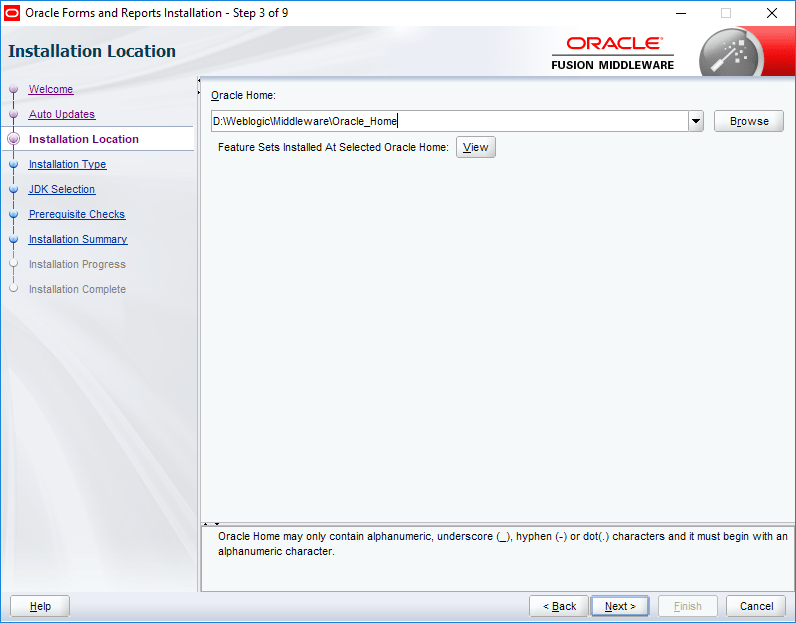
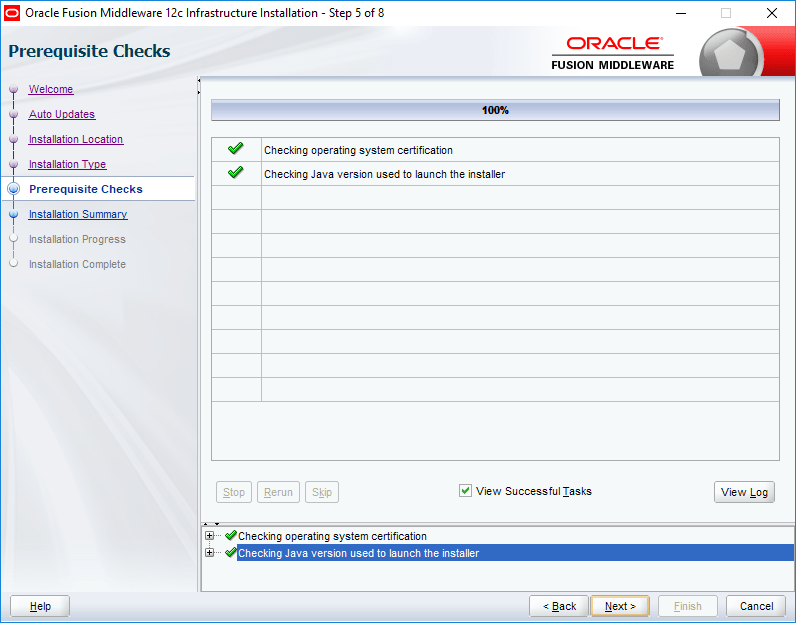
By following the classic way of naming the installation folders, you save tremendous time & efforts to locate configuration files (Especially if you are following my posts). I always choose to install the weblogic stack on D:\Weblogic\Middleware\Oracle_Home. This helps me to setup the environment next time by keeping exact path information for configuration files etc.

5
6
7
8
9
10

Select “Fusion Middleware infrastructure” (Default)

That’s all folks, your Weblogic stack is installed & you are ready to go ahead with the installation of Oracle forms and reports 12c now.

11
12
13
14
15
16a
17
18
19
20
21

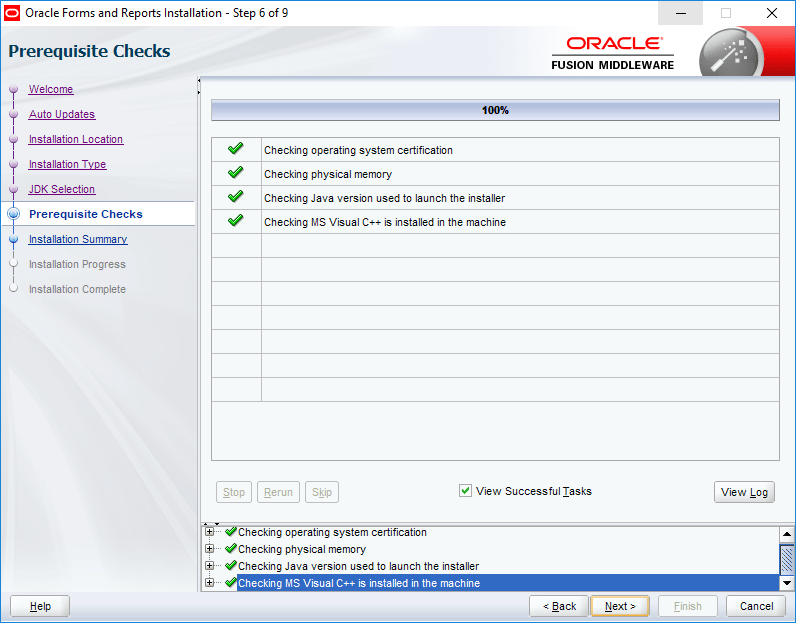
Basically you shouldn’t ignore the following “Warning” about Visual C++ element. I’ve found that Visual C++ causing serious issues with OHS instance starting during my previous attempts, hence make sure you install Visual C++ recommended version is installed in the machine.

The above installation(s) should be go all smoother than previous versions & now we can move to configuring our first domain using the latest WebLogic Stack installed.

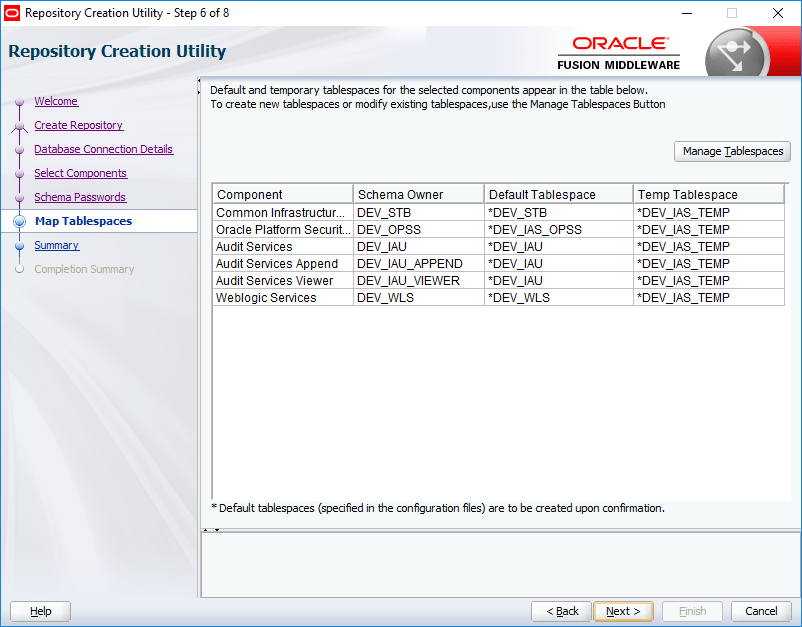
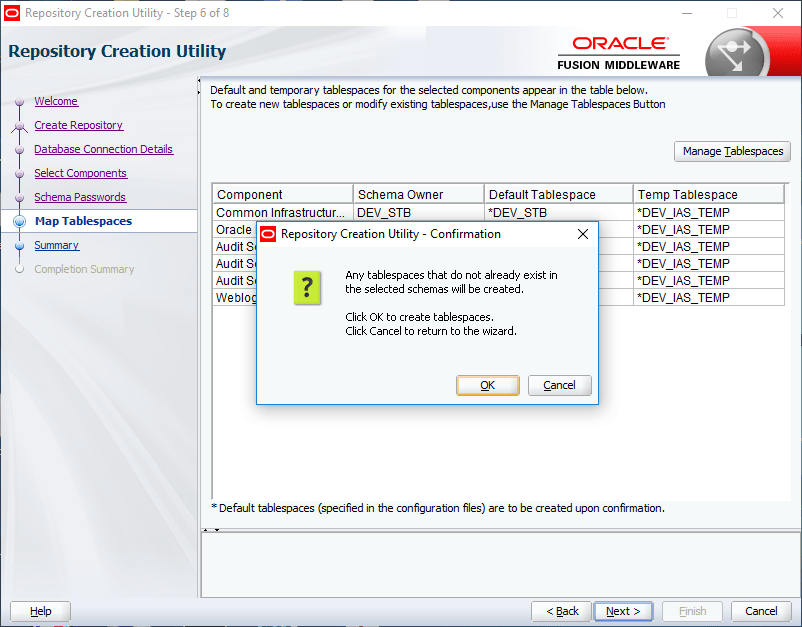
Setup repository for the domain

Suggestion(s):

  1. I suggest you totally disabling the password expiry for the entire database that you will be using for your WebLogic lab (12c). Ignoring this element could land you in difficult situations in case if you are not meticulously maintaining the password changing routines.
  2. Always invoke scripts as administrator, this provides you the elevation on Windows 7 onward Windows OS

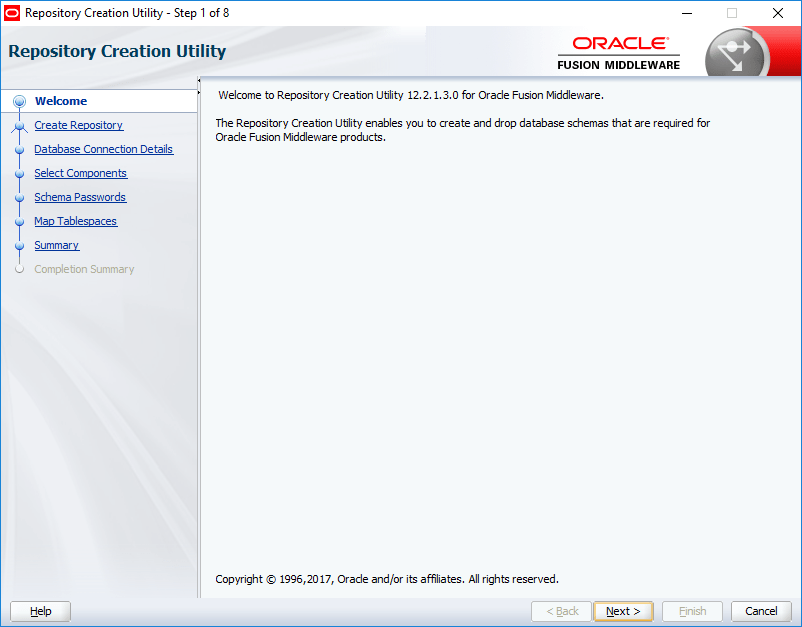
Execute rcu.bat from the following installation path. Please note, I have installed WebLogic software onD:\Weblogic\Middleware\Oracle_Home\oracle_common\bin folder (Which is the standard way I name the installation folder, this helps me to copy much of the elements between installations, upgrade processes), so I will be executing the “rcu.bat” file from “D:\Weblogic\Middleware\Oracle_Home\oracle_common\bin”. Adjust your path accordingly.

1
2

We will choose “System Load and Product Load” which is default for our repository as well. Please note, you should use the same “rcu.bat” for dropping the repositories, if you have to at later stages.

3

For all WebLogic labs, I suggest the same password for Database and WebLogic. You can go for simple passwords like “YourName123” which satisfies “most” of the implied complexity for passwords.

4
5

If you have entered the database credentials and other details correctly, the checking should be done within no time.

Now we will create the repository for our domain. Please note, the new profile name could be anything. Instead of “DEV” which is by default assigned by Oracle, you may choose your name in that place. Make sure you note down the name of the profile somewhere for future references. Select all the components as seen with the below image.

(Please note, I have copied the images from 12.2.1.4 installation and replaced few of the images with this post as one comment mentioned that I didn’t choose MetaData Services with the old image(s) provided, so please don’t get confused. Rest of the images provided may “miss” the metadata services related information & instead of “DEV”, you may see “DEV1” at places. Please ignore)

7a
8
9
10
11
12
13

Select same password for all schema.

I have the entire setup on a SSD, hence the time to create and configure the repo could be significantly much less than over a spinning drive system.

14

That completes our repository creation. Please make sure that you note down the repository name and the password(s) somewhere for future references.

Now we will create our 1st domain with our fresh Weblogic 12c 12.2.1.3 environment. Just make sure that the JDK installation path is the 1st entry in the PATH environment variable.

Invoke “config.cmd” file as administrator from “D:\Weblogic\Middleware\Oracle_common\common\bin” folder. Adjust the path according to your installation preferences.

1

We will create a new domain for the lab now. Leave the default domain location as suggested by Oracle. Change it ONLY if you know what you are doing at this point of time.

2

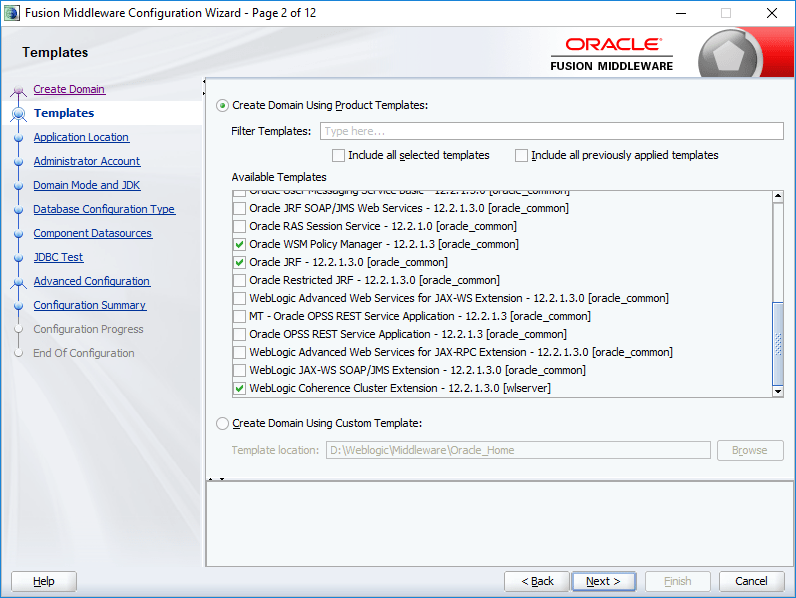
For Oracle Forms and reports, the below product selection is spanned over 3 different images. Make a list of the items selected, and make sure you don’t miss any of them before proceeding to next step.
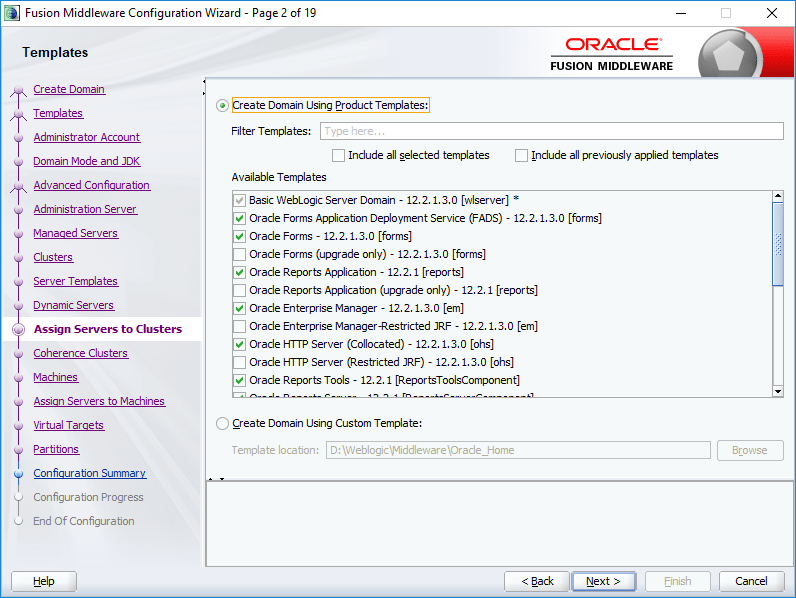
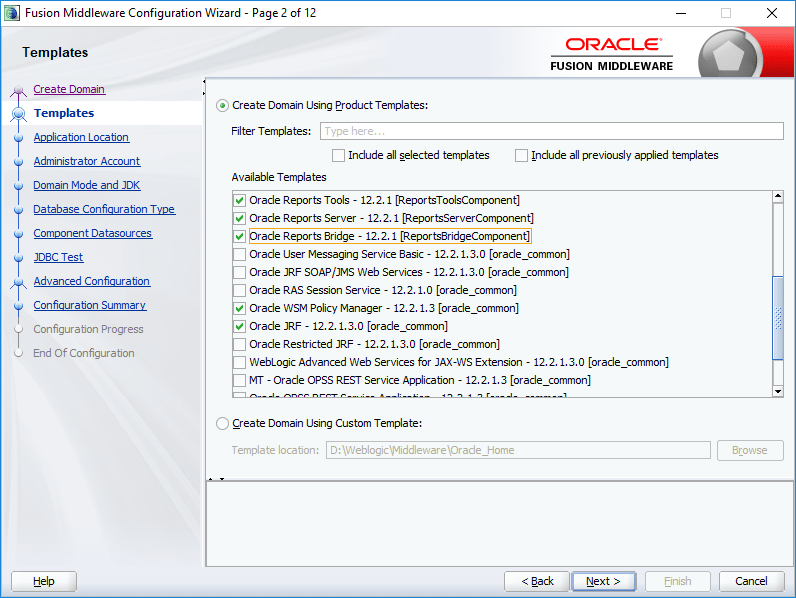
3
3a
3b

Once all elements are selected for the domain, you can proceed.
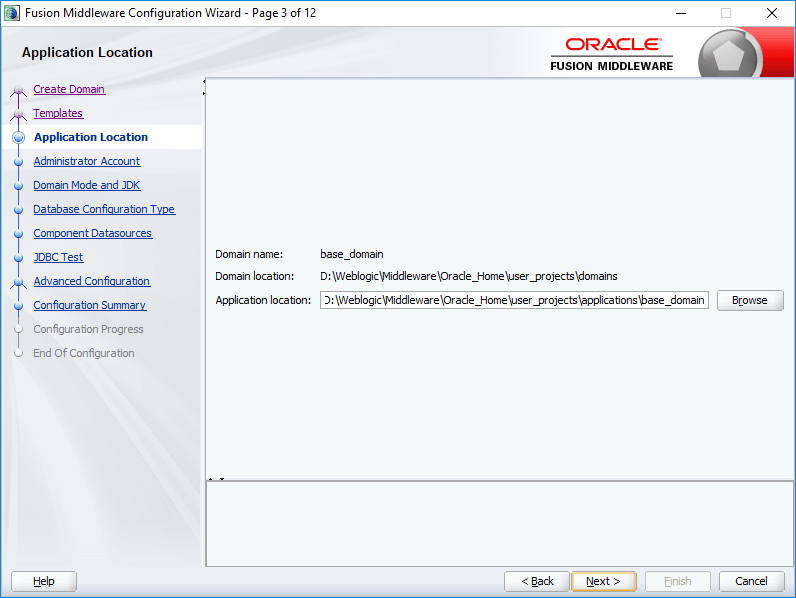
4

As a standard approach, I am using the same password for the WebLogic Administrator account, leave the suggested administrator name as “weblogic”
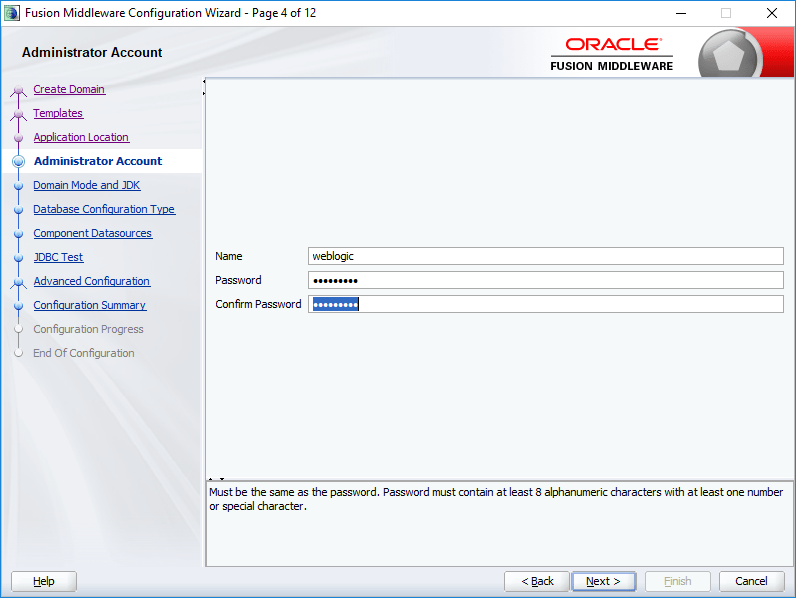
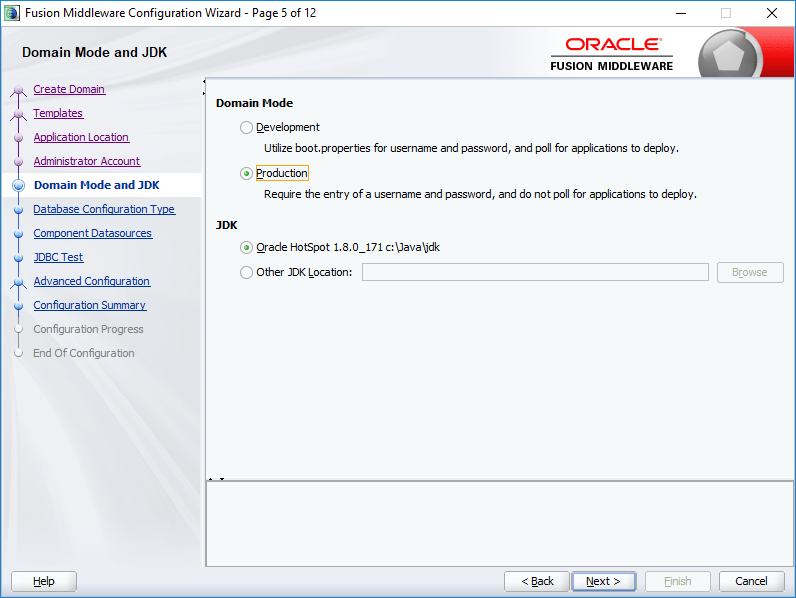
5
6

We’ll go for production for Domain Mode. JDK location will be automatically picked. Do not change it, unless you have a valid reason.

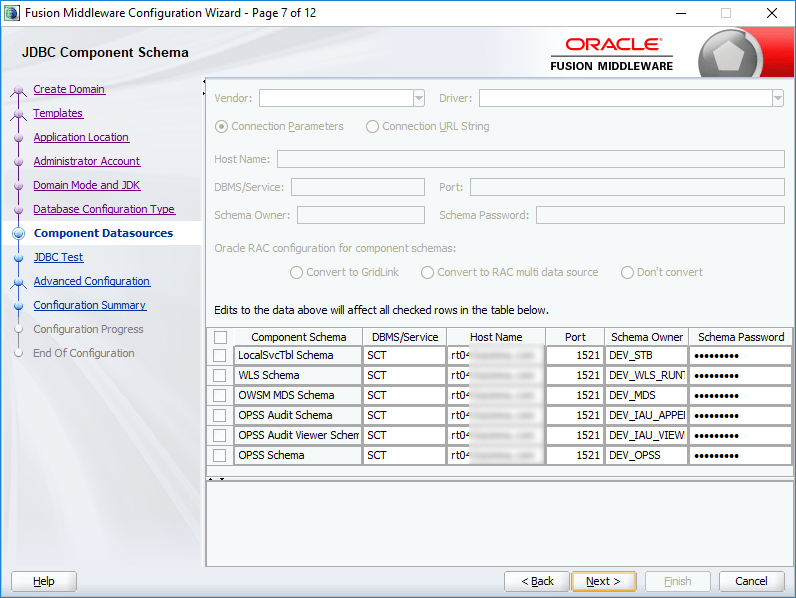
Now we have to supply the repository details, those we have saved during the creation of repository. The details will be cross checked prior by the configuration tool. Once after supplying the details click the “Get RCU Configuration” button.
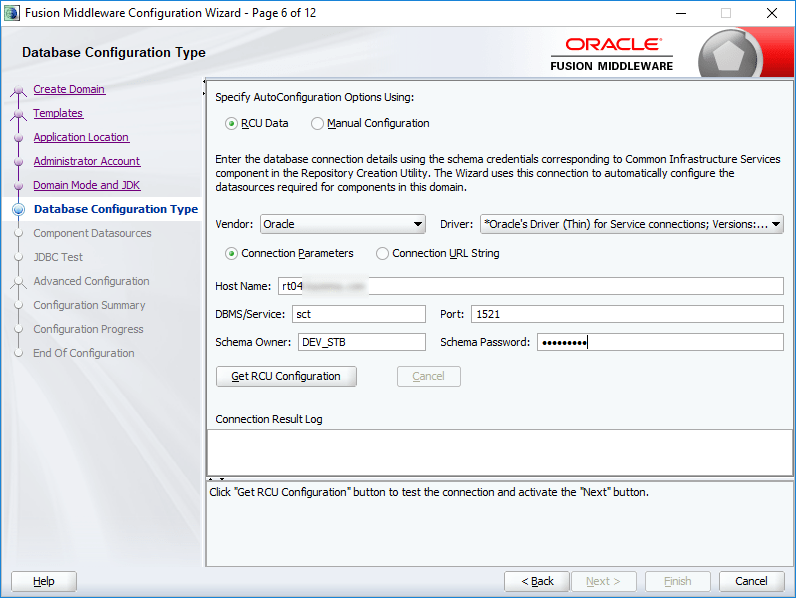
7
8
9
10

Once the repository validations done, it’s time to select the components for your domain. Make sure the checked elements are selected for your domain as well.

11

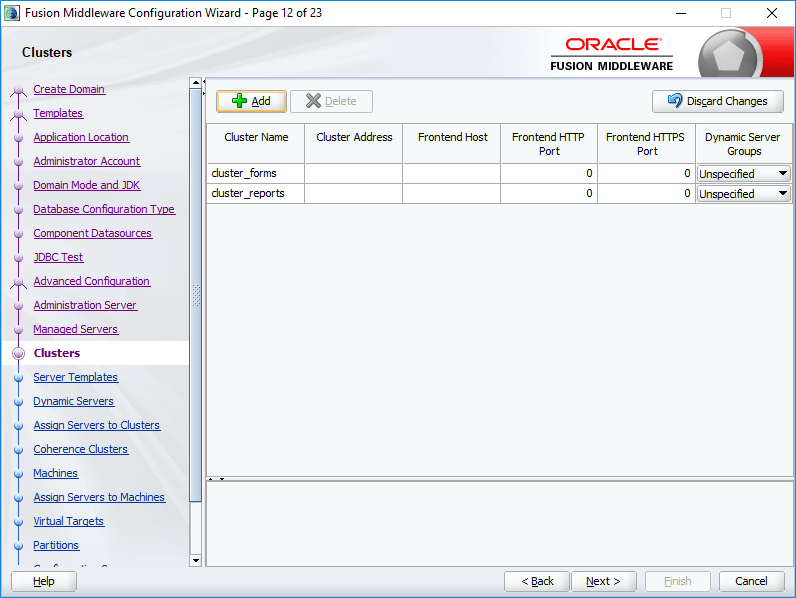
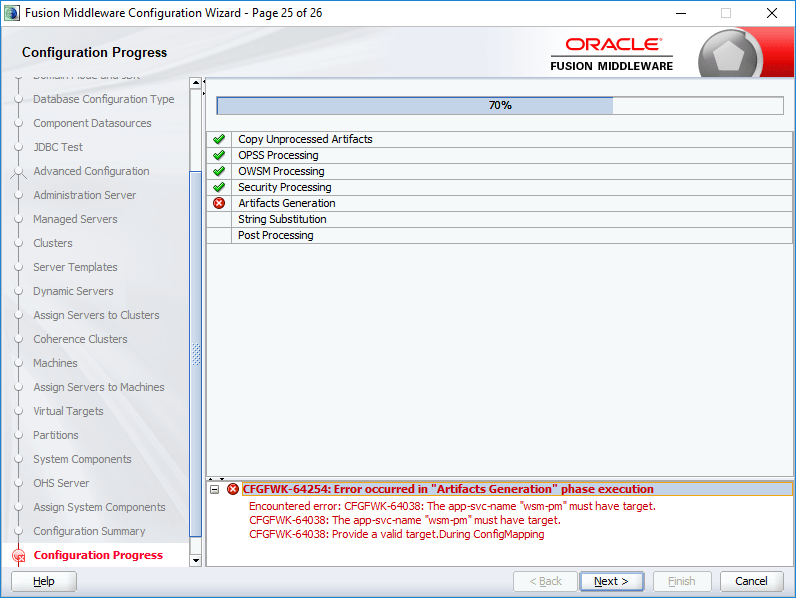
Do not miss to select “WSMPM-MAN-SVR” for the Server Groups, failing will FAIL the configuration of the domain. I don’t know what the heck it is, I may read about it one day and update myself. For now, I suggest you select the said group from the drop down list and proceed.

12
13
14
15
16
17
18
19
20
21
22
23
24
25
26
27
28

Failing to select the Server Groups will land you on this page, which you don’t want! Make sure you will do the “WSMPM-MAN-SVR” Selection for the Server Groups.
29

I corrected the error at my side by dropping the repository, recreating & configuring the domain once again.

30
31

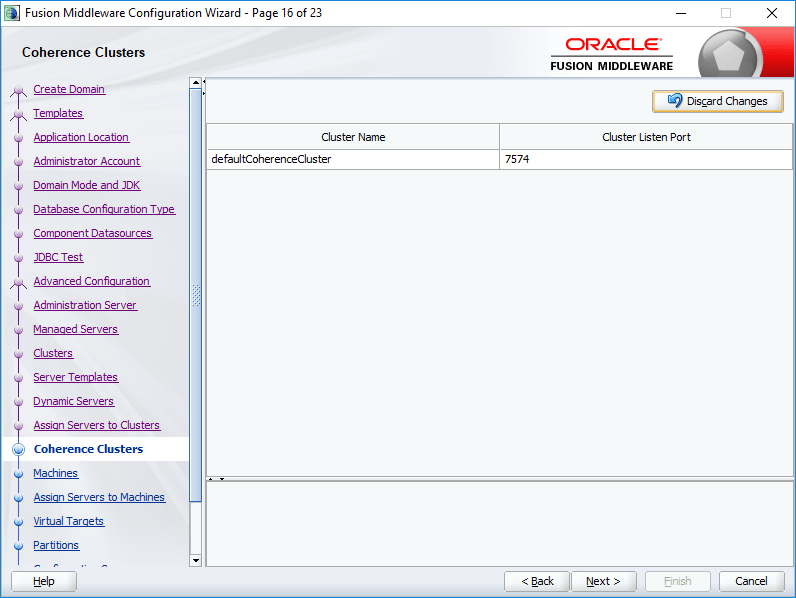
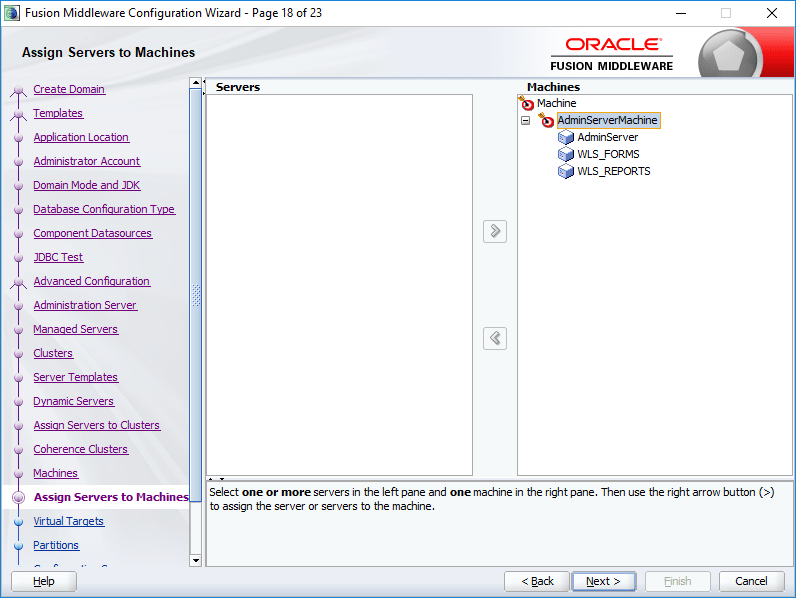
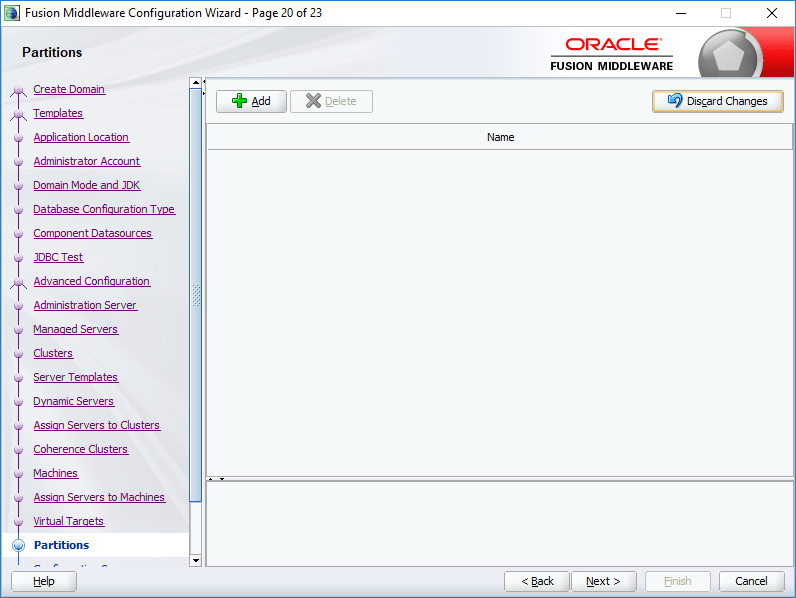
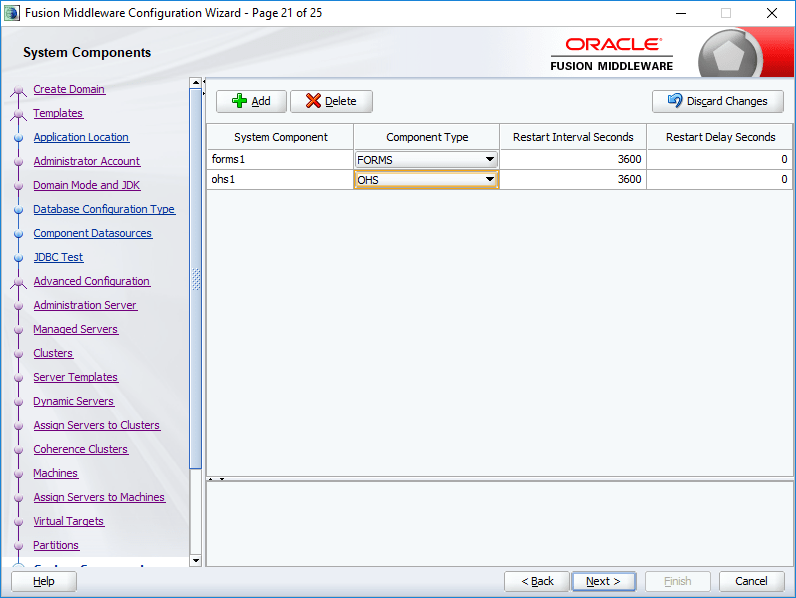
So we have created a classic domain now. We need to setup an OHS instance and setup the domain for deploying our forms based applications now.

To configure the newly configured domain, you may use the 12.2.1.2 configuration instructions as posted here

Right now, you can use my previous posts about Install Weblogic 12c and setting up OHS, forms & reports for WebLogic 12c as reference materials to setup your new classic domain or wait for me to post a followup with version specific details.

  1. https://simpleoracle.com/2016/01/05/oracle-12c-database-weblogic-forms-reports/
  2. https://simpleoracle.com/2016/01/13/oracle-12c-forms-reports-configure-for-deployments/

Hope it helps few souls out there

regards,

rajesh
Oracle E-Business Suite R12 | SGA vs PGA vs NOT being a DBA!

Hi guys

I know the subject title is not very professional this time. Yet, I want to make a claim that I figured out something, for which I spent more than couple of years time and have followed up few Oracle community threads (without much interesting results)

We had to retired a hardware that was recommended by the Oracle EBS implementation partner, within 2 years once after we went online with the R12 instance. We had 10g 10.2.0.3 with the instance, things were getting messy and slow & the new support partner recommended for a better hardware.

I always had eyes on this retired server. It had Linux, hence we couldn’t come up with a practical requirement to integrate the Linux server with our Windows domain environment and it was kept switched off until the virtualization project came online.

We needed “something” to hold a copy of the EBS instance while it was being virtualized.

So, I cloned this machine & before continuing let me describe what this is hardware is like:

Processor:

[code language=”text” gutter=”false”]

Architecture: x86_64
CPU op-mode(s): 32-bit, 64-bit
Byte Order: Little Endian
CPU(s): 8
On-line CPU(s) list: 0-7
Thread(s) per core: 1
Core(s) per socket: 4
Socket(s): 2
NUMA node(s): 1
Vendor ID: GenuineIntel
CPU family: 6
Model: 23
Model name: Intel(R) Xeon(R) CPU E5420 @ 2.50GHz
Stepping: 6
CPU MHz: 1992.000
BogoMIPS: 4987.29
Virtualization: VT-x
L1d cache: 32K
L1i cache: 32K
L2 cache: 6144K
NUMA node0 CPU(s): 0-7

[/code]

Storage space

[code language=”text” gutter=”false”]

[root@erp-bak ~]# df -h
Filesystem Size Used Avail Use% Mounted on
/dev/sdj2 59G 12G 44G 22% /
tmpfs 9.7G 3.9M 9.7G 1% /dev/shm
/dev/sdj1 2.0G 325M 1.5G 18% /boot
/dev/sdj5 738G 531G 170G 76% /u01
/dev/mapper/mpathbp1 591G 320G 242G 57% /u02
/dev/mapper/mpathcp1 197G 38G 150G 20% /u03
/dev/sdf1 591G 70M 561G 1% /u04
/dev/sdi1 269G 59M 256G 1% /u05

[/code]

in addition to the local disks this server have partitions mounted from a IBM SAN.

Once the clone was done, I realized that the instance was extremely slow & our part time DBA started making excuses like “See that’s why we are changing the hardware” (He had 2G SGA and 1G PGA with 20 job_queue_processes against nearly 1TB database)

I opened few discussions with Oracle communities and was pointed towards a tone of documents suggesting me how to fine tune the hardware and database for better performances. Actually nothing were applicable as I didn’t have much hands on experiences with a database & I couldn’t find a person who could really HELP me.

Then I started taking interest about database technology, which I should have years back & came across SGA/PGA and JVM etc & as I had an idle instance, started trying out whatever I have “learned” against it.

While doing the 11g R2 the hard way I realized that I can use AMM and forget about tuning different parameters for memory optimization. Well, still the goddamn instance lagged like hell & I was almost done with it!.

Few of the persistent issues were:

After a cold boot

  • The login form would load at client end after waiting almost 3-4 minutes, which gets faster during consecutive attempts.
  • It takes ages for to open the concurrent programs window
  • Our custom forms & LOVs lag to extremes and so on..

Even shutting down the instance for anything was turning into a nightmare as the database always took more than 15-20 minutes and I had to kill multiple processes manually in order to bring it offline!

Then on a different note, while trying to learn SQL learning I landed against an ask Tom thread, where the asker says “I have setup both SGA and PGA 3GB”, still the SQL runs slow…

I did a fresh clone. Our database was upgraded to 11g almost year back. The default clone had 1G for both SGA and PGA. I altered them with 3G and 3G & bullseye

I went back and altered the SGA and PGA with 4G which was 40% of the total physical memory available for the hardware. I did three shutdowns and restarts of the physical server, did a dozen application and database startup to confirm that what I am experiencing is NOT a once in bluemoon phenomena. Each of my attempt to shutdown the database gracefully were completed within few seconds, not a single time I had to kill the Linux processes to bring it down!

I modified one of the main forms for a custom application and changed few VIEW calls with better logic & I can’t be happier!

Now, said that, don’t rush to me saying “I also did 4G for SGA and PGA and moron I still have a slow instance”. There are many factors affecting the performance of your database and application & most important few are:

Age of your hardware, especially the spinning disks. The aged they are, the worse the performance is going to be as there is hell loads of I/O happens when you are accessing/processing the data from a database.

Recently I was going through a MS SQL discussion about Multi-Tenant architecture and one of the contributors were discussing about a hosting firm that keeps on changing their hardware once in 6 months. I think he was just BLUFFING! ;)

I hope someone gets benefitted by the minor finding I have made YESTERDAY (6th May 2018)!

regards,

rajesh


WebLogic 12c | Upgrading existing environment

NOT FOR PRODUCTION! NOT FOR PRODUCTION!! NOT FOR PRODUCTION!!!

Hi guys

So, I can see that WebLogic 12c installation along with forms and reports & configuring for deployment blog posts being accessed quite often. My original posts were referring to WebLogic 12c version 12.2.1.0.0 (or 12.2.1 as documents mention), which is a buggy release from my limited usage. I’ve skipped the next version and was pretty happy with the setup until I came across an oracle blog post about version 12.2.1.3.0

As I had the complete setup fully functional, I decided to upgrade the existing, against going for a fresh installation and configuration (that should have been done!). I just wanted to see how the Oracle software upgrade works in real means…

Today I am going to share my experience of upgrading an existing WebLogic 12c forms & reports environment to the latest release.

So let us have a look at the Oracle products installed on my Windows 10 64Bit Professional edition

  • Oracle developer suite 6i (for supporting legacy application that is 20 years old)
  • Oracle developer 10g (to support our EBS R12 Business application)
  • Oracle database 11gR2
  • Oracle database 12c (for weblogic repo)
  • WebLogic 12c 12.2.1.0.0
  • Forms and reports 12c 12.2.1.0.0

In addition to the above, I do moderate level of .Net development and Android. Hence you call my development machine as a MESS in true means. Because all these software stacks are installed, I cannot setup many mandatory environment parameters for Oracle products and I always manage them manually as and when required.

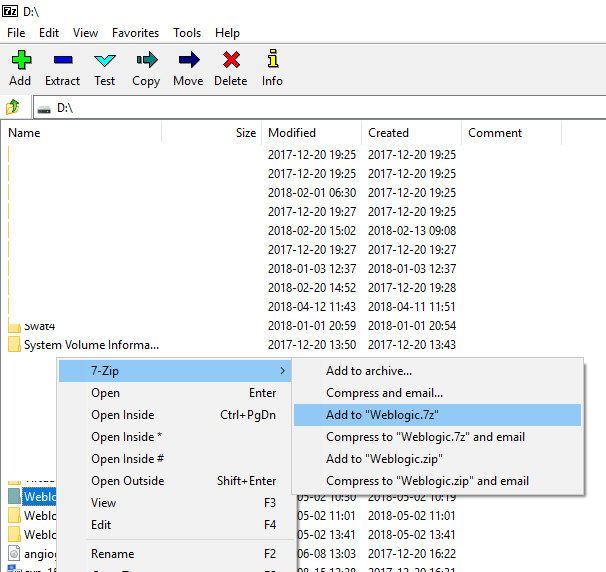
Warning: The below exercises are destructive. It is your sole responsibility to make backup of your existing WebLogic installation. I suggest you using 7-Zip software for making a proper backup of the WebLogic Installation “Folder”

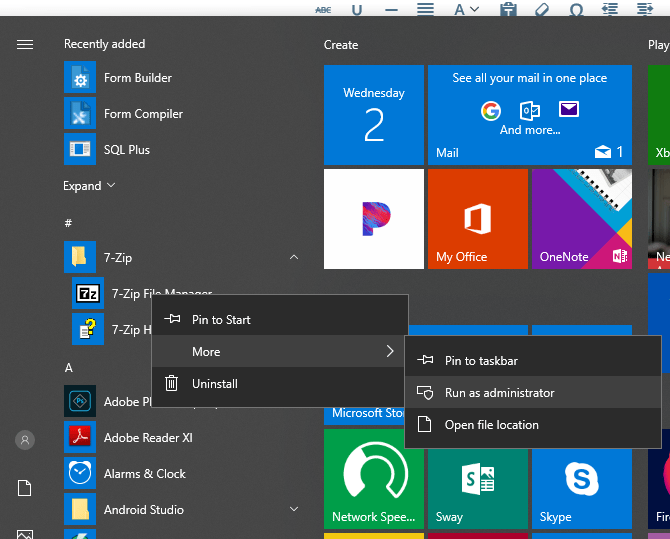
Start 7-zip as “Administrator”, else the archiving utility will NOT able to access all files within the “WebLogic” installation folder”

0

Once 7-Zip GUI interface opens, browse to your partition on which you have installed the WebLogic infrastructure

0a

Please make sure that YOU WILL TAKE A BACKUP of your installation folder regardless the time and efforts require to make it!

Once the backup is completed, you can proceed

While using WebLogic 10.3.6, I remember upgrading the forms & reports 11g Release 1 installation with R2 just by pointing the installer to the installed folder and the installation was successful without any issues. Well, stuffs have changed. If you would try to install the Fusion Middleware 12.2.1.3.0 on top of an existing 12.2.1.0.0, you will be getting a long list of errors stating incompatibility.

INST-07545: Unexpected Error. The distribution Oracle Fusion Middleware 12c Infrastructure 12.2.1.3.0 contains incompatible features with the following:
Oracle Forms and Reports 12.2.1.0.0 [CIE WLS Shared External 12.2.1.3.0->CIE WLS Shared Config 12.2.1.0.0 (oracle.fmwconfig.wls.shared 12.2.1.3.0->[oracle.fmwconfig.wls.shared 12.2.1.0.0])]
Oracle Forms and Reports 12.2.1.0.0 [Oracle Globalization Support Files 12.2.0.1.0->Oracle Globalization Support Files 12.1.0.2.1 (oracle.nlsrtl.jrf 12.2.0.1.0->[oracle.nlsrtl.jrf 12.1.0.2.1])]
Oracle Forms and Reports 12.2.1.0.0 [Oracle JRF JAXP XML Development Kit 12.2.1.3.0->Oracle JRF JAXP XML Development Kit 12.2.1.0.0 (oracle.xdk.jrf.jaxp 12.2.1.3.0->[oracle.xdk.jrf.jaxp 12.2.1.0.0])]
Oracle Forms and Reports 12.2.1.0.0 [Oracle RDBMS files for JRF 12.2.0.1.0->Oracle RDBMS files for JRF 12.1.0.2.2 (oracle.rdbms.jrf 12.2.0.1.0->[oracle.rdbms.jrf 12.1.0.2.1])]
Oracle Forms and Reports 12.2.1.0.0 [DMS For JSE 12.2.1.3.0->DMS For JSE 12.2.1.0.0 (oracle.jse.dms 12.2.1.3.0->[oracle.jse.dms 12.2.1.0.0])]

Special Note: As usual, keep in mind, whole these exercises are done over a development environment and many of my approaches are purely non standard and doesn’t follow Oracle’s instructions. I expect you are always remembering the fair warning and not to copy the same on production environments.

Now, let us get in to the business.

Weblogic 12c 12.2.1.3 requires JDK 1.8 build 131 or later & if you have a previous version of JDK, please uninstall and install one of the recent JDK 8 releases those are available from Oracle download repos

Please download the software listed below.

Fusion Middleware 12.2.1.3.0

http://download.oracle.com/otn/nt/middleware/12c/12213/fmw_12.2.1.3.0_infrastructure_Disk1_1of1.zip

Forms & reports 12c Disk1 | Disk2

http://download.oracle.com/otn/nt/middleware/12c/12213/fmw_12.2.1.3.0_fr_win64_Disk1_1of2.zip

http://download.oracle.com/otn/nt/middleware/12c/12213/fmw_12.2.1.3.0_fr_win64_Disk1_2of2.zip

JDK 8 build 172

http://download.oracle.com/otn-pub/java/jdk/8u172-b11/a58eab1ec242421181065cdc37240b08/jdk-8u172-windows-x64.exe

Most of the scripts those are used with Weblogic are hard coded with the JDK path during the installation. Hence, the safest way to upgrade your existing JDK is by installing the JDK on a custom folder, for example, I always install JDK on c:\java\jdk, avoiding any release numbers attached to “jdk” portion of the folder. This guarantees that, if I upgrade to another JDK build, the path remains the same and the Weblogic scripts will NOT start screaming about missing JAVA components.

Note: While extracting the forms & reports ZIP files, make sure both the files are extracted to the same folder.

Once all the ZIP files are extracted, you should have these files in a single folder, kindly check the below image

0c

As per Oracle’s documentation the forms installer extracts files from “setup_fmw_12.2.1.3.0_fr_win64-2.zip” when the installation is initiated. Okay, I am done with loathing Oracle for such complex installation approaches…

Install the software in the following sequence

JDK. Install and append your PATH variable accordingly. In my case, my PATH environment variable has “C:\java\jdk\bin” as the 1st entry, which is required for configuring forms and reports developers.

Fusion Middleware with forms and reports support.

D:\Downloads\Weblogic 12.2.1.3>c:\java\jdk\bin\java -jar fmw_12.2.1.3.0_infrastructure.jar

Select a new “Home” for the 12.2.1.3.0 installation as you cannot install the software on top of existing 12.2.1.0.0. So if you have had Weblogic 12c older version installed on

“D:\Weblogic\Middleware\Oracle_Home” let the new software installed on “D:\Weblogic12213\Middleware\Oracle_Home”

Follow the prompts and complete the installation.

Now, install forms and reports by executing “setup_fmw_12.2.1.3.0_fr_win64.exe” and point the Oracle home as “D:\Weblogic12213\Middleware\Oracle_Home” (Change the details as per your setup)

Both the stacks should be installed within 25-30 minutes time & you are all ready to do the upgrade.

Reminder 1: As usual, keep in mind, whole these exercises are done over a development environment and many of my approaches are purely non standard and doesn’t follow Oracle’s instructions. I expect you are always remembering the fair warning and not to copy the same on production environments.

Warning 2: The below exercises are destructive. It is your sole responsibility to make backup of your existing WebLogic installation. Things could get nasty during the upgrade process and YOU would lose all your deployments in case if you don’t have a backup. I would even suggest that you make a database backup of your WLS repo.

I have opened a thread with Oracle communities and Micheal Ferrante had few comments about my findings. If you are interested, please do visit the thread

So far my understanding about the whole upgrade process is like following:

  1. Once you initiate the upgrade process for an existing 12.2.1 domain, the repository schema is updated with new information (database level)
  2. The deployed applications like OHS, WLS_FORMS, WLS_REPORTS binaries are upgraded to the latest version
  3. WebLogic startup scripts/configuration files  are amended with the latest Fusion Middleware paths & references

What this means to you? Well, you will have two different Oracle Homes for WebLogic , co-existing to serve you the purpose. You cannot uninstall the WebLogic 12.2.1 or 12.2.1.3 once the upgrade processes are over ;)

In addition to the above, I believe, the whole upgrade process is intended to upgrade ONLY the server side components for the domain, not the development elements. 

(Please note, I’ve reached to the above conclusion once after analyzing almost all WebLogic startup scripts and configuration files, None of the Oracle documents available as on date confirms to this findings of mine and I am the ONLY one responsible for what I just said ;) )

Let us upgrade!

Oracle document 12c (12.2.1.3.0) E80069-02 suggests the following for upgrade
4.5.1.1 Running the Upgrade Assistant to upgrade the Domain Schema

Perform the steps required to run the 12.2.1.3.0 Upgrade Assistant for upgrading the
Domain Schema.
To upgrade the Domain Schema:
1. Run the 12.2.1.3.0 Upgrade Assistant from the following location:
$ORACLE_HOME/oracle_common/upgrade/bin/ua

This means you have to switch to “D:\Weblogic12213\Middleware\Oracle_Home\oracle_common\upgrade\bin” & execute ua.bat file
2. Select the All Schemas Used by the Domain option.
3. Select the Schema components to Upgrade.
4. Provide the location of the reconfigured 12c domain.

(Point to the domain that is still under your Weblogic 12c 12.2.1.0.0 install folder or the physical location where it was created.)
5. Select the prerequisite check boxes
6. Provide the RCU Database connection information.
7. Click Next.
8. Click Finish.

4.5.1.2 Reconfiguring the 12.2.1 Domain using the WLS Reconfiguration
Wizard

You have to reconfigure the 12.2.1 Domain using the WLS Reconfiguration Wizard.
To reconfigure the 12.2.1 Domain:
1. Run the Reconfiguration Wizard from the following location:
$ORACLE_HOME/oracle_common/common/bin/reconfig.sh
2. Provide the location of the 12.2.1 FMW Domain for upgrade.
3. Enter the RCU schema information.
4. Select only the Topology option in the Advanced Configuration in the
Reconfiguration Wizard.
Do not select the System Components option. Those will be automatically
configured/upgraded by the Upgrade Assistant.
5. Leave the default selections on the Node Manager screen. Enter user name and
password if needed.

6. Select JRF-MAN-SVR and FORMS-MAN-SVR server groups for all the Forms
managed servers, including the default Forms managed servers WLS_FORMS,
WLS_FORMS1, etc., and any other Forms managed servers users that may have
been added after the 11g installation. (You can safely avoid this)
7. Click Next until you get to the last screen of the Reconfiguration Wizard.
4.5.1.3 Running the Upgrade Assistant to upgrade the Forms installation
You have complete series of steps by using the 12.2.1.3.0 Upgrade Assistant to
upgrade the Forms installation.

To upgrade the Forms installation:
1. Run the 12.2.1.3.0 Upgrade Assistant from the following location:
$ORACLE_HOME/oracle_common/upgrade/bin/ua
2. Select the All Configuration Used by the Domain option.
3. Provide the location of the reconfigured 12.2.1.3.0 domain.
4. Select the prerequisite check boxes.
5. Click Upgrade.

I really hope, the above Oracle instructions are simple to follow & one with minimum experience setting up Oracle software should able to complete the activities without any failure.

The entire exercises should be completed within 30-40 minutes. Once the upgrade process is over, you can start the Node Manager and Weblogic Admin server to confirm the components were upgraded to 12.2.1.3.0

Mine were, so I hope you will also have the same experience.

The real dilemma starts from here. Although all the components are upgraded, none of your forms modules would load and present you the following error:

FRM-40011: Form was created by an old version of Oracle Form. This means, your forms modules which were compiled using Forms 12c 12.2.1.0.0 are not compatible with 12.2.1.3.0 & YOU MUST recompile all your existing forms/menus/libraries using the latest version of Oracle forms!

To your utter dismay, you will find that, the forms builder with your upgraded domain is NOT upgraded to 12.2.1.3.0, instead it still remains 12.2.1.0.0, which is of no use as the forms server application has already been upgraded.

This could pose different levels of difficulties while deploying the applications. I have figured out the following in my case

  1. I cannot recompile the forms modules to latest supported version from the same box.
  2. If I am developing the application on a Windows Machine and moving it to Linux environment, I will not able to compile the modules as the stack that is available with the environment will be still 12.2.1.0.0 & I am expecting to get the same “Form was created by an old version of Oracle Form” errors! 

Workaround:

Initiate another Forms & Reports installation & choose a new “HOME” for the installation and select “Standalone forms”.

Refer this wonderful document for details, if you don’t have experience with setting up standalone forms developer instances

Add the connection details to the tnsnames.ora file available with your Standalone Forms Builder instance folder & you are all set to go. Now you can recompile the modules and go online with the supported version of forms. I didn’t check the reports part yet, I may in couple of days time & will update this post accordingly.

Well, this workaround shouldn’t be the ONLY one solution. I opted it due to the fact that I couldn’t figure out anything else and wanted to complete a migration urgently for demonstration purposes.

That’s all folks, I hope you would find the crude way of getting things done helpful in an emergency situation ;)

regards,

rajesh

ORA-20001: APP-FND-01728: An assignment does not exist for these parameters

Hi guys

While creating a new order management transaction type & defining sequence number, we were hit by the error “ORA-20001: APP-FND-01728: An assignment does not exist for these parameters”

Oracle has couple of documents addressing this error

  • ORA-20001: APP-FND-01728: An assignment does not exist for these parameters (Doc ID 2275689.1)
  • Order Import Does Not Create Orders, errors errors ORA-20001: APP-FND-01702 (Doc ID 1298436.1)

In our case, both these documents were not of much help. After long hours, we rectified this error to wrong selection of LEDGER while the document sequence was assigned to the newly created transaction type.

So, if the above documents are not of much help for you as well, do check the LEDGER assignment & correct it.

regards,

rajesh

Windows Subsystem for Linux | Ubuntu | LAMP Server

Hi guys

Update: 19th April 2019

The good thing is I found a “solution” myself after wasting almost a working day, just because I was stupid enough not to read my own POST dealing with it :/

I will publish a new POST detailing what has changed & how you could avoid getting into a mess with WLS LAMP installations & configurations in a day or two.

Update: 18th April 2019

Although I was able to successfully install LAMP on multiple Windows 10 stand alone machine WLS, yet to figure out a way to install MySQL on a Windows machine running WLS that has already joined a domain. I am not sure whether it is due to some domain policy related issues, access issues or due to a corruption with my Windows. I will definitely try to find out the root cause (hopefully).

====

Usually I prefer a virtual machine for all my Linux/Development requirements. Well, Microsoft is “trying” to setup a Linux subsystem within Windows 10 from a while, which is “yet” to be fully functional in many means. Many benchmarks proven that Microsoft Subsystem for Linux for has the poorest I/O which Microsoft claims, will be addressed in the future releases.

So, why someone will choose WSL against a VM which has better functionalities? From an eager inquisitive person’s perspectives, I will choose WSL for just couple of reasons and they are:

WSL could access the full hardware, when a VM has limited resources. Ie, say your computer running has 4 cores and 8GB memory, you will be limited to 2 cores for your VM (anything beyond that would cause unexpected issues) and maximum of 4GB memory. Here WSL don’t have such limitations, it could access all your 4 cores and the maximum memory & could be launched like just another win32 application!

I’ve been trying to setup WSL using both Ubuntu & OpenSUSE Leap 42.3 over my Windows 10 1709 & I had better results with Ubuntu. OpenSuse has many issues those were beyond my skills to address and resolve. Hence, I chose to stick with Ubnutu for now.

So, installation of WSL on Windows 10 recent versions were made pretty easier compared to the previous releases. A seasoned Windows user could install Ubuntu for WSL very easily by following the instructions below

1
2

Once rebooted, from the Windows store, search for Ubuntu or OpenSUSE and just install it! That simple it is.

Once installed, as mentioned with the first image, one can start the WSL either from command prompt or by clicking the tile that is available with the start menu.

As a developer, I would take the pain to setup the WSL for ONLY few reasons like testing PHP application(s) those are based on MySQL database (and outta curiosity)

So next, let us see we can setup LAMP server (LAMP is an archetypal model of web service stacks, named as an acronym of the names of its original four open-source components: the Linux operating system, the Apache HTTP Server, the MySQL relational database management system (RDBMS), and the PHP programming language. The LAMP components are largely interchangeable and not limited to the original selection. As a solution stack, LAMP is suitable for building dynamic web sites and web applications) on our new WSL

You may refer to this post for a detailed information about how to install individual components like apache, MySQL and PHP. Please note, the link that I provided deals with PHP5, which is not anymore available from Ubuntu repositories, hence I chose to go ahead with PHP7.0 for my WSL instance

Issue the following command(s) to install Apache, MySQL,PHP and phpMyAdmin

[code language="text" gutter="false"]

sudo apt-get install apache2
sudo apt-get install mysql-server

[/code]

During the installation, you will be prompted for setting up MySQL root credentials, which is mandatory in order to access the MySQL server at later stages using phpmyadmin module

For PHP, you must install libapache2-mod-php, else you would experience php pages being blank when functions like phpinfo(); are called.

[code language="text" gutter="false"]

sudo apt-get install php libapache2-mod-php

[/code]

Once the packages are installed (without errors) you can restart apache to verify everything is working fine

[code language="text" gutter="false"]

sudo service apache2 restart or sudo /etc/init.d/apache2 restart

[/code]

If your windows box already has IIS listening to port 80 and a Windows instance for MySQL is listening to port 3306, then you must change the ports for both apache and MySQL before restarting the services.

MySQL installation will GET IN TO a number of undocumented errors if you have another instance of MySQL listening to 3306 (ie, on your Windows box). Hence make sure that you shutdown the instance before attempting to install MySQL on WLS. Please remember, WLS is not another virtual machine, so if a port is open on your “HOST”, that is definitely a conflict for the WLS.

For changing the port of Apache server edit the following file

[code language="text" gutter="false"]

/etc/apache2/ports.conf

[/code]

For changing the port of MySQL server edit the following file

[code language="text" gutter="false"]

/etc/mysql/mysql.conf.d/mysqld.cnf

[/code]

Although no real show stoppers, these couple or warning/error messages could make you feel irritated whenever apache and MySQL services are started

Apache:

[core:warn]

[pid 47:tid 140569079777152] (92)Protocol not available: AH00076: Failed to enable APR_TCP_DEFER_ACCEPT

Edit the file

[code language="text" gutter="false"]

/etc/apache2/apache2.conf

[/code]

add the following line by the end of the file

[code language="text" gutter="false"]

AcceptFilter http none

[/code]

Restart the apache service

MySQL

No directory, logging in with HOME=/

Edit the file

[code language="text" gutter="false"]

/etc/passwd

[/code]

and change the MySQL user details like following (“:/nonexistent” text with /var/lib/MySQL, do not change anything before those three commas)

[code language="text" gutter="false"]

mysql:x:112:117:MySQL Server,,,:/var/lib/mysql:/bin/false

[/code]

Restart all services to make sure that there are no more warning/error messages

So far so good, let us install phpmyadmin, which you will use to manage your MySQL instance

[code language="text" gutter="false"]

sudo apt-get install phpmyadmin php-mbstring php-gettext

[/code]

During the installation you will be prompted for selecting the http server stack and password for MySQL root account. You must provide the root password that you have set during the MySQL installation at this prompt

(Refer https://www.digitalocean.com/community/tutorials/how-to-install-and-secure-phpmyadmin-on-ubuntu-16-04 for more details)

Once the phpmyadmin is installed, you need to manually enable couple of extensions and they are dealt like following:

(I did a fresh WLS instance on 17th April 2019 & the phpmyadmin installation has changed a little bit here and there, asking for the webserver & an additional setup that helps to setup the phpmyadmin user passwords etc)

[code language="text" gutter="false"]

#sudo phpenmod mcrypt

#sudo phpenmod mbstring

[/code]

Restart all services

[code language="text" gutter="false"]

sudo service apache2 restart

sudo service MySQL restart

[/code]

Example:

[code language="text" gutter="false"]

rajesh@rt04:/etc/apache2$ sudo service apache2 restart
* Restarting Apache httpd web server apache2 [ OK ]
rajesh@rt04:/etc/apache2$ sudo service mysql restart
* Stopping MySQL database server mysqld [ OK ]
* Starting MySQL database server mysqld [ OK ]
rajesh@rt04:/etc/apache2$

[/code]

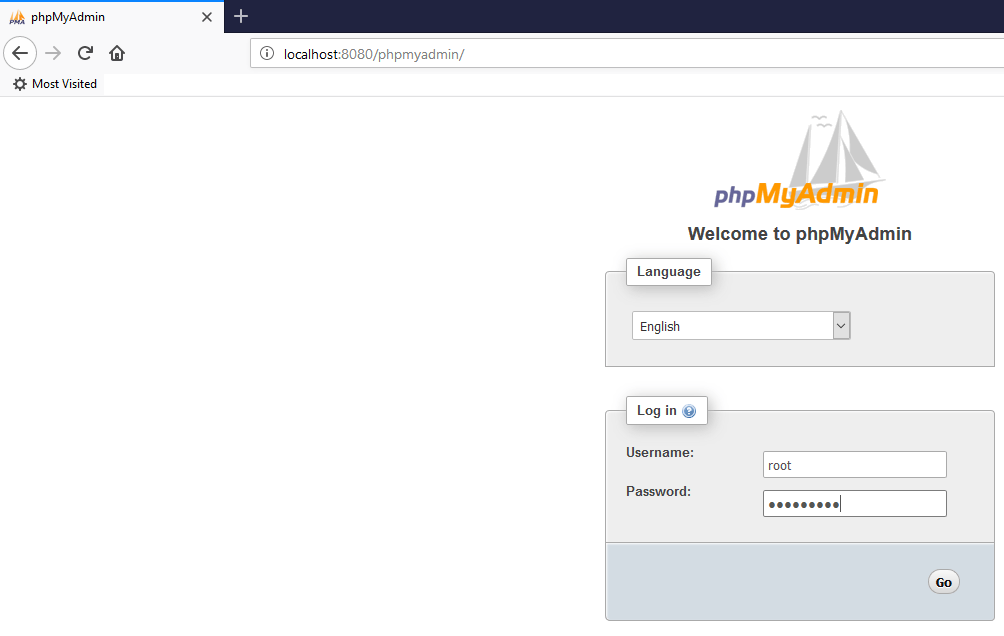
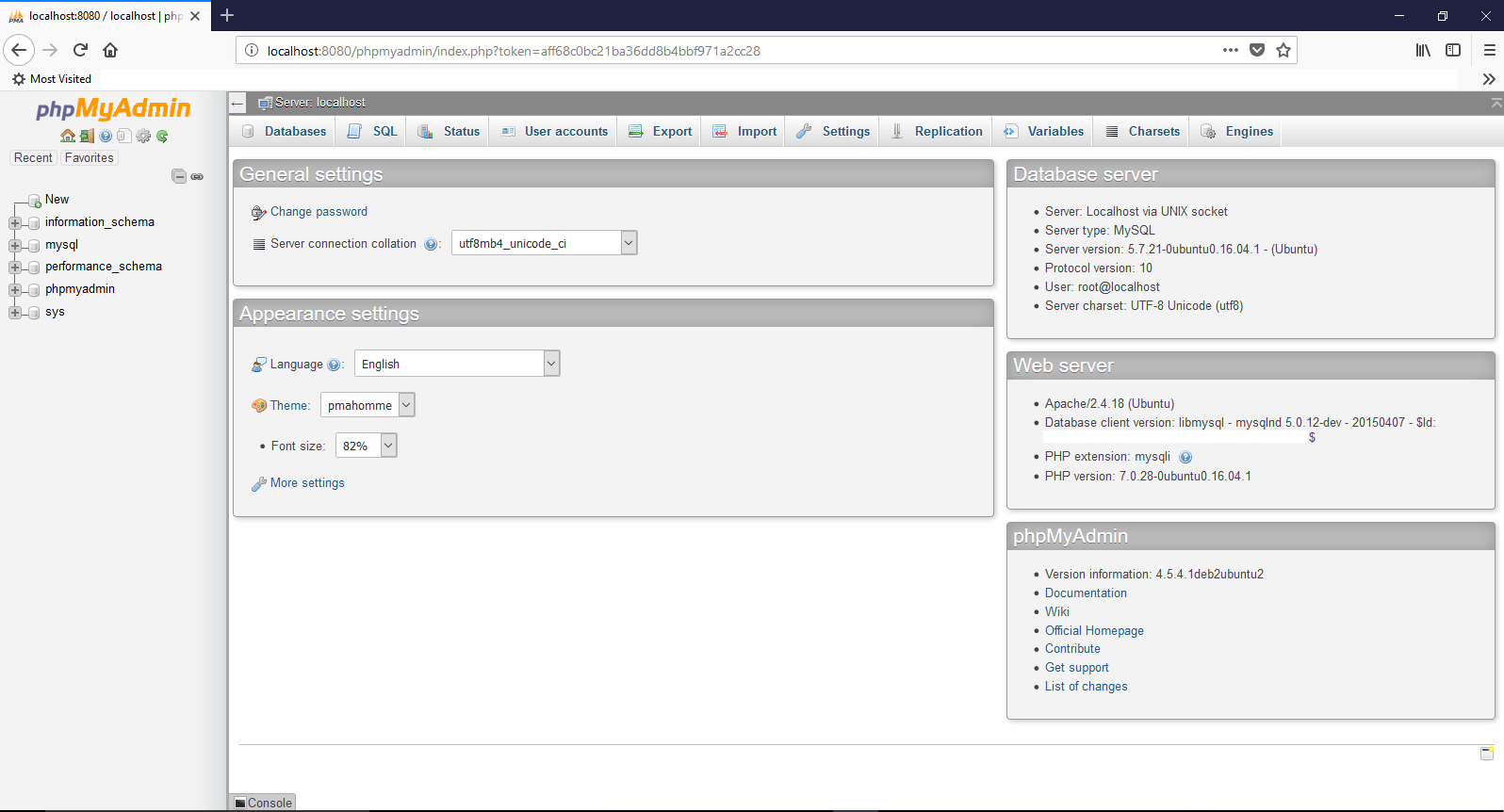
Now you can see that there are no errors or warning while starting both apache and MySQL. So let us go ahead and check phpmyadmin

3
4

That’s all folks!

There is no shutdown for WSL, just type “exit” and you are good. I am yet to test whether mere exiting does anything harmful to running instances of apache and MySQL. Until I find them…

Finally

5

I don’t really understand why, yet, many users are asking for a “way” to ssh into the Linux subsystem. The pre-installed openBDS ssh server doesn’t allow a connection from clients like putty. Hence a re-installation of SSH server is required.

[code language="text" gutter="false"]

sudo apt-get remove --purge openssh-server
sudo apt-get install openssh-server
sudo service ssh --full-restart

Create a firewall inbound rule if required

[/code]

Now you should able to connect to WSL instance using a client like putty.

regards,

rajesh

Active Directory Listing Software

Hi guys

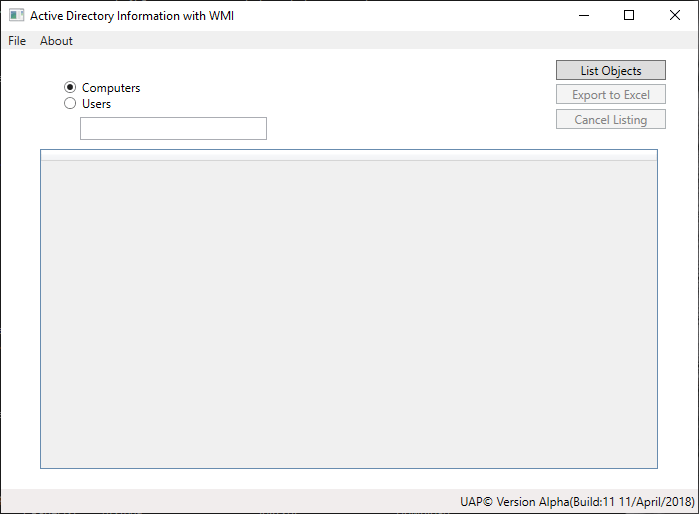
Today I am going to share a compact software that could generate moderately detailed information about the Windows active directory member computers, servers and users from a single console, that I started developing many years back.

This software helps you to export the fetched details to an excel sheet for future references. While there are no restrictions exclusively attached to the usage of this software, the source code for the application is ONLY available against written requests. Refer the readme.txt file for more details.

Please download the zip file from this link and extract to a single folder. Double click open “WpfWMI” to run the software (No installations required). We are using open source EPPlus.dll for the excel export and you must insure that the dll file is within the same folder of the executable file (WpfWMI.exe)

Pre-requisites: The computer you are running this software MUST have .Net framework 4.5 installed.

Expected bugs:

  • When you are not connected to a domain, software will show you a message “Not connected to Domain, Aborting”. However, the main application will load and trying to load objects will crash. I’ll fix this the earliest possible.
  • If your internal & external domains have same name, for example internal domain name is “abc.com” and your public website is “www.abc.com”, you may experience the above mentioned crash while connected to your network over a VPN connection.
  • Poorly designed About, help sections. I apologize for the same as I never had intensions to release it for public usage. Will try to accommodate as much with next public release.

Test it & post your comments and suggestions.

regards,

rajesh

Windows 10 | 0x80070035

Update: In my case, I was able to fix the issues by re-installing Windows using the installation media over an existing Windows 10 1709 installation. I chose to keep files and applications and once after the re-installation successfully completed, achieved the desired results.

Update: Basically this is a bug, which doesn’t affect those who were keeping on upgrading from builds to new builds (ie from 15xx to 17xx). Affects most of the users who did clean installation of 1703/1709 which is yet to be addressed by Microsoft. My case, I did an upgrade from 16xx and resetting the TCP/IP, Winsock etc did the damage for me (Well, it realized that, this issue also exists ;) )

Today, I managed to realize that by just unchecking OK, Checking again and OK combinations on File and Printer Sharing Services for the network adapter fixes the dreaded issues until a restart.

12

Here are the workaround solutions until Microsoft finally releases a patch/update for it.

http://partnersupport.microsoft.com/en-us/par_clientsol/forum/par_win/windows10-1703-file-and-sharing-printer-net-view/9569d27f-d979-4c5a-9a01-98cd9c99c4f2?page=2

Other references:

https://social.technet.microsoft.com/Forums/windows/en-US/671fdb58-7d82-4078-a372-e3b50433faa4/windows-file-sharing-stops-after-every-restart?forum=win10itpronetworking

https://superuser.com/questions/443329/windows-7-file-and-printer-sharing-doesnt-work-for-me


Hi guys

Recently I tried to enable mobile hotspot on my Windows 10 (1709) Pro machine at work that is a domain member. By the time I figured out that the connection issues clients connected to the ad-hoc network were purely related to some authentication issues with our UTM device…it was too late.

I did enough damage to the network stack of my box, reset winsock, rebuilt TCP/IP, resetting the firewall.. and after fixing the issues with mobile hotspot, started having issues with the HP printer and a particular folder that I share with my team.

Both the printer and shared folder cannot be accessed over network, the funniest part was from my local machine itself I couldn’t access the shared folder by calling it like

\\mymachinename\foldername

So as usual I tried to fix the issues using Windows trouble shooters and all the time I was getting the same info “0x80070035” and further diagnostics gave me:

“The device or resource <<HOSTNAME>> is not set up to accept connections on port “The File and printer sharing (SMB)”.”

I tried to find more details, especially about the above statement and unfortunately, none of the questions asked by users in relation were satisfactorily answered by Microsoft.

Then I landed on a Microsoft page @ https://answers.microsoft.com/en-us/windows/forum/windows_10-networking/windows-10-pc-rejecting-incoming-connections/a36974c7-3208-4489-ad44-962838c38b29

The last contributor asks Is “File and Printer sharing for Microsoft Networks” enabled under the properties of the network card?, for obvious reasons I was sure that this service is enabled under the network properties of my Ethernet device.

Logically, my next approach was to uninstall this service from the adaptor, re-install it. Immediately after reinstalling the service, all the shared assets from my laptop were accessible over the network.

Still not happy, I rebooted the machine, to find out that the shares were once again having the same issue(s).

0x80070035

So I uninstalled and reinstalled the “File and Printer sharing for Microsoft Networks” service and this time reset the Defender Firewall to defaults. Instead of restart I did a shutdown, waited few minutes and restarted it.

As I am drafting this post, I have checked the access it is working perfect. Will reboot one more time to insure that this fix is permanent.

I don’t know the technical reasons behind this erratic behavior, however it looks like one more time uninstalling and installing the “File and Printer sharing for Microsoft Networks” fixes the issues (minimum for now) & until a reboot.

If you are facing the same issue(s), why don’t give it a try.

regards,

rajesh


Using _ALLOW_RESETLOGS_CORRUPTION in case of corruption: How to recover & open the database ?

Not your everyday task, yet, when nothing else you could do with a database that won’t start, give it a try. If you have valid Oracle support, then execute only after Oracle confirms.

Please note, there are no guarantees that using the “_ALLOW_RESETLOGS_CORRUPTION” hidden parameter will bring your database up and running. For example, I have made several attempts to duplicate a database in the same machine, few of the exercises were like following:

At home, I copied .dbf files from a live database and created a new database using the “_ALLOW_RESETLOGS_CORRUPTION” which was successful, when the same approach failed without any hopes on my work laptop where I have the same 10.2.0.3 to 11.2.0.4 upgraded instance.

Other hand whenever I copied the .dbf files from a shutdown database and tried to create a standby database, it always succeeded with “alter database open resetlogs”

So, don’t be over confident about recovering a database using “another” hidden parameter. If you are lucky, you may, on the other hand ONLY a proper backup will help you to recover from a significant crash.

So, start backing up your database on regular intervals. I suggest RMAN with archivelogs which helps you to backup the database without downtime.

VirtualBox | Blank screen

Hi guys

Recently I’ve started experiencing a peculiar issue with my Windows 10 VM on Windows 10. Once the VM starts, the entire desktop for the VM is either a white/black blank screen, however the Preview pan for the VM shows the proper desktop as loaded.

I’ve gone through multiple such complaints those are posted at VirtualBox forum, however none of them with a proper solution. One of the solutions which works in all cases is turning off the 3D under display settings for the VM

The another “hack” which works in my case is using the HOST+f (full screen) key combinations. This forces the VM to occupy the entire monitor and somehow the desktop is loaded to the view. To return, press HOST+f key once again. If you don’t know what is the HOST key, it is the right “Ctrl” button. A standard keyboard now days should have two numbers of “Ctrl” keys. Once by the extreme left side of the keyboard and the 2nd one by the right hand side, just below the Enter & Shift keys.

VirtualBox guys were saying this issue is mostly seen with Nvidia graphics, which should be true as my work laptop has Intel+NVidia combo, where low power applications are using Intel as primary display.

Give it a try and let us know whether this hack brings back your VM desktop/display. Let us hope VirtualBox fixes (if it is a bug from their software) or wait for another update from Microsoft fixes it.


regards,

rajesh

USB 3.0 External Drives | A quick alternative when disk reports errors

Hi guys

During last few years, majority of the external HDDs were introduced with USB 3.0 ports which were supposed to make the data transfer faster (& they are until everything is OK). However, these interfaces start wrecking the nerves as the disks become old & a user may come across unexplained errors in the long run. One of them being Windows/OS reporting the drive requires scan and repair to proceed. Most of the times this situation leaves the user panicked & repairing activities may error out without any positive results.

So, next time when you are hit with such an error reported by the OS, give the following a try.

Use a USB 2.0 data cable in the place of USB 3.0 data cable. Check the below images to identify the USB 2,3 portions

usb-3

Connect your USB 2.0 data cable to the USB 2.0 portion. Check the below image for a USB 3.0 external HDD that is connected using a USB 2.0 cable for data access.

usb3

Give it a try, it may get back to your very important data!

regards,

rajesh