KB5066835 update fails to install. It just keeps on failing to install after multiple attempts. One of the most efficient methods to resolve this problem quickly is to rename the Windows\SoftwareDistribution folder & run the Windows update once again.
Steps
Stop the Windows Update Service from Windows Services
Stop BITS
Go to Windows folder, rename SoftwareDistribution folder to softwaredistribution.old or softwaredistribution.littlejoe (up to you). You may asked for Administrative confirmations.
Restart Windows
Check for updates or click the retry button and everything should be fine now.
Applies on both Windows 10 and Windows 11 distributions while the update with issues is specific to Windows 11.
I never ever used the Windows Airplane mode. Basically, as a developer, I hardly ever thought of being disconnected. Then one fine day I wanted to try it, so enabled it and was still able to browse and carry on with much of my “network” related activities as the built-in Windows “Airplane” mode only deals with “wireless” devices. Your Wi-Fi and Bluetooth connections are toggled when you enable/disable the mode, leaves alone the physical connections, like ethernet. I thought of something more & here is a home grown true “Airplane” mode enabler ;). Copy the code to a PowerShell script file & run it as administrator. Don’t be too excited and try it from a remote connection.
# Get all network adapters that are enabled
$enabledAdapters = Get-NetAdapter | Where-Object { $_.Status -eq "Up" }
# Count the number of enabled adapters
$enabledAdapterCount = $enabledAdapters.Count
# Output the result
<#
$wshell = New-Object -ComObject Wscript.Shell
$Output = $wshell.Popup("Number of enabled network adapters: $enabledAdapterCount", 0, "Active Adapters", 64)
#>


if ($enabledAdapterCount -gt 0) {

    $wshell = New-Object -ComObject Wscript.Shell
    $Output = $wshell.Popup("Proceeding will disable all network adapters, Are you sure?", 0, "Number of Active Adapters: $enabledAdapterCount", 4 + 32)
    if ($Output -eq 6) { Disable-NetAdapter -Name "*" -Confirm:$false }
}
else {

    $wshell = New-Object -ComObject Wscript.Shell
    $Output = $wshell.Popup("Proceeding will enable all network adapters, Are you sure?", 0, "Number of Active Adapters: $enabledAdapterCount", 4 + 32)
    if ($Output -eq 6) { Enable-NetAdapter -Name "*" -Confirm:$false  }
    }
Create a shortcut to “powershell.exe” on your desktop. Modify it like below image.
The same script can enable or disable all adapters based on their current status. You cannot execute this script as a normal user.
Definitely not for an environment that boasts TBs of data that should be backed up the most efficient way. This solution is best suitable for environments where backups sizes are not exceeding couple of TBs in size as the BitLocker encryption will slow down the entire process by encrypting each new file during the initial copying. Once the first sync is over, consecutive synching should be far faster as only new and modified files will be copied & encrypted to the destination volume.
Further, the performance of the entire process depends upon the hardware resources available also. We deployed this solution for one of our businesses that has approximately 500GB total size, consist of hundreds of thousands of small files. The first robocopy run on each external disk over USB 3.0 took approximately 10-12 hours and the consecutive runs completed within 20-22 minutes. We used Tandberg RDX Quickstor External solution for this purpose. This time could be brought down to couple of hours if both source and destination volumes are based on SSD.
The solution approach was like this. All RDX tapes for 6 days per week were formatted as NTFS volumes, enabled BitLocker on them immediately after formatting.
The same machine Powershell was configured to run remote signed scripts. Powershell sample as below.
Interested about what happens when your password is converted to Secure String? Check the image below. That’s how a secure string looks & someone who has access to your computer/server could still be able to convert it to plain text and get your password. Hence, this is not a 100% fail safe solution, however it could be pretty effective against robots/malicious codes.
The above exercises were to confirm everything is in place and working properly before developing the script that will be used for regular backups. Name it anything and refer it inside the scheduled job.
#DailyBackup.ps1
#Author: Rajesh Thampi
#Date: 14.10.2024

#Read the BitLocker password from the xml file
$Secret = Import-Clixml -Path C:\Scripts\default.xml

#Unlock the volume that is BitLocer protected.
Unlock-Bitlocker F: -Password $Secret

#Setup source and destination paths.
$source='D:\Some_Folder'
$destination='F:'

#Start robocopy. Use /ZB switches to avoid recyclebin related issues.
Robocopy.exe $source $destination /E /DCOPY:DAT /XO /ZB

#After the copying, lock the drive immediately.
manage-bde -lock F: -ForceDismount
By the way, RDX hardware is not cheap. Hence you should consider alternative mediums. The advantage of a BitLocker protected volume is, even during a ransomware attack these volumes could be completely immune, unless the volume is open for backups during the attack. Well, you never know.
This post was last updated on 24th March 2025. One of the visitors commented that VBS was disabled by turning off Tamper Protection. I received a confirmation from other visitor, using Windows 11 Home Edition.
This post was last updated on 5th February 2025 to confirm that the below hacks are not applicable for Windows Home Editions. If we come across any, will duly share them. Cheers!
This post was last updated on 27th January 2025 to include additional information with another laptop HP Probook 450 G10 running Windows 11 23H2 and VBS was already enabled when we received this device at work. I observed the below while disabling VBS on the same.
No need to disable Kernel DMA Support
Secure boot disabled
To disable VBS, this time I approached the below sequence
Disabled Core Isolation->Memory Integrity->Reboot
Ran Device Guard Readiness script with switch “Disabled” (Explained below)->Reboot. Accepted the prompts to disable both Credential Guard & VBS opt-outs and VBS was disabled completely.
This post was last updated on 15th January 2025 to include my experiments with a new Dell G16 7630 gaming laptop that I changed my six years old laptop with. For the same, I have disabled 2 things on BIOS prior continuing with other attempts from the OS.
Kernel DMA Support
Secure Boot
Once again, the methods that I listed below should only be referred as workaround solutions and you must let Microsoft handle such stuffs the best ways it suits to offer maximum security and stability for your devices.
I use virtual machines almost everyday & recently I took the risk of upgrading my finely tuned Windows 11 23H2 development laptop to 24H2 using my insider account. The upgrade was smooth without any troubles and none of the existing software that I use reported issues. Then I wanted to use my virtual machines!
As usual, multiple security related features are added or enhanced in 24H2 build and many of them are totally depending upon Hyper-V, Microsoft’s own virtualization platform. So, after a successful upgrade to 24H2, don’t be surprised if your find Hyper-V running in the background while so called “Windows Features are still disabled for it”. Read more about VBS here.
As our primary objective is to disable the VBS so that we can go back with our virtual machines, you should know the most disappointing thing at this point, there are no toggle switches available to completely disable VBS. You have to toggle few switches, run some scripts, fiddle around with group policy etcetera to get the task done.
You can use good old “System Information” to check whether VBS is running/enabled. I’ve enabled VBS once again to demonstrate how to disable it for this article. Please note, depending upon your hardware, you may see few or more details than that are visible in the picture below.
As per the system information gathered, my computer is currently enabled with VBS. This laptop has a TPM 2.0 chip & UEFI secure boot disabled.
Based on whether the secure boot is enabled, disabling VBS can become pretty complex. I will share some links to Microsoft articles explaining how to deal with such situations as well.
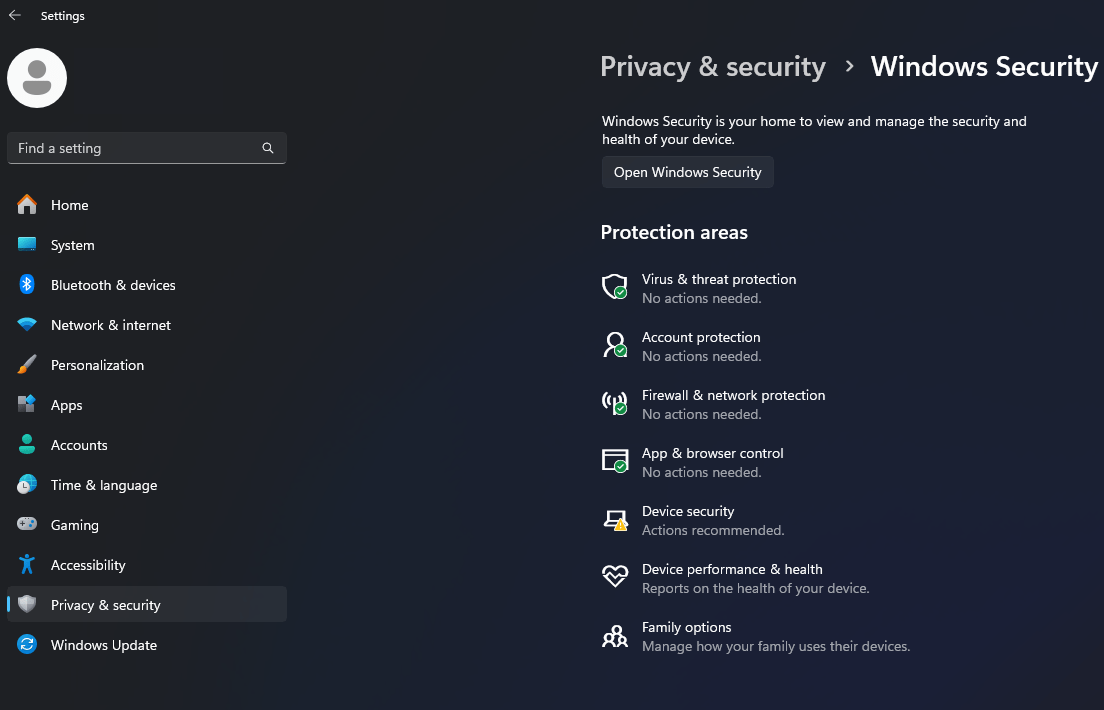
First we will see how to disable the virtualization based security when the secured boot is disabled. Go to “Settings->Privacy & Security->Device Security”
Toggle the Memory integrity to turned off.
Reboot & check whether the VBS is disabled. If not, proceed to next step.
Before trying to execute the PowerShell script, make sure the execution policy has been set as “unrestricted”. Without, the script will execute and show some information, that wouldn’t really tell you what went wrong.
Now open an elevated command prompt/PowerShell, switch to the path where you have extracted the file that you downloaded earlier. If you are using PowerShell, switch to the path first then type the first couple of letters, for example “DG” and tap the tab key, that will fetch the full name of the script. Ignore the error messages.
Accept the prompts & restart your computer. Restarting is a must after every attempt. There will be two prompts asking you whether to disable two different features, which should be accepted. The first prompt asks for Credential Guard opt-out confirmation, that you should accept by pressing “F3” key.
The same will be confirmed in the next screen.
Now “Virtualization Based Security” opt-out will be presented. Once you again press “F3” to proceed.
Much of the times, this should resolve the issue & VBS should be disabled.
If the VBS is not yet disabled, try setting up the Group policy. I truly hope you know what you are doing!
Open group policy editor, Local Computer Policy->Computer Configuration->Administrative Templates->System->Device Guard->Turn On Virtualization Based Security->Disabled
Now restart your computer once again. Check whether the VBS is disabled or not.
Still having troubles? Let’s check few more things.
Run “System Information” once again & check the elements as marked in the image below.
If VBS is still running and “A hypervisor has been detected. Features required for Hyper-V will not displayed” is shown, it means Hyper-V is still running after the above exercises. We can try to disable Hyper-V from the boot now.
Open powershell/Terminal as Administrator & execute the following command.
bcdedit /enum | findstr -i hypervisorlaunchtype
If running the command returns nothing, it means hypervisor is turned off in the boot & fixing the VBS looks almost impossible (in case if all the above were already tried). On the other hand, if it returns one of the below
hypervisorlaunchtype Auto
hypervisorlaunchtype On
Then you still have a chance to fix the VBS issues. Execute the below command in the same powershell session.
bcdedit /set hypervisorlaunchtype off
Reboot and check the system information window once again and you should see something similar to below image.
If VBS is shown as “Not Enabled” or “Not Running”, then you are all good. Now, the million dollar question is, should you disable Hyper-V at all? Windows is building many features on top of Hyper-V that will provide a sandboxed environment for the OS. Tomorrow, Microsoft might decide not to let the users disable Hyper-V using hacks. Regardless, let us all hope Oracle VirtualBox or VMWare tweaks their hypervisors so that they can coexist with Hyper-V and still ensure the same performance.
Let’s see what Copilot has to tell us about the potential risks associated with disabling VBS
I’ve been a Windows insider from the very beginning. However, my insider experiments were always limited to a virtual machine as release previews previously broke my fine tuned environments. This time I couldn’t get the Windows 11 VM upgraded due to some unknown issues preventing VirtualBox getting stuck at boot after the update installed. So, I decided to upgrade my development machine. One of the funniest situations I came across was the upgrade not being offered after setting up “insider program”
Let us check how to get the update step by step this time.
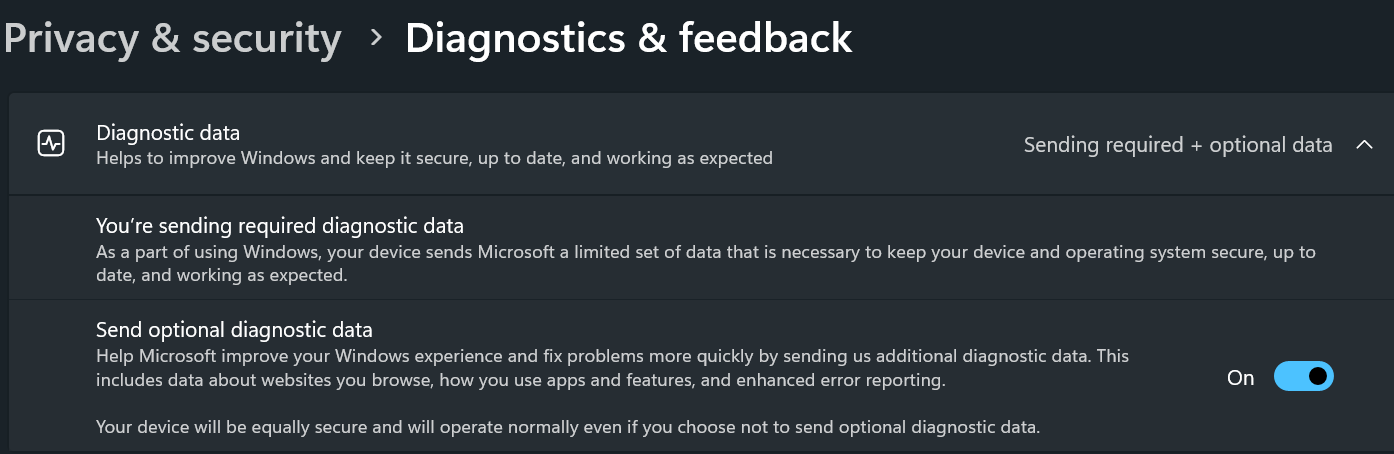
You must share diagnostic data with Microsoft for the insider program to work properly.
Once set, you can go to Windows update and enroll for insider program. Setting up the insider account could get stuck, just wait for few minutes and try again. It should be fixed. As I was only interested about #24H2, I’ve opted for unenrollment when the update is generally available for everyone.
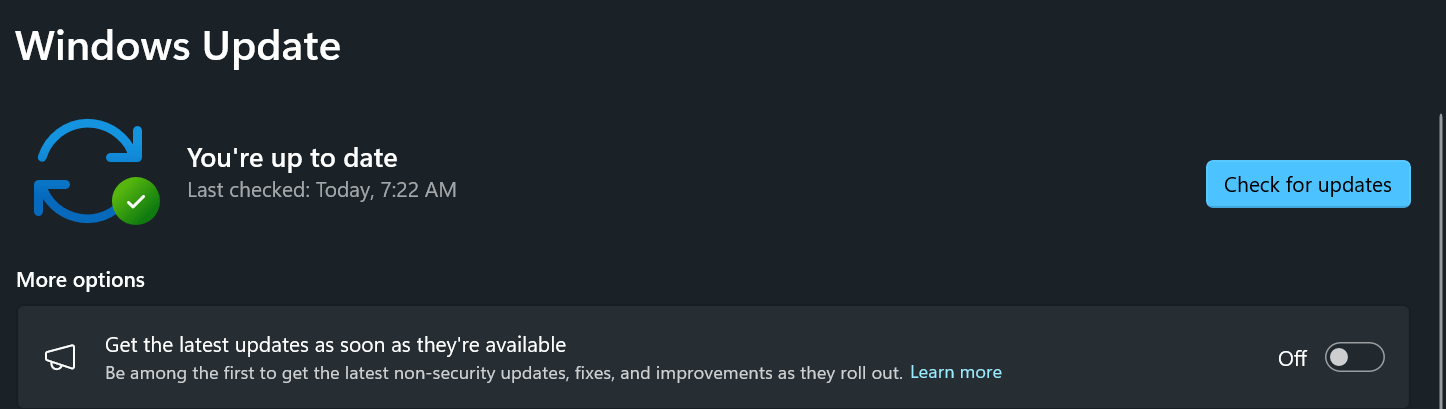
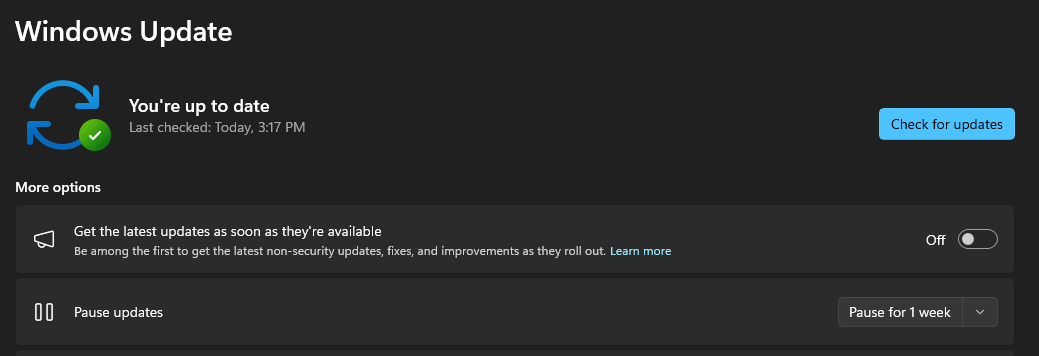
Well, setting up and restarting and checking for new updates may not show you the #24H2 update yet, you need to enable one more setting. You need to turn on “Get the latest updates as soon as they’re available” option. Do another round of check for updates and #24H2 will be definitely offered to you. Happy upgrading.
If you are a seasoned Windows OS user, every update opens room for more bugs & release previews WILL not be anything different. If you don’t have the luxury to reset if required, wait for the final version of the update is available. That could save you some frustrations.
A day back Elon Musk has complained about Microsoft being petty about forcing users to use Microsoft accounts to setup a new PC. Well, “you really don’t have to” is the shortest answer. So let us see how to setup Windows11 without Microsoft account.
Once the installation completed, Windows will start setting up the PC, collecting information about the geographical location, keyboard and layout etc. Once after renaming your PC, the box will restart.
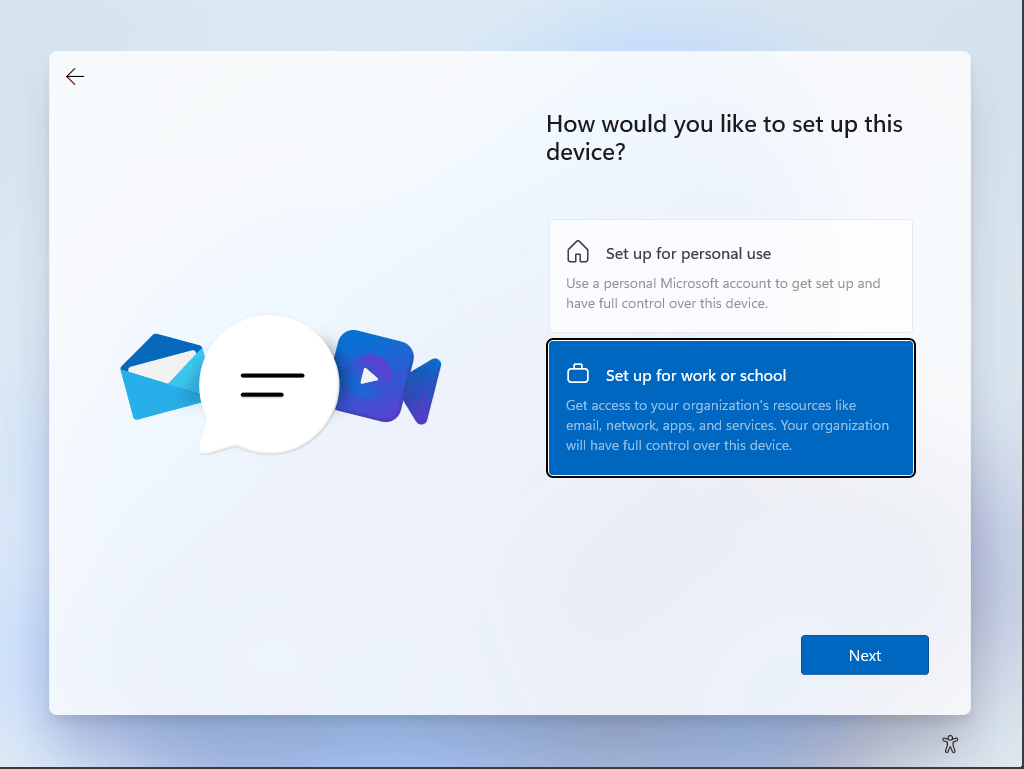
Now you can setup the PC without a Microsoft account by following the instructions below. Select “Set up for work or school” from the given options.
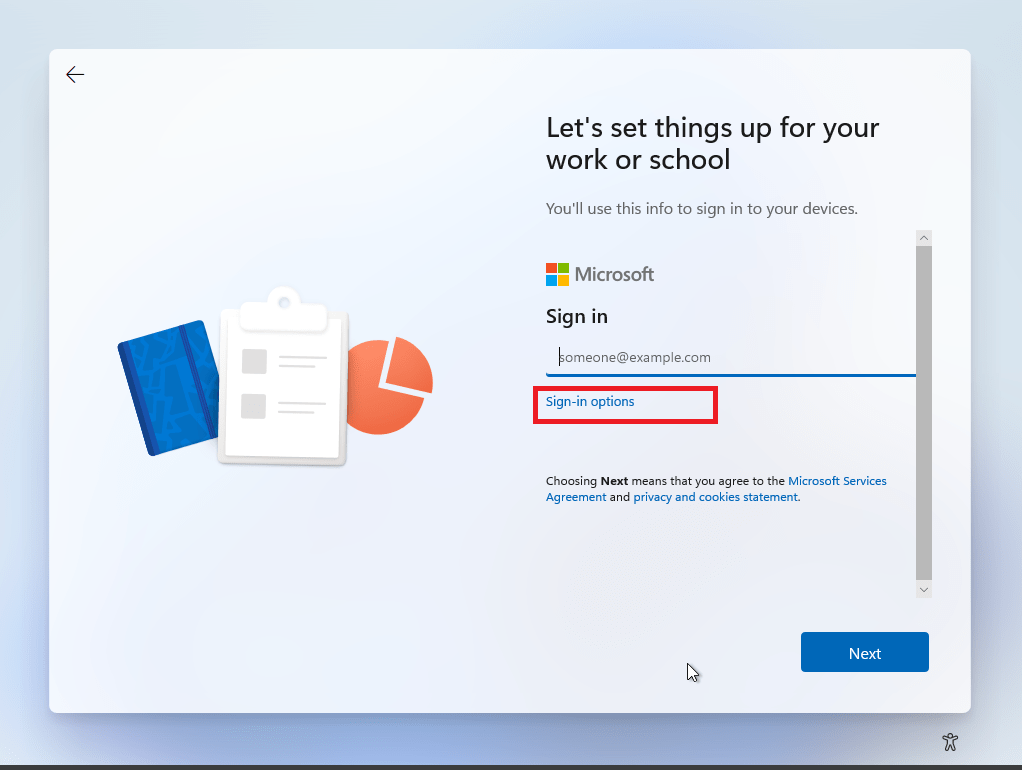
Click “Sign-in option” that Microsoft tries to make look less significant & that’s what let you create a local account instead of using Microsoft account.
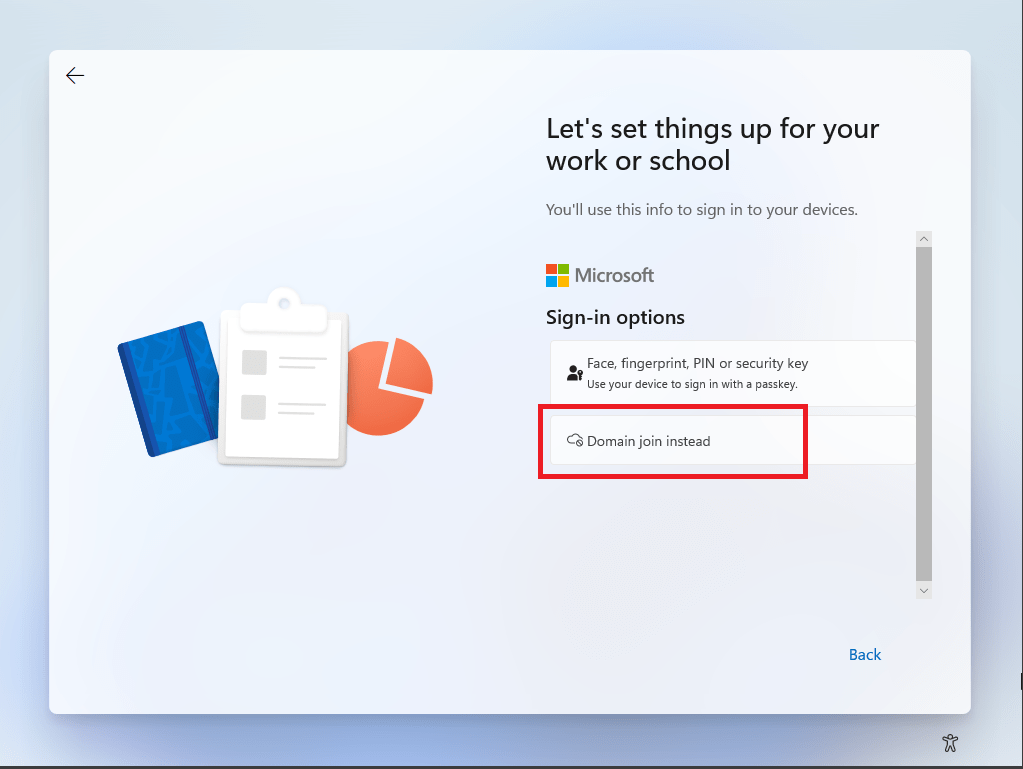
Select “Domain join instead”
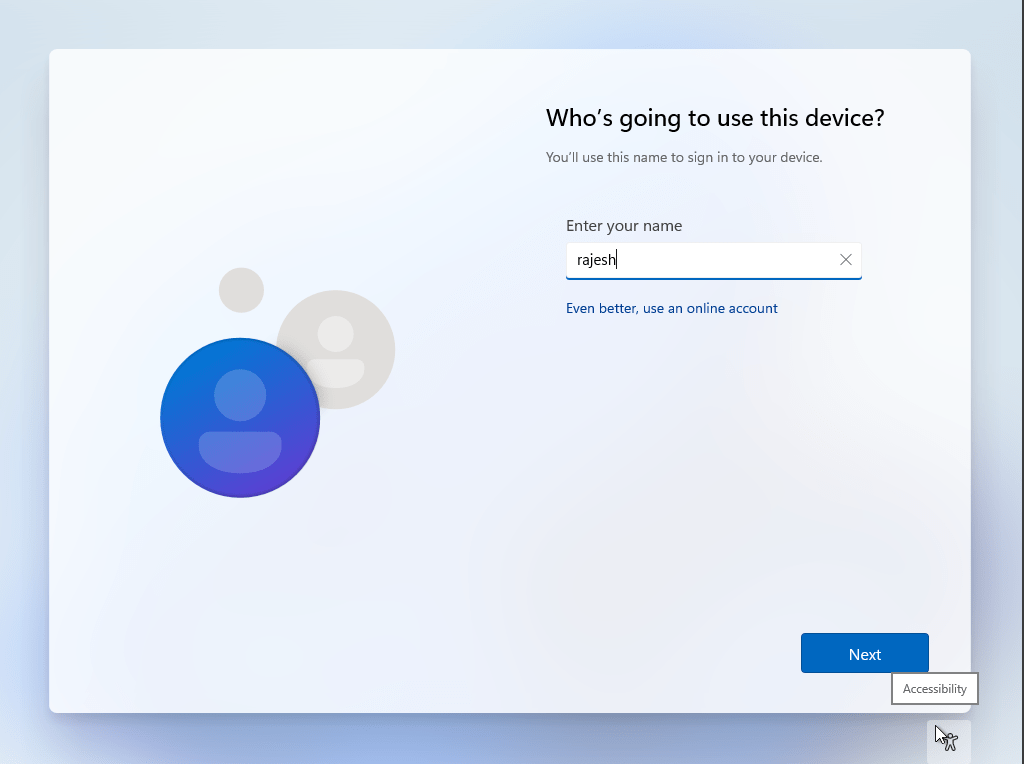
Enter your username
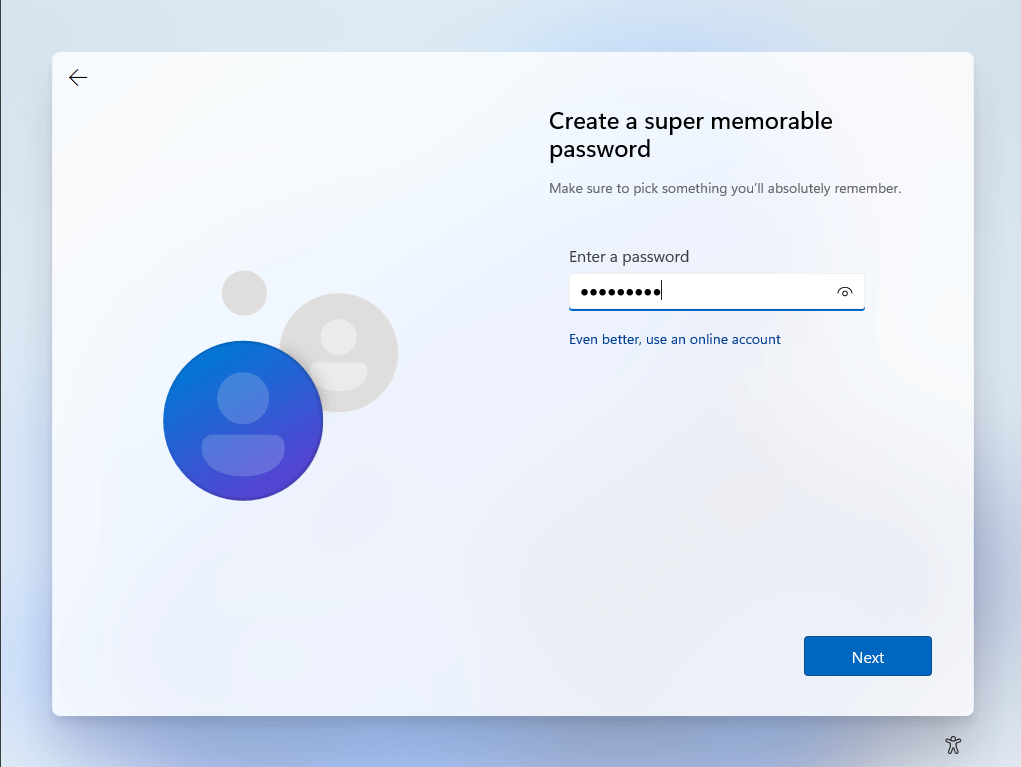
Setup your password
Confirm the password in the next screen.
Setup 3 different security questions and answers for situations when you forget your password in next three screens.
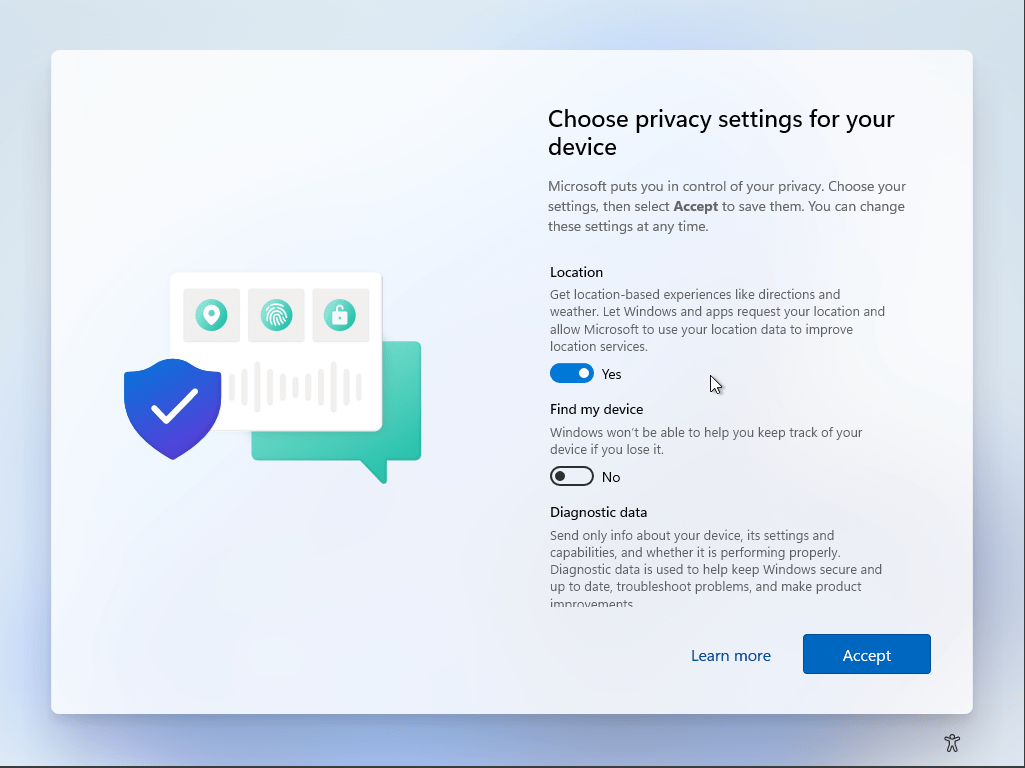
Basically you don’t have to agree to any of the options proved in the “Choose privacy settings for your device” screen. Toggle all of them to No if you prefer. I keep location yes (usually)
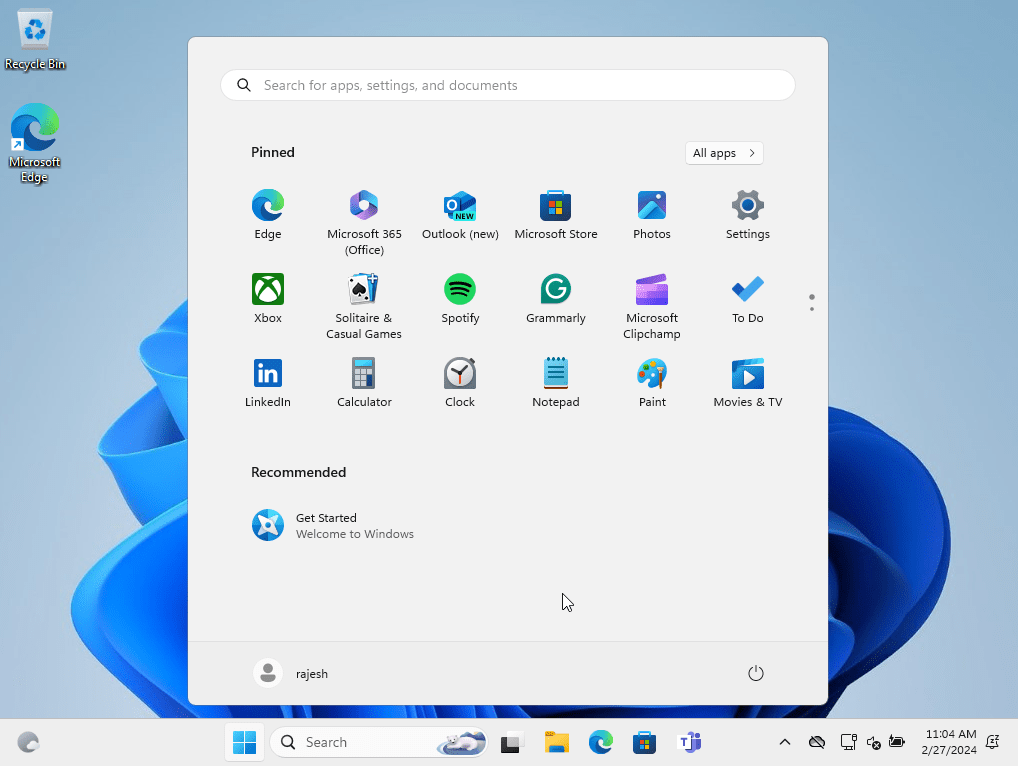
That’s all folks. Your PC will take few minutes to setup & soon you should using your PC without a Microsoft account.
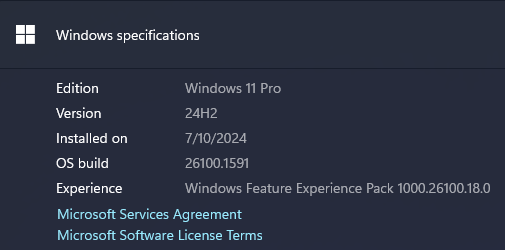
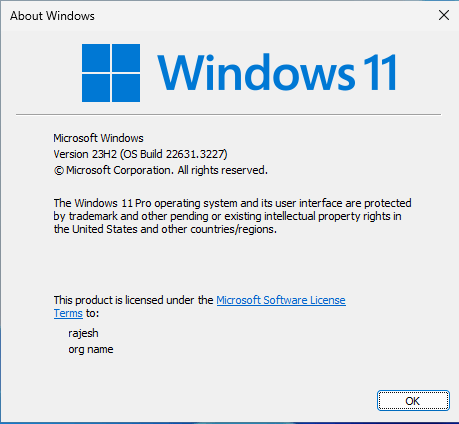
The above instructions were tested on Windows 11 23H2 (OS Build 22631.3227)
Recently, while dealing with some nasty issues related Widows 11 Snipping Tool recording, an interesting visitor said something like “while debugging snipping tool” & it caught my attention! So I did a quick research and realized that I can use VS(Visual Studio) to open an EXE file and do the “debugging”! So let us see how this “debugging” works. Please note, this is not as in you are going to fix anything yourself, instead the whole process gives you an idea about what is going wrong.
We will use “Snipping Tool” for this exercise. Start Snipping Tool and keep it minimized. From the Task manager, let us see where is the physical location for the executable.
Use the “Copy as path” for getting the whole path for the executable.
Open up Visual Studio, I am using Visual Studio 2019 Community edition.
Once the file opened, you will see a screen like below
Now, we need to attach this opened EXE with a running process. Click on the “Attach…” button now, that will open up a window with currently running processes.
Now go back to your application. In our case, “Snipping Tool” and try to do a screen recording.
My current setup doesn’t work for Snipping Tool screen recording and the above error display doesn’t tell the user what went wrong. Windows Event Viewer is not much help either in this case of Snipping Tool. So, let us go back to Visual Studio and see whether we can get more information about the exception.
Now, we know what went wrong, right? Interested to fix it? Well, I think we are at the mercy of Microsoft to fix such issues with their application. According to the visitor, the failing call is due to the intel driver and he has created a Microsoft Feedback entry already listing them.
So, this is one of the most inexpensive ways to understand why a particular EXE is failing & as as I stated in the beginning of the article, not truly “debugging” as in debugging. Hope, you enjoyed this article!
I’ve received it 3 days back at home & at work WSUS server is yet to recognize this update! So, I removed my box from WSUS & tried to get the same using Windows Update. Once after restarting my domain joined computer, I was presented the 23H2 update, however, will not download and always ended up throwing the error “0x80246019”
A quick search landed me on multiple threads and the one worked for me was, disabling the “Get the latest updates as soon as they’re available”. Once after turning it off, downloaded completed successfully and within 3-4 minutes my box was upgraded to 23H2.
(Based on organization policy, you may find this switch not enabled for domain joined computers)
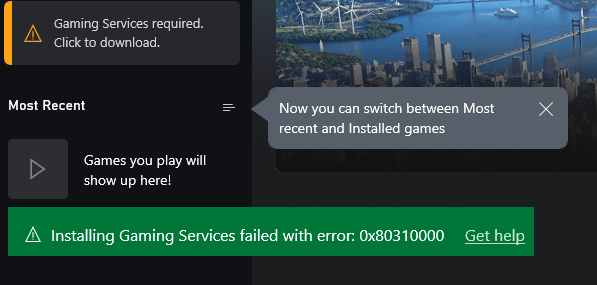
If you ever receive this error on #Windows 11, it means the XBox gaming services are toasted and you need to reinstall them. Usually after a fresh installation of Windows10/11, I always removed the bundled apps using PowerShell & later installed only the software that I need. I did install XBox and associated last time, as I constantly use XBox gaming bar screen recording. Looks like the Gaming Services were not fixed by re-installing XBox and components.
I landed on a working solution that is Microsoft answers thread. The working solution is copied below.
Open Terminal as Administrator & enter the below commands one after another
The second command “start…” will open a fresh instance of Microsoft Store app and you can install the gaming services. Restart the box and you are all set to go.
No post should look good, started with a statement asking the visitor to move on because “There is nothing much to see here”. Trust me, if you already referred my previous post(s) for Oracle Forms & Reports 12.2.1.4, then there is nothing new I have for you in this post. As I don’t have much to offer other than what I have already did through my previous post, let us see how we can insure your fresh attempt to get this whole complex stack installed & configured successfully on your computer.
Are you excited? Don’t be. Oracle has released the much waited Windows version for their Oracle Forms & Reports couple of days back and I must say, I was super excited based on the promises given about the IDE improvements. For improvements what I could see what line numbers inside PL/SQL editor.
Software Requirements
Side note before anything else. Please note, you must install software from the same architecture. Said, if you install JDK 32-Bit and expect your 64-Bit Weblogic to work properly, that is not going to happen. Hence insure all the software you download and install belong to the same architecture.
Microsoft Visual C++ Redistributable packages (Specific to Weblogic 12.2)
and for Oracle Forms 12.2.1.19, you have to install Visual Studio 2017 VC++ compoments.
Before you start the installation, let’s do a checklist
Is your Windows machine updated with latest patches for OS and .Net?
Do you have a static IP address for your computer/laptop?
What is the name of your computer? does it looks like some random letters?
Have your read the installation document? :) nobody does it right?
Legal, cracked, pirated… OS comes in different flavors & nothing can stop it. However, keeping your box up to date is your responsibility. Oracle is a very complex technology, that depends upon many OS elements. A broken box will not get you anywhere.
Static IP address is 2nd most important element when you are installing a server software, that is WebLogic in our case. As this server has to be identified and reached by clients, a fixed IP address is a must, however not always possible when a user has limited infrastructure. Microsoft has provided “Microsoft Loopback” interface for such requirements. Please Google and find more about setting it up, if you are one of those users. Microsoft Loopback helps you to setup a static IP address, please note other computers in your network cannot reach your computer using this IP address or setup!
Name of your computer or HOST name. Much of the Computer/Laptop that you buy with Windows preinstalled come with some whacky names. You should change such names to something more meaningful like “JOHN-PC”,”XYZ” etecetra.
I didn’t either read installation manuals until recent times. I realized that, I could avoid hours or sometimes days long Googling merely by reading the instruction manuals.
Once you are done with Microsoft Visual Studio C++ redistributable package(s) installations, we can proceed. Please follow the below post that should take you through installation and setting up a classic weblogic domain, report server instance etc. I hope you will have least issues installating and configuring Oracle Forms & Reports following my post 🙏(Don’t get discouraged by the title of the referred post, as I stated in the beginning, there is nothing new HERE!). The one thing I want to warn you about the time that your computer might take to bring up the UI for the Oracle Forms & Reports installer. This could be nothing less that 7-8 minutes, much more depending upon your hardware resources.