How to get a computer by computer view of installed software using the MAP toolkit

As an Administrator maintaining Windows domains, one of the herculean tasks usually one run into is to make a software asset inventory. There are plenty of excellent software to do the job for you, obviously for some cost.

Here we are suggesting you a cheaper alternative, using Microsoft’s own MAP toolkit. Be ready to sweat a bit, and we are sure you would love the outcome.

The entire write up is copied from Microsoft blog and tested by us for assuring, if you follow the instructions as given, within few hours of time you will have a neat software inventory list.

The original link is here

One of the most frequent questions we get at MAPFDBK@microsoft.com is how to get a list of the software discovered by the MAP toolkit on a computer by computer basis.  Most of the users who ask are using this to help them answer a licensing question but it can be used in a number of other scenarios as well for example Software Asset Management or user profiling for VDI (see http://blogs.technet.com/b/mapblog/archive/2012/07/09/planning-for-desktop-virtualization-with-the-map-toolkit-7-0-4-of-4.aspx).

In MAP 7.0, provided this information through a database view and Microsoft Excel.  The name of the view is InstalledProducts_view.

In MAP 8.0, this view has been renamed to [UT_WinServer_Reporting].[InstalledProductsView].

This view contains several key pieces of information that you can use to do a number of things including:

  • Understand what applications and versions are installed throughout your organization
  • See the Operating Systems on which these apps are running and whether the machine is physical or virtual
  • See who is using the machines on which the apps are running
  • Get important license related information such as processor counts, total cores and logical processor counts

To get started, you will need to open Excel and connect to your local SQL Server database that is storing the MAP data that you want to view.  There are two different ways to connect, depending on the version of SQL Server that you are using.

Using your own SQL Server instance

If you are using your own instance (the non-default MAP install), you will select the Data option on the Excel ribbon and select the ‘From other sources’ option.  Then select ‘From SQL Server’.

image_thumb6

Enter your server name and instance name and click ‘Next’.

image_thumb5

Select the database that contains the data you want and then pick InstalledProducts_view row under ‘Name’ for databases created with MAP 7.0.

For MAP 8.0, use [UT_WinServer_Reporting].[InstalledProductsView].

image_thumb7

You can also add some additional information to help describe the connection.  Then click ‘Finish’ and select the location where you want the query results to populate.

image_thumb9

Using the default (LocalDB) instance

In MAP 7.0, the default database installed moved to SQL Server 2012 LocalDB.  There are a couple of steps that are different than those used in other versions of SQL Server.

First, make sure that you have the SQL Server 2012 Native Client installed.  You can get it from

http://www.microsoft.com/en-us/download/details.aspx?id=29065.

With Excel open and the Data ribbon highlighted, select the ‘From other data sources’ option and select ‘From Data Connection Wizard’

image_thumb12

Select the ‘Other/Advanced’ option.

image_thumb13

Then select the option for SQL Server Native Client 11.0 as highlighted below.  If this option is not available, make sure that you have the native client installed – http://www.microsoft.com/en-us/download/details.aspx?id=29065.

image_thumb15

Next, you enter in the server name.  If you are using the default install the server name will be: (localdb)\maptoolkit.

Set the option in #2 to Use Windows NT Integrated Security

Hit ‘Test Connection’

image_thumb18

If you’ve done it correctly, you will get a success message!

image_thumb21

Then follow the same steps as above where you select the database name and the InstalledProducts_view for 7.0.  For 8.0, use [UT_WinServer_Reporting].[InstalledProductsView].

Populate the results in your spreadsheet!

What do I do next?

Well – that is entirely up to you.  One thing that we like to do is to create a pivot table and drill down into this information. Here is one that I created.  I filtered down the application name to include only those that had SQL Server components.  I could look at this by physical/virtual and by operating system.

Pretty cool – huh!

image_thumb23

As a reminder, here is a link to some valuable MAP community supported content.

Enjoy!
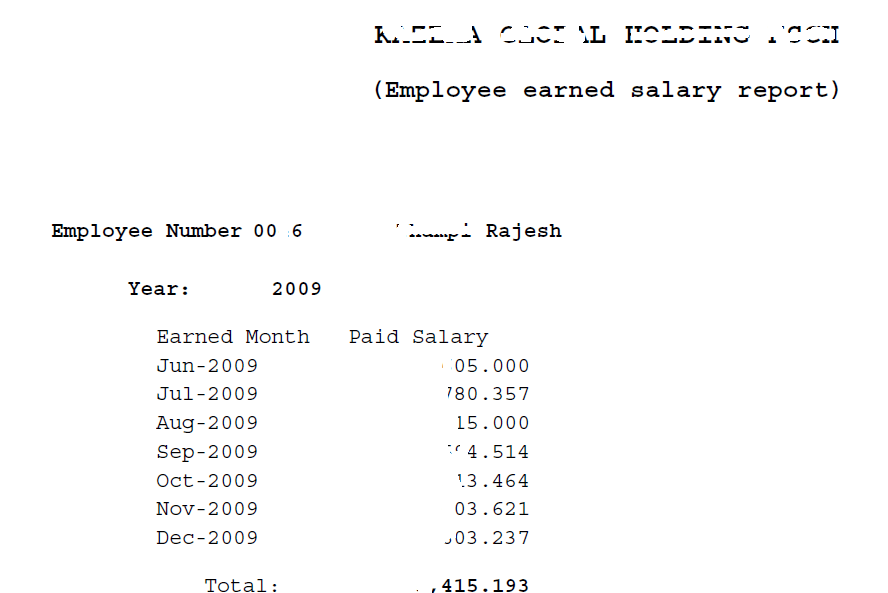
Oracle Payroll | R12 | Simple view for employee paid salaries

Recently I were requested to build a report by the HR/Payroll team, running which they can generate the salary paid details for employees. Ie, a tabular listing with paid month, and total salary earned, grouped by year factor

0046

I found the request being one of the toughest, as my exposure to Payroll module and base tables was limited almost none, other than knowing the person and assignment tables and views!

Gradually I started going through the custom reports developed by our implementer and restructured few of their custom functions into a best possible view what meets our current requirements. As we are not using customized packages for the salary calculations, you should able to alter the below SQL and create your own with almost no efforts. We hope you will enjoy the solution!

Script for view

CREATE OR REPLACE VIEW XXEMPLOYEE_SALARIES_MONTHLY
AS
SELECT pap.person_id, pap.employee_number,to_char(ppa.date_earned,'Mon-YYYY') earned_month,
TO_NUMBER(to_char(ppa.date_earned,'MM')) MONTH_NUMBER,
TO_NUMBER(to_char(ppa.date_earned,'YYYY')) YEAR_FACTOR,
sum(to_number(prrv.result_value)) PAID_AMOUNT
FROM PAY_ELEMENT_TYPES_F petf
,PAY_INPUT_VALUES_F pivf
,PAY_PAYROLL_ACTIONS ppa
,PAY_ASSIGNMENT_ACTIONS paa
,PAY_RUN_RESULTS prr
,PAY_RUN_RESULT_VALUES prrv
,PER_ALL_ASSIGNMENTS_F paaf
,PER_ALL_PEOPLE_F pap
,PAY_ELEMENT_CLASSIFICATIONS pec
WHERE 1=1
AND pec.classification_id = petf.classification_id
and prrv.input_value_id = pivf.input_value_id
AND CLASSIFICATION_NAME IN ('Earnings','Supplemental Earnings')–Add in more based on your setup
and pivf.name in ('Pay Value')
AND petf.element_type_id = prr.element_type_id
AND paa.assignment_action_id = prr.assignment_action_id
AND prr.run_result_id = prrv.run_result_id
AND petf.business_group_id = 81
AND ppa.business_group_id = pap.business_group_id
AND ppa.payroll_action_id = paa.payroll_action_id
AND SYSDATE BETWEEN TRUNC(petf.effective_start_date) AND TRUNC(petf.effective_end_date)
AND last_day(ppa.date_earned) BETWEEN TRUNC(pap.effective_start_date) AND TRUNC(pap.effective_end_date)
AND last_day(ppa.date_earned) BETWEEN TRUNC(paaf.effective_start_date) AND TRUNC(paaf.effective_end_date)
AND paaf.assignment_id = paa.assignment_id
AND paaf.person_id = pap.person_id
–and prrv.result_value > '0'
AND paaf.business_group_id = pap.business_group_id
AND pap.business_group_id = 81–double check
GROUP BY pap.person_id,pap.employee_number, to_char(ppa.date_earned,'Mon-YYYY'),to_char(ppa.date_earned,'MM'),to_char(ppa.date_earned,'YYYY')
UNION ALL
SELECT pap.person_id, pap.employee_number,to_char(ppa.date_earned,'Mon-YYYY') earned_month,
TO_NUMBER(to_char(ppa.date_earned,'MM')) MONTH_NUMBER,
TO_NUMBER(to_char(ppa.date_earned,'YYYY')) YEAR_FACTOR,
nvl(sum(to_number(prrv.result_value)),0)*-1 PAID_AMOUNT
FROM PAY_ELEMENT_TYPES_F petf
,PAY_INPUT_VALUES_F pivf
,PAY_PAYROLL_ACTIONS ppa
,PAY_ASSIGNMENT_ACTIONS paa
,PAY_RUN_RESULTS prr
,PAY_RUN_RESULT_VALUES prrv
,PER_ALL_ASSIGNMENTS_F paaf
,PER_ALL_PEOPLE_F pap
,PAY_ELEMENT_CLASSIFICATIONS pec
WHERE 1=1
AND pec.classification_id = petf.classification_id
and prrv.input_value_id = pivf.input_value_id
AND CLASSIFICATION_NAME IN ('Voluntary Deductions','Involuntary Deductions','Social Insurance')–Add in more based on your setup
and pivf.name in ('Pay Value')
AND petf.element_type_id = prr.element_type_id
AND paa.assignment_action_id = prr.assignment_action_id
AND prr.run_result_id = prrv.run_result_id
AND ppa.business_group_id = pap.business_group_id
AND ppa.payroll_action_id = paa.payroll_action_id
AND SYSDATE BETWEEN TRUNC(petf.effective_start_date) AND TRUNC(petf.effective_end_date)
AND last_day(ppa.date_earned) BETWEEN TRUNC(pap.effective_start_date) AND TRUNC(pap.effective_end_date)
AND last_day(ppa.date_earned) BETWEEN TRUNC(paaf.effective_start_date) AND TRUNC(paaf.effective_end_date)
AND paaf.assignment_id = paa.assignment_id
AND paaf.person_id = pap.person_id
— and prrv.result_value > '0.00'
AND paaf.business_group_id = pap.business_group_id
AND pap.business_group_id = 81–double check
GROUP BY pap.person_id,pap.employee_number, to_char(ppa.date_earned,'Mon-YYYY'),to_char(ppa.date_earned,'MM'),to_char(ppa.date_earned,'YYYY')
order by 2,5,4;

Sample Query

SELECT PERSON_ID, EMPLOYEE_NUMBER,earned_month,year_factor,
SUM(PAID_AMOUNT) PAID_SALARY
FROM XXEMPLOYEE_SALARIES_MONTHLY
WHERE
1=1
AND EMPLOYEE_NUMBER =:P_EMPLOYEE_NUMBER
AND YEAR_FACTOR BETWEEN NVL(:P_START_YEAR,YEAR_FACTOR) AND NVL(:P_END_YEAR,YEAR_FACTOR)
GROUP BY PERSON_ID,EMPLOYEE_NUMBER,earned_month,YEAR_FACTOR, MONTH_NUMBER
ORDER BY YEAR_FACTOR, MONTH_NUMBER

Enjoy another quality post from us guys :)

for Windows7bugs

rajesh

Weblogic 10.3.6, Oracle application instance service “Oracle Process Manager (asinst_1)” missing

Oracle Process Manager (asinst_1) where asinst_1 is the instance name you chose while configuring the forms & reports 11g. We noticed that once after upgrading Windows 8 to Windows 8.1, almost all the Oracle services (database, weblogic related) were been removed from the windows services database, which forced us to re-create them manually!

Our Weblogic server was installed for the lab, hence none were accessing them once after the first level tests. Thus we were not aware of the issues related to OPMN, which were usually started by Application Instance services during each boot (unless start mode set manual)

Here we are providing you a quick method to create the missing Oracle Process Manager (<instancename_1)” service using Windows command line

from an elevated command window, issue the following command (please alter the paths according to your installation physical locations)

[code language=”text” light=”true”]
C:\WINDOWS\system32>SC CREATE "OracleProcessManager_asinst_1" binPath="D:\Weblogic\Middleware\Oracle_FRHome1\opmn\bin\opmn.exe -S -I D:\Weblogic\Middleware\asinst_1" type= own start= auto
[/code]

Note: Optionally you can add DisplayName string for the service you want to create along with the command line.

If the service creation was successful you should receive a confirmation, other hand an error message

[SC] CreateService SUCCESS” or Error Message

You may stop OPMN manually, and then try to start the newly created service to confirm the service creation was successful.

That’s all folks!

for Windows7bugs

rajesh

Posting Source Code with your free wordpress.com blog


If you are using Windows, the best free desktop offline blog publisher should be “Windows Live Writer”. With dozens of plug-ins, this blog publisher could be handy while you want to take breaks and continue at later stages.

You may follow the following link to learn few workarounds, which the code snippet plug-ins fail to provide you while you want to insert code into your posts

http://en.support.wordpress.com/code/posting-source-code/

Alternatively you may add the code snippets to your post like following

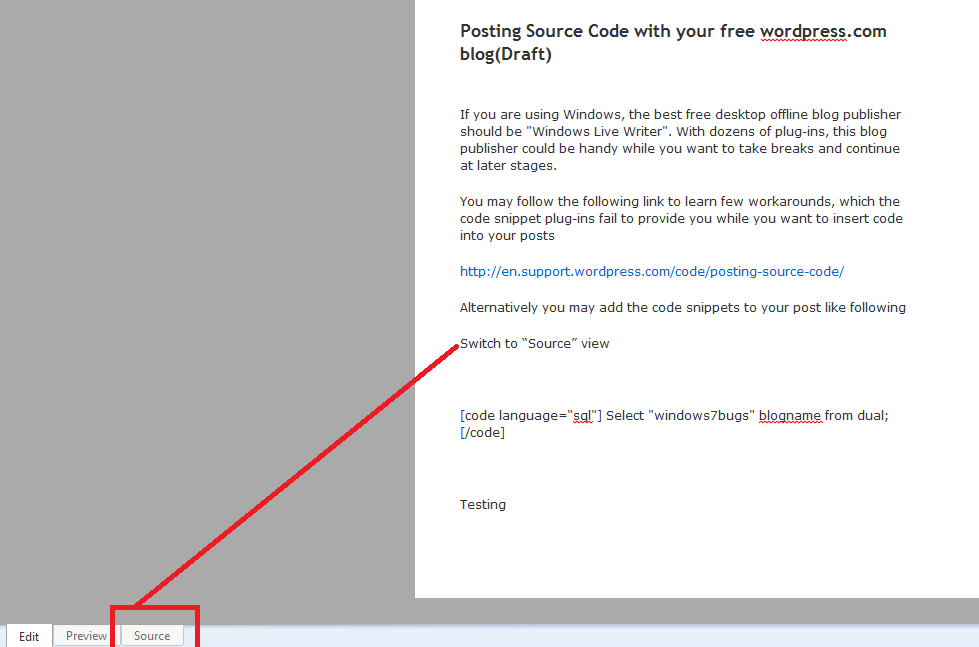
Switch to “Source” view

image

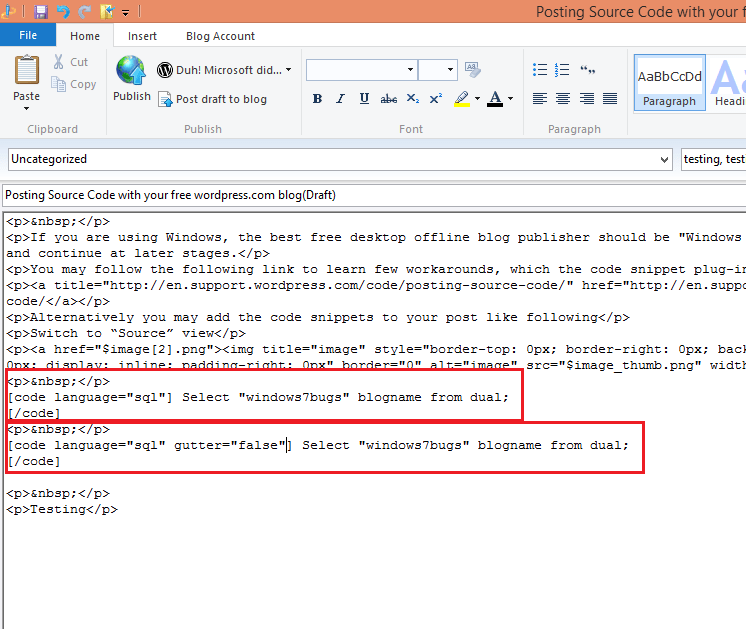
and paste your code within [code] [/code] blocks

image

Read the link provided above to learn, programming languages supported for syntax highlighting, gutter (left side line numbers) disabling etc


[code language=”sql”] Select "windows7bugs" blogname from dual; [/code]


[code language=”sql” gutter=”false”] Select "windows7bugs" blogname from dual; [/code]

Unfortunately, the Windows live writer doesn’t parse the [code][/code] block with the previewer. Hence you must publish it to view the final results.

We hope you enjoyed another quality post from us

for Windows7bugs

Admin

Upgrade from Messenger to Skype


Message from MS reads following:

Hello,
Starting April 8th, we will begin upgrading customers from Messenger to Skype. The process will take a few weeks to complete. April 8th is the first day you may be required to upgrade. This is a bit later than the March 15th date we previously mentioned to some of you as we wanted to give you more time to make the transition.
To keep chatting with your Messenger contacts, simply upgrade to the latest version of Skype using the instructions below and sign in using a
Microsoft account (this is the same ID you use to sign into Messenger). Once signed in, your contacts will already be there. You’ll be able to instant message and make video calls with them just like before, and start discovering new ways of staying in touch, including Skype on your mobile or tablet.
Upgrade now

space

Yours sincerely,

The Messenger and Skype Teams


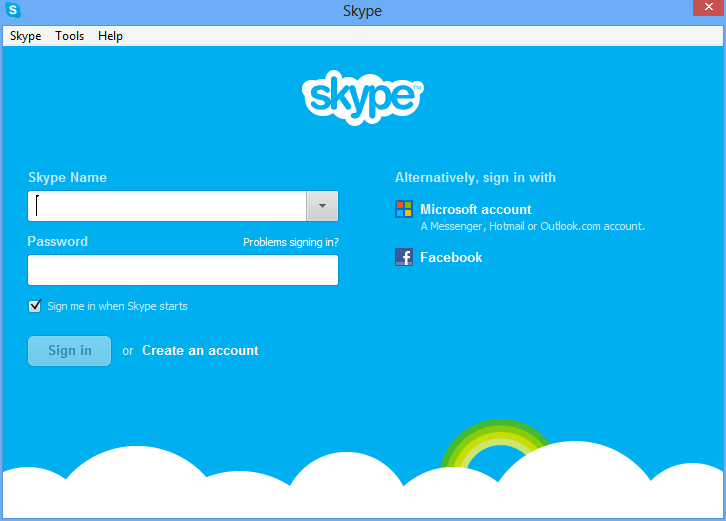
skype

Almost all the middle east countries have blocked Skype.com from last many years, as Skype was growing a threat towards their voice communication earnings.

Windows live messenger, Yahoo messenger, Nimbuzz were however spared, even though Yahoo (until recent times) and Nimbuzz still have phone out functions in addition to those hundreds of nifty software which could be installed on a desktop computer or smartphone and easily make VOIP calls!


With Windows live messenger retired and skype.com blocked, MS is going to have a tough time retaining the live messenger users…

Share your thoughts guys


regards,

admin

VB.net console application for Deleting old files from a particular folder

How are you guys? Happy New Year! We were quite busy and quiet during last few weeks. Here we are once again, coming up with a simple, yet powerful utility which could make a system administrator’s life bit easier.

We have a 12 years old Oracle database server with oracle data folder residing in D:\ drive with less than 20GB total free space where we do a full export everyday by late night.

Each full export (.dmp) file is almost 5GB, thus occupying the entire 20GB by every forth day. We were painfully following up the schedules and deleting the files to preserve much valued disk space.

Well, finally we decided to write a small console application to handle this task through a scheduled task. You can download the entire solution from following link

The executable could be downloaded from following link

We developed this solution using Visual Studio Express for Desktop, ie, akka free version of VS 2012. You may need to download the same, so that you can open the solution.

However, to make stuff easier, we are copying the module1.vb code over here

Imports System.Console
Imports System.IO
Imports System
Imports System.Collections.Generic
Imports System.Configuration
Imports System.Text
Imports System.Environment


Module Module1


Sub Main()
Dim strStartupArguments() As String, intCount As Integer
Dim fldrName As String, fileType As String, nDays As Integer

strStartupArguments = System.Environment.GetCommandLineArgs
For intCount = 0 To UBound(strStartupArguments)
' Console.WriteLine(strStartupArguments(intCount).ToLower)
' Console.WriteLine(strStartupArguments(intCount))
Select Case strStartupArguments(intCount).ToLower
Case "-dfolder"
' fldrName = strStartupArguments(intCount).ToLower
fldrName = strStartupArguments(intCount + 1)
'Console.WriteLine(fldrName)
Case "-ftype"
fileType = strStartupArguments(intCount + 1)
'Console.WriteLine(fileType)
Case "-ndays"
nDays = strStartupArguments(intCount + 1)
End Select
Next intCount

If ((fldrName Is Nothing) Or (fileType Is Nothing) Or (nDays = 0)) Then
Console.WriteLine("No or not all arguments given, USAGE DeleteOldFiles.exe -dFolder <folder name> -fType <*.extention> -nDays <N> ")
Console.WriteLine("Example: DeleteOldFiles.exe -dFolder C:\myfolder -fType *.txt -nDays 100")
Console.WriteLine(" C:\myfolder --is the target folder from files will be deleted")
Console.WriteLine(" *.txt --tells the system what kind of files should be deleted ")
Console.WriteLine(" 100 --defines file age in number of days")
End
End If

Dim fileName = Date.Now.ToString("ddMMyyyy") & ".log"
Dim filePath = IO.Path.Combine(fldrName, fileName)
Using sw As StreamWriter = New StreamWriter(filePath)
sw.WriteLine("File Name" + ";" + "Creation Date" + ";" + "Deletion Time")
Try
' For Each file As IO.FileInfo In New IO.DirectoryInfo("D:\Documents").GetFiles("*.pdf")
For Each file As IO.FileInfo In New IO.DirectoryInfo(fldrName).GetFiles(fileType)
' Console.WriteLine((Now - file.CreationTime))
Console.WriteLine(file.Name)
If file.IsReadOnly = False Then
If (Now - file.CreationTime).Days >= nDays Then
sw.WriteLine(file.Name + ";" + file.CreationTime + ";" + Now)
file.Delete()
Else
Console.WriteLine(file.Name + " Was Created later")
End If
End If


Next
Catch ex As Exception
Console.WriteLine(ex.ToString)
End Try
End Using


End Sub

End Module

The default solution name is “DeleteOldFiles” hence when you open and build the solution, the .exe file name would be DeleteOldFiles.exe

Usage syntax

DeleteOldFiles.exe –dFolder <driverletter:\foldername> –fType *.extension –nDays <number of days>

eg: DeleteOldFiles.exe –dFolder C:\temp –fType *.tmp –nDays 3

Now you can schedule a job, and let this small piece of application doing the cleanup job for you

Yes, it does a logging for you :), so that you can always check which files were deleted from the folder (for eg: C\temp). The log file location will be the same folder from which the files were permanently deleted.

Tested on Windows Server 2003, Windows 8 64Bit, Windows 2008 Server

regards,

admin