You must add the below line into your SQLNET.ORA file in order to avoid accounts other than root failing to authenticate after the password complexity changes.
SQLNET.ALLOWED_LOGON_VERSION_SERVER=10
or
SQLNET.ALLOWED_LOGON_VERSION_SERVER=11
This is mandatory in the case of Oracle database 19c onwards. Stick to version 10 if you have legacy clients connecting to the database.
I’m back to blogging after couple of busy weeks and quite bit of traveling. I’m currently playing around with Oracle 12c database Release 2 & Developer 6i with Patch 18, again hacked using Patch 3 DLL files in order to execute forms/reports on Windows7-10
Obvious that, starting from Oracle 11g, Oracle has introduced stricter password policies by implementing case sensitive logons, number of attempts and password age etc. I hardly believe small industries are really ever going to implement these policies as Oracle intended to in real life scenarios as it would require a full time DBA, a lot of tracking and auditing (which in my experience never happens)
Anyway, for testing, I have always kept the commands ready to disable said all three security elements. Once a new test database is made, prior attempting any other, I change password complexity, expiry & reuse times using the below given alter commands
alter system set sec_case_sensitive_logon=false scope=both;
alter profile DEFAULT limit PASSWORD_REUSE_TIME unlimited;
alter profile DEFAULT limit PASSWORD_LIFE_TIME unlimited;
With 12c Oracle has made many changes to the security, SQL Net connections etc. If you are truly interested, please refer this document to understand what has been deprecated Upgrade Guide 12c Release 1 (12.1) E41397-11
According to the documentation, SEC_CASE_SENSITIVE_LOGON is maintained only for backward compatibility & most probably will be dropped from future builds. I’ve checked altering sec_case_sensitive_logon on a 12c R2 database it works. However, during each startup, I receive a notification that says “ORA-32004: obsolete or deprecated parameter(s) specified for RDBMS instance”
and executing the following command returns a number of parameters those are not supposed to be used against 12c release
SELECT name from v$parameter WHERE isdeprecated = 'TRUE' ORDER BY name;
NAME ——————————————————————————– standby_archive_dest unified_audit_sga_queue_size user_dump_dest utl_file_dir
26 rows selected.
SQL>
So, we could see that sec_case_sensitive_logon has been listed as deprecated. Now, how exactly we are going to work around this little annoyance totally depends upon us, developers & DBAs. While I prefer a test environment with no password related hassles, a production environment should be designed to accommodate case sensitive logons & other recommended password policies as Oracle may not re-introduce the parameter in future builds.
While the notification/warning we receive about deprecated parameters are generic to all deprecated parameters, in this post, I have only mentioned about case sensitive passwords.
“Just some minutes after my post I found a clue. The problem for my was that my machine name was longer than 15 characters!! If your computer name is longer than that then this error rises. I don’t understand why this should be a problem nowadays.” visitor Ax is referring to the area of the post where I am discussing about Admin Share related issues.
As I never had a box having names longer the limited number of characters, haven’t had this experience. Thanks Ax for the great tip!
Hi guys
Have you noticed the major changes with the installation media of Oracle 12c database release 2? Oracle has made it as a single package, eliminating the user to merge the folders from 2 different installation media to get it done. While I welcome such a move from Oracle with whole heart, once again there are few difficulties getting the software installed properly.
One of the major issues is, when the administrator decides to disable hidden admin shares to secure the box from accessed using C$, D$ calls from a remote machine with domain/local administrative privileges. Disabling the admin shares are handled by tweaking the registry & easily forgotten in the long run. Lack of earlier experiences with installing Oracle software could force one to finally formatting the box to address the registry tweaking for disabling the admin shares.
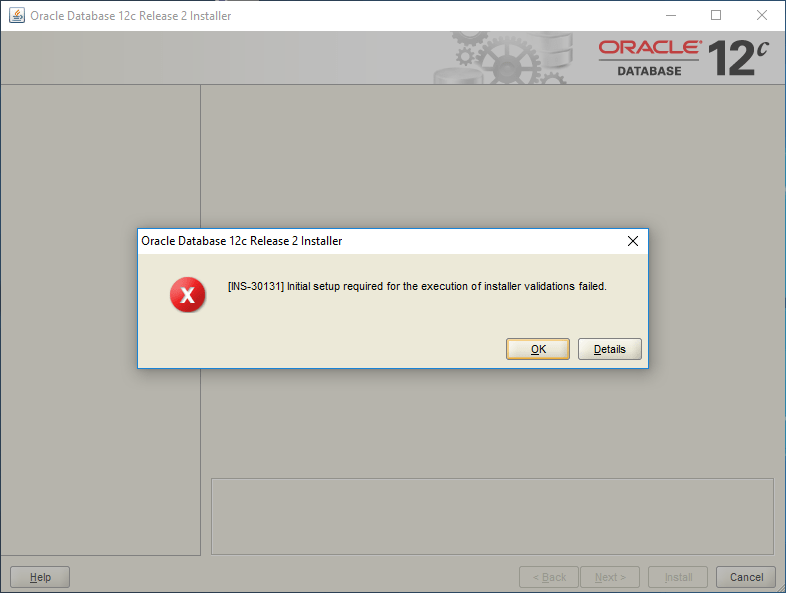
Few of the errors present are like following:
And the error message reads like following:
Cause – Failed to access the temporary location. Action – Ensure that the current user has required permissions to access the temporary location. Additional Information:
– PRVG-1901 : failed to setup CVU remote execution framework directory “C:\Users\username\AppData\Local\Temp\CVU_12.2.0.1.0_username\” on nodes “hostname” – Cause: An operation requiring remote execution could not complete because
the attempt to set up the Cluster Verification Utility remote
execution framework failed on the indicated nodes at the
indicated directory location because the CVU remote execution
framework version did not match the CVU java verification
framework version. The accompanying message provides detailed
failure information. – Action: Ensure that the directory indicated exists or can be created and
the user executing the checks has sufficient permission to
overwrite the contents of this directory. Also review the
accompanying error messages and respond to them. Summary of the failed nodes hostname- Version of exectask could not be retrieved from node “hostname” – Cause: Cause Of Problem Not Available – Action: User Action Not Available – Version of exectask could not be retrieved from node “hostname” – Cause: Cause Of Problem Not Available – Action: User Action Not Available
Hence, the 1st place to look for is the registry, precisely, Computer\HKEY_LOCAL_MACHINE\SYSTEM\CurrentControlSet\Services\LanmanServer\Parameters and to make sure that a REG DWORD named “AutoShareWks” exists with a value “0”. If yes, change the value to “1” and restart the box.
2nd, if you have a 32bit Oracle client installed prior attempting to install the 12c/11g 64Bit database, make sure you Stop “OracleRemExecServiceV2” service using the Windows Service console. There is a conflict between the 32Bit & 64Bit installation procedures and unless this particular service is stopped, the 64Bit installation will not proceed.
Now attempt the 12c/11g 64Bit database installation.
If you come across more errors, please update us using the comments section and we would love to investigate them.
I am going to migrate a database called “OPMS” from SQL Server 2008 R2 express edition to Oracle database 11g R2 64Bit. You can safely try the same with Oracle 19c multitenant database also.
Please note, the JDBC driver fails to connect to the SQL Server using Windows Authentication, hence you must define a login with for your database, change the instance authentication methods to mixed in order to establish a successful connection.
As you could see with the above image, I don’t have any connections to Oracle database defined.
For the database migration, We must define two connections. One connection using SYSTEM user & the 2nd connection using MWREP user that we will create in like following
DROP USER MWREP CASCADE
/
CREATE USER MWREP IDENTIFIED BY mwrep
DEFAULT TABLESPACE BAYAN
TEMPORARY TABLESPACE TEMP1
QUOTA UNLIMITED ON BAYAN
/
GRANT DBA,CONNECT,RESOURCE TO MWREP
Once the migration is over, you may drop this repository safely. Hence don’t worry about the grants given to the new user. I failed to successfully get the things done properly without DBA role assigned to this migration schema
I’ve struggled hours to understand why the “tables” were not created as a part of the migration process which said “Successfully completed” after the execution and my probing through the log files pointed towards a schema OPMS not existing in indirect wordings.
(I’m pretty sure that I missed something & the intended schema was NOT created during the migration process run. Regardless, creating the Schema manually gives many tuning choices like tablespace selection, quota setting etc)
So, to get the migration work successfully, you need to create a schema with the the same name of your SQL Database. In my example the SQL database name is “OPMS”, the same I pre-defined with the Oracle database, although the script generated by the migration has DDL for creating the user against default tablespace “USERS”. Well, I didn’t want my OPMS schema using “USERS” tablespace…
I created the OPMS user as below
DROP USER OPMS CASCADE
/
CREATE USER OPMS IDENTIFIED BY opms
DEFAULT TABLESPACE BAYAN
TEMPORARY TABLESPACE TEMP1
QUOTA UNLIMITED ON BAYAN
/
GRANT DBA,CONNECT,RESOURCE TO OPMS
I am all set to start the migration now, so should be you!
Created a new connection for user “System”
Created another connection for “MWREP” user, which will hold the migration repository
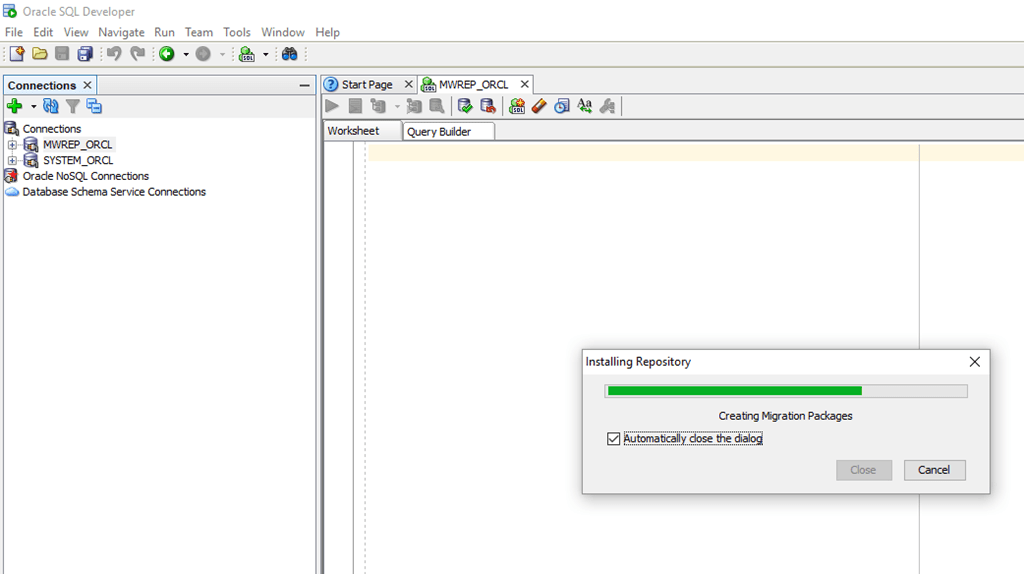
Now we have to create the migration repository. Right click on the MWREP connection and expand Migration Repository, then Associate Migration repository
Progress
Finished
If the repository association fails for any reasons, you have restart by dropping the migration schema that you have created and go through the steps once again.
As I have completed creating the migration repository, next step is to connect the SQL developer to MS SQL Server (in my case SQL Server 2008 R2 Express edition)
So you have all the 3 connections required for the migration now.
As soon as you connect the MWREP, you will notice that Migration Windows showing an entry like seen with the below image
Now we will start the migration.
The welcome screen provides you an overview of the activities those will be completed for the SQL database migration. Move ahead
By default your migration repository will be selected, however cross check it and click “Next”
Provide a meaningful name for your Project and Select output directory
Make sure you have selected the correct Source database
The default database for the currently connected SQL database user will be selected by default for capturing. Confirm and click next
Under the convert step (6), make necessary changes. Refer the image for more details
A number of objects will be selected, unless you are pretty confident about objects you don’t want to migrate, leave the default selection intact.
Select the “System” connection for Target Database
Make sure you select SQL connection for source and MWREP connection as target in the move data step (9)
Click finish & the migration immediately starts. Depending upon the size of your source database it may take while for the process to create and move data between the technologies.
Progress
Create a connection to Oracle database for the newly created (We created the OPMS schema prior the migration) schema & verify whether the objects were created by the migration process.
Recently I spent pretty good amount of time trying out RMAN & was able to apply what I learned at multiple production environments those were purely depending upon export dumps over a decade. Once after committing many hours for recovery using RMAN to a standby instance, I started wondering whether such efforts are really worth for a database that was hardly couple of GBs after 10+ years of data collection. I read many articles from reputed Oracle related sites, including this one.
A majority of the small scale industries don’t invest on DBAs because, FOR them DBAs are found doing “nothing” at all throughout the salary periods & most of them have unmatched ego that don’t allow them to learn anything other than what they are “certified to”. I have some pretty bad experiences with bunch of DBAs who didn’t even have a clue about SGA, PGA setups for a 10g database because they were “Certified” for 11g
Throughout the years, we have many hardware crashes and always restored the database(s) from export dumps (.dmp). A clearly documented schema/tablespace details were all we needed as the data that was expected to be restored were always sized in few GBs.
An Oracle developer with moderate database skills could, within an hour time can go online with the database restored using the simple import, which may not be the case with RMAN. RMAN strongly depends upon many factors for backup, restore & and from my limited DBA skills, should be adapted to bigger database environments.
So, you have a very small database and want to restore it from a dump file after a hardware crash or while switching to better hardware, you are very happy to know that importing from a dump export is much easier than RMAN (as you don’t have a clue what it is). Is it a fail proof method? Well, depends. If you are dealing with a hardly documented environment, you can land in hot soup with import screaming about non-existing objects referred by the currently imported schema. An interesting discussion you may find here that is closed as answered once after I confirmed it.
Obviously, I started the topic explaining how easy it looks to use pure dump files for restoration purposes, however ending the topic by saying that if you have a supported database, please implement RMAN immediately, which is a beautiful piece of technology helping you to recover the entire database with moderate level of DBA skills.
Not many DBAs prefer Windows for their Oracle databases. Linux is most preferred by most of them & most of the DBAs I know setup the bash profile under Oracle user to setup the environment during each logon to the server.
Our legacy business application database runs on Windows 2003 & trust me, we never had a single database crash (Other than the physical hardware failure that forced us to recover the database once). Depending upon how huge the database and application, the choices for hosting the Oracle database differ from one business to other.
We decided to upgrade our Oracle 10g 10.1.x.x 32Bit database to 11g R2 & as usual I have replicated the environment using my home semi-server class desktop, before the Production environment at work.
Installed 10g 32Bit, created the database using dump export file (The total size of the database is less than 7GB, hence I avoided the hectic RMAN backup and restore part)
Configured RMAN against the new database & made full backup for archive logs and database.
Installed 11g 11.2.0.4 64Bit database (Software Only installation)
Created a new Windows Service using oradim
Restored the database from RMAN backups & upgraded the database to 11g
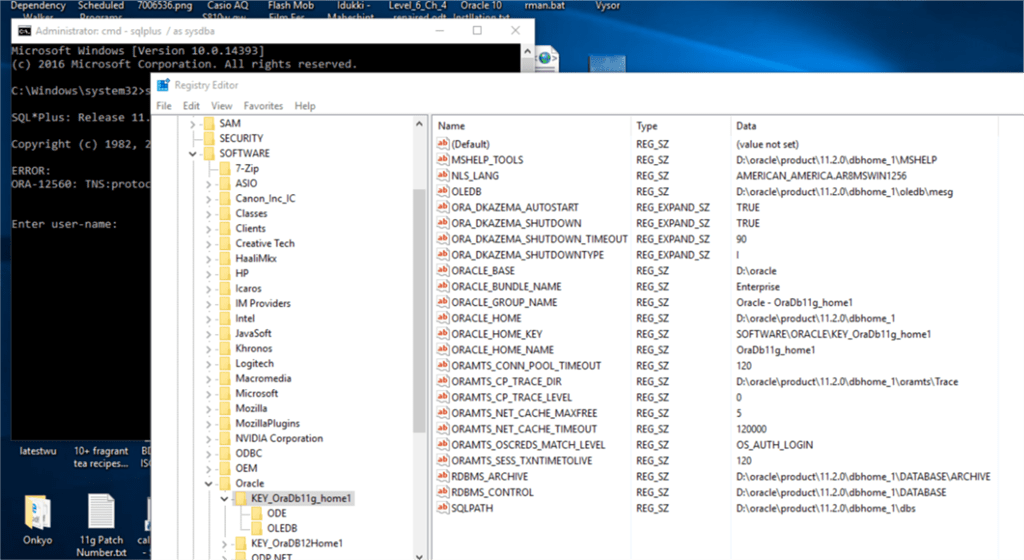
So far so good. I had to restart the computer & after rechecking the database was up and running, tried to access the instance using sqlplus & was presented with
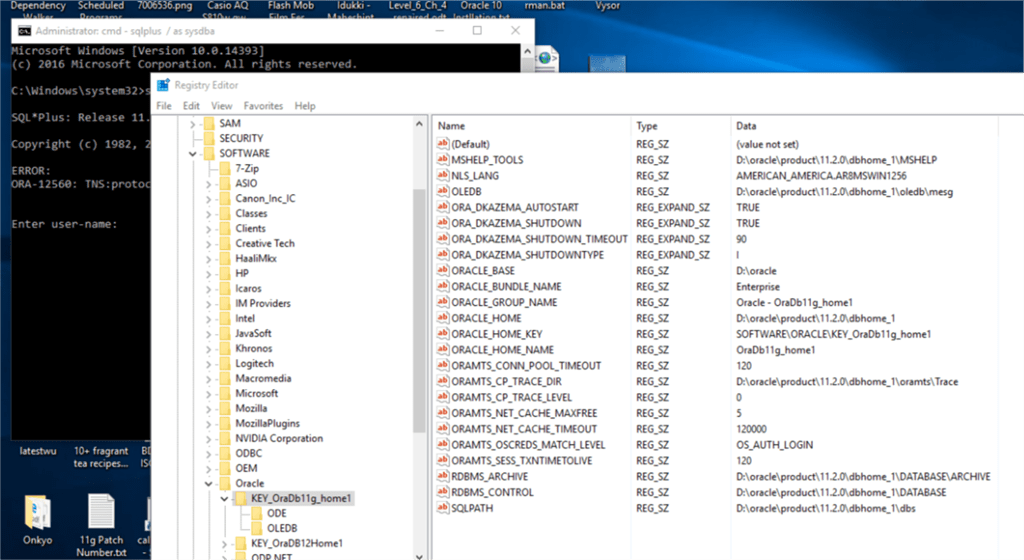
ORA-12560: TNS:protocol adapter error
I setup ORACLE_SID=SID at the CMD window & sqlplus was happy after that.
Usually, Windows doesn’t need environment variables set exclusively for the database as Windows registry takes care of it. This is very efficient when the box has only one database running. If you have more than one database or multiple Oracle homes, the scenario changes.
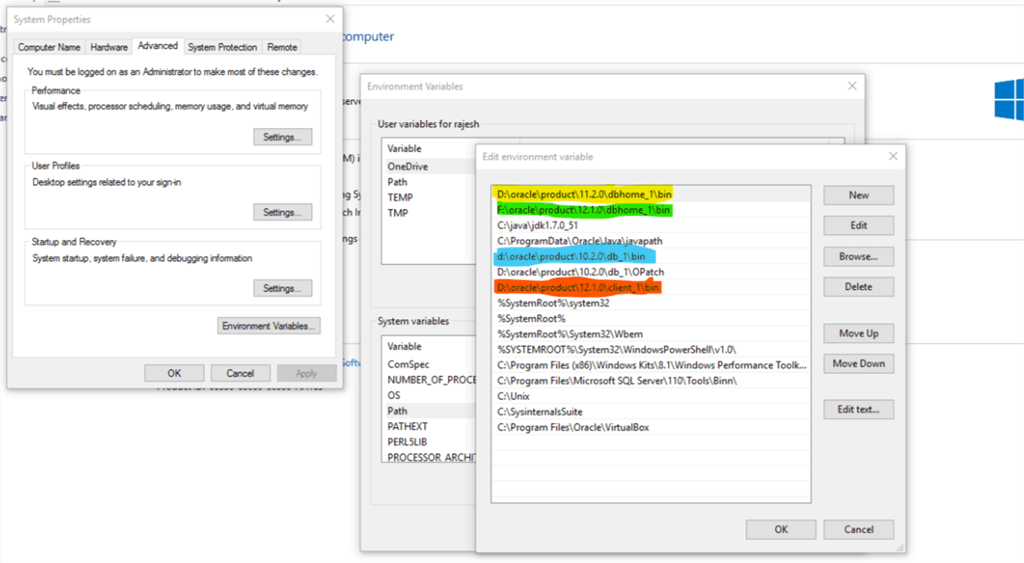
In addition to, Oracle always looks for the executable based on the PATH information it reads. For example my box has 10g,11g,12c database software installed without any databases created during the installation time.
Let us consider the scenario like I didn’t re-order the PATH entries after the latest installation of 12c & try to open SQL or RMAN. The call will find the executable from 12c path entry BIN as default, and a beginner could have enough confusions due to it.
In my case, I needed my 10g instance first, hence I moved the 10g folder as the 1st entry for Oracle products, and once I finished with 10g moved 11g home folder to the 1st position.
Anyway, after confirming the path settings, my immediate attention was towards registry, as Oracle services completely depend upon the registry values for each service registered.
To my utter surprise, found the 11g Service entry didn’t have ORACLE_SID string created during the instance creation using ORADIM.exe
Oracle 11g 11.2.0.4 has a huge bug list and interim patches those should be applied before moving to Production instance. I really don’t know whether the missing ORACLE_SID string entry was due to one of such bugs.
So I stopped the Oracle service, added ORACLE_SID string entry with the value for my database
Restarted the service & sqlplus connected to the instance happily without setting up the environment variable like set ORACLE_SID=SIDNAME
While the easiest solution is to setup both ORACLE_HOME, ORACLE_SID when someone wants to use the sqlplus or RMAN exclusively as a part of the database access, the above method is a definite way to deal with “ORA-12560: TNS:protocol adapter error”
I’ve given upon 10.2.0.4 last year, until I revived one of my Windows 10 VMs recently. As I had a legal copy of the OS, I did a OS upgrade to latest build 1709, did all the patching and was eager to do a 10g to 11g R2 (11.2.0.4) upgrade for learning purposes. Luckily I found the Oracle 10g installed in this particular VM and without checking the version of the database, tried to start the instance, facing the dreaded error “ORA-12546”
As I had much more experience with setting up instances gathered during last few months when I was doing hacked migrations & other activities, I decided to give it another try to resolve the “ORA-12546: TNS: permission denied” error, and I must say I succeeded to start the instance.
So here comes the minor tweaks those fixed the TNS errors
(All these exercises were performed on Windows environment, should be same on UNIX environments as well. I am using GUI tools for the fixes)
My issues with the TNS errors were much simpler to address, as I had IP address instead of hostname, which was not being resolved. Check the images below, if you are on Windows try to adjust the values and restart the Windows listener service
If you have multiple Oracle products installed and environment variables are not set for ORACLE_SID, ORACLE_HOME, TNS_ADMIN etc, switch to command prompt & source the ORACLE_SID. Then try to connect to database
D:\oracle\product\10.2.0\db_1\bin>sqlplus / as sysdba
SQL*Plus: Release 10.2.0.4.0 – Production on Mon Mar 12 11:47:48 2018
Copyright (c) 1982, 2007, Oracle. All Rights Reserved.
Connected to:
Oracle Database 10g Enterprise Edition Release 10.2.0.4.0 – Production
With the Partitioning, OLAP, Data Mining and Real Application Testing options
SQL>
[/code]
Although my case was primarily related to HOSTNAME entry, I rectified more issues after a restart. As usual I started the Windows service for Oracle database, started listener service & as my Windows service for database doesn’t start the instance automatically, switched command prompt and after sourcing ORACLE_SID tried to startup the database, ending up with the same TNS error:
D:\oracle\product\10.2.0\db_1\bin>sqlplus / as sysdba
SQL*Plus: Release 10.2.0.4.0 – Production on Mon Mar 12 12:59:33 2018
Copyright (c) 1982, 2007, Oracle. All Rights Reserved.
ERROR:
ORA-12546: TNS:permission denied
[/code]
Painfully I realized the truth that, there are NO straight forward solution to this error for the version in concern which is 10.2.0.4!
As I managed to start the instance successfully prior a restart, I tried to recollect the sequence of starting and stopping the Windows services. So, I got back to services panel and stopped the Oracle service, followed by restating the listener service. After waiting couple of minutes, started the Oracle service once again & tried to connect to the idle instance using sqlplus / as sysdba & this time I was able to connect to the idle instance without facing the TNS error.
I wanted to confirm that restarting the Windows services address this dreaded situation, hence again restarted the Virtual Machine & did the following
Started the listener service & through network resource monitor insure that the port 1521 is listening
Started Windows service for oracle database
Switched to command prompt & tried to connect to the idle instance
D:\oracle\product\10.2.0\db_1\bin>sqlplus / as sysdba
SQL*Plus: Release 10.2.0.4.0 – Production on Mon Mar 12 13:34:56 2018
Copyright (c) 1982, 2007, Oracle. All Rights Reserved.
ERROR:
ORA-12546: TNS:permission denied
Enter user-name:
ERROR:
ORA-12546: TNS:permission denied
Enter user-name:
ERROR:
ORA-12546: TNS:permission denied
SP2-0157: unable to CONNECT to ORACLE after 3 attempts, exiting SQL*Plus
[/code]
Stopped the Windows Service for Oracle database, waited couple of minutes and again tried to connect to the instance in the same CMD session
[code language=”sql” gutter=”false”]
D:\oracle\product\10.2.0\db_1\bin>sqlplus / as sysdba
SQL*Plus: Release 10.2.0.4.0 – Production on Mon Mar 12 13:35:21 2018
Copyright (c) 1982, 2007, Oracle. All Rights Reserved.
Connected to an idle instance.
SQL>
[/code]
That’s all.
Hope this helps few out there, at the same time throwing a question “Whether it is really worth for a production instance when 10.2.0.5 addresses such complications?”
rajesh
Update: 16th Feb 2017
Sorry folks, I’ve given upon 10.2.0.4 & moved to 10.2.0.5 patch upgrade that resolves the intermittent service startup issues of Oracle on Windows OS (Uncertified OS like Windows 10/2008R2)
I’m sure, if at all needed an upgrade, your DBA will choose a later version of Oracle database, when a client server architecture may not be flexible with Oracle 12c. Please make sure you try the upgrade using a virtual machine, spend some time analyzing logs and if you feel, it is worth taking a risk for the production, do the production patching using 10.2.0.5 patch. You may have to drop and recreate the Enterprise Manager repository (if you are using it at all)
Update: 14th Feb 2017
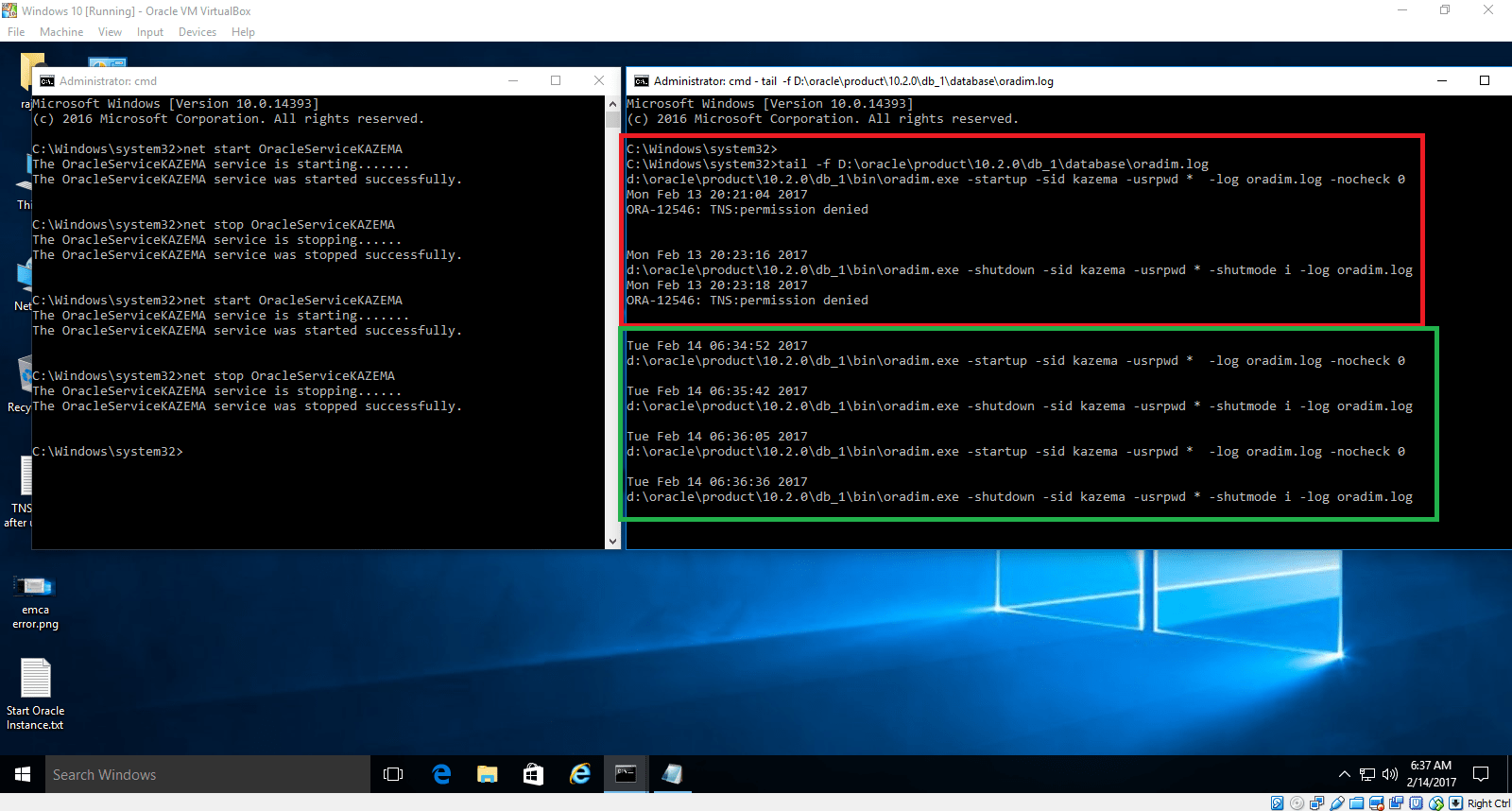
A right day to present something that’s kinda disappointing? :P Well, Even though I managed to get stuffs running, after a reboot over night, realized that the “net start Oracle serviceName” in consequent attempts brings back the dreaded “ORA-12546: TNS: permission denied” error message logged in oradim.log
the only one logic I could reach to this intermittent issues with starting service is, read & execute permissions on Oracle executables are not being triggered always. Finish!
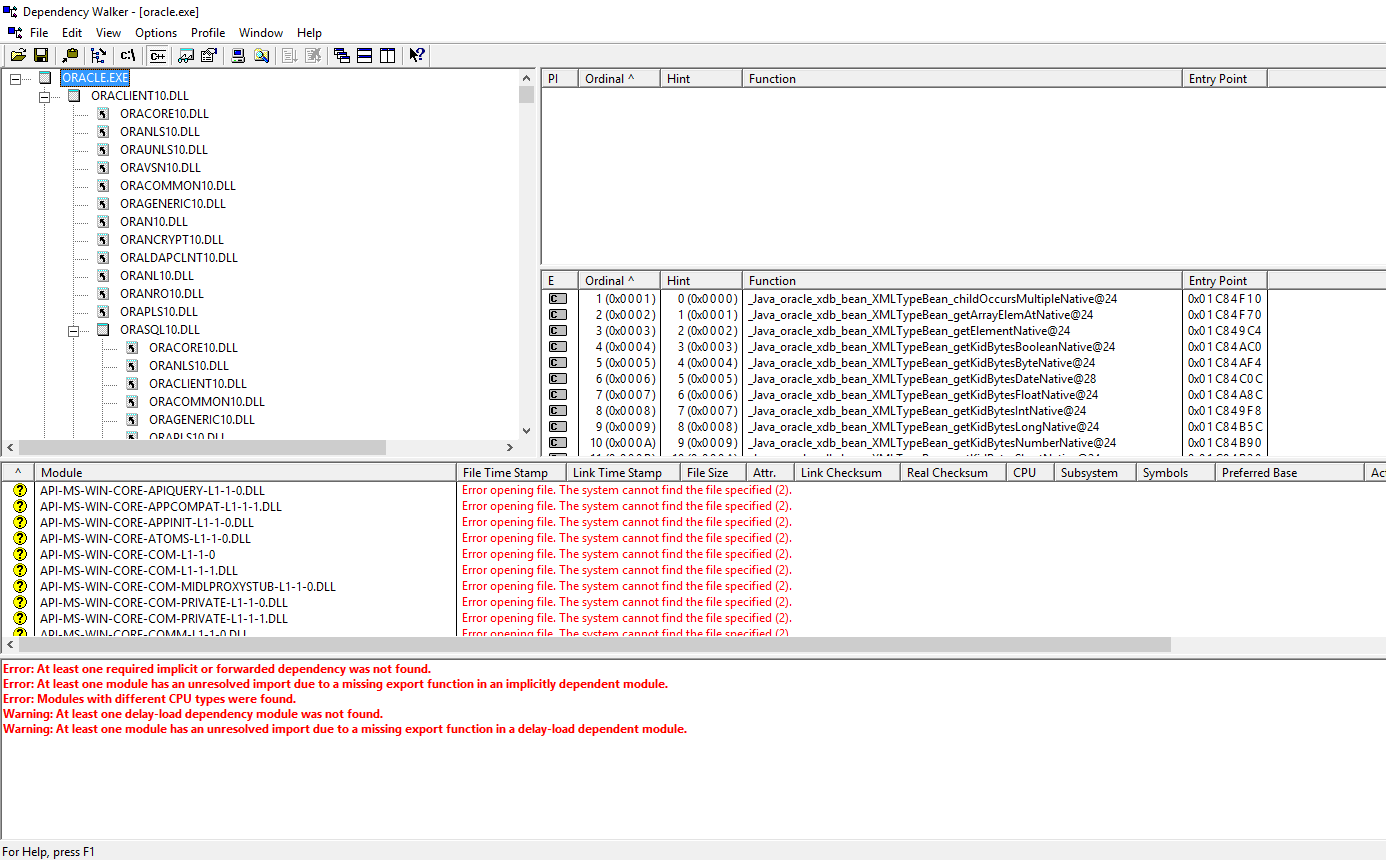
My further digging using “Dependency walker” for both Oracle.exe & TNSLSNR.exe has exposed that both the executable were making reference to Microsoft APIs those are depreciated!
Finally: I’m doing a hack install of 10.2.0.3 on Windows 10. Updating the instance using 10.2.0.4 patch & expecting a smooth sail. I’m totally wrong, I can test it, hope it works (not always) & I shouldn’t ever attempt the same in a Production environment.
Positive thing: Once the bin folder has correct permissions & setting up the Oracle services to start automatically, the service starts without any issues and shuts down gracefully when Windows is shut down.
Hi guys
I’m in the midst of compiling a huge post about RMAN backup & restore for NOT DBAs & at the same time trying to fix “ORA-12546: TNS: permission denied” errors I was getting from my 10.2.0.3 upgraded to 10.2.0.4 (32Bit) on a Windows 10 virtual machine using Oracle VirtulBox (My RMAN backup was restored from 10.2.0.3 Production to this upgraded instance)
My scenario:
Windows Service for Oracle Service is set as manual. After a reboot, I try to start the service manually. Sometimes it starts, some other time I have start/stop/start/stop a number of times until the database gets started. I asked google to give me tip & found a post answered by Tom (AskTom) bombarded with questions about “ORA-12546: TNS: permission denied” after machine restarts & there were no real solutions. Few of them even claimed that they managed to start the Oracle service by turning off the firewall(?)
Basically the 2nd page is purely for Linux, and if you are familiar with file permissions, easy to translate for Windows
I browsed the bin folder & realized that, even though the SERVER\Administrator account has full access to the oracle.exe executable, somehow my user “rajesh” who is the default administrator was not inheriting the execute right on the same.
So
I gave myself full rights on the executable and tried to restart the service & without making any complaints the Oracle database Service started and the database was opened. I was having a look at both alert log and oradim log files to insure that “ORA-12546: TNS: permission denied” not being appearing once again.
Then I gave my user account rajesh full rights on the bin folder (Over reaction) to make sure that I am not going to get hammered with the dreaded, without much explanations available “ORA-12546: TNS: permission denied” error once again.
I think during the upgrade process much of the file permissions were changed as part of the patching process & eventually the permissions were not reset to the actuals. This issue could happen with any Oracle upgrade processes. So if you are that another unlucky one, please give the above hack a try.
While you are working in a very complex environments, it may become mandatory as a domain admin to disable the “Admin Share” from your specific computer (How to disable Admin Share) in order to protect some contents from other “Admins”. Well, it happens :)
While disabling the “Admin Shares” gives you a kind of invisibility, it has major disadvantages also. One of them being, asset collection software failing to read information about your computer in the network. This list could be long like the one provided by this Microsoft article. Though the article was specifically written for Windows XP, most of listed issues are applicable to all later versions of client OS (Haven’t tried with Server OS yet)
&
Oracle 12c installation will fail, and provide you very confusing error messages about unable to read temp location and more. If you come across such an error, do not wait, read our previous article about disabling Admin Share on Windows 7, browse to the registry “HKEY_LOCAL_MACHINE\System\CurrentControlSet\Services\LanmanServer\Parameters” & check the value for key “AutoShareWks” Type: DWORD entry and confirm it is not set as “0”. If yes, change the value to “1”, reboot your box and the installation must go ahead without giving errors associated with reading details about “TEMP” space.
Please note, this is just one of the issues & you may be subjected to other issues while installing the Oracle software, especially on a uncertified platform like Windows 10.
Only applies to 10g database. 11g has different approach and I am trying to make another post for it.
A clone is the exact replica of a production instance, against what you do all tests, custom development and patch deployments to insure that your attempts are NOT going to break the PRODUCTION instance once such are moved over to.
How often consultants & users may request for a fresh clone (with latest data) depends upon many factors. During the implementation time, a DBA could be bombarded with requests for cloning almost once in couple of days. Although I am “not a dba”, I have been doing cloning to learn & understand the technology from last couple of years time & trust me, it is NOT at all fun. Especially once after you are familiar with the tasks.
Throughout last few months I was trying to “fully automate” the entire cloning process and made significant advancements with the process. I will share my experiences with you today
Scenario:
We have a cron job initiated by “root” user, starting by 2:30 PM every Friday, that shuts down the application and database after running pre-cloning. The same script makes tar balls for both the database and application nodes in separate files and then copies the tar balls to our TEST instance server.
Logically once the tar balls are copied to TARGET (TEST) server, following activities are expected from the DBA
Stop the application & database instances those are online in the TEST server
Extract the tar balls copied from PRODUCTION instance to relevant folders
Clone database tier, followed by application tier
Tune the database with TEST server specific SGA/job queue processes etc parameters
What if I am too lazy & a scripting junkey who wants to automate the entire activities using shell scripts? The following demonstrates such an attempt
Why not a cron job? ;)
The first step will be, creating auto response files for both database and application nodes. I have already detailed a how tohere
ebsclone.sh | This shell script calls a number of other shell scripts to facilitate the entire cloning process
Please note, my Oracle database user is “oraprod” and application manager is “applprod”. If you are planning to copy the below script(s), make sure you change the physical paths, user details according to your specific environment.
Both the database and application manager user accounts are enhanced with .bash_profile values. Hence most of my scripts will not populate the environment variables prior executing other scripts.
I am using “expect”, that YOU must install, if not already installed in order to automate the cloning process. If you are using Oracle linux, you can install expect by issuing the following command:
[code language=”bash” gutter=”false”]
#!/bin/bash
# As a precaution to make sure the port pool is available during automated
# Cloning, we will kill all orphaned processes those were not closed during
# DB, APPS stop
# Kill all processes for both oraprod & applprod users
echo "Killing all processes for Oracle user"
pkill -u oraprod
echo "Killing all processes for Application user"
pkill -u applprod
echo "All processes for both Oracle and Application users were killed"
sleep 30
echo "$(date)"
#Remove the existing physical folder for database files
cd /u01
find oraprod -delete
echo "finished deleting Oracle top at $(date)"
#Extract files for database top from the cold backup archive
echo "Extract database backup file at $(date)"
time tar -zxf /u02/backup/PROD_DAILY_BACKUP_db.tar.gz
echo "Finished extracting database backup file at $(date)"
#Remove the existing physical folder for application files
cd /u03
find applprod -delete
echo "finished deleting Application top at $(date)"
#Extract files for application top from the cold backup archive
echo "Extract application backup file at $(date)"
time tar -zxf /u02/backup/PROD_DAILY_BACKUP_apps.tar.gz u06/applprod/PROD/apps
echo "Finished extracting application backup file at $(date)"
#Move the files around based on your configuration files (db.xml & apps.xml)
echo "Done! Application online with changed database parameters, $(date)"
[/code]
Now I will copy the code for each script called within the ebsclone.sh script dbclone.sh | script enabled with expect which will not ask for the apps password
[code language=”bash” gutter=”false”]
#!/usr/bin/expect -f
set force_conservative 0 ;
# set to 1 to force conservative mode even if
# script wasn’t run conservatively originally
if {$force_conservative} {
set send_slow {1 .1}
proc send {ignore arg} {
sleep .1
exp_send -s — $arg
}
}
set timeout -1
spawn su – oraprod -c "perl /u01/oraprod/PROD/db/tech_st/10.2.0/appsutil/clone/bin/adcfgclone.pl dbTier /u01/clonescripts/db.xml"
match_max 100000
expect -exact "\r
Enter the APPS password : "
send — "apps\r"
expect eof
[/code]
appsclone.sh | script enabled with expect which will not ask for the apps password
[code language=”bash” gutter=”false”]
#!/usr/bin/expect -f
set force_conservative 0 ;
# set to 1 to force conservative mode even if
# script wasn’t run conservatively originally
if {$force_conservative} {
set send_slow {1 .1}
proc send {ignore arg} {
sleep .1
exp_send -s — $arg
}
}
set timeout -1
spawn su – applprod -c "perl /u03/applprod/PROD/apps/apps_st/comn/clone/bin/adcfgclone.pl appsTier /u01/clonescripts/apps.xml"
match_max 100000
expect -exact "\r
Enter the APPS password : "
send — "apps\r"
#http://www.cyberciti.biz/faq/unix-linux-test-existence-of-file-in-bash/
#Check whether spfile already exist
file="/u01/oraprod/PROD/db/tech_st/10.2.0/dbs/spfilePRODBAK.ora"
if [ -f "$file" ]
then
echo "$file found. Aborting database configuration now"
exit;
else
echo "$file not found."
fi
sqlplus "/ as sysdba" <<EOF
create spfile from pfile;
shutdown immediate;
startup;
alter system set sga_max_size=8G scope=spfile;
alter system set sga_target=8G scope=spfile;
alter system set job_queue_processes=10 scope=both;
shutdown immediate;
! cp /u01/oraprod/PROD/db/tech_st/10.2.0/dbs/initPRODBAK.ora /u01/oraprod/PROD/db/tech_st/10.2.0/dbs/initPRODBAK.ora.original
! >/u01/oraprod/PROD/db/tech_st/10.2.0/dbs/initPRODBAK.ora
! echo "spfile=/u01/oraprod/PROD/db/tech_st/10.2.0/dbs/spfilePRODBAK.ora" >>/u01/oraprod/PROD/db/tech_st/10.2.0/dbs/initPRODBAK.ora
startup;
exit;
EOF
[/code]
The above five scripts should do what they are meant to. Just copy the files to same folder
Change the execute mode of ebsclone.sh
Well, after dealing with 3 different versions of Forms & Reports 12c with Weblogic 12c, I found that 99.9% of the configurations for deploying Oracle Forms and Reports remain the same across versions. Hence instead of posting new threads towards the configurations, I will try to amend this thread with new instructions if any. Thank you (reader)
A week back I posted the procedures tested at my end (I’m excusing myself with this statement because 12c total setup could be a painful experience and may NOT be successful for many, even after following line by line instructions) here
This time I am going to list few instructions those will help you to deploy your existing forms & reports based applications to newly built 12c environment. The ONE pleasant surprise I came across during the deployment was, if your forms and reports were built and compiled used 11g R2 (not sure about 11g R1), no need to recompile them once again for the 12c deployment.
So last time we finished the topic discussing how to install and configure the 12c database, Weblogic Server, forms & reports and stopped at accessing the Oracle Enterprise Manager for Weblogic server.
If you are familiar with Weblogic Server 10 & Forms and reports 11gR2, creating a classic domain was much simpler compared to 12c. OPMN configurations were automated & once the relevant paths were setup, you are almost ready to start using the infrastructure for applications. However 12c requires more efforts from one to establish the same.
I’ll start with Oracle HTTP Server (OHS instance) that we created during the base_domain configurations. OPMN is not anymore used by Oracle 12c, hence the OHS.
As I always said, I’m not a weblogic guru, just another enthusiast who wants to try out newer products as a part of learning. Most of the stuffs I suggest here are “as how I managed to get it working”. Hence, if you find anything ridiculous or non-standard, please let me know through the comment section.
As you may already aware, forms and reports applications are deployed using own PORTs, for example WLS_FORMS server uses the port 9001 & WLS_REPORTS uses 9002 (default installation). However while you want to deploy an application, the users should be accessing both through a common interface, especially when the reports are called from forms using Web.Show_Document method. An example how the reports are called from a form using the above said method is like following:
“/reports/rwservlet?” assumes the servlet is called from the current root, for example, if you started the forms applications using the default deployment URL, it would look like the below
causing URL not found error because there are NO reports application deployments at http://rajesh-pc:9001/
The one possibility to address this would be by hardcoding the root part of the url, which I never tried. However, exposing the ports of your forms and reports application servers may not be a good idea. Here, OHS instance comes in picture.
All you need to do is to register the forms and reports applications with the OHS and once the OHS instance restarted, you can start calling both forms are reports through the common URL, for example like following
7777 is the default OHS instance port, which you can change to a free port according to your requirements. You may even use port 80 using OHS (I will not discuss about changing OHS port to 80, there are many decent posts already available all over internet)
Let’s start!
Update: 5th June 2016
You may enable the IPV6 after the installation and configuration by removing the registry dword & restarting the box. Using Weblogic console, point “Admin Server”, “WLS_FORMS” & “WLS_REPORTS” servers listen address to the host name of the box you are running them from.
In addition to changing the listening address, edit the host file of your box (X:\Windows\System32\drivers\etc” and add an entry like below
192.168.1.10 mybox.mydomain.xyz mybox
or
192.168.1.10 mybox
Note#1: IPV6 is becoming the standard now, however many of the Oracle products have serious issues handling the IPV6 stack & you may find reference towards inet4 references raised by java while checking the log files. So we will completely disable the IPV6 stack on our Windows 10 machine. Please read Microsoft documentations to understand what kind of troubles you may get subjected by disabling IPV6
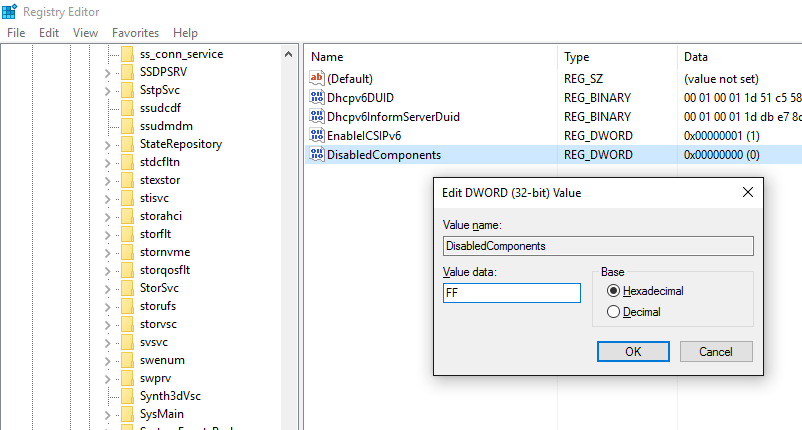
Create a new reg_dword (32Bit) “DisabledComponents”
and just enter “FF” in the hexadecimal value column. Restart the computer
Note#2: If you created a Windows service for node manager using the Weblogic provided install service script, stop all WLS servers and stop the node manager service and delete the service from an elevate command prompt. I came across multiple issues related to java while using the Windows service created using the scripts.
We will use NSSM once again to create the node manager service, using the start node manager script you will find under $DOMAIN_HOME\bin folder
I’ve observed that most of null java exceptions were eliminated by creating the node manager service this way.
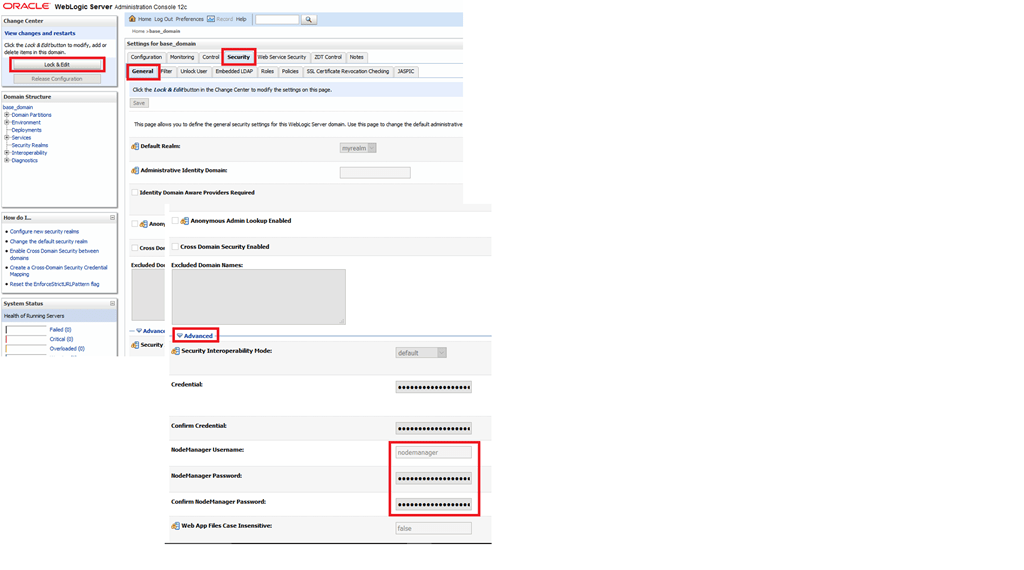
Note#3: Now we will setup a proper username and password for nodemanager because if you want to start the OHS instance manually later, you need to supply password (for the 1st time)
Lock & Edit the domain security values, please refer the image below for details
Provide a meaningful name for the node manager account and supply a password. I used the same password for the total 12c deployment, unless you are setting up a PRODUCTION instance, you may use the common password across the 12c instances for easy administration of objects when required. Shutdown the services (better)
Note#4: Once the node manager properties are changed, start the WLS admin server. Once a WLS classic domain is created, you MUST have a live database connectivity in order to start the WLS admin server. Hence make sure that before you will start the weblogic server, you can connect to the database that holds the repository information for the user domains. Start WLS_FORMS and WLS_REPORTS servers using the weblogic console to insure that the admin server can contact the node manager. The first instance of weblogic server start may take upto 8-10 minutes, so wait patiently
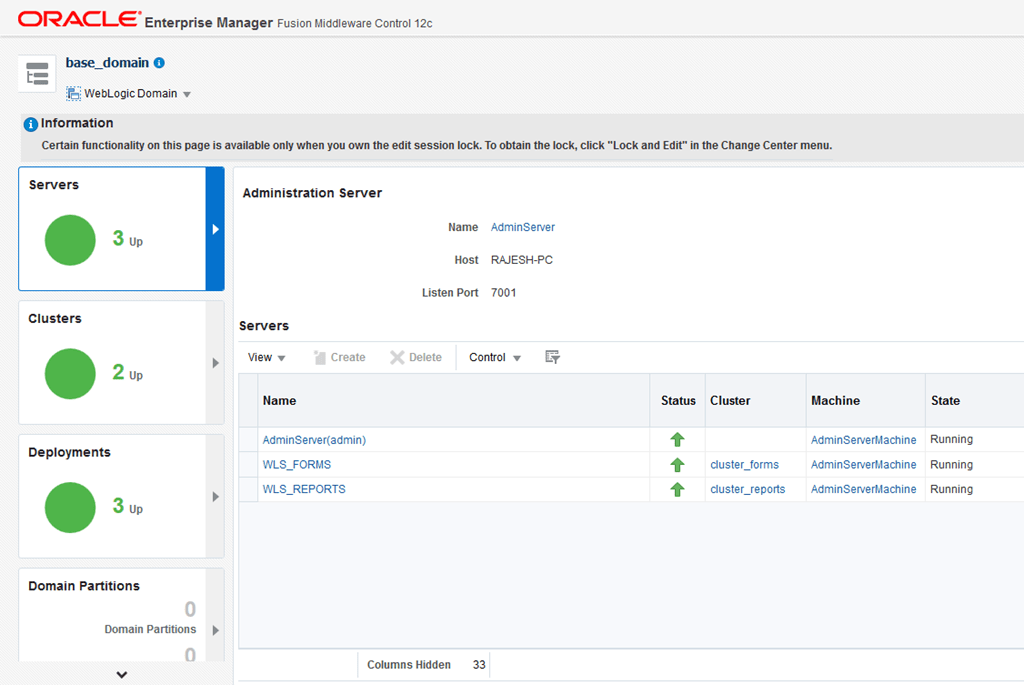
Note#5: Logon to Oracle Enterprise Manager console. If the servers are started properly, you will see “everything” green, else…
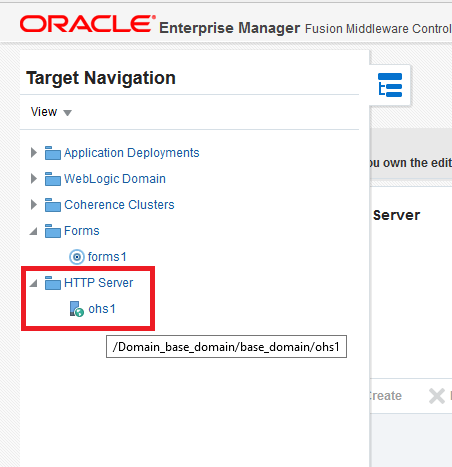
Note#6: Let us try to start the OHS instance for the 1st time, you can navigate to the OHS instance using the target navigation button, check the below image for more details
As I have already started my OHS instance I will see all details for the instance, please check the image below
If your OHS instance is not started yet, use the “Start up” button to start the instance. I had few failures, pointing towards JAVA while tried, most of them were related to the node manager, as described earlier by the beginning of this article.
Note#7: If you managed to start the OHS instance successfully, you have completed the 1st level of configurations for the application deployment. You can modify the listen address, port information etc using the OEM itself. Please check the below image for details. I will NOT try to get into the details of how to this time, though it is highly appealing, due to the fact that I need to stick to the topic (minimum once in a while)
Stop the OHS instance now. We need to tell the OHS instance, what exactly it is going to serve by modifying the configuration files. A bit of manual efforts are required as there are NO GUI provided by Oracle for such setups.
Move to your Oracle Home folder. I have installed Weblogic server in D:\Weblogic\Middleware folder, hence my Oracle home folder is
D:\Weblogic\Middleware\Oracle_Home\
(Adjust your paths accordingly)
Edit forms.conf file in the folder D:\Weblogic\Middleware\Oracle_Home\forms\templates\config\
By default this template file comes with commented examples, like following
You need to uncomment one of the blocks starting from <Location /forms> until </Location> & add properties specific to your deployment, for example, my computer’s name is “RAJESH-PC” and I am using default ports for both forms and reports applications, hence I have the properties set like following
Now we will edit the configuration file for reports
Switch to “D:\Weblogic\Middleware\Oracle_Home\reports\conf” folder & edit “reports_ohs.conf” and add a block like following (alter according to your setup)
Now the OHS instance know about the deployments and once after restarted, you can try to start the forms based application through the OHS instance, rather than calling it against the default port (9001)
Once the OHS instance is updated with the new information, try to start the OHS instance from a command prompt using storeUserConfig parameter
1st run, you will be prompted for node manager password, supply the password you have setup earlier and OHS instance should start without creating a fuzz in usual scenarios
In future if you want to start the OHS instance, unless made changes to the configurations, just run
Above concludes the 1st of level of configurations for Oracle forms based application. You can use Weblogic 12c Enterprise Manager to configure most of the forms environment related parameters like forms path and other, while I am yet to find out relevant configuration areas for reports. I’ve opened a thread with Oracle community inquiring the same and yet to receive any leads.
You can manually modify the formsweb.cfg & default.env files to start with as well
While forms based application hasn’t changed much (other than the OHS part), making the reports working for you could be really a painful experience.
Regardless whether you are going to use the in-process report server or a stand alone instance of the reports, many changes should be made to the configuration files, so that you can call the reports server from a Forms module
Generally we will be modifying n configuration files, I will try my level best to provide the exact locations for the files which you should change according to your installation preferences
rwservlet.properties – Servlet specific properties
rwserver.conf – Server properties
cgicmd.dat – key mapping file
1. As far you are using in-process reports server, nothing much to alter with “rwservlet.properties” file. Basically you should see entries like following in the opened file:
2. rwserver.conf (Please check the below image)
3. cgicmd.dat: Many values we supply to call a report using Web.Show_Document method could potentially expose vital information like the database details & many other. “cgicmd.dat” file helps us to map such values to keys and later use them wherever applicable. With this example, I will demonstrate, how the database username, password and service name are mapped using a key. Please check the image attached below
Once these configurations files are altered, please restart the WLS_REPORTS server using Weblogic admin console. You may optionally restart the WLS_FORMS server as well
Basically these many configuration should let you go online with your application. One of the pleasant stuffs about 12c forms and reports is, you don’t have to recompile the existing forms modules, just copy them to a new folder, update your formsweb.cfg and default.env files, restart the WLS_FORMS server and you are all set to go.
I’ve successfully configured a stand alone report server instance as well. I think I should separate it from this thread and post it as a fresh one to avoid confusions.
I been working from last few weeks to get these whole stuffs in a single place and cannot remember whether I’ve missed anything vital. If you get stuck anywhere, please let me know through the comment section and I will be more than glad to look into such.
This is my first post for the year 2016. Actually I have more drafts than posts this time with me and I truly hope that I will able to finish all of them in few weeks time. I’m sure you are interested about Oracle 12c products on Windows platform. Stay tuned, am on it
Coming back to the topic, I have a decent desktop computer that could be called a “half server” with the following configurations
i7 processor 2nd generation
16GB DDR3 memory
Around 4.5-5 terabyte of storage
windows 10 64Bit Professional
I came across VMWare always 8 years back, liked it, and used it until they started charging for everything. Then Oracle VirtualBox (Earlier JAVA VirtualBox) started giving tough fight and it has become quite famous among developer communities where NOT many were truly able to afford VMWare’s paid software.
VMWare is altogether a different standard made for sophisticated environments, hence we will never compare both the products here. Our intention is to point you towards the advantages of using Virtual Machines that could less clutter your rig, give you better exposure to different technologies and a bit of networking etc
So our product of interest for this post is Oracle VirtualBox and we will see how we can utilize our existing desktops/laptops to run multiple virtual machines at the same time and thus utilize the available hardware to the maximum extends
So prior attempting to virtualize your existing computer, you need to know what kind of hardware you have and whether your computer meets minimum requirements to support virtualization.
So today is 3rd January 2016 & if your computer is 4 years old or less, 99.9% chances that your rig sure supports virtualization. Most of BIOS comes with the virtualization enabled by default.
Yet we should make sure that our computers support virtualization. Read the instructions provided here to find out whether your current processor supports virtualization OR
Just install Oracle VirtualBox and try to create a VM. You will immediately come to realize whether your rig really supports virtualization ;)
Well, that’s the brute force way of doing stuffs, adapt the one that defines you. If you are using Windows 10, I’ve noticed that many default installations enable Hyper-V by default. You need to disable it from add remove windows features console, so that you can create 64Bit VMs using Oracle VirtualBox. This post explains how to enable it, just do the opposite to disable it
Before anything else, you need to identify your processor, it’s capabilities. A nice comparison is available here for i3, i5 & i7 processors and definitely, the author favors i7 processors. Please spend few minutes to read about the differences between these three different processors.
What the difference between Core i3, i5, i7: Hyper-Threading
A thread in computing terms is a sequence of programmed instructions that the CPU has to process. If a CPU has one core, it can process only one thread at once, so can only do one thing at once (as before, it’s actually more complex than this, but the aim here is to keep it simple and understandable).
Hence, a dual-core CPU can process two threads at once, a quad-core four threads at once. That’s twice or four times the work in the same amount of time.
Hyper-Threading is a clever way to let a single core handle multiple threads.
A Core i3 with Hyper-Threading can process two threads per core which means a total of four threads can run simultaneously. The current Core i5 range doesn’t have Hyper-Threading so can also only process four cores. i7 processors do have it, so can process eight threads at once. Combine that with 8MB of cache and Turbo Boost Technology, and you can see why it’s good to choose a Core i7 over an i5 or i3.
Now, you should know how much physical memory you have. More, the merrier. Starting with Windows 7, computers started shipping with a minimum of 4GB as a standard. So, 4GB is enough for your OS and proposed virtualization? It’s going to be a tight fit. I will suggest an additional 4GB minimum, making the total physical memory 8GB so that you won’t have to sacrifice performance.
Finally the storage. Most of the branded PCs and laptops are coming with 500GB HDD as standard & extending the storage of a laptop is complex than of a desktop computer. For the later, all you need is another HDD which you can plug to one of the available SATA ports and configure. With a laptop, you may need to replace the HDD with a higher capacity one or use an external HDD for your additional storage requirements.
My current Virtualizations are mostly for Oracle technologies. I am a forms and reports developer, doing a certain level of .NET development & manage Oracle EBS R12 instances (“NOT a DBA”). Further I try almost all the database, weblogic versions & currently learning ASMM & RMAN. I have never attempted other areas of Oracle technologies, so my VMs run
Oracle EBS R12 cloned instances
Oracle database(s)
Oracle weblogic server(s) with forms and reports (supported)
My EBS R12 VM has the following configuations
8GB memory out of 16GB physical, 4 processor out of 8 logical processors & almost 850GB of storage out of 4.5 terabyte total storage. Our instance has 400GB database size, 175GB application instance & the VM responds to requests instantaneously once after scheduled jobs are completed after a restart of the application. Usually I find the application responding better after 3 hours of settling down & the performance is assured throughout days and weeks until a restart.
My Weblogic, database VMs have the following configurations
4GB memory out of 16GB physical, 4 processor out of 8 logical processors & almost 250 GB of storage out of 4.5 terabyte total storage. I have my weblogic VM running 11gR2 64bit database as well. I get instant responses from both the Weblogic server and Oracle database 11gR2 from a client system, whenever accessed
Recommendations
Even though you can run multiple VMs at the same time, I would suggest, based on your hardware, limit them. Example
When I run my EBS R12 VM (8GB memory, 4 processors) my HOST computer is left with only 8GB free memory and 4 logical processors. If I start a Windows XP VM (2GB memory, 2 processors) to check the application performance, I feel my rig start slowing down and couple of times my computer shutdown with a high thermal point.
So make sure that you do tweaking to your VMs in order to make sure that your HOST doesn’t breakdown due to overload.
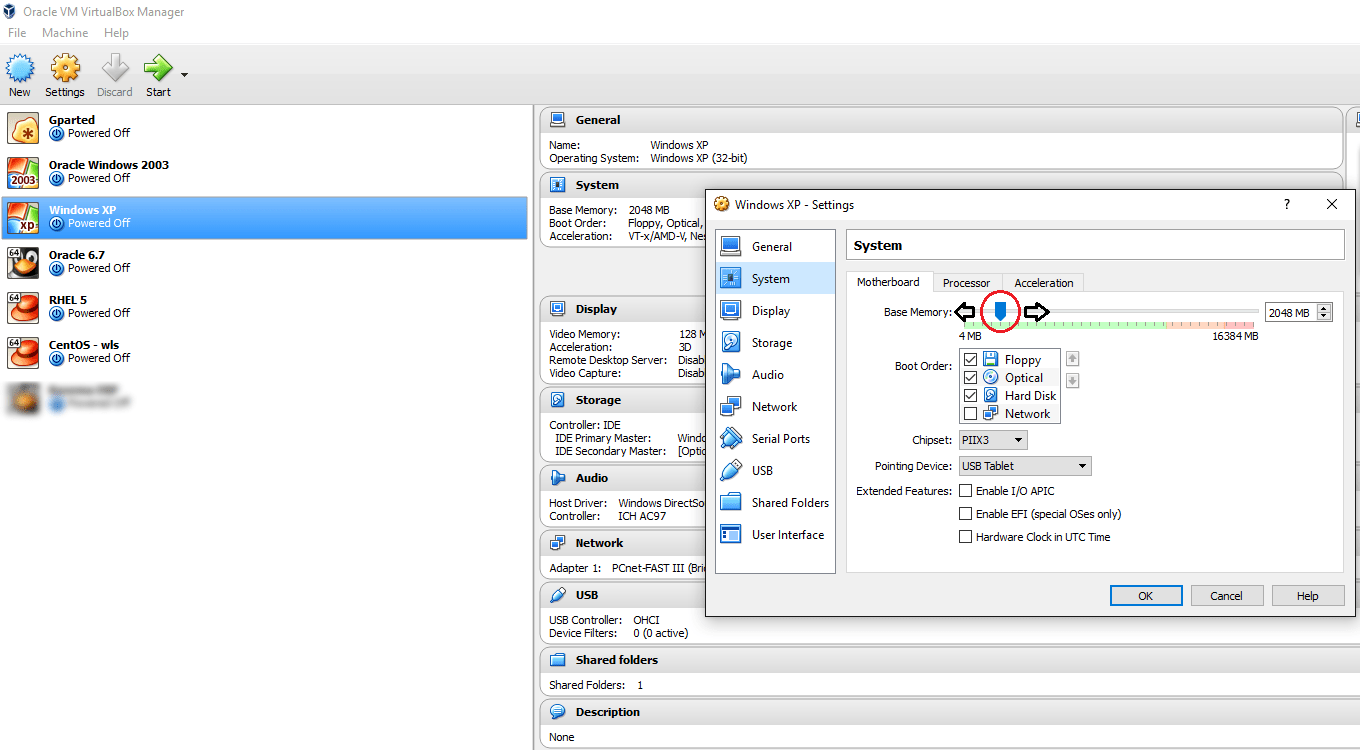
I always make sure that my HOST always has half of the hardware resources reserved for it, ie, 8GB memory, 4 processors regardless how many VMs I run at the same time! This is by using the VirtualBox console to alter the parameters of VMs before they are started
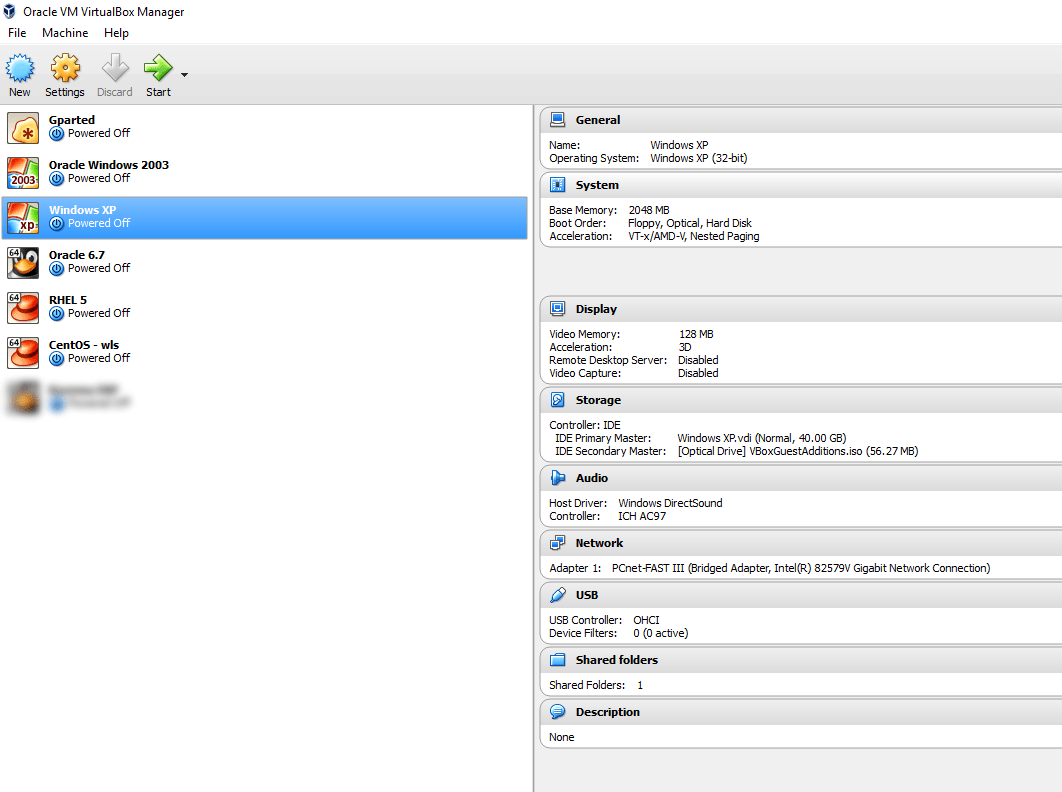
All the settings for the VMs could be altered using the settings, like increasing or decreasing the memory, processors, adding and removing storage devices etc.
Below you watch how fast my VM running EBS r12 responds to requests from another VM running Windows XP
Advantages of using Virtualization
The most important advantage for me is: I’ve a less cluttered HOST, said, I am NOT installing all the technologies to one OS, breaking it with conflicting versions of services and libraries and processing load.
Other advantages
I can backup (copy) my entire “machine” and restore it during a total mess up or loss of data, rather than rebuilding the entire computer
I get a sand-boxed environment & without fearing my attempts will break my main OS, continue the experiments
I can make a VM, for example, running Oracle Enterprise Linux, copy and keep the OS installed disk somewhere and copy it to new VMs whenever required! Say, you install the OS only once and whenever you need to create a new VM with same OS, just duplicate the disk that has the OS! (Make sure you make a backup of the OS disk prior installing and configuring additional software into it)
Finally my suggestions for you, in case if you are considering to build your 1st VM using Oracle VirtualBox
Majority of the Oracle geeks prefer Linux against Windows for database, weblogic deployments. So if you are NOT familiar with Linux, I suggest you start learning, regardless whether you FEEL very comfortable with it or NOT. You may be joining a firm that has reservations towards Windows OS running Oracle products, especially Oracle DBAs who have valid points like block corruptions, difficulties to recover from a crash are complex in the case of Windows OS.
Install OS in a separate disk. 40GB dynamic size should be more than enough for any recent Linux distros. Avoid Linux 7 if you are truly new to Linux. Oracle Linux 6.7 should be your friend.
Install 64Bit OS, so that you can take the advantage of your 64Bit processor and physical memory
Install Oracle supported Linux distros (RHEL, OEL & certain versions of Debian. CentOS is not at all supported)
Install the complete desktop, you are hardly going to complete the installations on pure CLI mode.
Add SCSI interface to your VM and for Oracle database etc, use SCSI disks. I had a huge argument with VirtualBox guys about the performance difference between SATA VDI disks and SCSI VDI disks. I found the SCSI VDI disks performing better, however I was dismissed saying as far both the types are created on the same HDD, it must be more psychological :O
Use 1TB 7200 RPM disks in the place of 2TB 5400 RPM disks. Later ones are best for data storage, when the previous ones give you better I/O. Create fixed size VDI for databases & applications, that means you will NOT able to increase the size of the disk once after created, however, it gives you faster I/O and better performance.
Update your OS. As soon as the VM is built, update your OS prior installing database, weblogic etc. RHEL will NOT allow you to update the packages without subscription, hence Oracle Enterprise Linux should be your best choice of Linux distro. Please note, you shouldn’t use Oracle Linux in a production environment without acquiring sufficient licenses. Whatever I suggest here are limited for study/evaluation purposes and I don’t encourage any kind of illegal usage of software!
Use Oracle’s pre-install packages to install database, EBS etc prerequisites rather than trying to download individual components from different download sites.
Use shared folders between HOST and Guest (VM) so that you don’t have to sacrifice storage. Not just that, when you want to keep the backup of some files from the VM, the shared folders will make it as easy as possible
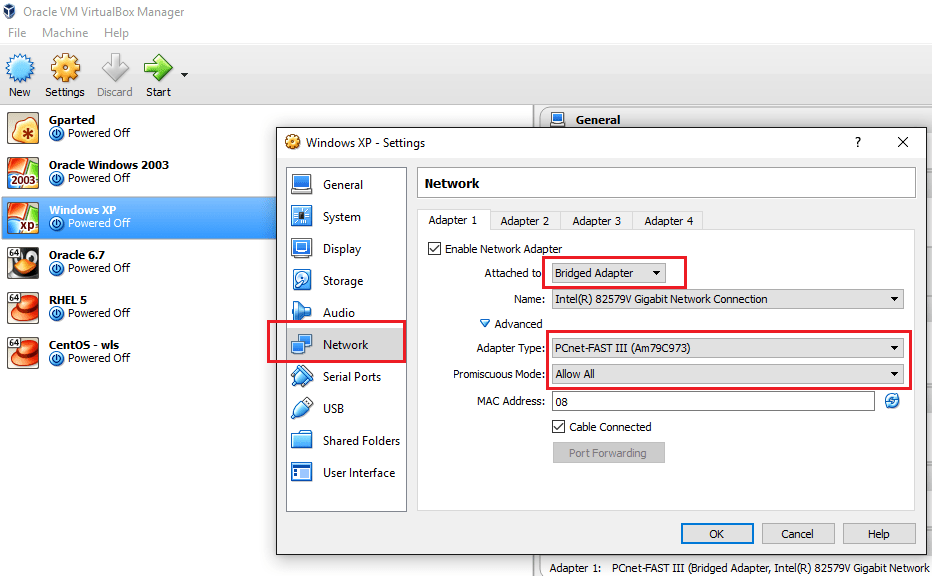
Use bridged network, with Promiscuous Mode “Allow All” so that you can communicate with the VM from network
Disable IPV6, firewall, SELinux on your Linux VM
If you creating a Windows VM, I’m sure you better know how to configure your guest so that you can access it from a network.
Finally recommendations for a DESKTOP computer to try virtualization
i7 processor + good quality heat sink. Your HOST and VMs are going to create loads of heat!
16GB Memory (DDR4 is the new standard, do not ignore it)
1×2 TB HDD
Few years back, such a configuration looked impossible for me, well, I saved bit by bit and made my dream computer. I’m sure you can also do it :) & trust me, a good computer opens a new world for you.
All the best and wish you all a very successful year ahead!