
Did you start experiencing a popup at random intervals asking you to sign-in while using Microsoft Office products? Ironically, you are not a 365 Office customer!
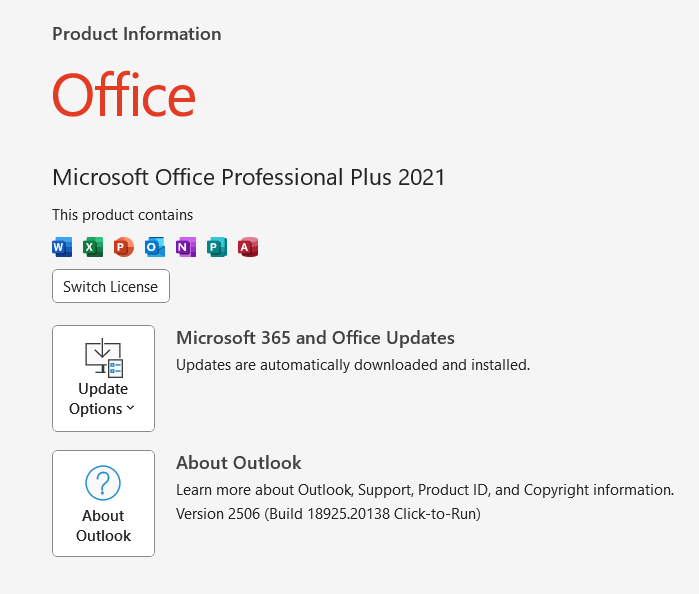
As a business, we buy OEM Office products with purchase of every new PC and maintain multiple versions. We’ve the Office updates enabled for all users, and recently (and luckily) I started experiencing the random sign-in popup while using Microsoft Outlook (office suite). To my utter dismay, I realized that none of the accounts, be corporate or Microsoft live/outlook were accepted for this purpose.
The error is always “This username may be incorrect. Make sure you typed it correctly. Otherwise, contact your admin” and definitely trying to sign on to a 365 account!

There are dozens of inquiries with Microsoft Answers about this behavior and sets of instructions, most of which were suggesting to disable Autodiscover by altering the registry.
I was able to fix my issues by altering the registry (don’t know whether really required) and dropping the existing Outlook profile. Let me walk you through the procedures, hope it might help you also!
Modify the registry. Please note, if you are not familiar with registry modifications, kindly seek assistance from someone who knows what he/she is doing.
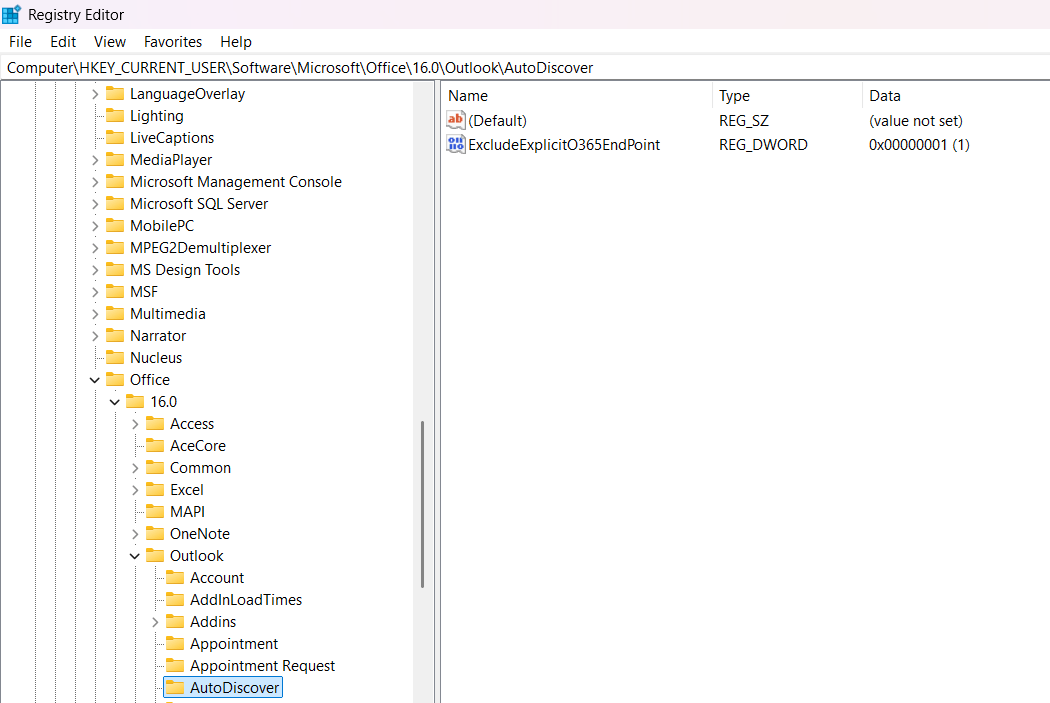
Open Registry Editor and browse to “Computer\HKEY_CURRENT_USER\Software\Microsoft\Office\16.0\Outlook\AutoDiscover”. Add a DWORD 32-bit key “ExcludeExplicitO365EndPoint” with value “1”. Please note based on the version of your office product, the version number might change. Adjust the path accordingly.
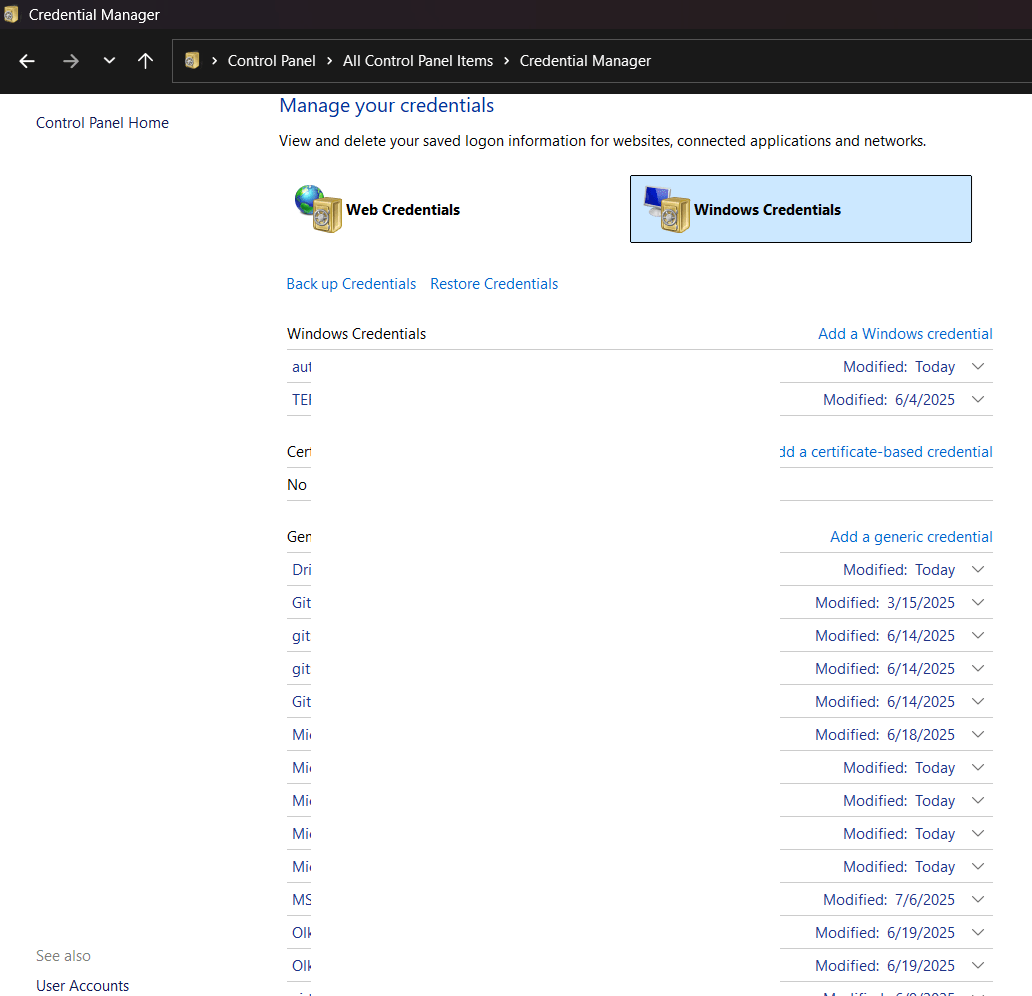
Using Control Panel, access Credential Manager->Windows Credentials & remove all entries you could find for the Microsoft account that you have used for registering your OEM copy of the Office software. Once again, whether this has any significance, I am not sure. I did this as a part of one of the suggestions from Microsoft Answers.
Remove your existing Outlook profile. Please make sure that you will take backup for your PST files if your email settings are configured for downloading all messages to local personal folders.
Restart your computer.
Create a new profile using Control Panel->Mail without adding an email address. Start outlook and follow the wizard. Do not forget to check the box “Let me set up my account manually”. Below 2 images were copied from https://www.gmass.co/blog/outlook-smtp/ as I forgot to save the images while I was setting up my account.

Please note, the whole exercises mentioned here are for a Local exchange server set up. Select “Exchange” if you are using Exchange Server 2016 or later. Exchange Server 2019 should be the final edition of mail server Microsoft is planning to support on-premise.

Follow the Wizard and you should be connected without troubles, especially if you are connected to the corporate network directly or through VPN. Over the internet, you may have to try multiple times as the “Autodiscovery” could interfere with the attempts.
Once the account is added, please confirm few details. For the Office version 2021 the top right corner which used to show your Microsoft account details should start showing your corporate account details

File->Office Account area also start showing your Corporate account details instead of Microsoft account(s)