
You connect a removable disk to your Windows box, immediately the drive is assigned a letter. If you have multiple partitions on the disk, each partition will get a drive letter, and it’s how Windows work. This could cause some kind of annoyance when these disks are constantly disconnected for others and reconnected. One tricky solution to this is, assigning a drive letter like W,X,Y as Windows assigns the first free drive letter to the newly connected disk which is in the alphabetical order. Lack of functionality to reserve a drive letter for a particular device could add more troubles when batch files or PowerShell scripts totally depend upon drive letters for a successful execution, example a backup.
Today we will see how to use volume ids instead of drive letters for Windows robocopy, one of the best free backup tools that you could ever find.
Open command prompt as administrator and execute the command “mountvol”. Immediately after few help text, the output will show the ids for all the volumes currently present.
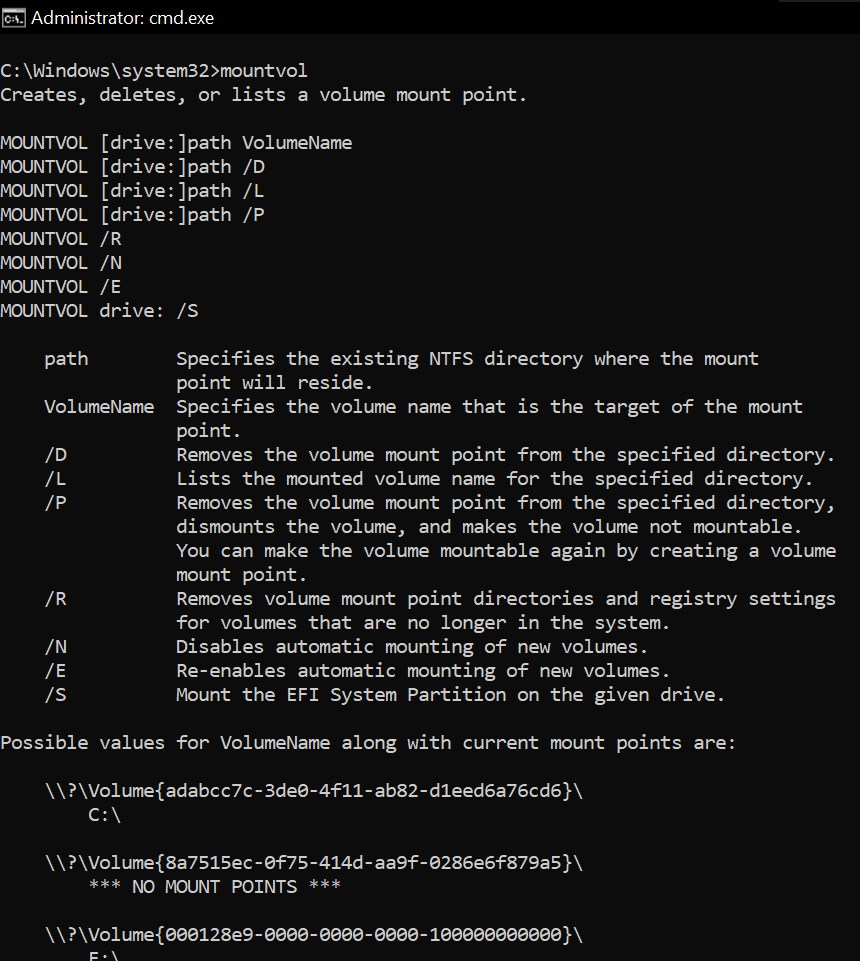
Copy the Volume Id for the drive letter which is your target/source. Modify the backup.ps1 as given below example!
#Author: Rajesh Thampi
#Date: Few years back
#Last modified on: 14th June 2025
#Partner-in-crime: Microsoft Copilot

<#
Hint
Use "mountvol" command at prompt to get the currently connected disks and their volume ids, drive letters
Get the volume id for the drive letter, replace below.
Volume Id will change when you format the disc next time.
The escape character is ` not ' after the variable $DriveLetter
#>

$VolumeID = "Volume{d2540346-9901-49e9-9f57-413d95f52744}"  # Replace with actual Volume ID
$DriveLetter = Get-Partition | Where-Object { $_.AccessPaths -match $VolumeID } | Select-Object -ExpandProperty DriveLetter

if ($DriveLetter) {
    Write-Output "Drive Letter: $DriveLetter`:\KeepACopy"
} else {
    Write-Output "No matching drive letter found for Volume ID: $VolumeID"
}


$DestinationPath="E:\ERP-Inhouse Developments"
$SourcePath="$DriveLetter`:\ERP-Inhouse Developments"
$logfile = "C:\Scripts\logs\Inhouse_Developments_$(Get-Date -Format 'yyyy-MM-dd_HH-mm-ss').log"

robocopy $SourcePath $DestinationPath /MIR /ZB /R:5 /W:10 /LOG:$logfile


$DestinationPath="E:\MyProjects"
$SourcePath="$DriveLetter`:\MyProjects"
$logfile = "C:\Scripts\logs\MyProjects_$(Get-Date -Format 'yyyy-MM-dd_HH-mm-ss').log"

robocopy $SourcePath $DestinationPath /MIR /ZB /R:5 /W:10 /LOG:$logfile


$DestinationPath="E:\KeepACopy"
$SourcePath="$DriveLetter`:\KeepACopy"
$logfile = "C:\Scripts\logs\KeepACopy_$(Get-Date -Format 'yyyy-MM-dd_HH-mm-ss').log"

robocopy $SourcePath $DestinationPath /MIR /ZB /R:5 /W:10 /LOG:$logfile

#Finally cleanup the log directory, deleting all files that are more than 5 days old.
#This is useful incase if you are regularly using the script with a scheduled job.
Get-ChildItem 'C:\Scripts\logs' -Filter '*.log' | Where-Object { $_.LastWriteTime -lt (Get-Date).AddDays(-5) } | Remove-Item
Adjust your scripts based on your requirements. Now, you don’t have to worry about the drive letter changes anymore. Just plug your removable disk, execute the PowerShell script as administrator and you are all good.
Just make sure that you have set the PowerShell Execution Policy properly before trying to run scripts.
That’s all folks.