
Updated on 3rd February 2025 (Added additional information about running apex_ebs_setup.sql)
Updated on 29th January 2025
If you are using Oracle EBS R12 12.2.14 already, you may refer this document. It has much straight forward approaches documented.
Today we will see how to integrate Oracle APEX with an existing Oracle EBS R12 12.2.10 instance that is on top of Oracle database 19c. Recently I’ve posted a thread about how to install Apex on Linux and specified that it was done against EBS database. You can use the same thread for installing APEX, ORDS and Apache Tomcat for hosting.
Oracle provides a document that was last reviewed in 2019 with cryptic instructions to setup a custom schema for the APEX integration & gravely misses environments like ours where multitenant database is used! As usual I am not making any claims that this is the “certificated*” way of setting up APEX for EBS. This is just another attempt to connect the dots and do stuffs the right way after multiple attempts.
Oracle documentation instructs to create a new schema XX_APEX as part of setting up new workplace. This process creates a separate tablespace for the schema and this instruction contradicts with the instruction to setup the same as a custom application. EBS R12 12.2 “AD Splice” doesn’t respect custom tablespace definitions and defaults the tablespaces to APPS_TS_TX_DATA and APPS_TS_TX_IDX for custom schemas. So how do we circumvent this issue? Simple answer. Create a custom application using “AD Splice” bearing the name XX_APEX to meet the documentation preferences & use it with APEX workplace later. One of the best detailed instructions for creating a custom application using “AD Splice” could be found here
For additional references you may refer the below also.
- Creating a Custom Application top for EBS 12.2 Using AD Splice !!!!
- Step by step Creating a Custom Application top for EBS 12.2 Using AD Splice – Doyensys Blog
I followed RishOraDev’s instructions and the custom application “XX_APEX” was created without any issues.
Once the custom application creation is over, we can proceed with creating a new workspace for APEX applications.
Logon to your APEX portal as Admin and proceed with create workspace.
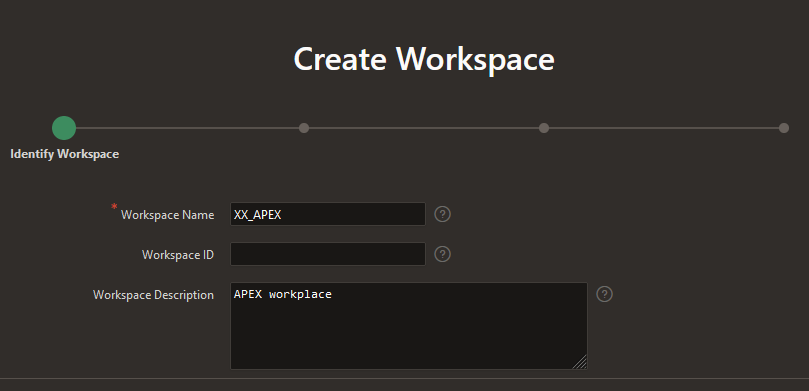
Next step, choose Yes for “Re-use existing schema” and pick XX_APEX that you have created earlier.

Provide a meaningful username for Administrator. I am using Admin & this shouldn’t be confused with the APEX admin account. Select an existing Schema will grant additional rights to the schema that are essential for APEX.

You will have to change the password during the initial login. So use a temporary password and reserve your highly secret password for your permanent password :)

That’s it. A new workspace for APEX has been created!

You can execute apex_ebs_setup.sql and other supplementary scripts now to setup the example scenarios described in the white paper. If you try to execute apex_ebs_setup.sql prior setting up the schema for the workspace, the last statement will fail as the custom schema will not have CREATE VIEW rights. Grant the right to schema for such cases.
Now you can proceed with login as XX_APEX workspace admin and continue with defining developers accounts so that your team could start building applications. Please refer the whitepaper for understanding what you should and shouldn’t do with APEX while it is integrated with EBS.
There are few scripts offered by Oracle for APEX environment and one might feel tempted to try them, I cannot blame that urge. However, please note the whitepaper was never meant for a multitenant database and the instructions were clearly for 11G. If your EBS is already migrated to a multitenant setup, please make sure that you will be running the scripts as APPS user. Switch to APPLMGR, source the environment. Sample as below
[applmgr@erp-test ebs_apex_scripts]$ sqlplus apps/apps @apex_ebs_setup.sql

SQL*Plus: Release 10.1.0.5.0 - Production on Mon Feb 3 18:22:19 2025

Copyright (c) 1982, 2005, Oracle.  All rights reserved.


Connected to:
Oracle Database 19c Enterprise Edition Release 19.0.0.0.0 - Production

.  ____   ____           ____        ____
. /    \ |    \   /\    /     |     /
.|      ||    /  /  \  |      |    |
.|      ||---    ----  |      |    |--
.|      ||   \  /    \ |      |    |
. \____/ |    \/      \ \____ |____ \____
.
.
. Application Express E*Business Suite Integration Example Setup.
.................................................................
.

FOO3
--------------------------------------
apex_ebs_setup_2025-02-03_18-22-19.log

.
.  << Enter Criteria >>
.
.   Version of EBS [12.2]:
.   EBS APPS Username [APPS]:
.   Password for EBS APPS Username:
.   APEX Schema Name [XX_APEX]:
.   Password for APEX Schema:
.
.
... Ebnable editions in APEX Schema
.

PL/SQL procedure successfully completed.

.
... Conect to the APPS Schema
.
Connected.
.
... Create views for use in APEX Applications
.

View created.


Grant succeeded.


Grant succeeded.

.
... Create Sample APIs to be called from APEX applications
.

Package created.


Package body created.

No errors.

Grant succeeded.

.
... Create APEX Global package for use with EBS Responsibilities
.

Package created.


Package body created.

No errors.

Grant succeeded.

.
... Conect to the XX_APEX Schema
.
Connected.
.
... Create APEX View referencing the APPS View
.

View created.

Disconnected from Oracle Database 19c Enterprise Edition Release 19.0.0.0.0 - Production
Forget about the hacks to connect to PDB as sys in order to run the scripts :)
Have questions? let me know through comments.
*Certificated is a term that I made to name and shame people who always defend their ignorance by claiming whatever they cannot do or answer as not certified.