
Update on 15th August 2024
It looks like one of the parties, either Intel or Microsoft (must be intel, because disabling the intel display adaptor helped earlier) has fixed the issue & screen recording works as expected even on multiple displays. Enjoy!
Updated on 20th December 2023. Yesterday, I came across Intel forum discussion, about a particular decoder issue strongly tied to Intel UHD. It was quite a discussion and I noticed that the user was able to get stuffs work when he was using “Microsoft Basic Display Adapter” instead of Intel UHD drivers. So, I wanted to see whether it is the case with Snipping tool recording also. I kept removing the display drivers until the device manager shown “Microsoft Basic Display Adapter” for me. I started the screen recording and, yes, it worked! Let us check out a small video now, that was captured using Snipping Tool. Unfortunately, as soon the drivers were reinstalled, I lost this privilege and the only solution “working” for me was as discussed below.
Updated on 3rd December 2023. It looks like, many people were able to get the snipping tool working finally by setting graphics to High Performance GPU. For me, the only option that works as on date is disabling the Intel UHD from devices panel. I think, it is a device specific issue & not many others are affected the way I am. Anyway, cheers guys. We have a working workaround now!


Disable the Intel Graphics. Snipping tool works, or worked for me through multiple hot and cold restarts after this hack.
If it fails, will update this thread with further information.
I will keep this as an open thread as, while the above hack works every time it has some adverse effects. Once I disable the Intel UHD graphics, my box cannot “Project” anymore! That means my multiple monitors setup goes for a toast. To get it back, I must enable the Intel UHD graphics once after the screen recording, feels awkward.
My HP laptop is more than 4 years old & the BIOS does not support selecting NVIDIA as default GPU, instead it is either the low power or hybrid mode. NVidia control panel is not of much help as Windows 11 handles such settings itself.
So for the time being, whenever you want to record screen using snipping tool, just disable the Intel UHD graphics and turn it on immediately after that in order to get back the multiple monitors support. If you are not using multiple monitors, then you can leave the changes as it is.
thsnkyou for the note but still i have the issue of it and dying fix it from 2 days 😔😔🥺
Sorry for the late reply Shivram. Realistic terms, there are no known fixes for the issue. One of the major inconveniences I found with screen recording is, having user to define an area of the screen for the capture itself. I use other software for screen recording btw. Let us hope Microsoft will fix this annoyance soon.
https://aka.ms/AAnjmvw yeah same issue here on my asus G16 2023, no response yet, I’m able to switch to the dgpu and it suddenly works however judging by the exceptions the app throws it looks like a driver issue more than a windows issue
Hey Maj, how did you capture that exception? I was scavenging through the Windows error logs and couldn’t find anything!
Got it, you mentioned about VS within the Feedback & I totally missed it. Regardless, I didn’t know that we can use VS for such debugging!
Sorry to hear that. Why don’t you use a 3rd party tool until Microsoft fixes the tool?
Hello Shivram, please check my post again. I think we have a temporary solution for the issues now. If the new hack didn’t work, do let me know. You can mail me at w 7 b u g s at l i v e d o t c o m
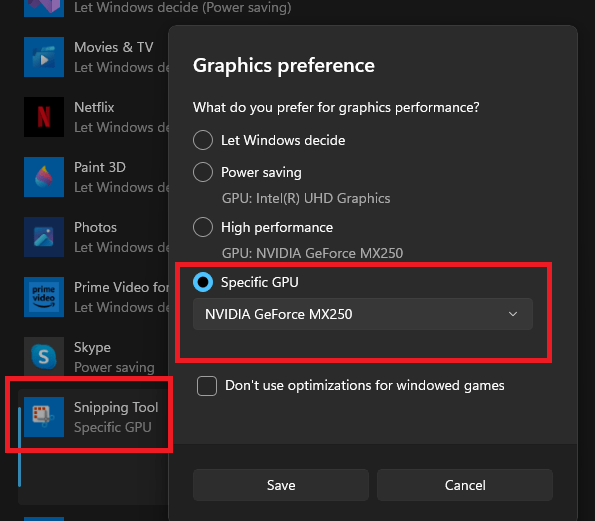
After the usual App repair, reset, setting a custom graphics preference ended up working for me. Detailed steps on Windows 11:
1. Go to: Settings > System > Display: Related settings > Graphics
2. In “Custom options for apps: Add an app” section, select “Microsoft store app” … add Snipping Tool. This adds it to the list below.
3. Select Snipping Tool list item, click Options button to open Graphics preferences modal.
4. Select “High performance”
5. Save
Thanks for posting Dave. This is one of the tricks that worked for few. In addition to, actually Intel graphics chip has an issue with the recording. I was able to get recording working by temporarily disabling it.