
Updated on 31st July 2020
Download & install the below from git, which is easier and cleaner for less tech savvy users.
Updated on 12th October 2016
The below hack is applicable to Windows 10 also, however, after the RedStone update, the registry hack entry “might” get removed and if you still prefer to right click and lock the drive without restarting, you will have to import the registry once again.
Start registry editor (double click to merge is NOT anymore supported), from the “File menu” Select import and point to the lock-bde.reg or whatever name you have given to the registry file that was manually created.
End of update //12/October/2016
The major difference between Windows 8.x Professional and Windows 7 Professional? Well you have free Bitlocker encryption for your 8.x Windows box(professional onwards), while the same is limited to Ultimate and Enterprise editions for Windows 7
Enabling Bitlocker on a drive is pretty easy, right click and go on.
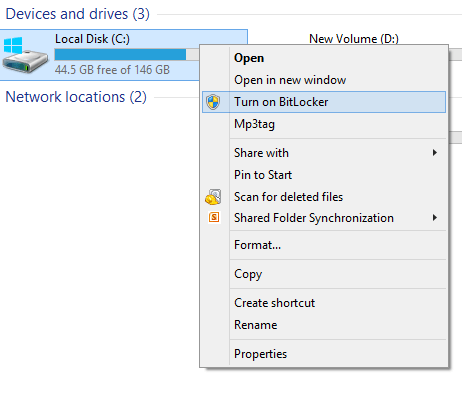
Obviously we will not recommend you to bitlock your root drive. If you do, you are on your own :)
Now we have a problem, to unlock you must enter a password or other bitlocker supported authentication methods, which is fine. The concern is the unlocked drive remains unlocked for any user logs into the same computer until a restart.
For me this is a clear concern. I have some stuff which is not appropriate for my 7 years old daughter, or for a friend who just wants to “check his emails” during a visit.
After loads of searches, I found some nice leads which helped me to re-lock a drive by right clicking the bitlocker enabled drive in the explorer window.
Below listed were the actual links, which helped me to achieve the objective on my Windows 8.1 boxes (Office laptop & Home PC)
spreadbytes solution had one problem, I am using the boxes without UAC, thus while the .vbs script fires, nothing happens and the drive remains unlocked
Technet thread had the exact requirement addressed & all I needed to do was, alter the scripts a bit here and there to achieve my target
Open notepad or notepad++ and copy the below text and save it as lock-bde.reg
Windows Registry Editor Version 5.00

[HKEY_CLASSES_ROOT\Drive\shell\relock-bde]
"AppliesTo"="(System.Volume.BitLockerProtection:=1 OR System.Volume.BitLockerProtection:=3 OR System.Volume.BitLockerProtection:=5)"
@="Relock drive..."
"HasLUAShield"=""
"MultiSelectModel"="Single"

[HKEY_CLASSES_ROOT\Drive\shell\relock-bde\command]
@=hex(2):77,00,73,00,63,00,72,00,69,00,70,00,74,00,2e,00,65,00,78,00,65,00,20,\
00,6d,00,61,00,6e,00,61,00,67,00,65,00,2d,00,62,00,64,00,65,00,2d,00,6c,00,\
6f,00,63,00,6b,00,2e,00,76,00,62,00,73,00,20,00,25,00,31,00,00,00
The hex values mentioned over here creates an entry like following

Once the value created, you can change the text as you desire to suite your situation (for Example, my development machine was not reading the PATH information properly, hence I was forced to add C:\Windows\system32 in front of the command
Open notepad or notepad++ and copy the following text into it. Then save as “manage-bde-lock.vbs”, and copy to c:\windows\system32
Args = ""
Last = Wscript.Arguments.Count - 1
For i = 0 To Last
Args = Args & " " & Wscript.Arguments.Item(i)
Next
Args = Replace(Args,"\","")
CreateObject("Shell.Application").ShellExecute "manage-bde.exe", "-lock -forcedismount " & Args, "", "runas", 1
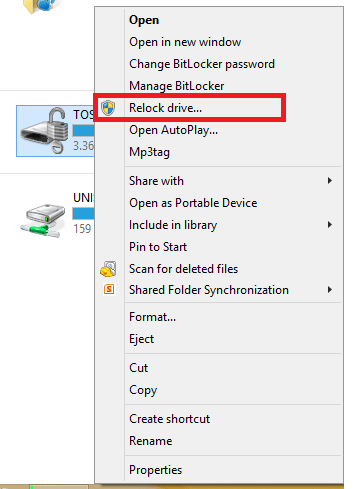
That’s it. You should get “Relock Driver…” context menu by right clicking on the bitlocker enabled driver from now onwards
Hope this helps few out there.
for Windows7bugs