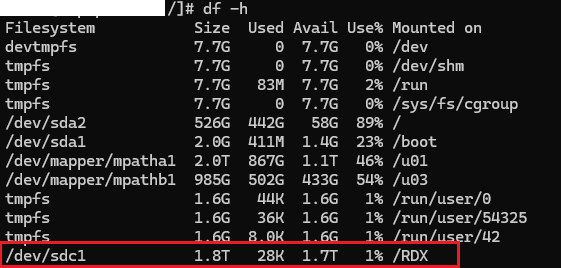
We use Tandberg RDX 2TB data cartridges for “EXTRA” backups on a daily basis. One of the major concerns while designing the homegrown solution was how to make the OS to mount the newly inserted cartridge to the same mount point every time, where the bash script would rsync the files. Please note, you can use the same with your other types of removable media also.
After some googling, consultations we decided to use Linux’s volume labeling for this requirement. I will do a walkthrough of all the processes involved. This should be useful for techies those do not use Linux on daily, however forced to at times.
Once after inserting a fresh cartridge, fdisk shows the above information against the cartridge. Identifying the device could take some practice for a Linux beginner, I am sorry about that. Making sure that you identified the correct device is the success key. Making blunders could land you up in unrecoverable mess. So be careful with rest of the instructions.
Remove the existing HPFS/NTFS/exFAT first
[root@hostname /]# fdisk /dev/sdc
Welcome to fdisk (util-linux 2.23.2).

Changes will remain in memory only, until you decide to write them.
Be careful before using the write command.


Command (m for help): m
Command action
   a   toggle a bootable flag
   b   edit bsd disklabel
   c   toggle the dos compatibility flag
   d   delete a partition
   g   create a new empty GPT partition table
   G   create an IRIX (SGI) partition table
   l   list known partition types
   m   print this menu
   n   add a new partition
   o   create a new empty DOS partition table
   p   print the partition table
   q   quit without saving changes
   s   create a new empty Sun disklabel
   t   change a partition's system id
   u   change display/entry units
   v   verify the partition table
   w   write table to disk and exit
   x   extra functionality (experts only)
List existing partitions, in our case RDX cartridge has single partition from the factory.
Command (m for help): p

Disk /dev/sdc: 2000.4 GB, 2000394739712 bytes, 3907020976 sectors
Units = sectors of 1 * 512 = 512 bytes
Sector size (logical/physical): 512 bytes / 512 bytes
I/O size (minimum/optimal): 512 bytes / 512 bytes
Disk label type: dos
Disk identifier: 0x00000000

   Device Boot      Start         End      Blocks   Id  System
/dev/sdc1            2048  3907020799  1953509376    7  HPFS/NTFS/exFAT
We will proceed with deleting the existing partition using the command “d”
Command (m for help): d
Selected partition 1
Partition 1 is deleted

Command (m for help): w
The partition table has been altered!

Calling ioctl() to re-read partition table.
Syncing disks.
We will create a new partition
Command (m for help): p

Disk /dev/sdc: 2000.4 GB, 2000394739712 bytes, 3907020976 sectors
Units = sectors of 1 * 512 = 512 bytes
Sector size (logical/physical): 512 bytes / 512 bytes
I/O size (minimum/optimal): 512 bytes / 512 bytes
Disk label type: dos
Disk identifier: 0x00000000

   Device Boot      Start         End      Blocks   Id  System

Command (m for help): n
Partition type:
   p   primary (0 primary, 0 extended, 4 free)
   e   extended
Select (default p): p
Partition number (1-4, default 1):
First sector (2048-3907020975, default 2048):
Using default value 2048
Last sector, +sectors or +size{K,M,G} (2048-3907020975, default 3907020975):
Using default value 3907020975
Partition 1 of type Linux and of size 1.8 TiB is set

Command (m for help): w
The partition table has been altered!

Calling ioctl() to re-read partition table.
Syncing disks.
Confirm the changes
Command (m for help): p

Disk /dev/sdc: 2000.4 GB, 2000394739712 bytes, 3907020976 sectors
Units = sectors of 1 * 512 = 512 bytes
Sector size (logical/physical): 512 bytes / 512 bytes
I/O size (minimum/optimal): 512 bytes / 512 bytes
Disk label type: dos
Disk identifier: 0x00000000

   Device Boot      Start         End      Blocks   Id  System
/dev/sdc1            2048  3907020975  1953509464   83  Linux

Command (m for help): q
Now we will proceed to format the file system for ext4. There are newer file systems, however our requirement is to have ext4 for standardization across the attached devices.
[root@hostname /]# mkfs.ext4 /dev/sdc1
mke2fs 1.45.4 (23-Sep-2019)
/dev/sdc1 contains a ntfs file system labelled 'QuikStor 2.0TB'
Proceed anyway? (y,N) y
Creating filesystem with 488377366 4k blocks and 122101760 inodes
Filesystem UUID: 056c2a9d-2482-4637-a823-9ef1e2ae9d30
Superblock backups stored on blocks:
        32768, 98304, 163840, 229376, 294912, 819200, 884736, 1605632, 2654208,
        4096000, 7962624, 11239424, 20480000, 23887872, 71663616, 78675968,
        102400000, 214990848

Allocating group tables: done
Writing inode tables: done
Creating journal (262144 blocks):
done
Writing superblocks and filesystem accounting information: done
Finally, the most import part of the entire exercise. Labeling the partition. You may need additional software downloads for e2label.
[root@hostname /]# e2label /dev/sdc1 RDXTAPE
Finally modifying the fstab to mount the device automatically
#
# /etc/fstab
# Created by anaconda on Wed Sep 16 11:06:12 2020
#
# Accessible filesystems, by reference, are maintained under '/dev/disk'
# See man pages fstab(5), findfs(8), mount(8) and/or blkid(8) for more info
#
LABEL=RDXTAPE     /RDX    ext4   defaults 0 0
Issue the command mount to immediately mount this partition to a mount point.
I am working on a new script/set of scripts for single-instance database cloning and came across the need to shut down and restart the application by calling a second script. Here, I am sharing it with you today. Copy it to a fresh .sh file, name it whatever you want, and enjoy! :) Do not forget to adjust the passwords!
#!/bin/sh

: <<'END'
This script is ran as "root"
This script is meant for single instances.
This script expects both ORACLE, APPLMGR users bash profiles sourcing environment files.
This script was last tested against Oracle EBS R12 12.2.10/19c
Last modified on: 2nd October 2024
Author: Rajesh Thampi
License: Public
END
me=$(basename "$0")
ORACLE_SID=$(su - oracle -c 'echo "$ORACLE_SID"')
APPS_ORACLE_CONTEXT=$(su - applmgr -c 'echo "$CONTEXT_NAME"')
APPS_SCRIPTS_HOME=$(su - applmgr -c 'echo "$RUN_BASE/inst/apps/$CONTEXT_NAME/admin/scripts"')
DB_SCRIPTS_HOME=$(su - oracle -c 'echo "$ORACLE_HOME"')/appsutil/scripts/$APPS_ORACLE_CONTEXT

if [[ -z $1 ]]; then
    echo "No parameter was passed"
    exit 1
else
    if [[ "$1" == "start" ]]; then
        echo "All Oracle EBS R12 Services will be started now."
        su - oracle -c "sh $DB_SCRIPTS_HOME/adcdbctl.sh start;"
        if [ $? -ne 0 ]; then
            echo "Couldn't start the database services successfully. Aborting"
            exit 1
        else
            su - oracle -c "sh $DB_SCRIPTS_HOME/adcdblnctl.sh start $ORACLE_SID;"
        fi
        if [ $? -ne 0 ]; then
            echo "Couldn't start the listener services successfully. Aborting"
            exit 1
        else
            su - applmgr -c "cd $APPS_SCRIPTS_HOME;{ echo apps; echo apps; echo password123; } | adstrtal.sh;"
        fi
        if [ $? -ne 0 ]; then
            echo "Couldn't start the Application services successfully. Check log files for errors and try again"
        else
            echo "All EBS Services were successfully started."
        fi

    elif [[ "$1" == "stop" ]]; then
        echo "All Oracle EBS R12 Services will be stopped now."
        su - applmgr -c "cd $APPS_SCRIPTS_HOME;{ echo apps; echo apps; echo password123; } | adstpall.sh;"
        if [ $? -ne 0 ]; then
            echo "Couldn't stop the application services successfully. Aborting"
            exit 1
        else
            su - oracle -c "sh $DB_SCRIPTS_HOME/adcdblnctl.sh stop $ORACLE_SID;"
        fi
        if [ $? -ne 0 ]; then
            echo "Couldn't stop the Listener services successfully. Aborting"
            exit 1
        else
            su - oracle -c "sh $DB_SCRIPTS_HOME/adcdbctl.sh stop immediate;"
        fi
        if [ $? -ne 0 ]; then
            echo "Couldn't stop the Database services successfully. Check log files for errors and try again."
            exit 1
        else
            echo "All EBS Services were successfully stopped."
        fi
    else
        echo "Syntax: sh $me start/stop"

    fi
fi
As on date, latest version of Oracle Analytical Publisher (12.2.7.6.0) is fully compatible with Microsoft Office 2021 & users can continue with updating the Office software (until Oracle/Microsoft breaks it)
Installing Oracle software on Windows is always fun. One time it gets installed & the other times it won’t. As simple as that. For our Oracle E-Business suite, we adapted XML reporting from last many years & faced one or more issues with almost every version of Microsoft Office. Sometimes the 64Bit version of the Analytics Publisher will not work with the version of Office you have, forcing you to install the 32Bit Office. The most perplexing is when the add-in gets disabled once after the software crashes. I will get back to that area by the end of this article.
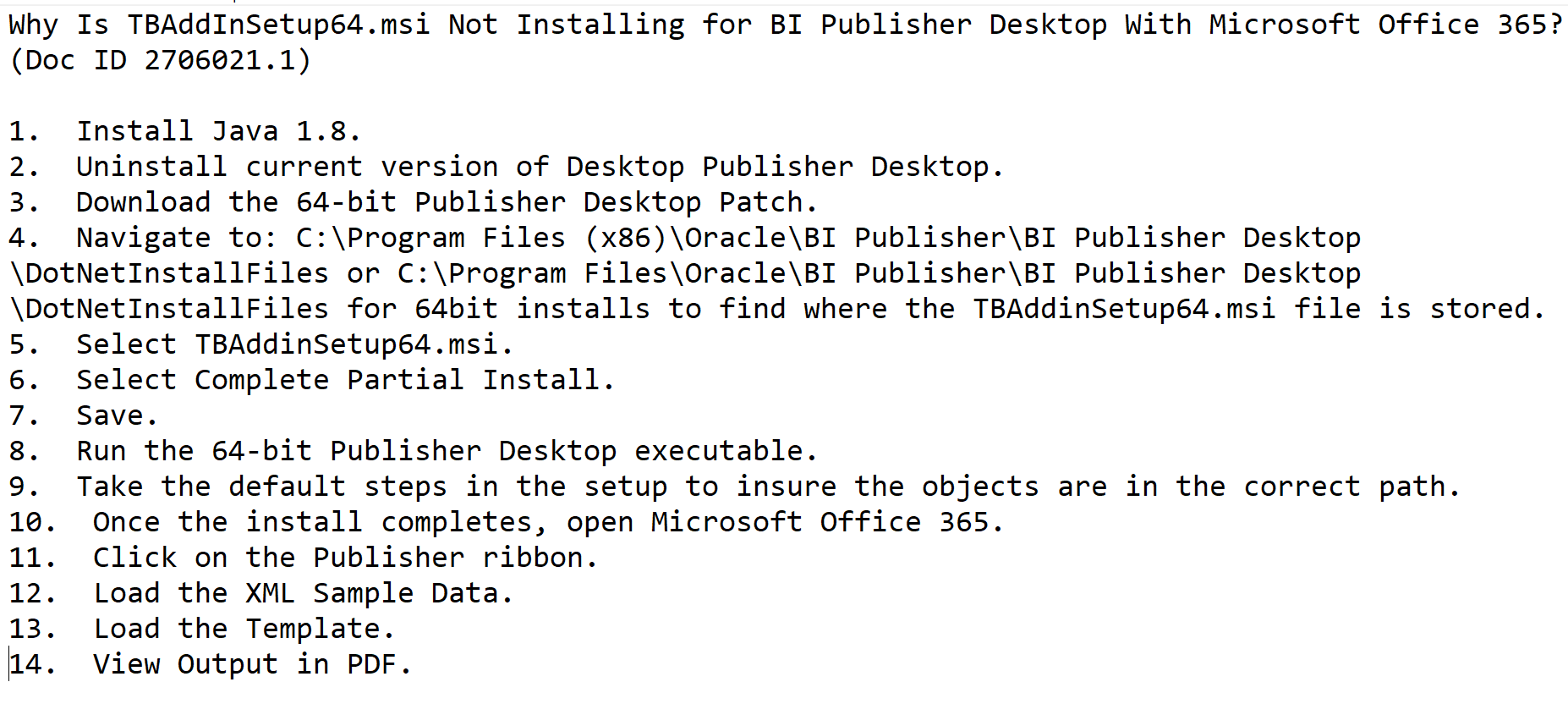
Oracle has two support documents explaining how to resolve this installation issue. Let’s see the beauty of their documentation.
Starting from the point number 3 everything is mere bullshit as uninstalling the software deletes all executables from the paths mentioned. They are missing the reference for the patch and points 5,6,7?? Anyway, discussing about Oracle documents is like opening a can of worms.
So, what is the immediate solution if all of a sudden you find the “Publisher” stopped appearing over the menu area? Well, the simplest solution is to uninstall Office & re-install it. Then try to install Oracle publisher. As simple as it is. This hack was tested with Office 2021 Professional, both 32 & 64Bit. You may follow the below sequence to ensure a successful installation.
Uninstall Microsoft Office & all other office products like OneNote
Uninstall Oracle Analytics Publisher Desktop
RESTART your computer!!! If you don’t, it’s certain that your next attempt will also fail.
Install Microsoft office first, then proceed with installing Oracle software.
Now, coming back to the Add-in getting disabled, especially from Microsoft Word. I’ve came across some convincing Oracle community discussions & confirming that, it’s due to the latest Microsoft Office updates, Add-in for Word gets disabled. Oracle has a bug logged and they are investigating the issues. Rolling back to a previous build of Office will resolve this issue. Please check the following links for more details. Please note, you must use the exact version number for the update rollback mentioned in the articles. For example, Office 2019, 2021 & 365 bear the version number “16” & you can get the exact version number from the about product page. Please disable the automatic update for Office products prior you attempt the below given instructions.
Based on the Oracle discussions, the safest version was 2406 & If your Office version is 16.0.x.x, from an elevated command prompt execute the following command:
C:\Program Files\Common Files\microsoft shared\ClickToRun\OfficeC2RClient.exe /update user updatetoversion=16.0.17726.20160
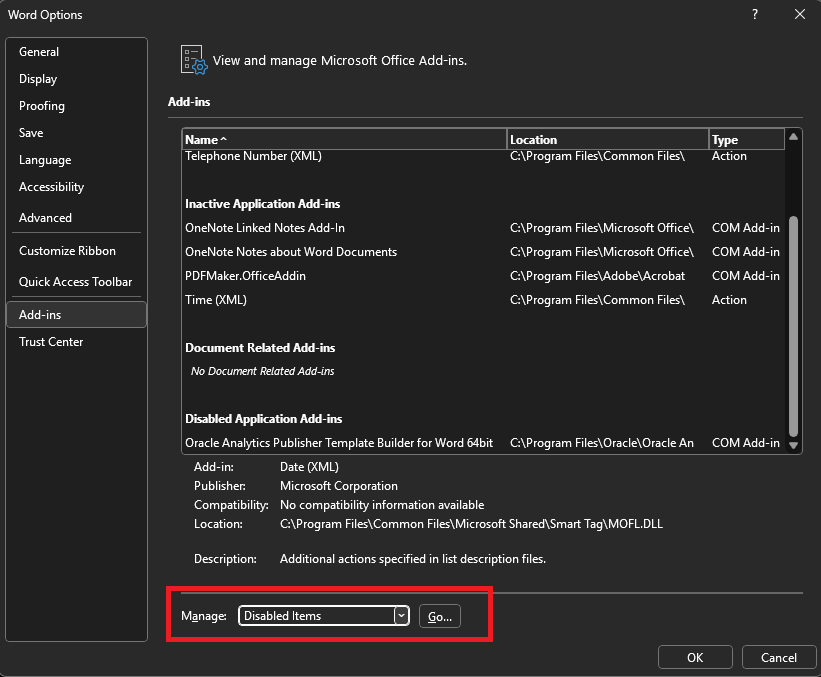
After downgrading your Office, open Microsoft Word as Administrator (right click, run as administrator). Navigate to File->Options. Below image shows “Oracle Analytics Publisher Desktop” as disabled.
Change the Manage option to “Disabled” and click the “Go” button.
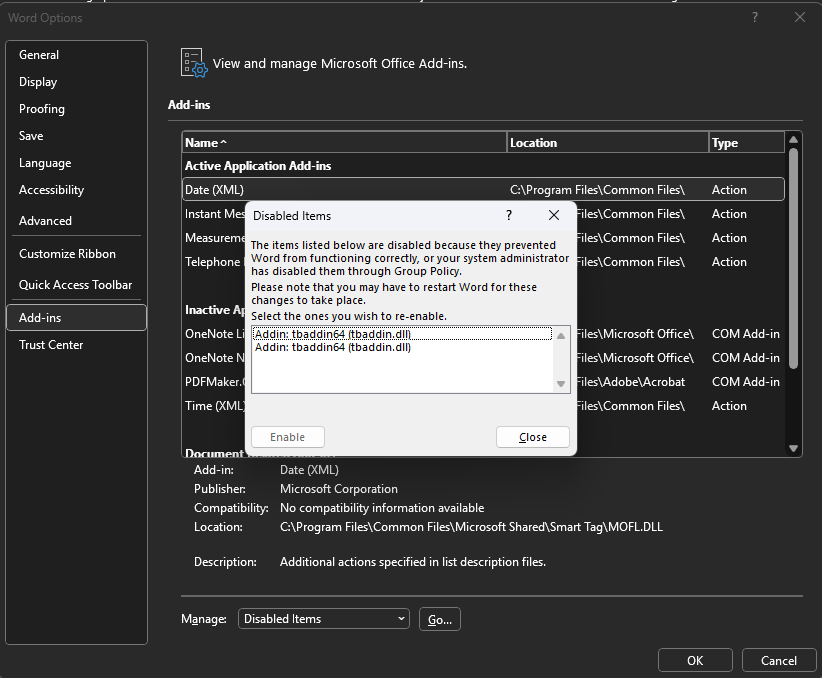
(Please don’t mind the Add-in appearing twice in the below image, be sure I did something wrong ;) )
Select the Add-in “tbaddin64” and try to enable, that closes the window. Close Word and open again. This should bring back the “Publisher” back in the menu.
Recently, after setting up APEX for the nth time, I wanted to give the stack a try. I’ve been developing around Oracle technologies for more than 20 years and I felt it was the time. After some serious searches, I came across an Oracle blog that was discussing about migrating from Oracle Forms & APEX, which I was looking for.
By the end of the article, author had given a link to the sample application “Summit” that was directly migrated from Oracle Forms. Currently, APEX doesn’t support direct migrations from anymore. Regardless, the example project was truly informative. I suggest you to create a document using the explanations provide with the blog, which could help you with many details later.
As on 28th November 2024, against the feedback, Oracle APEX team has updated the download section with a latest export & it works without any issues once after imported. Hence, majority of the bashing has been removed from this post ;)
Although you can import the application database objects to an existing schema, it is better to be on a schema dedicated for the application so that you don’t have to scavenge through dozens of objects to identify the app specific ones.
CREATE USER SUMMIT IDENTIFIED BY SUMMIT
DEFAULT TABLESPACE EXAMPLE
TEMPORARY TABLESPACE TEMP
/
GRANT DBA TO SUMMIT
/
GRANT CONNECT TO SUMMIT
/
GRANT RESOURCE TO SUMMIT
/
Newly created “Summit” schema prior the demo application installation.
Once you created the schema, add it to your APEX workspace and import the APEX sample application that you downloaded. It is a pretty straight forward thing and when the installer asks you to install the additional components, proceed.
Do not forget to change the Parsing Schema in case if your workspace is associated with multiple schemas.
Proceed with the installation. It takes just few seconds and must install the supporting Objects (that are tables, procedures, sequences, functions etc).
Run the application and you should be welcomed with a beautiful dashboard!
To be quite frank, when it comes to Oracle Indexes and Joins I am as good as with Oracle Analytical functions. Much fly above my head & every time I have to go back to my notes to “learn” for the tasks in hand!
Recently, I took some interests in understanding the “index usage” once after reading about V$OBJECT_USAGE & realized to my shock that more than 50% of my indexes were never used! I wanted to know why & I kept reading for days without finding much that felt like a true answer.
Hence I made a decision to understand how the indexes work by example. Our Oracle EBS environment has more than half dozen custom applications integrated and few of them are with millions of rows, sufficing “large” table requirements to test the effectiveness of indexing. From the layman perspectives, please note, I am not an Indexing expert, I can’t explain why your Indexes are not being used “even after following everything step by step”. For me, what I did work, giving me an understanding about how should I plan my next Indexes. So let us see how I came to my understandings
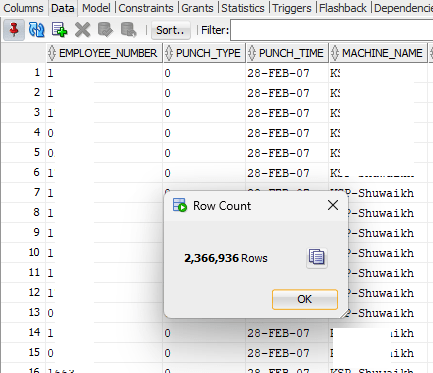
We’ve bio-metric devices that are used for attendances purposes. These devices offload the data to a Microsoft SQL database instance and using transactional SQL, we register them with our Oracle database. The technical part of it. The table that stores the fingerprints has 2.3 Million rows as on date and I used the same table to understand how the indexing works.
There was one Index on this table (Yes, I created it), that I dropped before experimenting as the Index was never used! The logic behind the query is:
I should get the first punch in time for the employee, identified by type “0” and last punch out for the employee, identified by type “1”, the machine name on which the employee has registered in and out punches. Each employee might use the bio-metric devices at different locations for door accesses or other purposes like a proof of visiting another office. Without the Index on this table, let us see how Oracle plans the execution.
This table has just few columns and sought data is usually the punch time against the employee.
Regardless, the cost for the execution didn’t look appealing. So, I created an Index that has all the four columns referred in the main and inline queries.
This time the cost looked far better, however, I could see that the base table still being used when there were no additional columns from the base table referred.
Here comes the thumb rule for indexes (I think). Indexes are not used unless a condition is used against one of the indexed columns! Let us see, whether this makes any sense.
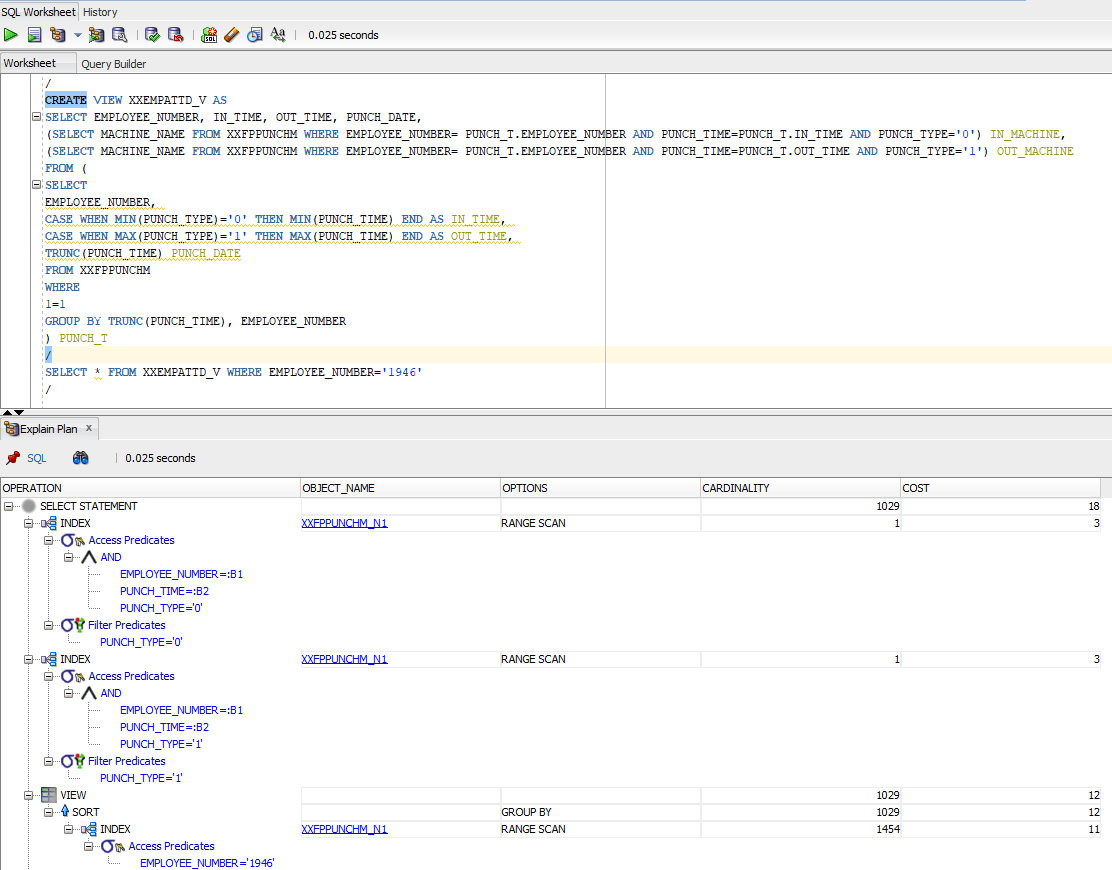
I created a view against the above query to be more certain.
After creating the view, I did a simple select * against the view and the execution plan brought me the same results discussed above. Wherever the predicates were used, query used the existing Index and for the rest, did the base table scan.
So I went ahead against my “understanding” and added a condition to Select * from query and did another Explain plan.
This time, the cardinality, ie the total number of rows fetched came down to just a four digit number, base table was not referred and the cost was dirt cheap compared to the earlier situations.
Let’s summarize everything now.
Indexes are mostly effective about large tables
Oracle will use indexes only when one of the columns used in the index is used against a predicate. Said, I created a view against our dear Scott.Emp table and “Select * from emp;” used that index. I don’t know why and I don’t care!
Add up IS NOT NULL against all your index columns in your query to make sure that your Index is used instead of base table.
Now, I needed to understand further. Hence, I went back to the HR sample schema and chose the table “Employees” this time for my continued experiments. As I said Scott.Emp, the results were the same.
HR.EMPLOYEES tables have many Indexes defined.
For the first query as seen with the image below, I didn’t include a predicate. Regardless, Oracle used the Index for the column
Then I tried another query with multiple columns and without predicate. Oracle used the Index this time as well.
Apparently, this gives me an idea like, for larger tables the Indexes are opted when predicates are available against indexed columns and for tables like HR.EMPLOYEES which has only 107 rows, if there is an index exist against the queried column exist, it is used by Oracle.
Cheers friends, it was fun learning something, once again my own way. Hope this helps few others out there who were breaking their heads to understand this horrible thing. Merry Christmas and a very Happy New Year to everyone out there.
In the past I had couple of opportunities to work with firms those specialize in Small to Medium scale business solutions built on top of Microsoft SQL Database technology. Much of such opportunities turned in to 100% futile as the vendors firmly believed the “Database” was a customer’s responsibility & insuring performance was solely at customer’s dispersal. I will get back to the subject after a brief introduction to how things go all the way wrong with these partners.
Opportunity#1
We were pretty happy with the cost effective ERP Suite & just prior signing the contract, question about who will setup and configure the Database(technology) came up. The solution provider was quick to respond with “Database maintenance is your part, so as it is mentioned in the draft contract”. Agreeing to the maintenance part, that is insuring the availability and backing up the data, we repeated the question who will “setup” the database and parameterize it for best performance, as their ERP Suite was replacing something really huge & users will expect the same slick and quick responses from the new system.
The vendor was so confused & told us few things like below:
There is nothing to configure
Microsoft SQL Database is not like Oracle, you don’t need to worry about anything. Just install it and forget it. Server takes care of it (heeheehee)
Just take a backup
Nothing to configure about memory. You got 32GB memory right? more than enough. If needed we can always add more memory
Yes, you can even install the database on your Windows XP machine and we think the latest Windows server is 2013 (Not exaggerated, we have an email with Windows Server 2013 mentioned in the supported OS list)
With each passing moment, they started getting agitated and the Project Manager from their end started asking questions like “We are a solution developer, why do you expect us to know “everything” about database?”. We had to tell them they don’t know anything about the database technology on top of what they design and develop their entire solution.
They lost the opportunity, which grew to approximately 1 million USD project gradually, using Oracle technologies (the worst blunder they made was “All you need a single license for the database as our application connects to database as same user for all modules.”)
Opportunity#2
A bit different scenario. This time the vendor was smarter. In order to impress us, they have designed the database to look so large, that it sized more than 25-30GB(more than 70% dedicated to Transaction Logs) before the solution was even launched. This company had a pretty wrong idea about tables and views. To “read faster” all their tables had all the columns those were required by their solution. In addition much of their views were having more than 200+ columns and many dozen inline queries to fetch additional data, making a simple query painfully slow.
On top of it, they implemented an always open URL (Obviously, keeping it open is “Your” (customer) responsibility) for processing some data.
Every other time, whenever we pointed out the difficulties with fetching data from their tables and views for custom reporting, we were given answers those should not be quoted here.
We terminated the contract after completing one (painful) year.
So, the question is, Should you know your database technology?
Much of the Prime time database technologies are pre-configured to a certain extend & a developer as a single individual may not be too interested to ponder deep into the available provisions to set it up the instance for optimized performances, mainly because everything works from the development machine, for the “development” perspectives.
Well, this is not the case when a proper business solution with commercial intend is developed based on a particular database technology. The software vendor have to understand the database technology they are targeting for their business solution to such an extended that, their product could benefit the customer in terms of continued availability and deliver insure optimized performances.
So, how to size and parameterize the database for optimized performances? This requires an experienced DBA/team to assist you with these fine tuning and parameterization activities. While Oracle database fine tuning and parameterization possibilities far more stretched than Microsoft SQL Server, you have the ease of using a GUI tool for the later, that helps you to setup many optimization parameters without the help of a DBA. MySQL also comes with a beautiful GUI manager for much of the configurations. However, just having some wonderful tools alone do not help you to achieve the maximum performance! One must know what and how to configure the database and OS specific parameters to get the maximum through output from the database technology. Yes, you need an experienced DBA or a team of DBAs to achieve this & I believe, for a successful software, a software developer must invest adequate efforts and funds in this sector with highest priority, may much before they start designing their solution!
An example case, we had our Oracle database 10g instance set with 2GB memory for SGA and 1GB for PGA for almost 4-5 years by our part-time DBA, while the server had another 40GB memory to spare. Our ERP (Oracle EBS R12) lagged, stuttered for this entire period just because he never attempted to fine tune the instance once after the implementers handed it over to us. His last excuse was “So, everything was working, why we have to trouble something that is working fine”. We terminated his contract. Our new partner setup the instance with highest possible SGA/PGA combinations and made a dozen parameterizations based on the OS specifications. It was followed by internal team introducing HugePages on Linux environment & we never looked back. Well, it took us some time to get there though to “find a right partner to work with”.
Majority of the places, wherever I were asked to investigate the poor performances (especially Microsoft SQL Server), noticed that the database was installed using the defaults and the only one maintenance activity for the instance is limited to full database backup daily. None of the maintenance possibilities like automating the indexing or statistics gatherings were implemented, making the solutions to lag and painful over a period of time.
While vendors like those I have introduced in the very beginning of the article would easily escape their responsibility by stating “database maintenance is your responsibility”, as a developer and as “NOT A Certified DBA” I will argue that.
I remember another interesting scenario when the vendor was asked which edition of the database should be installed for their solution. Initially struggling with release numbers and later making statements like “Enterprise edition will have more features” and failing to list few features never landed this vendor in a very bad light. They completely ignored the fact that we were a business that was already using software solutions like Oracle Applications & never thought of answering questions related to database.
A thorough study must be done by the solution developer to identify the best edition of database (Enterprise, Standard or Express) that is suitable for the customer. This is especially important when a solution with generic nature is adapted by businesses of different sizes. A software solution developer must understand that, every business tries to limit the investment for software implementations and unnecessary licensing costs by suggesting a wrong edition of database technology could force the customer to reject their product altogether and discard the project.
I’ve started my developing career with dBASE3 (Without knowing much about it) & last 20 years, worked with different database technologies & as a core application developer, strongly believe that, the developer MUST know many things about the database technology, based on which the targeted solution is being developed. As an individual I might be pardoned, however as a software vendor, I might lose wonderful opportunities just by not knowing enough about the database technology that’s the core of my business application!
So what you think, should I know my database technology?
This article was initially posted with my LinkedIn account.
Please do not try to install Weblogic 14.1.1.0, that supports only JAVA deployments as on date. Oracle says they are committed to release a version that supports Oracle Forms and Reports & the stack is under development.
Last reviewed on: 24th December 2020
Few days back I received an interesting message from one of the visitors, having troubles with their WebLogic installation, inquiring about the frequent crashes. My visitor Mr. Rabin Mitra later figured out it was due to using 32Bit JDK with 64Bit WebLogic infrastructure.
After successfully executing "startnodemanger.cmd" and "startWeblogic.cmd", I am able to start the Weblogic Console UI. However, any action (such as clicking on Server button) within the UI crashes Weblogic! The error is as follows:

# There is insufficient memory for the Java Runtime Environment to continue.
# Native memory allocation (malloc) failed to allocate 1210952 bytes for Chunk::new
Mr. Rabin has confirmed that he had to uninstall the complete WebLogic installation & redo as replacing 32Bit JDK with 64Bit was not sufficient enough to address the continued issues with installation. Please go through the below text and links, incase if you are in the same “soup” ;)
I am happy to report that the 32-bit version of JDK on my 64-bit machine was indeed the problem. However, merely replacing the JDK does not solve the problem. The reason for this is that the jar file for WebLogic was extracted using the 32-bit JDK. This implies that the WebLogic must as well be reinstalled. This again in turn means that the Domain must be re-created and since the domain is associated with a repository, the repository must also be reinstalled. So, it turns out that one must dismantle each piece and reinstall it from scratch!


Installing the JDK is the #1 instruction. So, an incorrect choice here pretty much sets you back completely. You may want to provide this as a caution to your readers.

So here briefly is the sequence of events one must follow if they chose an incorrect version of JDK.
This time we are going to see how we could install and configure Oracle forms & reports 12.2.1.4, the latest version using WebLogic Server 12c 12.2.1.4
The Visual C++ requirements mentioned MUST be met, without which you will NOT able to startup OHS instance.
Prior Installing Oracle Server Software on your computer, please make sure that your computer has a proper name (hostname) like “JOHN-PC, RAJESH-PC, ORACLE-SERVER” etc instead of defaults like ‘DESKTOP-jyyytyuukkyjj’ after an installation of Windows. In addition, please make sure that your laptop/Desktop machine has a Static IP address.
As a rule of thumb, regardless whether you are going to install and configure Oracle software on LINUX or Windows operating systems, always update the OS to latest patch levels, prior you start with the Oracle software installation(s). I strongly recommend using Oracle VirtualBox based Virtual Machines for the lab & later you may move the tried out solution to your preferred environments (TEST, Development). I don’t recommend any of the suggestions I make through my blog posts to be applied to PRODUCTION environments without consulting a Professional support entity.
As per Mr. Rabin Mitra’s suggestion, I am adding a clause. “Please double check whether all the software you have downloaded for the installation is of same architecture. The below instructions are for 64Bit Weblogic installation & starting from JDK all the software downloaded must be 64Bit”
I prefer installing JDK on C: drive & Usually my JDK is installed on C:\Java\JDK folder. The shortest name, the best to handle it later. Once the 64Bit JDK is installed, you need to setup either JAVA_HOME environment variable or add a new entry in to the system path. I prefer a system path modification than user path modification.
Okay, there are hell loads of Oracle software installed on my system. Don’t worry, I manage them. Just make sure the JDK installation path is on top of the list and you are good to go
Install Weblogic Server 12.2.1.4
It may take a while for the jar file to extract and start the installer. Please wait patiently. I was setting up the entire infrastructure using Windows 10 VM & due to the limited resources, hence the entire ordeal was kind of time taking this time for me.
You can safely skip the Auto Update
Naming Oracle installation folders is an art. The complex the folder structures, the complex later configurations would be. I usually prefer to install all my Oracle software on D: drive. Please feel comfortable to format the Oracle home as per your requirements. Maintaining the same format helps me to locate and sometimes replace files from previous installations.
Select “Fusion Middleware Infrastructure”
WebLogic or Middleware installation is NOT complex anymore on Windows 10 OS. There are no special hacks needs to complete the installation.
Install forms & reports 12.2.1.4
Extract the downloaded zip file & you MUST start the installer as “Administrator”.
We’ve to install the Forms and Reports stack on an existing Oracle Home. So please select the Oracle Home where you have installed “WebLogic” Server. Alternatively you can always install the stack on a different Oracle Home, which I never tried earlier.
Select “Forms and Reports Deployment”, as the last two versions of Forms & Reports allow you to install a Standalone Forms Builder.
Select the correct JDK Home
Please make sure that you have Visual C++ libraries pre-installed prior proceeding. If you don’t have the VC++ libraries installed, the OHS instance will not start & you might experience additional problems during installation also.
That completes the Forms & Reports 12.2.1.4 installation.
Create a REPO for the Classic Domain
To create a classic domain, you must have a repository available with the database. Weblogic 12c supports Oracle 11G 11.2.0.4 or later database for the repositories & my pick will be always 12c Database as the 11.2.0.4 is only accessible for customers with valid Oracle support. You may refer this document for a detailed “how to” towards installing Oracle 12c database.
From an elevated command prompt, switch to Oracle Home\oracle_common\bin folder & execute “rcu.bat”
Check the below image for details
Choose the defaults
Provide the connection parameters. If the database is on another server, you don’t have to install additional clients, connection parameters will take care of the connection. Refer the below image for details (Adjust according to your database setup)
My 12c Database already has a repository for Forms & Reports 12c 12.2.1.3, hence I created a new prefix “DEV1”. If you are creating a repo for the first time, you can use “DEV” or any other 3 letter combination (make sure you will able to remember it laters).
Select all the components as seen with the below image. The selected are mandatory, especially the Metadata Services.
Use the same password everywhere! Unless you are setting up a production instance, use the same password everywhere. Example, I use “Abc1234” for the schemas, Weblogic Admin account, node manager etc, which makes the administration much easier. For production, follow the Oracle standards.
That completes the repository creation for a Classic domain.
Create a Classic Domain for deploying forms & reports application
From an elevated command prompt, switch to Oracle Home\oracle_common\common\bin (eg: D:\Weblogic\Middleware\Oracle_Home\oracle_common\common\bin) & execute config.cmd, that will kick start the classic domain configuration wizard.
Select the defaults, unless you have specifics. We will be creating a new domain with the following example.
Refer the below images and select the same components for a successful domain creation for forms and reports.
As I mentioned earlier, use the same password here, so that you don’t have to worry about forgetting & recovering it at later stages.
We will setup the domain for production (never tried Development, so don’t know how exactly both differ from each other). Leave the JDK selection as it is.
Now, your earlier created repository will come in act. Refer the below image(s) and adjust as per your environment
Make sure all the Schema validations are successful. Next step select components as per the below image
Make sure the Server Group is filled the value as seen with the below image. Don’t miss it!
We’ll add an instance OHS now. Click on the add button and refer the below images for more details
Fill in the Listen Address with “localhost” and leave rest to defaults
That finishes the creation of your classic domain.
I’m hurrying to publish the POST without further delays, as I am once again caught up with multiple assignments & keeping up with promises are NOT something I look up to at this time. However, I will add up the missing configurations for OHS and setting up the Forms and reports very soon an an annexure as early as possible!
19th June 2020
Today I installed & configured another Weblogic Server environment & realized that I was supposed to amend this post with more details, is a long due!
I chose a Container+PDB 12c database instance for my Weblogic Server this time. It was fun, finally learning few things about Container and pluggable databases & I am hoping to write another post about setting up Weblogic, Forms and Reports with such a setup in near future.
Now without wasting more time, let us see how to finalize the freshly configured classic domain for Oracle Forms and Reports deployment.
Switch to the your newly created domain’s bin folder from an elevated command prompt. Eg:
“D:\Weblogic\Middleware\Oracle_Home\user_projects\domains\base_domain\bin”. Usually I always installed Oracle software on D: drive & follow the same naming structure for the folders. It helps me to backup and restore configuration & other files that help me to finish setting up the environments faster.
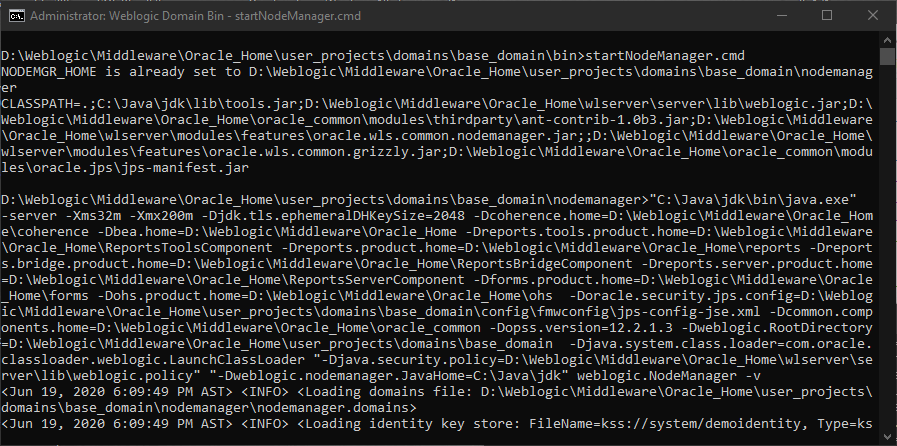
Start the nodemanger now by issuing the command by executing the command “startnodemanger.cmd”
It may take few seconds to minutes until the node manager starts for the first time. Please remember, you shouldn’t close this command window, which will automatically stop the node manager.
Open another elevated command prompt window and switch to your classic domain’s bin folder. Start the Weblogic admin server by issuing the command “startWeblogic.cmd”
Okay, with node manager, 99.9% chances that you may not bite bullet. With Weblogic Admin server, this is not the case. For number reasons, the Server will try to start and give up in the middle. So don’t panic. If the Weblogic Admin Server is not coming up to a “RUNNING” status after extended period of waiting, go ahead and restart your computer. Start node manager and then try to start the weblogic admin server once again.
The initial startup could take up to 5-6 minutes (depending upon your hardware, this time could vary) & you should see a status like below
Remember not to close the window, which will immediately stop the Weblogic Admin Server. The status of the window will keep on updated against the activities happening at the server side. Once started, you can safely keep both node manager and Weblogic Admin Server CMD windows minimized.
Once after successfully logging in, this is the window you are presented with. We’ve to configure both Forms & Report servers now, by trying to start them. This process will keep on adding many elements to your start menu. Let us see we can start Forms (WLS_FORMS) & Reports (WLS_REPORTS) servers now
Click on the “Control” tab, select both “WLS_FORMS” & “WLS_REPORTS” from servers and press the “Start” button. Once start button clicked, you can press the refresh button to monitor the status of the Servers. Do not forget to click the refresh button again to stop refreshing once after the servers show the status “Running”
It could take minutes for both the servers to reach the “Running” stage. Keep watching the Admin Server command window for unexpected errors. If you have followed all the steps as I’ve instructed throughout my thread, I can confidently say that you shouldn’t have a single hick up until this moment.
Once both servers are running, we can complete the OHS setup finally. Open another elevated command prompt. Switch to Oracle_Common\common\bin folder
Eg: D:\Weblogic\Middleware\Oracle_Home\oracle_common\common\bin and start Weblogic Scripting Tool (wlst)
Now you can issue the command “ohs_updateInstances()” at the wlst prompt & once the configuration completed, exit wlst by issuing “exit()”
You can try to logon to Weblogic Enterprise Manager console and start the newly setup OHS instance now.
Logon to Weblogic Enterprise Manager from http://localhost:7001/em & click the carousal menu by the left hand side
and expand HTTP Server to view your newly created OHS instance. In our case “ohs1”. Click on “ohs1” to open the control panel for the instance
Click the Start up button to start the OHS instance & after showing you message window stating you cannot stop the starting/stopping process, OHS will start. It could take few seconds to minutes depending upon your hardware and available resources.
Give special attention to “Machine Name”.
Now we will see how to bring OHS instance in action by setting up the few other factors like node manager security, configuration files.
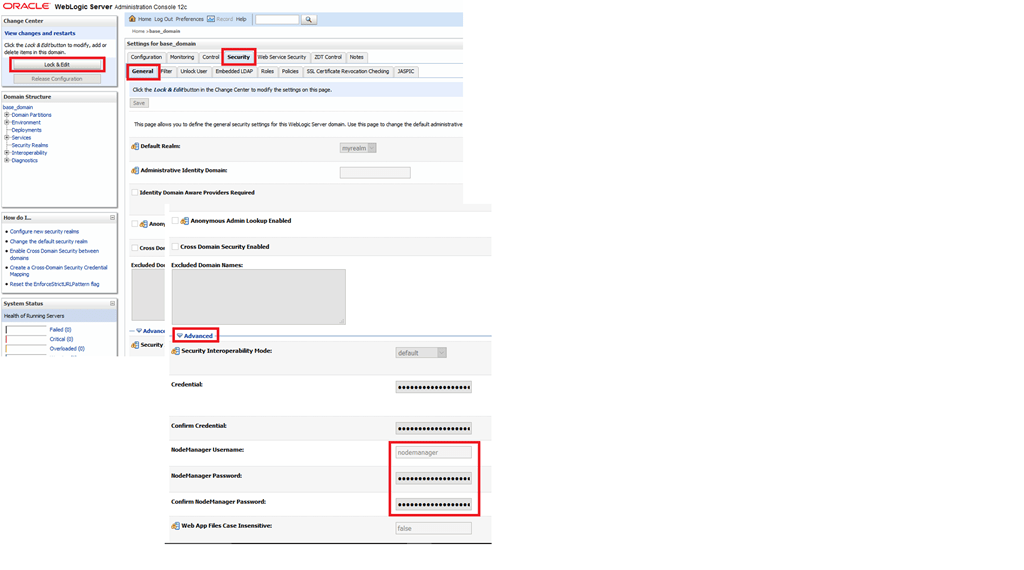
Lock & Edit the domain security values, please refer the image below for details
Provide a meaningful name for the node manager account and supply a password. I used the same password for the total 12c deployment, unless you are setting up a PRODUCTION instance, you may use the common password across the 12c instances for easy administration of objects when required. Shutdown the services (better). Once the node manager properties are changed, restart the WLS admin server. Please note, always stop all running servers (forms & reports) services prior shutting down the Admin server & I suggest you gracefully shutdown the Admin server by running “StopWeblogic.cmd” instead of using the Weblogic console.
Move to your Oracle Home folder. I have installed Weblogic server in D:\Weblogic\Middleware folder, hence my Oracle home folder is
D:\Weblogic\Middleware\Oracle_Home\
(Adjust your paths accordingly)
Edit forms.conf file in the folder D:\Weblogic\Middleware\Oracle_Home\forms\templates\config\
By default this template file comes with commented examples, like following
You need to uncomment one of the blocks starting from <Location /forms> until </Location> & add properties specific to your deployment, for example, my computer’s name is “RAJESH-PC” and I am using default ports for both forms and reports applications, hence I have the properties set like following
Now we will edit the configuration file for reports
Switch to “D:\Weblogic\Middleware\Oracle_Home\reports\conf” folder & edit “reports_ohs.conf” and add a block like following (alter according to your setup)
Now the OHS instance know about the deployments and once after restarted, you can try to start the forms based application through the OHS instance, rather than calling it against the default port (9001)
Once the OHS instance is updated with the new information, try to start the OHS instance from a command prompt using storeUserConfig parameter
1st run, you will be prompted for node manager password, supply the password you have setup earlier and OHS instance should start without creating a fuzz in usual scenarios
In future if you want to start the OHS instance, unless made changes to the configurations, just run
Above concludes the 1st of level of configurations for Oracle forms based application. You can use Weblogic 12c Enterprise Manager to configure most of the forms environment related parameters like forms path and other, while I am yet to find out relevant configuration areas for reports.
You can manually modify the formsweb.cfg & default.env files to start with as well
Regardless whether you are going to use the in-process report server or a stand alone instance of the reports, many changes should be made to the configuration files, so that you can call the reports server from a Forms module
Generally we will be modifying multiple configuration files, I will try my level best to provide the exact locations for the files which you should change according to your installation preferences
Configuration files path (Please note, through versions, there are minor changes happened to these configuration files. The images below were copied from my previous post about configuring for deployment, however the settings remain the same for 12.2.1.4 (as tested on 19th June 2020))
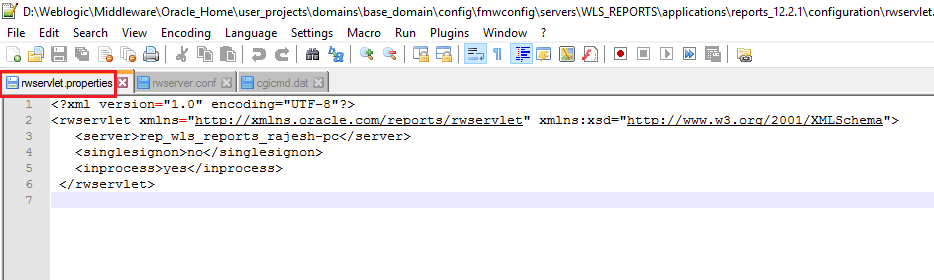
rwservlet.properties – Servlet specific properties
rwserver.conf – Server properties
cgicmd.dat – key mapping file
1. As far you are using in-process reports server, nothing much to alter with “rwservlet.properties” file. Basically you should see entries like following in the opened file:
2. rwserver.conf (Please check the below image)
3. cgicmd.dat: Many values we supply to call a report using Web.Show_Document method could potentially expose vital information like the database details & many other. “cgicmd.dat” file helps us to map such values to keys and later use them wherever applicable. With this example, I will demonstrate, how the database username, password and service name are mapped using a key. Please check the image attached below
Once these configurations files are altered, we need to create a report instance for the WLS_REPORT server. Open an elevated command prompt and switch to “D:\Weblogic\Middleware\Oracle_Home\oracle_common\common\bin”. Start wlst & connect to the server.
Note, you can choose your own name for the report instance. Once the report instance created, exit wlst and you can try to start the WLS_REPORT server from the weblogic console.
This comprehensive note should help you to quickly start with Oracle Forms & Reports 12c (12.2.1.4)
I am avoiding few elements like publishing a Forms based application for now. If you feel, should be added, please let me know through the comments section.
It looks like, setting up the compatibility for Windows 7 solves the Reports Builder shaking, freezing behavior to a greater extend. Going on with the “Fix” as NOTHING else could be done with a product that is NOT anymore supported by Oracle.
====
I “trust” Microsoft and I do update my Work/Home/VMs regularly. Ahum! 99.9% of the times I never had to go back and fix anything, that .1% times, things went awfully bad.
I cannot confirm which update, certainly one update within last 2 months have made Oracle Reports Developer 10g/6i loads messier than earlier. Now both version of reports developer will NOT load the layout designer properly.
The interesting factor about the layout designer is:
It hangs more often when you have multiple reports opened from a single instance of the reports developer & you are switching between the layouts.
For example, if you opened Report 1’s layout & closed it, then opening the Report 2’s layout arrests the designer & all the toolbar icons and rest go astray (as you could see with above image) which will force you to end task the developer using Task Manager/or other known measures.
It is irky, shaky, yet you can do your work with multiple sessions of reports developer opened with only one report loaded. There are no guarantees that this IS the ultimate solution. I often have to terminate the report builder and restart it to do my development(s) :(
I’ve more news for you. I did a reinstall routine of Patch 3 for 10g developer & remembering Windows 7 was the last OS certified with the developer suite, changed the compatibility for the Report Developer and set it as Windows 7. I am not sure whether it acts as a mediator, my report builder is much stable as I am jolting these few lines. Keeping fingers crossed.
I am kind of disappointed, to be frank. After long planning, I decided to post about installing Oracle 18c on Windows 10 & started hearing about 19c. Well, shit happens and we will continue with what we were planning to do.
Before getting in to the real business, let me remind you. Oracle stack depends upon hell loads of VC++ components, and missing those packages could make things pretty difficult on Windows. So, as a thumb rule, please make sure that you have all available VC++ packages installed with your Windows box. Never forget that .Net 3.5 is also required by multiple Oracle software on Windows. Finally, do update your Windows.
You may refer this image for the VC++ & .Net components those are installed in my Windows 10 computer.
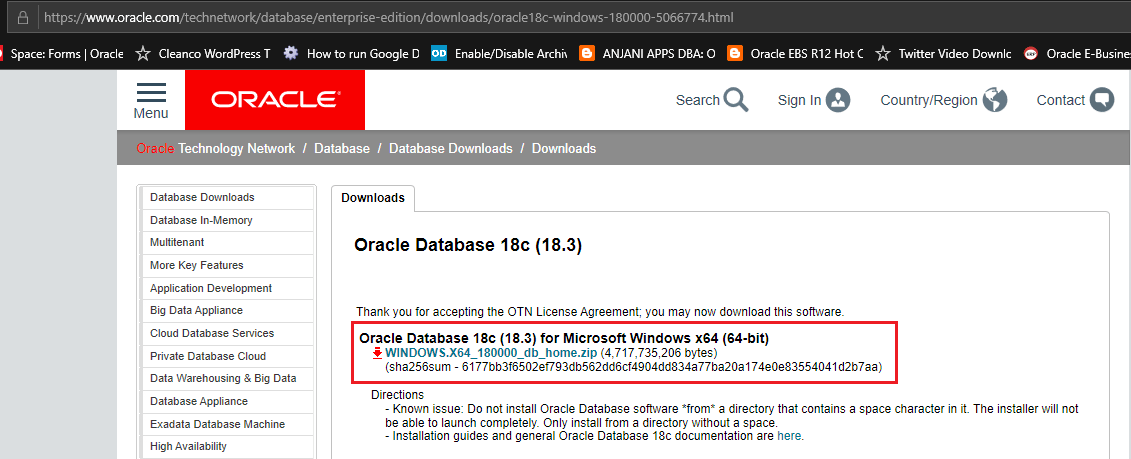
You can download Oracle 18c installation media for Windows 64Bit from the following link
Please spend a moment to read what Oracle says just below the media link, “Do not install Oracle Database from a directory that contains a space character in it”
That means, while extracting the downloaded ZIP file, make sure you are extracting the archive to a folder like “D:\Oracle18c” NOT “D:\Oracle 18c” or “D:\Oracle Database 18c”
Oracle never liked “space” character in the directory name & if you are going to ignore this, you are going to have true troubles waiting for you mate.
What I have came to conclusion about Oracle 18c installation is:
Oracle is NOT anymore copying all the source files to a new destination. For example, usually when you install a software on Windows, there is installation source, from which necessary files are copied to a new destination (installed folder). This time Oracle is approaching the installation in a different fashion.
It ONLY configures the database.
That means, Once you extract the media, say to a folder called “D:\Oracle18c”, this is the same folder where the database will be installed! You will only be asked for Oracle base location, where the diagnostics and others will be configured.
The above is MY PERSONAL observation & I am yet to refer the installation documents from Oracle for clarify against what I found. Feel free to prove me wrong.
With the below installation example, I have extracted the 18c source media to a folder called “D:\Oracle_Installers\18c”, which will be the installation folder also
Run “setup.exe” as “Administrator”, that brings up a console sort of Windows that lists the installation progress (minimalistic)
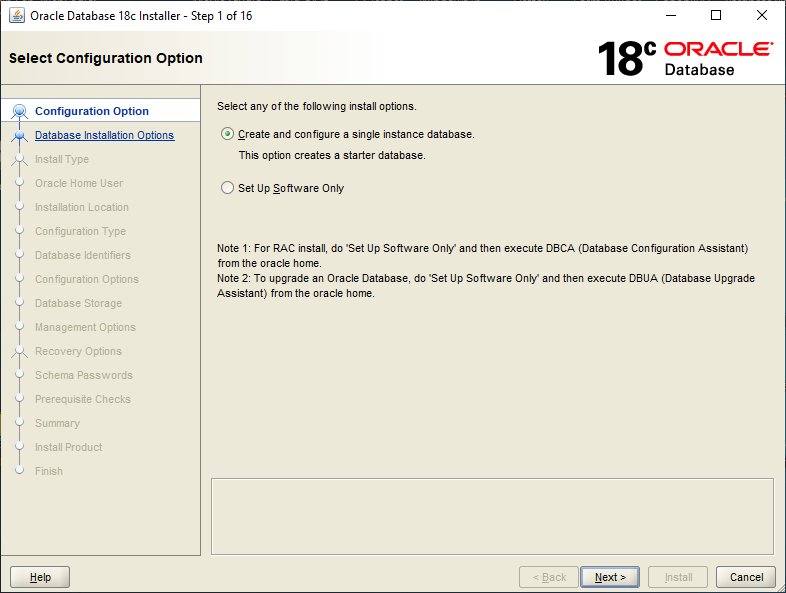
We’ll create a database along with the installation, which is quick and effective (for this TEST)
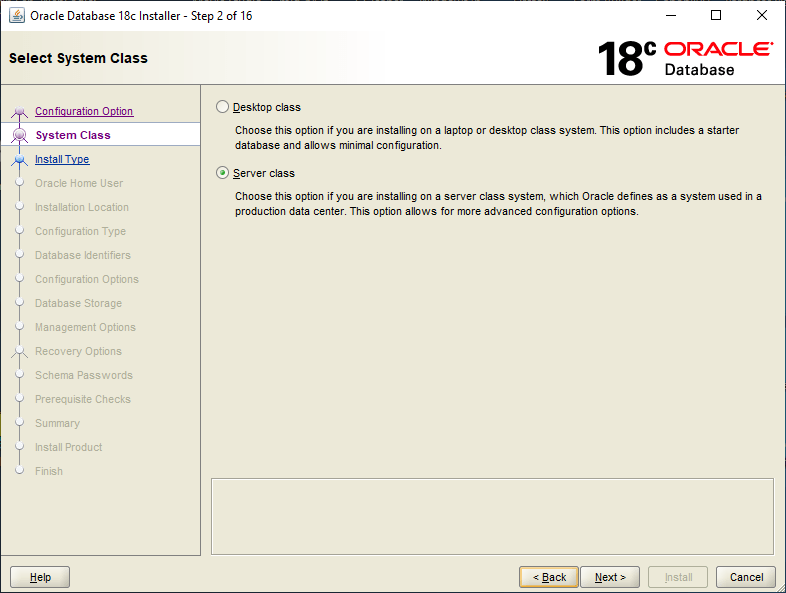
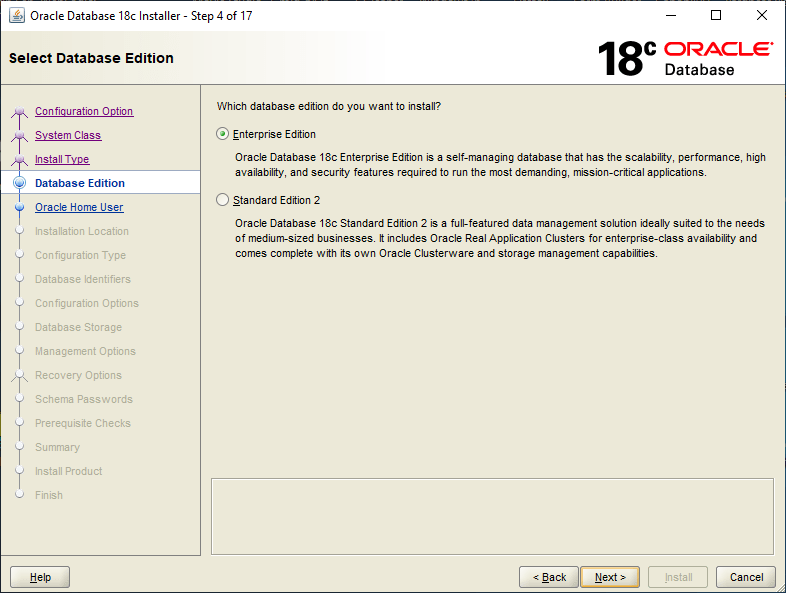
Although we are installing the software on Windows 10, We will select “Server class” for System Class to “experience” the load stress.
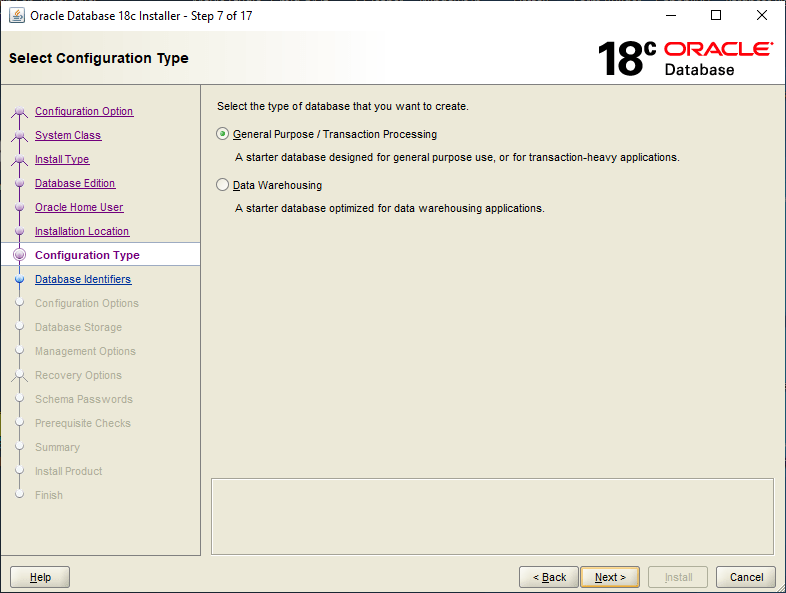
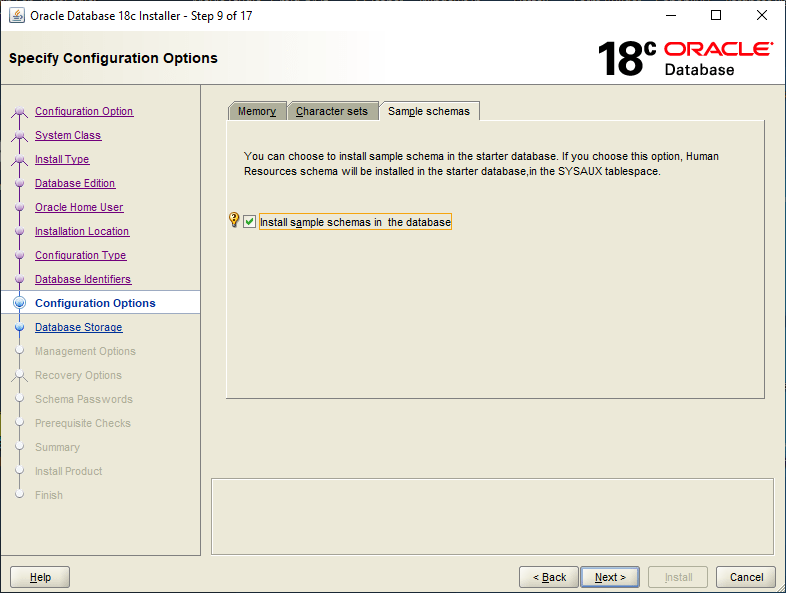
Usually I choose “Advanced Install”, so that I can minutely access the different options available for the database like character set, memory etc
Database Edition should be “Enterprise” to experience the same “Cloud” version capabilities.
I’ve one Windows user account “Oracle” that I use for Oracle installations and setup. I suggest you also to create a non-administrator windows user “oracle” or something equivalent specifically for Oracle software.
As I have mentioned in the beginning, “The Software directory is the Oracle Database home directory”, ie, the folder from which you start the setup.exe will be the Database home directory. The path that specified by you will be the Oracle base & usually the diagnostics elements will be placed within.
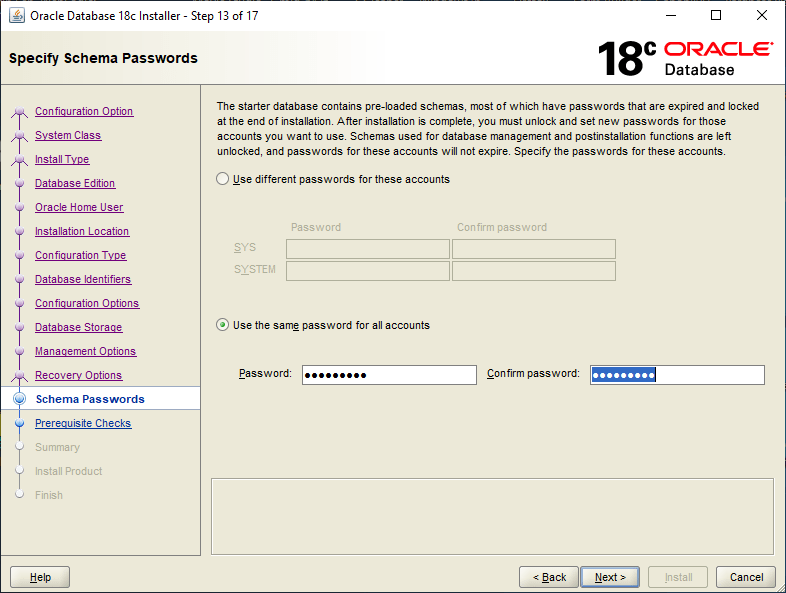
As a rule, I always select the same password for all vital accounts & the pattern is something like ‘Abcxyz123’. For a TEST lab, this saves me unwanted complexities & less documentation. For a production instance, please follow Oracle’s recommendations.
My laptop boasts one i7 8th generation processor, 16GB DDR-4 memory and 512GB Samsung 860PRO SSD. Yet, the installation takes it’s own time. So if you have less hardware configurations please wait patiently.
You know what to do with JAVA security prompts!
Once the installation over, you will be provided the link to Oracle Enteprise Manager Database Express, which is a minimalistic EM for the database. You can log in and view the database details and interact the database parameters through this interface.
I know you are smart enough to find out that I altered the below image a little bit…Well it looks something like this…
My laptop doesn’t have FLASH installed, hence I am using Internet Explorer for accessing the EM. I have to check whether I can access the EM using Firefox after installing Flash.
That’s all folks. The installation is pretty straight forward other than for the installation folder/directory design part. For a production environment, you may need to truly plan how the folder/directory name is going to be.
Ah, finally! My laptop is lagging beyond expected levels with the database services running.
Have comments & suggestions, please let them come in.
Yesterday I was contacted by one of the visitors after referring my posts about Classic ASP connection to Oracle databases in general & I revisited this “area” after a long time. It took a while for me to setup everything, however the results were pretty awesome. So here comes one more post about Classic ASP with Oracle database, this time Oracle 12c 64Bit.
OS: Windows 10/64Bit Windows Server OS
Prerequisites
Setup IIS for publish classic ASP with Oracle 12c database
Software requirement(s):
Oracle client 32Bit, 12c (for best connectivity)
Launch IIS and create a new application pool, as shown with the image.
Now go to the advanced settings for the application pool that you have created & switch “Enable 32-Bit Applications” from “false” to “True”
Connection possibilities
There are two ways to connect to Oracle database from Classic ASP
Using DSN (Data Source Name)
DSN less connections. Here we will use the Oracle tnsnames.ora file to identify and connect to the database. We have to insure that the TNS_HOME directory is set at the environment level, or the client that is used is 1st entry in the environment variable “PATH” for Oracle products in case of multi Oracle homed hosts.
Create a DSN
Classic ASP could interact with only 32Bit environment, hence the IIS server hosting machine must have the latest Oracle 32-Bit client installed (older clients may not connect to later databases properly). As I am writing this post, Oracle 12c 12.2.0 is the latest client available.
Logged with an account having “Administrator” privileges, Open ODBC Data Source (32-bit)
Please note, my box has multiple Oracle products, hence don’t get confused by the names in next few screens.
If your installation for the Oracle client was correct, you should able to see an entry for the Oracle driver like the one you could see the image above.
Click “Finish”. This will pop up another window. Under the “System DSN” tab we have to create our new DSN
Provide a name of your choice for the “Data Source Name” and “Description”
Make sure you have the “TNS Service Name” already available with the listener.ora file. Oracle 12c passwords are case sensitive. Hence make sure you are going to provide the case sensitive password while testing the connection.
If you don’t have previous experiences with creating net service names, please follow the instructions below.
Start “Net Configuration Assistant” from the Oracle Home and follow the images below.
Read the help texts available, especially if you are new to Oracle
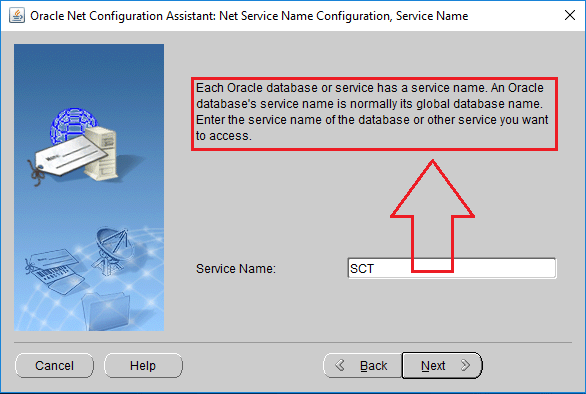
Provide the service name, which is your database name usually.
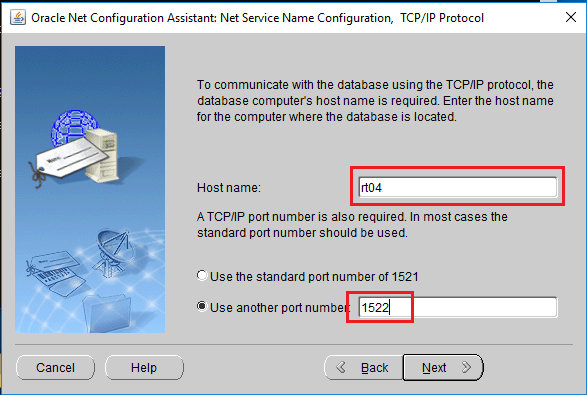
Provide the FQDN (fully qualified domain name), ie, your computer name like “rajesh-pc.abc.com” in case if you are connected to a domain, else just the name of your computer, like “rajesh-pc”
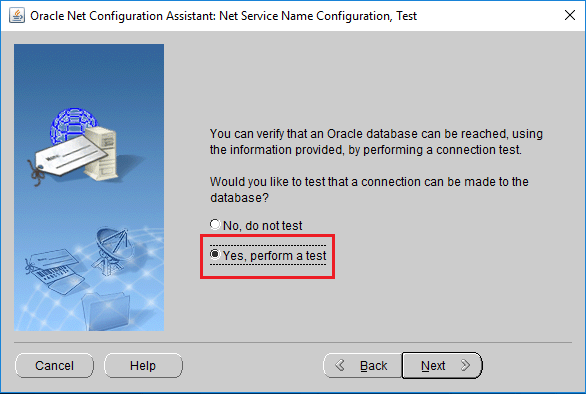
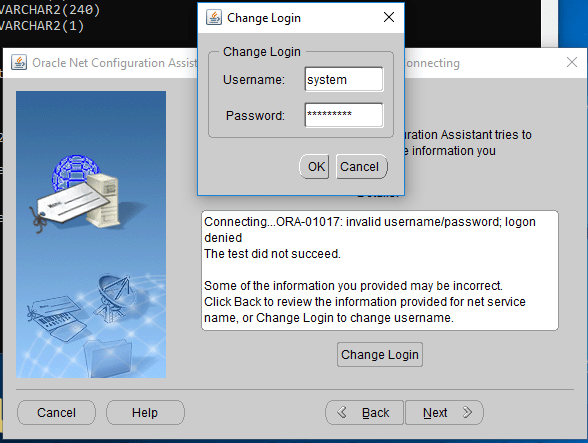
I would suggest doing a test, if you are sure that all the details provided are correct & no need to test, you can skip this step
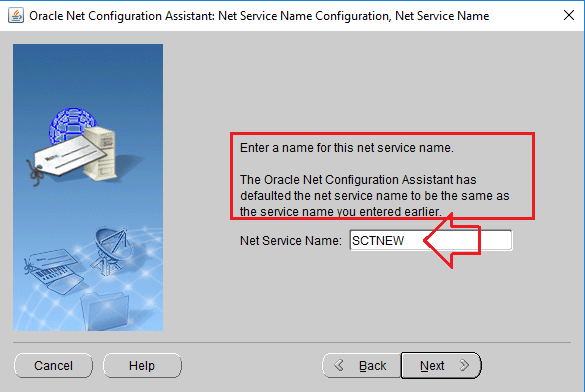
By default the configuration tool would suggest you the Oracle service name as new net service name, which you can change to any name. Just make sure that you will remember it.
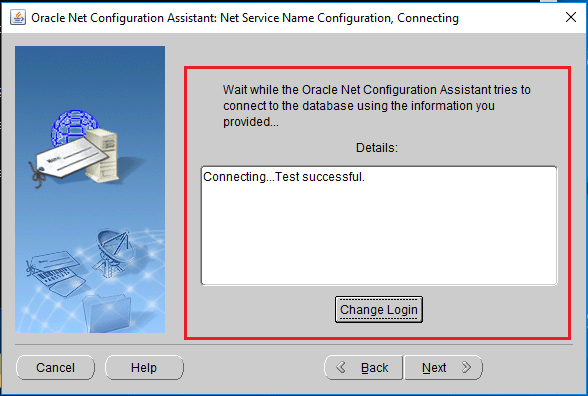
Now let us test the new service name we have just created.
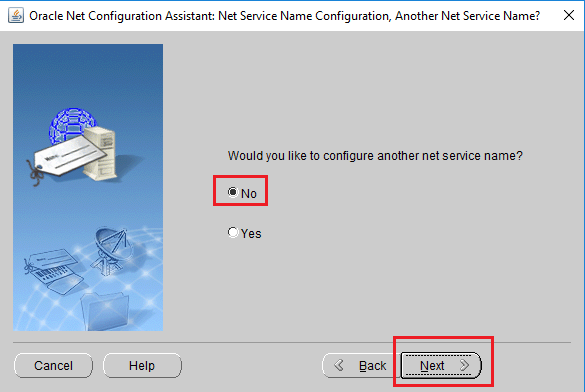
Once the Net Service Name is created, we will see both the scenarios using 2 different asp files, both using different connection approaches
<html>
<head>
<title>Connecting to an Oracle database using ODBC and DSN connection</title>
</head>
<body>
<%
SET myConn=SERVER.createobject("adodb.connection")
myConn.Open "DSN=BAC;" & _
"Uid=APPS;" & "Pwd=APPS"
SQLStr="SELECT BANK_ID, BANK_NAME, BANK_TYPE FROM BAC_BANKS"
SET result=adoCon.execute(SQLStr)
IF NOT result.EOF thEN
response.write("<h2>Oracle ASP Example</h2>")
response.write("<p>Connecting to the Oracle11g database using ODBC & without a DSN</p>")
response.write("<table BORDER=3 BGCOLOR=#0099CC><tr><th>BANK ID</th>" & _
"<th>Name</th><th>TYPE</th>")
WHILE NOT result.EOF
response.write("<tr><td>" & result("BANK_ID") & "</td>")
response.write("<td>" & result("BANK_NAME") & "</td>")
response.write("<td>" & result("BANK_TYPE") & "</td></tr>")
result.movenext()
WEND
response.write("</table>")
ELSE
response.write("<p>Error retrieving bank data!!</p>")
END IF
adoCon.Close()
%>
</body>
</html>
2. Connecting to 12c without DSN
<% Dim adoCon 'Holds Connection Dim rsViewRecords 'Holds Record Set
'Initiate connection
Set adoCon = Server.CreateObject("ADODB.Connection")
if Err.Number <> 0 then Response.Clear() response.Write "<hr>ORASESSION Error<br>" & err.number & " — " & err.Description & "<hr>" response.End end if
SQLStr="SELECT BANK_ID, BANK_NAME, BANK_TYPE FROM BAC_BANKS" SET result=adoCon.execute(SQLStr) IF NOT result.EOF thEN response.write("<h2>Oracle ASP Example</h2>") response.write("<p>Connecting to the Oracle11g database using ODBC & without a DSN</p>") response.write("<table BORDER=3 BGCOLOR=#0099CC><tr><th>BANK ID</th>" & _ "<th>Name</th><th>TYPE</th>") WHILE NOT result.EOF response.write("<tr><td>" & result("BANK_ID") & "</td>") response.write("<td>" & result("BANK_NAME") & "</td>") response.write("<td>" & result("BANK_TYPE") & "</td></tr>") result.movenext() WEND response.write("</table>") ELSE response.write("<p>Error retrieving bank data!!</p>") END IF adoCon.Close() %>
Hope this helps few “Classic ASP” guys out there ;)