Simple batch file for Oracle database backup

Hi guys
We are too busy now days. Issues @work keeping us working around the clock and giving us hardly any time to update this blog. Quite recently, we decided to expand this forum with more Oracle technology related posts, as we realize, we get maximum traffic towards the posts related to Oracle.

To begin with, we are providing a simple script for exporting the entire database using “system” user today for Microsoft Windows based implementation. This batch file exports a .dmp file to a user specified directory.

FOR /F "tokens=2-4 delims=/ " %%a IN ('date/t') DO exp system/password@connectionstring full = y file=d:\backup\exp_%%b%%a%%c.dmp

Save this script inside a .bat or .cmd file (eg: myorabackupdaily.bat or myorabackupdaily.cmd). An Administrator can easily create a scheduled job to insure that the batch file runs everyday at a particular time. Preferably during nights while transactions are none or less. Particularly, there is no need to shutdown the database in order to facilitate the export.

Once exported to .dmp file, it should bear a nomenclature as following:
exp_22012011.dmp

exp -> Export
22012011-> Date stamp

hope this article/ batch file is useful for few out there.

For Windows7bugs,

Admin
Oralce apps reports, instance producing gibberish character mapping

We are @ the final stage of implementing Oracle e-business suit 12 and recently came across a peculiar font mapping problem with custom developed reports. We use both Developer 6i reports developer as well as 10g reports developer.
Once the reports are tested and uploaded to the apps instance, the outputs were always producing gibrish (PDF outputs especially). However after few days of experimenting, finally we found a work around (hopefully)!

Following are the tips:

Design your report, test it.
Do not change the default font until your report is ready to upload to the instance.

Now decide the actual font you need to use with your final report.
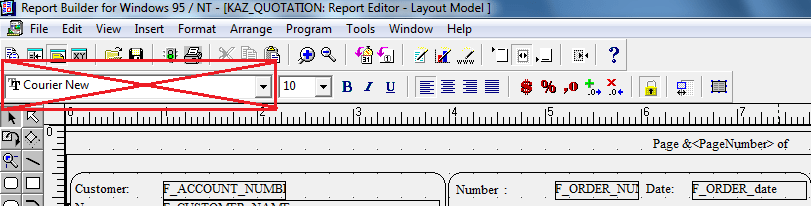
And never select the font from the font list drop down, check the image:

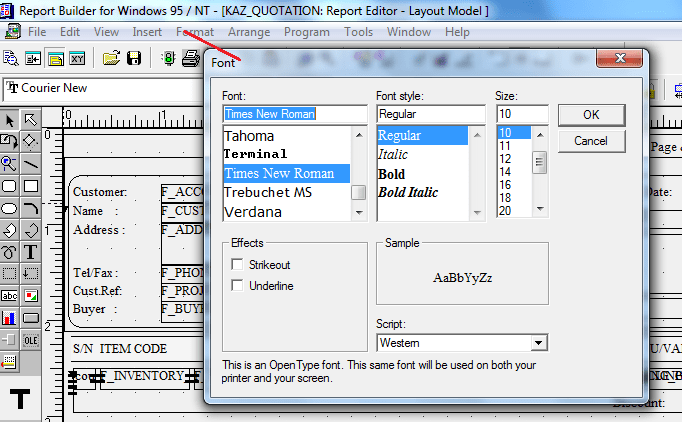
Instead click on format menu item, select “font” and choose your font. Generally we use Courier New or Times New Roman (Western) for our reports and this method has solved our months long troubles with the reports. Please check the attached image:

When you need to change the font sizing and weight for individual items, follow the same method and once you are satisfied with the layout upload to the apps instance.
We hope this work around is helpful for few out there.

Windows7bugs team