One of the teething issues a developer will face while using Visual Studio 2022 is related to IIS Express SSL certificate. My primary role as an Oracle developer, developing .Net applications was always a side kick, that complemented the inhouse extensions for Oracle EBS. This time I was trying to upgrade such a project once after getting a new development laptop at work. This project was framed using Visual Studio 2019 community edition years back, however I chose Visual Studio 2022 community edition this time. After the mandatory upgrades, testing failed throwing the error “net::ERR_CERT_INVALID” using Microsoft Chrome browser. This was not the first time I came across this error and somehow, I forgot to document the steps that resolved this issue for me last time.
Few of my Google searches were not landing me on a proper solution, hence I tried Microsoft Copilot this time.
Obviously, my issues were resolved by the steps 1 and 2. Just make sure that Visual Studio is closed while attempting these steps.
Once the repair is over, open “Developer Command Prompt for VS 2022” as administrator. You can do this by pressing the CTRL key while clicking “Developer Command Prompt for VS 2022”
Now, run the first command
Accept the prompt.
Now, run the second command
You should accept to install the certificate. Open Visual Studio now and continue with the debugging that should work as expected this time.
I don’t remember experiencing SSL related issues with Visual Studio 2019, that I used for years.
Oracle clearly mandates primary keys for all the tables that are to be used with APEX and they are absolutely right to demand it, to meet the simplicity of the APEX low code application development. Primary keys, constraints, table triggers and all such could make the front end development easier as the database will do the validations and checksums against the data.
Today we will see how to create a Master Details APEX form using the master table that has a primary key column and the details table having only a foreign key reference to the master table. If you refer the Oracle Whitepaper for APEX integration with R12 12.2.x, you will get an idea to circumvent the primary key issues to a certain extend, which is not the topic that I am discussing today.
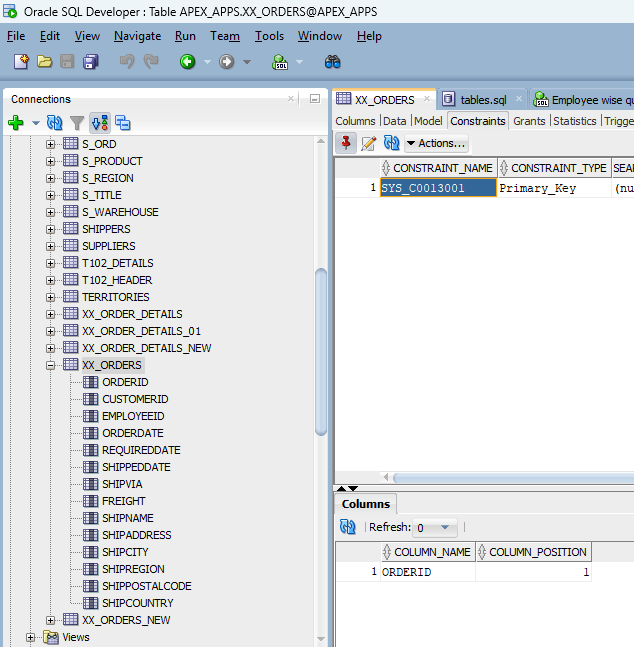
For this demonstration purpose, I will be using 2 tables that I copied from Northwind Microsoft SQL database which was migrated to Oracle. I dropped all the constraints from these tables and created primary key constraint for the Master table and foreign key for the details table.
I thought of making a video this time as explaining it here looked too hectic.
If you would like to see a text version of the same, do let me know through comments and I will try to update this thread.
Oracle provides a document that was last reviewed in 2019 with cryptic instructions to setup a custom schema for the APEX integration & gravely misses environments like ours where multitenant database is used! As usual I am not making any claims that this is the “certificated*” way of setting up APEX for EBS. This is just another attempt to connect the dots and do stuffs the right way after multiple attempts.
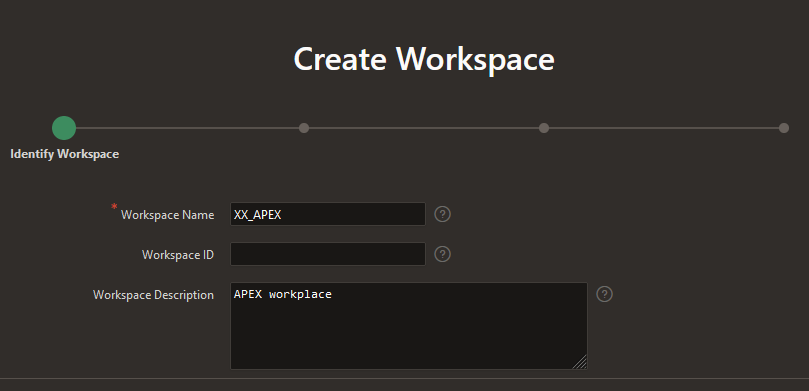
Oracle documentation instructs to create a new schema XX_APEX as part of setting up new workplace. This process creates a separate tablespace for the schema and this instruction contradicts with the instruction to setup the same as a custom application. EBS R12 12.2 “AD Splice” doesn’t respect custom tablespace definitions and defaults the tablespaces to APPS_TS_TX_DATA and APPS_TS_TX_IDX for custom schemas. So how do we circumvent this issue? Simple answer. Create a custom application using “AD Splice” bearing the name XX_APEX to meet the documentation preferences & use it with APEX workplace later. One of the best detailed instructions for creating a custom application using “AD Splice” could be found here
I followed RishOraDev’s instructions and the custom application “XX_APEX” was created without any issues.
Once the custom application creation is over, we can proceed with creating a new workspace for APEX applications.
Logon to your APEX portal as Admin and proceed with create workspace.
Next step, choose Yes for “Re-use existing schema” and pick XX_APEX that you have created earlier.
Provide a meaningful username for Administrator. I am using Admin & this shouldn’t be confused with the APEX admin account. Select an existing Schema will grant additional rights to the schema that are essential for APEX.
You will have to change the password during the initial login. So use a temporary password and reserve your highly secret password for your permanent password :)
That’s it. A new workspace for APEX has been created!
You can execute apex_ebs_setup.sql and other supplementary scripts now to setup the example scenarios described in the white paper. If you try to execute apex_ebs_setup.sql prior setting up the schema for the workspace, the last statement will fail as the custom schema will not have CREATE VIEW rights. Grant the right to schema for such cases.
Now you can proceed with login as XX_APEX workspace admin and continue with defining developers accounts so that your team could start building applications. Please refer the whitepaper for understanding what you should and shouldn’t do with APEX while it is integrated with EBS.
There are few scripts offered by Oracle for APEX environment and one might feel tempted to try them, I cannot blame that urge. However, please note the whitepaper was never meant for a multitenant database and the instructions were clearly for 11G. If your EBS is already migrated to a multitenant setup, please make sure that you will be running the scripts as APPS user. Switch to APPLMGR, source the environment. Sample as below
[applmgr@erp-test ebs_apex_scripts]$ sqlplus apps/apps @apex_ebs_setup.sql

SQL*Plus: Release 10.1.0.5.0 - Production on Mon Feb 3 18:22:19 2025

Copyright (c) 1982, 2005, Oracle.  All rights reserved.


Connected to:
Oracle Database 19c Enterprise Edition Release 19.0.0.0.0 - Production

.  ____   ____           ____        ____
. /    \ |    \   /\    /     |     /
.|      ||    /  /  \  |      |    |
.|      ||---    ----  |      |    |--
.|      ||   \  /    \ |      |    |
. \____/ |    \/      \ \____ |____ \____
.
.
. Application Express E*Business Suite Integration Example Setup.
.................................................................
.

FOO3
--------------------------------------
apex_ebs_setup_2025-02-03_18-22-19.log

.
.  << Enter Criteria >>
.
.   Version of EBS [12.2]:
.   EBS APPS Username [APPS]:
.   Password for EBS APPS Username:
.   APEX Schema Name [XX_APEX]:
.   Password for APEX Schema:
.
.
... Ebnable editions in APEX Schema
.

PL/SQL procedure successfully completed.

.
... Conect to the APPS Schema
.
Connected.
.
... Create views for use in APEX Applications
.

View created.


Grant succeeded.


Grant succeeded.

.
... Create Sample APIs to be called from APEX applications
.

Package created.


Package body created.

No errors.

Grant succeeded.

.
... Create APEX Global package for use with EBS Responsibilities
.

Package created.


Package body created.

No errors.

Grant succeeded.

.
... Conect to the XX_APEX Schema
.
Connected.
.
... Create APEX View referencing the APPS View
.

View created.

Disconnected from Oracle Database 19c Enterprise Edition Release 19.0.0.0.0 - Production
Forget about the hacks to connect to PDB as sys in order to run the scripts :)
Have questions? let me know through comments.
*Certificated is a term that I made to name and shame people who always defend their ignorance by claiming whatever they cannot do or answer as not certified.
While I was trying to setup Oracle Forms & Reports 14.1.2, the first attempt REPO creation didn’t report any connection issues & I was slapped with JAVA errors, especially “Schema validation failure” multiple times throughout Admin server startup. Not just the errors, the startup gave up after many errors associated and I came across a work around to start the Admin Server. It was by using one of the JAVA options.
set JAVA_OPTIONS=-Dweblogic.configuration.schemaValidationEnabled=false
After setting up this option, startWeblogic.cmd starts the Admin Server, however still throwing multiple JAVA exceptions. As we have Oracle support, two days I tried to figure out the exact reasons and gave up as there are hardly many 14.1.2 cases discussed else anywhere.
Being a Virgo has multiple caveats, one of them is doing stuffs the right way. My new VirtualBox VM will not activate Windows, that was annoying me because I couldn’t configure my desktop with icons! So I copied back my Windows 10 VM, upgraded it to Windows 11 23H2 and had to reinstall Oracle 19c database. Btw, this time I applied the latest Windows bundle patch for 19c, bringing the database to 19.25!
The first issue I noticed was while setting up the repository for Weblogic classic domain. The connection to “PDB” failed & I realized that I couldn’t do a tnsping against the PDB! Excuse me, I am not a “Certified DBA” here and I always used hacks to get stuffs done. Until the last time, once after Installing the Oracle database 19c with a PDB, I always did the following few
alter pluggable database all open read write services=all;
alter pluggable database all save state;
Set password reuse and password life to unlimited for the DEFAULT profile on all containers
This time I opened the pluggable database and saved the state. Didn’t use services=all part and as I am not a certified DBA, cannot confirm whether it was the reason the RCU failed to connect ;)
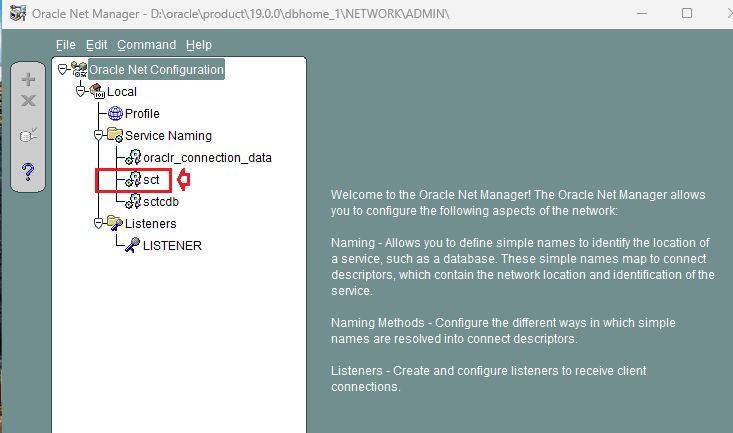
Anyway, as I just said above, usually I am lucky with hacks and realized that the connection issues are due to missing service entries, proceeded with creating service and database entries for the PDB using net manager.
Bounced database, restarted the listener services and REPO creation proceeded without further connection related issues.
The bonus was Weblogic Admin Server startup stopped throwing “Schema Validation Failure” JAVA exceptions and it was a really wonderful experience.
Last updated on 7th January 2026

The most awkward thing about the entire exercise is, we don't use Weblogic with a combination of Forms & Reports 12c/14c at work. The only Weblogic instance that we use is tied to Oracle EBS R12 & that's an ancient version.

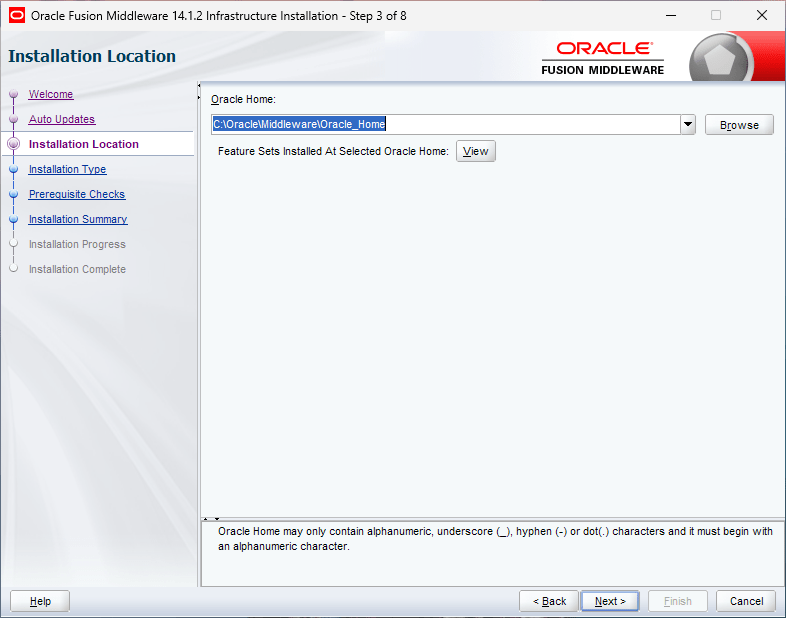
Today I am expanding the article with initial setup (only for lab purposes), instructions for publishing a sample application & few issues related to reports. I lost the Windows 11 VM on which I had the  Weblogic installation on C:\ Drive. On the new VM I installed the stack on my default path "D:\Weblogic\Middleware\Oracle_Home". I hope the instructions that refer this path will not confuse you.
If you did refer my previous post(s) for Oracle Forms & Reports 12c installation, this note is not going to be much different other than for few more options one must choose in order to install the stack!
Your Windows Box, let it be desktop or server OS, patched to the latest.
Static IP address, proper hostname.
Minimum 8GB memory available for database + Middleware processes. More is merrier!
Always use old command prompt (cmd.exe) for installing, setting up and start weblogic services. You are warned!
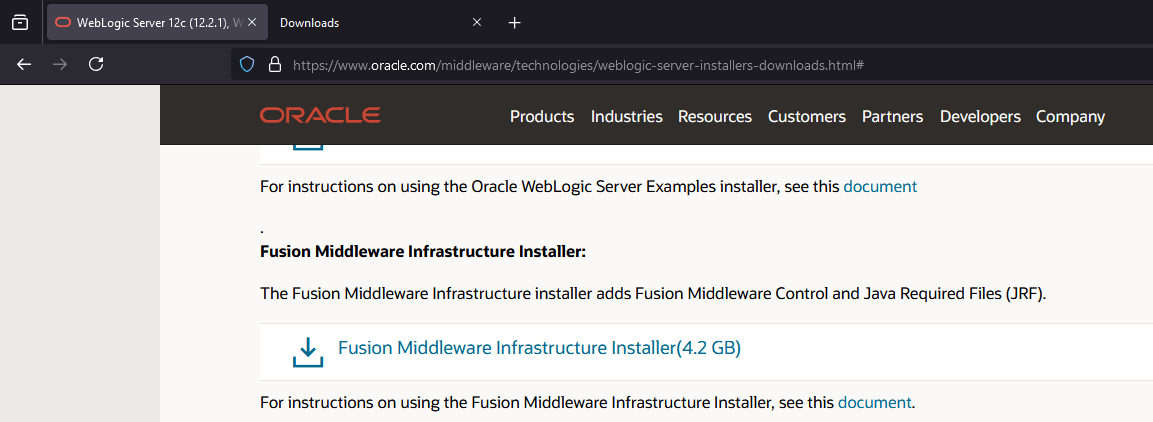
We will be installing Oracle Fusion Middleware 14.1.2/Weblogic Server using Oracle JDK version 21, that is the highest version supported as on date. You should download Fusion Middleware Infrastructure Installer, or Weblogic Installer from Oracle e-delivery portal for Windows. Please do the same for Oracle Forms & Reports also.
This time I installed the entire stack including a fresh 19c database instance on a fresh Windows 11 23H2 VM, to make sure no other Oracle products installed were interfering with the setup. Please refer this document ensure you have all the prerequisites met for the installation. To make is easier, if your Windows box is up to date, then you need to install Visual C++ run-time as mentioned in the document. Please note, these instructions are only valid for the current version of Weblogic/Fusion Middleware installation. You must refer updated documents for newer versions.
Once JDK 21 installed, make sure that you will adjust the PATH with JDK 21 being the first entry.
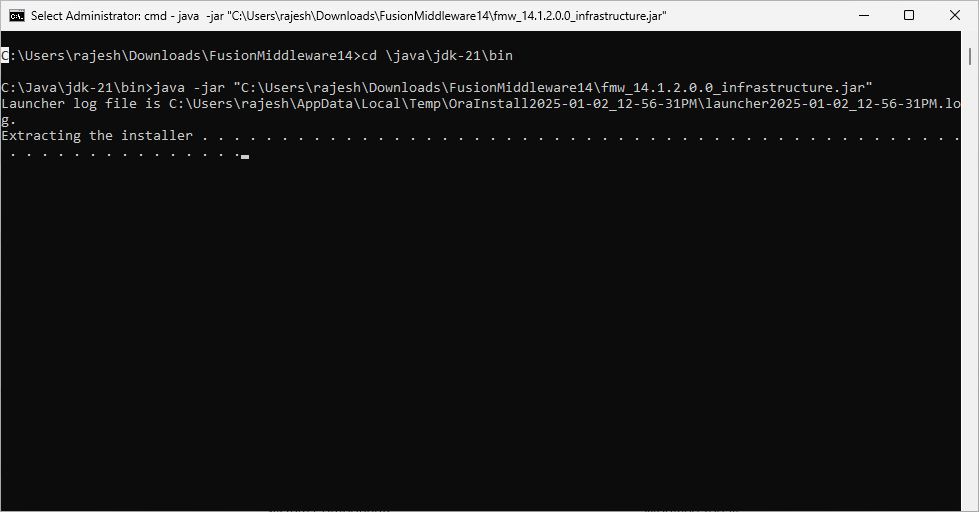
Let us start by Installing Weblogic/Fusion Middleware. Open an elevated command prompt and switch to the path where you have JDK installed. I usually always install JAVA software on C:\Java path. If you are on Windows 10 or Windows 11 use copy as path feature to get the filename along with complete path and proceed with the command. Please modify to suite your setup. Example
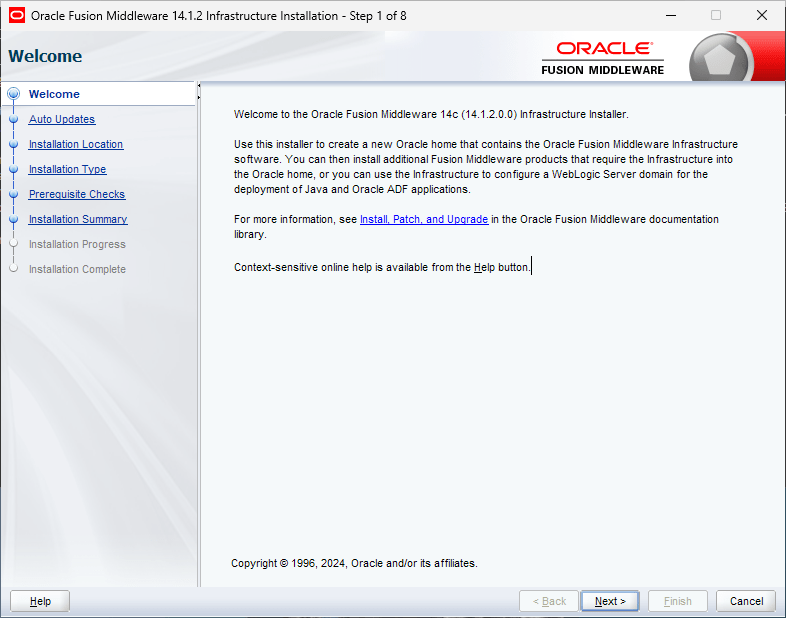
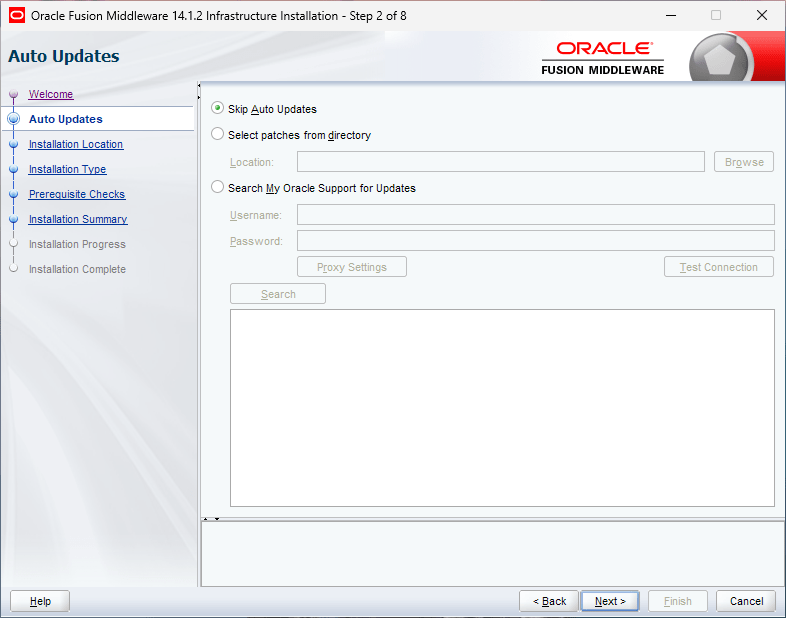
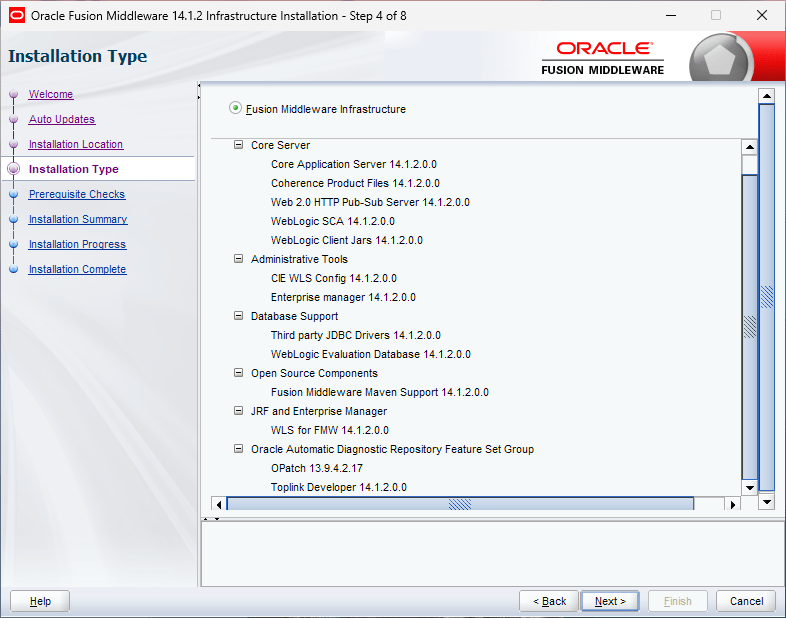
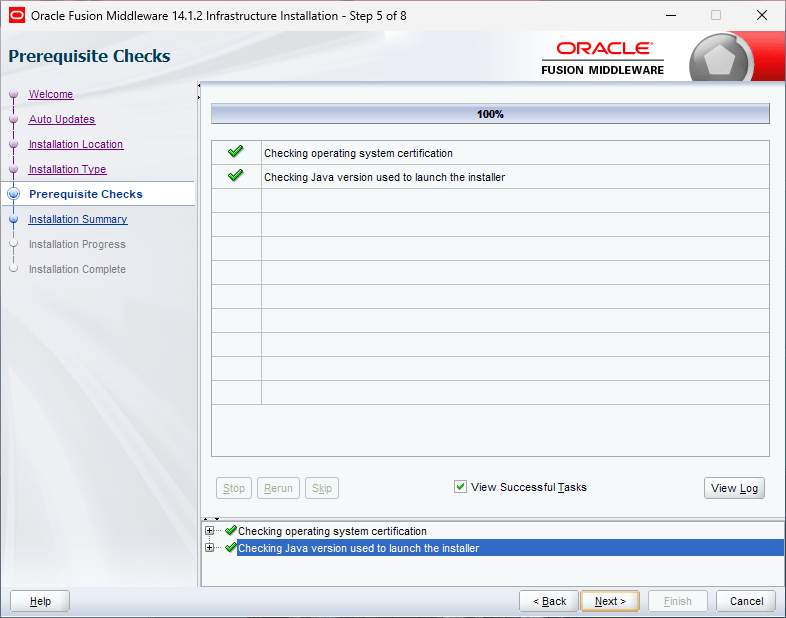
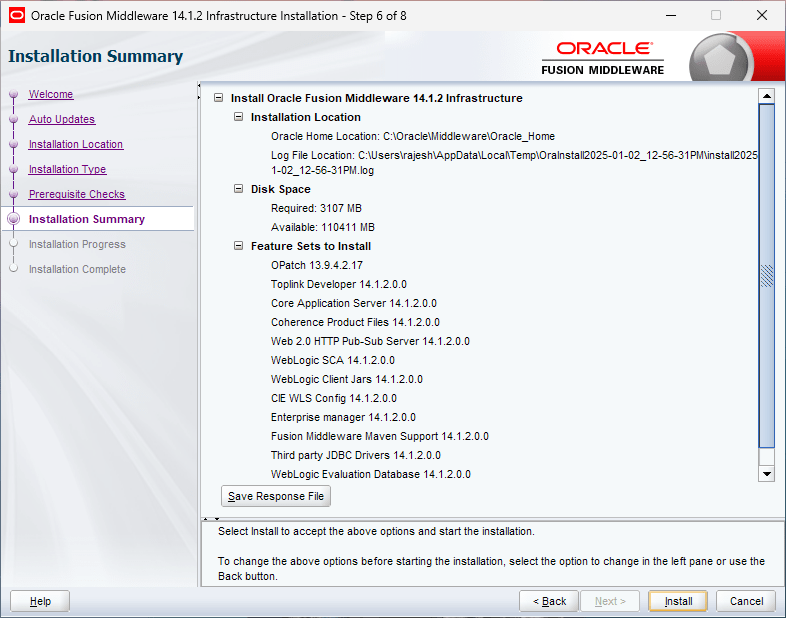
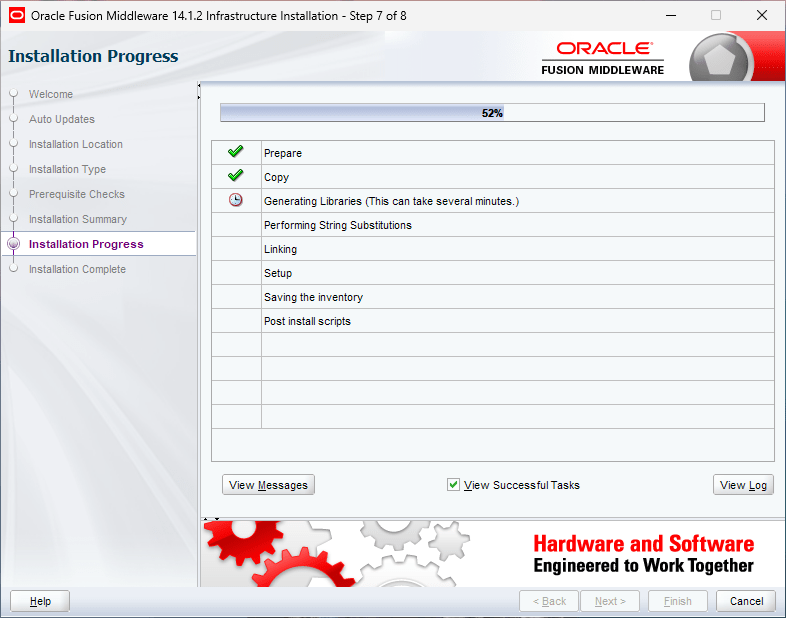
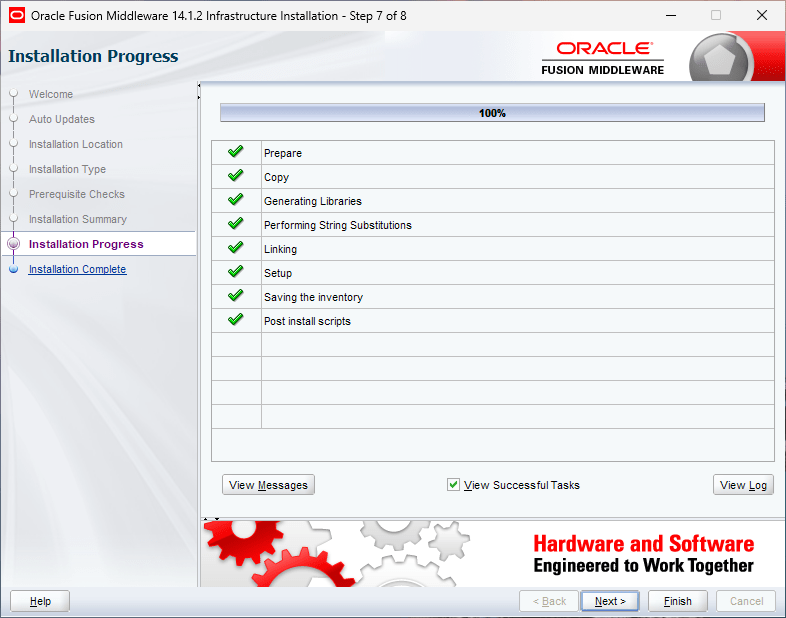
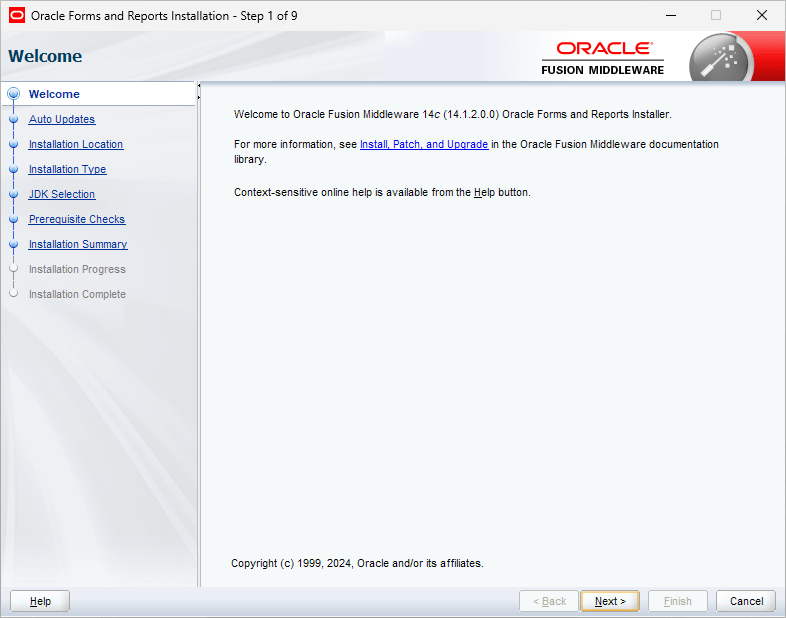
This could take a while based on the hardware resources available and soon you will be presented with the usual Oracle welcome screen. As this installation is “eventless”, I will not have much to explain further for the Weblogic installation. My new VM had only one partition C:, hence I installed Oracle database in C:\oracle folder and chose the same path for rest of the software as well.
That’s all folks. As I mentioned earlier, installation of Weblogic 14.1.2 on a fully patched Windows OS is eventless. We will proceed with Oracle Forms and Reports 14.1.2 installation now. This is another installation that is as eventless as the previous one :)
Right click the installer and start as Administrator is the only geeky instruction for this installer.
You must make sure that forms & reports are getting installed on the same home where we have already installed Weblogic server. So when the installer prompts for the Oracle Home, pick the one from the dropdown list.
Oracle offers the developers to install the Forms developer as a standalone product, that will not serve our current purpose. Hence, select Forms and Reports Deployment.
Select the default JDK
That completes the Oracle Forms and Reports Installation.
Special note. Unless registered as service and database, many connections to the PDB will fail during and post setup, especially while Weblogic Admin Server startup. Make sure to add the listener port exception in the defender firewall for incoming connections also. I have added the PDB as a service and registered the same as Database with Listener prior setting up the REPO for the classic domain.
Now we will proceed with setting up Repository for our classic domain. I mentioned in the beginning of the article that I installed a fresh instance of Oracle database 19c for this purpose and during the installation I have created one PDB that will hold the repo data for our classic domain. Switch to the path where you have installed Weblogic server from an elevated command prompt. For example, C:\oracle\Middleware\Oracle_home. Now switch to oracle_common\bin and execute “rcu.bat” script file.
Choose the defaults, that is create repository with the option system load and product load.
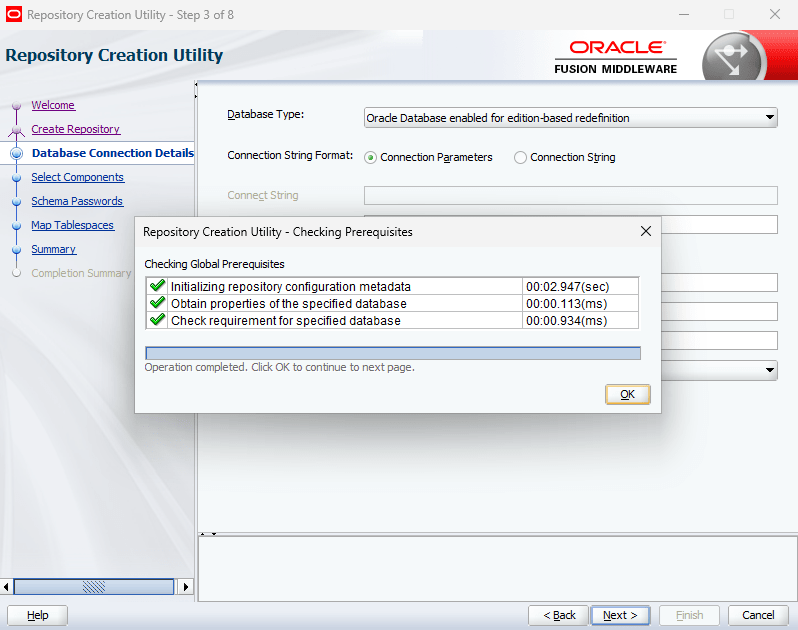
If there are no connection issues, you should see the below screen immediately.
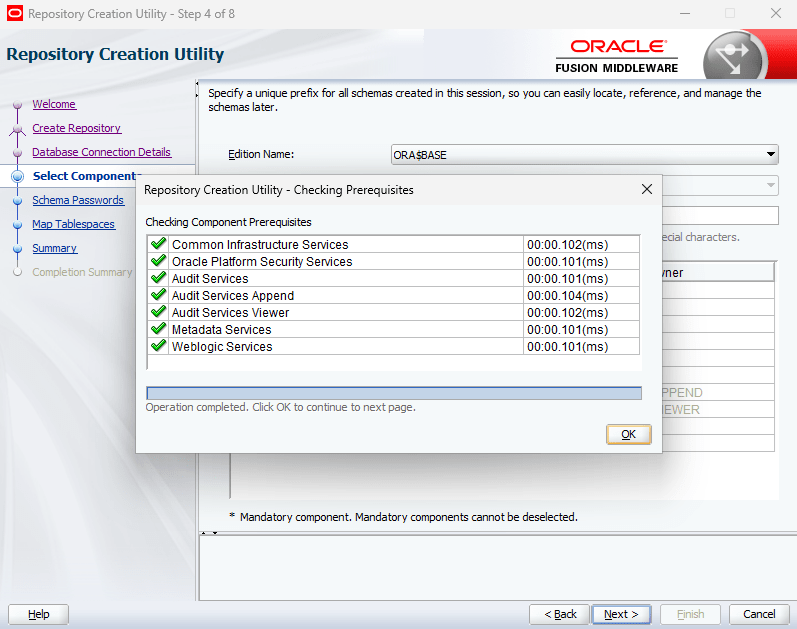
Select all components as seen with the below image.
Use the same password for all schemas.
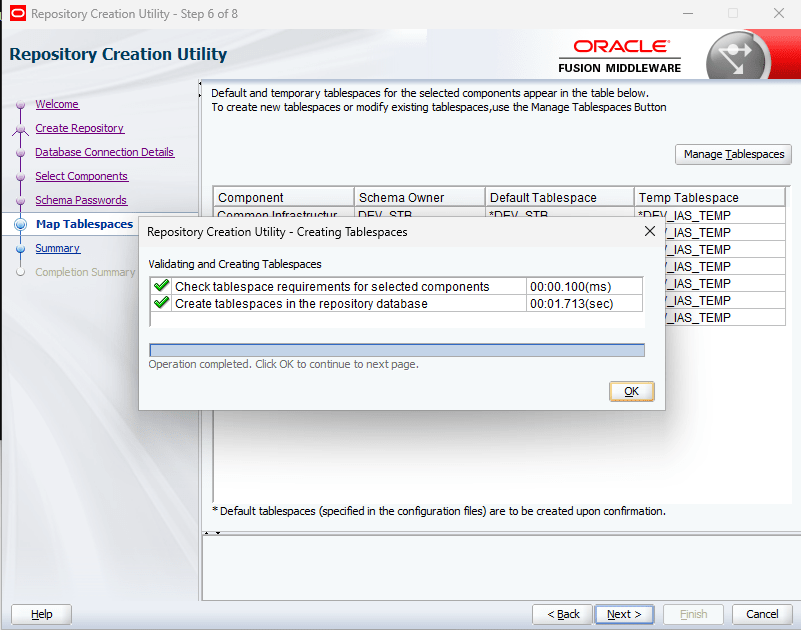
You may define a new tablespace for this purpose using the Manage Tablespace button.
This is another eventless setup, unless the PDB connections become a trouble. Now, we can go ahead and configure a classic domain, using which we will setup both FORMS & REPORTS instances for applications.
From the same path, execute the script file “config.cmd”
Whatever mistakes you make during this phase will force you to create new repo, go through these steps once again. So, make sure you will cross check all details prior proceeding to next steps. Considering you are creating a new classic domain, leave the suggestions as it is.
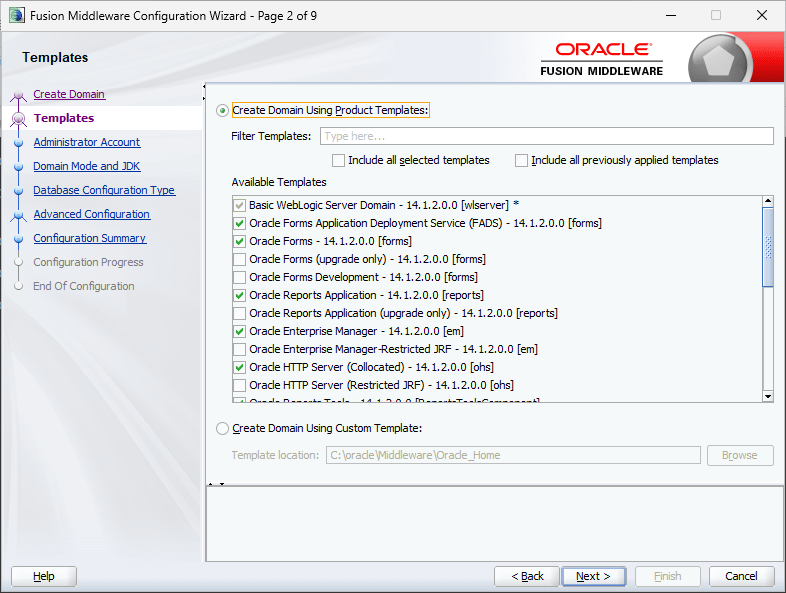
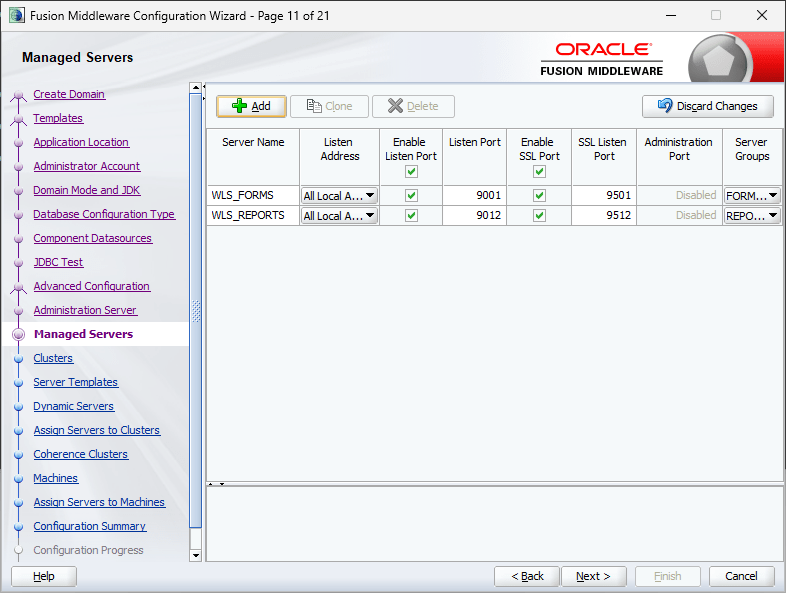
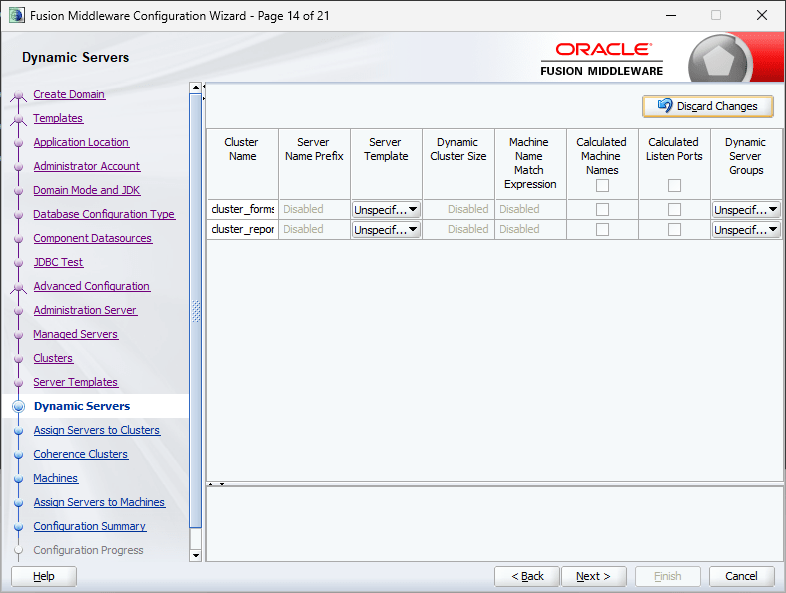
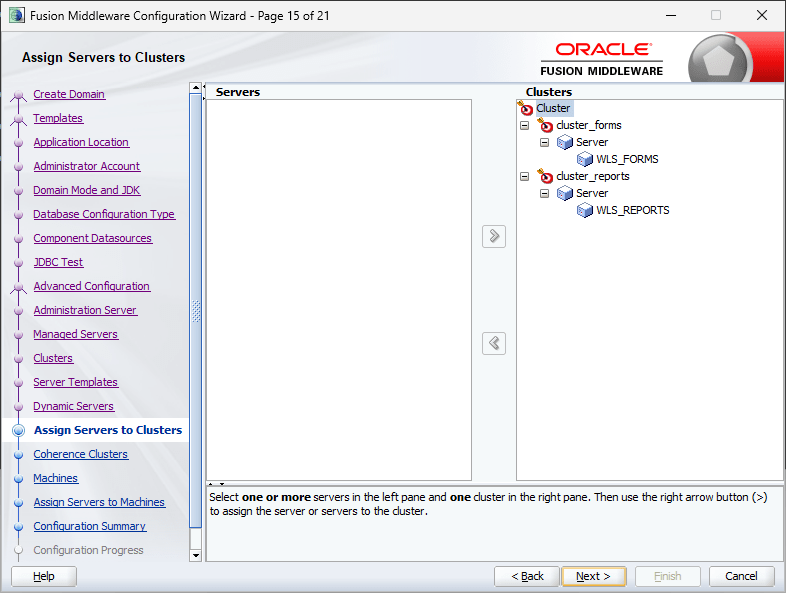
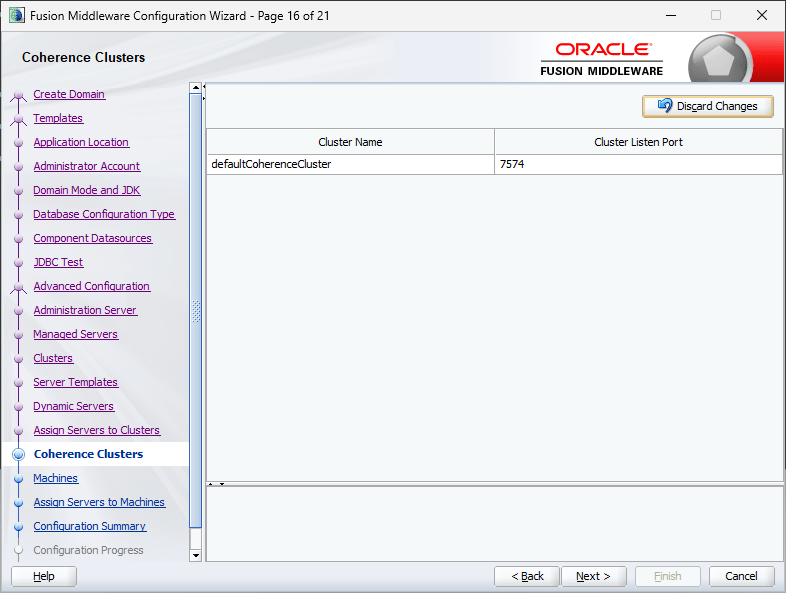
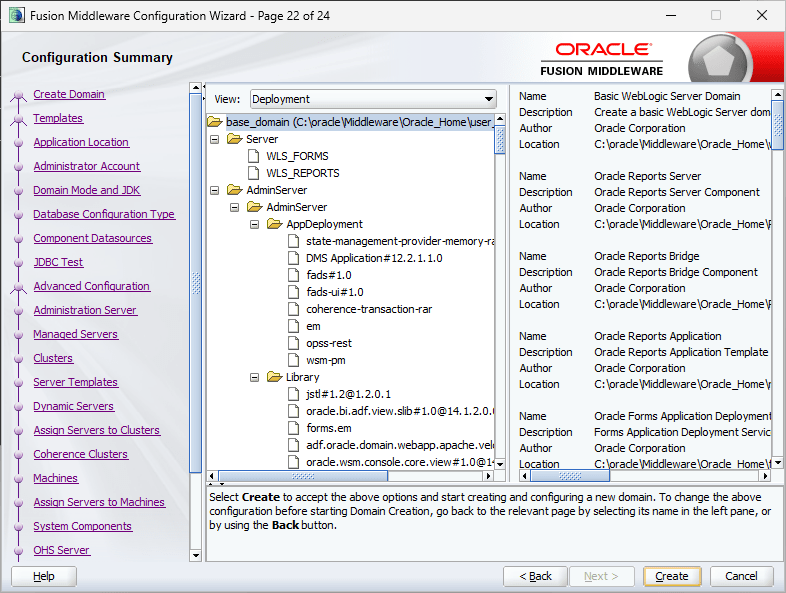
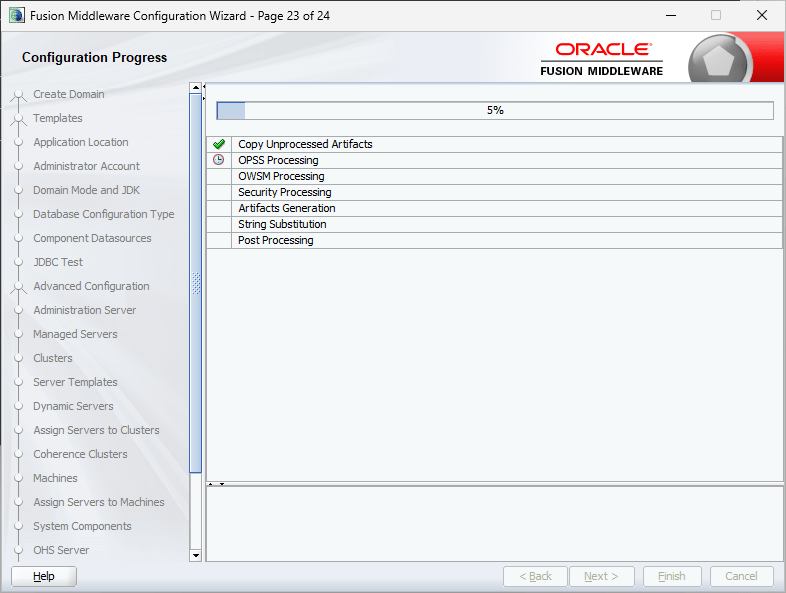
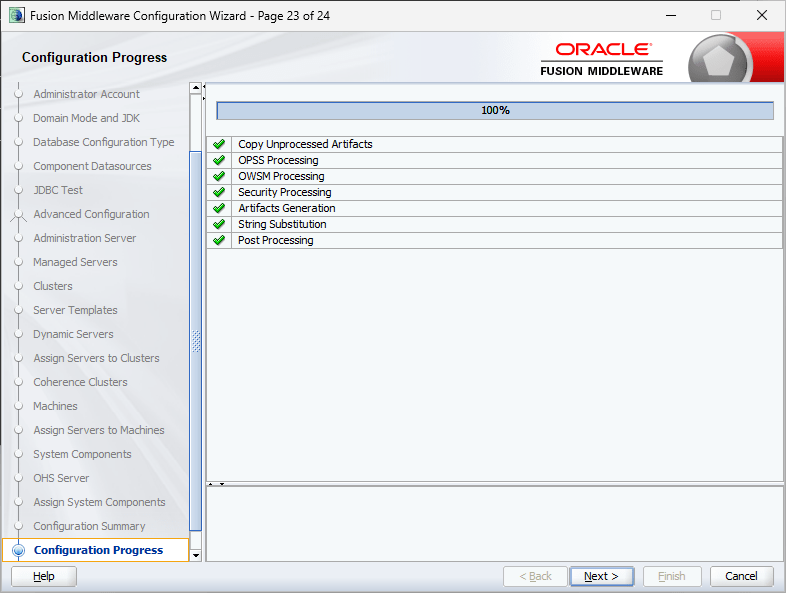
The above and next two images list the items that you are going to setup for the Classic domain.
We will not be setting up SSL, hence make the selections as seen with the image. I am not sure about the technical difficulties that one might face by enabling SSL at this point of time. You may safely ignore the warnings.
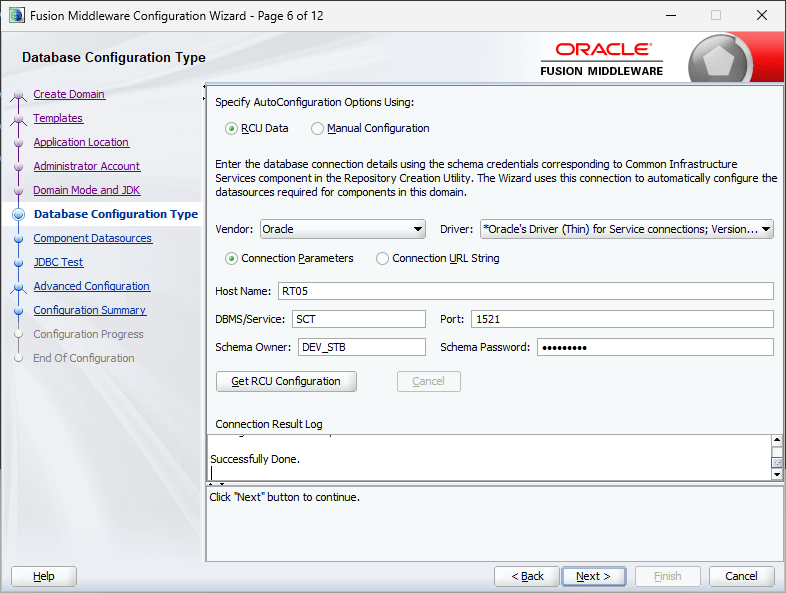
Now we have to supply the repository details that we have created previously.
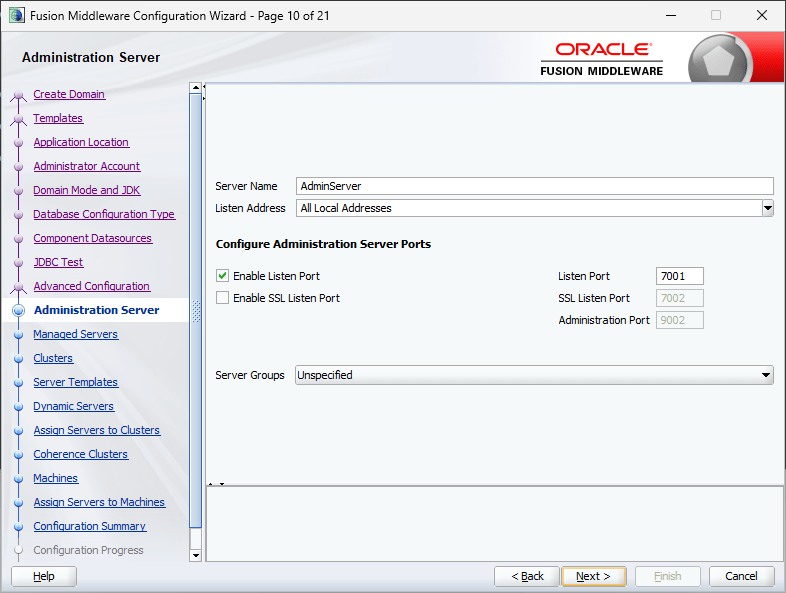
We will leave the SSL unchecked and make sure to select “WSMPM-MAN-SVR” for the Server Groups. Without this setting, the classic domain will fail to serve the purpose.
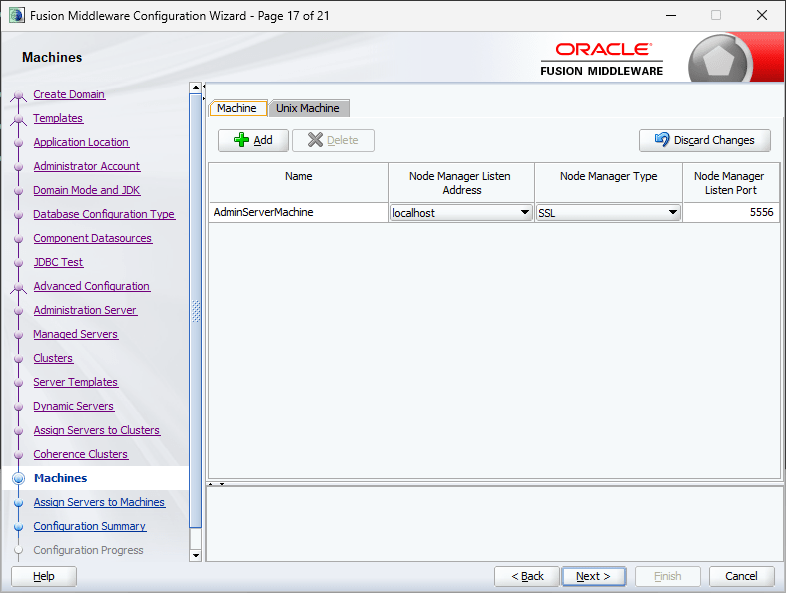
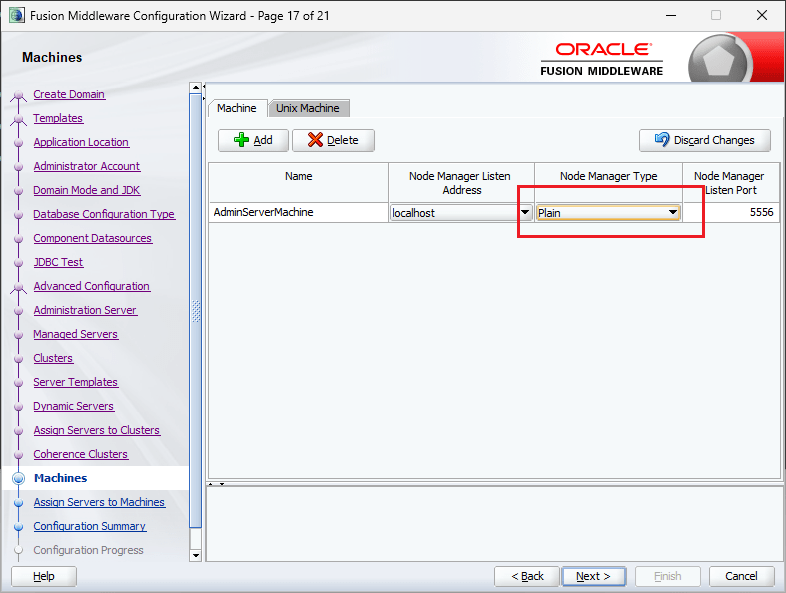
You can switch Node Manager Type from “SSL” to “Plain”, for me leaving it to defaults didn’t make any difference.
Change the Node Manager type to Plain
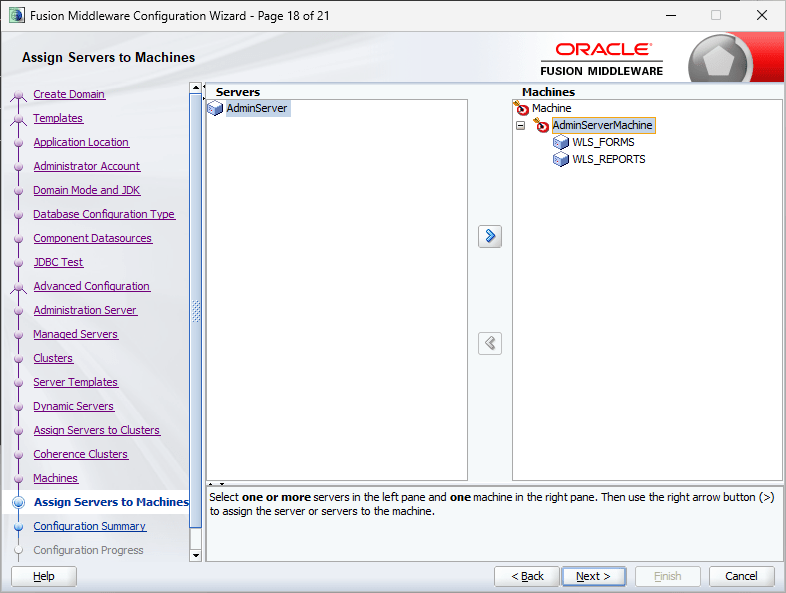
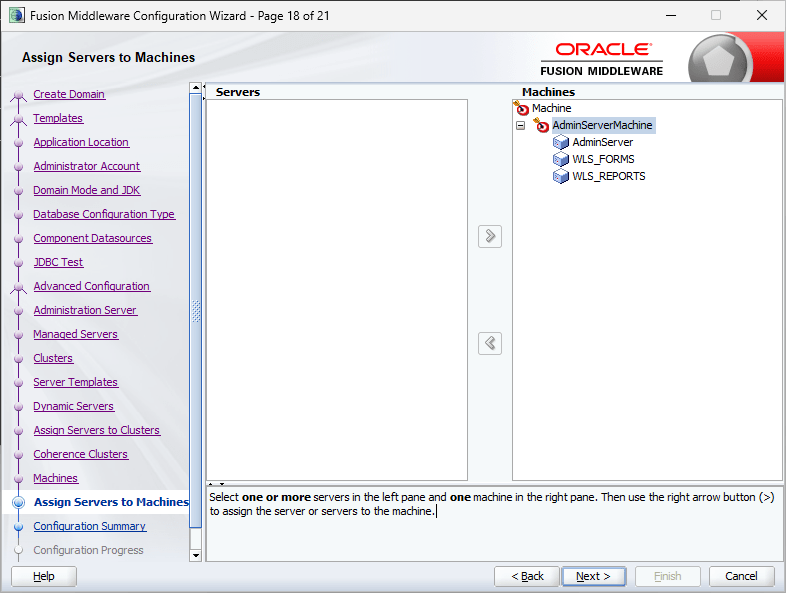
Click on the righthand side “AdminServerMachine” and the button to add “AdminServer” available in the left pan will get enabled. Add “AdminServer” to the “Machines” group.
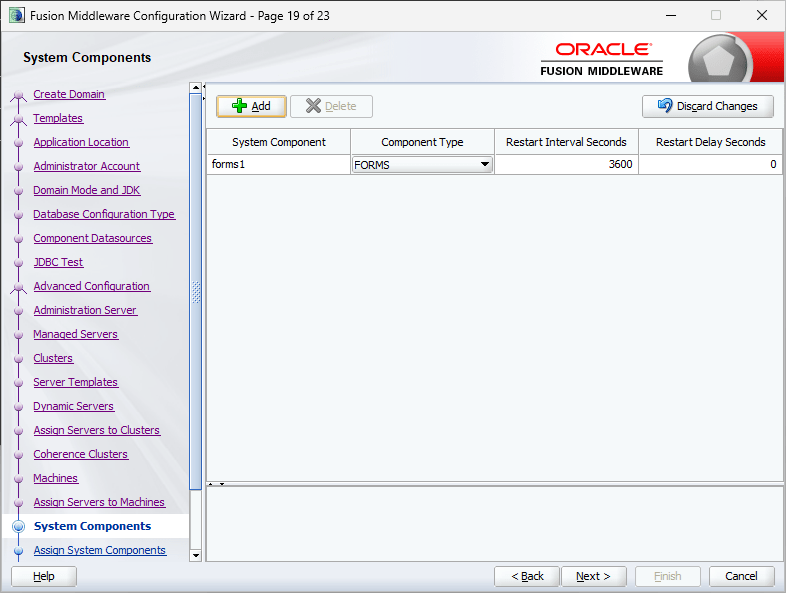
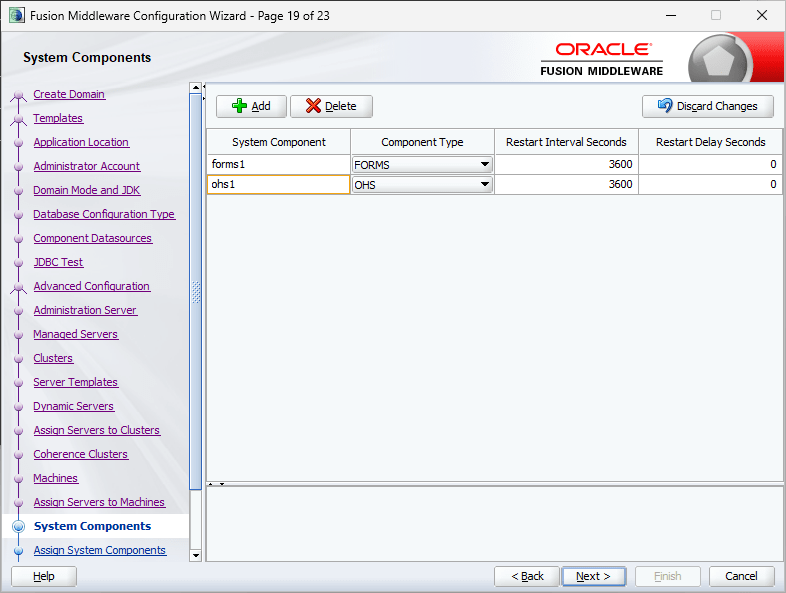
Now, we have only one system component that is Forms. We will add another component, Oracle HTTP Server or OHS.
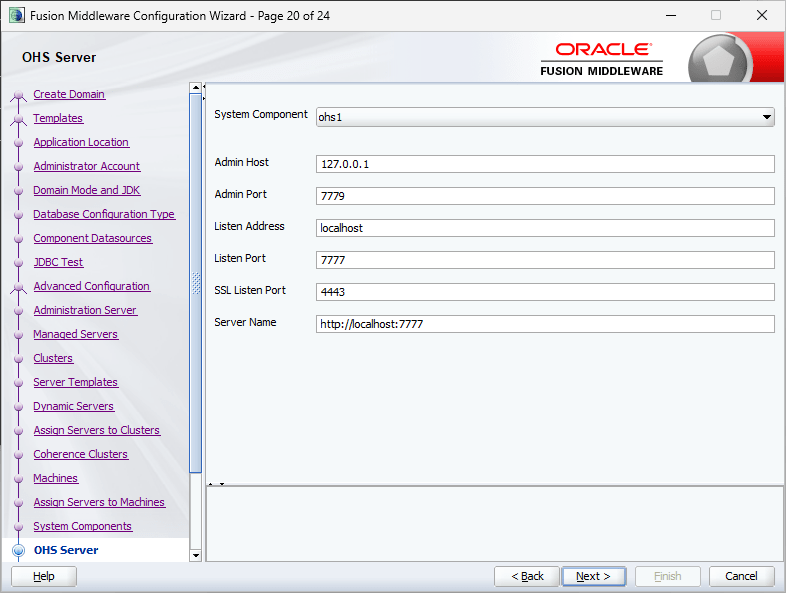
Leave the defaults.
(Added on 7th January 2026, Oracle demands you not to use “localhost” for listen Address incase if you are planning others to connect. Instead you should use the hostname or static IP address. If you missed this instruction during installation, use the enterprise manager console to change the listen address to “any” while the OHS instance is shutdown)
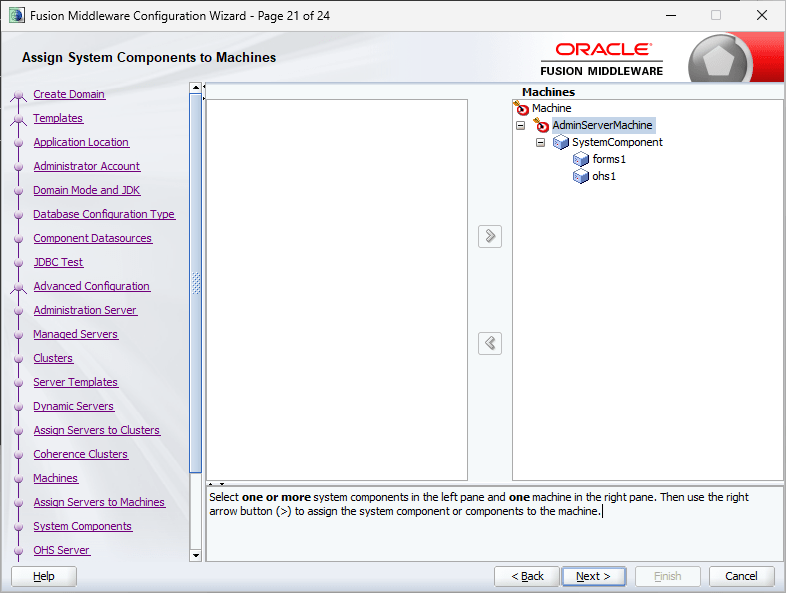
Now move the system component ohs1 to the Machines group as explained above for “AdminServer”
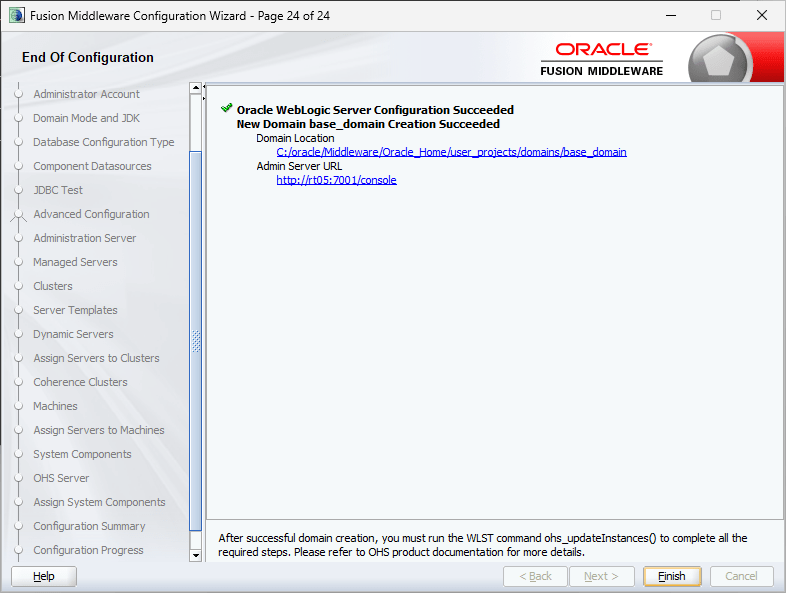
This completes the classic domain setup. Oracle has retired the good old browser based Weblogic Admin Server console and introduced a new tool called Weblogic remote control, that you can download from github About WebLogic Remote Console :: WebLogic Remote Console
It’s a pain until you get used to it.
Now we will see how to start the nodemanager and weblogic admin server.
from an elevated command prompt. Start the nodemanger now by issuing the command by executing the command “startnodemanger.cmd”
It may take few seconds to minutes until the node manager starts for the first time. Please remember, you shouldn’t close this command window, which will automatically stop the node manager.
I didn’t experience “Schema validation failure” JAVA error while starting the Weblogic admin server once after the PDB services were added. If JAVA throws “Schema validation failure” errors while starting the admin server, try the below workaround. Regardless, until you finish the initial setups, it is advisable to use the below hack to start the Weblogic Server.
set JAVA_OPTIONS=-Dweblogic.configuration.schemaValidationEnabled=false
startWeblogic.cmd
Okay, with node manager, 99.9% chances that you may not bite bullet. With Weblogic Admin server, this is not the case. For number reasons, the Server will try to start and give up in the middle. So don’t panic. If the Weblogic Admin Server is not coming up to a “RUNNING” status after extended period of waiting, go ahead and restart your computer. Start node manager and then try to start the weblogic admin server once again.
The initial startup could take up to 5-6 minutes (depending upon your hardware, this time could vary) & you should see a status like below. “Server state changed to RUNNING” means set and you are good for next step.
Remember not to close the command prompt window, which will immediately stop the Weblogic Admin Server. The status of the window will keep on updated against the activities happening at the server side. Once started, you can safely keep both node manager and Weblogic Admin Server CMD windows minimized.
As I said above, we cannot access the Weblogic Admin Server using browsers anymore and the Weblogic Remote Console is mandatory for the same. I have made a short video explaining how to start services using the console & leaving the rest on you to explore and learn how to make changes to existing parameters for rest of the setup that are required for publishing your applications 😍
Start both WLS_FORMS & WLS_REPORTS servers using the Weblogic Remote Console or using “startManagedWeblogic.cmd”. Once these servers started, let’s update the OHS instance that we created during the classic domain setup.
From an elevated command prompt, switch to Oracle_Common\common\bin folder
Now, start Weblogic Scripting tool (wlst.cmd), refer the below image for details. Use your weblogic admin server credentials when prompted.
Issue the command “ohs_updateInstances()” at the wlst prompt & once the configuration completed, exit wlst by issuing “exit()”
Using Enterprise Manager (http://localhost:7001/em) try to start the Oracle HTTP Server. My OHS instance is named “ohs_1” with the given image.
Under normal conditions Oracle HTTP Server should start without issues.
Now shutdown HTTP and WLS_FORMS & WLS_REPORTS servers using Enterprise manager and Weblogic Remote Console respectively. You can use stopManagedWeblogic.cmd to shutdown both WLS_FORMS & WLS_REPORTS servers alternatively.
As we didn’t configure “Node Manager” during the classic domain creation, let us quickly modify few parameters, that will help us to re-configure OHS instance properly at later stages.
Using Weblogic Remote Console, choose “Edit Tree” Tree element
Once the Tree opens, click on Expand “Environment”, then “Domain”, then “Security” and check “Show Advanced Fields” (Refer image). Enter a meaningful name for the Node Manager username and use the common password as password for the node manager user. Please remember, resetting the node manager password may not be a great experience at all ;)
Click on “Save” button. This action will add the changes to the cart button and you have open the cart button to apply the changes, which replaces the old lock and edit apply changes.
Shutdown the Weblogic Admin Server and Node Manager & restart both. Start both WLS_FORMS and WLS_REPORTS servers. We’ll restart the OHS instance later.
Now we will edit few configuration files for both Forms and Reports so that OHS will know where to look for their details.
You need to uncomment one of the blocks starting from until & add properties specific to your deployment, for example, my computer’s name is “RT05: and I am using default ports for both forms and reports applications, hence I have the properties set like following
Now we will edit the configuration file for reports. Please note, with Reports 14c, the default listening port has been changed from 9002 to 9012.
Switch to “D:\Weblogic\Middleware\Oracle_Home\reports\conf” folder & edit “reports_ohs.conf” and add a block like following (alter according to your setup)
Alternatively you can add the entries directly into “mod_wl_ohs.conf” file found in the path. This will be easier incase if you are planning to deploy web applications & use the same OHS instance to access them. For details, check the attached image.
Restart the OHS instance storing all the changes we made until now. Instead of using the Enterprise Manager, we will use the startComponent.cmd this time. Move to the domain base bin path. Example:
This will start the Weblogic Scripting tool & will prompt for node manager password.
Once a correct password is provided, the OHS instance (ohs_1) will be started & you are all ready to deploy your Forms/Reports based application(s). Please note, 12c was the latest supported version of Oracle Reports & provided with 14c only for backward compatibilities. You are advised to switch to “supported” Oracle BI alternatives.
Next step, we will modify more configuration files for deploying sample application. Please note, Oracle Weblogic is very sensitive around IPv6 protocol, especially the Reports Server. Hoping you already set a static IP address for your box, let’s add an entry to the hosts file first. On Windows you will find the “hosts” file on the path “C:\Windows\System32\drivers\etc”. Make sure to open Notepad as Administrator.
We’ll setup the TNS names for the Forms/Reports next. Copy the tnsnames.ora file from your database installation path and replace the one at the physical location. Usually at
Make sure that you will make a backup prior replacing the existing one.
I’ve noticed that recent installations of Oracle products set up the sqlnet.ora with NTS authentication as default. This could create issues when you try to connect Forms/Reports developers to database as well as while trying to launch applications.
Please modify the sqlnet.ora file at this physical path
D:\Weblogic\Middleware\Oracle_Home\network\admin
Now we will modify one of the environment files that should save us many troubles related to Report Server not being able to connect.
and edit the setDomainEnv.cmd after making backups. Modify the JAVA_OPTIONS
set "JAVA_OPTIONS=%JAVA_OPTIONS% -Dweblogic.ssl.AcceptKSSDemoCertsEnabled=true"
To
set "JAVA_OPTIONS=%JAVA_OPTIONS% -Dweblogic.ssl.AcceptKSSDemoCertsEnabled=true -Dweblogic.ssl.AcceptKSSDemoCertsEnabled=true -Djava.net.preferIPv4Stack=true -Djava.net.preferIPv4Addresses=true"
Save the file. This modification will help you to address few of the grave issues with Reports Server, that expects IPv4 instead of IPv6 protocol for network related negotiations.
REP-52266: The in-process Reports Server rep_wls_reports_rt05 failed to start.oracle.reports.RWException: IDL:oracle/reports/RWException:1.0
Multicast:init java.io.IOException: Network interface not configured for IPv4
Let us proceed to modify rest of the configuration files now. We will start with Reports configurations first, then Forms .
I believe, came across an Oracle forum post where the Product Manager Michael comments about using named Report Servers not supported on 14c. I am not sure, you have to find this out yourselves. I will be configuring the in-process Report server in next few steps.
All the Report Server configuration files are available on the same file path. Switch to the physical path
We will be modifying the 3 files listed below. Make sure to backup the files before you start modifying them.
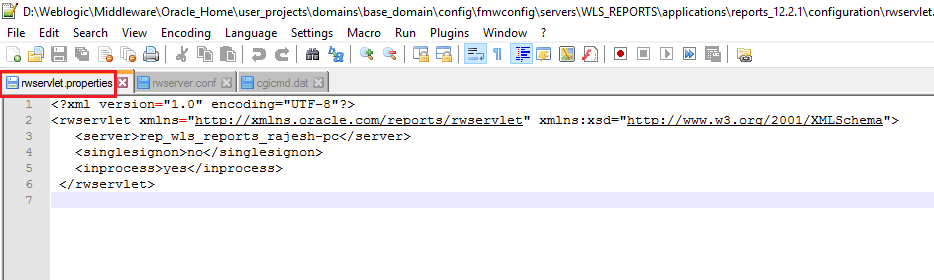
rwservlet.properties – Servlet specific properties
rwserver.conf – Server properties
cgicmd.dat – key mapping file
1. As far you are using in-process reports server, nothing much to alter with “rwservlet.properties” file. Basically you should see entries like following in the opened file:
2. rwserver.conf (Please check the below image)
3. cgicmd.dat: Many values we supply to call a report using Web.Show_Document method could potentially expose vital information like the database details & many other. “cgicmd.dat” file helps us to map such values to keys and later use them wherever applicable. With this example, I will demonstrate, how the database username, password and service name are mapped using a key. Please check the image attached below
Once these configurations files are altered, we need to create a report instance for the WLS_REPORT server. Open an elevated command prompt and switch to
Note, you can choose your own name for the report instance. We will use this tools instance with Forms for accessing report server. Once the report instance created, exit wlst and you can try to start the WLS_REPORT server from the weblogic console.
We will be modifying the files listed below. Make sure you make backup copies for the files prior modifying them.
formsweb.cfg
default.env
One of the major changes that happened between the version is, Internet Explorer is not anymore and the JAVA NAPI clients are not supported by modern browsers. This leaves the Forms enthusiastics with two options, Java Web Start and FSAL. Both have their own set of issues, that you must address when applied on PRODUCTION environments. Let us create a new section by the dead end of the formsweb.cfg file. Notice the REPORT_SERVLET entry, that is mandatory when you are using CREATE_REPORT_OBJECT calls from Forms.
# Application name "Balaji"
[myapp]
# The name of the starting form (ensure start.fmx is in your FORMS_PATH)
form=start.fmx
# Enable Java Web Start
webstart=enabled
# Template for the JNLP file (standard for non-WebUtil apps)
basejnlp=base.jnlp
# Optional: Set the width and height of the application window
width=1024
height=768
# Connection string (example: user/password@database)
userid=
# Specific environment file for this app (default.env or a custom one)
envFile=default.env
# Report Servlet path
REPORT_SERVLET=/reports/rwservlet
Save the file and let us modify the default.env that could be found in the same file path. You can tell the forms runtime to look in this file to locate the forms runtimes. For example, I’ve all the compiled runtimes available at D:\12c folder for the application that I am trying to deploy/publish. The FORMS_PATH is pointed to it & other paths wherever I have applications (eg: mapped path \\RT04\OPMAN12C\main). Make sure each path is separated using a “;”
Another mandatory entry you are going to make within the default.env is for the Reports Tools instance that you created earlier. Without specified, your reports may not work at all.
COMPONENT_CONFIG_PATH value is the physical path for the Report Server tools instance we created earlier. Save the default.env file and we’ll make changes to registry.dat file, that enhances the look and feels of few Forms objects live LOV and Required Fields. Switch to the path
Make a backup for registry.dat file and modify the existing entries like given below.
#
# Application level settings to control UI features
#
# app.ui.lovButtons=false
app.ui.lovButtons=true
# app.ui.requiredFieldVA=false
app.ui.requiredFieldVA=true
#    The background color is specified as an RGB triple.
# app.ui.requiredFieldVABGColor=255,0,0
app.ui.requiredFieldVABGColor=255,242,203
This completes the configurations for Forms.
As everything for a lab environment is set, let us quickly restart all services and servers to make sure that all are in place.
Shutdown all running servers and services. Follow the below sequence for shutting down the servers.
WLS SERVERS
HTTP Server
Weblogic Admin Server
Node Manager
We are restarting to services and servers to ensure that the changes made to environment files are activated. Start the services and servers sequentially
Node Manager
Weblogic Admin Server
WLS Servers (FORMS, REPORTS)
HTTP Server
Try to access your sample application from the address http://<hostname>:7777/forms/frmservlet?config=<config name>
Ensure that you have JRE 32-Bit (preferred) aleady installed. As my sample page doesn’t have an associated web application, as soon as I press Enter key after entering the URL, the browser will download a jnlp file (Java Web Start)
If you never worked with jnlp files, there will be few security warnings. Ignore them and you can keep and open the file in subsequent actions. Once opened, these files are useless, hence always open them if your browser permit. Firefox ESR versions are best for such situations. You might get some security warnings once again while opening the jnlp file, accept all to proceed.
So here we are
Let’s run a report using “Web.Show_Document” method, when the geeks are asking you to start using “RUN_REPORT_OBJECT” instead for better integration and security.
For the sample scenarios, I chose to stick to Web.Show_Document that supports parameter form.
Here is our report (PDF)
End notes:
I am a developer & the hacks and patches that I apply to get something working may not be copied to PRODUCTION environments. Please, don’t ask me for the “sample application” source code. If you are interested about the “Tree Menu”, I already shared the details with my “OOooOOtoob” channel. Hooking up the video for your references here.
I will recommend you to refer my 12c posts for setting up Forms & Reports environments for publishing applications. This could help you to figure out stuffs that I might have missed with the 14c document.
For FSAL setups. If you don’t have jacob.jar and associated dll files that are expected to be made available by “YOU”, an error like the below will arise.
D:\Weblogic\Middleware\Oracle_Home\user_projects\domains\base_domain\bin>C:\Java\jdk-21\bin\java.exe -jar "D:\Weblogic\Middleware\Oracle_Home\forms\java\frmsal.jar" -url "http://rt05:7777/forms/frmservlet?config=balaji_fsal"

Detected Java version: 21.0.8
Inspecting archive files in cache directory C:\Users\rajesh\AppData\Local\Temp\frmsal\rt05\14.1.2.0
Using cached archive file frmall.jar from cache subdirectory bkl1e4mo31jhef1bgia0decvk
Using cached archive file frmwebutil.jar from cache subdirectory bkl1e4mo31jhef1bgia0decvk
Downloading archive file jacob.jar to cache subdirectory bkl1e4mo31jhef1bgia0decvk
FRM-92290: HTTP response code 404 received when attempting to download archive file
FRM-92491: Unable to fetch archive file from server.
Download the latest release from https://github.com/freemansoft/jacob-project/releases & extract the files to “….\Middleware\Oracle_Home\forms\java” path. Make sure you copied jacob.jar and associated dll files to this path. Shutdown WLS_FORMS server & restart it.
Sample FSAL configuration as given below
[balaji_fsal]
form=login.fmx
# Note: baseSAAfile must end with .txt
WebUtilArchive=frmwebutil.jar,jacob.jar
WebUtilLogging=off
WebUtilLoggingDetail=normal
WebUtilErrorMode=Alert
WebUtilDispatchMonitorInterval=5
WebUtilTrustInternal=true
WebUtilMaxTransferSize=24573
baseSAAfile=webutilsaa.txt
fsalcheck=true
userid=<<scott/tiger@orcl>>
I never ever used the Windows Airplane mode. Basically, as a developer, I hardly ever thought of being disconnected. Then one fine day I wanted to try it, so enabled it and was still able to browse and carry on with much of my “network” related activities as the built-in Windows “Airplane” mode only deals with “wireless” devices. Your Wi-Fi and Bluetooth connections are toggled when you enable/disable the mode, leaves alone the physical connections, like ethernet. I thought of something more & here is a home grown true “Airplane” mode enabler ;). Copy the code to a PowerShell script file & run it as administrator. Don’t be too excited and try it from a remote connection.
# Get all network adapters that are enabled
$enabledAdapters = Get-NetAdapter | Where-Object { $_.Status -eq "Up" }
# Count the number of enabled adapters
$enabledAdapterCount = $enabledAdapters.Count
# Output the result
<#
$wshell = New-Object -ComObject Wscript.Shell
$Output = $wshell.Popup("Number of enabled network adapters: $enabledAdapterCount", 0, "Active Adapters", 64)
#>


if ($enabledAdapterCount -gt 0) {

    $wshell = New-Object -ComObject Wscript.Shell
    $Output = $wshell.Popup("Proceeding will disable all network adapters, Are you sure?", 0, "Number of Active Adapters: $enabledAdapterCount", 4 + 32)
    if ($Output -eq 6) { Disable-NetAdapter -Name "*" -Confirm:$false }
}
else {

    $wshell = New-Object -ComObject Wscript.Shell
    $Output = $wshell.Popup("Proceeding will enable all network adapters, Are you sure?", 0, "Number of Active Adapters: $enabledAdapterCount", 4 + 32)
    if ($Output -eq 6) { Enable-NetAdapter -Name "*" -Confirm:$false  }
    }
Create a shortcut to “powershell.exe” on your desktop. Modify it like below image.
The same script can enable or disable all adapters based on their current status. You cannot execute this script as a normal user.
As you might have already noticed, mostly I post instructions for installing Oracle software on Windows. Today, I will try to walk you through the Linux installations for APEX, ORDS and Apache Tomcat. Please note, my attempts are against an existing multitenant Oracle EBS database/environment. Extending Oracle EBS database requires you to strictly adhere to multiple conditions. Please make sure that you WILL refer this document prior attempting the rest of the article.
Make sure you will be downloading the latest software. If you are using Windows machine to download the software, move them to a path that your oracle user has access to, eg(/u01/oracle/Downloads)
Extract the archives to paths without space.
SSH/VNC to your linux box and switch to the path where you have extracted the APEX installation sources. First of all, let us check whether the PDB already has an APEX installation
oracle@apps.example.com:/home/oracle/Downloads/apex-latest/apex>sqlplus / as sysdba

SQL*Plus: Release 19.0.0.0.0 - Production on Fri Nov 24 18:37:56 2023
Version 19.17.0.0.0

Copyright (c) 1982, 2022, Oracle.  All rights reserved.


Connected to:
Oracle Database 19c Enterprise Edition Release 19.0.0.0.0 - Production
Version 19.17.0.0.0

SQL> alter session set container="TEST";

Session altered.

select version from dba_registry where comp_id='APEX';
Normal cases there shouldn’t be a default installation of APEX available with Oracle EBS database. Next step is to create a tablespace for APEX
Once the new tablespace is created, we are ready to install APEX
SQL> @apexins.sql APEX APEX TEMP /i/
Depending upon the resources available, this installation could take considerable time. Once done, execute “apxchpwd.sql” from the same session.
SYS> @apxchpwd.sql
...set_appun.sql
================================================================================
This script can be used to change the password of an Oracle APEX
instance administrator. If the user does not yet exist, a user record will be
created.
================================================================================
Enter the administrator's username [ADMIN]
User "ADMIN" does not yet exist and will be created.
Enter ADMIN's email [ADMIN] youremail@yourdomain.com
Enter ADMIN's password [] <== Use the same password across for a TEST environment
Created instance administrator ADMIN.
From the same session, execute “apex_rest_config.sql”
SQL> @apex_rest_config.sql

PL/SQL procedure successfully completed.
PL/SQL procedure successfully completed.


Enter a password for the APEX_LISTENER user              [] <== use the common password
Enter a password for the APEX_REST_PUBLIC_USER user              [] <== use the above password
Unlock all APEX database user accounts before moving ahead. We’ve the user profile DEFAULT set with no password expiry. This is real pain and an expired password could completely make your day spoiled. Follow PRODUCTION instructions if you are setting it for it. Basically you only need to unlock the user “apex_public_user”
SQL>alter user apex_listener identified by <<common password>> account unlock;
/
SQL>alter user apex_public_user identified by <<common password>> account unlock;
/
SQL>alter user apex_rest_public_user identified by <<common password>> account unlock;
/
if you have valid Oracle support, download and apply the APEX patch set 6 before installing ORDS. Please note, Oracle EBS server is a complex environment and setting up ORDS on the same server is highly discouraged as ORDS software, network PORTS requirement could cause total service outage. I recommend setting up a different server for ORDS. Regardless, the following instructions are for the same TEST server where APEX was installed already.
Oracle Linux comes preinstalled with OpenJDK and ORDS doesn’t support it. Hence you must remove it and install a supported version. I am using JDK 17 for the purpose. Please follow the instructions available here
Oracle EBS database doesn’t allow you to connect as “SYS” from remote locations & you can override it by adding a password file which I will not encourage. If you insist, please execute the following instructions.
cd $ORACLE_HOME/dbs
oracle@apps.example.com:/u01/oratest/TEST/db/tech_st/19.0.0/dbs>orapwd file=orapwTESTCDB  password=<<your password>> entries=5
SQL>alter system set REMOTE_LOGIN_PASSWORDFILE=EXCLUSIVE scope=spfile;
SQL>alter user sys identified by <<your password>> account unlock container=all;
Instead, you can “simply” grant “sysdba” role to system account!
sqlplus / as sysdba
SQL> grant sysdba to system container=all;
Revoke the grants once the activities are over.
Now switch to the path where latest ORDS installation sources were extracted and execute “ords_installer_privileges.sql”
sqlplus / as sysdba
SQL> alter session set container="TEST";
SQL> @ords_installer_privileges.sql system
Now, we are ready to install ORDS interactive mode. I preferred interactive mode than silent mode for a better understanding. ORDS 24.1 automatically picks up TNS entries for the CDB, hence make sure to select “S” from the options provided.
/home/oracle/Downloads/ords-latest/bin>ords --config /u01/ords/config install --interactive --log-folder /u01/ords/logs

Oracle REST Data Services - Interactive Install

  Enter a number to select the TNS net service name to use from /u01/oratest/TEST/db/tech_st/19.0.0/network/admin/tnsnames.ora or specify the database connection
    [1] TESTCDB      SERVICE_NAME=TESTCDB
    [2] EXTPROC_CONNECTION_DATA SID=PLSExtProc
    [S] Specify the database connection
  Choose [1]: S
  Enter a number to select the database connection type to use
    [1] Basic (host name, port, service name)
    [2] TNS (TNS alias, TNS directory)
    [3] Custom database URL
  Choose [1]:
 Enter the database host name [localhost]: apps.example.com
  Enter the database listen port [1521]: 1526
  Enter the database service name [TESTCDB]: TEST
  Provide database user name with administrator privileges.
    Enter the administrator username: system
  Enter the database password for system:
I’ve created two new tablespaces for ORDS, as version 24.x has many new prompts & I’ve noticed that the EBS PDB doesn’t have a TEMP tablespace.
The next list of prompts is quite long & mostly we need to deal with 3,4,6,9 which are respectively for setting up ORDS_PUBLIC_USER user password and default tablespaces followed by whether you want to configure as standalone server.
Enter a number to update the value or select option A to Accept and Continue
    [1] Connection Type: Basic
    [2] Basic Connection: HOST=apps.example.com PORT=1526 SERVICE_NAME=TEST
           Administrator User: system
    [3] Database password for ORDS runtime user (ORDS_PUBLIC_USER): <generate>
    [4] ORDS runtime user and schema tablespaces:  Default: SYSAUX Temporary TEMP
    [5] Additional Feature: Database Actions
    [6] Configure and start ORDS in Standalone Mode: Yes
    [7]    Protocol: HTTP
    [8]       HTTP Port: 8080
    [9]   APEX static resources location:
    [A] Accept and Continue - Create configuration and Install ORDS in the database
    [Q] Quit - Do not proceed. No changes
  Choose [A]: 3
  Enter your choice for the runtime user password (ORDS_PUBLIC_USER)
    [S] Specify your own password
    [G] Generate password
    [C] Cancel - No Changes
  Choose [G]: S
  Enter the database password for ORDS_PUBLIC_USER:
Confirm password:
Once the password for ORDS_PUBLIC_USER set, select the option 4
 Enter a number to update the value or select option A to Accept and Continue
    [1] Connection Type: Basic
    [2] Basic Connection: HOST=apps.example.com PORT=1526 SERVICE_NAME=TEST
           Administrator User: system
    [3] Database password for ORDS runtime user (ORDS_PUBLIC_USER): <specified password>
    [4] ORDS runtime user and schema tablespaces:  Default: SYSAUX Temporary TEMP
    [5] Additional Feature: Database Actions
    [6] Configure and start ORDS in Standalone Mode: Yes
    [7]    Protocol: HTTP
    [8]       HTTP Port: 8080
    [9]   APEX static resources location:
    [A] Accept and Continue - Create configuration and Install ORDS in the database
    [Q] Quit - Do not proceed. No changes
  Choose [A]: 4
  Enter the default tablespace for ORDS_METADATA and ORDS_PUBLIC_USER [SYSAUX]: ORDS
  Enter the temporary tablespace for ORDS_METADATA and ORDS_PUBLIC_USER [TEMP]: ORDS_TEMP
Now, we should decide whether to setup ORDS as a standalone server. This means, ORDS will use built-in jetty server to start the ORDS services, which I don’t prefer. Let us see how the options switch when we select option 6 (changes highlighted). For this article I chose 6 to setup Standalone mode.
Choose [A]: 6
  Enter a number to update the value or select option A to Accept and Continue
    [1] Connection Type: Basic
    [2] Basic Connection: HOST=apps.example.com PORT=1526 SERVICE_NAME=TEST
           Administrator User: system
    [3] Database password for ORDS runtime user (ORDS_PUBLIC_USER): <specified password>
    [4] ORDS runtime user and schema tablespaces:  Default: ORDS Temporary ORDS_TEMP
    [5] Additional Feature: Database Actions
    [6] Configure and start ORDS in Standalone Mode: No
    [A] Accept and Continue - Create configuration and Install ORDS in the database
    [Q] Quit - Do not proceed. No changes
Choose [A]: 6
  Enter a number to update the value or select option A to Accept and Continue
    [1] Connection Type: Basic
    [2] Basic Connection: HOST=apps.example.com PORT=1526 SERVICE_NAME=TEST
           Administrator User: system
    [3] Database password for ORDS runtime user (ORDS_PUBLIC_USER): <specified password>
    [4] ORDS runtime user and schema tablespaces:  Default: ORDS Temporary ORDS_TEMP
    [5] Additional Feature: Database Actions
    [6] Configure and start ORDS in Standalone Mode: Yes
    [7]    Protocol: HTTP
    [8]       HTTP Port: 8080
    [9]   APEX static resources location:
    [A] Accept and Continue - Create configuration and Install ORDS in the database
    [Q] Quit - Do not proceed. No changes
If we are going ahead with Standalone mode enabled, then we must specify the APEX static resources location by choosing option 9. Copy the images folder from APEX installation folder to /u01/ords/
Choose [A]: 9
  Enter the APEX static resources location: /u01/ords/images
Enter a number to update the value or select option A to Accept and Continue
    Choose [A]: 9
  Enter the APEX static resources location: /u01/ords/images
Now we can accept the changes and proceed by selecting the option “A”
Enter a number to update the value or select option A to Accept and Continue
    [1] Connection Type: Basic
    [2] Basic Connection: HOST=apps.example.com PORT=1526 SERVICE_NAME=TEST
           Administrator User: system
    [3] Database password for ORDS runtime user (ORDS_PUBLIC_USER): <specified password>
    [4] ORDS runtime user and schema tablespaces:  Default: ORDS Temporary ORDS_TEMP
    [5] Additional Feature: Database Actions
    [6] Configure and start ORDS in Standalone Mode: Yes
    [7]    Protocol: HTTP
    [8]       HTTP Port: 8080
    [9]   APEX static resources location: /u01/ords/images
    [A] Accept and Continue - Create configuration and Install ORDS in the database
    [Q] Quit - Do not proceed. No changes
  Choose [A]: A
ORDS installation is pretty straight forward. If you didn’t change the ORDS_PUBLIC_USER password during the above, please keep in mind that changing the password later could force you to reconfigure ORDS. Once the installation is over, ORDS built-in jetty server automatically start. You can access the APEX interface now from http://localhost:8080/ords. Use ctrl+c to kill the server.
Now we will install and configure Apache Tomcat for the webserver serving ORDS. Version 9 was the latest one supported for ORDS, hence we will proceed with the same version. Keep on checking Oracle’s announcements to know when the later versions are certified for ORDS. Download the tar.gz file from the download repository & extract to /u01/apache-tomcat/
Now switch to /u01/apache-tomcat/conf path and let us quickly make few modifications. As my server is already running Oracle EBS on port number 8005, I had to change this to next available port so that Apache Tomcat could go online.
Edit the “server.xml” file and make the changes as with the image below and make sure that you are not running other application on the port 8080. If yes, you will have to reconfigure ORDS once again with the next available port (I am not sure whether it would truly affect incase if you are not using Standalone mode)
Now we have to copy few files to Apache repositories.
It’s time to start Apache Tomcat server! As user oracle
oracle@apps.example.com:/u01/apache-tomcat/bin>export ORDS_CONFIG=/u01/ords/config
oracle@apps.example.com:/u01/apache-tomcat/bin>export JAVA_OPTS="-Dconfig.url=${ORDS_CONFIG} -Xms1024M -Xmx1024M"
oracle@apps.example.com:/u01/apache-tomcat/bin>./startup.sh
Using CATALINA_BASE:   /u01/apache-tomcat
Using CATALINA_HOME:   /u01/apache-tomcat
Using CATALINA_TMPDIR: /u01/apache-tomcat/temp
Using JRE_HOME:        /usr
Using CLASSPATH:       /u01/apache-tomcat/bin/bootstrap.jar:/u01/apache-tomcat/bin/tomcat-juli.jar
Using CATALINA_OPTS:
Tomcat started.
If there are no configuration issues, Apache Tomcat server should start serving now.
Couple of months back I published an article explaining how to install and configure Oracle APEX on Windows. This article was targeting the products Oracle APEX 23.2 with ORDS 23.4. Today we will see how to upgrade the APEX 23.x to APEX 24.1
Please note, APEX 24.1 was recently released and prone to have bugs. You will not be able to patch the 24.1 to latest builds without a valid Oracle support license. Hence, think twice before applying the instruction to your PRODUCTION instances. For me, this attempt is merely for learning purposes.
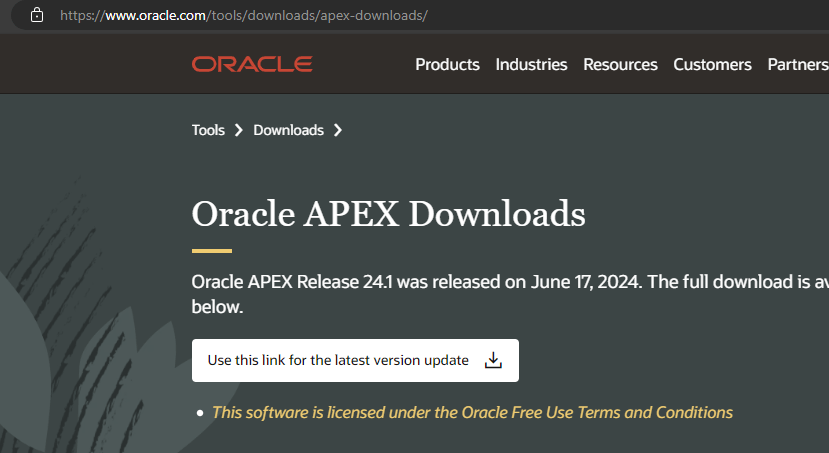
As mentioned with linked article, I will be always downloading the latest package from the download page.
Once the installation package downloaded, extract it to a path without spaces. It is “OKAY” to download the installation guide as well ;)
Now, from an elevated command prompt (not Terminal) window, switch to the path where you have extracted the APEX package. Please check the below image carefully.
Switch to the path were latest APEX software was extracted
Connect to Oracle as Sys
Switch to the container where Oracle APEX is already installed
Execute the apexins.sql script
The upgrade process could take considerable time to finish based on the number of objects already in the instance. If the upgrade process looks stopped over couple of minutes, tap the Enter key. This should progress the upgrade process. Usually this happens while recompiling objects.
Once the upgrade process is complete, logon to your ADMIN account.
As on date, set 6 is the latest patch available for APEX 24.1 & as mentioned earlier, is available for users with valid support contracts.
If you don’t have Oracle support, let us configure ORDS with latest APEX images now.
Rename/Delete the “images” folder from the ORDS configuration path and copy the “images” folder from the latest installation source.
If Apache-Tomcat web server is used, replace the “i” folder with the “images” folder from the latest source before restarting web services once again.
If you see an error like below (Version numbers will differ based on your previous version and current version), this should be due to browser cache most of the times. Please clear the browser cache and everything should be fine.
Applying latest APEX Patch for 24.1
As on date, Set 6 (36695709) is the latest patch for APEX
Once downloaded, extract the archive to a path without spaces. Switch to the path from an elevated command prompt.
Set the NLS language parameter
Connect as SYS
Switch to the container where you have APEX already installed. Please refer the readme file for specific instructions in case if the APEX is not installed on a PDB
Execute catpatch.sql
This shouldn’t take much time to complete. Once the patching finishes, merge the images folder with both ORDS and Apache-Tomcat. Restart the web services.
My sincere gratitude goes out to Tim Hall as always for helping me out of difficult situations.
Today we will checkout a PL/SQL procedure that will keep monitoring Oracle EBS application specific Tablespaces and send emails to concerned parties whenever the free storage falls below a certain percentage. The below stored procedure checks the free spaces of all Tablespaces that have a name starting with “APPS”.
create or replace procedure XXTBLSPCE_MAIL( errbuf  OUT    VARCHAR2, retcode   OUT    VARCHAR2) AS
cursor c1 is
SELECT F.TABLESPACE_NAME,
(T.TOTAL_SPACE -  F.FREE_SPACE) "USED_MB",
(F.FREE_SPACE) "FREE_MB",
(T.TOTAL_SPACE) "TOTAL_MB",
(ROUND ((F.FREE_SPACE/T.TOTAL_SPACE)*100)) PER_FREE
 FROM   (
 SELECT       TABLESPACE_NAME,
 ROUND (SUM (BLOCKS*(SELECT VALUE/1024
 FROM V$PARAMETER
 WHERE NAME = 'db_block_size')/1024)
 ) FREE_SPACE
 FROM DBA_FREE_SPACE
 WHERE TABLESPACE_NAME LIKE 'APPS%'
 GROUP BY TABLESPACE_NAME
 ) F,
 (
 SELECT TABLESPACE_NAME,
 ROUND (SUM (BYTES/1048576)) TOTAL_SPACE
 FROM DBA_DATA_FILES
 GROUP BY TABLESPACE_NAME
 ) T
 WHERE F.TABLESPACE_NAME = T.TABLESPACE_NAME
 AND (ROUND ((F.FREE_SPACE/T.TOTAL_SPACE)*100)) < 10;

 /* Mail specific variables*/

mailhost VARCHAR2 (30) := 'smtp.yourmaildomain.com';
mail_conn utl_smtp.connection;
crlf VARCHAR2(2) := CHR (13) || CHR (10);
message_1 CLOB;
v_email varchar2(16000);
v_sub varchar2(10000);
vcount NUMBER := 0;

name_array     DBMS_SQL.varchar2_table;

CC_parties     VARCHAR2 (2000) := NULL;

Cursor ec1 is
(select 'rec1.it@yourmaildomain.com'  user_email from dual
union all
select 'rec2.it@yourmaildomain.com'  user_email from dual
);


 v_Mail_Exception Exception;

 --15/10/2020

   l_host_name varchar2(240);
   l_db_name varchar2(240);

 BEGIN

  BEGIN
        select sys_context ( 'USERENV', 'DB_NAME' ) db_name,
        sys_context ( 'USERENV', 'SERVER_HOST' ) db_host into l_db_name, l_host_name
        from dual;
        EXCEPTION
        WHEN NO_DATA_FOUND THEN
        l_host_name := 'NO HOST';
        l_db_name := 'NO DBNAME';

        END;


mail_conn := utl_smtp.open_connection (mailhost, 25);
utl_smtp.helo (mail_conn, mailhost);
utl_smtp.mail (mail_conn, 'sender@yourmaildomain.com');

FOR m IN ec1
   LOOP
      vcount := vcount + 1;
      name_array (VCOUNT) := m.user_email;
   END LOOP;


 FOR n IN name_array.FIRST .. name_array.LAST
   LOOP
      CC_parties := CC_parties || ';' || name_array (n);
      UTL_SMTP.Rcpt (mail_conn, name_array (n));
   END LOOP;

if CC_parties is NULL then
RAISE v_Mail_Exception;
end if;

for ts in c1 loop
if (ts.FREE_MB < 1024) then
if (trim(message_1) is not null) then
message_1 := message_1||ts.tablespace_name ||' is running out of storage space. Current free space is '||ts.FREE_MB||' MB. ';
else
message_1 := ts.tablespace_name ||' is running out of storage space. Current free space is '||ts.FREE_MB||' MB. ';
end if;
end if;
end loop;

if (trim(message_1) is not null) then
message_1 := message_1||' ( Note: add datafiles with size nothing less than 2GB for APPS_TS tablespaces.) ';

v_sub := 'Subject: '||'Table Space(s) running out of space! Urgent(Instance: '||l_host_name||', Database: '||l_db_name||' )';
 message_1 :=  'From: Oracle Database sender  < sender@yourmaildomain.com >' ||crlf||v_sub||crlf||'To:'||CC_parties||crlf||crlf||crlf||message_1;

 utl_smtp.data(mail_conn, 'MIME-Version: 1.0' ||CHR(13)||
 CHR(10)||'Content-type: text/html' || CHR(13)||CHR(10)||message_1);
 utl_smtp.quit (mail_conn);

 end if;


EXCEPTION
WHEN v_Mail_Exception Then
   null;
WHEN OTHERS THEN

--err_code := SQLCODE;
--err_msg := SUBSTR(SQLERRM, 1, 200);
message_1 := 'Failed to send email, error explanation:  '||SQLCODE||'  '||SQLERRM;

v_sub := 'Subject: '||'Table Space(s) running out of space! Urgent';
message_1 := 'From: Oracle Database sender  < sender@yourmaildomain.com >' ||crlf||v_sub||crlf||crlf||message_1;

 utl_smtp.data(mail_conn, 'MIME-Version: 1.0' ||CHR(13)||
 CHR(10)||'Content-type: text/html' || CHR(13)||CHR(10)||message_1);
 utl_smtp.quit (mail_conn);


 End;
Create a concurrent program and submit as a scheduled, setting up frequencies based on your specific requirements. The above program works perfectly under the below conditions.
Oracle EBS R12 12.2.10, 19c multi-tenant database, Local SMTP server.
Definitely not for an environment that boasts TBs of data that should be backed up the most efficient way. This solution is best suitable for environments where backups sizes are not exceeding couple of TBs in size as the BitLocker encryption will slow down the entire process by encrypting each new file during the initial copying. Once the first sync is over, consecutive synching should be far faster as only new and modified files will be copied & encrypted to the destination volume.
Further, the performance of the entire process depends upon the hardware resources available also. We deployed this solution for one of our businesses that has approximately 500GB total size, consist of hundreds of thousands of small files. The first robocopy run on each external disk over USB 3.0 took approximately 10-12 hours and the consecutive runs completed within 20-22 minutes. We used Tandberg RDX Quickstor External solution for this purpose. This time could be brought down to couple of hours if both source and destination volumes are based on SSD.
The solution approach was like this. All RDX tapes for 6 days per week were formatted as NTFS volumes, enabled BitLocker on them immediately after formatting.
The same machine Powershell was configured to run remote signed scripts. Powershell sample as below.
Interested about what happens when your password is converted to Secure String? Check the image below. That’s how a secure string looks & someone who has access to your computer/server could still be able to convert it to plain text and get your password. Hence, this is not a 100% fail safe solution, however it could be pretty effective against robots/malicious codes.
The above exercises were to confirm everything is in place and working properly before developing the script that will be used for regular backups. Name it anything and refer it inside the scheduled job.
#DailyBackup.ps1
#Author: Rajesh Thampi
#Date: 14.10.2024

#Read the BitLocker password from the xml file
$Secret = Import-Clixml -Path C:\Scripts\default.xml

#Unlock the volume that is BitLocer protected.
Unlock-Bitlocker F: -Password $Secret

#Setup source and destination paths.
$source='D:\Some_Folder'
$destination='F:'

#Start robocopy. Use /ZB switches to avoid recyclebin related issues.
Robocopy.exe $source $destination /E /DCOPY:DAT /XO /ZB

#After the copying, lock the drive immediately.
manage-bde -lock F: -ForceDismount
By the way, RDX hardware is not cheap. Hence you should consider alternative mediums. The advantage of a BitLocker protected volume is, even during a ransomware attack these volumes could be completely immune, unless the volume is open for backups during the attack. Well, you never know.