ASP.Net | Learn the basics of developing your first website using VB.Net or C#

You are here, seeking some information and we are more than happy to re-direct you to http://webproject.scottgu.com, a right place to start learning how to develop a website using Visual Studio IDE. Though the posts with scottgu.com mostly deal with VS 2005, almost everything they mentioned with their lessons are still applicable to the latest VS releases.
So give it a try, and you will be more than glad to visit one of the best beginners place.

regards,

rajesh

Visual Studio 2013 | HRESULT 0x80070002 exception

Scenario

A brand new installation of Visual Studio 2013

You are trying to create a new project/solution and immediately after choosing the type of the application (eg: Single page web application) an error raised saying referenced file cannot be found, followed by the error code HRESULT 0x80070002

Solution

Go to http://docs.nuget.org/consume/installing-nugget

Select the build of your Visual Studio NuGet client and move to the download page

Download the package (After closing down the Visual Studio, if yet open) and install the package

Restart Visual Studio and the error must have been gone by now.

Happy Programming guys ;)

regards,

rajesh

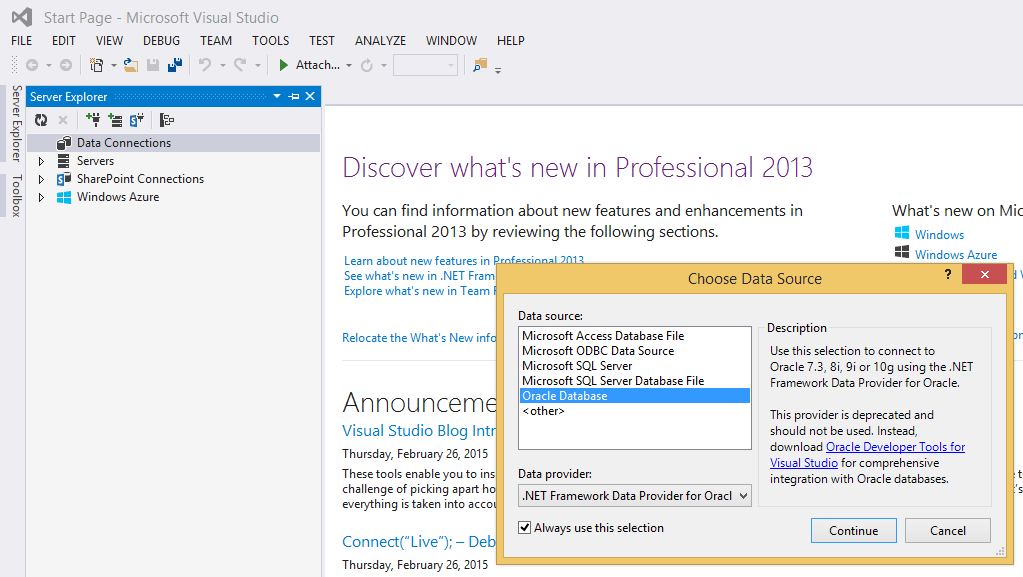
Teaser | Visual Studio | VB.Net & Oracle Database

t1

Okay, my last few posts were all about VB.Net & utilities for Windows domain administrators. Doesn’t mean that I stopped being a Oracle bouy ;) I still earn my salary for the Oracle job I do everyday at work and once after managing to purchase a legal copy of Visual Studio 2013 Professional Edition, I am committed to develop few sample applications using VB.Net & Oracle database.

So, stay tuned

regards,

rajesh

VB.Net | Appending an existing XML file

VB.Net | Appending an existing XML file

XML is widely used by .net oriented programming. It is vast and learning XML could be requiring loads of dedication. I needed to add a XML file to hold certain configuration details that could be read with one of the VB.Net projects currently I am busy with. This project deals with running Oracle VirtualBox VM(Virtual Machines) headless using a Windows Service as Local System so that multiple administrators could log in and log off from the Windows Server that hosts Virtual machines without closing down the machines abrupt (This project is ongoing, half cooked)

Without wasting more time, let us see how to append an “existing” XML file using VB.Net

Create a Windows Form Project
Create a XML file (MyVMS.xml) using your favorite text editing tool and copy the below

[code language=”xml” gutter=”false”]
<?xml version="1.0" encoding="utf-8" standalone="yes"?>
<VM>
<MACHINE>
<MACHINE_ID>1</MACHINE_ID>
<VM_NAME>MyVM</VM_NAME>
<VM_SHUTDOWNMODE>poweroff</VM_SHUTDOWNMODE>
</MACHINE>
</VM>
[/code]
and copy the XML file to the project root folder

Add the namespaces to your new project

[code language=”vb” gutter=”false”]
Imports System.Xml
Imports System.Data
[/code]

As I said in the beginning, we will be adding data to an “existing” XML file, hence the XML files must have a root element, for example

[code language=”xml” gutter=”false”]
<?xml version="1.0" encoding="utf-8" standalone="yes"?>
<VM>
</VM>
[/code]

Drag a button to your forms1.vb design view
Drag another button to your forms1.vb design view
Drag a DataGridView to your forms1.vb design view

Now we will try to add one more “MACHINE” node into the existing XML file using VB.Net code block

[code language=”vb” gutter=”false”]
Public Class Form1

Private Sub Button1_Click(sender As Object, e As EventArgs) Handles Button1.Click
Dim xmldoc As New XMLDocument()
Try
xmldoc.Load("MyVMS.xml")
Dim e1 As XmlElement = xmldoc.CreateElement("MACHINE")
Dim e2 As XmlElement = xmldoc.CreateElement("MACHINE_ID")
e2.InnerText = "2"
Dim e3 As XmlElement = xmldoc.CreateElement("VM_NAME")
e3.InnerText = "Linux"
Dim e4 As XmlElement = xmldoc.CreateElement("VM_SHUTDOWNMODE")
e4.InnerText = "savestate"

e1.AppendChild(e2)
e1.AppendChild(e3)
e1.AppendChild(e4)

xmldoc.DocumentElement.AppendChild(e1)
xmldoc.Save("MyVMS.xml")

Catch ex As Exception
MsgBox(ex.Message)
End Try
End Sub

Private Sub Button2_Click(sender As Object, e As EventArgs) Handles Button2.Click
Dim xmlFile As XmlReader
xmlFile = XmlReader.Create("MyVMS.xml", New XmlReaderSettings())
Dim ds As New DataSet
ds.ReadXml(xmlFile)
DataGridView1.DataSource = ds.Tables(0)
DataGridView1.Columns(0).HeaderText = "Id"
DataGridView1.Columns(1).HeaderText = "VM Name"
DataGridView1.Columns(2).HeaderText = "Shutoff Mode"

End Sub
End Class
[/code]

Now, as you click on the first button, a new node for “MACHINE” will be inserted using the static information attached & by activating the second button, your data grid view should populate the MACHINE information already stored within the XML file.

Pretty simple & easy, right? You may rush ahead and say thanks to my dearest friend and ONE of the best .Net programmers Aziz Marafi / @azizane , who had coded majority of the block above for the “FileMyster” project.

Please post your comments and queries and I may learn few more things with you!

regards,

rajesh

VB.Net | Get IP address of a computer against hostname | Fun projects

Credits: http://stackoverflow.com/questions/19713868/returning-ipv6-instead-of-ipv4-in-vb

How to?

Open Visual Studio IDE (We are using VS 2012 Express and the .Net framework is 4.5 by default, hence if few things do not work at your setups, please cross check the specs we specified) and create a Windows form application. We’ll be mostly doing our samples using forms, a better mechanism to test stuffs against console applications (Minimum from our experiences)

drag a button to the form

drag a listbox to the form

& do not change any property for any of the above items

right click on the form and select view code, once the code page opens
Ctrl+A (Select all and delete)

copy and paste the below code block (replacing the original content of the code page)

[code language=”vb” gutter=”false” wraplines=”true”]
Imports System.Net

Public Class Form1
Public Function getip(ByVal lst As ListBox) As ListBox
Dim hostEntry = Dns.GetHostEntry("hostname")
Dim addressList As New List(Of IPAddress)

For Each address In hostEntry.AddressList
If address.AddressFamily = Sockets.AddressFamily.InterNetwork Then
lst.Items.Add(address)
End If
Next
Return lst

End Function

Private Sub Button1_Click(sender As Object, e As EventArgs) Handles Button1.Click
getip(ListBox1)
End Sub
End Class
[/code]

Now replace the “hostname” with some actual hostnames and execute the application by pressing F5. Click the button over the form you are done! Please note, this sample is restricted to fetch IPV4 addresses.

VB.Net | Active Directory | Windows Form Application for listing users & details in a grid view

Have you read our previous post about finding last logon date time value for a domain member computer or user yet? If not, please read about it here

Now, we are going to provide you a decent (Warning: Amateurish code blocks possible) Windows forms based application that could list all your domain users and few of their details including last logon date time values.

run

Above image demonstrates the run time interface of the application. Application has a search textbox, that could accept values before and after the user details are populated.

Before the population, the users will be limited to matching string, after population, the list could be refined against the combination of keystrokes

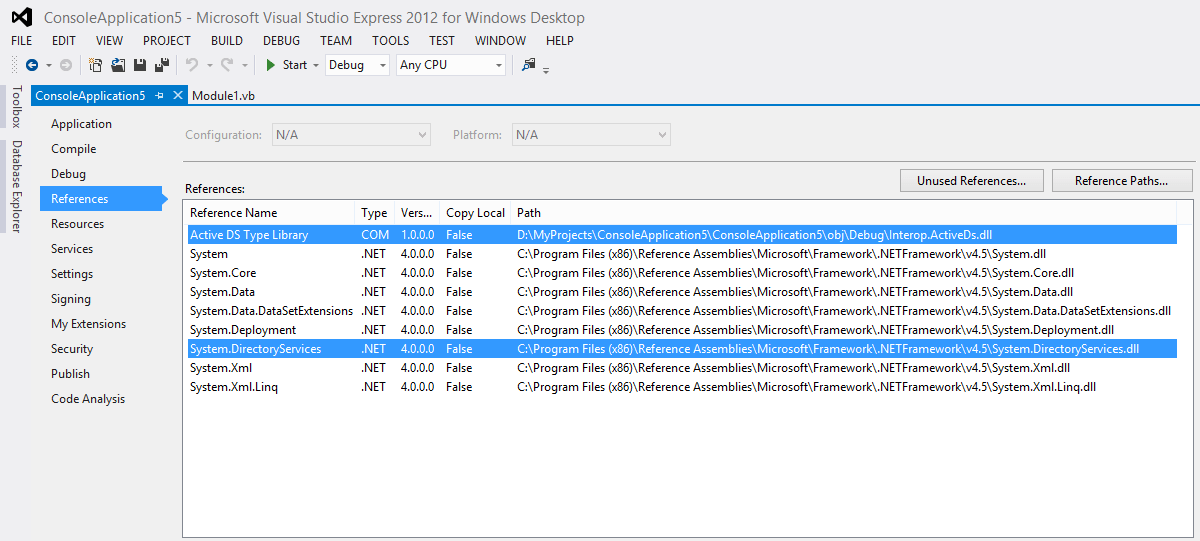
Mandatory References as seen with the below image

ref

You can download the solution from here

regards,

rajesh

VB.net | Active Directory | Get last logon for computer/user account

Ever wondered how to fetch the last logon details for a domain member computer or user? Using .Net Microsoft has made it pretty easier for the developers to populate the active directory attributes to desired data repositories, however getting the last logon date time value still remains a complex stuff (for beginners like us), especially when your domain consist of multiple domain controllers and they are spread across different geographical areas and subnets :)

After dwelling for long a while, I came across a C# code snippet @ http://www.codeproject.com/Articles/19181/Find-LastLogon-Across-All-Windows-Domain-Controlle that was mostly built against http://www.rlmueller.net/Last%20Logon.htm

I had to copy the codes those were split into multiple blocks for proper explanations, re-arrange and then using the online C# to VB.Net converters, convert to readable VB.Net coding. Again, there were few mismatches and I was able to figure them out through stackoverflow & tech forums posts.

Without going on with what and how I did it, here comes the complete coding. Please note, this is a console application solution, and you should add the references as seen with the below image in order to successfully call the methods and types

Ref

[code language=”vb” gutter=”false” wraplines=”true”]
Imports System.DirectoryServices
Imports ActiveDs

Module Module1

”’ &lt;summary&gt;
”’ You should able to easily convert this console application to windows form application
”’ with least efforts
”’ Original code was posted with http://www.codeproject.com/Articles/19181/Find-LastLogon-Across-All-Windows-Domain-Controlle
”’ using C#, I converted most of the C# Codes using online converter(s)
”’ and ammended at few places, as the code block provided with the project were not fetching decent results
”’ Rajesh Thampi / 15-Jan-2015 | w7bugs at gmail dot com | windows7bugs.wordpress.com
”’ &lt;/summary&gt;
”’ &lt;remarks&gt;&lt;/remarks&gt;
Sub Main()
‘Get the root of the directory data tree on a directory server.
Dim rootDse As New DirectoryEntry(&quot;LDAP://rootDSE&quot;)
‘Dictionary object to hold the records retrived by the search
Dim lastLogons As Dictionary(Of String, Int64) = New Dictionary(Of String, Int64)
‘Local variable for holding formatted last logon values in datetime format
Dim llogon As DateTime = Nothing

‘for User last logon
‘Dim TargetUsername As String = &quot;george&quot; ‘ -&gt; Pass sAMAccountName
‘Dim objType As Integer = 805306368 ‘-&gt; 805306368 User | 805306369 Computer

‘for Computer
Dim TargetUsername As String = &quot;JOSE-KSP$&quot; ‘ -&gt; Pass sAMAccountName
Dim objType As Integer = 805306369 ‘-&gt; 805306368 User | 805306369 Computer

‘Loop through all available domain controllers
For Each dsDC As DirectoryServices.ActiveDirectory.DomainController In _
DirectoryServices.ActiveDirectory.Domain.GetCurrentDomain.DomainControllers
‘Print the individual domain controller name
‘Debug.Write(dsDC.Name &amp; vbCrLf) ‘ Uncomment for print
‘Get the Entry details for domain controller
Dim dirEntry As DirectoryEntry = New DirectoryEntry(&quot;LDAP://&quot; + dsDC.Name + &quot;/&quot; + DirectCast(rootDse.Properties(&quot;defaultNamingContext&quot;).Value, String))
‘Define searcher for the objects of interest
Dim dirObjects As DirectorySearcher = New DirectorySearcher(dirEntry)
‘Define a large integer to hold the COM object translated value
‘ActiveDS COM object is a MUST reference, yet to find another way to deal with highpart, lowpart values obtained from &quot;lastlogon&quot;
Dim lastLogonThisServer As Int64 = New Int64()
‘Set up the filter for object to be returned through findall method
dirObjects.Filter = &quot;(&amp;(sAMAccountType=&quot; &amp; objType &amp; &quot;)(sAMAccountName=&quot; &amp; TargetUsername &amp; &quot;))&quot;
‘ Loop through the records found
For Each objRecords In dirObjects.FindAll()
‘Get the directory entry, this will return all the attributes associated with the object (Computer/User)
Dim dirObj As DirectoryEntry = objRecords.GetDirectoryEntry()
If Not dirObj Is Nothing Then
‘ Get the distinguishedName and lastLogon for each user

Dim distinguishedName As String = dirObj.Properties(&quot;distinguishedName&quot;).Value.ToString()

Try

If Not dirObj.Properties(&quot;lastLogon&quot;).Value Is Nothing Then
Dim lgIntas As ActiveDs.LargeInteger = dirObj.Properties(&quot;lastLogon&quot;).Value
Dim lngHigh As Long = lgIntas.HighPart
Dim lngLow As Long = lgIntas.LowPart
lastLogonThisServer = (lngHigh * (2 ^ 32) – lngLow)

End If

Catch ex As Exception
Debug.Write(ex.Message)
End Try
‘Different date time formats you can play around with
‘Dim format As String = &quot;MMM ddd d HH:mm yyyy&quot; -&gt; Jan Thu 15 08:11 2015
‘Dim format As String = &quot;dd/MMM/yyyy HH:mm tt&quot; -&gt; 15/Jan/2015 08:36 AM
‘Debug.Write(distinguishedName &amp; &quot;;&quot; _
‘&amp; DateTime.FromFileTime(lastLogonThisServer).ToString(format, Globalization.CultureInfo.InvariantCulture) &amp; vbCrLf)

‘Save the most recent logon for each user in a Dictionary object
‘How it works
‘lastLogons dictionary object has two parts, key and corresponding value
‘Prior adding a new record, using ContainsKey call we can check the array for existing keys
‘With this example, the key is &quot;distinguishedName&quot;
‘If the distinguishedName as key found

If lastLogons.ContainsKey(distinguishedName) Then
‘We compare the latest fetched logon date integer value against the key value of the dictionary object
If lastLogons(distinguishedName) &lt; lastLogonThisServer Then
‘If the existing value is smaller than the new value &quot;lastLogonThisServer&quot; holds
lastLogons(distinguishedName) = lastLogonThisServer
‘We will update the existing key value with recent lastLogonThisServer value
End If
Else
‘We will add a new entry to the dictionary object
lastLogons.Add(distinguishedName, lastLogonThisServer)
End If
End If
Next
Next
‘Now we will loop through the dictionary object and fetch the details
‘For a single user/computer the dictionary object will not have more than one entry
For Each kvp As KeyValuePair(Of String, Int64) In lastLogons
Dim v1 As String = kvp.Key
Dim v2 As DateTime = DateTime.FromFileTime(kvp.Value).ToString()
‘ llogon = v2
Dim format As String = &quot;dd/MMM/yyyy HH:mm tt&quot;
Debug.Write(&quot;Distinguished Name :&quot; &amp; v1 &amp; &quot;; Last logged :&quot; &amp; v2.ToString(format) &amp; vbCrLf)

Next

End Sub

End Module
[/code]

You may download the solution from https://drive.google.com/file/d/0B-3iVeOMTCbWWFliTGN1NmNxMjQ/view?usp=sharing

regards,

rajesh

Do you want to learn VB.net & C# along with us?

Greetings from Kuwait guys!

Whole the last many years we were mostly concentrating on Oracle related technologies, as we mostly use those technologies at work. Right now we are planning to shift our main business application to something that is built solely using Microsoft development platform .Net & starting a new category adhering to the same.

We are not at all experts in this development platform, however, as we “hacked” the Oracle technologies for our requirements, will keep on trying to do the same with our relatively new challenge .Net!

Stay tuned, we are sure, we will amuse with our experiments :)

regards,

for Windows7bugs

rajesh

A simple asp.net application for listing files and folders within a folder

We tease each other calling “Google Programmers” occasionally as we just cut and paste code from forums/websites and meet new business requirements and deadlines.

We started revamping our intranet site recently and was frantically looking at a prospective of converting few .asp driven details using .net application(s)

Our primary requirement was to list the content of a folder, along with subdirectories and files (mostly .pdf and .doc/.docx/.xls/.xlsx)

After loads of googling we came across two potential solutions and they were

http://www.4guysfromrolla.com/articles/090110-1.aspx

http://www.encodedna.com/2013/08/extract-display-files-from-folder-and-bind-with-gridview.htm

The first solution was “too” professional approach for guys like us, who hardly have anything more than few hours of experiences with .net programming

The second solution looked more appropriate as we were looking at something which could be easily altered and adopted to our particular requirement.

Hence we copied the scripts available with the link and started altering them, and with our “extreme” level of exposure to the technology, almost after 72 hours we were able to shape up something which fits into our requirements, somehow and we are sharing the same with you.

We know, it could be done much easier or in a simpler manner, well that part we are leaving for the seasoned .net developers.

First create a .aspx file with name “Default” (eg:Default.aspx) and copy the following code inside the file (Notepad++)

[sourcecode language=”html” padlinenumbers=”true”]
<%@ Page Language="C#" AutoEventWireup="true" CodeFile="Default.aspx.cs" Inherits="_Default" %>
<!DOCTYPE html>
<html>
<head>
<title>Display | Bind Files from Folder to GridView</title>
<style type="text/css">
div { font:11px Verdana; width:750px }
.grid { width:100%; font:inherit; background-color:#FFF; border:solid 1px #525252}
.grid td { font:inherit; padding:2px; border:solid 1px #C1C1C1; color:#333; text-align:left;
text-transform: capitalize}
.grid th { padding:3px; color:#FFF; background:#424242 url(grd.png) repeat-x top;
border-left:solid 1px #525252; font:inherit; text-align:center; text-transform:uppercase}
#drop1 { width:70px; padding:3px }
</style>
</head>
<body>
<%– <%
Response.Write("<br/> " + HttpContext.Current.Request.Url.Host);
Response.Write("<br/> " + HttpContext.Current.Request.Url.Authority);
Response.Write("<br/> " + HttpContext.Current.Request.Url.AbsolutePath);
Response.Write("<br/> " + HttpContext.Current.Request.ApplicationPath);
Response.Write("<br/> " + HttpContext.Current.Request.Url.AbsoluteUri);
Response.Write("<br/> " + HttpContext.Current.Request.Url.PathAndQuery);
%>–%>
<form id="form1" runat="server">
<div>
<%–LISTBOX SHOWING A LIST OF FILE TYPES.–%>
<%– <p> <asp:ListBox id="drop1" rows="3" runat="server">
<asp:ListItem selected="true">All</asp:ListItem>
<asp:ListItem>pdf</asp:ListItem>
<asp:ListItem>jpg</asp:ListItem>
<asp:ListItem>png</asp:ListItem>
<asp:ListItem>txt</asp:ListItem>
<asp:ListItem>doclt</asp:ListItem>
</asp:ListBox>
<input type="button" id="btShowFiles" onserverclick="btShowFiles_Click" value="Show Files" runat="server" />
</p>–%>

<%–ADD A GRIDVIEW WITH FEW COLUMNS–%>
<asp:GridView ID="GridView2" CssClass="grid" GridLines="None" ShowFooter="true"
AllowPaging="true" PageSize="5" AutoGenerateColumns="false"
runat="server">

<Columns>

<asp:TemplateField HeaderText="Folder(s)">
<ItemTemplate>
<asp:HyperLink runat="server" ID="HyperLink1" Text='<%# Eval("Name") %>’ NavigateUrl='<%# HttpContext.Current.Request.Url.AbsoluteUri +"/"+ Eval("Name") %>’ />
</ItemTemplate>
</asp:TemplateField>
</Columns>
</asp:GridView>

<asp:GridView ID="GridView1" CssClass="grid" GridLines="None" ShowFooter="true"
AllowPaging="true" PageSize="20" AutoGenerateColumns="false"
OnPageIndexChanging="GridView1_PageIndexChanging" runat="server">

<Columns>

<asp:TemplateField HeaderText="Name">

<ItemTemplate>
<%–<asp:Label ID="lblName" runat="server" Text='<%#System.IO.Path.GetFileNameWithoutExtension(Eval("Name").ToString()) %>’></asp:Label>–%>
<asp:HyperLink runat="server" ID="HyperLink2" Text='<%# System.IO.Path.GetFileNameWithoutExtension(Eval("Name").ToString()) %>’ NavigateUrl='<%#
Request.QueryString["p"] +"/"+ Eval("Name") %>’ />
</ItemTemplate>
</asp:TemplateField>

<%–
<asp:TemplateField HeaderText="File Length">
<ItemTemplate><asp:Label ID="lblLen" runat="server" Text='<%#Eval("Length")%>’></asp:Label>
</ItemTemplate>
</asp:TemplateField>
<asp:TemplateField HeaderText="File Extention">
<ItemTemplate><asp:Label ID="lblFileType" runat="server" Text='<%#Eval("Extension")%>’>
</asp:Label></ItemTemplate>
</asp:TemplateField>–%>
<asp:TemplateField HeaderText="Creation Date & Time">
<ItemTemplate><asp:Label ID="lblDateTime" runat="server" Text='<%#Eval("CreationTime")%>’>
</asp:Label></ItemTemplate>
</asp:TemplateField>
</Columns>
</asp:GridView>

<%–A LABEL SHOWING NUMBER OF FILES FOUND IN THE FOLDER.–%>
<p><asp:Label Text="" ID="lblMsg" runat="server"></asp:Label></p>
</div>
</form>
</body>
</html>
[/sourcecode]

Now create another file “Default.aspx.cs” and copy the below code inside the file

[sourcecode language=”csharp”]
using System;
using System.IO;
using System.Globalization;

public partial class _Default : System.Web.UI.Page
{

protected void btShowFiles_Click(object sender, EventArgs e)
{
// ViewState["FileType"] = drop1.SelectedValue; // GET THE FILE TYPE.
GetFilesFromFolder();
}

// GRIDVIEW PAGING.
protected void GridView1_PageIndexChanging(object sender,
System.Web.UI.WebControls.GridViewPageEventArgs e)
{
GridView1.PageIndex = e.NewPageIndex;
GetFilesFromFolder();
}

protected void GetFilesFromFolder()
{
String pathname = Request.QueryString["p"];

//String pathname;

// pathname = Request.QueryString["p"];

//response.redirect("a.aspx?ids=1&val=100",true)

//and in the second page that is a.aspx

//a=Request.QueryString("ids")

//b= Request.QueryString("val")

// GET A LIST OF FILES FROM A SPECIFILED FOLDER.

DirectoryInfo objDir = new DirectoryInfo(Server.MapPath(pathname));

//(@"D:\Dell Drivers");
//(Server.MapPath("listfiles\\"));

FileInfo[] listfiles = objDir.GetFiles("*");

DirectoryInfo[] listDirs = objDir.GetDirectories(".");

if (listDirs.Length > 0)
{
GridView2.Visible = true;
GridView2.DataSource = listDirs;
GridView2.DataBind();
}
else
{
GridView2.Visible = false;
}

if (listfiles.Length > 0)
{
// BIND THE LIST OF FILES (IF ANY) WITH GRIDVIEW.
GridView1.Visible = true;
GridView1.DataSource = listfiles;
GridView1.DataBind();

lblMsg.Text = listfiles.Length + " files found";
}
else {
GridView1.Visible = false ;
lblMsg.Text = "No files found";
}
}
protected void Page_Load(object sender, EventArgs e)
{
GetFilesFromFolder();
}
}
[/sourcecode]

Now move both the files to your web application folder. We were using the default “C:\inetpub\wwwroot” for the testing, hence moved the files to there.

Now you can start calling the application like following

http://localhost/Default.aspx?p=memos

Where memos is an actually folder available within “C:\inetpub\wwwroot” path

If you have folders within the “memos” folder, the application will present you view like following

image

Based on whether you have subfolders within the “memos” folder the application will either display or hide the Folder(s) grid, the same applies to Files grid as well

The best part is, this application can drill down into any level of nested folders and populate folder and file lists as URLs.

We thank A2S from forums.asp.net for helping us to strip out the extensions from filenames. Please refer to the below link for more details.

http://forums.asp.net/t/1958264.aspx?Stripping+the+extension+from+file+name+derived+using+Eval+Name+

Enjoy guys!

After all it is another wonderful Christmas time

regards,

for Windows7bugs

rajesh