After the hack(s) below, I realized that the X-Business Plus theme has 15px white space between the header and content sections. It took a while to crack it, well finally I was able to patch the style.css file to fix that last “annoyance” also (These hacks are applicable to most of the themes available in the market, only few name changes inside the style.css files and different names for functions those are called)
White space fix. Copy the style.css file to a new file (for backup)
Open the style.css file with a decent text editor like “Notepad++”
.page-content, .entry-content, .entry-summary { /* margin: 15px 0 0; Margin value was changed by Rajesh on 29th Jan 2019 to fix the white space between header and page content */ margin: 0 0 0; }
Save the CSS file & you are all good. Enjoy ;)
Hi guys
Recently we decided to revamp our Joomla based corporate website & as we don’t do any e-commerce stuff through our existing website, chose “WordPress” for the CMS
After cross examining couple of dozen WordPress themes, we decided to go with “X Business Plus”, that looked apt for our requirements. The biggest challenge came when we started designing pages for our subsidiary companies. All looked good, except the Header region that didn’t have a toggle switch to show or not to show on specific pages and much of the header region was not necessary for the business pages, except the main menu.
The developer has confirmed that, with the current release of their theme, it is not doable and the ONLY possible solution in front of me was to “hack” the theme to achieve what we were planning (We have had another option, go with another theme that supports toggling the header on and off for specific pages)
Create a new template. Every theme that you install will have standard structure(as far I know) & the templates those you associate with pages are available under
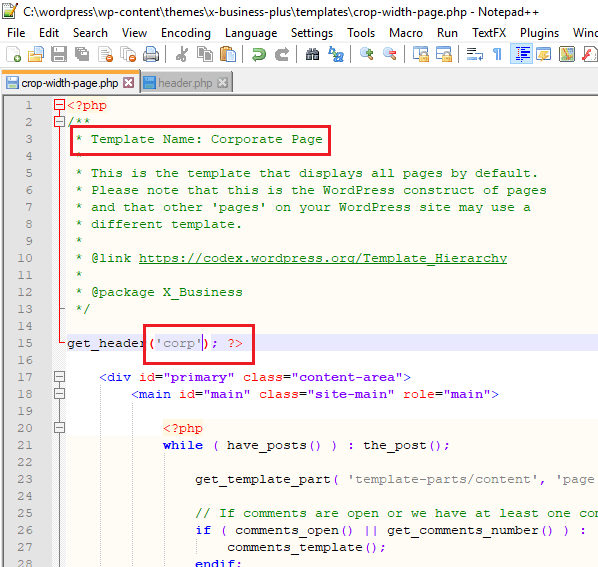
Following instructions about how to copy a template to new one, I copied the full-width-page.php to a new PHP file called corp-width-page.php & changed the name of the template within the newly created template file.
Although it looks like another comment, Template Name: is the string that WordPress reads to populate the available templates for the page. Notice the get_header(‘corp’) call within the 1st PHP block. I will come to that later. Once after the new template created, I copied the existing header.php to “header-corp.php” (This is in reference to the guidelines I obtained from WordPress developer document, that I mentioned earlier in this post)
Whatever string you will add after “header-” will be read by the template for the header part & that is the real hack. So in our case “corp” string forces the get_header() function to look for a header file named “header-corp.php” and if found, loads it, else loads the default header.php file!
Once after creating the new header-corp.php file, I started commenting do_action calls one after another until I came to the intended result…”hide the header on chosen pages”
So here is how it works. Open the page that you don’t want to see the theme header, change the page template to your newly defined template name. My case “Corporate Page” (Use WordPress’s “Edit” to make this change, which is neat and less confusing than a professional editor like Elementor)
Update the page. My new template is already calling ‘corp’ header page through get_header() function call, which has limited actions to suite the requirements.
One major issue I had with such a hack was, the header section was having the site’s primary menu. By not displaying the header, we lost access to the menu. So I had to add a navigation menu with every page that didn’t show the header. Easily doable with “Elementor” and navigation menu element.
Beside the thrill of another “hack”, I am eager to know how these hacks will affect the site when the theme is updated by the developer in the future. So to save some frustration, I have made a copy of everything that I copied and altered and kept in a safe place…who knows that would be waiting for me :)
Oracle keeps on updating APEX and ORDS on regular basis and I thought of compiling one document that I can refer when I forget things when I do a fresh installation. Hence, I have changed the title of the post & will try to update the same thread with newer version installation tips as and when I try them out. This time we are going to see how APEX 23.2 is installed along with ORDS 23.4 on Oracle database 19c(19.21.0.0.0).
Please make sure that you have either JDK 11 or JDK 17 already installed. ORDS will not work with JDK versions prior that.
Oracle APEX 23.2 with ORDS 23.4 on Windows
Download Software. Usually for the lab, I always download the latest version. You must know, every new version might come with bugs that are yet to surface. So, make sure that for your PRODUCTION environment, will always choose the version that is safe. You can download APEX from this link https://www.oracle.com/tools/downloads/apex-downloads/
I am using Oracle 19c database for multi-tenant purposes & this installation will be targeting an existing PDB.
Let us quickly cross verify that there is no APEX already installed on it. I did the installation few minutes back, hence it shows the APEX as installed.
If you see such information, you should remove the existing version to install the latest version. We will consider that the PDB doesn’t have APEX installed to continue.
--Switch to the APEX installation path
cd D:/apex-latest/apex
sqlplus / as sysdba
--switch to the PDB
alter session set container="SCT"; --your target PDB
--Create a new TABLESPACE
CREATE TABLESPACE APEX DATAFILE 'D:\ORACLE\ORADATA\19C\SCTCDB\SCT\APEX01.DB' SIZE 1G;
--Go ahead with the installation
@apexins APEX APEX TEMP /i/
Trust me, this takes a while. Once the installation completes without errors, you will get some summary information like below
Thank you for installing Oracle APEX 23.2.0

Oracle APEX is installed in the APEX_230200 schema.

The structure of the link to the Oracle APEX administration services is as follows:
http://host:port/ords/apex_admin

The structure of the link to the Oracle APEX development interface is as follows:
http://host:port/ords


timing for: Phase 3 (Switch)
Elapsed:    0.20


timing for: Complete Installation
Elapsed:    5.03
Now we need to setup the APEX ADMIN account. From the same Oracle session, execute the “apxchpwd.sql”. Please note, the password must be complex and having one punctuation character (!”`’#$%&()[]{},.*+-/|\:;?_~). After a successful creation of ADMIN account, don’t forget to change the password & unlock user APEX_PUBLIC_USER. Refer the installation document to understand the password policies, expiry etc. My database instance is configured to accept non case sensitive password and password expiry is disabled for the profile DEFAULT. Please make sure that you cross verify these settings to avoid PRODUCTION issues.
Now we have to complete the REST configuration before installing ORDS. From the same Oracle session execute the file “apex_rest_config.sql”. Use the same password for all accounts as long as your are not configuring for PRODUCTION.
Once extracted to default path, the folder should look like the below image
We will start with setting up a folder for ORDS configurations. Unlike APEX, I chose a new path altogether for ORDS, like D:\ORDS and the configuration path was set as D:\ORDS\config. In addition to config, I have a folder called logs and a copy of apex/images also in the same root.
You can avoid copying the Apex images to ORDS folder, instead point to the apex\images path while setting up ORDS. This could save some storage.
Apex/images is required for accessing the APEX infra through ORDS HTTP or HTTPS, as you WILL set it up later. For our lab, we will be setting up HTTP & the installation method will be interactive.
Before starting the ORDS installation, let us grant SYSDBA privileges to SYSTEM. Over a PRODUCTION instance, please remove the unnecessary privileges from users once after setup completes.
sqlplus / as sysdba
SQL> grant sysdba to system container=all;
Now we have to provide additional privileges to user SYSTEM, the account that we will use for the installation, setup and de-installation of ORDS from the database.
ORDS: Release 23.4 Production on Thu Dec 21 08:26:31 2023
Copyright (c) 2010, 2023, Oracle.
Configuration: /D:/ORDS/config/
The configuration folder D:\ORDS\config does not contain any configuration files.
Oracle REST Data Services - Interactive Install
Enter a number to select the type of installation [1] Install or upgrade ORDS in the database only [2] Create or update a database pool and install/upgrade ORDS in the database [3] Create or update a database pool only Choose [2]: Enter a number to select the database connection type to use [1] Basic (host name, port, service name) [2] TNS (TNS alias, TNS directory) [3] Custom database URL Choose [1]: Enter the database host name [localhost]: Enter the database listen port [1521]: Enter the database service name [orcl]: SCT Provide database user name with administrator privileges. Enter the administrator username: system Enter the database password for system: Connecting to database user: system url: jdbc:oracle:thin:@//localhost:1521/SCT
Retrieving information. Enter the default tablespace for ORDS_METADATA and ORDS_PUBLIC_USER [SYSAUX]: APEX Enter the temporary tablespace for ORDS_METADATA and ORDS_PUBLIC_USER [TEMP]: Enter a number to select additional feature(s) to enable: [1] Database Actions (Enables all features) [2] REST Enabled SQL and Database API [3] REST Enabled SQL [4] Database API [5] None Choose [1]: Enter a number to configure and start ORDS in standalone mode [1] Configure and start ORDS in standalone mode [2] Skip Choose [1]: Enter a number to select the protocol [1] HTTP [2] HTTPS Choose [1]: Enter the HTTP port [8080]: Enter the APEX static resources location: D:/ORDS/images
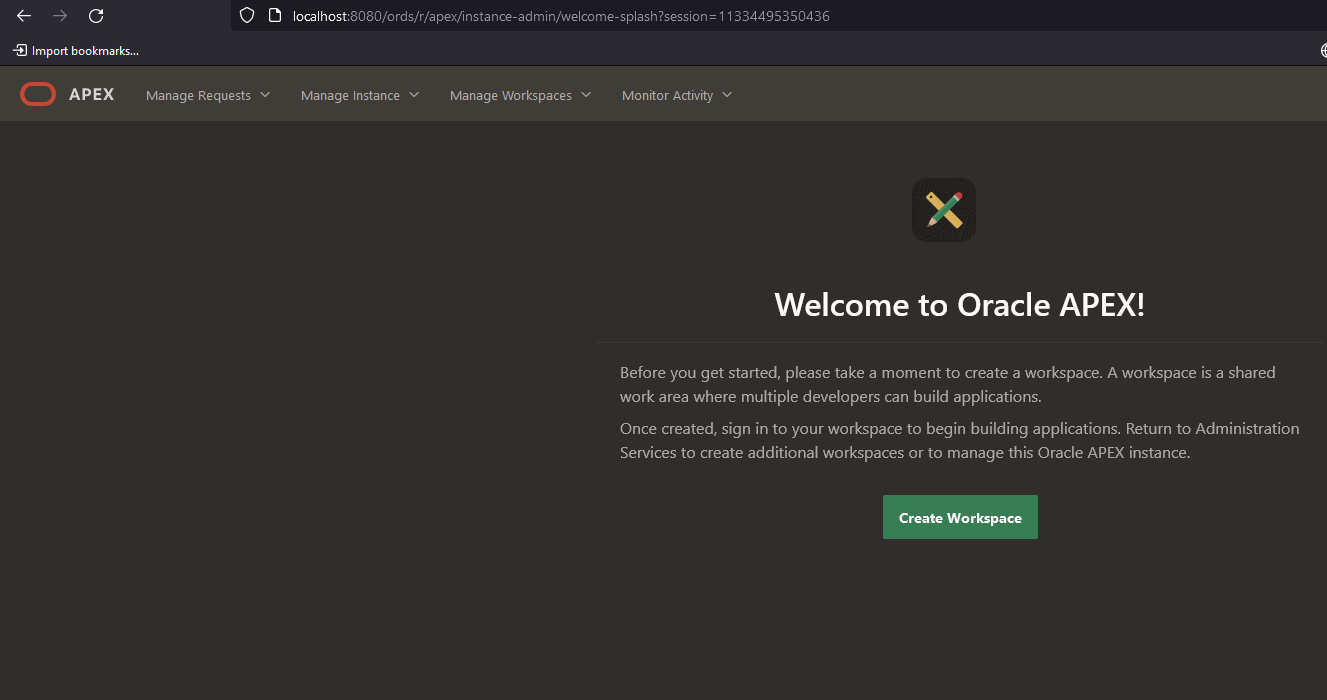
If everything goes in our favor, the config session should bring up the ORDS standalone instance. Please don’t close the command prompt forcefully. You need to leave it alone for accessing the APEX now.
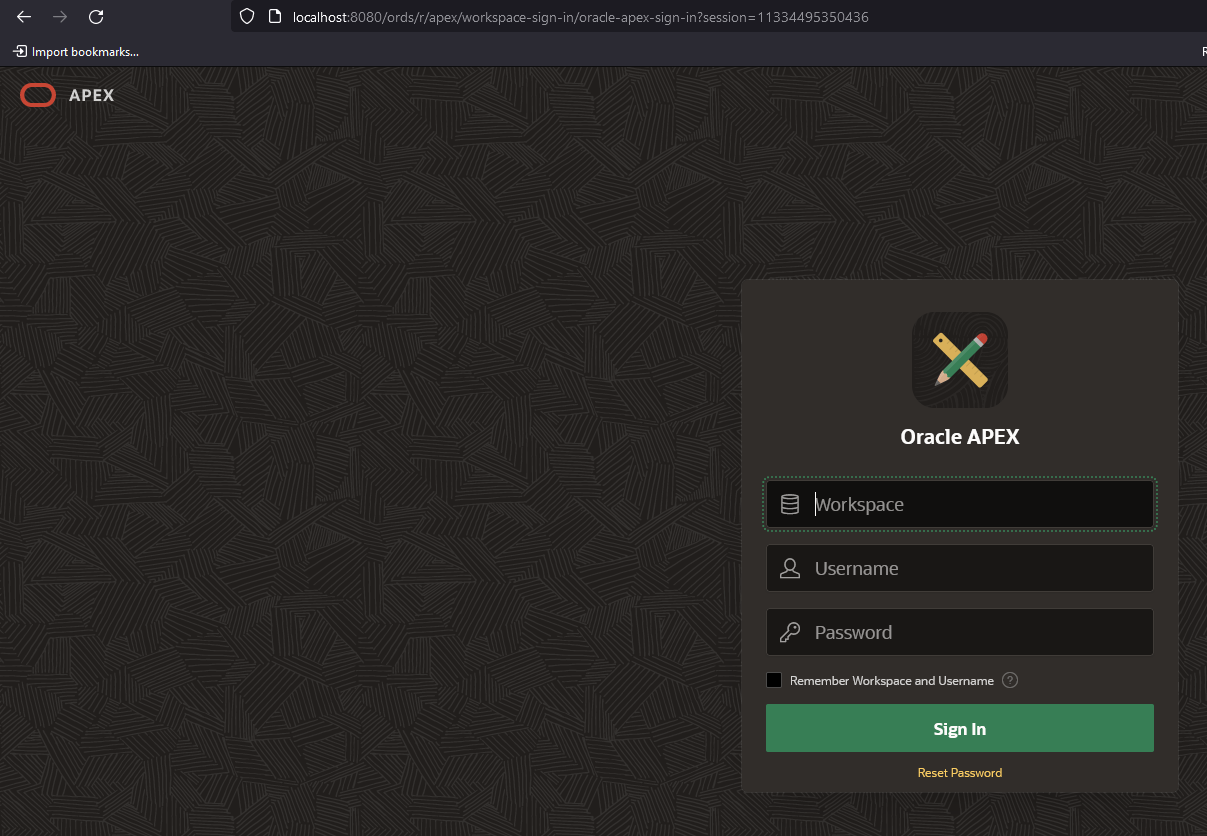
If you used APEX before, you already know the ADMIN login parameters. Enter “INTERNAL” for Workspace, ADMIN (if you didn’t change the default ADMIN name) for Username and the password you have configured while setting up APEX Admin account.
That’s all folks. I will try to cover using Apache/Tomcat for ORDS at a later time. I managed to get ORDS installed in my 4th attempt as I overlooked executing “ords_installer_privileges.sql”, which is mentioned as mandatory in the installation instructions document! For any reasons, if the ORDS fails to install, don’t panic, just uninstall it. Let us see how we could uninstall ORDS after a failed installation.
ORDS: Release 23.4 Production on Thu Dec 21 08:17:21 2023
Copyright (c) 2010, 2023, Oracle.
Configuration: /D:/ORDS/config/
Oracle REST Data Services - Interactive Uninstall
Enter a number to select the database pool to use or specify the database connection [1] default jdbc:oracle:thin:@//localhost:1521/SCT [2] Specify the database connection Choose [1]: Provide database user name with administrator privileges. Enter the administrator username: system Enter the database password for system: Connecting to database user: system url: jdbc:oracle:thin:@//localhost:1521/SCT
Retrieving information. Cannot create or write to the log folder in the current working directory: /D:/ords-latest/bin/logs. Logging will be displayed on the console. Uninstalling Oracle REST Data Services in SCT ------------------------------------------------------------ Date : 21 Dec 2023 08:17:30 Release : Oracle REST Data Services 23.4.0.r3461619 Type : ORDS Uninstall Database : Oracle Database 19c Enterprise Edition DB Version : 19.21.0.0.0 ------------------------------------------------------------ Container Name: SCT ------------------------------------------------------------
[*** script: ords_alter_session_script.sql]
PL/SQL procedure successfully completed.
[*** script: ords_uninstall.sql]
PL/SQL procedure successfully completed.
****************************************************** * INFO: REMOVING Oracle REST Data Services ******************************************************
PL/SQL procedure successfully completed.
PL/SQL procedure successfully completed.
PL/SQL procedure successfully completed.
drop user ORDS_METADATA drop user ORDS_PUBLIC_USER
Completed uninstall for Oracle REST Data Services. Elapsed time: 00:00:01.456
[*** Info: Completed uninstall for Oracle REST Data Services. Elapsed time: 00:00:01.456 ]
Once after uninstall finishes, delete all folders created by the installation process from config folder. Ie, in the example “D:\ORDS\config”. After this, you can try to reinstall ORDS once again.
Troubleshooting
I started getting the below error once after I uninstalled and re-installed APEX after a bundle update attempt. “ORDS was unable to make a connection to the database. ORDS is not able to proxy to the target user because that user is locked. The connection pool named: |default|lo| had the following error(s): ORA-28000: The account is locked”
As we are discussing the unexpected error, let us see the main APEX database accounts now.
We must insure that accounts APEX_LISTENER, APEX_PUBLIC_USER, APEX_REST_PUBLIC_USER are open for APEX to work properly & APEX_230200 locked, that is by design.
Try to access APEX again and there shouldn’t be any issues.
Let us see how Oracle APEX (Which will eventually replace Oracle FORMS (regardless whether you like that fact or not) for small to medium applications) could be installed on your Windows 10/Server this time.
We’ll be trying the latest version of ORACLE APEX 18.2 & Windows 10 Pro running the latest version 1809 (as on date, fully patched) and Oracle database 11g R2 (11.2.0.4). Oracle depends upon VC++ components loads, so make sure your Windows box is fully patched.
Step #1
Download Oracle APEX installer from APEX repository. Please note, for APEX 18.x, you MUST have 11G R2 11.2.0.4 or later database. 11g R2 11.2.0.4 is only available for customers with valid support, hence if you are a student, freelancer, you best bet is 12c database, that is still freely available to download.
Step #2
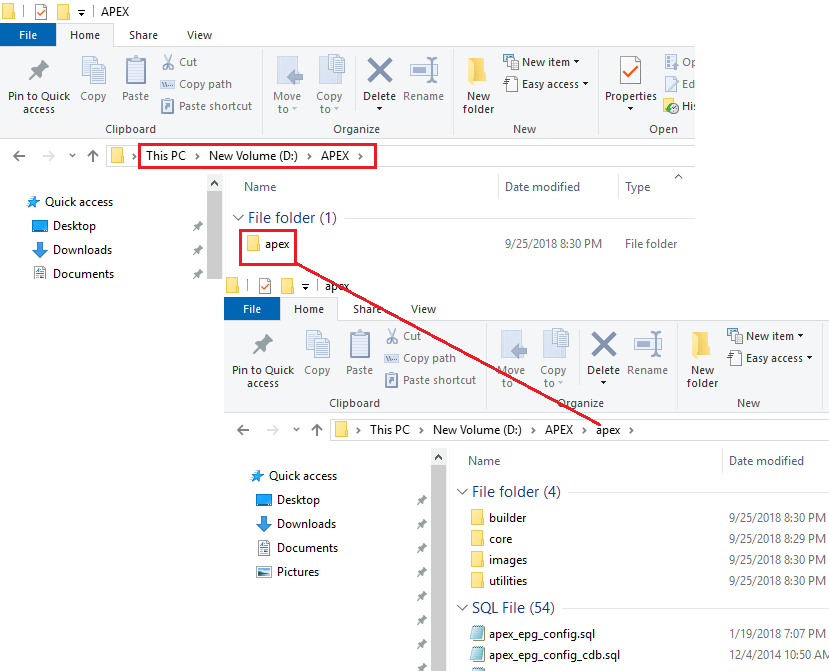
Unzip the downloaded .zip file to a finely structured directory. For example, you can extract the zip file to D:\APEX, that will create another “apex” folder within “D:\APEX\”. Check the attached image
I usually keep all the Oracle Installers under a single folder, called “D:\Oracle_Installers”. So basically the rest of the instructions, I will be using the same directory structure. Please don’t get confused.
Step #3
Switch to the apex folder from an elevated command prompt, in my case to “D:\Oracle_Installers\apex_18.2\apex”. Source the database environment (eg: SET ORACLE_SID=ORCL) in case if you have multiple Oracle products installed in the same box
Step #4
Start SQLPLUS as sysdba
A default installation of 11g R2 installs APEX, which you should remove at this stage. If you are too eager to know which version is installed, you my run the following query
select version from dba_registry where comp_id='APEX';
If you haven’t removed the APEX installation, it should return you a row with installed version information of APEX
You should remove the existing APEX prior installing the 18.x version(s). To remove the installed version, please execute as following
@apxremov.sql
Wait for the uninstallation to complete, exit SQL and start SQLPLUS once again as sysdba (Mandatory)
Now we can start the installation of APEX 18.x. Prior starting the installation let us create a dedicated tablespace for APEX.
@apexins APEX APEX TEMP /i/

(Note the forward slash "/")
Wait for the installation to finish. My box has a SSD, hence the installation completes in few minutes time (3-5 minutes I believe). It may take bit more time, depending upon the hardware resources available.
Once the installation completes successfully, we have to configure the APEX. To configure execute “apex_epg_config.sql” that is available in the current path. Please note, here is the catch, as with the installation, Oracle expects forward slashes around the parent folder where you have the image files. So, I have extracted the installation files to “D:\Oracle_Installers\apex_18.2\” & this is the PARENT directory for apex installer. Hence we will call the EPG script as below (correct your path appropriately)
@apex_epg_config.sql D:/Oracle_Installers/apex_18.2/

(Note all back slashes are replaced with forward slashes)
Once the script finally exists after successfully copying the image files to APEX repositories, you need to unlock the following Oracle database schemas
ALTER USER anonymous ACCOUNT UNLOCK;
ALTER USER xdb ACCOUNT UNLOCK;
ALTER USER apex_public_user ACCOUNT UNLOCK;
ALTER USER flows_files ACCOUNT UNLOCK;
Now, go ahead with the last configuration by executing
@apxconf.sql
This script will ask for ADMIN user details, Select ADMIN as admin user and provide an email address. Please note, you must provide a punctuation symbol for the password and allowed punctuations are as below
(!"#$%&()``*+,-/:;?_).
That’s all folks. If there are no errors, you are all good to go. You may need to configure your database server for better performances, which we will discuss bit later.
Now try to access the APEX installation. Unless you have changed the ports, you should able to access the portal by visiting http://localhost:8080/apex/apex_admin